Can You Hook Headphones Up to a TV Easily and Safely

Yes, you can hook headphones up to a TV, but the easiest method depends on whether your TV has a headphone jack, Bluetooth, or needs an adapter. Wired connections are usually the simplest, while Bluetooth and transmitters are better when you want more freedom.
Yes, you can hook headphones up to a TV in many cases, and the easiest method depends on your TV model and the type of headphones you own. In 2025, most setups fall into one of four buckets: wired, Bluetooth, optical, or an external adapter/transmitter.
- Best simple option: Use the TV’s built-in headphone jack if it has one.
- Best wireless option: Use TV Bluetooth or a low-latency transmitter.
- Best for gaming: Choose a setup with minimal audio delay.
- Best for long sessions: Pick comfortable closed-back headphones with solid battery life.
- Best safety habit: Keep volume moderate and protect your hearing.
Can You Hook Headphones Up to a TV? Quick Answer and What It Means in 2025
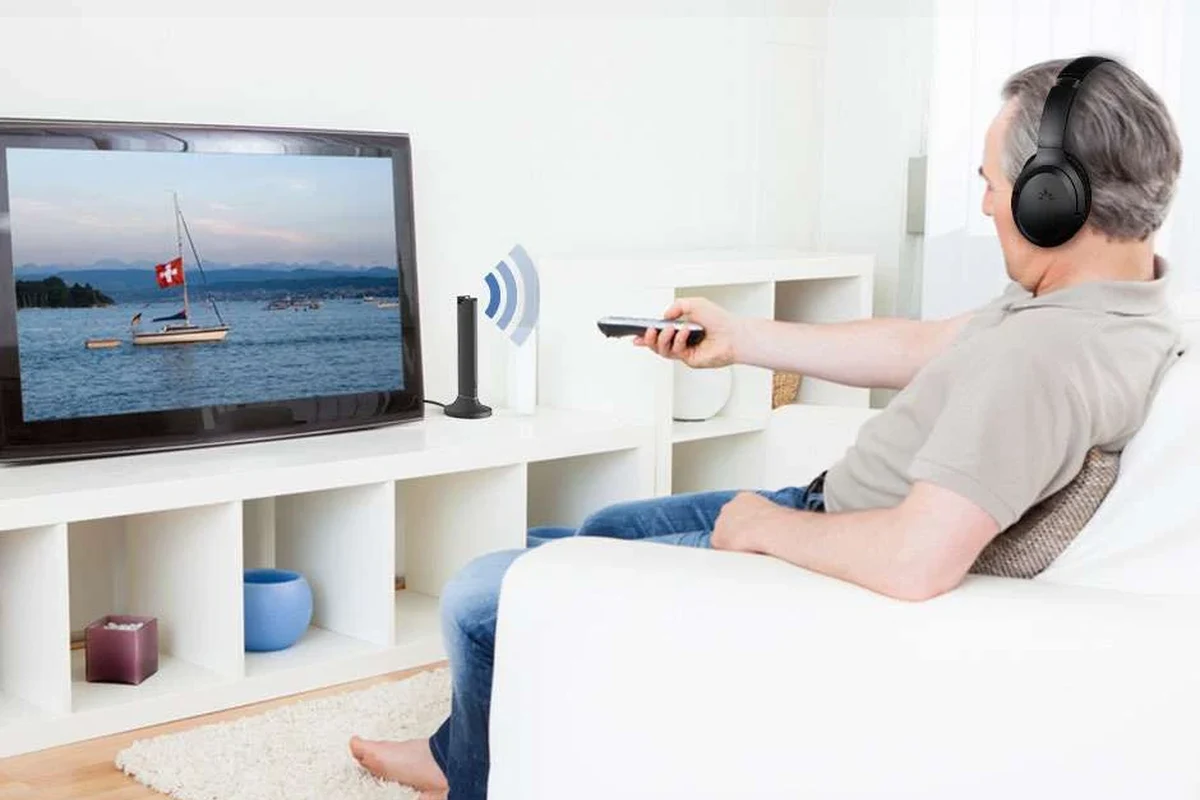
The short answer is yes, but not every TV handles headphone output the same way. Some TVs have a built-in headphone jack or Bluetooth audio, while older models may need a transmitter or adapter to send sound to your headphones.
For most readers, the real question is not whether it is possible, but which method gives the best mix of comfort, sound quality, and low delay. If you want a simple overview of how headphone connections work across devices, our guide on Bluetooth headphones explained simply can help make the basics easier to follow.
Why People Connect Headphones to TVs: Gaming, Late-Night Viewing, and Better Privacy
People hook headphones up to a TV for a few common reasons. Late-night movie watching is a big one, especially when you do not want to wake anyone else in the room.
Gamers also benefit from TV headphones because they can hear dialogue, footsteps, and effects more clearly without relying on room speakers. In shared living spaces, headphones also give you more privacy and better control over your listening level.
Some TVs lower speaker output automatically when headphones are connected, while others let you use both at once. That behavior depends on the brand and model.
Ways to Hook Headphones Up to a TV: Wired, Bluetooth, Optical, and TV-Specific Options
There is no single best method for every TV. The right choice depends on whether your TV has a headphone jack, Bluetooth audio output, optical audio, or support for a USB or smart-TV audio feature.
Note
Compatibility can vary by TV brand, model year, and firmware. Always check your TV’s audio output settings before buying extra accessories.
Using the TV’s 3.5mm headphone jack
If your TV has a 3.5mm headphone jack, this is usually the simplest option. You plug in wired headphones directly, and the TV sends audio straight to them.
This method is easy, low-cost, and typically has no noticeable wireless lag. The main downside is cable length and the fact that some newer TVs no longer include this port.
Connecting through Bluetooth built into the TV
Many smart TVs now support Bluetooth audio output, which lets you pair wireless headphones directly. This is convenient because you do not need extra hardware if the TV supports it properly.
Bluetooth can be great for movies and casual viewing, but latency may still matter for gaming or fast lip-sync scenes. If you want a deeper look at pairing steps, see our guide on how to connect Bluetooth headphones.
Using a Bluetooth transmitter for older TVs
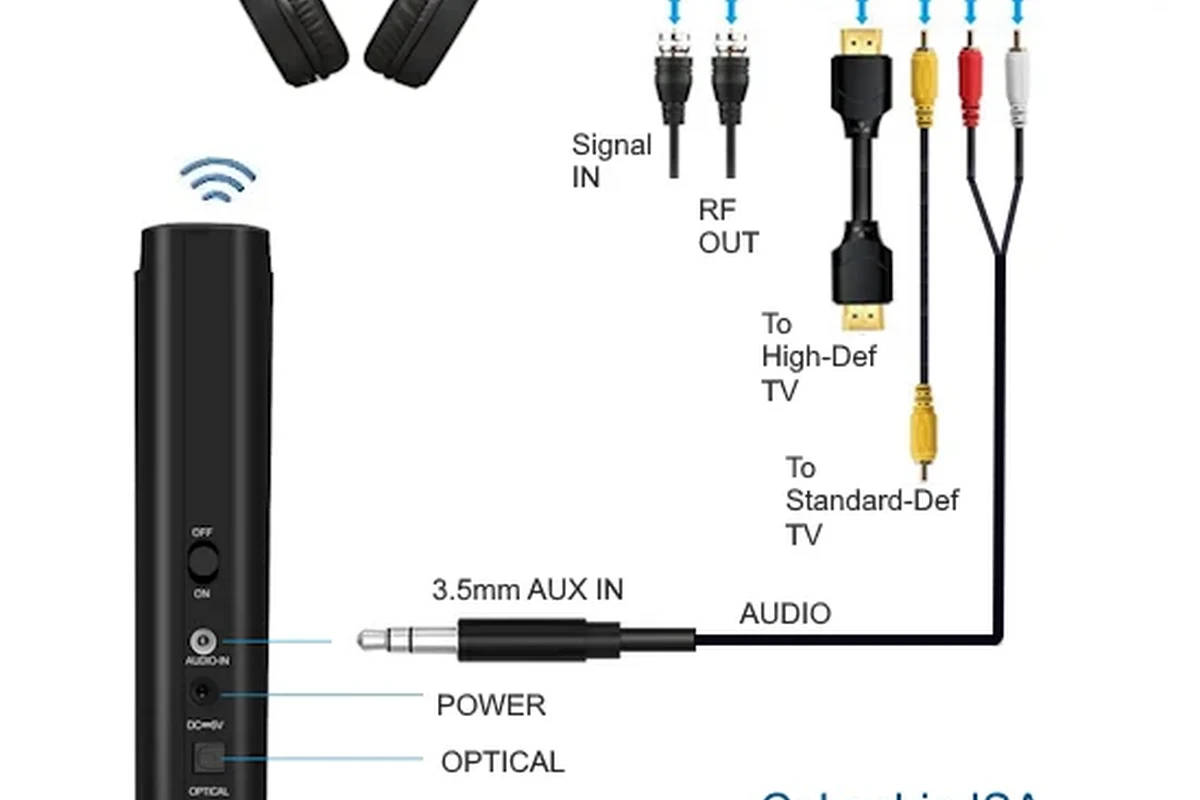
If your TV does not have Bluetooth, a Bluetooth transmitter can add wireless headphone support. These small devices usually connect through a headphone jack, RCA output, or optical audio port, depending on the model.
This is often the best fix for older TVs, but the quality of the transmitter matters. Some models handle delay better than others, so it is worth checking whether the transmitter is designed for low-latency audio.
Using optical audio adapters and DACs
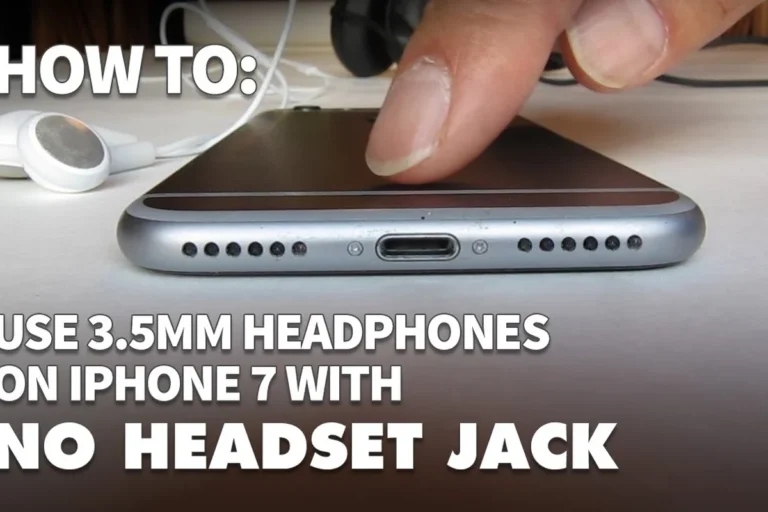
Optical audio can be useful when a TV lacks a headphone jack but includes a digital audio output. In that case, an optical adapter or DAC can convert the signal into something your headphones or transmitter can use.
This route is more technical than a simple wired plug-in, but it can preserve sound quality well. It is especially helpful when you want a cleaner signal path for a higher-quality headphone setup.
Connecting through USB or smart TV audio features
Some smart TVs support USB audio devices, companion apps, or special hearing modes that reroute sound to headphones. These features are less universal, but they can be very convenient when supported.
Because USB and app-based audio features vary so much, always confirm that the TV actually supports headphone output through that port before assuming it will work. A quick check in the TV manual can save a lot of frustration.
What Headphones Work Best with TVs: Wired vs Wireless vs Gaming Headsets
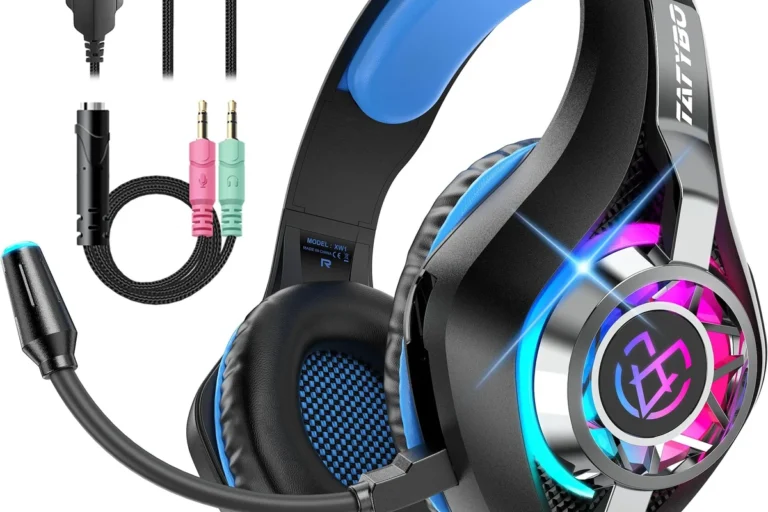
Not every headphone type is equally good for TV use. Wired headphones are simple and reliable, wireless headphones are more flexible, and gaming headsets can be excellent if you also want a microphone or low-delay monitoring.
- Wired headphones are easy to set up
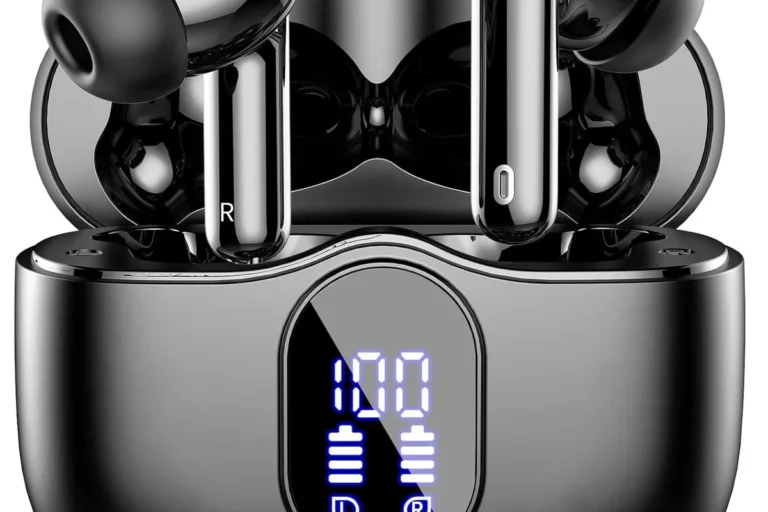
- Wireless headphones remove cable clutter
- Gaming headsets can add chat and mic support
- Wired models limit movement
- Wireless models may add delay
- Some headsets are less comfortable for long movies
Latency concerns for gaming and lip-sync
Latency is one of the biggest reasons people choose one connection method over another. If the sound arrives too late, dialogue can look slightly out of sync, and game audio can feel less responsive.
For gaming, wired connections usually offer the most predictable timing. Wireless setups can still work well, but low-latency transmitters and compatible Bluetooth codecs matter more than many buyers expect.
Comfort and battery life for long movie sessions
If you watch long movies or binge series, comfort matters just as much as sound quality. Over-ear headphones usually feel better for extended sessions because they spread pressure more evenly than many on-ear models.
Battery life is also important if you plan to use wireless headphones regularly. A dead battery in the middle of a movie is annoying, so long runtime or the ability to charge while listening can be a real advantage.
Closed-back vs open-back for shared living rooms
Closed-back headphones are usually the better choice for TV use in shared rooms because they keep sound from leaking out as much. They also help block outside noise, which can make dialogue easier to hear.
Open-back headphones can sound more spacious, but they leak sound and do not isolate well. For most living-room setups, closed-back models are the safer and more practical pick.
Step-by-Step Setup Examples for Common TV Setups
Once you know your TV’s output options, the setup process is usually straightforward. The key is matching the headphone type to the available connection instead of forcing an adapter chain that adds confusion.
Modern smart TV with Bluetooth headphones
Go to the sound or audio menu and look for Bluetooth or wireless audio output.
Follow the headphone’s pairing steps so the TV can detect them.
Play a show or game and check whether the audio feels delayed or too quiet.
Older TV without Bluetooth using a transmitter
Use the TV’s headphone jack, optical port, or RCA output based on what the transmitter supports.
Plug it in, turn it on, and pair it with your Bluetooth headphones.
Check whether the TV needs a setting change for external speakers or optical output.
Gaming console setup for TV audio and headset use
If you play on a console connected to the TV, you may have a few audio routes available. Some people send sound through the TV first, while others connect the headset directly to the controller or console.
The best choice depends on whether you prioritize voice chat, low delay, or convenience. For many gamers, direct connection is easiest, but TV-based headphone output can still work well if the audio path is stable.
Common Mistakes to Avoid When Connecting Headphones to a TV
Most headphone-to-TV problems come from a few predictable mistakes. A little checking up front can prevent bad sound, missing audio, or frustrating delay.
Assuming every TV supports Bluetooth audio output
One common mistake is assuming that every smart TV can send audio to Bluetooth headphones. Some TVs support Bluetooth only for remotes, keyboards, or speakers, not for headphone output.
Always confirm that the TV supports audio output over Bluetooth before you buy wireless headphones for that purpose alone.
Ignoring audio delay and unsupported codecs
Latency can be subtle at first, but it becomes obvious during dialogue or fast game action. If the TV or transmitter does not support a low-delay mode, the experience can feel off even if the headphones sound good.
Codec support also varies. Not every TV or transmitter handles the same wireless audio formats, so compatibility can affect both sync and sound quality.
Using the wrong port or adapter
It is easy to plug into the wrong output and get no sound at all. For example, some ports are audio outputs while others are inputs, and the labels are not always beginner-friendly.
If you are unsure, check the TV manual or the on-screen setup guide before buying an adapter. That is often faster than guessing.
Overlooking volume control and hearing safety
Headphones can make TV audio feel more private and detailed, which can tempt people to turn the volume up too far. That is especially risky during action scenes or late-night viewing when you may not notice how loud it has become.
Listening at high volumes for long periods can cause hearing damage. Keep volume at 60% or below for extended sessions.
If you notice ringing, discomfort, or worsening hearing after regular headphone use, consult an audiologist or hearing professional. Safe listening habits matter more than any audio upgrade.
Cost, Convenience, and Sound Quality: Which TV Headphone Method Is Best?
The best method depends on your budget and how often you plan to use headphones with the TV. A simple wired connection is usually the cheapest and most dependable, while transmitters and adapters add convenience and flexibility.
Budget vs mid-range vs premium setup comparison
Budget setups usually involve wired headphones or a basic adapter if your TV already has the right output. Mid-range setups often include a Bluetooth transmitter or a better wireless headset.
Premium setups may use a higher-quality transmitter, a DAC, or headphones with stronger comfort and lower latency. Pricing varies by brand and feature set, so it is better to compare use case than chase the most expensive option.
When a simple wired connection is enough
If your TV already has a headphone jack, wired headphones are often all you need. This is especially true for casual viewing, guest rooms, or anyone who wants the fewest possible setup steps.
Wired is also the safest choice if you want to avoid pairing issues, battery charging, and wireless delay.
When to invest in a transmitter or dedicated adapter
A transmitter or adapter makes sense when your TV lacks the output you need, or when you want more freedom to move around the room. It is also worth considering if you want to use wireless headphones with an older television.
If you care about gaming or lip-sync, choose carefully and look for low-latency support when possible. That small detail can make a big difference in everyday use.
- Use the TV’s built-in headphone jack if it has one.
- Choose Bluetooth only if the TV supports audio output well.
- Use a transmitter or adapter for older TVs without wireless audio.
- Match the headphone type to your main use: gaming, movies, or privacy.
Final Recap: The Easiest and Safest Way to Hook Headphones Up to a TV
So, can you hook headphones up to a TV? Yes, and in many cases it is very easy if your TV has a headphone jack or built-in Bluetooth audio. If not, a transmitter, DAC, or adapter can usually fill the gap.
The safest and simplest route is the one that fits your TV’s actual outputs, keeps audio delay low, and lets you listen at a comfortable volume. For most people, that means starting with the TV’s native audio options first, then adding gear only if needed.
If you are also comparing headphone styles for other devices, it can help to understand how different models behave across platforms, such as in our guides on wired headphones on MacBook and noise cancelling headphones. The same basic idea applies: choose the connection that best matches your device and listening habits.
Frequently Asked Questions
Wired headphones are usually simpler and more reliable for TV use. Wireless headphones are more convenient, but they can add delay depending on the TV and transmitter.
Yes, noise cancelling headphones can work very well with TVs, especially in noisy homes. They may improve dialogue clarity, but comfort and latency still matter.
Closed-back headphones are usually better for TV because they reduce sound leakage and help block room noise. Open-back models can sound more spacious, but they are less private in shared spaces.
Check the TV’s audio outputs, Bluetooth support, latency, comfort, and battery life if the headphones are wireless. It also helps to confirm whether you need a transmitter, adapter, or direct wired connection.
Over-ear headphones are often more comfortable for long sessions because they spread pressure over a larger area. On-ear and in-ear styles can work well too, but fit and ear shape make a big difference.
Start by checking the TV audio settings, then adjust EQ if your headphones or TV support it. Clean audio output, good fit, and the right connection type often matter more than chasing extreme specs.