How to Update Beats Headphones Fast and Easily

To update Beats headphones, keep them charged, paired, and near a compatible phone or computer, then let the firmware update happen automatically. If it does not start, check Bluetooth, app updates, and battery level before trying a reset.
If you want to know how to update Beats headphones, the process is usually simple: keep them charged, connect them to a compatible device, and let the firmware update happen in the background. In most cases, Beats updates are automatic rather than manual, so the key is making sure your headphones have the right app, pairing, and power conditions.
- Automatic first: Most Beats firmware updates happen in the background.
- Charge matters: Low battery is a common update failure.
- App support: Android users should use the Beats app when available.
- Check version: Confirm the firmware number after updating.
- Reset carefully: Only reset if pairing or update issues persist.
How to Update Beats Headphones: What This Guide Covers in 2026
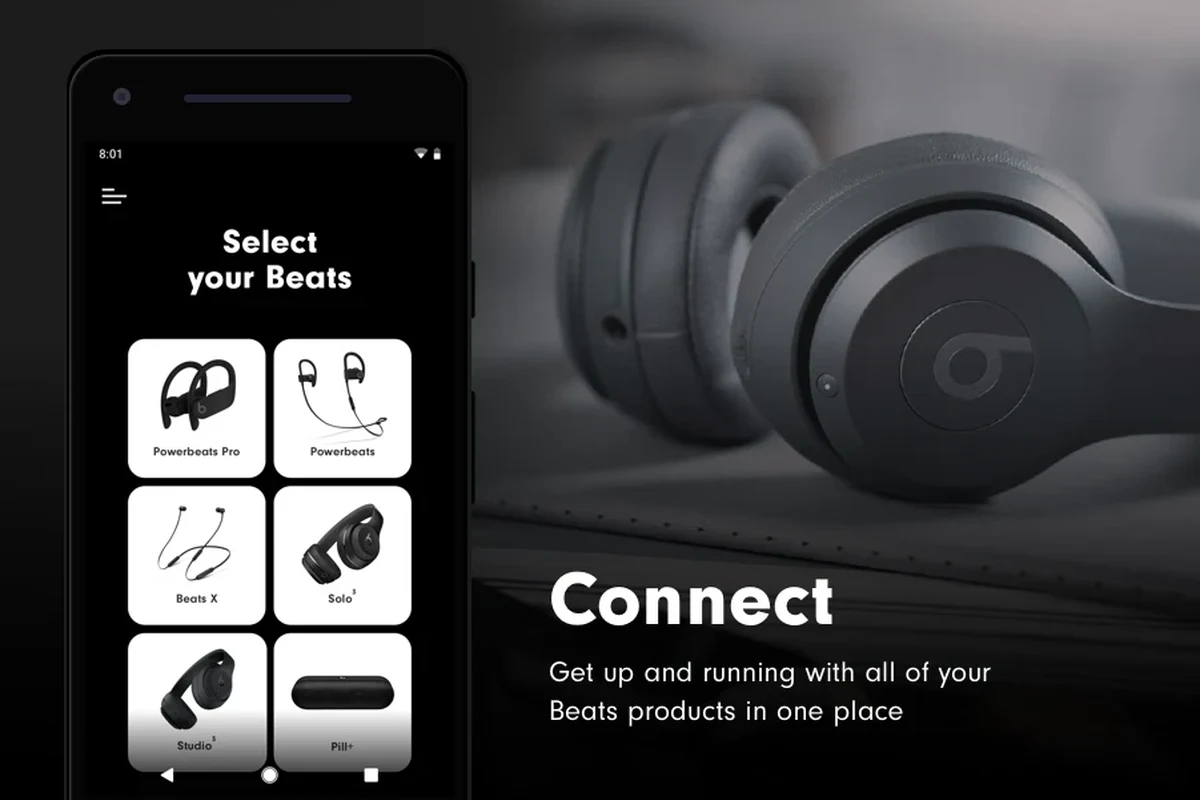
This guide explains the easiest ways to update Beats headphones in 2026, whether you use iPhone, iPad, Android, Mac, or Windows. It also covers how to check your firmware, what to do if an update stalls, and how to avoid common mistakes that can interrupt the process.
Beats firmware updates are worth understanding because they can affect connection stability, feature support, and overall reliability. If you also use your headphones with Apple devices, it helps to know how your gear interacts with the broader ecosystem, including articles like does the iPhone come with headphones and how Apple headphones work with Android.
Why Updating Beats Headphones Matters for Sound, Stability, and Battery Life

Firmware updates can improve how your Beats headphones connect, switch between devices, and handle app features. They may also fix bugs that affect sound, microphone behavior, or battery reporting, though results can vary by model and software version.
In practical terms, an update can help your headphones feel more dependable day to day. That matters whether you use them for commuting, calls, casual listening, or workouts, because even small connection improvements can make the experience smoother.
Listening at high volumes for long periods can cause hearing damage. Keep volume at 60% or below for extended sessions.
Before You Start: Check Your Beats Model and Current Firmware Version
Before you try to update, identify your exact Beats model. Some Beats headphones and earbuds support automatic updates through Apple or Beats software, while older models may have fewer update options.
It also helps to confirm your current firmware version so you can tell whether an update actually installed. The version check process depends on the device you use, but it is usually found in Bluetooth settings or the Beats app.
Which Beats Models Can Be Updated Automatically
Most modern wireless Beats models can update automatically when they are paired, charged, and near a compatible device with internet access. That includes many current headphones and earbuds designed to work with Apple’s ecosystem or the Beats app on Android.
Wired headphones do not usually receive firmware updates, because firmware is generally tied to Bluetooth-based wireless hardware. If your model does not support wireless pairing, there may be nothing to update.
Beats firmware support can vary by model, region, and software platform. If you are unsure, check the official Beats app or your device’s Bluetooth settings.
What You Need Ready: iPhone, Android, Mac, or Windows
For the smoothest update, you will want a charged pair of Beats headphones, a charged phone or computer, and a stable internet connection. A Bluetooth connection should also be active and close-range, since weak pairing can interrupt the update process.
How to Update Beats Headphones Fast and Easily on iPhone and iPad
On iPhone and iPad, Beats updates are usually handled automatically once the headphones are paired and left near the device. You do not normally tap a manual “update” button the way you might with an app.
That means the easiest method is simply to make sure everything is ready and then wait. If your Beats are supported, the update may install in the background while the headphones charge.
Step-by-Step Update Process for Beats Wireless Models
Put your Beats on charge and make sure your iPhone or iPad has enough battery to stay awake during setup.
Keep Bluetooth enabled on your Apple device and confirm the headphones are paired and connected.
Use a stable internet connection so the device can check for and download any available firmware update.
Keep the Beats close to the iPhone or iPad, and avoid using them heavily while the update installs.
If the update is supported, it often happens without much visible action. In many cases, the best move is simply to keep the headphones connected and give the system time to finish.
How to Confirm the Update Installed Successfully
After waiting a while, check the Beats firmware version in your Bluetooth or device settings. If the version number changed, the update likely installed correctly.
You may also notice better connection behavior, fewer dropouts, or smoother switching between devices. Those changes are not guaranteed, but they can be a sign the firmware is working as intended.
Many headphone firmware updates happen silently in the background, so users often miss the exact moment the update completes.
How to Update Beats Headphones on Android, Mac, and Windows
Android users usually have the most direct control through the Beats app, while Mac and Windows users may need to rely more on pairing behavior and software checks. The exact method depends on the model and the platform you are using.
If you are trying to decide which device to use, think about where your Beats are already paired and where they connect most reliably. For some readers, a computer is convenient; for others, a phone is simpler and faster.
Using the Beats App on Android
On Android, the Beats app is often the easiest way to manage supported models. Once the app is installed, pair your headphones, open the app, and look for firmware information or update prompts.
Make sure the headphones stay charged, nearby, and connected while the app checks for updates. If the app says your Beats are current, you are done.
If your Bluetooth connection is unstable, turn off nearby unused Bluetooth accessories before checking for updates. Less wireless interference can make pairing more reliable.
What to Do When You Only Have a Computer
If you only have a Mac or Windows PC, start by pairing the Beats and checking whether the model appears properly in Bluetooth settings. Some users also rely on companion software or system pairing tools, but update support can vary.
For Windows users, it can help to review general Bluetooth pairing behavior first, especially if the headphones are not showing up correctly. If you need more background on that side of setup, see our guide on how to select headphones in Windows 11.
On Mac, keep the headphones connected and watch for any firmware information in Bluetooth or device settings. If the system does not show an update path, the model may only update through a phone-based app.
Common Update Problems and How to Fix Them
Most update issues come down to power, pairing, or app problems rather than a broken headset. Before assuming the headphones are defective, it is worth checking the basics carefully.
Short troubleshooting steps often solve the issue faster than repeated reconnect attempts. That is especially true if the update seems to be stuck but the headphones were never fully charged or properly paired.
Headphones Not Charging or Not Connecting
If your Beats are not charging, try a different cable, charger, or power source. A weak charging connection can stop the update before it starts.
If they are charging but not connecting, toggle Bluetooth off and back on, then forget and re-pair the device if necessary. A clean pairing can often fix update detection problems.
- Battery level on both headphones and host device
- Bluetooth is enabled and stable
- Charging cable and power source are working
- The Beats app or system software is up to date
Update Stuck, Missing, or Taking Too Long
If the update seems stuck, give it more time before restarting anything. Firmware updates can take longer than expected, especially if the connection is weak or the device is busy with other tasks.
If no update appears, confirm that your model is actually supported and that you are using the correct app or operating system. Sometimes the issue is not the headphones, but the update path.
Why does my Beats update never seem to finish?
Usually the headphones are not charged enough, the Bluetooth link is unstable, or the app is not current. Try a full charge, a fresh pairing, and a stable Wi-Fi connection before retrying.
Resetting Beats Before Trying Again
A reset can help if the headphones are stuck, but it should be used carefully. Resetting can clear temporary pairing problems, yet it is not always necessary for a normal update.
If you do reset, pair the headphones again and retry the update with a fully charged battery. For a deeper reset walk-through, you can also read our guide on how to reset Bluetooth headphones.
Expert Advice: Mistakes to Avoid During a Beats Firmware Update
The most common update mistakes are simple: low battery, poor Bluetooth signal, and outdated companion software. Avoiding those problems will save time and reduce the chance of a failed install.
It also helps to be patient. Forcing multiple reconnects or factory resets too quickly can create more confusion than it solves.
Why Low Battery, Weak Bluetooth, and Outdated Apps Cause Failures
Firmware updates need enough battery to stay active from start to finish. If the headphones or host device drop too low, the update may pause or fail.
Weak Bluetooth or crowded wireless environments can also interrupt the process. If you are updating near lots of devices, move to a quieter space and keep the headphones close to the phone or computer.
If your headphones repeatedly fail to pair, disconnect, or hold a charge after several update attempts, contact the manufacturer or a qualified audio repair specialist. If you notice hearing discomfort, ringing, or pain while testing audio, speak with an audiologist.
When Not to Force a Reconnect or Factory Reset
Do not keep forcing reconnects if the update is already in progress. Interrupting the process can make the system think the headphones are unavailable when they are actually still working.
Also avoid repeated factory resets unless the instructions for your specific model call for one. A reset is useful for stubborn connection problems, but it is not the first solution for every update delay.
Final Recap: The Easiest Way to Keep Beats Headphones Updated in 2026
The easiest way to update Beats headphones in 2026 is to keep them charged, paired, and close to a compatible device with the right app or system settings. In most cases, the firmware update happens automatically, so your job is mainly to prepare the headphones and avoid interrupting the process.
If the update fails, start with battery, Bluetooth, and app checks before trying a reset. That simple approach solves most issues and keeps your Beats ready for better stability, smoother connection behavior, and everyday listening.
Frequently Asked Questions
Wired headphones can avoid Bluetooth compression and latency, while wireless models offer more convenience. Sound quality depends on the model, tuning, and your listening setup.
Noise cancelling uses microphones and processing to reduce outside noise, while passive isolation relies on the earcups or ear tips sealing around your ears. Both can help, but they work in different ways.
Open-back headphones often create a wider, more natural soundstage, but they leak sound and block less noise. Closed-back models usually give better isolation and more privacy.
Driver type, tuning, and frequency response can influence bass and clarity, but specs alone do not tell the whole story. Comfort, fit, and EQ settings also affect what you hear.
For commuting, look for noise cancelling and a secure fit. For gaming or studio work, low latency, comfort, microphone quality, and accurate tuning may matter more.
Check weight, clamp force, ear cushion material, headband padding, and build quality. If you listen for long sessions, comfort matters as much as sound.