How to Pair Bose Headphones to TV Easily and Fast

Pair Bose headphones to a TV by using the TV’s Bluetooth settings first, then switch to a Bluetooth transmitter if the TV does not connect well. If you notice audio lag, a low-latency adapter or wired option is usually the better choice.
If you want to know how to pair Bose headphones to TV, the fastest path is usually Bluetooth on a smart TV or a Bluetooth adapter for older sets. The exact steps depend on your Bose model and whether your TV already supports wireless audio.
- Start simple: Try the TV’s built-in Bluetooth before buying accessories.
- Check latency: Movies may be fine, but gaming and sports need tighter sync.
- Match the setup: Older TVs often work best with a transmitter or adapter.
- Reset if needed: Remove old pairings and reconnect if the TV sees the headphones but fails to.
How to Pair Bose Headphones to TV: What Viewers Need to Know First
Before you start, it helps to know that TV audio is a little different from phone audio. A TV may support Bluetooth, but it may not offer the same smooth pairing experience you get with a smartphone.
That means the easiest setup is not always the best one for every viewer. If you watch sports, play games, or notice dialogue lag, latency matters more than simple connection success.
If your TV has a headphone output, optical output, or Bluetooth menu, check those first before buying any extra gear.
Also, Bose headphones can behave differently depending on the generation, so do not assume every model pairs the same way. A quick compatibility check can save you time and frustration.
Check Your Bose Headphones and TV Compatibility Before You Start
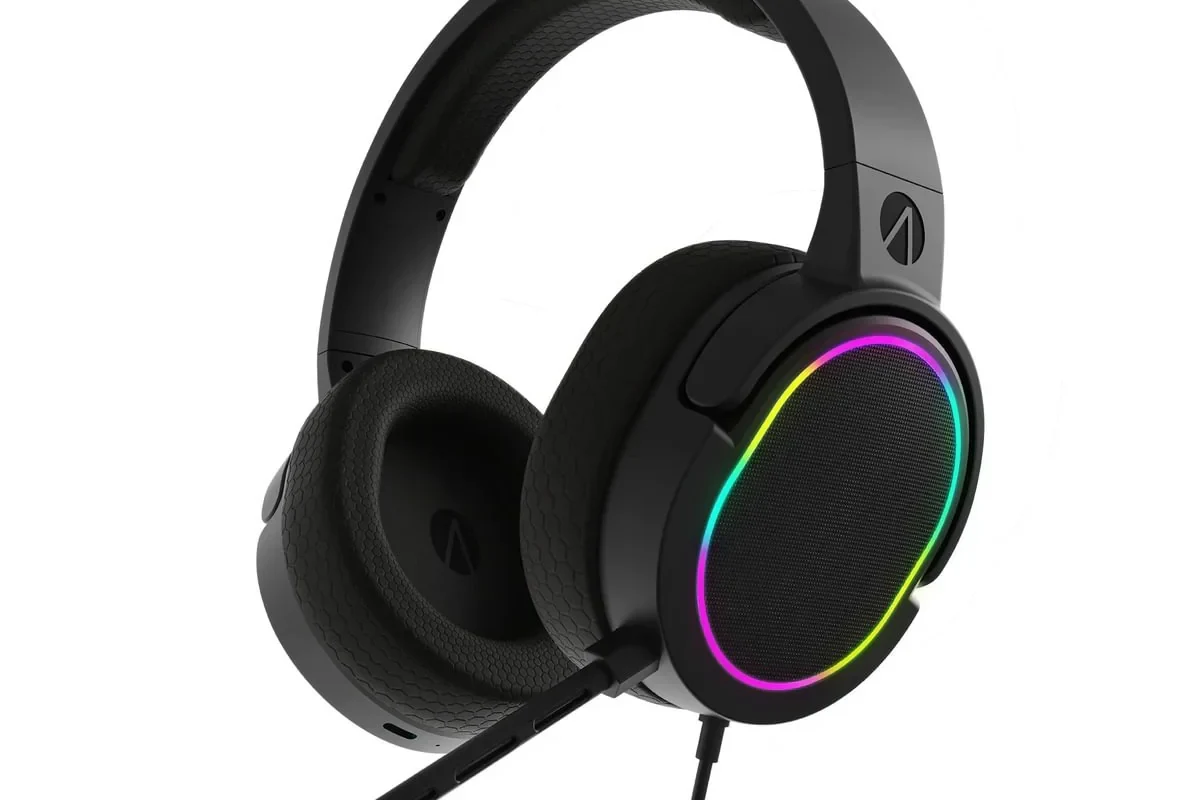
Compatibility is the first thing to confirm because not every Bose headphone model supports the same wireless features. Likewise, not every TV handles Bluetooth audio the same way.
Bose models that support Bluetooth pairing with TVs
Most modern Bose wireless headphones support Bluetooth pairing, including popular QuietComfort and Noise Cancelling lines. In general, if your Bose headphones already pair with a phone or tablet, they may also work with a Bluetooth-capable TV.
Older Bose models may still connect, but they can use different pairing buttons or require a slightly different reset process. If your headphones are from an earlier generation, check the model-specific instructions before assuming the pairing mode is the same.
Model names and pairing behavior can vary, so the exact button combination may differ slightly between Bose generations.
TV types that work best: smart TVs, streaming devices, and older sets
Smart TVs are usually the easiest because many include built-in Bluetooth audio settings. If your TV supports Bluetooth headphones directly, you can often connect without any extra accessory.
Streaming devices and gaming consoles can also help if the TV itself is limited. Older sets may need a transmitter, especially if they only offer optical audio, RCA, or a standard headphone jack.
For readers comparing wireless setups across devices, our guide on how to connect Bluetooth headphones covers the basic Bluetooth process in more detail.
Fast Methods to Pair Bose Headphones to TV in 2026
There are three main ways to do this: direct Bluetooth, a Bluetooth transmitter or adapter, or a connection through another device in the chain. The right option depends on your TV and how sensitive you are to delay.
Pairing directly through Bluetooth on a smart TV
If your TV has Bluetooth audio, this is usually the simplest option. Put your Bose headphones into pairing mode, open the TV’s Bluetooth menu, and select the headphones when they appear.
Once connected, test the volume and lip sync with a show or movie. If the sound feels delayed, your TV may support Bluetooth but not a low-latency version that works well for all content.
Using a Bose transmitter or Bluetooth adapter for non-Bluetooth TVs
If your TV does not support Bluetooth, a transmitter or adapter is often the cleanest solution. These devices plug into the TV’s optical output, headphone jack, or another audio output and send sound to your headphones wirelessly.
This is especially useful for older televisions or setups where the built-in Bluetooth menu is unreliable. Many viewers prefer this route because it can provide a more stable connection than the TV’s own wireless audio.
Adapter performance can vary by brand, TV model, and audio format. Always confirm that the adapter supports your TV’s output type before buying.
Connecting through a streaming device, soundbar, or gaming console
Some people route audio through a streaming stick, soundbar, or console instead of pairing directly to the TV. This can be helpful when the TV has limited audio settings or when another device offers better Bluetooth support.
Gaming consoles deserve special attention because audio delay is more noticeable in games than in movies. If you use Bose headphones for console play, low-latency support matters a lot more than simple wireless convenience.
Step-by-Step Pairing Guide for the Most Common Bose Headphone Setups
Exact button names can vary, but the overall process is similar across most Bose wireless models. The goal is to put the headphones into pairing mode, find them in the TV menu, and confirm the connection.
Bose QuietComfort and QuietComfort Ultra pairing steps
Power on the headphones and hold the Bluetooth or pairing control until the indicator shows they are discoverable.
Go to your TV’s sound or connection settings and start a new Bluetooth search.
Choose the headphones from the list and wait for the TV to confirm the connection.
After pairing, play a dialogue scene and make sure the voices match the picture. If the TV remembers the headphones, future connections should be much faster.
Bose Noise Cancelling Headphones 700 pairing steps
The Bose 700 line is known for straightforward Bluetooth use, but the exact pairing button behavior can still differ from other Bose models. If the headphones are already linked to another device, disconnect them there first.
Then put the headphones into pairing mode, open the TV Bluetooth list, and choose the Bose device when it appears. If the TV fails to find them, restart both devices and try again.
Bluetooth headphones often reconnect faster after the first successful pairing, as long as the TV keeps the device in memory.
Older Bose models and what to do if pairing mode is different
Older Bose headphones may use a different pairing switch, longer button hold, or a slightly different indicator light. If the headphones do not appear in the TV menu, check whether they are already connected to another phone, tablet, or laptop.
For stubborn wireless issues, it can help to reset Bluetooth or remove old pairings. If you need a refresher on that process, see our guide on how to reset Bluetooth headphones.
Common Problems When Pairing Bose Headphones to TV and How to Fix Them
Most connection problems come down to one of three things: pairing mode, TV compatibility, or audio delay. The good news is that many of these issues are easy to troubleshoot without special tools.
No sound, delayed audio, or one-sided audio issues
If you get no sound, first confirm that the TV’s audio output is set to Bluetooth or headphones instead of speakers. Also check that the Bose headphones are charged and not still connected to another device.
Delayed audio usually means Bluetooth is working, but the TV is not handling sync well. One-sided audio is less common, but it can happen if the connection is unstable or the headphones need a restart.
Listening at high volumes for long periods can cause hearing damage. Keep volume at 60% or below for extended sessions.
TV detects the headphones but won’t connect
This often happens when the TV sees the headphones but cannot complete the handshake. Try turning Bluetooth off and back on, moving the headphones closer to the TV, and removing other nearby paired devices.
If that still fails, clear the headphones from the TV’s saved device list and start over. A simple restart of both the TV and headphones can also solve temporary connection glitches.
Audio lag during movies or gaming
Audio lag is one of the most common complaints with TV Bluetooth. It may be acceptable for casual viewing, but it can be distracting in gaming or fast-paced sports.
If the lag is noticeable, look for a low-latency transmitter or a TV setting that improves lip sync. For deeper background on wireless delay, our Bluetooth headphone lag fix guide explains why latency happens and what usually helps.
Expert Advice: When Bluetooth Is Not the Best Option for TV Watching
Bluetooth is convenient, but convenience is not the same as best audio performance. For some viewers, a wired or low-latency setup will sound and feel better.
If you have persistent sync problems, hearing concerns, or need a custom audio setup for accessibility, consider speaking with an audiologist or a professional audio specialist.
Why latency matters for sports, gaming, and dialogue-heavy shows
Latency is the small delay between the picture and the sound. When it is too high, mouths stop matching voices, game effects feel late, and live sports lose impact.
Dialogue-heavy dramas can also suffer because even a slight delay becomes distracting. If you are sensitive to sync issues, prioritize a setup that keeps audio timing tight.
When a wired or low-latency adapter is the better choice
A wired connection is often the simplest way to avoid delay if your TV and headphones support it. Low-latency adapters are another strong option for viewers who want wireless freedom without obvious lag.
In many homes, the best answer is not the most expensive one. It is the one that gives you stable sound, comfortable wear, and the least distraction over long viewing sessions.
Cost Comparison: Free Bluetooth Pairing vs Budget Adapters and Premium Accessories
You can often pair Bose headphones to a TV without spending anything extra if both devices already support Bluetooth. If not, the cost depends on whether you choose a basic adapter or a more advanced accessory.
What you can do at no extra cost
If your TV already has Bluetooth and your Bose headphones are ready to pair, the setup can be completely free. You only need to use the built-in settings on both devices.
This is the best first attempt for most users because it costs nothing and takes only a few minutes. If it works well, there is no reason to buy extra hardware just for the sake of it.
Typical price range for Bluetooth transmitters and TV adapters
Bluetooth transmitters, TV adapters, and low-latency accessories usually come in budget and premium tiers, but prices vary by brand and feature set. Factors like optical input support, dual-headphone support, and latency handling can change the price quickly.
If you are shopping for audio gear on a budget, it may help to compare the overall value of the setup, not just the adapter alone. Our roundup of best headphones under 100 is useful if you are also considering a backup pair for TV or gaming.
Final Recap: The Easiest Way to Enjoy Bose Headphones with Your TV
The easiest method for how to pair Bose headphones to TV is usually direct Bluetooth on a smart TV. If your TV does not support Bluetooth well, a transmitter or adapter is often the next best choice.
For the smoothest experience, focus on compatibility, latency, and comfort rather than connection speed alone. Once those pieces are right, Bose headphones can be a very practical way to watch late at night without disturbing anyone else.
- Use built-in Bluetooth first if your TV supports it.
- Try a transmitter or adapter for older TVs.
- Check latency if you watch sports or play games.
- Reset and re-pair if the TV detects but will not connect.
Frequently Asked Questions
Bluetooth is easiest if your TV supports it well. An adapter can be better for older TVs or when you want more stable audio.
Lag happens when Bluetooth processing adds delay between picture and sound. It is more noticeable in gaming, sports, and fast dialogue scenes.
Over-ear models are often more comfortable for long viewing sessions and can improve passive isolation. The best choice still depends on fit, weight, and your personal comfort.
For TV use, comfort and stable wireless connection matter more than chasing specs alone. If you want clearer dialogue or stronger bass, EQ settings can help more than a spec sheet.
Look for Bluetooth compatibility, low-latency support, comfort, and battery life. Build quality and ear cushion material also matter for long sessions.
Compare comfort, connection stability, and how well the headphones handle voice clarity. Brand choice should match your use case, budget, and whether you need noise cancelling.