How to Connect Headphones to PS5 Easy Step by Step Guide

The easiest way to connect headphones to PS5 is usually through the DualSense controller with a 3.5mm cable. For wireless use, a PS5-compatible USB dongle headset is generally more reliable than standard Bluetooth.
Connecting headphones to a PS5 is usually simple, but the “best” method depends on whether you care most about sound quality, microphone support, convenience, or low latency. In this guide from the Top Headphone Reviews Editorial Team, we’ll walk through the practical ways to connect headphones to PS5 in 2025 and explain what actually works well for gaming.
If you want a broader look at headphone types before buying, our guide to types of headphones explained can help you compare wired, wireless, and in-ear options. For readers who are deciding between headset-style and standard headphones, our headphones vs earphones guide also covers comfort and sound tradeoffs.
- Fastest setup: Use a 3.5mm wired connection through the DualSense controller.
- Best wireless option: Choose a PS5-compatible USB dongle headset.
- Bluetooth caution: Standard Bluetooth often needs workarounds and may limit mic support.
- Audio fixes: Check output device, volume, 3D Audio, and chat mix settings.
How to Connect Headphones to PS5: What Works in 2025 and Why It Matters
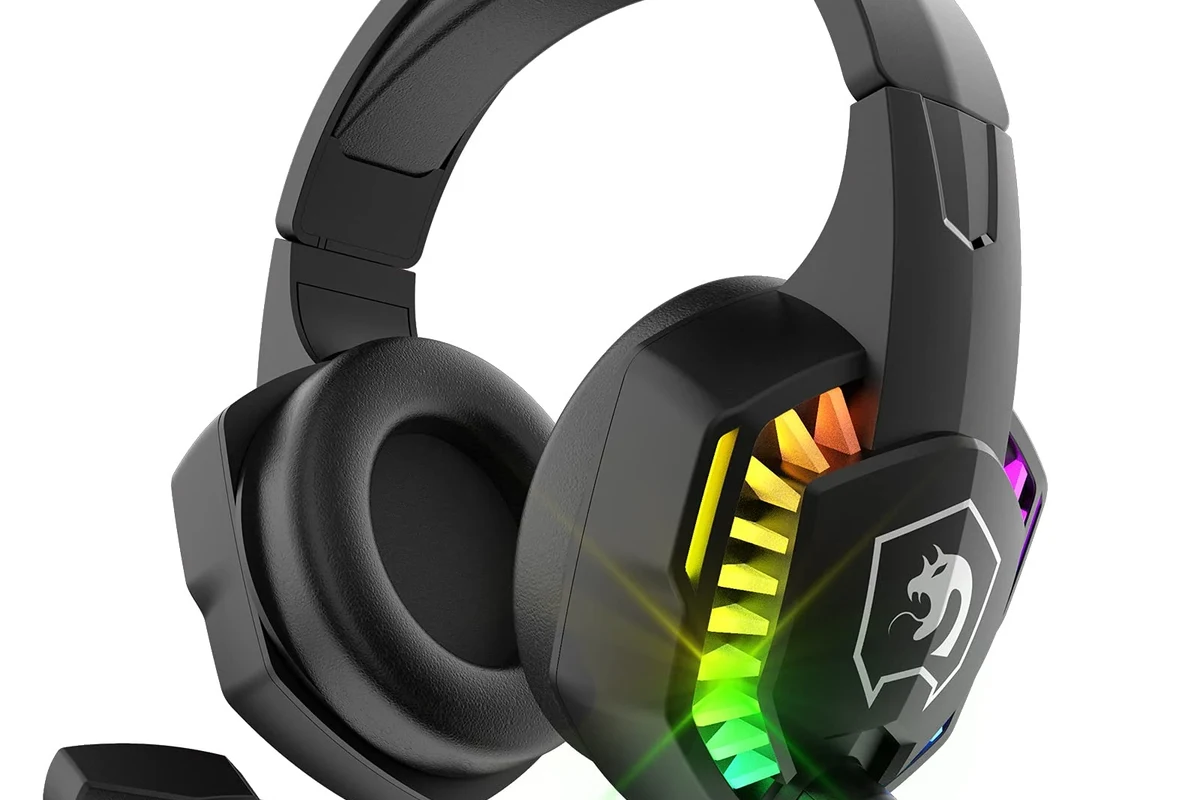
The PS5 supports several headphone connection methods, but not all of them behave the same way. Wired headphones, USB headsets, USB DACs, and some wireless dongles offer the most reliable results, while standard Bluetooth headphones often need a workaround.
This matters because gaming audio is not just about hearing footsteps or music. It also affects chat clarity, controller convenience, latency, and how easy it is to switch between game sound and voice chat.
PS5 compatibility can vary by headphone model, dongle, and firmware. If your headset has a special USB transmitter, always check the manufacturer’s PS5 support notes first.
For many players, the easiest setup is still a wired 3.5mm connection from the DualSense controller. But if you want better sound control or a cleaner desk setup, USB audio devices can be a strong upgrade. If you are also trying to reduce wireless delay, our Bluetooth headphone lag fix guide explains why latency matters so much in games.
PS5 Headphone Connection Options Explained: Wired, Wireless, USB, and Bluetooth Workarounds
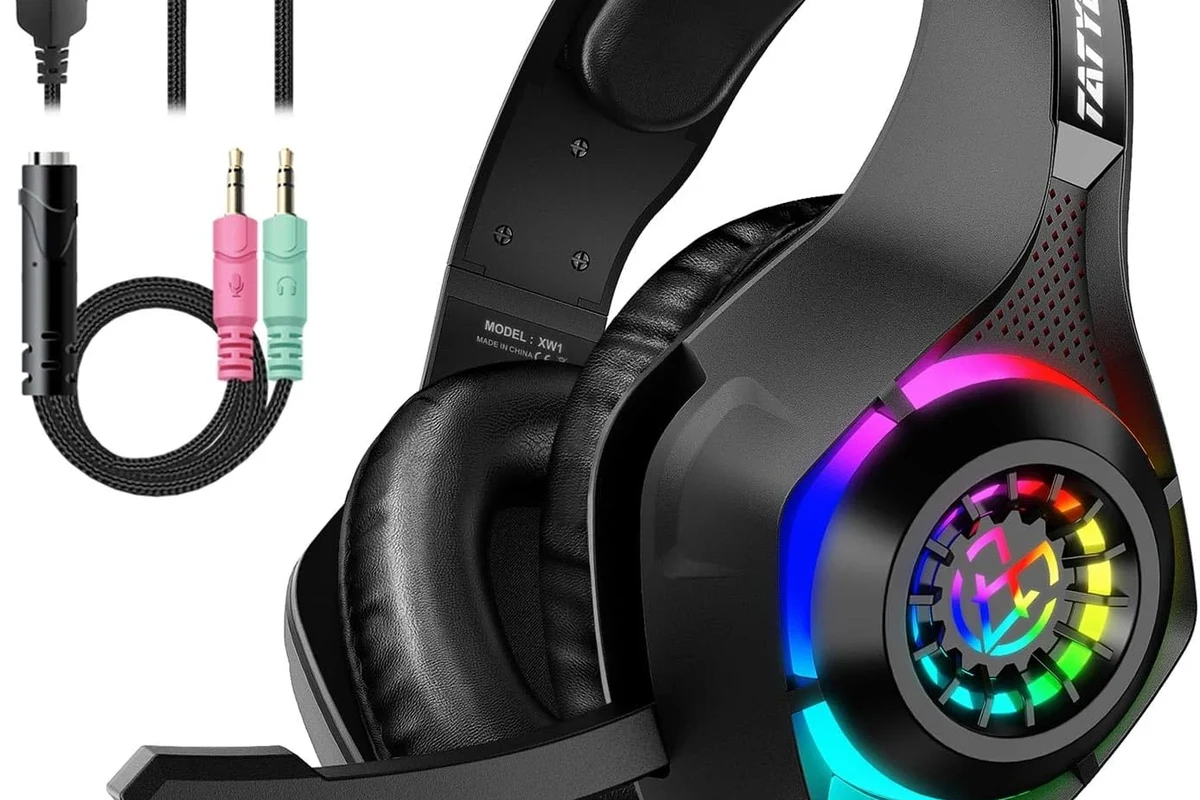
There are four main ways to connect headphones to PS5. Each one has strengths and limits, and the right choice depends on whether you use a gaming headset, audiophile headphones, earbuds, or true wireless headphones.
Wired 3.5mm headphones plug into the controller and are usually the fastest option. USB headphones and USB DACs can offer more control and sometimes better sound. Wireless headsets with a USB dongle are often the best wireless choice for gaming. Bluetooth headphones can work, but usually not directly in the same seamless way people expect from phones or laptops.
Which connection method is best for gaming audio, chat, and low latency?
If your priority is low latency, wired is usually the safest bet. If you want wireless convenience with better gaming compatibility, a USB dongle headset is generally more dependable than standard Bluetooth.
For chat, make sure the headphone or headset supports a microphone in the way you need. Some headphones only handle audio playback, while gaming headsets and some USB devices support both listening and voice chat.
- Wired: simple, stable, low delay
- USB: often plug-and-play
- Dongles: good wireless gaming support
- Bluetooth may need workarounds
- Some devices lack mic support
- Compatibility can vary by brand
Step-by-Step: How to Connect Wired Headphones to PS5 Using the DualSense Controller
For most users, this is the easiest answer to how to connect headphones to ps5. If your headphones have a standard 3.5mm plug, they can usually connect directly to the DualSense controller without extra accessories.
Insert the 3.5mm plug fully into the headphone jack on the bottom of the DualSense controller.
On the PS5, go to Sound settings and confirm that audio is being sent to the controller/headphones.
Use the PS5 quick menu or controller volume controls to set a comfortable listening level.
3.5mm plug setup, volume control, and audio output settings
Once the headphones are plugged in, the PS5 should usually detect them automatically. If not, open the sound menu and switch the output device manually.
For the best experience, check whether you want all audio routed to the headphones or only voice chat. Many players prefer full game audio through the headset, especially for competitive play. If you’re using a headset with a built-in mic, make sure the mic input is set correctly in the sound settings as well.
Listening at high volumes for long periods can cause hearing damage. Keep volume at 60% or below for extended sessions.
If you use wired headphones often, comfort matters too. A lighter headphone with soft pads can feel much better during long gaming sessions than a heavier model with firmer clamping force. For more on how fit affects long use, see our guide to noise cancelling headphones and comfort tradeoffs.
How to Connect USB Headphones or a USB DAC to PS5 for Better Sound
USB audio is another practical way to connect headphones to PS5, especially if you want to use a DAC, a USB gaming headset, or a dongle-based audio device. In many cases, the PS5 will recognize the device automatically once it is plugged in.
USB DACs can be useful if your headphones need more power or if you want more consistent audio control than a controller jack can provide. That said, not every DAC or USB audio adapter is equally well supported, so compatibility still matters.
Practical examples: gaming headsets, audiophile headphones, and plug-and-play dongles
A USB gaming headset is often the easiest “better than basic” option because it usually includes both audio and mic support. A USB DAC can be a smart choice for people using regular wired headphones who want cleaner output or more volume control.
Plug-and-play dongles are especially convenient for players who want wireless audio without dealing with Bluetooth pairing headaches. If you’re comparing wireless behavior across devices, our Bluetooth headphones explained article gives a simple overview of why some wireless setups feel smoother than others.
Some USB audio devices work best when they are connected directly to the console rather than through a hub, because hubs can sometimes create recognition issues.
How to Use Wireless Headphones on PS5: Official USB Dongles vs Bluetooth Workarounds
Wireless headphones on PS5 usually fall into two categories: official or compatible USB wireless dongles, and Bluetooth workarounds. The dongle route is generally more reliable for gaming, while Bluetooth is more common for casual listening or non-gaming use.
If your headset came with a USB transmitter, that is usually the first method to try. Pairing is often simple: plug in the dongle, turn on the headset, and follow the manufacturer’s instructions.
What to expect from latency, mic support, and compatibility in real use
Wireless gaming headsets with a USB dongle usually offer better latency than standard Bluetooth headphones. They are also more likely to support microphone input properly, which is important for party chat and multiplayer games.
Bluetooth workarounds can be less consistent. Some people use Bluetooth transmitters or adapters, but results vary by model, and mic support may be limited or unavailable. If you want a cleaner wireless experience, a headset designed for console gaming is usually the safer buy.
Not every Bluetooth headphone will pair directly to PS5 the way it does with a phone. If a device claims “Bluetooth support,” check whether it supports audio only, chat, or both before buying.
For readers choosing between wireless and wired for everyday use, our how to reset Bluetooth headphones guide can help when pairing goes wrong. Resetting can solve many connection issues before you assume the headset is faulty.
Best PS5 Audio Settings to Fix Headphone Issues and Improve Performance
Even when the headphones are connected correctly, the PS5 sound settings can make a big difference. A few quick adjustments can improve clarity, fix muted output, and make chat easier to hear during gameplay.
- Output device is set to headphones or controller
- Volume level is not too low
- Microphone input is selected correctly
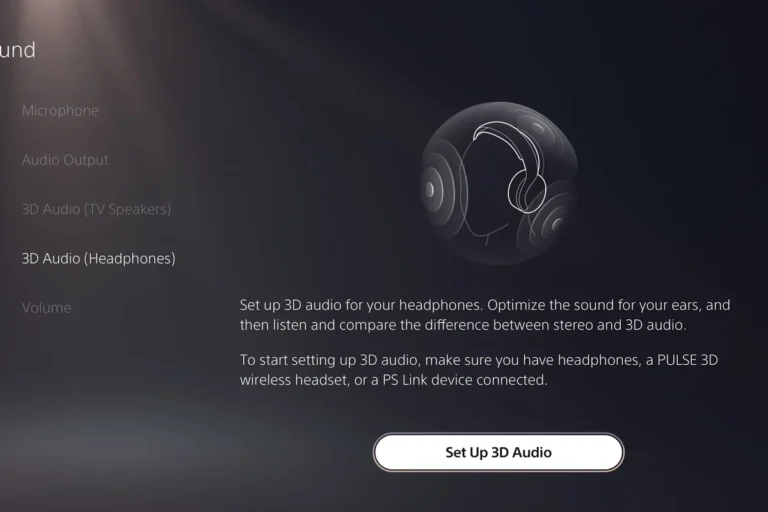
- 3D Audio is on or off based on preference
Adjusting output device, 3D Audio, chat mix, and controller volume
Start by confirming the output device. If the PS5 is still sending audio to the TV, your headphones may appear connected but stay silent.
Next, test 3D Audio. Some players like the added positional detail, while others prefer standard stereo because it can sound more natural depending on the headphones. Chat mix is also worth adjusting if voice chat is too loud or too quiet compared with game audio.
Controller volume is easy to overlook. If you are using 3.5mm headphones through the DualSense, the controller volume setting may be the difference between barely audible sound and a comfortable listening level.
If your headphones sound distorted, unusually quiet, or painful even at moderate volume, consider checking the headset, cable, and console settings before assuming the driver is damaged. If you experience ongoing ear pain, tinnitus, or hearing sensitivity, consult an audiologist.
Common Mistakes When Connecting Headphones to PS5 and How to Avoid Them
Most PS5 headphone problems come from small setup mistakes rather than broken gear. The good news is that many of them are easy to fix once you know what to look for.
Examples: no sound, mic not working, weak volume, and pairing failures
No sound: Check whether the output device is set correctly and make sure the plug or USB dongle is fully inserted.
Mic not working: Confirm that the mic is not muted on the headset, controller, or PS5 sound settings. Some headphones only support audio playback, not voice input.
Weak volume: Raise the controller volume, check in-game audio settings, and make sure the headset itself does not have a separate volume limiter.
Pairing failures: Reboot the console, reinsert the dongle, or reset the wireless headset if the brand supports it. Bluetooth-style issues often improve after a fresh pairing attempt.
If a headset works on your phone or PC but not the PS5, the issue is often compatibility rather than sound quality. Testing the device on a second source can save time and frustration.
Expert Advice: Choosing the Right Headphones for PS5 in 2025 Without Overspending
If you are buying headphones mainly for PS5, do not pay extra for features you will not use. The best choice depends on whether you want simple wired reliability, wireless convenience, or the strongest possible chat support.
Budget wired headphones are often the smartest value for players who want low latency and easy setup. Mid-range wireless gaming headsets can be worth it if you want freedom from cables and a dedicated USB dongle. Premium options may offer better comfort, stronger build quality, and more refined sound, but they are not automatically the best value for every gamer.
When comparing models, focus on practical details like comfort, mic quality, connection type, and whether the headset supports the PS5 in the way you actually plan to use it. For example, an over-ear headset may be better for long sessions, while in-ear monitors can be lighter and easier to travel with.
Should you choose wired or wireless for PS5?
Choose wired if you want the easiest setup and the lowest chance of latency issues. Choose wireless if comfort and freedom matter more, but try to use a PS5-compatible USB dongle rather than relying on standard Bluetooth.
If you are comparing headset styles for different use cases, our do headphones need an amp guide can also help you understand when extra power matters and when it does not. That can be useful if your PS5 headphones sound too quiet or lack punch.
Final Recap: The Fastest Way to Connect Headphones to PS5 Based on Your Setup
The fastest way to connect headphones to PS5 is usually the 3.5mm cable from the DualSense controller. If you want better wireless gaming performance, a USB dongle headset is typically the most dependable option.
USB headphones and DACs can also work well, especially if you want cleaner sound or more control. Standard Bluetooth is the most limited route, so treat it as a workaround rather than the default choice for gaming.
In short, pick the connection method that matches your priorities: wired for simplicity, USB for versatility, and wireless dongles for the best console-friendly convenience. Once your settings are tuned, PS5 headphone setup is usually quick, stable, and easy to maintain.
Frequently Asked Questions
Wired headphones usually give the most stable connection and the lowest latency. Wireless can still be great if you use a PS5-compatible USB dongle.
Some Bluetooth headphones may work through workarounds, but direct support is limited compared with phones or PCs. For gaming, USB wireless headsets are usually more reliable.
Check the headset EQ, PS5 audio settings, and whether 3D Audio is enabled. Different driver types and ear pad seals can change bass, clarity, and soundstage.
Focus on comfort, connection type, and mic support before chasing premium features. A good wired headset or simple USB model is often the best value.
Comfort usually matters more over long sessions because even great sound becomes hard to enjoy if the headset feels heavy or tight. Look for soft ear cushions, moderate weight, and a secure fit.
Over-ear models are often the most comfortable for long gaming sessions and can offer better isolation. In-ear options are lighter and portable, while on-ear models may feel less bulky but can get less comfortable over time.