How to Connect Headphones to Vizio TV Easily and Fast

The easiest way to connect headphones to a Vizio TV is usually Bluetooth if your model supports it. If it does not, use a wired adapter or Bluetooth transmitter based on the TV’s available audio outputs.
If you’re trying to figure out how to connect headphones to Vizio TV, the good news is that there are usually a few workable options. The best method depends on your exact Vizio model, whether you want wireless or wired audio, and whether you’re watching movies, gaming, or late-night TV.
For many viewers, the simplest path is Bluetooth. But older Vizio TVs often need a wired adapter or a Bluetooth transmitter, so it helps to check your model first before buying anything.
- Check the model: Vizio headphone support varies by TV year and series.
- Use Bluetooth first: It is the simplest option when built-in support is available.
- Wired is reliable: It usually gives the lowest delay for TV and gaming.
- Transmitters help older TVs: They add wireless support when the TV lacks Bluetooth.
How to Connect Headphones to Vizio TV: What Most Viewers Need in 2025
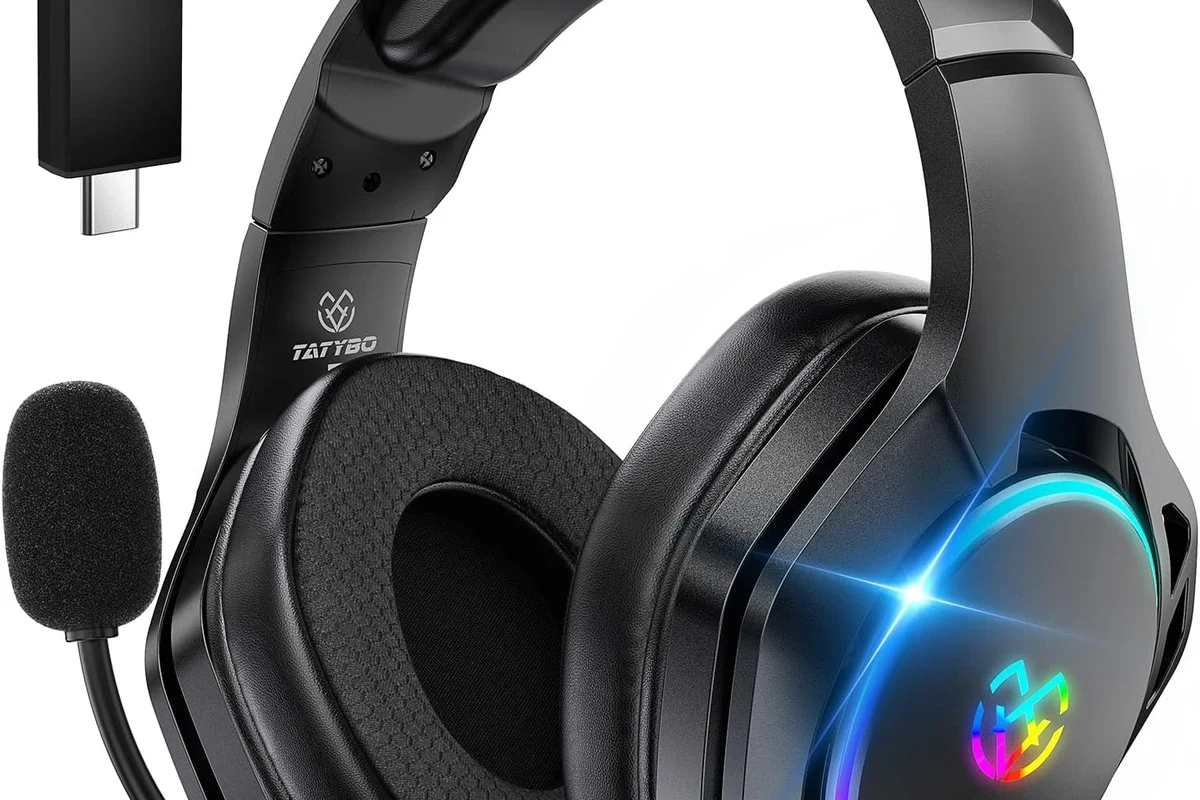
In 2025, most people want one of three things from a TV headphone setup: private listening, better comfort for long sessions, or lower audio leakage in shared spaces. That is especially true for bedrooms, apartments, and gaming setups where loud speakers are not ideal.
Why people search for this setup: late-night TV, gaming, and private listening
Headphones make it easier to watch without disturbing others, and they can also help you catch dialogue more clearly at lower volume. Gamers often want a more focused sound experience, while parents, roommates, and partners may want separate audio zones in the same room.
If you want more general guidance on wireless setup basics, our connect Bluetooth headphones guide can help you understand the pairing process before you start with the TV.
What makes Vizio TVs different from other brands when using headphones
Vizio TVs can be easy to use, but headphone support varies by model year and series. Some sets offer Bluetooth audio directly, while others rely on optical output, analog ports, or external hardware.
That means two Vizio TVs that look similar may not support headphones the same way. This is why checking the audio outputs and menu options matters before you assume a wireless connection will work.
Check Your Vizio TV Model and Audio Output Options First
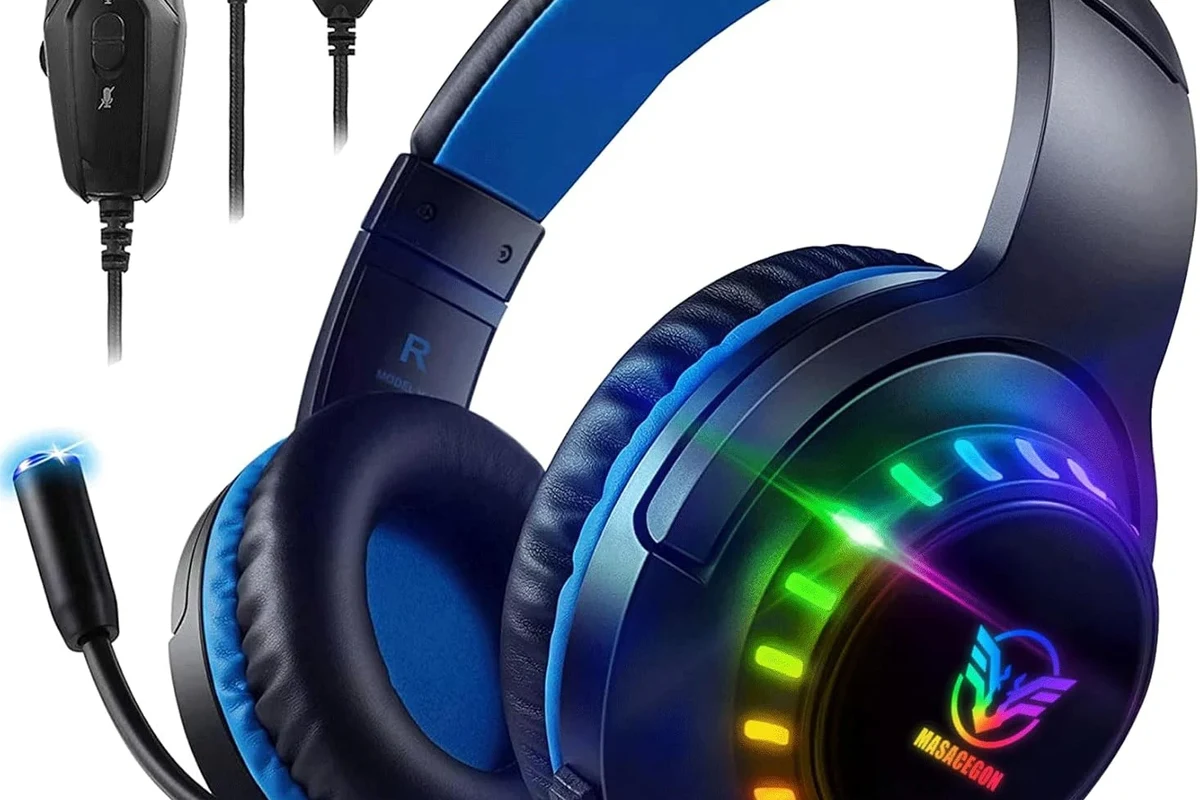
Before you connect anything, look up the exact model number on the back of the TV or in the settings menu. Then check the user manual or the audio output section in the TV menu so you know what connection types are available.
How to identify whether your Vizio TV has Bluetooth, optical audio, or analog output
Bluetooth support is usually found in the sound or device settings on newer smart TVs. Optical audio output is typically labeled as “Digital Audio Out” or “Optical,” while analog output may appear as a 3.5mm headphone jack or RCA audio ports.
- TV model number
- Sound or audio menu options
- Physical ports on the back or side of the TV
- Whether you need a wired, wireless, or adapter-based setup
Why the model year matters for wireless headphone support
Newer Vizio smart TVs are more likely to include built-in Bluetooth audio support. Older models may not support wireless headphones at all, which means you’ll need a transmitter or another workaround.
Model year matters because Bluetooth support, menu names, and output options can change from one Vizio series to another. If your TV menu looks different from a guide online, check your exact model number first.
Fastest Ways to Connect Headphones to a Vizio TV
The fastest method is usually the one your TV already supports without extra gear. If your Vizio TV has Bluetooth, that is often the simplest choice. If not, wired adapters or a Bluetooth transmitter can still get the job done.
Using Bluetooth headphones directly with a Vizio Smart TV
If your Vizio TV supports Bluetooth audio, you can pair wireless headphones directly through the settings menu. This is the cleanest option for casual TV watching because it avoids extra cables and adapters.
Connecting wired headphones with a 3.5mm jack or RCA adapter
Some Vizio TVs include a headphone jack, but many do not. In that case, you may be able to use an RCA-to-3.5mm adapter or another audio converter if the TV has the right output ports.
Using a Bluetooth transmitter when the TV has no built-in Bluetooth
A Bluetooth transmitter is one of the most useful add-ons for older TVs. It plugs into the TV’s audio output and sends sound wirelessly to your headphones, which is a practical fix when the TV itself does not support Bluetooth.
Connecting through a soundbar, AV receiver, or streaming device as a workaround
Some users route audio through a soundbar, AV receiver, or streaming device instead of connecting the headphones to the TV directly. This can work well if your home theater gear already has headphone support or Bluetooth output.
Step-by-Step Setup for Each Connection Method
Once you know which connection type your TV supports, setup is usually straightforward. The main goal is to match the TV’s output method with the right headphone type or adapter.
Bluetooth pairing steps for Vizio TV menus in 2025
Go to the sound, audio, or Bluetooth/device menu on your Vizio TV.
Put your Bluetooth headphones into pairing mode so the TV can detect them.
Choose your headphones on the TV and wait for the connection confirmation.
Play a show or video and confirm that sound is coming through the headphones.
Wired connection setup for older Vizio models
If your TV has a headphone jack, plug in your wired headphones and lower the volume before you start playback. For RCA output, use a compatible adapter and make sure the connections are secure on both ends.
Wired setups are often more reliable than wireless ones because they do not depend on pairing or battery life. They can be a smart choice for older TVs or for people who want simple plug-and-play audio.
How to pair a Bluetooth transmitter for stable audio
First, connect the transmitter to the TV’s audio output, such as optical or analog. Then put the transmitter and headphones into pairing mode and wait for them to link.
If your transmitter supports only one output type, make sure it matches your TV port before you buy it. A mismatch is one of the most common reasons people think their headphones are “not working.”
How to switch audio output without losing TV speaker settings
Some TVs let you choose between TV speakers, external audio, or both. If you want private listening without fully muting the room, look for a dual-audio or simultaneous output option in the sound menu.
If your Vizio TV disables the speakers when headphones are connected, that is normal on many models. In that case, you may need to switch the output manually each time or use a transmitter with pass-through support.
Best Headphone Types for Vizio TV Use: Which One Fits Your Needs?
The best headphone choice depends on how you watch, how much delay you can tolerate, and whether comfort matters more than portability. For TV use, the “best” option is often the one that stays comfortable and stays in sync with the picture.
Bluetooth headphones vs. wired headphones for latency and convenience
Bluetooth headphones are more convenient because they remove cables, but they can introduce slight audio delay on some setups. Wired headphones usually have less latency and are often better if you are sensitive to lip-sync issues.
- Bluetooth: easy to use, no cable clutter
- Wired: simple, stable, usually lower delay
- Transmitter: adds wireless support to older TVs
- Bluetooth may lag on some TVs
- Wired setups limit movement
- Adapters and transmitters can add cost
Low-latency gaming headphones for console and TV use
If you use your Vizio TV for gaming, low-latency headphones or a low-lag transmitter can make a big difference. Fast action games are where delay becomes easiest to notice, especially if you rely on sound cues.
For readers who want to understand delay problems in more detail, our Bluetooth headphone lag fix guide covers common ways to reduce audio delay in wireless setups.
Budget versus premium options: what you actually pay for in 2025
Budget headphones can work well for casual TV watching, especially if you already have a compatible transmitter or built-in Bluetooth. Premium options may offer better comfort, stronger build quality, improved microphones, or lower-latency features, but results still vary by brand and model.
Common Problems and Mistakes When Connecting Headphones to a Vizio TV
Most connection problems are caused by the wrong output selection, a missing adapter, or a pairing issue rather than a broken TV. The good news is that many of these problems are easy to fix once you know where to look.
Why headphones pair but no sound plays
This often happens when the TV is connected to the headphones but still sending audio to the speakers or another output. Check the sound menu and confirm that Bluetooth or external audio is selected as the active output.
Audio delay, lip-sync issues, and how to reduce them
Bluetooth delay can happen because the TV and headphones are not using the same low-latency standard. If lip-sync is off, try a different codec, a wired connection, or a transmitter designed for lower lag.
Even when two Bluetooth devices both “work,” they may still sound different in sync and clarity because codec support and TV processing can vary.
Volume control problems and hidden TV audio settings
Some Vizio TVs control headphone volume separately from speaker volume, while others tie them together. If the sound is too quiet or too loud, check both the TV volume and any headphone or transmitter volume controls.
If you are using a wireless setup and the volume still feels inconsistent, it may help to reset the headphones and reconnect them. Our reset Bluetooth headphones guide explains a common troubleshooting step that often clears pairing glitches.
Why some Vizio models need extra hardware for headphone use
Not every Vizio TV is designed with easy headphone support. Older models may lack Bluetooth, and some newer ones may not include a headphone jack, which means an adapter or transmitter becomes necessary.
Listening at high volumes for long periods can cause hearing damage. Keep volume at 60% or below for extended sessions.
Expert Advice: Best Practices for Better Sound and Fewer Connection Issues
A little planning can save a lot of frustration. The best headphone setup is the one that fits your TV, your room, and the way you actually watch content.
Choosing low-latency gear for movies and gaming
For movies and TV dialogue, slight delay may be tolerable, but for gaming it can be distracting. If gaming is a priority, look for headphones or transmitters that are known for low latency rather than choosing on convenience alone.
When to use aptX Low Latency or other codec support
Codec support can matter if your TV, transmitter, and headphones all support the same low-latency standard. That said, codec compatibility varies by device, so it is worth checking the manual rather than assuming every Bluetooth product will behave the same.
If you have ongoing hearing discomfort, tinnitus, or sensitivity to sound, consult an audiologist before using headphones for long TV sessions. A professional can help you choose safer volume habits and a more comfortable fit.
Safety warning: avoid max volume and poor-quality adapters
Very loud listening can damage hearing over time, and cheap adapters may add hiss, distortion, or unstable connections. If your audio sounds harsh or crackly, the adapter or transmitter may be the weak link rather than the headphones themselves.
Final Recap: The Easiest Way to Connect Headphones to a Vizio TV
The easiest way to connect headphones to a Vizio TV is usually Bluetooth if your model supports it. If not, a wired adapter or Bluetooth transmitter is the next best option, depending on the ports available on your TV.
Quick summary of the best method by TV model and budget
Newer Vizio smart TVs: try built-in Bluetooth first. Older TVs with audio outputs: use wired headphones or a transmitter. If you want the lowest delay for gaming, wired is often the safer choice.
Simple decision guide: Bluetooth, wired, or transmitter
Choose Bluetooth if you want convenience and your TV already supports it. Choose wired if you want reliability and low lag. Choose a transmitter if your TV has no headphone support but still has an audio output you can use.
For readers comparing headphone styles for different listening needs, our types of headphones explained guide is a helpful next step before you buy.
Frequently Asked Questions
Wireless headphones are more convenient, while wired headphones usually give more stable audio and less delay. For gaming or lip-sync-sensitive viewing, wired can be the safer choice.
Yes, noise cancelling headphones can work well for TV watching if your Vizio TV supports Bluetooth or a compatible audio output. They are especially useful in noisy rooms, but sound quality and comfort still depend on the headphone model.
Closed-back headphones are usually better for TV because they block more outside noise and keep sound from leaking. Open-back headphones can sound spacious, but they are less private and often better for quiet rooms.
Look at latency, comfort, battery life, and whether the headphones support the connection type your TV needs. Driver type, frequency response, and codec support can also affect bass, clarity, and sync.
Budget headphones can be enough for casual viewing, while premium models may offer better comfort, build quality, and lower-latency features. The right price depends on whether you want simple movie watching, gaming, or long listening sessions.
Check ear cushion material, clamp force, weight, and battery life if the headphones are wireless. For long sessions, comfort often matters more than extra features because a good fit helps you listen longer without fatigue.