How To Improve Bass On Headphones: Boost Sound Fast

If your headphones sound thin, start with the fit and seal. Then check the audio source, apply a small bass boost with an equalizer, and inspect your headphones for damage. These steps work with most headphones, earbuds, phones, computers, and music apps used in the United States.
Bass can improve without buying new headphones. The best result usually comes from several small changes rather than one large boost. A strong EQ boost cannot fix a poor seal, a weak source, damaged drivers, or headphones that simply have a light sound profile.
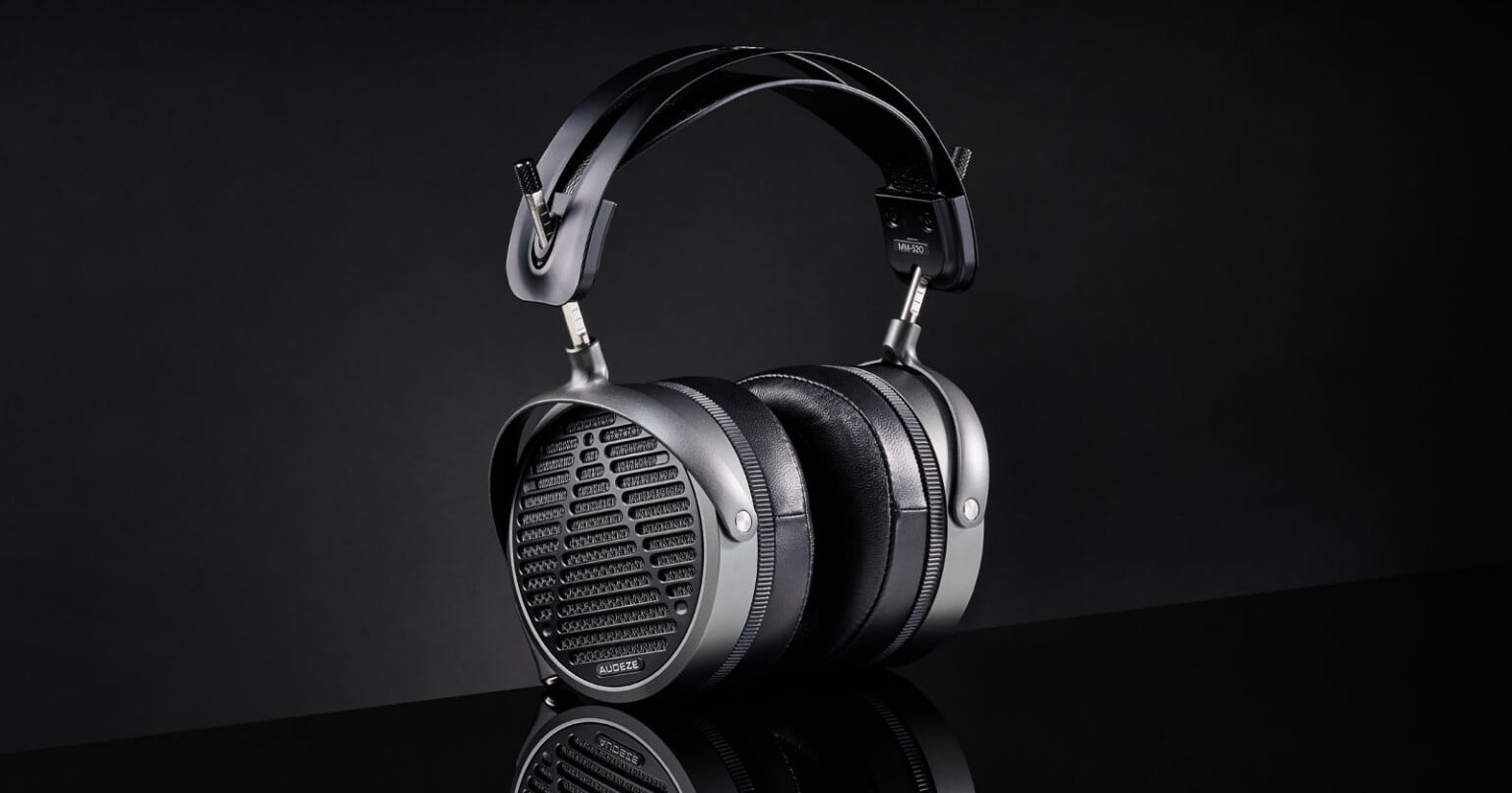
1. Check the Fit and Seal First
A good seal is the fastest way to improve bass on headphones, especially in-ear headphones and noise-canceling earbuds. Low-frequency sound needs a sealed path between the speaker and your ear. Even a small air gap can make bass sound weak.
For over-ear and on-ear headphones
Try these checks:
- Place the ear cups over your ears.
- Move the cups slightly forward, back, up, and down.
- Make sure your ears sit fully inside the ear pads.
- Check whether glasses, hair, or a hat create a gap.
- Adjust the headband so the cups press evenly.
Worn ear pads can also reduce bass. A compressed pad may no longer seal around your ears. Replacing the pads can restore the original sound, but a thicker or thinner pad may also change the sound balance.
For in-ear headphones and earbuds
Use the ear tips that create a firm but comfortable seal. If the earbuds sound bright or weak in bass, try:
- A larger silicone tip
- A smaller silicone tip if the larger one does not sit deeply
- Foam tips, if they fit your model
- A different insertion angle
- Cleaning the nozzle and mesh
Test one ear at a time. If bass is strong in one ear but weak in the other, the issue may be fit, earwax, a blocked mesh, or a hearing difference between ears.
Do not push earbuds deeply into your ear. A secure seal should feel stable without pain or pressure.
Signs that fit is the problem
Fit is likely the main issue when:
- Bass changes as you press the headphones against your head.
- Bass improves when you hold an ear cup in place.
- One ear sounds much weaker than the other.
- Noise-canceling earbuds sound thin when their seal test fails.
- The sound changes when you move your jaw.
Fixing the seal often gives a larger improvement than adding more EQ.
2. Use an Equalizer for a Controlled Bass Boost
An equalizer, or EQ, changes the level of selected frequency ranges. Bass usually covers about 20 to 250 hertz (Hz), although people often use the term for the lower part of that range.
A simple graphic EQ can improve bass with these starting settings:
| Frequency band | Starting change | Main effect |
|---|---|---|
| 60–80 Hz | +2 to +4 dB | Adds deep bass and rumble |
| 100–150 Hz | +1 to +3 dB | Adds warmth and punch |
| 200–300 Hz | 0 to -2 dB | Reduces muddy or boxy sound |
| 500 Hz and above | 0 dB | Leaves the rest of the mix mostly unchanged |
Use small changes first. A boost of 2 or 3 decibels may be enough. Large boosts can cause distortion, reduce battery life on some wireless devices, and make vocals or instruments sound covered.
Set preamp or volume compensation
When an EQ boosts several bands, the signal may clip. Clipping creates harsh distortion, even if the headphones are not very loud.
If your EQ has a preamp control, lower it by about 3 to 6 dB before adding bass. Then raise the overall volume only as needed.
If your EQ has no preamp, lower the device or app volume slightly after boosting bass. This does not remove all clipping risk, but it gives the signal more room.
Try a low-shelf filter
A parametric EQ gives more control than a graphic EQ. A useful starting point is:
- Filter: Low shelf
- Frequency: 80 Hz
- Gain: +3 dB
- Q: About 0.7
- Preamp: -3 dB
A low-shelf filter raises the chosen frequency and the frequencies below it. It creates a smoother bass lift than boosting one narrow band.
If the result sounds muddy, reduce the gain or apply a small cut around 200 to 300 Hz. Avoid cutting many bands at once. Too much adjustment makes it hard to tell what helped.
Save separate EQ profiles
Different headphones need different settings. A bass EQ for closed-back headphones may sound poor on open-back headphones or earbuds.
Save profiles such as:
- Headphones
- Earbuds
- Movies
- Music
- Gaming
- Bass-light recordings
Turn the EQ off once to compare the change. If you cannot hear a useful difference, the problem may be the fit, the source, or the headphones themselves.

3. Adjust Bass Settings on Common U.S. Devices
The exact controls depend on the device, operating system, app, and headphone model. Menus can change after software updates, so use the current support page for your device when a control is missing.
iPhone and iPad
Apple devices do not provide a full system-wide graphic EQ for every audio source. The Apple Music app includes audio settings such as EQ presets, but those settings may not affect every app.
Try the following:
- Open Settings.
- Select Apps, then Music on newer iOS versions, or select Music directly on older versions.
- Open EQ.
- Test a bass-oriented preset.
- Compare it with the EQ turned off.
Third-party music apps may include their own EQ. Use the app’s settings instead of assuming the Apple Music EQ affects all audio.
Apple’s Headphone Accommodations feature is designed mainly to adjust certain sound ranges for supported headphones. It is not a dedicated bass booster.
Android phones and tablets
Android controls vary by brand. Look under:
- Settings > Sound and vibration
- Sound quality and effects
- Equalizer
- The wireless headphone maker’s app
- The music app’s playback settings
Some Android phones apply EQ only to selected outputs or apps. Test the setting with the headphones connected. If the change disappears when you switch from Bluetooth to wired audio, the control may apply only to one output path.
Windows PCs
Windows may offer audio enhancements through the computer maker, sound driver, or headphone app. Common locations include:
- Settings > System > Sound
- The selected output device
- Device properties
- The manufacturer’s audio control panel
- The headphone manufacturer’s Windows app
If you use a third-party EQ, make sure it targets the correct output device. A common mistake is applying the EQ to laptop speakers while the headphones use a separate Bluetooth or USB audio path.
Mac computers
macOS does not provide the same built-in system EQ for all audio as some third-party tools do. Many music apps include their own EQ. USB audio devices, headphone apps, and streaming apps may also offer separate controls.
Use one EQ at a time while testing. Multiple EQs can create unexpected boosts and distortion.

4. Improve the Audio Source and Connection
The audio source can affect bass, but connection type is not always the main cause. A Bluetooth connection does not automatically produce weak bass. The headphone design, EQ profile, seal, and software settings usually matter more.
Check the music app settings
Look for these settings:
- Equalizer
- Loudness normalization
- Sound check
- Bass boost
- Dolby or spatial audio
- Mono audio
- High-quality streaming
- Audio balance
Volume normalization can change perceived impact between songs. Spatial audio can also change the sound field and bass level. Compare the same song with these features on and off.
Make sure the left-right balance is centered. A balance shift can make one side sound weaker and may be mistaken for a bass problem.
Avoid low-quality or damaged audio files
A poor recording may have little bass, heavy compression, or a thin mix. Test several well-recorded tracks across different styles. If only one album sounds weak, the headphones may be working correctly.
Do not judge bass from a very low-volume sample. Human hearing is less sensitive to low and high frequencies at quiet levels. Compare at a comfortable, consistent volume.
Bluetooth and USB checks
For wireless headphones:
- Charge the headphones.
- Remove and pair them again.
- Check the manufacturer’s app.
- Disable any low-battery or low-power mode.
- Test with another phone or computer.
- Install firmware updates only through the official app or support site.
For USB headphones or DACs, confirm that the correct output device is selected. A USB headset may bypass the computer’s built-in EQ.
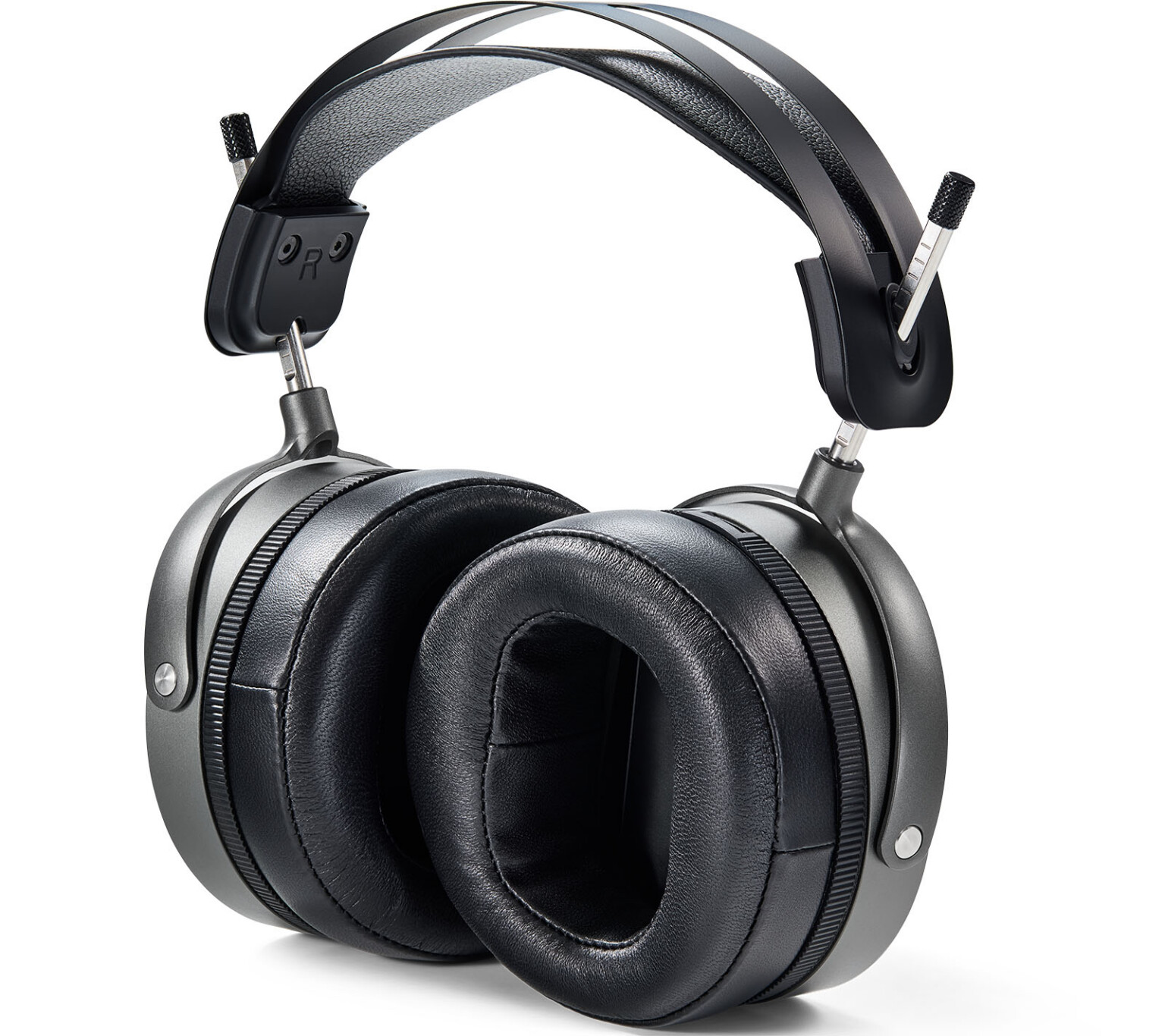
5. Match the Headphones to the Audio Equipment
Most modern headphones work well with phones and computers. Some high-impedance or low-sensitivity models need more voltage or power to reach a useful listening level.
A headphone amplifier may help when:
- Maximum volume is too low.
- The sound becomes distorted at high volume.
- The headphones need much more volume than another pair.
- The manufacturer lists demanding power requirements.
An amplifier does not usually transform a headphone’s basic bass tuning. If the headphones already play loudly and cleanly, adding an amplifier may not create more bass.
Wired headphones
Check the cable and plug. A damaged plug or loose connection can cause:
- Missing bass
- Thin or hollow sound
- Sound in only one ear
- Changes when the cable moves
If the cable is detachable, try a known-good replacement cable. If the cable is not detachable, stop using it if exposed wires or heat appear.
Wireless headphones
Wireless headphones use built-in amplification and digital processing. Their app may control:
- EQ
- Noise cancellation
- Transparency mode
- Hearing tests
- Firmware
- Custom sound profiles
Noise cancellation can change the perceived bass balance. Compare noise cancellation, transparency, and off modes in the same quiet room.

6. Reduce Muddy Bass Instead of Adding More
More bass is not always better bass. If voices sound buried or music feels cloudy, the problem may be too much upper bass rather than too little deep bass.
Try this approach:
- Boost 60–80 Hz by 2 dB.
- Leave 100–150 Hz flat at first.
- Cut 200–300 Hz by 1 or 2 dB only if the sound is muddy.
- Lower the preamp to prevent clipping.
- Compare with the original sound.
Deep bass gives weight and rumble. Upper bass gives warmth and body. Too much upper bass can make headphones sound thick or slow.
For spoken audio, a bass boost may reduce speech clarity. Use a separate profile for podcasts, calls, and audiobooks.

7. Troubleshoot Weak or Uneven Bass
Use this order because it starts with simple and low-risk checks.
| Symptom | Likely causes | Best first check |
|---|---|---|
| Bass is weak in both ears | Poor seal, EQ off, light headphone tuning | Refit the headphones and test another source |
| Bass disappears when the cable moves | Damaged cable or plug | Try another cable |
| One side has less bass | Poor fit, blocked mesh, balance setting, driver issue | Check balance and clean the earbud mesh |
| Sound is muddy after boosting | Too much EQ, clipping, poor recording | Lower the boost and preamp |
| Bass changes with ANC mode | Digital processing or seal change | Compare ANC modes |
| Headphones are quiet and thin | Source or amplifier limitation | Test another device |
| Only one app sounds weak | App EQ or audio setting | Reset that app’s sound settings |
Clean earbuds carefully. Follow the manufacturer’s instructions. Do not push liquid into the speaker mesh, and do not use sharp tools inside the nozzle.
If one side remains much quieter after cleaning, refitting, and testing another source, the headphones may have a hardware fault. Check the warranty or contact the manufacturer. If the imbalance follows your ear rather than the headphone, consider a hearing evaluation.

8. Protect Your Hearing While Increasing Bass
Bass can feel less intense at low volume, which may tempt you to turn the headphones up. That can increase hearing risk even if the sound feels comfortable.
The National Institute for Occupational Safety and Health uses 85 decibels over an eight-hour workday as a recommended exposure limit for workplace noise. Personal listening is not identical to workplace exposure, but the principle is useful: louder sound allows less safe listening time.
Use these habits:
- Keep the volume as low as practical.
- Take regular breaks.
- Use noise cancellation in loud places so you do not raise the volume to mask noise.
- Stop if you hear ringing, muffled sound, or pain.
- Do not use extreme EQ boosts to compensate for a poor seal.
Bass boost does not make loud listening safer. It can make the sound more fatiguing, especially when it also raises the overall signal.

Common Mistakes When Improving Headphone Bass
Turning every EQ band up
This raises volume without creating a clear tonal change. Boost only the bands that need adjustment.
Using a large bass boost
A 10 dB boost can cause clipping and may overwhelm vocals. Start with 2 or 3 dB.
Ignoring the seal
A poor seal can remove much of the bass from earbuds. EQ may not restore it cleanly.
Running multiple EQs
A phone, music app, headphone app, and computer may each apply processing. Disable all but one while testing.
Judging from one song
A single recording may have a light bass mix. Test several familiar tracks.
Assuming an amplifier fixes all bass problems
An amplifier can solve a power or volume problem. It cannot correct a poor fit, damaged driver, or headphone tuning that you dislike.

When Should You Replace the Headphones?
Replace the headphones when the problem is physical, persistent, and not caused by the source or fit. Signs include:
- Rattling at normal volume
- Crackling on bass notes
- One driver that stays weak
- A broken seal or cracked ear cup
- Battery or charging faults
- A cable that fails after basic checks
If the headphones sound clean but still lack bass after proper fit and EQ, the design may simply be bass-light. In that case, a different pair may be a better solution than extreme software changes.
Closed-back headphones and sealed earbuds often create more physical bass impact than open-back headphones, but the result depends on the model. Choose based on fit, comfort, sound preference, and safe listening habits rather than bass claims alone.

Frequently Asked Questions
Can I improve bass without an EQ?
Yes. Improve the ear seal, replace worn ear pads, clean earbud meshes, check the cable, and test a different audio source. These steps may help more than EQ when the problem is physical.
Why do my earbuds have no bass?
The most common cause is a poor seal. Try different ear tips and check that the earbuds sit correctly. A blocked nozzle, sound setting, low battery mode, or damaged driver can also reduce bass.
Does noise cancellation increase bass?
It can change the perceived bass, but the effect varies by model and mode. Compare noise cancellation, transparency, and off modes at the same volume and with the same track.
Will a headphone amplifier add more bass?
Usually, it adds usable volume and may reduce distortion when a headphone needs more power. It does not normally change the headphone’s basic tuning.
Is bass boost bad for headphones?
A small boost is usually within normal use, but a large boost can cause clipping and make the driver work harder. Lower the preamp or overall volume when boosting bass.
Why does bass sound better when I press the headphones against my head?
That points to a seal problem. Check ear pad condition, headband adjustment, hair, glasses, and the position of the ear cups.
Conclusion
To improve bass on headphones, start with the fit and seal. Then use a small EQ boost, lower the preamp to prevent clipping, and check the source, app, connection, and headphone condition. If the headphones remain thin or uneven after these steps, their tuning or hardware may be the limiting factor.
Test one change at a time. Keep the volume comfortable, and stop using the headphones if they cause pain, ringing, or sudden hearing changes.