How To Connect Neckband Headphones: Easy Pairing Guide

To connect neckband headphones in the United States, turn on Bluetooth, place the headphones in pairing mode, select them from your device’s Bluetooth menu, and confirm the connection. Most neckband headphones work with iPhones, Android phones, Windows PCs, Macs, tablets, and many Bluetooth TVs.
The menu names may differ by brand. The basic process is almost always the same.

What You Need Before You Start
You need three things:
- Neckband headphones with some battery power
- A phone, computer, tablet, or TV with Bluetooth
- The headphones’ name or model number
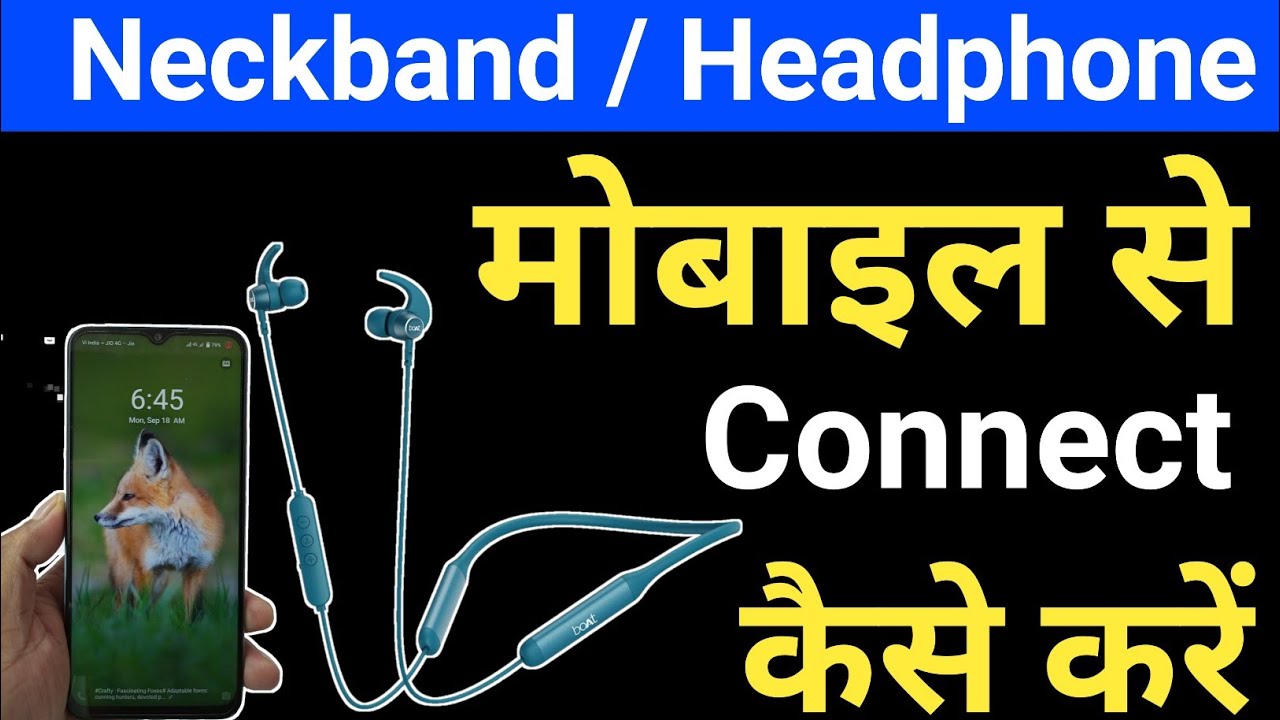
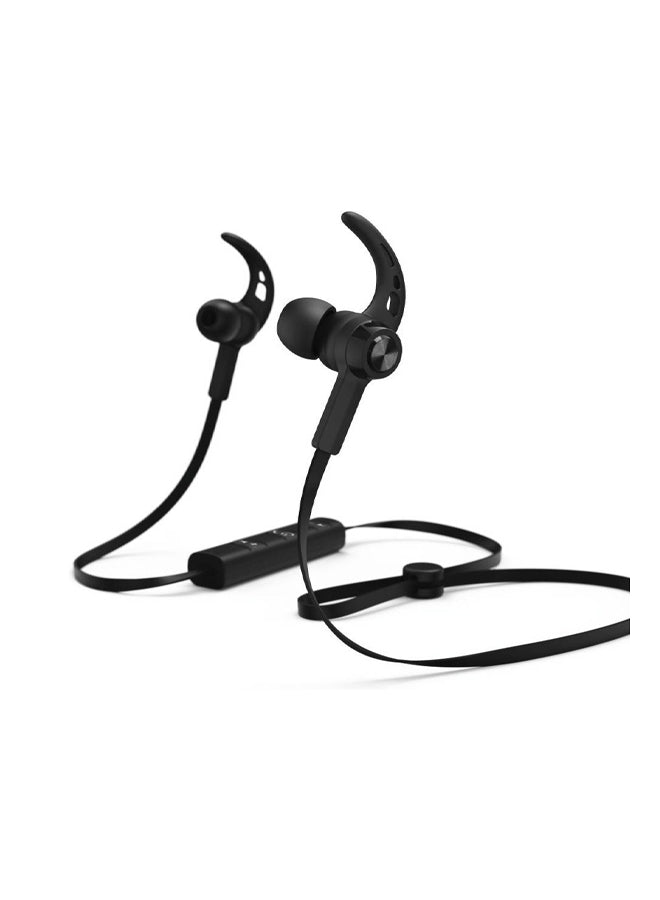
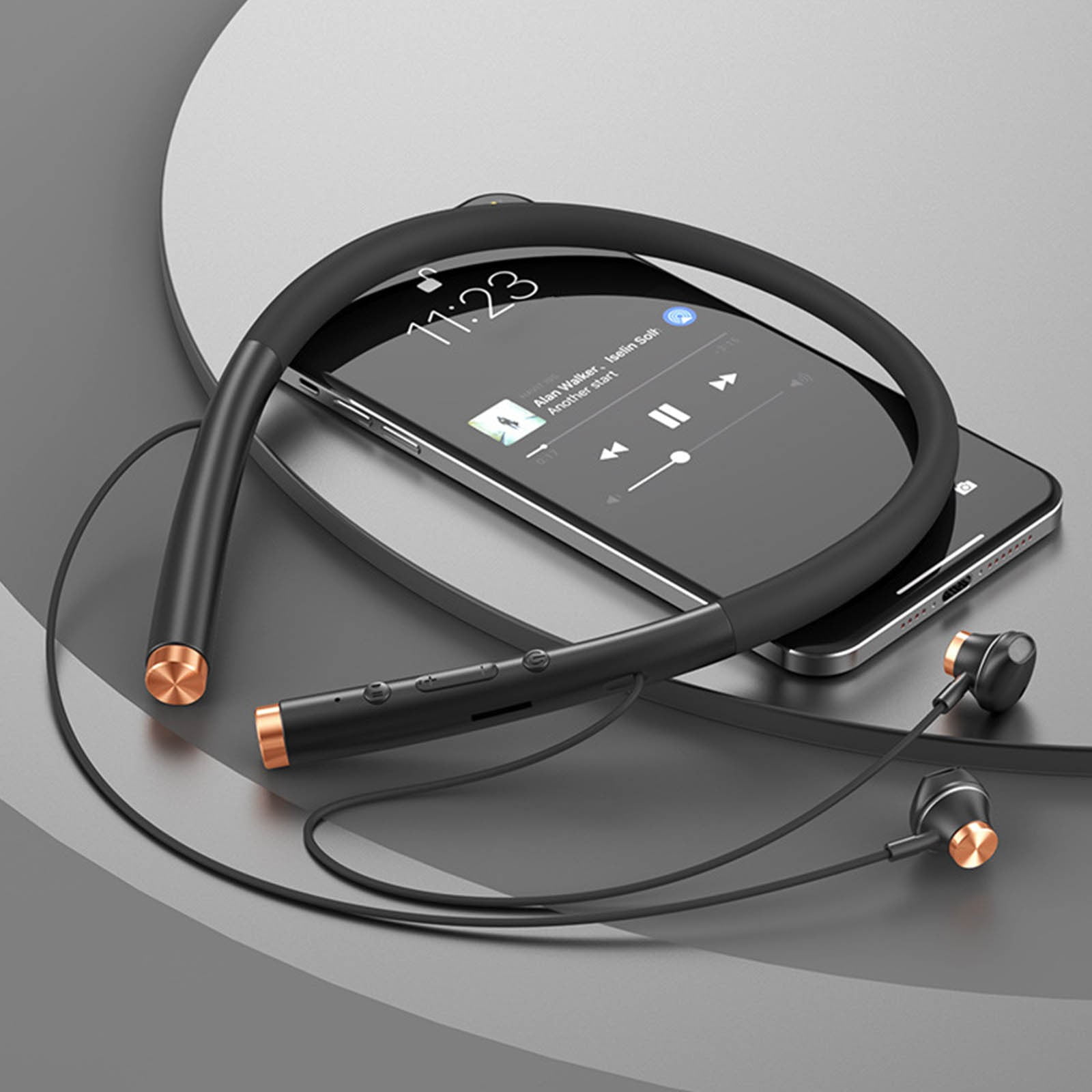
A neckband headset has a flexible band that rests around your neck. Its earbuds connect to the band by short wires. Most models use Bluetooth for wireless audio. Some also support a wired USB or 3.5 mm connection, but those models may need a different setup.
Before pairing, charge the headphones for a few minutes if they do not turn on. Keep the headphones close to your device, ideally within a few feet during setup.
Find the power and pairing controls
Many neckband headphones use one button for both power and pairing. Common controls include:
- Power button: Turns the headphones on or off
- Multifunction button: Plays, pauses, answers calls, and starts pairing
- Volume buttons: Change sound level
- LED light: Shows power, pairing, or charging status
Read the quick-start guide if you cannot find the pairing button. The button may be marked with a Bluetooth symbol.
Know the difference between pairing and connecting
Pairing saves the headphones to your device for the first time.
Connecting starts the Bluetooth link after the headphones have already been paired.
You usually pair the headphones once. After that, they may connect automatically when both devices are turned on.

How to Put Neckband Headphones in Pairing Mode
Most neckband headphones enter pairing mode when you hold the power or multifunction button for several seconds while the headphones are off.
Use these steps:
- Turn off the neckband headphones.
- Press and hold the power or multifunction button.
- Keep holding it for about 5 to 10 seconds.
- Watch for a flashing blue, red-and-blue, or white LED.
- Listen for a voice message such as “pairing” or “Bluetooth pairing.”
- Release the button when pairing mode starts.
The exact timing differs by model. A short press may only turn the headset on. A longer press usually activates pairing mode.
If the headphones turn on but do not enter pairing mode, turn them off and try again. Some models enter pairing mode automatically the first time they are switched on.
What the flashing light means
The light pattern is not universal, but these signals are common:
| Light or sound | Common meaning |
|---|---|
| Solid light | The headphones are on or connected |
| Fast flashing light | Pairing mode is active |
| Slow flashing light | The headphones are connected or searching |
| Red light | Low battery or charging |
| No light | The headphones are off or have no power |
Use the manual for your exact model when the light pattern is unclear.
How to Connect Neckband Headphones to an iPhone
You can connect most Bluetooth neckband headphones to an iPhone through the Settings app.
- Put the neckband headphones into pairing mode.
- Open Settings on your iPhone.
- Tap Bluetooth.
- Turn Bluetooth on if it is off.
- Wait for the headphones to appear under Other Devices.
- Tap the headphones’ name.
- Wait until the name moves to My Devices and shows Connected.
Apple’s Bluetooth guidance uses this same general process for wireless accessories. See Apple’s official instructions for connecting Bluetooth accessories to an iPhone.
If the iPhone asks for a PIN
Some older Bluetooth headsets ask for a passcode. Try:
00001234
Check the headphone manual if neither code works. Newer headphones often connect without a passcode.
If the headphones do not appear
Try these checks in order:
- Confirm that the headphones are flashing in pairing mode.
- Move them closer to the iPhone.
- Turn Bluetooth off and on again.
- Turn the headphones off, then restart pairing mode.
- Check whether another phone is already connected.
- Restart the iPhone.
- Forget the headphones and pair them again.
To remove an old connection, go to Settings > Bluetooth, tap the information button next to the headphones, and select Forget This Device. Then start the pairing process again.

How to Connect Neckband Headphones to an Android Phone
Android phones from Samsung, Google, Motorola, OnePlus, and other brands use similar Bluetooth steps. The names can vary by Android version.
- Put the neckband headphones into pairing mode.
- Open Settings.
- Tap Connected devices, Connections, or Bluetooth.
- Tap Pair new device if that option appears.
- Select the neckband headphones from the list.
- Tap Pair or Connect when prompted.
Google provides general instructions for pairing Bluetooth devices with Android.
On some Android phones, you can also swipe down from the top of the screen and press the Bluetooth icon. For first-time setup, the full Bluetooth settings page is usually clearer.
Allow contacts and call access when needed
Android may ask whether the headphones can access contacts or call history. This permission helps with caller names and voice dialing. It is not required for basic music playback on many models.
If you only want music, review the permission request before accepting it.
Check the audio settings
After connection, open the Bluetooth device settings for the neckband headphones. Make sure options such as these are enabled when needed:
- Media audio: Music, video, and other sound
- Phone calls: Calls through the headset
- HD audio: Higher-quality Bluetooth audio when supported
Not every phone or headset shows all of these options.

How to Connect Neckband Headphones to a Windows PC
Windows 11 and Windows 10 can connect to Bluetooth neckband headphones. The computer must have Bluetooth hardware. Many laptops include it, while some desktop PCs need a Bluetooth adapter.
Windows 11
- Put the headphones into pairing mode.
- Select Start > Settings.
- Choose Bluetooth & devices.
- Turn on Bluetooth.
- Select Add device.
- Choose Bluetooth.
- Select the neckband headphones.
- Follow any on-screen instructions.
Microsoft provides current guidance for pairing Bluetooth devices in Windows.
Windows 10
- Open Start > Settings.
- Select Devices.
- Choose Bluetooth & other devices.
- Turn Bluetooth on.
- Select Add Bluetooth or other device.
- Choose Bluetooth.
- Select the headphones from the list.
Choose the correct sound output
The headphones may connect but still produce no sound because Windows is using the computer’s speakers.
Select the speaker icon on the taskbar. Then choose the neckband headphones as the sound output. If you see two choices, one may say Headphones and another may say Headset.
- Headphones: Usually better for music and video
- Headset: Uses the microphone and may reduce sound quality
The exact names depend on the Bluetooth driver and headset.
How to Connect Neckband Headphones to a Mac
You can pair Bluetooth neckband headphones through macOS settings.
- Put the headphones into pairing mode.
- Open the Apple menu.
- Select System Settings.
- Click Bluetooth.
- Find the headphones under nearby devices.
- Click Connect.
On some older Mac computers, the path is Apple menu > System Preferences > Bluetooth.
If the headphones connect but sound comes from the Mac speakers, open Control Center in the menu bar. Select the sound controls, then choose the neckband headphones.
Apple offers additional instructions for connecting Bluetooth devices to a Mac.

How to Connect Neckband Headphones to a Bluetooth TV
A Bluetooth TV can connect directly to many neckband headphones. The steps differ by TV brand and operating system.
- Put the headphones into pairing mode.
- Open the TV’s Settings menu.
- Look for Sound, Audio, Bluetooth, or Remotes and Accessories.
- Choose Add device, Pair device, or a similar option.
- Select the headphones.
- Confirm the connection.
Some TVs do not support Bluetooth audio. Others support Bluetooth only for remotes, keyboards, or game controllers.
If your TV has no Bluetooth audio support, you may need a Bluetooth transmitter connected to the TV’s optical, USB, or headphone output. Check the transmitter’s instructions before buying one. The TV and transmitter must use matching audio connections.
Watch for audio delay
Bluetooth can create a small delay between video and sound. This is called latency. A TV may reduce it with a low-latency mode, but the result depends on the TV and headphones.
For movies, choose headphones and a TV that support a compatible low-latency Bluetooth feature. For gaming, wired headphones may provide a more direct response.

How to Connect Neckband Headphones to a Second Device
Many neckband headphones can remember several paired devices. However, they may not play audio from two devices at once unless they support multipoint Bluetooth.
To connect a second device:
- Pause audio on the first device.
- Disconnect the headphones from the first device, or turn Bluetooth off on that device.
- Put the headphones into pairing mode.
- Select them in the second device’s Bluetooth menu.
- Reconnect the first device if the headphones support multipoint.
Some headphones automatically reconnect to the last device used. If they keep connecting to the wrong phone or computer, temporarily turn Bluetooth off on the unwanted device.
A headset that remembers multiple devices does not always support active connections to multiple devices. Check the manufacturer’s manual for the exact model.

Neckband Headphones Connected but No Sound
If the headphones show as connected but you hear no audio, the connection may be active without being selected as the output.
Try the following:
- Start playing music or a video.
- Raise the volume on the device.
- Raise the volume on the neckband controls.
- Select the headphones as the sound output.
- Check that media audio is enabled.
- Pause and restart the media.
- Disconnect other Bluetooth speakers or headsets.
- Restart both devices.
On a phone, the volume buttons may control media, calls, or notifications separately. Change the volume while music is playing.
On Windows or macOS, manually select the headset from the sound output menu.
Neckband Headphones Will Not Pair
The most common causes are pairing mode, battery level, distance, and an old saved connection.
Work through these checks:
- Charge the headphones.
- Turn Bluetooth off on nearby phones and tablets.
- Turn the headphones off.
- Restart pairing mode.
- Keep the headphones within a few feet of the device.
- Remove the old headset entry from Bluetooth settings.
- Restart the phone or computer.
- Try pairing with a second device.
If the headphones pair with another device, the first device is likely causing the problem. If they fail with every device, the headphones may need a reset or service.

How to Reset Neckband Headphones
A reset can remove saved Bluetooth connections and solve repeated pairing failures. The button sequence differs by brand and model.
Common reset methods include:
- Holding the power and volume-up buttons together
- Holding the power and volume-down buttons together
- Holding the power button for 10 to 15 seconds
- Placing the headphones in a charging case, when a case is included
Do not guess for long periods if the manual gives a different sequence. Search for the model number printed on the band, packaging, or manual, then use the manufacturer’s support page.
After a successful reset, the old device may no longer recognize the headphones. Pair them again as if they were new.

Common Mistakes to Avoid
These mistakes cause many connection problems:
- Pressing the power button too briefly: This turns the headset on but does not start pairing.
- Leaving Bluetooth on another device: The headphones may reconnect to the old phone.
- Ignoring the output setting: The device may stay set to its built-in speakers.
- Pairing from the wrong menu: Use Bluetooth settings, not only the quick settings panel.
- Trying to pair with a dead battery: A low battery can stop pairing or cause dropouts.
- Using the wrong headset entry: Some devices show separate entries for calls and media.
- Standing too far away: Complete the first pairing close to the device.
- Resetting too soon: First check power, pairing mode, and old connections.
Bluetooth performance can also suffer near heavy wireless traffic, metal objects, walls, or other electronic devices. Moving the headphones and source device closer often helps identify the cause.
Key Takeaways
- Turn on Bluetooth on your phone, computer, or TV.
- Hold the neckband’s power or multifunction button until the LED flashes.
- Select the headphones from the Bluetooth device list.
- Choose the headphones as the audio output if you hear no sound.
- Turn off Bluetooth on nearby devices if the headset reconnects elsewhere.
- Reset the headphones only when basic pairing checks fail.
- Use the exact manual for model-specific buttons, light patterns, and reset steps.
Frequently Asked Questions
Can I connect neckband headphones without Bluetooth?
Yes, but only if the headphones support a wired connection. Some models use USB-C audio, while others use a 3.5 mm plug or a special adapter. Check the product manual before connecting a cable.
Why do my neckband headphones connect but not play music?
The device may still be using its built-in speaker. Select the neckband headphones from the phone, computer, or TV’s audio output menu. Also check that media audio is enabled in the Bluetooth settings.
Can I connect neckband headphones to an iPhone and Android phone?
Usually, yes. Most Bluetooth neckband headphones can pair with both types of phones. They may not stay actively connected to both unless the model supports multipoint Bluetooth.
How do I stop my neckband headphones from connecting to another phone?
Turn off Bluetooth on the other phone, remove the headset from that phone’s saved devices, or disconnect the headset manually. Then pair it with the device you want to use.
Why is there a delay between video and sound?
The delay comes from Bluetooth audio latency. Try a low-latency mode if both devices support one. A wired connection may work better when timing matters, such as gaming or live monitoring.
Final Recommendation
Start with the simple sequence: charge the headphones, enter pairing mode, open Bluetooth settings, and select the headset. If the connection fails, remove old pairings and stop nearby devices from taking the connection. When the problem continues across several devices, use the manufacturer’s model-specific reset instructions or contact its support team.