How To Turn On Neckband Headphones: Easy Guide

If you are in the United States and your neckband headphones will not turn on, first charge them, then press and hold the Power button for about 2 to 5 seconds. Release the button when you hear a tone, see a light, or hear a message such as “power on.” The exact button and timing vary by brand and model.

Identify the Type of Neckband Headphones You Have
Most neckband headphones fall into one of three groups:
- Bluetooth neckband headphones: These use a rechargeable battery and connect wirelessly to a phone, tablet, computer, or TV.
- Wired neckband earphones: These connect through a 3.5-millimeter headphone jack or a USB-C port. They usually have no power button.
- USB wireless models: These may use a USB receiver or a dedicated wireless connection instead of standard Bluetooth.
The steps below mainly apply to Bluetooth neckband headphones, which are common with iPhones, Android phones, Windows PCs, and tablets in the US.
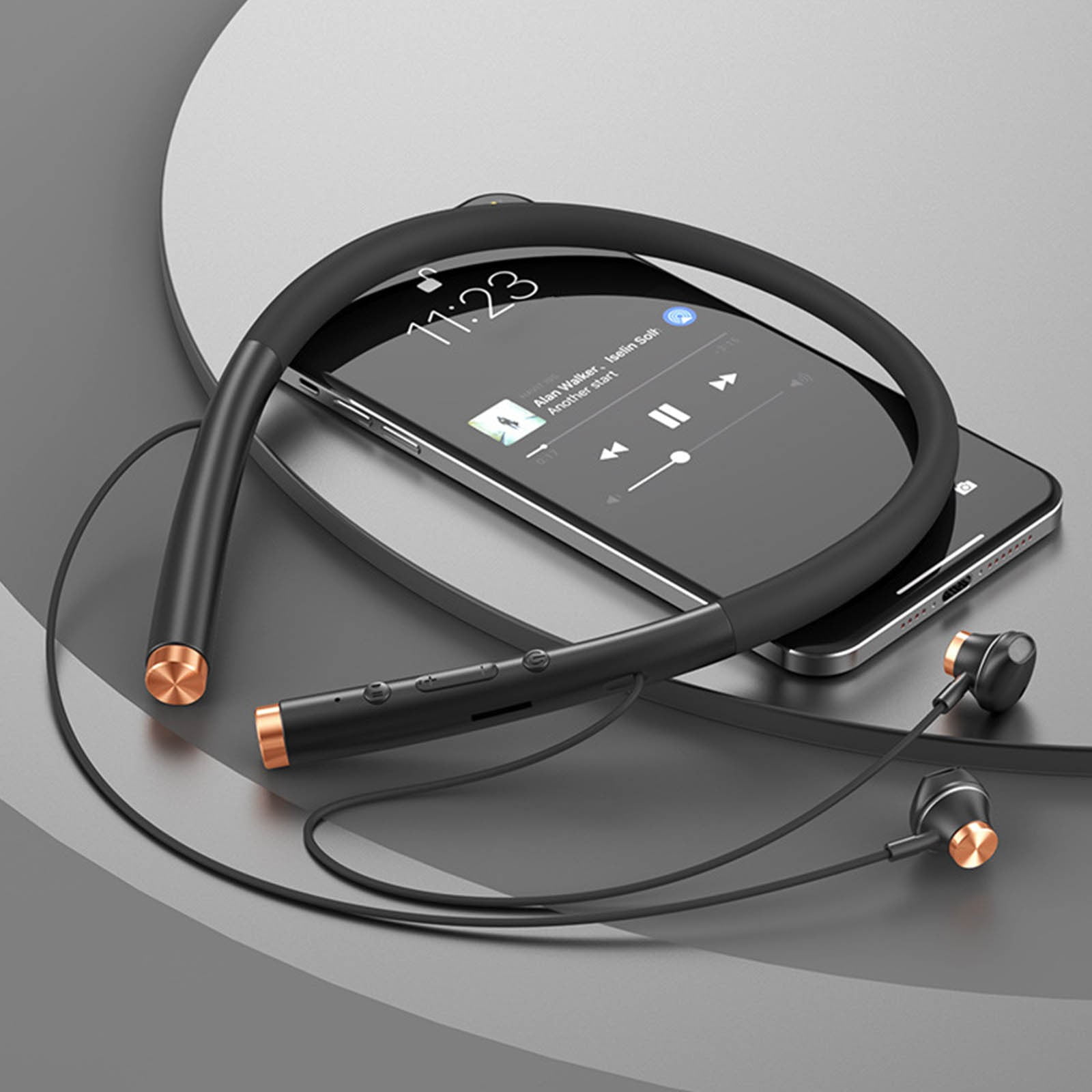
Look along the neckband for a button marked with a power symbol, such as ⏻. Some models combine the power button with the play/pause button. Others place it beside the volume controls or inside a small control module near one earbud.
If your headphones have only a cable and no battery, you may not need to turn them on. Plug the cable into the device and start playing audio.

How to Turn On Bluetooth Neckband Headphones
Follow these steps in order:
-
Charge the neckband first.
Connect the supplied charging cable to the charging port. A red, orange, or blinking light often means the battery is charging. Leave the headphones connected for at least 10 to 15 minutes if the battery may be fully empty. -
Disconnect the charging cable.
Some neckband headphones cannot power on or enter pairing mode while charging. -
Find the Power button.
Look for the button marked with a power symbol. On some models, it is labeled MFB, which means multifunction button. -
Press and hold the Power button.
Hold it for about 2 to 5 seconds. A quick press may only pause music or wake the controls. -
Watch and listen for a response.
The headphones may play a tone, announce “power on,” vibrate, or show a flashing LED. A blue or white light often means the headphones are on. -
Place the headphones around your neck.
Insert the left and right earbuds into the correct ears. The letters L and R show the proper side. -
Pair them with your device if needed.
Turning on the headphones does not always connect them automatically. Open Bluetooth settings on your phone or computer and select the headphone name.
How to tell that the headphones are on
Your neckband headphones are likely powered on when:
- A status light appears or blinks.
- You hear a startup tone.
- A voice prompt says “power on.”
- The device appears in the Bluetooth list.
- The earbuds produce sound after connection.
A light that stays on for a few seconds and then turns off does not always mean the headphones are off. Some models turn off the LED to save battery while remaining connected.

How to Put Neckband Headphones Into Pairing Mode
Pairing mode allows a phone or computer to find the neckband headphones for the first time.
For new or reset headphones
- Turn the headphones off.
- Press and hold the Power button for about 5 to 10 seconds.
- Keep holding it after the normal startup tone.
- Release the button when the light flashes blue and red, blue and white, or another alternating pattern.
- Open Bluetooth settings on your device.
- Select the headphone name from the available devices list.
- Confirm the pairing request if one appears.
Many models enter pairing mode automatically the first time you turn them on. If they connect to a device they already know, they may skip pairing mode.
On an iPhone or iPad
- Open Settings.
- Tap Bluetooth.
- Turn Bluetooth on.
- Wait for the neckband name to appear under available devices.
- Tap the name to connect.
Apple explains that a Bluetooth accessory must be discoverable before it can appear in the Bluetooth device list. If the name does not appear, turn the headphones off, place them in pairing mode, and try again.
On an Android phone or tablet
- Open Settings.
- Tap Connected devices or Bluetooth. The name can vary by Android version.
- Turn Bluetooth on.
- Tap Pair new device if that option appears.
- Choose the neckband headphones.
- Accept the pairing request.
Google notes that Android menu names can differ between phone brands. Samsung, Motorola, Google Pixel, and other devices may place Bluetooth controls in slightly different locations.
On a Windows PC
- Open Settings.
- Select Bluetooth & devices.
- Turn Bluetooth on.
- Choose Add device.
- Select Bluetooth.
- Click the neckband headphones when they appear.
The computer must have working Bluetooth hardware. If it does not, a compatible USB Bluetooth adapter may be required.

What to Do If Your Neckband Headphones Will Not Turn On
Check the simplest and safest causes first. Do not open the neckband or try to replace its internal battery unless the manufacturer provides a specific service procedure.
1. Charge the battery
A dead battery is the most common reason for no response. Connect the headphones to a known-good USB power adapter and cable.
Try the following:
- Test a different charging cable.
- Try a different USB power source.
- Check whether the charging port has dust or lint.
- Look for a charging light.
- Charge the headphones for at least 30 minutes before testing again.
Do not force a cable into the port. If the port feels loose, becomes hot, smells burnt, or shows signs of damage, stop charging and contact the manufacturer.
2. Hold the button longer
A short press may not start the headphones. Press and hold the Power button for 5 seconds. If that fails, try holding it for up to 10 seconds.
Avoid pressing every button at once. That can activate a reset, change the operating mode, or make it harder to identify the real problem.
3. Check whether the button is correct
Some neckbands have separate buttons for:
- Power
- Volume up
- Volume down
- Play and pause
- Voice assistant
- Noise control
The play/pause button may look similar to the power button. Check the printed symbols or the model guide.
4. Remove the headphones from Bluetooth
The headphones may be on but connected to another nearby device, such as an older phone or laptop.
Turn Bluetooth off on nearby devices, then restart the neckband. You can also remove the headphones from your phone’s saved Bluetooth list and pair them again.
On an iPhone, tap the information button beside the accessory name and choose Forget This Device. On Android, open the saved Bluetooth devices list and choose Forget or Unpair, depending on the phone.
5. Reset the neckband
A reset can fix a frozen Bluetooth connection, but the correct button combination differs by model. Common combinations include:
- Holding Power and Volume Up together
- Holding Power and Volume Down together
- Holding the Power button for 10 to 15 seconds
- Holding two control buttons while switching on
Do not guess if the manual does not identify the reset method. Search the manufacturer’s support page using the exact model number printed on the neckband or box.

Neckband Headphones Turn On but Do Not Connect
If the neckband powers on but your phone cannot connect, the problem is usually pairing mode, an old saved connection, distance, or low battery.
Use this sequence:
- Keep the headphones within about 3 feet of the phone during setup.
- Turn Bluetooth off and back on.
- Turn the neckband off.
- Forget the old headphone entry on the phone.
- Put the neckband into pairing mode.
- Select the correct name from the Bluetooth list.
- Test audio after the connection completes.
Do not select a similarly named device by mistake. Some phones may show nearby cars, speakers, TVs, and other headphones.
If the neckband connects but produces no sound, check the audio output menu on your phone or computer. The device may be connected for calls but not selected for media audio. On Windows, open the sound output list and select the neckband as the playback device.
If only one earbud works, check whether the earbuds are fully seated in their charging or magnetic storage position. Some neckband designs use magnets to control playback or sleep mode. A poor contact point can affect how the earbuds wake or charge.

What the Neckband Light Colors Usually Mean
LED colors are not universal, so use this table as a general guide rather than a guarantee.
| Light or behavior | Common meaning |
|---|---|
| No light | The headphones may be off, fully discharged, or charging without an LED |
| Red or orange | Charging or low battery |
| Solid blue or white | Powered on or connected |
| Fast blue and red flashing | Pairing mode |
| Slow blue or white flashing | Powered on and waiting, or connected |
| Repeated red flashes | Low battery or a connection problem |
The manufacturer’s manual takes priority. Some brands use different colors, and some models announce battery status through voice prompts instead of LEDs.
A flashing light does not always mean the headphones are ready to pair. It may indicate that they are already connected to another device. If the name does not appear, disconnect Bluetooth on nearby devices and start pairing mode again.
Common Mistakes to Avoid
Pressing the button only once
A single press may pause music or answer a call. Use a firm, continuous press to turn the headphones on.
Trying to pair before turning them on
The phone cannot find a powered-off neckband. Turn it on first, then activate pairing mode.
Leaving the charging cable connected
Some models disable Bluetooth while charging. Unplug the cable before trying to connect.
Confusing Bluetooth with a wired connection
A wired neckband does not need Bluetooth pairing. A USB-C cable may provide audio on some devices, but on others it is used only for charging.
Ignoring device limits
A neckband may remember several devices but connect to only one at a time. Dual-device models can connect to two devices, but that feature must be supported and enabled.
Using a damaged battery
Stop using the neckband if it swells, overheats, leaks, smells unusual, or becomes hot during normal charging. Do not puncture, crush, or place a damaged lithium-ion battery in household trash. Follow local US battery recycling guidance or contact the manufacturer.

When to Contact the Manufacturer
Contact the manufacturer when the neckband still shows no response after:
- Charging with a known-good cable and power source
- Checking the correct Power button
- Holding the button for the time listed in the manual
- Trying the documented reset process
- Testing the headphones with another device
Have the model number, purchase date, and charging behavior ready. The model number is often printed on the inside of the neckband, near the charging port, on the box, or in the original receipt.
If the headphones are under warranty, avoid opening the housing. Internal repairs can create a battery and electrical risk and may affect warranty coverage.

Frequently Asked Questions
How long should I hold the Power button on neckband headphones?
Start with 2 to 5 seconds. If the headphones do not respond, try up to 10 seconds. The correct time depends on the model, so check the user guide for exact instructions.
Can I use neckband headphones while they are charging?
Some models allow wired or Bluetooth use during charging, but many do not. For safety and reliable pairing, unplug the headphones before turning them on unless the manual says they support use while charging.
Why do my neckband headphones turn off right away?
The battery may be empty, the Power button may not have been held long enough, or the headphones may have a hardware fault. Charge them for at least 30 minutes, then try again.
Why are my neckband headphones not showing on my iPhone or Android phone?
They may not be in pairing mode, may already be connected to another device, or may have a low battery. Forget the old Bluetooth entry, turn off Bluetooth on nearby devices, and place the neckband into pairing mode again.
Do neckband headphones work without Bluetooth?
Wired models can work without Bluetooth. Bluetooth neckbands generally need a wireless connection for audio, although some models may support a wired USB-C or 3.5-millimeter connection.
How do I know whether my neckband headphones are fully charged?
The light may change from red or orange to blue, white, or green. Some models turn the light off when charging ends. Because indicators differ, check the model’s manual rather than relying on color alone.
Conclusion
To turn on neckband headphones, charge them, unplug the charging cable, and hold the Power button for about 2 to 5 seconds. Watch for a light, tone, or voice prompt. If they turn on but do not connect, place them in pairing mode and select them from your phone or computer’s Bluetooth settings.
If there is still no response, test the cable and power source, remove old Bluetooth connections, and use only the reset method listed for your model. Stop using the headphones if the battery becomes hot, swollen, damaged, or emits an unusual smell.