How Do You Use Beats Headphones Guide for Beginners

Use Beats headphones by charging them, turning them on, pairing them through Bluetooth, and then using the built-in controls for music, calls, and voice assistants. The easiest setup is to match the right device, check the fit, and keep the volume at a safe level.
If you’re asking how do you use beats headphones, the short answer is: charge them, turn them on, pair them through Bluetooth, and then use the built-in buttons or touch controls for playback and calls. The exact steps vary a little by model, but the basic process is simple enough for beginners.
Beats headphones are designed to work easily with phones, tablets, laptops, and other Bluetooth devices. In this guide from the Top Headphone Reviews Editorial Team, we’ll walk through setup, controls, everyday use, and a few common mistakes to avoid.
- Pair first: Bluetooth setup is the main step for most Beats models.
- Check fit: Good fit improves sound, comfort, and noise isolation.
- Learn controls: Play, pause, volume, and calls are easy once you know the buttons.
- Fix basics first: Battery, output settings, and resets solve many issues.
How Do You Use Beats Headphones? Beginner-Friendly Overview and Search Intent
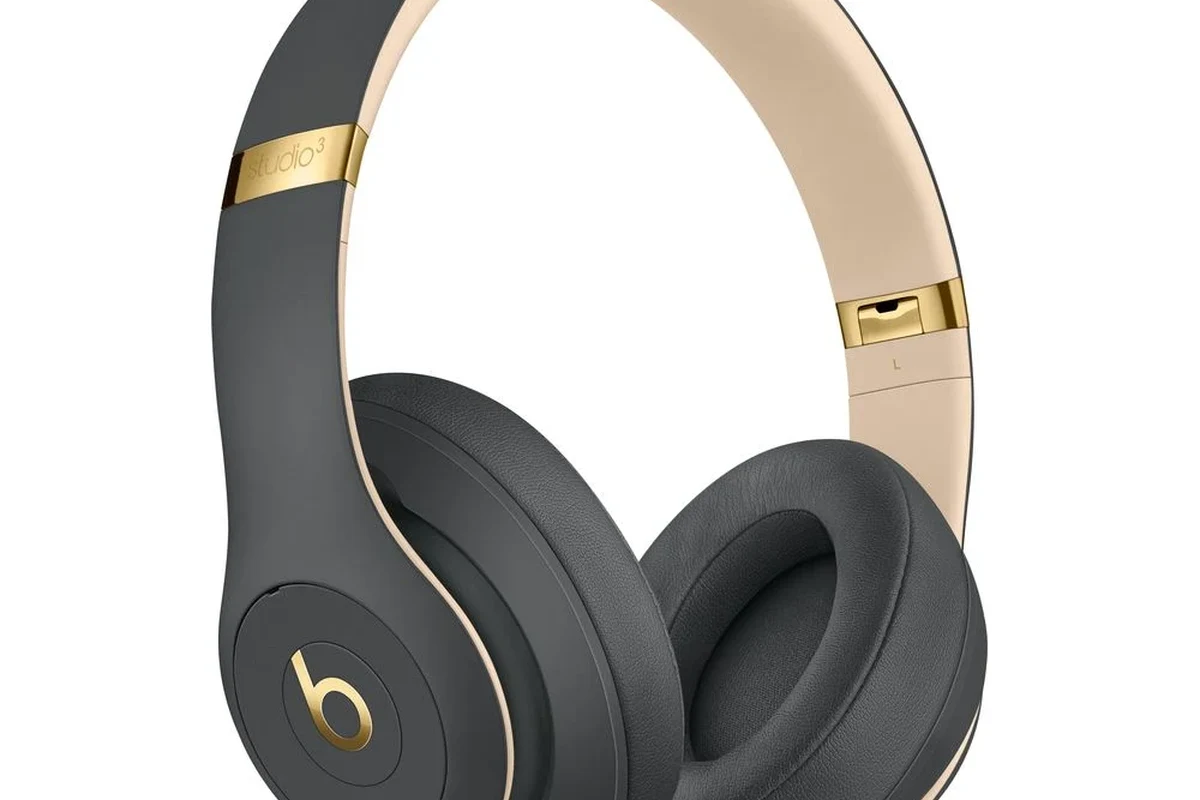
Most people searching for how to use Beats headphones want practical help, not technical jargon. They usually need to know how to connect the headphones, control music, answer calls, and get the best sound without wasting time.
That’s the real starting point: Beats are wireless Bluetooth headphones or earbuds in most cases, so the main job is pairing them correctly and learning the controls. Once that’s done, daily use is straightforward.
Some Beats models include Apple-friendly pairing features, while others rely mainly on standard Bluetooth. Features can vary by model and by the phone or computer you use.
If you’re still comparing headphone styles, it can help to understand the types of headphones explained before you buy. That makes it easier to choose between over-ear, on-ear, and in-ear Beats models for your routine.
What You Need Before You Start: Pairing, Charge, and Device Compatibility
Before you try to connect Beats headphones, make sure they have enough battery and that your device supports Bluetooth. A weak charge or outdated software is one of the most common reasons pairing feels confusing.
You do not need special audio equipment for most Beats models. In normal use, a phone, tablet, laptop, or desktop with Bluetooth is enough.
iPhone, Android, Mac, and Windows: What Works Best with Beats
Beats usually work across iPhone, Android, Mac, and Windows, but the experience may feel smoother on Apple devices. That’s because some Beats models support faster Apple pairing features.
On Android and Windows, the setup still works well through standard Bluetooth, but you may need to open settings manually and select the headphones yourself. If you use a Windows PC, our guide on how to select headphones in Windows 11 can help when the wrong output device is chosen.
If your computer keeps sending audio to the speakers instead of the headphones, the issue is usually device selection rather than the Beats headphones themselves. That’s a common beginner problem and an easy one to fix.
Checking Battery Life, Case Charge, and Firmware Updates
Before pairing, check whether the headphones or earbuds have enough charge for setup. If the battery is too low, pairing may fail or disconnect during the process.
For true wireless Beats earbuds, the charging case matters too. A dead case can stop the earbuds from charging properly, which makes it look like the earbuds themselves are broken.
- Headphones have enough battery
- Charging case has power if applicable
- Your phone or computer Bluetooth is on
- Firmware updates are installed when available
Firmware updates can improve stability and fix connection issues. If you notice repeated drops or odd behavior, checking for an update is often worth the time.
Step-by-Step Setup: How to Turn On, Pair, and Connect Beats Headphones
Once the headphones are charged, setup usually takes only a few minutes. The goal is to put Beats into pairing mode, find them on your device, and confirm the connection.
Press and hold the power button or follow the model-specific startup method until the indicator light shows they are on.
Hold the pairing button or power button until the light flashes, which usually means the headphones are ready to connect.
Open Bluetooth on your phone, tablet, or computer and tap or click the Beats device name.
Play music or a video to confirm sound works, then check volume, pause, and call controls.
Using Bluetooth Pairing Mode the Right Way
Bluetooth pairing mode is the key step for most Beats headphones. If the device does not show up right away, keep the headphones close to the phone or laptop and make sure no other nearby device is already connected.
For a broader walkthrough, you can also read our guide on how to connect Bluetooth headphones. The same general logic applies to Beats and many other wireless models.
If pairing fails, turn Bluetooth off and back on again on your device before retrying. A simple reset of the connection list often solves the problem faster than restarting everything.
Connecting Through Apple Devices with Fast Pairing
Some Beats models can pair very quickly with iPhone, iPad, or Mac devices. In many cases, you only need to bring the headphones near the device and follow the on-screen prompt.
This is convenient, but it does not mean Beats are limited to Apple products. The same headphones can still be used with Android, Windows, and other Bluetooth devices if you pair them manually.
Reconnecting to a Previously Paired Device
After the first setup, reconnecting is usually automatic. When you turn the headphones on, they should reconnect to the last device they used if Bluetooth is enabled and the device is nearby.
If they connect to the wrong device, disconnect them from the other source first. Multi-device households often run into this issue when one pair of headphones has been used with several phones or computers.
Everyday Controls: Play, Pause, Volume, Calls, and Voice Assistant Use
Using Beats day to day is mostly about learning the buttons or touch gestures on your specific model. The controls can differ between over-ear headphones, on-ear headphones, and earbuds, so it’s worth checking the manual once.
On-Headphone Buttons and Touch Controls Explained
Many Beats models use physical buttons for power, volume, and playback. Others use touch controls or a combination of both, especially on newer earbuds.
Start with the basics: one press for play or pause, longer presses for pairing or power, and separate taps or buttons for volume. If the controls feel unresponsive, it may be a fit issue or a low battery issue rather than a defect.
Using Beats for Phone Calls, Meetings, and Siri/Google Assistant
Beats are commonly used for phone calls and online meetings because the built-in microphone lets you speak without holding your phone. That makes them useful for commuting, remote work, and quick hands-free calls.
Voice assistant support depends on the device and model. On Apple devices, Siri is often the most seamless option, while Android users may prefer Google Assistant if the headphone model and phone support it.
Many “bad sound” complaints are actually caused by a poor seal, incorrect output settings, or very low battery rather than the headphone drivers themselves.
Using Beats for Music, Gaming, Workouts, and Travel: Practical Examples
Beats headphones can fit several everyday uses, but the best model depends on your priorities. A workout listener, a frequent traveler, and a gamer may all want different things from the same brand.
Best Use Cases for Over-Ear vs. In-Ear Beats Models
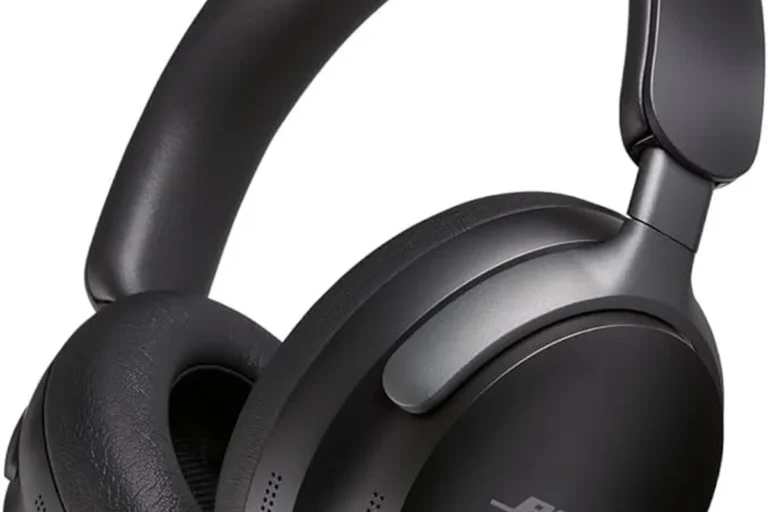
Over-ear Beats models are usually better for long listening sessions, travel, and casual home use. They tend to feel more immersive and can be more comfortable for people who do not like having something inside the ear canal.
In-ear Beats earbuds are often better for workouts, commuting, and portability. They are easier to carry and can stay more secure during movement, especially if the ear tips fit well.
Should you choose over-ear or in-ear Beats?
Choose over-ear if comfort and long listening matter most. Choose in-ear if portability, exercise, and a lighter carry are more important.
If you are comparing fit styles, our article on over-ear vs on-ear vs in-ear can help you match the design to your use case.
Noise Isolation, ANC, and Transparency Mode in Real Life
Beats models with active noise cancellation can help reduce steady background noise like airplane hum or office noise. That said, ANC performance varies by model and fit, and it is not the same as total silence.
Transparency mode is useful when you need to hear announcements, traffic, or someone speaking to you. For a deeper explanation, see our guide on transparency mode headphones.
If you want the broader basics of noise cancellation, our article on how noise cancelling headphones work explains why ANC helps in some situations more than others.
Common Mistakes Beginners Make with Beats Headphones
Most beginner problems are not serious hardware failures. They usually come from pairing confusion, output settings, or a poor physical fit.
Pairing Errors, Low Battery Issues, and Wrong Audio Output Settings
If Beats do not connect, the first thing to check is battery level. Low battery can cause the headphones to appear on but fail during pairing or playback.
Another common issue is choosing the wrong audio output on a laptop or desktop. If your sound is still coming from the speakers, open the Bluetooth or sound settings and make sure Beats is selected.
If your headphones connect but stay silent, the issue may be the device output setting rather than the headphones. Check volume, mute status, and selected playback device before assuming the Beats are faulty.
Using the Wrong Ear Tips, Fit Problems, and Poor Sound Expectations
In-ear Beats models depend heavily on the right ear tip size. If the seal is too loose, bass may sound weak and outside noise may leak in more than expected.
Over-ear models also need a proper fit. If the cups sit too high, too low, or press unevenly, sound quality and comfort can both suffer.
It also helps to keep expectations realistic. Beats are designed for mainstream listening and convenience, not for every niche audio preference. If you want a different tuning style, comparing them with other wired vs wireless headphones can help you decide what matters most.
Expert Advice: How to Get Better Sound, Longer Battery Life, and Safer Listening
A few small habits can improve your Beats experience a lot. Good fit, sensible volume, and regular charging usually matter more than any advanced trick.
EQ, Volume Habits, and Battery-Saving Tips from the Top Headphone Reviews Editorial Team
If your device offers EQ settings, try small adjustments instead of large boosts. A little bass reduction or midrange adjustment can make vocals clearer without making the sound harsh.
For battery life, lower the volume a bit, turn off features you do not need, and store the headphones properly when not in use. Battery performance can vary by model, age, and feature use, especially if ANC is active.
Listening at high volumes for long periods can cause hearing damage. Keep volume at 60% or below for extended sessions.
If you want more control over tone, our guide to the best EQ settings for headphone can help you make safer, more balanced adjustments.
When to Reset Beats or Update the Firmware
Resetting Beats is useful when the headphones won’t pair, keep disconnecting, or behave strangely across multiple devices. It is often the fastest way to clear a stubborn connection problem.
Firmware updates are worth checking when the manufacturer provides them. If your model starts acting differently after a phone update, or if controls and pairing become unreliable, updating or resetting may help before you replace anything.
If you notice persistent distortion, one-sided sound, pain, ringing, or unusually low volume, stop using the headphones and consider speaking with an audiologist or qualified audio specialist.
Price, Value, and Model Comparison: Which Beats Headphones Make Sense in 2026?
Beats pricing and value can vary by model, sales period, and retailer, so it helps to think in terms of budget, comfort, and features rather than chasing a single “best” choice. First-time buyers should focus on the model that fits their main use case.
Budget vs. Premium Beats Options for First-Time Buyers
Budget-friendly Beats options usually make the most sense if you want simple wireless listening, good portability, and easy setup. They are often enough for students, commuters, and casual listeners.
Premium Beats models may be worth it if you want stronger comfort, better noise control, more refined controls, or a more complete everyday feature set. The right choice depends on whether you care more about travel, workouts, calls, or long listening sessions.
| Model | Best For | Price Range |
|---|---|---|
| Entry-level Beats earbuds | Portable daily use | Varies |
| Midrange Beats headphones | Students and commuters | Varies |
| Premium Beats models | Travel, ANC, and comfort | Varies by brand |
If you are shopping on a tighter budget, our roundup of the best headphones under 100 may help you compare alternatives as well.
Final Recap: The Easiest Way to Start Using Beats Headphones Confidently
The easiest way to use Beats headphones is to charge them, enter pairing mode, connect through Bluetooth, and then learn the main controls for playback and calls. After that, the most important things are fit, volume level, and choosing the right output device.
If you run into problems, start with the basics: battery, Bluetooth, device selection, and reset options. With those steps, most beginners can get Beats working smoothly without frustration.
- Charge Beats first, then pair them through Bluetooth.
- Use the correct device output and test basic controls.
- Fit matters for sound, comfort, and noise blocking.
- Keep volume moderate for safer long-term listening.
Frequently Asked Questions
Most Beats headphones are designed for wireless use, so Bluetooth is the main way to listen. Wired use depends on the exact model and available cable support.
Many Beats models work without an app for basic listening and pairing. An app or system settings can still help with updates, battery checks, or customization depending on the device.
Check the fit, ear tips, volume level, and audio output settings first. Muffled sound can also come from a dirty grille, weak battery, or a poor Bluetooth connection.
Beats can be a strong commute choice because wireless use, portability, and ANC are convenient. Over-ear models usually feel more immersive, while earbuds are easier to carry and store.
Focus on battery life, comfort, noise cancellation, fit, and microphone quality for calls. Sound preferences like bass, clarity, and EQ support also matter, but they vary by model and listener.
Choose the right ear tip or headband fit, keep volume moderate, and take short breaks when needed. Weight, cushion material, and clamp force can also affect comfort over time.