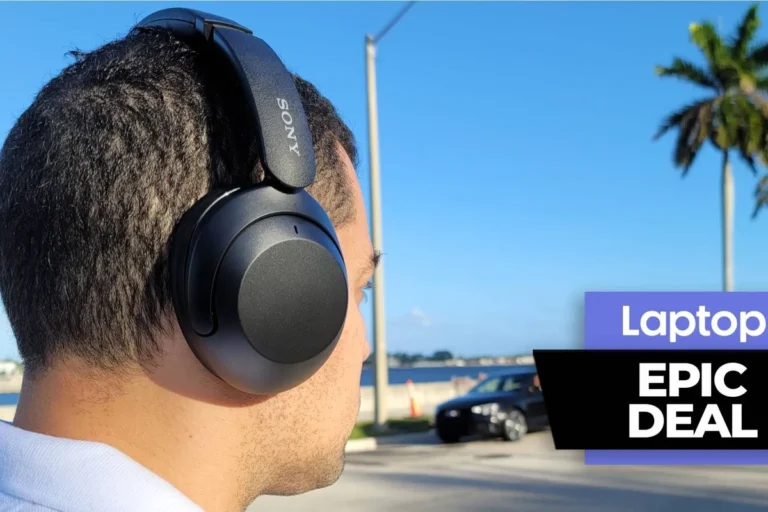
How to Hook Wireless Headphones to TV Easily and Fast

The fastest way is to use your TV’s built-in Bluetooth if it supports headphone audio. If not, a wireless transmitter connected to the TV’s audio output is usually the easiest reliable fix.
Hooking wireless headphones to a TV is easier than most people expect, but the best method depends on your TV’s audio outputs, your headphone type, and how much delay you can tolerate. If you want a fast, practical setup, the goal is simple: get sound from the TV into your headphones with the least lag and the fewest compatibility headaches.
At Top Headphone Reviews, we focus on the real-world side of audio gear, so this guide keeps things beginner-friendly and useful. You’ll learn which connection method is best, how to set it up step by step, and what to watch for before you buy anything.
- Fastest setup: Try built-in Bluetooth first.
- Most reliable fix: Use a wireless transmitter.
- Best for gaming: Prioritize low-latency audio.
- Before buying: Check TV outputs and codec support.
How to Hook Wireless Headphones to TV: What Viewers Really Want in 2025
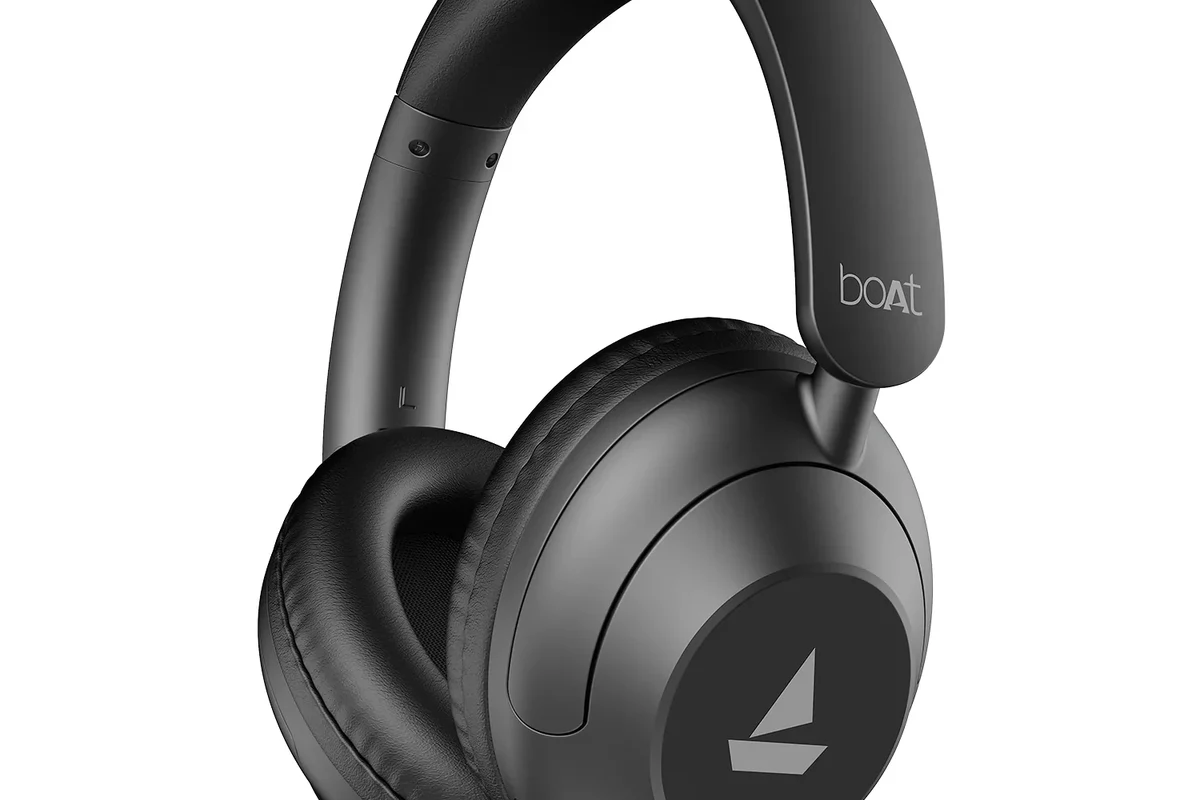
Most people searching for how to hook wireless headphones to tv want one of three things: quiet late-night viewing, better audio for gaming, or a simple way to hear dialogue more clearly. In 2025, the biggest decision is not just “wireless or not,” but whether your TV can send audio directly or needs help from an adapter.
Some TVs have built-in Bluetooth audio output, which is the easiest route. Others need a wireless headphone transmitter connected to the TV’s optical, 3.5mm, USB, or RCA audio output. The right choice depends on your TV model, your headphones, and whether you care more about convenience or lip-sync accuracy.
Wireless headphone performance can vary a lot by TV brand, headphone model, room layout, and codec support. What works perfectly for one setup may feel delayed or unstable in another.
If you are comparing wireless and wired listening in general, our guide on wired vs wireless headphones is a helpful place to understand the trade-offs before you buy.
Which Wireless Connection Works Best for Your TV Setup?
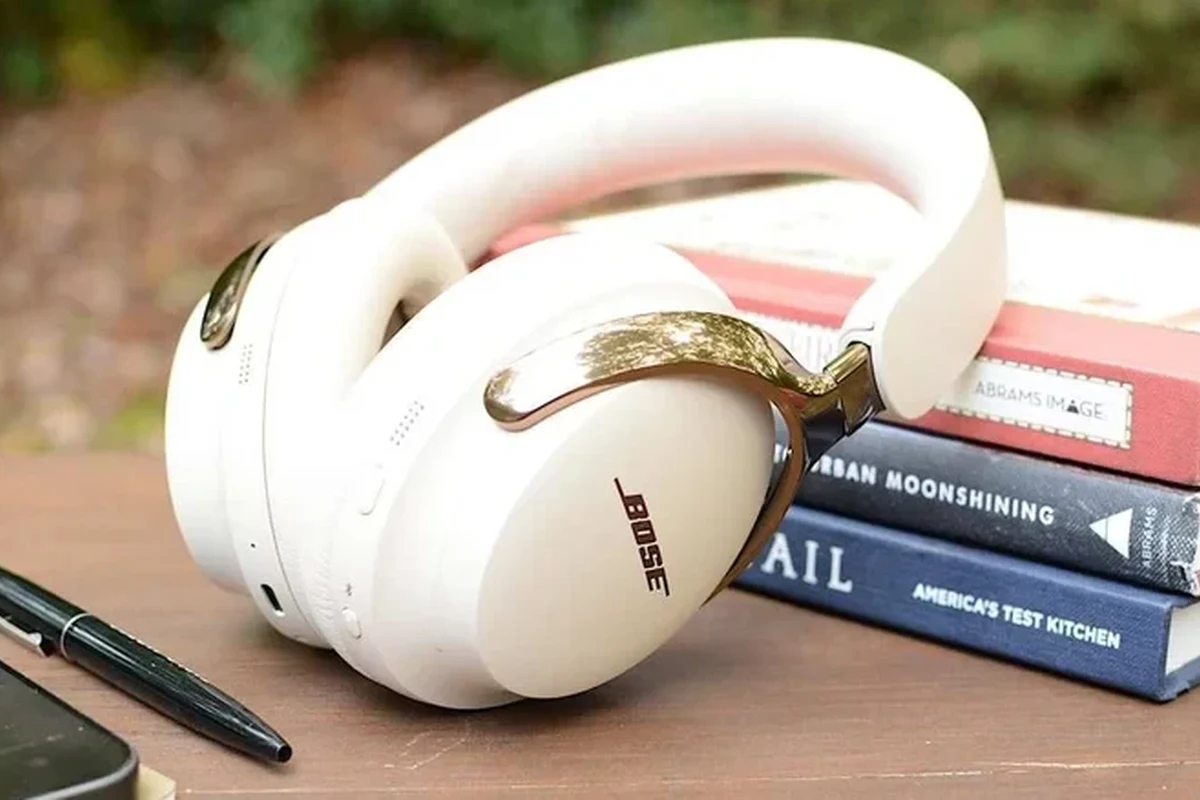
The best connection method usually comes down to three factors: compatibility, latency, and ease of use. Bluetooth is the most familiar option, but it is not always the best for gaming or fast-moving sports.
Before choosing a method, check whether your TV already supports Bluetooth audio output, whether your headphones can pair to it, and whether you need a transmitter for a more stable connection.
Bluetooth TV Pairing
Built-in Bluetooth is the simplest option when it works well. You pair the headphones directly with the TV, just like you would with a phone or laptop.
This is ideal for casual viewing, news, talk shows, and general streaming. The downside is that some TVs only support Bluetooth for remotes or accessories, not audio output, so the feature may be missing or limited.
Using a Wireless Headphone Transmitter
A wireless headphone transmitter connects to the TV’s audio output and sends sound to your headphones. This is often the best solution for older TVs or models without Bluetooth audio support.
Many transmitters are designed to reduce delay and improve stability. They can be especially useful if you want a more predictable setup for movies, gaming, or shared living spaces.
RF, Infrared, and Wi-Fi Options Compared
RF headphones use a dedicated radio connection and can offer strong range and simple pairing. They are often a good choice for TV watching because they are less dependent on Bluetooth codec support.
Infrared options require line of sight and are less common now. Wi-Fi-based audio systems can be convenient in multi-room setups, but they are usually more complex and may not be the fastest answer for a basic TV connection.
Many lip-sync complaints come from the TV and headphones using different processing delays, not from the headphones alone.
Step-by-Step Ways to Connect Wireless Headphones to a TV
There are three practical ways to get this done: pair directly through TV Bluetooth, use a transmitter, or route audio through another device such as a console or soundbar. The best method depends on what your TV supports and how much setup you want to manage.
Connecting Directly Through Built-In TV Bluetooth
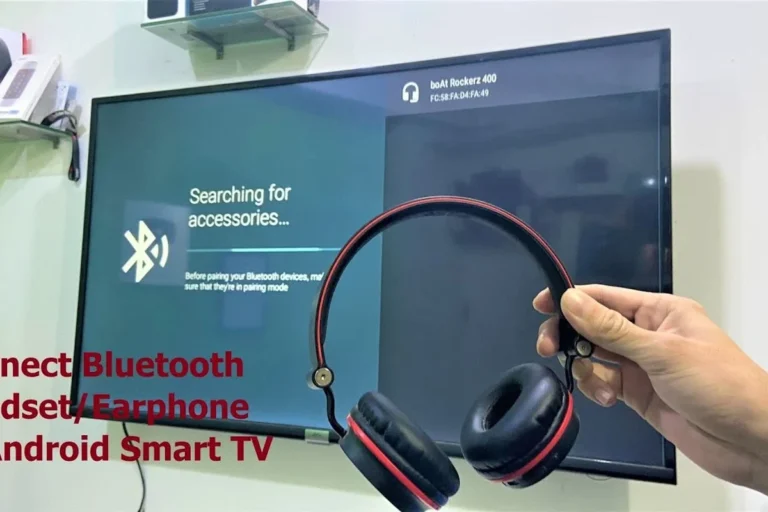
Go to the audio or Bluetooth menu on your TV and look for wireless headphones, audio output, or device pairing.
Follow the headphone instructions and make sure the headset is discoverable before scanning on the TV.
Confirm the connection, then play a video with dialogue to check volume, balance, and delay.
If your TV menu is confusing, look for settings related to audio output, external speakers, or Bluetooth devices. Some TVs automatically mute the speakers when headphones are connected, while others let you keep both active.
Pairing a Transmitter to the TV’s Audio Output
Look for optical, 3.5mm, RCA, or USB audio output options, since transmitter compatibility depends on the port type.
Plug the transmitter into the TV and power it on, then choose the correct input mode if the device has one.
Put the headphones into pairing mode and wait for the transmitter light or indicator to confirm the link.
This method is often more flexible than built-in Bluetooth, especially for older TVs. If you are using a gaming headset or low-latency headphones, this route can also be more dependable for keeping voices and action aligned.
Using Streaming Devices, Consoles, or Soundbars as a Workaround
Sometimes the TV itself is not the best place to connect. A streaming device, game console, or soundbar may offer better audio routing options, especially if the TV lacks Bluetooth output or has limited menu controls.
For example, some consoles support Bluetooth headsets or companion apps, while certain soundbars can pass audio through in a way that makes headphone connections easier. This is not always the cleanest solution, but it can save you from buying the wrong adapter.
Not every streaming device or console supports all headphone types. Always verify the audio output path before assuming the connection will work the way you expect.
Best Use Cases for Movies, Gaming, and Late-Night Viewing
Wireless TV headphones are not just about convenience. They solve different problems depending on whether you are watching movies, playing games, or trying not to wake up the house.
Watching TV Without Disturbing Others
This is the most common reason people use wireless headphones with a TV. They let you keep the volume at a comfortable level without blasting the room.
They are especially useful in apartments, shared homes, and bedrooms where other people are sleeping. If you use noise cancelling headphones, they can also help reduce outside distractions so dialogue is easier to follow.
Low-Latency Audio for Gaming and Sports
For gaming and live sports, delay matters. Even a small lag can make footsteps, commentary, or on-screen action feel disconnected from what you hear.
That is why many viewers prefer a low-latency transmitter or a codec-friendly headphone setup instead of relying on basic Bluetooth alone. If you game often, look for a headset or adapter marketed for low delay, but remember that real performance can still vary by device.
Helping Seniors or Hearing-Impaired Viewers
Wireless headphones can make TV dialogue much easier to understand for seniors or people who struggle with speech clarity. They can also help someone keep the volume lower for everyone else in the room.
If hearing loss is a concern, consider comfortable over-ear headphones with clear mids and easy-to-use controls. For ongoing hearing concerns, it is best to follow safe listening habits and consult an audiologist if needed.
If dialogue sounds muffled even after setup changes, or if one ear seems consistently quieter, an audiologist or hearing specialist can help determine whether the issue is the audio gear or your hearing.
Common Problems When Hooking Wireless Headphones to TV
Most connection issues are solvable, but they usually fall into the same few categories: no sound, delay, or weak signal. A little troubleshooting goes a long way before you replace anything.
No Sound After Pairing
If the headphones pair but produce no sound, check the TV audio output setting first. Some TVs need you to manually switch from internal speakers to Bluetooth or external audio.
Also confirm that the headphones are not connected to another device at the same time. Many wireless models will auto-connect to the last paired source, which can interrupt the TV connection.
Audio Delay and Lip-Sync Issues
Audio delay is one of the most common complaints with wireless TV headphones. It is often more noticeable in movies and gaming than in talk shows or casual viewing.
To reduce lag, try a low-latency transmitter, disable extra TV sound processing, or use a connection method that supports faster audio transmission. If your TV has a lip-sync adjustment menu, that can also help.
If speech sounds late, try turning off virtual surround, “enhanced audio,” or heavy sound modes before blaming the headphones.
Limited Volume, Dropouts, or Poor Range
Weak volume can happen when the TV output is set too low or when the transmitter and headphones are not matched well. Dropouts may come from interference, walls, or simply being too far from the source.
For best results, keep the transmitter in a clear line near the TV, charge the headphones fully, and avoid cheap adapters with unclear compatibility. Better build quality usually means fewer interruptions, though brand and model differences still matter.
Expert Advice: Mistakes to Avoid Before You Buy or Connect
A few simple checks can save you time and money. The biggest mistakes happen when buyers assume every TV supports the same wireless features.
TVs Without Bluetooth Output
Some TVs have Bluetooth for remotes or accessories but not for audio output. Others do not support Bluetooth at all, which means a transmitter is the better route from the start.
Before buying headphones, check the TV manual or settings menu for supported audio outputs. That one step can prevent a frustrating return later.
Codec and Latency Compatibility Traps
Not all Bluetooth audio is equal. The codec used by the TV, transmitter, and headphones can affect delay, clarity, and stability.
If you want the smoothest experience, pay attention to compatibility rather than just marketing language. A headset that sounds great on a phone may still lag on a TV if the connection chain is not aligned.
Why Cheap Adapters Can Cause Frustrating Performance
Very low-cost adapters often cut corners on range, stability, and audio quality. They may work for a while, then introduce static, dropouts, or sync problems.
That does not mean you need the most expensive kit, but it does mean the cheapest option is not always the best value. For many people, a mid-range transmitter is a safer balance of price and reliability.
How Much It Costs to Add Wireless Headphones to a TV Setup
Costs vary widely because the total price depends on whether you already own wireless headphones, whether your TV has Bluetooth, and whether you need a transmitter. The good news is that there are workable options at several budget levels.
Budget Bluetooth Transmitters vs Premium Low-Latency Kits
Budget transmitters can be enough for basic TV listening, but they may be more limited in range or delay control. Premium low-latency kits usually cost more because they are built for more stable performance and better codec support.
If you only watch casual content, a simple setup may be enough. If you game often or notice sync issues easily, spending more on the transmitter can be worth it.
When It’s Worth Upgrading Headphones or the TV Audio Setup
If your current headphones are uncomfortable, have weak battery life, or sound muddy on dialogue, an upgrade may help more than a new adapter. The same is true if your TV’s audio menu is too limited to support a clean connection.
In some homes, the best long-term solution is a better headphone set plus a transmitter that matches the TV’s outputs. That combination usually offers the best balance of comfort, clarity, and ease of use.
- Built-in Bluetooth is easiest when your TV supports audio output pairing.
- A transmitter is often the most reliable solution for older TVs or lower-lag listening.
- Gaming and sports need better latency control than casual TV watching.
- Check TV outputs, codec support, and headphone pairing before buying anything.
Final Recap: The Fastest Way to Hook Wireless Headphones to TV in 2025
The fastest way to hook wireless headphones to TV is to use built-in Bluetooth if your TV supports audio pairing and the sound stays in sync. If that does not work well, a wireless transmitter connected to the TV’s audio output is usually the next best option.
For most viewers, the smartest approach is to match the connection method to the TV, not just the headphone brand. Choose the path that gives you stable sound, acceptable delay, and enough comfort for the way you actually watch TV.
Frequently Asked Questions
Wireless headphones are more convenient and let you move around freely. Wired headphones can still be better if you want the simplest setup and no battery concerns.
Yes, noise cancelling headphones can make dialogue easier to hear by reducing background noise. They work especially well in shared homes or noisy rooms.
Closed-back headphones are usually better for TV because they keep sound in and block more outside noise. Open-back models can sound more spacious, but they leak sound and are less private.
A low-latency wireless headset or transmitter setup is usually best for gaming. Over-ear models often feel more comfortable during longer sessions than on-ear or in-ear options.
Check Bluetooth support, latency, battery life, comfort, and whether the headphones match your TV’s output options. If possible, look for clear codec compatibility and easy pairing.
Choose lightweight headphones with soft ear cushions and an adjustable headband. If you listen for long periods, take breaks and keep volume at a safe level.