How to Hook Up Headphones to Xbox Easily and Fast

The easiest way to hook up headphones to Xbox is usually to plug a wired headset into the controller or use an Xbox Wireless headset. Bluetooth-only headphones often need a workaround because Xbox does not support direct Bluetooth audio the same way phones do.
If you want to know how to hook up headphones to Xbox, the fastest path is usually the controller’s 3.5mm jack or a supported Xbox Wireless headset. The exact method depends on your Xbox model, your controller, and whether your headphones are wired, wireless, or Bluetooth-based.
- Fastest setup: Use the controller’s 3.5mm jack for wired headphones.
- Best wireless option: Choose an Xbox Wireless headset when possible.
- Big limitation: Most Bluetooth headphones will not connect directly.
- Better sound: Check chat mixer, volume, and spatial audio settings.
How to Hook Up Headphones to Xbox: What Works in 2025
Xbox is a little different from PlayStation and PC because not every headphone connection method works natively. Some setups are simple, while others need an adapter or a workaround.
The good news is that most players can get sound and chat working in minutes once they know which connection type fits their gear. If you are also comparing headset types, our guide to types of headphones explained can help you choose a better match for gaming.
Xbox support for headphones depends on the console generation, the controller you use, and whether the headset is made for Xbox Wireless or standard Bluetooth.
Know Your Xbox Model Before You Start
Before you plug anything in, check which Xbox you own. The connection options on Series X and Series S are a bit different from older Xbox One systems, especially if you want wireless audio or chat support.
Xbox Series X and Series S headphone options
Xbox Series X and Series S support wired headsets through the controller, plus Xbox Wireless headsets made for the console. Many players prefer these newer models because setup is usually faster and more stable than using extra adapters.
If your headset includes a USB dongle, it may work only if the headset maker specifically supports Xbox. A normal USB headset or random Bluetooth dongle is not automatically compatible just because it fits the port.
Xbox One, One S, and One X connection differences
Xbox One family consoles can also use wired headsets through the controller, but older controllers may not have the built-in 3.5mm jack. In that case, you may need a headset adapter or a newer controller.
Some Xbox One users run into confusion because a headset works for game audio but not voice chat, or vice versa. That usually points to an adapter, firmware, or settings issue rather than a broken headset.
Wired, wireless, USB, and Bluetooth: what Xbox actually supports
Xbox supports wired headsets through the controller, Xbox Wireless headsets, and some USB-based headsets that are designed for Xbox compatibility. Standard Bluetooth headphones are the biggest limitation because Xbox consoles do not generally support direct Bluetooth audio the way phones do.
Did You Know? Many “wireless” gaming headsets still do not use Bluetooth for Xbox. They often use a dedicated wireless connection or USB dongle instead, which is why they can work when a normal Bluetooth headset cannot.
Many “wireless” gaming headsets still do not use Bluetooth for Xbox. They often use a dedicated wireless connection or USB dongle instead, which is why they can work when a normal Bluetooth headset cannot.
Fast Ways to Connect Headphones to Xbox
If you want the quickest setup, start with the controller jack. If that does not fit your headset, move to an adapter or a headset made for Xbox Wireless.
Plugging into the Xbox controller 3.5mm jack
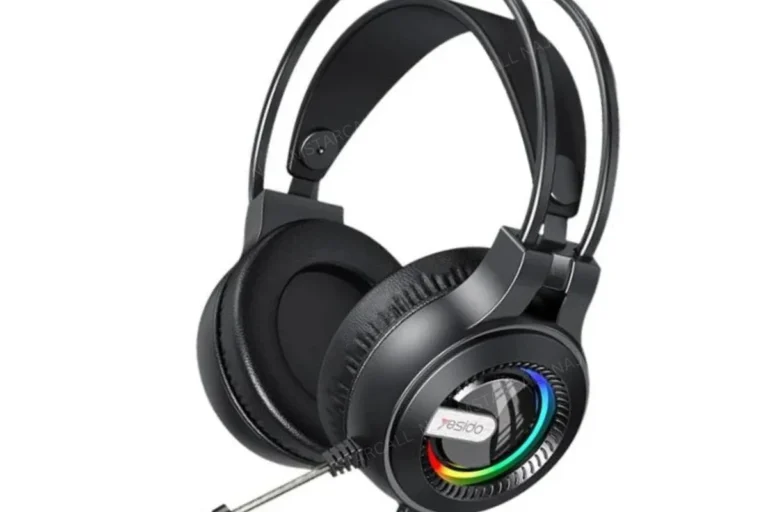
This is the simplest method for most wired headphones and gaming headsets. Just plug the 3.5mm cable into the controller, then make sure the headset is seated fully and the volume is not muted.
If your headset has a mic, the controller should usually handle both game audio and voice chat. For readers who use wired headphones on other devices too, our guide on do wired headphones work on MacBook covers why a simple cable connection is often the most reliable option.
Using a headset adapter for older controllers
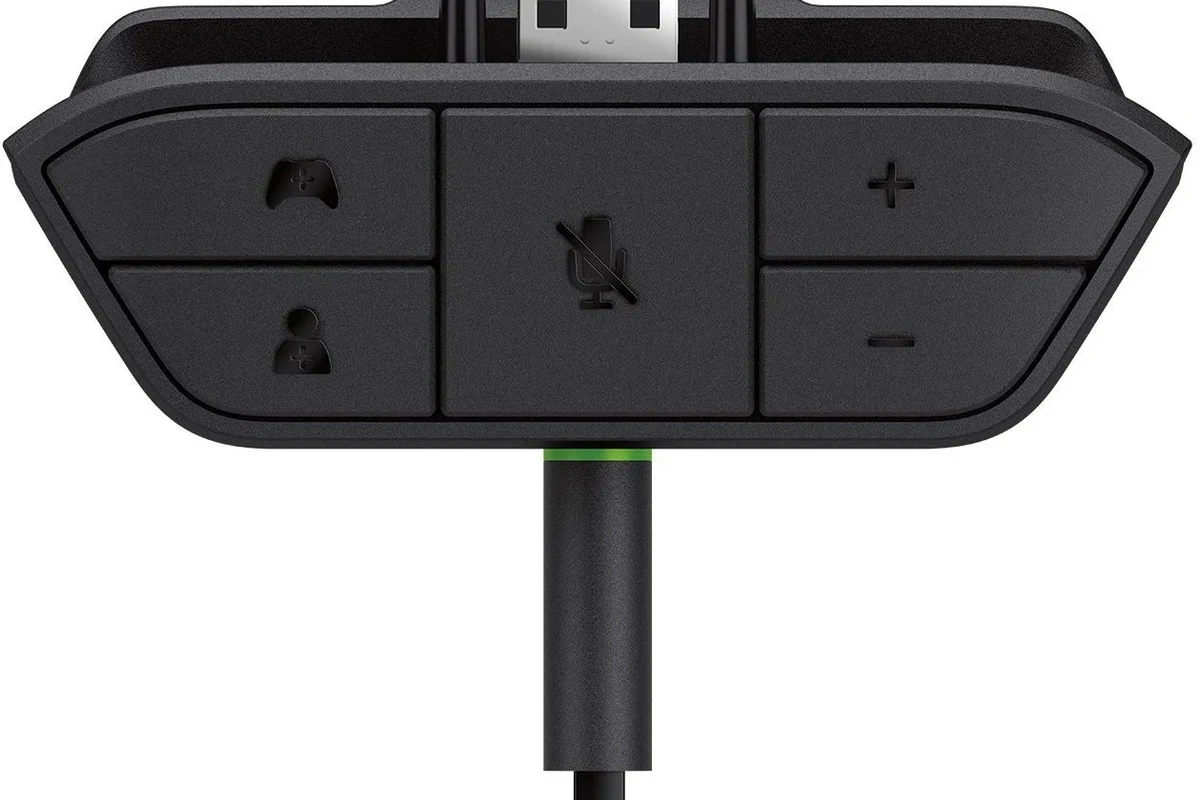
Older Xbox One controllers may need a headset adapter if they do not have the built-in headphone port. The adapter lets you connect a standard 3.5mm headset and usually gives you easier access to chat volume controls.
This can be a smart fix if you already own a good wired headset and do not want to replace it. Just make sure the adapter is meant for your controller version, because the wrong accessory can create crackling, low volume, or no mic input.
Connecting wireless gaming headsets with an Xbox USB dongle
Some wireless gaming headsets include a USB transmitter or dongle that plugs into the console. If the headset is Xbox-compatible, the dongle should pair with the headset and send audio without a cable.
Keep in mind that not every USB wireless headset works with Xbox. Compatibility claims vary by brand and model, so always check the packaging or product page before buying.
Using Xbox Wireless for supported headsets
Xbox Wireless is the cleanest wireless option when your headset supports it. Pairing is usually straightforward, and you avoid the extra step of managing a dongle for some models.
This is often the best choice if you want fewer cables and a more console-native experience. It can also be a better fit than a general-purpose Bluetooth headset if you care about chat stability and lower hassle.
If your headset supports both Bluetooth and a dedicated Xbox connection, use the Xbox-specific mode for gaming. Bluetooth is often better reserved for phones, tablets, and casual listening.
Step-by-Step Setup for the Most Common Headphone Types
Once you know the connection type, setup is usually quick. The main goal is to get audio, chat, and mic input working together without introducing delay or distortion.
Wired headphones with mic: quick setup and sound check
Insert the 3.5mm plug firmly into the Xbox controller until it clicks or seats fully.
Use the headset controls or Xbox audio settings to bring volume up gradually.
Join a party chat or multiplayer lobby and confirm that your voice is being picked up clearly.
If the sound is too quiet, check whether the controller volume is lowered in the Xbox guide. Also make sure the cable is not partially inserted, since that can cause one earcup to cut out or the mic to fail.
Wireless gaming headset: pairing, charging, and profile selection
Charge the headset first, then follow the pairing instructions from the headset maker. For Xbox Wireless models, pairing usually involves pressing the headset sync button and the console/controller sync button.
After pairing, select the correct audio profile if the headset app or Xbox menu offers one. Some headsets have preset modes for chat, bass, or competitive play, and the right profile can make footsteps and dialogue easier to hear.
Bluetooth headphones: why they usually need a workaround
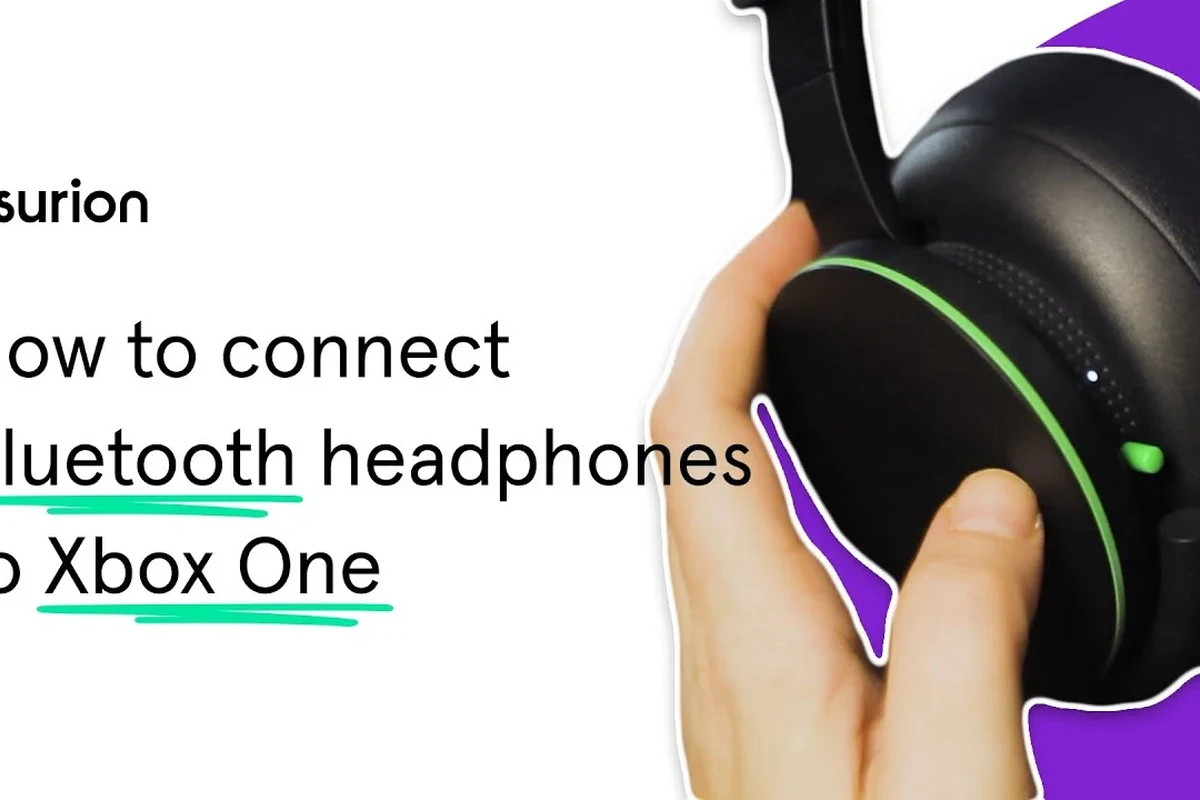
Most Bluetooth headphones do not connect directly to Xbox consoles for game audio. That means you usually need a workaround such as connecting to your TV, using a compatible adapter, or choosing a headset with Xbox Wireless support instead.
This is why many buyers search for “wireless” and assume all wireless headphones will work the same way. They do not, and that difference matters a lot for gaming latency and chat quality.
Do not assume a Bluetooth headset will work with Xbox just because it pairs easily with your phone. Xbox compatibility is more limited, and many Bluetooth-only models will not connect directly for console audio.
Best Audio Settings to Improve Game Chat and Sound Quality
Even a good headset can sound underwhelming if the settings are wrong. A few small adjustments can improve chat clarity, reduce background noise, and make games feel more immersive.
Adjusting headset volume, chat mixer, and mic monitoring
Start with headset volume, then adjust the chat mixer so game audio and voice chat feel balanced. If the game is drowning out your teammates, shift the mixer toward chat; if voices are too loud, move it back toward game sound.
Mic monitoring can also help because it lets you hear your own voice in the headset. That can prevent you from talking too loudly during long sessions, especially if your headset has strong passive isolation or noise cancelling.
Setting output format and spatial audio for games and movies
Xbox audio menus may let you choose stereo uncompressed, Windows Sonic, Dolby Atmos, or another spatial audio option depending on your setup. The best choice depends on your headset, your game, and how you personally like to hear directional cues.
For competitive games, some players prefer a cleaner stereo presentation, while others like spatial audio for a wider sense of direction. If you want to understand how headset design affects that experience, our headphones vs earphones complete guide can help you compare comfort and sound presentation.
Testing voice chat in party and multiplayer games
Always test voice chat before a long session. Join a party, speak normally, and ask someone if your voice sounds too quiet, distorted, or distant.
If you cannot hear chat at all, check the mute button, chat mixer, and mic permissions first. Many “broken headset” problems are really just settings issues.
Listening at high volumes for long periods can cause hearing damage. Keep volume at 60% or below for extended sessions.
Common Mistakes When Hooking Up Headphones to Xbox
Most setup problems are simple and fixable. The biggest mistakes usually come from assuming every headset works the same way across all consoles.
Assuming any Bluetooth headset will connect directly
This is the most common mistake. Xbox is not like a phone, so direct Bluetooth pairing is usually not the answer for game audio.
If you already own Bluetooth headphones, check whether your TV, monitor, or a supported adapter can bridge the connection. Otherwise, a wired headset or Xbox Wireless model is usually the cleaner fix.
Forgetting controller firmware or headset firmware updates
Sometimes the headset is fine, but the controller firmware is outdated. Updating the controller through Xbox settings can solve pairing, mic, or disconnect issues.
Headset firmware updates matter too, especially for wireless models. Manufacturers often use updates to improve compatibility, stability, or audio behavior.
Using the wrong cable, adapter, or audio port
A cable that looks similar may still be wrong for your headset. TRRS and TRS connectors, broken adapters, and loose splitter cables can all cause missing mic audio or no sound at all.
If you are not sure which connector you need, check the headset manual before buying extra accessories. That small step can save time and avoid unnecessary returns.
Expert Advice: What to Avoid Before Buying New Headphones
If you are shopping for a new headset just for Xbox, focus on compatibility first and sound quality second. A great-sounding headset is not very useful if it cannot connect properly or introduces delay in fast-paced games.
Warning about latency, mic quality, and compatibility claims
Marketing language can be vague, especially around wireless headsets. Look for clear Xbox compatibility, low-latency connection support, and a mic that is designed for voice chat rather than only casual calls.
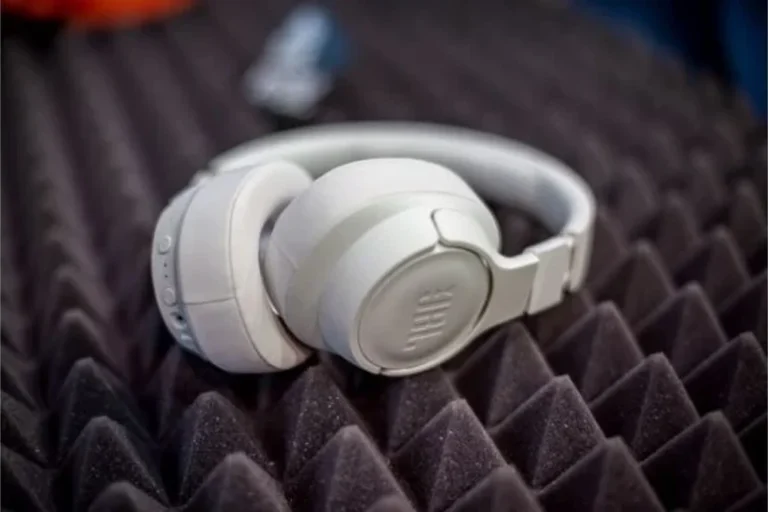
Noise cancelling can also be useful, but it should not come at the cost of voice clarity or comfort. If you want a deeper look at how isolation affects sound, our guide to how noise cancelling headphones work explains the basics in simple terms.
When a budget wired headset is smarter than a pricey wireless model
A budget wired headset is often the smarter choice if you mainly play at a desk, want simple setup, or do not want to charge another device. Wired models also avoid battery concerns and usually keep latency low.
Wireless is appealing for comfort and convenience, but it is not always the best value. If you only need dependable game audio and chat, a modest wired headset may be all you need.
Price comparison: simple wired setup vs Xbox Wireless headset vs adapter solution
Price can vary widely by brand, feature set, and build quality, so treat any estimate as flexible rather than fixed. A basic wired setup is usually the least expensive route, an Xbox Wireless headset tends to cost more, and an adapter solution sits somewhere in between depending on what you already own.
If you are deciding between different headphone styles for comfort, the right choice also depends on earcup shape, clamp force, and long-session wear. Those details matter just as much as brand name or wireless features.
If you experience ringing, pain, persistent muffled hearing, or discomfort after gaming, reduce volume and consider speaking with an audiologist. Comfort and hearing safety matter more than any headset feature.
Final Recap: The Easiest Way to Get Headphones Working on Xbox
The easiest answer to how to hook up headphones to Xbox is usually to plug a wired headset into the controller or use an Xbox Wireless headset designed for the console. Bluetooth-only headphones are the least reliable option and often need a workaround.
Start with your Xbox model, confirm the controller supports the connection you want, and then check audio settings, chat mixer, and firmware updates. That simple order will solve most setup problems quickly and keep your gaming audio sounding better from the start.
- Wired headsets are the fastest and most reliable Xbox option.
- Xbox Wireless headsets work best when you want fewer cables and easy pairing.
- Bluetooth-only headphones usually need a workaround on Xbox.
- Audio settings and firmware updates can fix many chat and sound issues.
Frequently Asked Questions
Wired headphones are usually simpler and more reliable on Xbox, especially for chat and low-latency audio. Wireless can be more convenient, but compatibility and battery life vary by model.
Noise cancelling can help block room noise and make games feel more focused. The best results depend on the headset’s mic quality, comfort, and how the Xbox connection is handled.
Closed-back headphones are usually better for gaming because they isolate sound and keep game audio from leaking out. Open-back models can sound wider and more natural, but they let in more outside noise.
Look at connection type, mic quality, comfort, and whether the headset supports Xbox directly. Driver size and tuning can affect bass and clarity, but the overall design matters more than one spec alone.
Start with a wired headset that fits your controller and has a clear mic. Budget models can be a smart choice if you want dependable chat and sound without paying for extra wireless features.
Check ear cushion material, headband padding, clamp force, and overall weight. Comfort varies by person, so a lighter headset with soft pads is often easier to wear for long sessions.