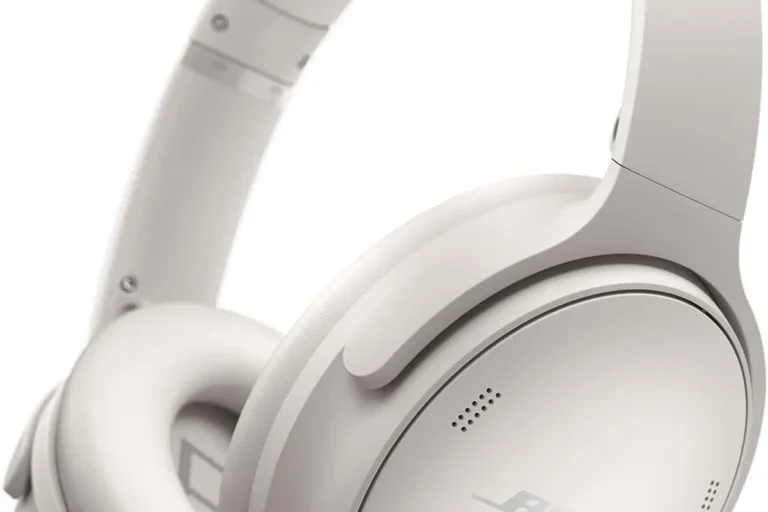
How To Fix Bass On Headphones: Easy Audio Guide

Introduction
If your headphones sound thin, weak, or flat in the United States, you can often fix the bass without buying new gear. The most useful checks are simple: confirm the audio source, raise bass with a safe equalizer setting, check the seal around your ears, and inspect the cable or wireless connection.
This guide covers Windows PCs, Macs, iPhones, Android phones, game consoles, and common streaming apps used in the U.S. It also explains when weak bass points to a damaged headphone driver, a poor fit, or a device setting rather than a problem with the headphones.
Quick Answer: How Do You Fix Bass on Headphones?
To improve bass on headphones:
- Test another song or app. The recording may have little low-end sound.
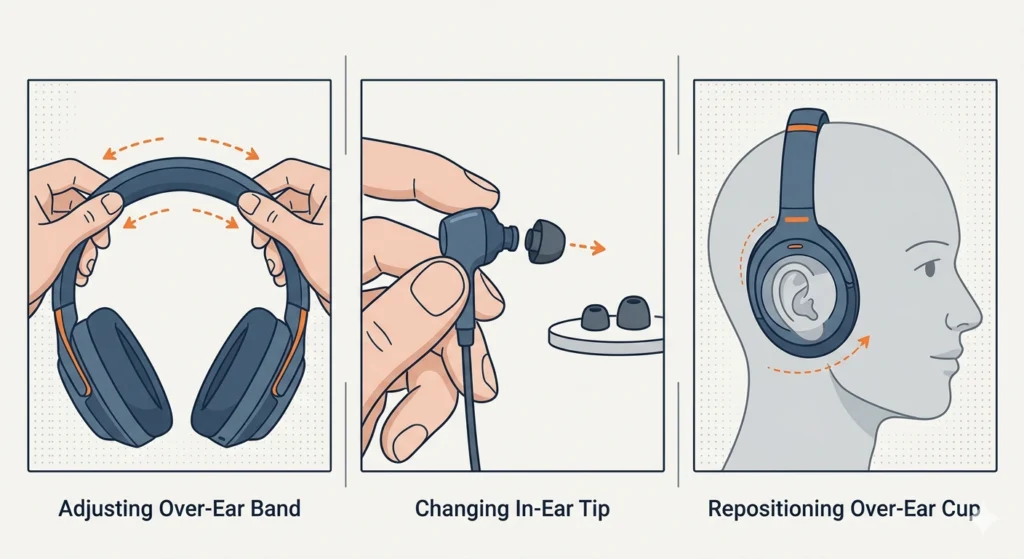
- Check the headphone fit and seal. This is vital for in-ear and closed-back headphones.
- Turn off audio modes that reduce bass. Look for voice, speech, or hearing-enhancement modes.
- Use an equalizer. Raise the low bands near 60 Hz and 120 Hz by 2 to 4 dB.
- Check the connection. Reseat the plug, clean the jack, or reconnect Bluetooth.
- Compare another device. This shows whether the problem is the headphones or the source.
- Stop boosting if the sound distorts. Lower the volume or reduce the EQ gain.
- Replace or repair the headphones if one side has weak bass or the issue remains on every device.
Bass is not only controlled by a “bass” button. It also depends on the recording, headphone design, ear seal, equalizer, volume, connection, and hearing level.
First, Identify the Bass Problem
The right fix depends on what “bad bass” means. Use the table below to match the symptom with the most likely cause.
| Symptom | Likely cause | First check |
|---|---|---|
| Bass sounds weak on all music | Poor seal, flat tuning, or damaged driver | Try a different fit and device |
| Bass is strong but muddy | Too much low-mid energy or bass boost | Lower 120–250 Hz |
| Bass disappears when you move | Air leak around the ear or ear tip | Adjust the fit |
| Only one side has weak bass | Blocked grille, cable issue, or driver damage | Clean and test another source |
| Bass cuts out over Bluetooth | Wireless interference, low battery, or connection mode | Reconnect and charge |
| Bass sounds fine in one app but not another | App EQ, normalization, or audio mode | Compare app settings |
| Bass distorts at high volume | Excessive EQ boost or driver limits | Reduce volume and EQ |
| Bass feels weak but measurements sound normal | Hearing, room, or expectation differences | Use moderate volume and compare familiar tracks |
A useful test is to play the same song through the same headphones on two devices. If bass changes, the source device or its settings may be responsible. If bass stays weak, focus on fit, headphone design, or hardware damage.
Use a known bass test track
Do not rely on one song. Test with:
- A familiar song with a clear kick drum
- A track with electric or acoustic bass
- A spoken voice recording
- A low-frequency sweep played at a quiet level
A low-frequency sweep can reveal rattles or dropouts. Stop if you hear buzzing, pain, or sudden loud sound. Test tones can be uncomfortable, especially at high volume.
Check the Headphone Fit and Seal
A poor seal is one of the most common reasons in-ear and closed-back headphones lose bass. Low-frequency sound needs a stable air space between the driver and your ear. Even a small gap can reduce bass much more than it reduces treble.
For in-ear headphones
Try these steps:
- Remove the ear tips and check for wax, dust, or moisture.
- Clean the tips and sound openings with a soft, dry tool.
- Try a different ear-tip size.
- Insert each earbud at a slightly different angle.
- Hold the earbud in place and compare the bass.
- Replace worn or loose tips.
The correct tip should seal the ear canal without causing pain. A larger tip may improve bass for one ear but feel uncomfortable in the other. Many people need different sizes for their left and right ears.
Do not push earbuds deep into the ear. Do not use sharp objects to clean the sound opening.
For over-ear and on-ear headphones
Check whether the ear pads sit evenly around your ears. Glasses, hair, loose pads, and poor headband adjustment can create a gap. On-ear headphones may lose more bass because they rest on the ear instead of surrounding it.
Replace cracked or flattened pads when possible. New pads can improve the seal, but they may also change the sound. Pads made from different materials can alter bass, treble, and comfort.
Signs that the seal is the problem
The fit is likely causing weak bass if:
- Bass improves when you press the headphones closer to your head.
- One ear has more bass than the other.
- Bass changes when you move your jaw.
- Earbuds sound better when you hold them in place.
- The problem began after changing ear tips or pads.
Adjust the Equalizer for More Bass
An equalizer, or EQ, changes the level of selected frequency ranges. It can add bass when the headphones sound too light, but it cannot repair a damaged driver or create clean bass that the hardware cannot produce.
A safe starting EQ
Start with small changes:
| Frequency | Suggested change | Main effect |
|---|---|---|
| 31–40 Hz | 0 to +2 dB | Deep rumble and sub-bass |
| 60–80 Hz | +2 to +4 dB | Kick drum and bass weight |
| 120 Hz | +1 to +3 dB | Warmth and fullness |
| 250 Hz | 0 to -2 dB if muddy | Less boom |
| 500 Hz and above | Leave unchanged at first | Keeps vocals clear |
These values are starting points, not universal settings. Raise one band at a time. If the sound becomes boomy, lower 120 or 250 Hz instead of adding more deep bass.
Prevent clipping after an EQ boost
Boosting EQ bands can make the signal too loud for the device or headphone amplifier. This may cause crackling or distortion. Use a preamp control, if available, and lower it by about the same amount as your largest boost.
For example, if you boost 80 Hz by 4 dB, set the preamp near -4 dB. You may need to raise the device volume slightly afterward. The goal is cleaner sound, not the highest possible volume.
Use the equalizer on your device
Windows 11 and Windows 10
The exact controls depend on your computer, sound driver, and headphone software. Look in:
- Settings > System > Sound
- Your sound device properties
- Manufacturer software for the laptop, motherboard, USB DAC, or headset
- The EQ inside your music or game app
Windows may not provide the same EQ controls on every computer. If the setting is missing, check the audio device software rather than installing an unknown utility.
macOS
macOS does not offer one universal system-wide EQ for every audio output. Use the equalizer inside the music app when available. External headphone software, a USB audio device, or a trusted audio utility may provide wider control.
iPhone and iPad
Apple Music includes preset EQ options under its music settings. Other music apps may have their own EQ. A setting made in one app may not affect another app.
If you use an iPhone with a wired adapter, test the adapter too. A damaged or poorly seated adapter can affect audio output.
Android phones
EQ controls vary by phone maker and Android version. Look under:
- Settings > Sound
- Sound quality and effects
- Bluetooth device settings
- The headphone brand’s app
- The streaming app’s playback settings
Some phones apply EQ only to certain Bluetooth devices or only to selected apps.
Streaming apps
Many streaming services offer equalizers, normalization, or volume controls. Check the app’s playback settings. Turn off extra processing one feature at a time so you can tell which setting changes the sound.
Do not assume a “bass boost” preset is better. It may raise several bands and make vocals unclear.

Check Your Device, App, and Connection
If headphones have weak bass, the source may be the real problem. Test the headphones with another phone, computer, or tablet before changing many settings.
Test a second source
Use this simple comparison:
- Play the same track.
- Use the same volume level as closely as possible.
- Try the same headphones on a second device.
- Compare bass, clarity, and distortion.
If the headphones sound normal on the second device, inspect the first device’s EQ, sound mode, adapter, and connection. If both devices sound weak, check the fit and headphone hardware.
Check Bluetooth settings
For Bluetooth headphones:
- Charge the headphones fully.
- Disconnect and pair them again.
- Forget the device, then complete a new pairing.
- Turn off battery-saving audio modes if your device offers them.
- Move away from crowded wireless areas during testing.
- Try a wired connection if the headphones support one.
Bluetooth codecs can change sound quality, but a basic reconnection usually matters more than chasing a codec setting. Codec support must match between the headphones and the source device.
Check wired connections
For wired headphones:
- Push the plug fully into the jack.
- Remove any case that blocks full insertion.
- Check the plug for dirt or bent sections.
- Try another cable if the cable is removable.
- Test a different adapter or USB audio device.
A partly inserted plug can create thin sound, channel problems, or missing bass. A damaged cable may cause bass to change when you move the plug.
Turn off unwanted sound modes
Look for settings named:
- Voice enhancement
- Speech clarity
- Movie mode
- Concert hall
- Virtual surround
- Mono audio
- Hearing enhancement
- Loudness equalization
- Adaptive sound
These features may be useful in some cases, but they can also change the balance of music. Turn them off during testing, then enable them one at a time if needed.
Check the Headphones for Blockage or Damage
Physical problems often affect bass before they affect other sounds. A blocked grille, loose pad, torn seal, or damaged cable can change the low end.
Clean the headphones safely
For earbuds and headphones:
- Turn them off or disconnect them.
- Remove detachable ear tips.
- Wipe surfaces with a dry or slightly damp soft cloth.
- Use a soft brush for loose debris.
- Keep liquid away from openings, controls, and charging ports.
- Let moisture dry fully before use.
Earwax can block an earbud grille. Do not force debris into the opening. If the grille cannot be cleaned safely, use the manufacturer’s cleaning instructions or seek repair.
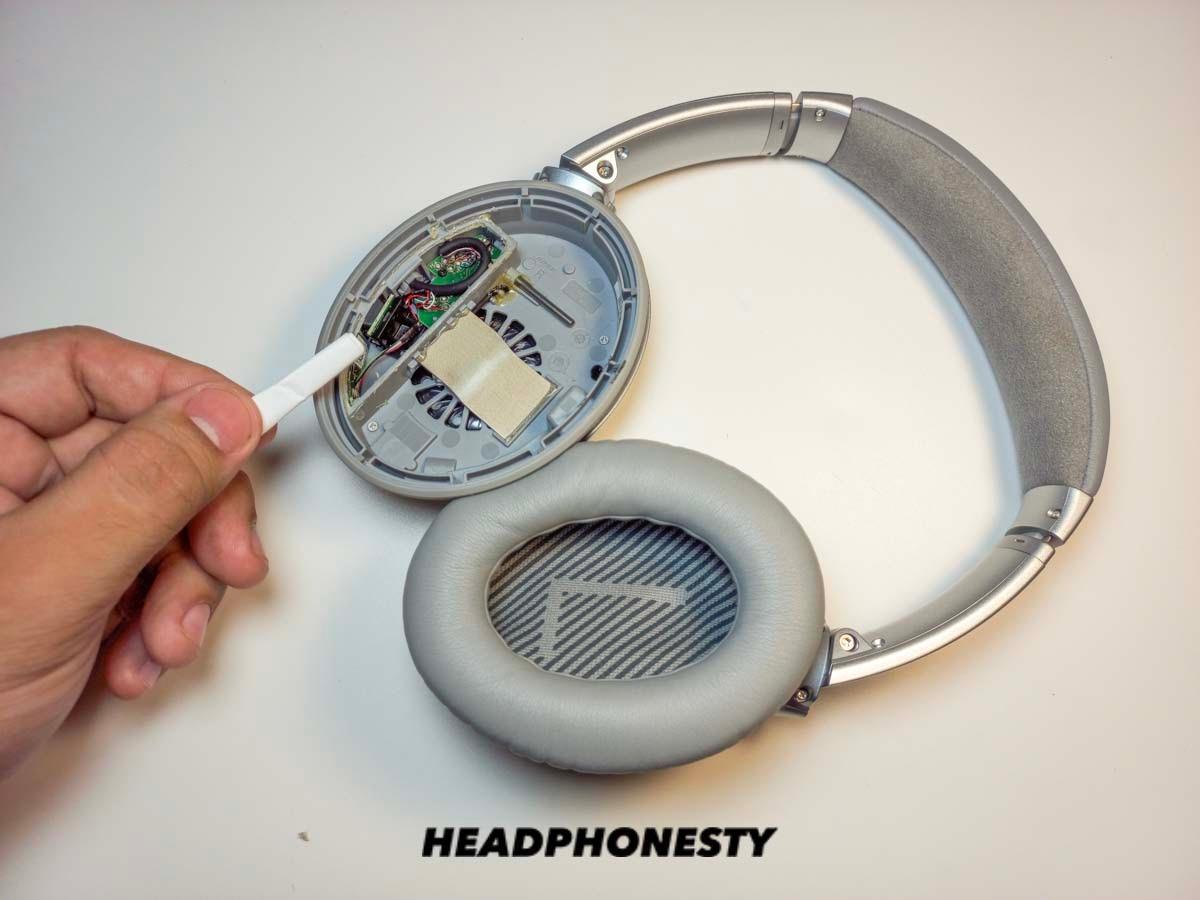
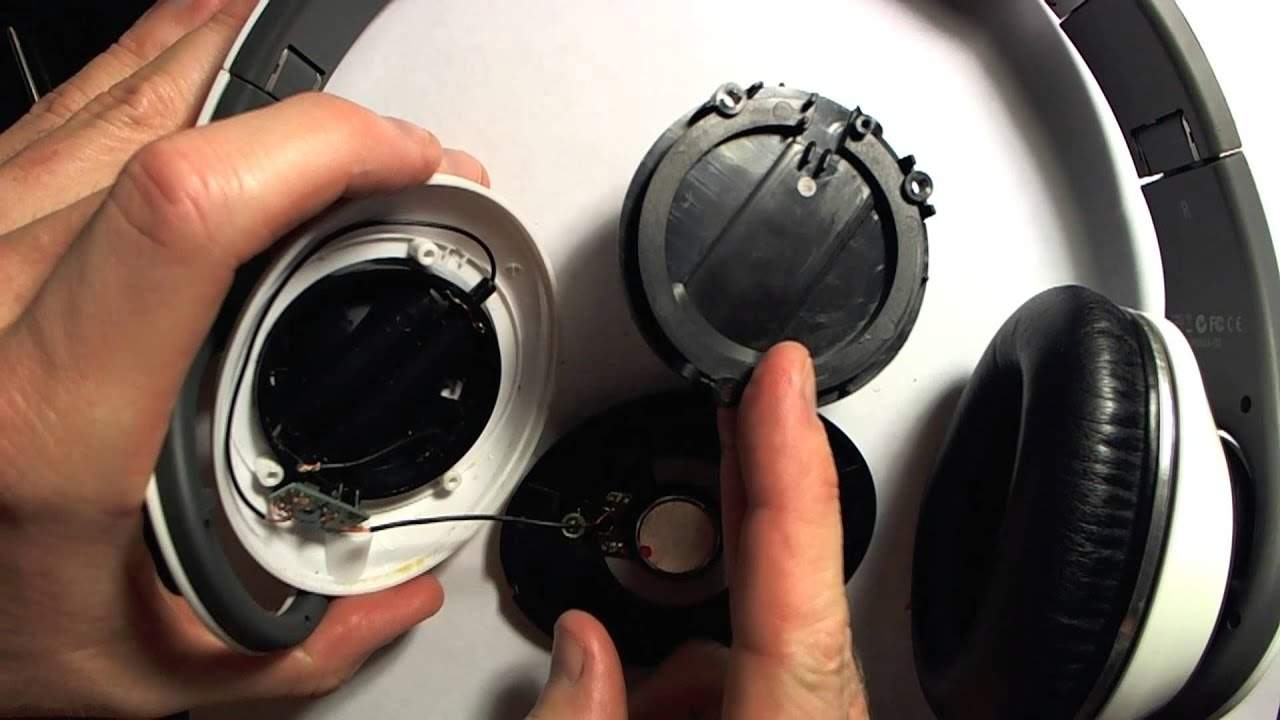
Check for driver damage
A headphone driver is the small speaker inside the earcup or earbud. Damage may cause:
- Rattling on bass notes
- Crackling at normal volume
- Weak bass in one side
- Sound that changes when you touch or move the cable
- A sudden change after a drop, water exposure, or very loud playback
Play a familiar track at a low or moderate level. If only one side rattles or loses bass on every source, hardware damage is likely. Stop using that side at high volume.
Consider age and wear
Ear pads, ear tips, cables, and internal parts wear over time. A tired pad may no longer seal. A cable may fail near the plug. Wireless batteries may also lose capacity, which can affect use time and some device behavior.
Check the warranty before opening the headphones. Opening them can create damage and may affect warranty service.

Improve Bass Without Causing Distortion
More bass is not always better bass. A large boost can make music sound loud but less clear. It can also cause clipping, which sounds like crackles or harsh hits.
Use this order:
- Improve the seal.
- Confirm the source and connection.
- Add a small EQ boost.
- Lower the preamp when available.
- Reduce volume if distortion remains.
- Compare with a flat EQ.
Bass boost versus bass clarity
Bass has several useful areas:
- Sub-bass: Deep rumble, usually below about 60 Hz
- Mid-bass: Punch from kick drums and bass guitars, often around 60–120 Hz
- Low mids: Warmth and body, often around 120–250 Hz
If music lacks weight, a small boost near 60–100 Hz may help. If it sounds muddy, the issue may be too much energy near 150–250 Hz. Lowering that range can make the bass seem clearer without making it louder.
Protect your hearing
The National Institute for Occupational Safety and Health, or NIOSH, warns that loud sound can damage hearing. The Occupational Safety and Health Administration also provides guidance on noise exposure in workplaces. These sources focus mainly on occupational noise, but the basic risk is relevant: louder sound and longer exposure increase the chance of harm.
Keep the volume at the lowest level that lets you hear clearly. Give your ears quiet breaks. If you hear ringing, muffled sound, pain, or a feeling of fullness after listening, stop and lower the volume next time. Persistent symptoms should be discussed with a qualified health professional.

Fix Weak Bass on Specific Devices
If bass is weak on a phone
Start by testing another app. Then:
- Turn off the phone’s sound effects.
- Check the app EQ.
- Disable mono audio unless you need it.
- Reconnect Bluetooth or reseat the wired adapter.
- Try the headphones on another phone.
- Restart the phone if the issue began after a software change.
If only one app sounds thin, its EQ, normalization, or playback mode is the likely cause.
If bass is weak on a Windows PC
Check the selected output device first. A computer may send sound to a monitor, dock, Bluetooth headset profile, or low-quality communication mode instead of the intended headphone output.
Then:
- Open sound settings.
- Select the correct headphones.
- Turn off spatial or virtual audio effects for testing.
- Check the headphone or motherboard audio software.
- Try a different USB port or audio adapter.
- Test a second pair of headphones.
Bluetooth headsets may use different profiles for music and calls. Call mode can reduce audio quality. Close apps that use the microphone and retest music playback.
If bass is weak on a Mac
Confirm the selected output in System Settings > Sound. Check the app’s EQ and turn off spatial or surround effects during testing. If you use a USB audio device, make sure the Mac is sending sound to that device rather than its built-in speakers or another output.
If bass is weak on a game console
Check the console’s audio output mode, headset mixer, chat balance, and game audio settings. Some games use separate sliders for effects, music, dialogue, and master volume.
A chat mix that favors voice can make game sound feel thin. Test with chat disabled, then restore the setting after you find the cause.
When Should You Replace the Headphones?
Replace or repair the headphones when the problem remains after basic tests and appears on more than one source. A new pair may be reasonable if the current pair has damaged drivers, worn pads, a failing cable, or a poor fit that cannot be corrected.
Before replacing them:
- Test another pair on the same device.
- Test your headphones on another device.
- Compare both left and right channels.
- Reset wireless headphones if the manual supports it.
- Check warranty and repair options.
- Confirm that the new model fits your ears and use case.
Headphone design also matters. Open-back headphones usually let air pass through the earcups and may provide a wider, more natural sound. Closed-back headphones often create a stronger seal and can deliver more perceived bass. Neither design is automatically better for every listener.
For commuting or noisy places, a good seal can matter more than a large EQ boost. For quiet home listening, comfort and natural tuning may matter more than maximum low-end output.

Common Mistakes to Avoid
Boosting every bass band
Raising all low-frequency sliders often creates boom and distortion. Start with one or two bands.
Ignoring the ear seal
A strong EQ cannot fully replace a leaking ear tip or worn ear pad. Fix the fit first.
Testing only one song
A song with light bass may be mastered that way. Use several familiar recordings.
Setting the volume higher to “create” bass
High volume does not repair weak bass. It only increases sound exposure and may cause distortion or hearing risk.
Using too many audio effects
Virtual surround, spatial audio, loudness modes, and EQ can interact. Test with a flat, simple setup first.
Cleaning with water or sharp tools
Moisture and sharp tools can damage drivers and electrical parts. Follow the manufacturer’s cleaning instructions.
Assuming all bass problems need new headphones
Many problems come from fit, app settings, a loose connection, or an incorrect output device. Test before buying.
FAQs About Fixing Bass on Headphones
Why do my headphones have no bass but clear treble?
A poor seal, partly inserted plug, blocked earbud grille, or damaged driver can remove bass while leaving treble audible. Start by checking the fit, plug, grille, and another device.
Why does bass disappear when I use one earbud?
The earbud may not seal correctly, or the sound opening may be blocked. If the same earbud stays weak on every device after cleaning and refitting, it may be damaged.
Does a headphone amplifier add more bass?
An amplifier can provide enough power for headphones that need it, but it does not automatically improve bass. If the source already drives the headphones properly, an amplifier may make little difference. Check fit, EQ, and the source first.
Can an EQ damage headphones?
A small EQ change usually does not damage headphones by itself. Large boosts combined with high volume can cause distortion and place more demand on the driver. Lower the preamp or volume when boosting bass.
Why does bass sound better when I press the headphones against my head?
Pressing the headphones closer often improves the seal. This points to loose ear pads, glasses, hair, or a poor fit. Adjust the headband, reposition the cups, or replace worn pads.
Should I use bass boost or an equalizer?
Use the EQ when you want control over specific ranges. Use a bass-boost preset when you want a quick change and accept less control. A small manual adjustment is easier to keep clear.
Key Takeaways
- Check the headphone seal before changing EQ.
- Test another device, app, and song.
- Use a small boost near 60–120 Hz.
- Lower the preamp or volume to prevent distortion.
- Clean earbud grilles and inspect cables safely.
- Weak bass in one side often points to blockage or damage.
- Stop listening if sound causes pain, ringing, or muffled hearing.
- Replace headphones only after testing the source, fit, and connection.
Conclusion
The fastest way to fix weak bass on headphones is to work from the simplest cause to the most serious one. Start with the fit and seal, then check the app, device, connection, and EQ. Use small changes, and stop boosting when the sound becomes muddy or distorted.
If bass remains weak on every device, or one side rattles or drops out, the headphones may need repair or replacement. Your next step is simple: test the same headphones with a familiar song on a second device at a moderate volume.