How to Enable Type C Headphones in Samsung Easily

Most Samsung phones do not need a special setting to use USB-C headphones; they should work automatically when connected correctly. If they do not, the usual fix is to check compatibility, clean the port, restart the phone, and test the headphones or adapter on another device.
If your Samsung phone is not playing audio through USB-C earbuds, the fix is usually simple: confirm the phone supports USB-C audio, clean the port, and reconnect the headphones properly. In most cases, wired vs wireless headphones troubleshooting is less about “turning on” a hidden setting and more about making sure the phone can detect the accessory correctly.
- Auto-detect first: Samsung usually routes USB-C audio automatically.
- Check compatibility: Some earbuds and adapters need DAC support.
- Inspect the port: Dirt or a loose fit can stop detection.
- Use the fallback: A quality USB-C to 3.5mm adapter can be more reliable.
How to Enable Type C Headphones in Samsung: What This Means in 2026
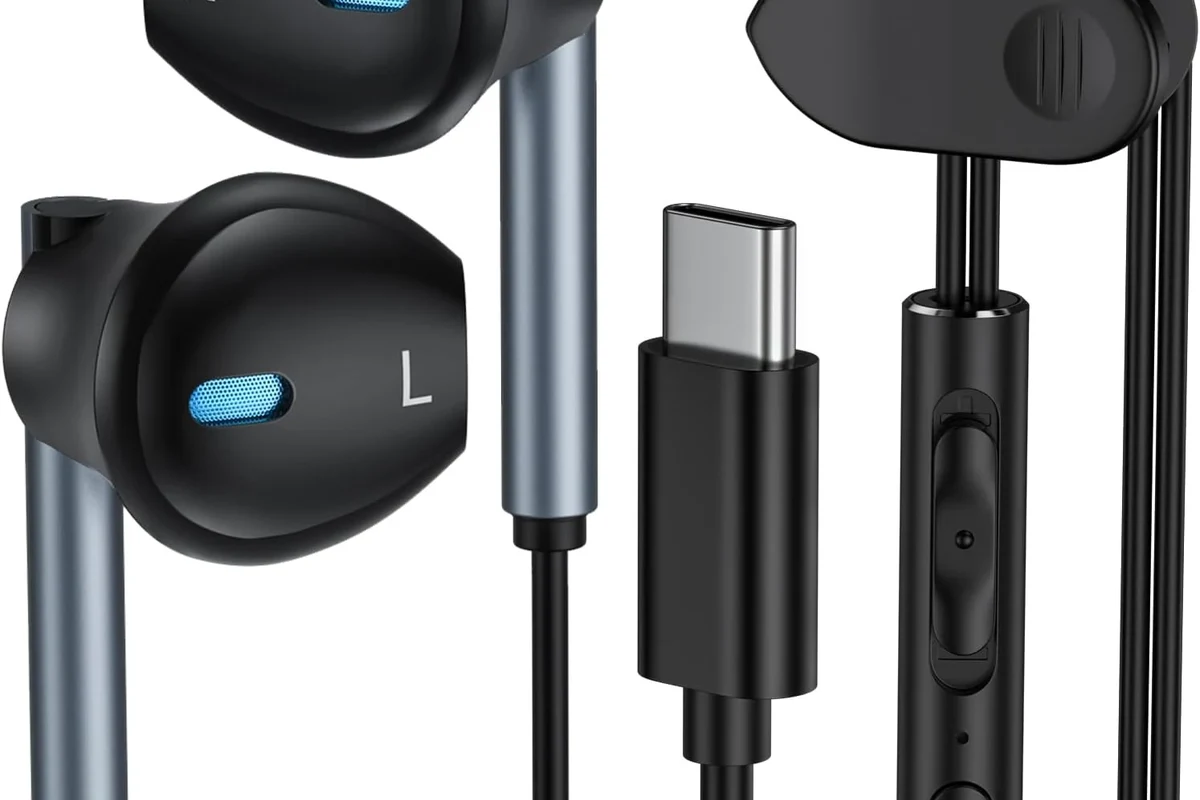
When people search for how to enable type c headphones in samsung, they usually mean one of two things. Either the phone is not auto-detecting the headset, or the user wants to know whether Samsung has a setting that needs to be switched on.
In 2026, most modern Galaxy phones and tablets should support USB-C audio output if the headphones are compatible. There is usually no special “enable” button for USB-C headphones, but software updates, port issues, or accessory limitations can stop them from working.
The key is understanding the signal path. Some USB-C headphones use the phone’s digital audio output directly, while others depend on a built-in DAC in the headset or adapter. If that digital handshake fails, the headphones may charge but not play sound.
USB-C audio support can vary by Samsung model, Android version, One UI update, and the specific headphone brand or adapter.
Check Whether Your Samsung Phone Supports USB-C Audio Output
Before changing settings, confirm that your Samsung device actually supports USB-C audio. Most recent Galaxy phones do, but support can still depend on whether the port is functioning properly and whether the accessory follows USB audio standards.
If your phone can charge through the port but does not detect headphones, the issue may still be with the accessory or software rather than the phone itself. A quick compatibility check saves time and avoids unnecessary resets.
Model-specific compatibility notes for Galaxy phones and tablets
Many newer Galaxy S, Galaxy Z, and Galaxy Tab models support USB-C audio output, but not every accessory behaves the same way. Some USB-C earbuds are designed to work only with devices that support digital audio over USB-C, while others need a companion app or a specific DAC implementation.
Older Samsung devices may be more limited, and some budget models can be less forgiving with third-party accessories. If your phone has a 3.5mm jack, the USB-C route is usually optional rather than required.
USB-C is not just a shape. For audio to work, the phone and headset must agree on how digital sound is sent through the port.
How to tell if the issue is hardware, software, or the headphones themselves
A good first test is to plug the headphones into another phone, tablet, or laptop that supports USB-C audio. If they work elsewhere, the problem is more likely with your Samsung settings, port, or software.
If the same headphones fail on multiple devices, the headset or adapter may be the problem. If your Samsung phone also fails with other USB-C audio accessories, the port or system software is the more likely cause.
- Does the phone charge normally through USB-C?
- Do the headphones work on another device?
- Is the USB-C port clean and secure?
- Did the issue start after a One UI update?
Step-by-Step Ways to Enable Type C Headphones on Samsung Devices
There is usually no dedicated toggle labeled “USB-C headphones” on Samsung phones. Instead, the goal is to make sure the phone recognizes the accessory and routes sound to it automatically.
Follow these steps in order, because the simplest fix is often the correct one.
Plug-and-play setup and first-time prompts
Start by connecting the USB-C headphones directly to the phone without using extra adapters or hubs. Wait a few seconds and watch for any on-screen prompt asking you to allow USB access or choose an audio device.
If a prompt appears, accept it. Some Samsung devices may not show a large notification, but the sound route can still switch automatically once the headset is detected.
Use the native USB-C plug first so you can rule out adapter problems.
Give the phone a few seconds to identify the accessory and route audio.
Open a music or video app and check whether sound moves to the headphones.
Using Samsung settings that can affect USB-C audio
Samsung does not always hide USB-C audio under a single menu, but a few settings can still affect detection. Check the media volume, Bluetooth status, and any connected device settings that may be sending audio somewhere else.
If Bluetooth headphones, a smartwatch, or a car system is connected, the phone may prioritize that output instead. Disconnect other audio devices briefly and try the USB-C headphones again.
For users comparing different headset styles, it helps to understand how types of headphones explained can influence fit, portability, and how often you rely on adapters versus direct USB-C support.
Restarting, updating, and re-detecting the headphones
If the headphones are still not working, restart the phone and reconnect them after the device fully boots. This clears temporary connection glitches that can happen after updates or app conflicts.
Also check for system updates in Samsung settings. A One UI update can sometimes fix USB audio bugs, but in other cases it can temporarily introduce detection issues until a patch arrives.
If the connection seems unstable, unplug the headset, wait a few seconds, and reconnect it firmly. A loose connection can be enough to prevent the phone from switching audio output.
If your USB-C headphones work only when you hold the connector at an angle, the issue is likely a worn port, damaged plug, or lint buildup rather than a software setting.
Common Reasons Type C Headphones Are Not Working on Samsung
Most USB-C headphone problems fall into three buckets: physical connection issues, software conflicts, or compatibility limitations. Once you identify the bucket, the fix becomes much easier.
This is especially true for budget accessories, where build quality and internal audio support can vary widely by brand.
Dirty USB-C ports, loose connections, and damaged adapters
Dust, pocket lint, and small debris can prevent a proper USB-C connection. Even if the phone charges, the data pins needed for audio may not connect reliably.
Inspect the port carefully and clean it gently with a safe, non-metal tool if needed. Avoid pushing debris deeper into the port, and do not use anything sharp that could damage the contacts.
If you are using a USB-C dongle or converter, test it for looseness or visible wear. Cheap or damaged adapters often fail before the headphones themselves do.
Software conflicts after updates or One UI changes
After a Samsung software update, some users notice that accessories are no longer recognized the same way. This does not always mean the headphones are broken; it may simply be a temporary software conflict.
Try clearing the connection by restarting, reconnecting, and testing the headset in different apps. Music apps, video apps, and games can sometimes behave differently when audio routing is unstable.
If you are troubleshooting broader sound issues, our guide on why headphones sound muffled can help you separate a bad connection from a genuine audio quality problem.
Why some USB-C headphones need built-in DAC support
Not all USB-C headphones are built the same. Some rely on the phone to convert digital audio, while others include their own DAC and amp inside the headset plug or cable.
If the headset expects one type of signal and the Samsung phone sends another, the headphones may not play audio at all. This is why a USB-C plug alone does not guarantee compatibility.
Some USB-C headphones are designed for specific ecosystems or app-based control. If the product page does not clearly mention broad USB audio support, compatibility may be inconsistent.
Best Fixes When Samsung Does Not Recognize Type C Headphones
If your Samsung phone still ignores the headphones, move through the practical fixes below before buying anything new. Most users can solve the issue without replacing the phone.
Testing the headphones on another phone or laptop
Use another compatible device to see whether the headphones are detected there. If they work on a second device, your Samsung phone is the likely source of the issue.
If they fail everywhere, the headphone cable, connector, or internal audio hardware may be faulty. This is the fastest way to avoid guessing.
Should I assume my Samsung phone is broken if USB-C headphones do not work?
Not right away. In many cases, the headphones, adapter, or USB-C port is the real problem, and a cross-device test usually reveals it quickly.
Checking OTG, USB audio, and developer-related settings only when necessary
Most users do not need to touch developer options to use USB-C headphones. Still, if you have changed advanced USB settings before, it is worth checking whether anything unusual is enabled.
OTG settings are more relevant for storage devices than for audio, but they can still be worth ruling out if your phone behaves strangely with multiple USB accessories. Keep changes minimal so you do not create a new problem while fixing the old one.
When a USB-C to 3.5mm adapter is the better fallback
If direct USB-C audio keeps failing, a quality USB-C to 3.5mm adapter can be a more stable fallback. This is especially useful if you already own wired headphones you like and do not want to replace them.
For many people, a good adapter is simpler than buying new USB-C earbuds, particularly if they want predictable compatibility across phones, laptops, and tablets. If you are deciding between formats, our headphones vs earphones complete guide can help you choose the right style for daily use.
Type C Headphones vs USB-C Adapters: Which Option Makes More Sense?
Both options can work well, but they solve different problems. USB-C headphones are convenient because they connect directly, while adapters give you more flexibility if you already own wired gear.
The better choice depends on your budget, how often you switch devices, and whether you care more about convenience or accessory compatibility.
Sound quality, convenience, and compatibility trade-offs
USB-C headphones can sound excellent, but sound quality depends on the headphone tuning, the built-in DAC if present, and the phone’s output behavior. Adapters can also sound good, though quality varies a lot by brand and design.
Direct USB-C headphones are easier to carry and use, but a 3.5mm adapter can be a smarter long-term option if you already own a favorite wired headset. For readers comparing cable-based and wireless setups, Bluetooth vs wired headphones sound quality is a useful next read.
Typical price ranges in 2026 for headphones and adapters
Prices vary widely in 2026 based on brand, features, and build quality, so it is safer to think in ranges rather than fixed numbers. Budget adapters are usually cheaper, while better-built USB-C headphones and premium adapters cost more.
A low-cost option may be fine for casual listening, but spending a bit more often improves reliability, cable durability, and connector fit. The cheapest accessory is not always the best value if it fails after a few weeks.
Expert Advice: Mistakes to Avoid When Enabling Samsung USB-C Headphones
The most common mistakes are also the easiest to avoid. A careful setup process protects both your headphones and your phone’s USB-C port.
Using unsupported cheap adapters and counterfeit accessories
Very cheap adapters can be tempting, but they often cause unstable audio, poor fit, or complete detection failure. Counterfeit accessories are even riskier because they may look correct while using poor internal components.
Choose accessories from reputable brands and make sure the product description clearly mentions USB audio compatibility. If a listing is vague, that is usually a warning sign.
Listening at high volumes for long periods can cause hearing damage. Keep volume at 60% or below for extended sessions.
Forcing settings that can reduce audio stability or battery life
Do not chase obscure settings unless you truly need them. Changing advanced USB or developer options without a clear reason can make audio less stable and may affect battery life or normal device behavior.
If you are unsure, stick to basic troubleshooting first: clean the port, reconnect the headset, restart the phone, and test another accessory. That approach solves most cases without side effects.
If USB-C headphones still fail after testing multiple accessories and ports, contact Samsung support or an audiologist if you suspect the issue may be related to hearing, sound sensitivity, or unusual listening discomfort.
Final Recap: The Fastest Way to Get Type C Headphones Working on Samsung
The fastest way to enable type c headphones in samsung is to connect them directly, confirm the phone supports USB-C audio, and rule out port dirt or adapter problems. If that does not work, restart the phone, update software, and test the headphones on another device.
In most cases, the issue is not a hidden Samsung setting. It is usually a compatibility mismatch, a loose connection, or a USB-C accessory that needs better DAC support.
- Test the headphones on another device first.
- Clean the USB-C port and reconnect firmly.
- Restart and update Samsung software if needed.
- Use a quality adapter if direct USB-C audio fails.
Frequently Asked Questions
Not always. Wired headphones can offer more consistent audio, while wireless models are more convenient and may include extra features like ANC.
Look at driver type, tuning, comfort, and whether the headphones support EQ adjustments. Frequency response alone does not tell the full story.
Noise cancelling headphones are usually better for commuting and travel because they reduce outside noise. For gaming, comfort, latency, and microphone quality may matter more.
Closed-back headphones are usually better for public spaces because they block more sound. Open-back models often sound more spacious but leak audio and let noise in.
Focus on build quality, comfort, and clear sound rather than marketing claims. A good fit and reliable cable or wireless connection often matter more than extra features.
Choose a lightweight design with soft ear cushions and a secure but gentle fit. Take breaks and lower volume if you feel pressure or fatigue.