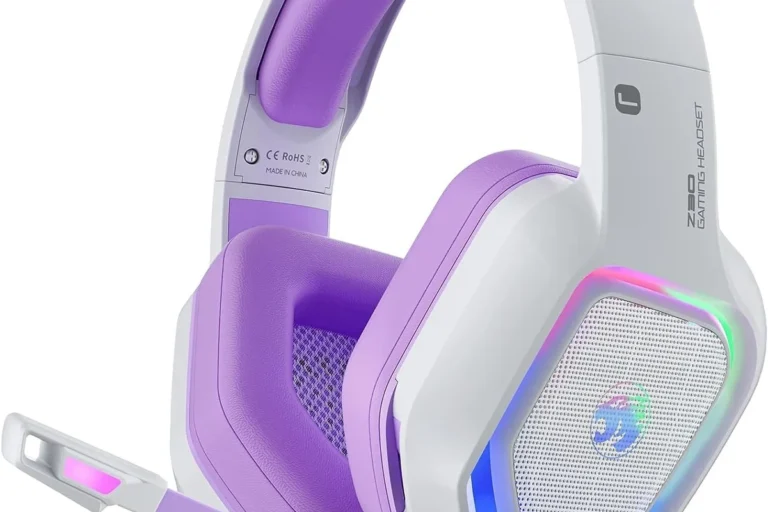
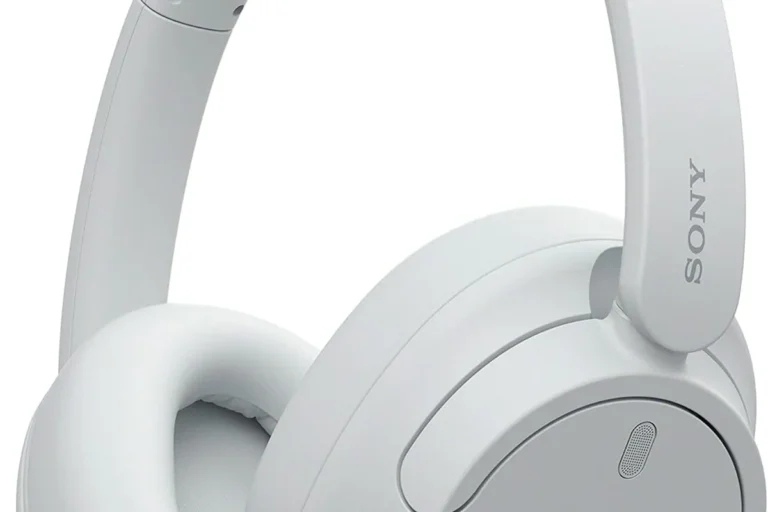
How to Add Headphones to Xbox One Easily and Fast

Use a wired headset in the Xbox One controller for the fastest setup. If you want wireless, choose an Xbox-compatible headset or one with a supported USB adapter, because standard Bluetooth usually will not connect directly.
If you want to know how to add headphones to Xbox One, the short answer is that it depends on the type of headset you own. Most players can plug wired headphones into the controller, while wireless headsets usually need Xbox Wireless support or a compatible adapter.
- Fastest method: Plug a wired headset into the controller.
- Wireless rule: Use Xbox Wireless or a compatible dongle.
- Common issue: Standard Bluetooth usually does not pair natively.
- Best check: Review volume, mute, and chat mixer settings.
How to Add Headphones to Xbox One: What “Connecting” Really Means in 2026
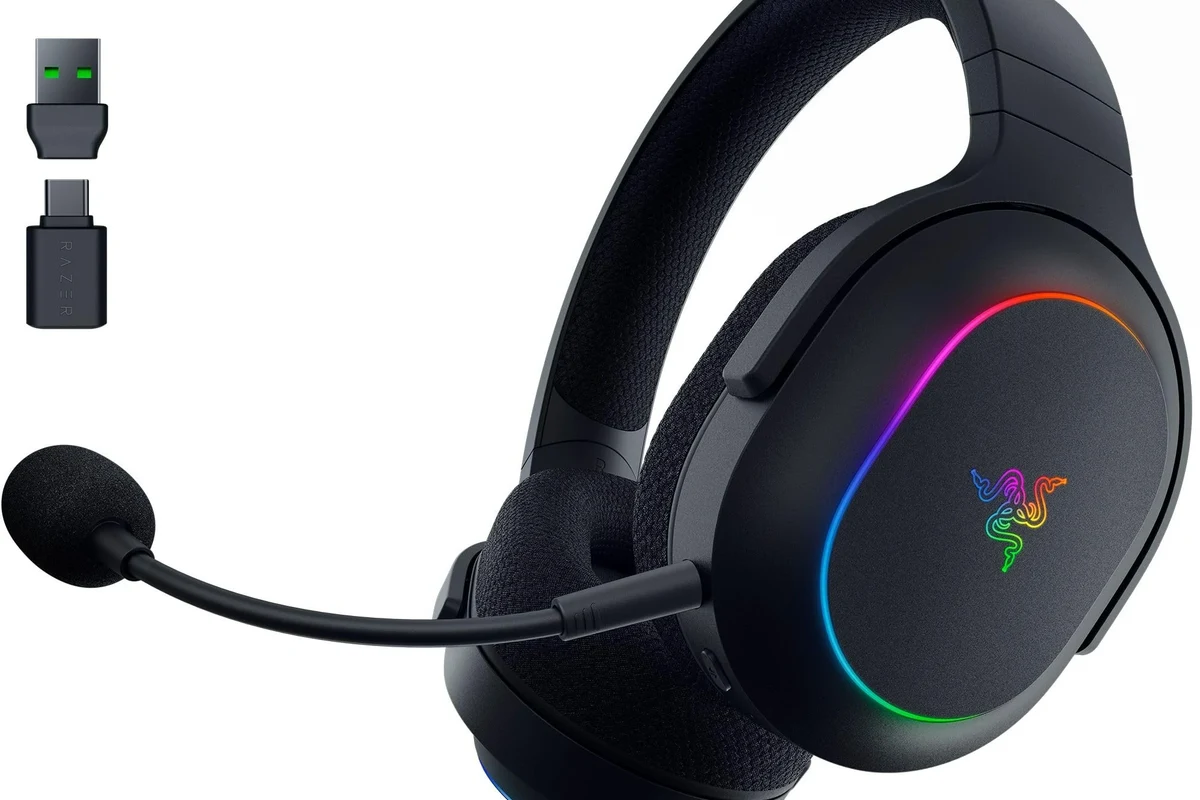
In 2026, “connecting headphones to Xbox One” can mean several different things. Some headsets carry only game audio, some handle both game and chat, and others need a dongle, base station, or controller connection to work properly.
The most reliable setup is still the one that matches your headset type. If you already own a wired pair, setup is usually simple. If you want wireless, you need to check compatibility first so you do not end up with a headset that looks right but does not connect the way you expected.
Wired, wireless, and controller-based options at a glance
Wired headphones are the easiest choice for Xbox One because they can plug directly into the controller’s 3.5mm port, if your controller has one. Older controllers may need the Xbox One Stereo Headset Adapter.
Wireless options are more limited. Some headsets use Xbox Wireless, while others use a USB dongle or base station that handles the connection. Standard Bluetooth headphones are usually the least compatible option.
What most players are actually searching for when they ask this
Most people asking how to add headphones to Xbox One are trying to solve one of three problems: getting game audio fast, enabling voice chat, or using a headset they already own. The right fix depends on whether your headset is wired, Xbox Wireless, or Bluetooth-based.
If you are also comparing headset types for other devices, our guide on types of headphones explained can help you understand the basic differences before you buy.
Best Ways to Connect Headphones to Xbox One Without Confusion
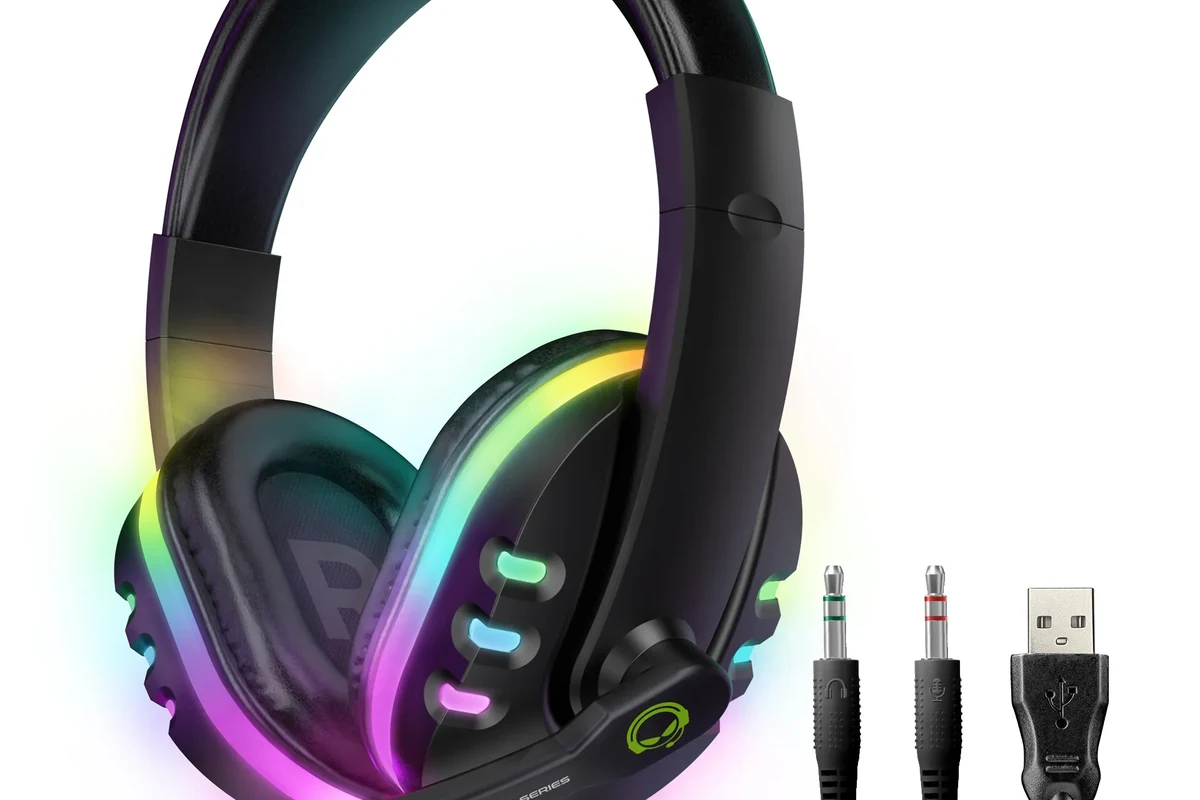
There are a few practical ways to connect headphones to Xbox One, but not all of them are equally simple. The best choice depends on the headset connector, your controller version, and whether you need chat support.
Using the Xbox One controller’s 3.5mm jack
If your Xbox One controller has a 3.5mm headphone jack, this is the quickest method. Plug in a wired headset, then check that the headset is not muted and the cable is seated firmly.
This method works well for everyday gaming because it is low-latency and easy to manage. It is also the best option if you want a straightforward setup without extra accessories.
Using the Xbox One Stereo Headset Adapter
If your controller does not have a built-in 3.5mm port, the Xbox One Stereo Headset Adapter can bridge the gap. It attaches to the controller and gives you a place to plug in compatible wired headphones or headsets.
Adapters can be very useful, but they add another piece that can fail or loosen over time. If the sound cuts out, the adapter connection is one of the first things to check.
Connecting a USB or wireless headset through a compatible base station
Some gaming headsets connect through a USB transmitter or a dedicated charging dock/base station. In that case, you usually plug the base into the Xbox One, then pair the headset according to the manufacturer’s instructions.
This setup can offer more convenience than wired headphones, especially for long play sessions. It may also provide better chat controls, but performance can vary by brand and model.
Why Bluetooth headphones usually do not work directly
Many players assume any Bluetooth headset should work with Xbox One, but that is usually not the case. Xbox One does not support standard Bluetooth headphone pairing the same way phones and laptops do.
That means your Bluetooth earbuds may connect to a phone instantly, yet still fail on Xbox One. If you want wireless audio on Xbox, look for Xbox Wireless support or a headset that includes a compatible dongle.
Do not assume a headset is Xbox-compatible just because it is wireless. Always check whether it supports Xbox Wireless, a USB adapter, or controller-based analog audio before you buy.
Step-by-Step Setup for Wired Headphones on Xbox One
Wired headphones are the fastest and least confusing way to add audio to Xbox One. They are also ideal if you want dependable chat audio without worrying about battery life or pairing issues.
How to plug in a standard headset and test audio
Insert the 3.5mm plug fully into the controller jack or adapter. If your headset uses a split cable, make sure you are using the correct gaming headset connection.
Check for a mute switch on the cable or earcup. Some headsets also have inline volume controls that need to be raised before you hear anything.
Start a game or party chat and confirm that both sound and microphone input are working. If only one side works, recheck the plug, mute setting, and controller audio options.
If you are troubleshooting a basic wired setup on other devices too, our guide on do wired headphones work on MacBook explains why jack compatibility can still vary by device.
How to adjust game and chat balance from the controller
Once the headset is connected, use the Xbox guide or controller sound options to adjust the balance between game audio and voice chat. This matters because some players want louder game effects, while others prefer clearer party chat.
If footsteps and dialogue seem too quiet, raise the headset volume first and then fine-tune the chat mix. Small changes usually make a bigger difference than large ones.
Best use cases: casual gaming, party chat, and late-night play
Wired headphones are a great fit for casual gaming because they are simple and affordable. They are also practical for party chat, since you do not need to worry about wireless dropouts or charging.
For late-night play, wired headsets can be especially useful because they keep setup minimal and often let you control volume quickly from the controller. Just remember to keep levels reasonable for long sessions.
Listening at high volumes for long periods can cause hearing damage. Keep volume at 60% or below for extended sessions.
How to Use Wireless Headphones with Xbox One the Right Way
Wireless headphones can make Xbox One gaming feel cleaner and more flexible, but only if the headset is designed for the console. The key is understanding the difference between Xbox Wireless and ordinary Bluetooth.
Xbox Wireless headsets vs. ordinary Bluetooth models
Xbox Wireless headsets are built to communicate directly with the console or controller in a supported way. Ordinary Bluetooth models are made for phones, tablets, and many laptops, but they usually do not pair natively with Xbox One.
If you want easy wireless gaming, Xbox Wireless support is usually the safer choice. Bluetooth can still be useful in other situations, but it is not the default answer for Xbox One audio.
Pairing a compatible headset to the console or controller
For a compatible wireless headset, follow the manufacturer’s pairing steps and use the Xbox pairing button if required. Some models pair with the console itself, while others pair to a USB transmitter or dock.
After pairing, test both audio and microphone input in a party chat or game menu. If the headset connects but no sound comes through, check chat mixer settings and system output options.
When a wireless adapter or dock is required
Some wireless headsets need a USB dongle or charging base to work on Xbox One. That accessory handles the connection and may also manage charging, firmware updates, or audio routing.
This can be a good setup for convenience, but it is worth confirming compatibility before purchase. A headset that works wirelessly on PC may still need a separate Xbox solution.
If you use a wireless headset, keep the transmitter or dock close to the console and away from other busy USB devices. Cleaner placement can reduce dropouts and connection issues.
Audio Settings That Improve Xbox One Headphone Performance
Even a decent headset can sound better once the Xbox One audio settings are tuned correctly. Small changes in output mode, chat balance, and mic monitoring can improve clarity right away.
Checking headset volume, mic monitoring, and chat mixer settings
Start by checking headset volume on the controller, then look at mic monitoring if your headset supports it. Mic monitoring helps you hear your own voice, which can make chat feel more natural and reduce accidental shouting.
The chat mixer is also important because it controls the balance between party chat and game sound. If teammates sound too quiet, shift the mix toward chat; if the game is overpowering, reduce game volume slightly.
Choosing stereo uncompressed vs. surround sound output
Xbox One can send audio in different formats, and the best one depends on your headset. Stereo uncompressed is often the safest option for simple wired headphones because it keeps the signal straightforward.
Surround sound processing can be useful for some gaming headsets, especially if they are designed for spatial audio. However, the best result depends on the headset and your own hearing preference, so it is worth trying both if available.
Practical sound tweaks for shooters, racing games, and streaming
For shooters, many players prefer clearer mids and slightly reduced bass so footsteps and directional cues are easier to hear. For racing games, a bit more bass can make engines and impacts feel more exciting.
If you stream or record, prioritize voice clarity and avoid settings that make the headset sound muddy. A simple EQ adjustment can help, but keep changes modest so the audio still sounds natural.
Common Mistakes When Adding Headphones to Xbox One
Most headset problems on Xbox One come from compatibility confusion, not broken hardware. A few quick checks can save a lot of time and frustration.
Buying the wrong headset for Xbox compatibility
Some headsets are marketed for gaming, but that does not always mean they work fully with Xbox One. Always check whether the model supports Xbox Wireless, controller audio, or a USB adapter.
Assuming all Bluetooth earbuds will connect natively
This is one of the most common mistakes. Many Bluetooth earbuds work perfectly with phones but cannot connect directly to Xbox One without a workaround.
If you want to understand Bluetooth behavior more broadly, our guide on Bluetooth headphones explained simply is a useful background read.
Forgetting controller firmware updates or faulty cable checks
If your wired headset is not working, the controller firmware may need an update, or the cable may be damaged. Try another headset or another controller if possible to isolate the issue.
A loose plug can also cause one earcup to cut out or the microphone to stop working. Before replacing the headset, inspect the connection carefully.
Ignoring mic permissions, mute switches, and adapter issues
Sometimes the headset is fine, but the microphone is muted or the adapter is not seated properly. Check every switch and button on the cable, earcup, and adapter before assuming the headset has failed.
If you use a party chat app or console communication setting, make sure voice input is actually enabled. Small settings can block what looks like a hardware problem.
Audio behavior can vary by controller revision, headset brand, and console settings. If one setup works on one Xbox One controller but not another, the controller itself may be part of the issue.
What to Buy in 2026: Budget vs. Premium Headphones for Xbox One
If you are shopping in 2026, the best Xbox One headset is not always the most expensive one. Focus on compatibility, comfort, and microphone quality first, then look at extras.
Low-cost wired options for simple plug-and-play use
Budget wired headphones are often the easiest and safest purchase for Xbox One. They usually plug into the controller, work immediately, and avoid battery concerns.
These are ideal if you mainly want game audio and occasional chat. If you are trying to keep spending low, simple wired models often offer the best value.
Mid-range wireless headsets with better comfort and chat quality
Mid-range wireless headsets can be a strong choice if you play often and want less cable clutter. They may offer better padding, clearer voice pickup, and more convenient controls than entry-level models.
Comfort becomes especially important during longer sessions, so look for a headset that fits your head shape and ear size comfortably. Weight, clamp force, and cushion material can matter more than flashy features.
Premium models worth the price for long sessions and clear voice pickup
Premium headsets may be worth it if you spend many hours gaming or need cleaner chat performance. Better materials, stronger build quality, and refined microphones can make a noticeable difference over time.
That said, premium does not always mean better for every player. If your main use is casual gaming, a simpler headset may be the smarter buy.
Expert advice warning: features that look good but do not help Xbox One users
Do not pay extra for features that sound impressive but do not improve your actual Xbox One setup. For example, advanced Bluetooth claims mean little if the headset still cannot pair natively with the console.
If you have persistent ear pain, ringing, or hearing changes after gaming, stop using high volume settings and consult an audiologist or hearing professional.
Final Recap: The Fastest Way to Add Headphones to Xbox One
The fastest way to add headphones to Xbox One is usually to plug a wired headset into the controller. If your headset is wireless, confirm Xbox compatibility first so you do not waste time on a connection method that will not work.
Quick decision guide based on your headset type and budget
If you already own wired headphones, start with the controller jack or Stereo Headset Adapter. If you already own an Xbox Wireless headset or a USB-dongle model, follow the pairing steps from the headset maker.
If your headset is standard Bluetooth only, plan on using a different connection method or a different headset. That is the simplest way to avoid frustration.
Most reliable setup choices for gaming and TV audio in 2026
For gaming, wired controller audio remains the most reliable and beginner-friendly choice. For more freedom, a compatible Xbox Wireless headset is the cleanest wireless option.
For readers who want to better understand wireless behavior in general, our guide on how to connect Bluetooth headphones can help explain why some devices pair easily while others need extra steps.
- Wired headphones are the easiest way to add audio to Xbox One.
- Bluetooth headphones usually do not connect directly to the console.
- Xbox Wireless headsets or compatible dongles are the best wireless options.
- Check chat mix, volume, and mute settings if audio seems wrong.
Frequently Asked Questions
Not always. Wired headphones are usually simpler and more reliable, while wireless headsets are better if they are Xbox-compatible and comfortable for long sessions.
Check the headset volume, chat mixer, and audio output mode first. If the sound still feels off, try a different EQ setting or a different headset fit.
Open-back headphones can sound spacious, but they leak sound and do not block noise well. Closed-back designs are usually better for party chat, late-night play, and shared rooms.
Over-ear headsets are usually the most comfortable for long gaming sessions. In-ear models can be portable, but they may not offer the same comfort, mic quality, or immersion.
Focus on compatibility, comfort, microphone quality, and how the headset handles bass and clarity. Driver size and frequency response can matter, but real-world tuning and fit matter more.
Budget buyers should look for simple wired plug-and-play use and a stable mic. Premium buyers should prioritize comfort, build quality, and clear voice pickup for longer sessions.