How to Plug Headphones Into TV for Easy Private Listening

Plug headphones into your TV using the headphone jack if it has one, or use an adapter/transmitter for RCA, optical, or Bluetooth setups. Wired connections are simplest, while wireless is better for convenience and room freedom.
If you’re trying to figure out how to plug headphones into TV for private listening, the right method depends on the ports your TV actually has. In many homes, the easiest setup is a simple wired connection, but older TVs, soundbar setups, and Bluetooth models may need an adapter or transmitter instead.
- Fastest method: Use the TV’s 3.5 mm headphone jack when available.
- Older TVs: RCA or optical usually needs a converter first.
- Wireless option: Bluetooth or a transmitter works, but lag can happen.
- Best for gaming: Wired or low-latency setups reduce lip-sync issues.
- Safety: Keep listening levels moderate for long sessions.
How to Plug Headphones Into TV: What Viewers Actually Need in 2025
Contents
- 1 How to Plug Headphones Into TV: What Viewers Actually Need in 2025
- 2 Check Your TV’s Audio Outputs Before You Buy or Connect Anything
- 3 Best Ways to Plug Headphones Into a TV for Private Listening
- 4 Step-by-Step Setup for the Most Common TV and Headphone Combinations
- 5 Common Mistakes That Cause Low Volume, No Sound, or Audio Delay
- 6 Expert Advice: When a Simple Plug-In Isn’t the Best Solution
- 7 Cost Comparison: Budget Adapters vs Dedicated TV Headphones in 2025
- 8 Final Recap: The Fastest Way to Get Headphones Working With Your TV
- 9 Frequently Asked Questions
- 10 Author
For most viewers, the goal is simple: hear TV audio clearly without disturbing anyone else. The catch is that modern TVs do not all handle headphone output the same way, so the best solution depends on whether your set has a headphone jack, analog audio out, optical audio out, or built-in Bluetooth.
Before buying anything, check the back or side panel of the TV and look at the audio labels. That quick check can save you from ordering the wrong adapter, dealing with low volume, or ending up with no sound at all.
TV audio output names can vary by brand, so look for labels like “Headphone,” “Audio Out,” “Optical,” “Digital Audio Out,” or “Line Out” rather than assuming a port by shape alone.
Check Your TV’s Audio Outputs Before You Buy or Connect Anything
The first step is identifying the type of audio output your TV supports. This matters because headphones usually need an analog signal, while many TVs send audio in digital form that requires a converter before standard wired headphones can work.
If you already own headphones, you may only need a simple cable. If not, you may need a TV headphone adapter, a Bluetooth transmitter, or a dedicated TV headphone system.
1/8-inch headphone jack, RCA audio out, optical out, and USB-C: what each one means
A 1/8-inch headphone jack, also called a 3.5 mm port, is the most straightforward option. You plug your headphones directly into the TV, and the TV usually controls the volume.
RCA audio out uses red and white plugs. To use headphones with RCA, you normally need an RCA-to-3.5 mm adapter or a converter with its own volume control.
Optical out sends digital audio through a square port with a small flap. Standard headphones cannot plug into optical directly, so you need a digital-to-analog converter if you want wired listening.
USB-C is less common on TVs, but some newer models may use it for audio or accessories. Support varies a lot, so do not assume USB-C will work for headphones unless the TV manual clearly says it does.
Some TVs mute the built-in speakers automatically when headphones are connected, while others keep both outputs active. That behavior depends on the TV’s software and audio settings.
How to tell whether your TV supports direct wired headphones or needs an adapter
If your TV has a dedicated headphone jack, you can usually connect wired headphones directly. If it only has optical or RCA outputs, you will need an adapter or converter to turn that signal into something headphones can use.
A quick way to check is to open the TV audio menu and see whether the TV offers “headphones,” “external audio,” or “audio out” options. If the menu is unclear, the user manual is the safest source.
- Does the TV have a 3.5 mm headphone port?
- Does the TV only offer optical or RCA audio out?
- Does the TV support Bluetooth audio output?
- Will the TV mute speakers when headphones are connected?
Best Ways to Plug Headphones Into a TV for Private Listening
There are three main ways to listen privately: direct wired connection, adapter-based wired connection, or wireless connection. The best choice depends on how much lag you can tolerate, whether you watch movies or play games, and whether someone else still wants to use the TV speakers.
Direct wired connection to the TV headphone jack
This is the easiest and usually the most reliable method. Plug your headphones into the TV’s 3.5 mm port, then raise the headphone volume from the TV menu or remote.
Wired listening is especially useful for gaming and late-night TV because it usually avoids Bluetooth delay. It also keeps setup simple, with no pairing steps or battery charging.
If the sound is too quiet, check both the TV volume and the headphone volume. Some TVs control output level separately, and some headphones also have their own inline volume controls.
Using a TV-to-headphone adapter for optical or RCA outputs
If your TV has optical audio out, use a digital-to-analog converter with a 3.5 mm headphone output. If your TV has RCA audio out, you can often use an RCA-to-headphone adapter or a small converter box with volume control.
This method is common on older TVs and on modern TVs that no longer include a dedicated headphone jack. It can work well, but the quality depends on the converter, so cheap units may add hiss, weak volume, or uneven sound.
Not every adapter is a true converter. A passive cable may fit physically but still fail to produce usable sound if the TV output is digital or line-level only.
Connecting wireless headphones with a transmitter or TV Bluetooth
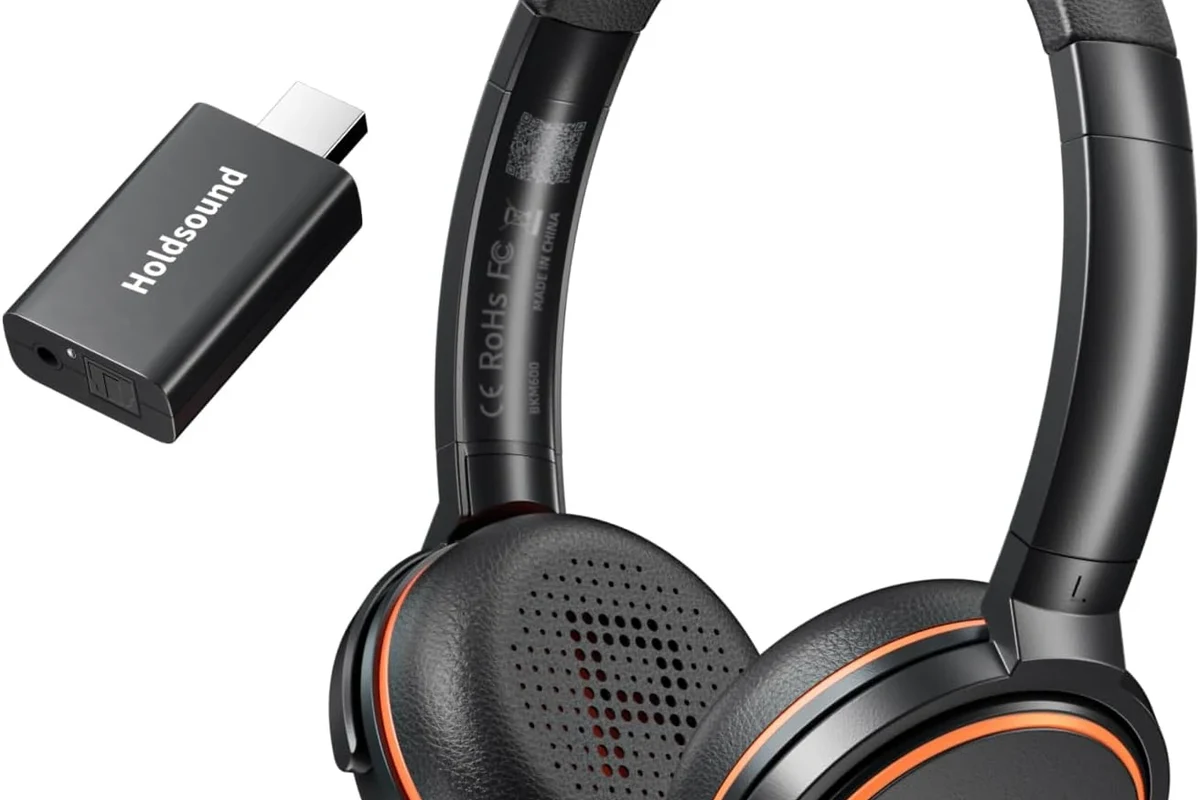
Wireless headphones are a great option if you want to move around or avoid cable clutter. You can connect through built-in TV Bluetooth, or use a Bluetooth transmitter that plugs into the TV’s audio output.
Built-in Bluetooth is convenient, but it may introduce audio delay depending on the TV and headphones. A dedicated transmitter often gives you more control over compatibility, range, and latency.
Step-by-Step Setup for the Most Common TV and Headphone Combinations
Once you know the output type, setup is usually quick. The main difference is whether you are using a direct jack, a converter, or a wireless transmitter.
Smart TV with a built-in headphone port
Start by lowering the TV volume, then plug your headphones into the 3.5 mm port. Put on the headphones and raise the volume slowly until dialogue sounds clear.
Next, check the TV audio settings. Some smart TVs let you choose between internal speakers, headphone output, or both, and that setting can affect whether you hear anything at all.
Insert the 3.5 mm plug fully into the TV headphone jack.
Switch to headphone or external audio output if the TV offers that option.
Raise the level gradually to avoid sudden loud audio.
Older TV with RCA or optical audio only
For RCA, connect the red and white plugs to the TV and attach the converter’s headphone output to your headphones or headphone extension. For optical, connect the optical cable to a digital-to-analog converter, then plug your headphones into the converter’s analog output.
After that, select the TV’s external audio output setting if needed. Some TVs need the internal speakers turned off manually before the external output works properly.
Soundbar setup when the TV audio jack is already in use
If the TV’s headphone jack is already connected to a soundbar or another audio device, you may need a different path. In that case, a Bluetooth transmitter, optical splitter, or a TV with dual audio output may be the better solution.
Some households prefer to keep the soundbar for room audio and use wireless headphones for private listening. That setup can be more flexible, especially when different people want different volume levels.
Common Mistakes That Cause Low Volume, No Sound, or Audio Delay
Most headphone-to-TV problems come from a few simple mistakes. The good news is that they are usually easy to fix once you know what to look for.
Plugging into the wrong port or using the wrong adapter
A common issue is plugging headphones into an output that looks similar but is not designed for analog audio. Another common mistake is buying a cable instead of a converter when the TV actually needs digital-to-analog conversion.
If the TV has optical out, a plain 3.5 mm cable will not work. If the TV has RCA out, make sure the adapter is designed for audio output and not just a visual connection or input-only device.
Volume control conflicts between TV, transmitter, and headphones
Some setups have three different volume controls: the TV, the transmitter, and the headphones themselves. If one of them is too low, the sound may seem broken when it is really just turned down.
When troubleshooting, start with the TV volume at a moderate level, then adjust the transmitter and headphones. This makes it easier to find the right balance without blasting your ears.
Listening at high volumes for long periods can cause hearing damage. Keep volume at 60% or below for extended sessions.
Bluetooth lag and lip-sync issues during movies and gaming
Bluetooth can sometimes create a small delay between the picture and the sound. For movies, that delay may be minor, but for gaming it can be distracting, especially in fast-paced titles.
If you notice lag, check whether your TV and headphones support low-latency modes. If not, wired headphones or a low-latency transmitter may be a better fit. For more on delay issues, see our guide on Bluetooth headphone lag fixes.
Expert Advice: When a Simple Plug-In Isn’t the Best Solution
Sometimes the easiest-looking setup is not the most practical one. That is especially true if you share the TV, use a soundbar, or want the best experience for gaming and streaming.
Why some TVs mute speakers automatically and others do not
TV behavior varies widely. Some models switch off the speakers as soon as headphones are connected, while others keep the speakers active unless you change the output manually.
If you want private listening without disturbing others, check the sound menu after connecting the headphones. That small step can prevent confusing “no sound” reports when the TV is actually sending audio somewhere else.
If you have hearing sensitivity, tinnitus, or ongoing ear discomfort, follow safe listening guidance and consider speaking with an audiologist before using headphones for long TV sessions.
When to choose wireless TV headphones over a wired connection
Wireless headphones make more sense when you want freedom to stand up, cook, or move around the room. They are also useful in shared households where the TV audio needs to stay private without a long cable running across the floor.
Wired headphones are still the better choice if you want the most stable connection and the least delay. For many gamers, that simplicity matters more than convenience.
Warning about optical-to-analog converters and cheap transmitters
Low-cost converters and transmitters can work, but performance varies a lot. Some add background noise, weak output, or pairing problems, while others may not handle the TV’s audio format correctly.
If you watch a lot of TV or play games regularly, it can be worth spending a little more on a reliable adapter or transmitter instead of replacing a bargain unit later.
Cost Comparison: Budget Adapters vs Dedicated TV Headphones in 2025
Price depends on whether you need a simple plug-in cable, a converter, or a full wireless headphone system. Since brands and features vary, treat any cost estimate as a general range rather than a fixed number.
Low-cost plug-and-play options for basic private listening
The cheapest route is usually a direct 3.5 mm cable or a simple RCA-to-headphone adapter. These are best if your TV already has the right port and you only need occasional private listening.
They are easy to use, but they may not offer the best volume control or sound consistency. That is fine for casual viewing, but less ideal for serious movie nights or gaming.
Mid-range transmitters for better range and sound quality
A mid-range Bluetooth transmitter can improve convenience and sometimes reduce lag compared with basic wireless solutions. These are a strong fit for viewers who want to walk around the house while still hearing the TV clearly.
Look for models that support stable pairing, easy volume control, and compatibility with your TV’s output type. For more general pairing guidance, our article on how to connect Bluetooth headphones can help with the wireless side.
Premium solutions for gaming, late-night viewing, and shared households
Premium TV headphone setups usually focus on comfort, lower latency, stronger build quality, and better long-session usability. That can matter a lot if you watch for hours or use the TV for gaming every day.
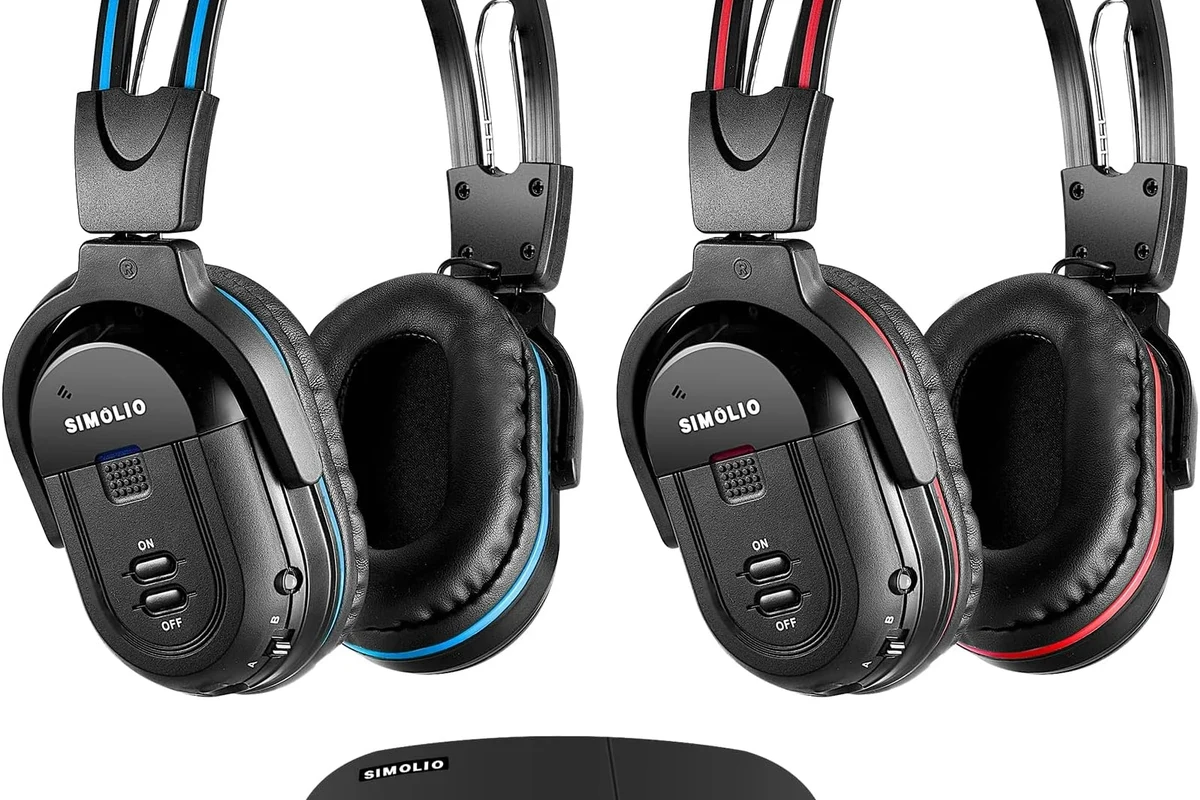
In shared homes, a dedicated wireless TV headphone system may be more practical than constantly swapping cables or adjusting speaker settings. If you want to compare headphone styles more broadly, our guide to types of headphones explained is a useful starting point.
Final Recap: The Fastest Way to Get Headphones Working With Your TV
The fastest way to plug headphones into a TV is to use the TV’s built-in headphone jack, if it has one. If not, the next best option is usually an adapter for RCA or optical audio, or a Bluetooth transmitter if you want wireless listening.
For the cleanest setup, match the connection method to your TV’s actual output and your listening needs. Wired is usually best for simplicity and no delay, while wireless is better for freedom and shared spaces.
Frequently Asked Questions
Wired headphones are usually best for zero-delay sound and simple setup. Wireless headphones are better if you want freedom of movement or a cleaner room setup.
Yes, noise cancelling headphones can reduce background noise and make dialogue easier to hear. They are especially useful in shared homes or noisy rooms.
Closed-back headphones are usually better for TV because they block more outside noise and keep sound from leaking out. Open-back models can sound spacious, but they are less private.
Look at comfort, connection type, and whether the headphones support low-latency wireless if needed. Bass, clarity, and frequency response can vary by model and personal preference.
Budget options can work well for casual viewing if your TV has the right port. For gaming, long sessions, or better wireless performance, a mid-range or premium setup may be worth it.
Check ear cushion material, headband fit, weight, and whether the build feels sturdy enough for daily use. If you watch for long periods, comfort matters as much as sound quality.