How to Connect Bluetooth Headphones to Roku TV Easily

To connect Bluetooth headphones to a Roku TV, first check whether your TV supports direct Bluetooth audio, private listening through the Roku app, or needs a Bluetooth transmitter. The easiest method depends on your model, but once you match the right setup, private TV listening is simple.
If you want to know how to connect bluetooth headphones to roku tv, the answer depends on your Roku model and the connection method it supports. Some Roku TVs let you listen privately through the TV or Roku app, while others need a Bluetooth transmitter to make wireless headphones work.
- Check support first: Roku TV models vary, so confirm the audio method before pairing.
- Use the simplest option: Direct Bluetooth, the Roku app, or a transmitter may each be the right answer.
- Watch for lag: Low-latency gear is better for movies and gaming.
- Prioritize comfort: Soft pads and a stable fit matter for long viewing sessions.
How to Connect Bluetooth Headphones to Roku TV: What Works in 2025
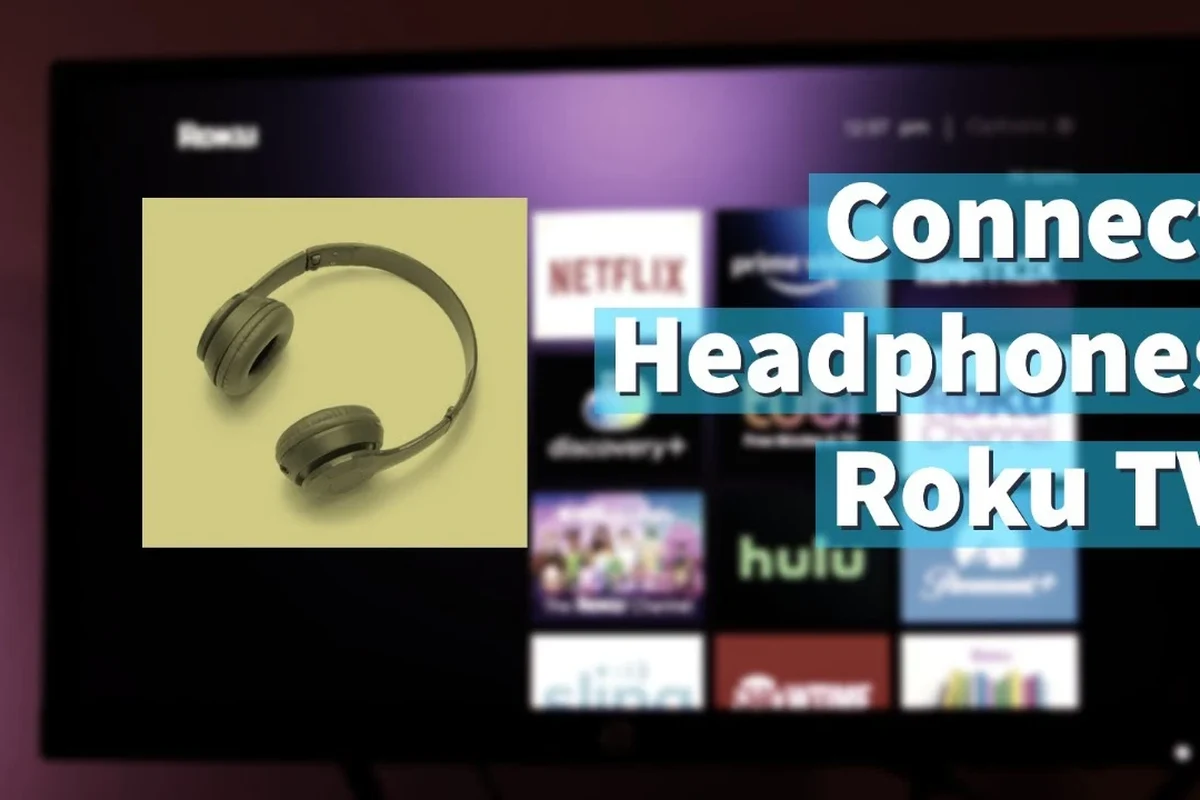
Roku TV audio support is a little different from what many people expect. Some models include built-in Bluetooth for audio, but many Roku TVs still rely on private listening through the Roku mobile app or a separate accessory.
That means the “best” method is not always the same for every setup. If you already own wireless headphones, you may be able to use them right away, but if your TV does not support direct Bluetooth audio, you may need a workaround.
The easiest setup is usually the one your specific Roku TV already supportsCheck the TV model first so you do not buy the wrong accessory
Does Your Roku TV Support Bluetooth Headphones? Check Before You Start
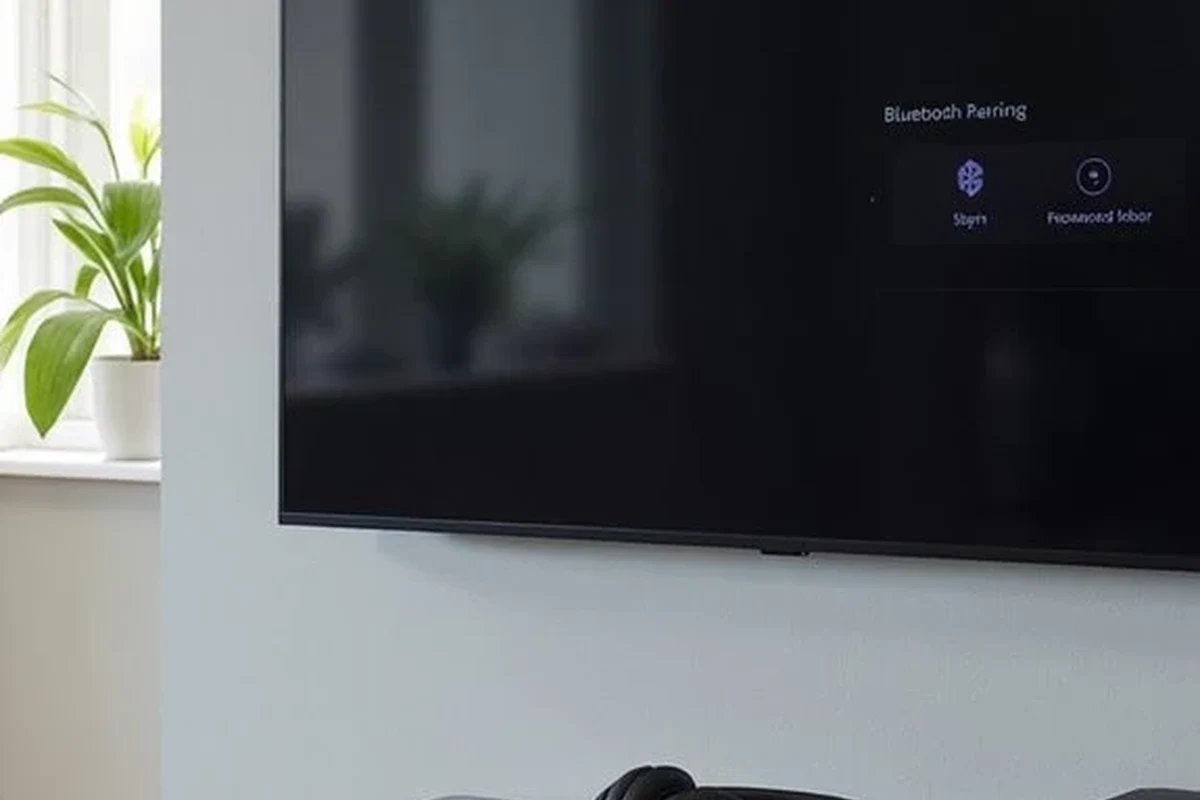
Before pairing anything, confirm whether your Roku TV supports Bluetooth audio output. This matters because some Roku devices support Bluetooth for certain features, but not all of them can send TV sound directly to headphones.
A quick check in the TV settings, user manual, or product page can save time and frustration. If you are unsure, look for wording like Bluetooth audio, private listening, or headphone support.
Roku TV models with built-in Bluetooth audio support
Some newer Roku TV models and certain Roku-branded televisions include built-in Bluetooth audio support. In those cases, you may be able to pair headphones directly from the settings menu, much like pairing a phone or laptop.
Even when Bluetooth is available, the exact menu names and steps can vary by brand and software version. If your TV has a Bluetooth audio option, that is usually the cleanest wireless route.
For readers comparing wireless audio options more broadly, our guide on Bluetooth headphones explained simply can help make the pairing process feel less confusing.
When you need the Roku mobile app, private listening, or a transmitter
If your Roku TV does not support direct Bluetooth headphone pairing, the Roku mobile app may still let you use private listening. This sends TV audio to your phone, then to your headphones through the phone’s own Bluetooth connection.
Another option is a Bluetooth transmitter connected to the TV’s audio output. That is often the best choice for older Roku TVs or models without built-in Bluetooth audio output.
Private listening through the Roku app is convenient, but it depends on your phone, network stability, and app compatibility. A transmitter is often more consistent for dedicated TV headphone use.
Step-by-Step: How to Pair Bluetooth Headphones to a Roku TV
The exact steps depend on which connection method your TV supports. Start with the TV settings if Bluetooth is built in, then try the Roku app if you want private listening, or use a transmitter if the TV lacks native support.
Pairing through Roku TV settings
If your Roku TV supports Bluetooth audio output, open the settings menu and look for Bluetooth or audio device options. Put your headphones into pairing mode first, then select them from the available device list on the TV.
Once paired, test the volume and make sure the sound is coming through the headphones instead of the TV speakers. If the TV keeps switching back, check whether the audio output setting needs to be changed manually.
Go to the audio or Bluetooth section on your Roku TV menu.
Hold the pairing button until the headphones appear ready to connect.
Choose your device from the list and wait for confirmation.
Play a show or movie and confirm audio is routed to the headphones.
Using the Roku mobile app for private listening
The Roku mobile app is one of the simplest ways to listen privately if your TV and app setup support it. In many cases, you connect the app to the Roku device, then use the app’s private listening feature to route sound to your phone and headphones.
This is a useful option if you already use wireless earbuds or a Bluetooth headset with your phone. It is also a good backup when direct TV pairing is unavailable.
Audio Tip
If you hear delay or dropouts in private listening, move closer to your router and keep your phone charged. Wireless TV audio can be more sensitive to weak connections than normal streaming video.
Connecting a Bluetooth transmitter to non-Bluetooth Roku TVs
If your Roku TV does not support Bluetooth audio, a transmitter can bridge the gap. You connect the transmitter to the TV’s audio output, then pair your headphones to the transmitter instead of the TV itself.
This method is popular because it can work with many TVs, but the results depend on the transmitter quality and audio output options on your television. For better TV sound quality and fewer sync issues, look for a transmitter designed for low-latency use.
If you want a broader refresher on wireless setup steps, our article on how to connect Bluetooth headphones covers the general pairing process in more detail.
Not every transmitter works with every Roku TV. Check whether your TV has optical, 3.5mm, or RCA audio output before buying one, since compatibility varies by model.
Best Use Cases for Bluetooth Headphones on Roku TV
Bluetooth headphones are especially useful when you want private TV sound without extra cables. They are also a practical choice in living rooms, apartments, dorms, and shared homes where volume control matters.
Late-night streaming without disturbing others
Private listening is one of the biggest reasons people connect headphones to a Roku TV. It lets you keep watching after bedtime without waking roommates, kids, or neighbors through thin walls.
For many viewers, this is also the easiest way to enjoy dialogue clearly at lower volume. That can be especially helpful for movies with quiet scenes and sudden loud effects.
Gaming and low-volume viewing in shared spaces
If you use a Roku TV for casual gaming or game streaming, headphones can help you catch dialogue, sound effects, and background details more clearly. They also reduce the need to turn up the TV in a shared room.
For gaming use, low-latency headphones or a transmitter matter more than flashy features. If the audio lags behind the picture, the experience can feel distracting fast.
Helping viewers with hearing sensitivity or concentration needs
Some people prefer headphones because TV speakers can feel too loud, too echoey, or too harsh in a quiet space. Others simply find it easier to focus with direct headphone sound instead of room audio.
If hearing sensitivity, tinnitus, or long-term listening comfort is a concern, keep volume moderate and consider speaking with an audiologist for personalized guidance. A comfortable headphone fit and clear midrange often matter more than extra bass.
Closed-back headphones usually block more outside noise than open-back models, which can make them a better fit for private TV listening in busy rooms.
Common Problems When Connecting Bluetooth Headphones to Roku TV
Even when the setup is straightforward, a few common issues can get in the way. The good news is that most of them are caused by pairing mode, signal strength, or model limitations rather than a broken headset.
Headphones not showing up in the device list
If your headphones do not appear, make sure they are in pairing mode and close to the TV or transmitter. Also check whether they are already connected to a phone, tablet, or laptop, since many headphones can only stay paired to one active device at a time.
Restarting the TV, resetting the headphones, or removing old pairings can also help. If you need a refresher on that part, our guide on how to reset Bluetooth headphones may be useful.
Audio delay, dropouts, and weak range
Bluetooth audio can sometimes lag behind the picture, especially with older headphones or inexpensive transmitters. Dropouts may also happen if the TV is too far from the headphones or if the signal has to pass through walls and furniture.
For TV use, stronger range and lower latency usually matter more than extra features. If the delay is annoying, a transmitter with better sync support or headphones built for low-latency listening may improve the experience.
Protect Your Hearing
Listening at high volumes for long periods can cause hearing damage. Keep volume at 60% or below for extended sessions.
TV model limitations and unsupported connection methods
Some Roku TVs simply do not support direct Bluetooth headphone output, even if they support other Bluetooth features. That is why a phone app or transmitter may be required instead of a simple settings-based pairing.
If your TV manual does not mention Bluetooth audio output, do not assume it is available. The connection method has to match the actual hardware and software support of the TV.
If you are unsure whether your Roku TV supports direct headphone pairing, check the model documentation or contact the TV maker’s support team before buying a transmitter or new headphones.
Expert Advice: Avoid These Mistakes Before You Buy or Pair
A little planning can save you from lag, poor sound, and wasted money. The best setup depends on your TV model, how often you listen privately, and whether you care more about convenience or audio stability.
Why cheap Bluetooth transmitters can cause lag
Very inexpensive transmitters may work, but they can also bring extra delay, weaker range, or unstable pairing. That matters most for dialogue-heavy shows and gaming, where even a small sync issue becomes distracting.
If you plan to use your Roku TV often with headphones, it is usually smarter to choose a transmitter with good compatibility and low-latency support rather than the cheapest option available.
Choosing headphones with low-latency support for TV use
Not all Bluetooth headphones behave the same way with video. Some are fine for music and calls but less ideal for TV because the sound arrives a little late.
When shopping, look for headphones that are known for stable wireless performance, comfortable long-wear design, and enough battery life for full movie nights. If you want to compare wireless and wired listening more generally, our article on Bluetooth vs wired headphones sound quality is a helpful next read.
Warning about Roku audio settings and volume control conflicts
Sometimes the TV volume, headphone volume, and app volume do not behave the same way. That can make the sound too quiet, too loud, or inconsistent when switching between speakers and private listening.
Check the Roku audio settings if the volume seems off, and make sure you understand which device is actually controlling output. This is especially important when using the Roku app, since your phone and headphones may each have their own volume controls.
What It Costs: Free Roku Options vs Bluetooth Transmitters and Headphones
The price of a private listening setup can range from free to fairly expensive depending on what you already own. If you already have compatible headphones and a supported Roku setup, you may not need to spend anything extra.
Budget-friendly setup choices for casual viewers
The most affordable route is usually the Roku mobile app if your TV and phone support it. That lets you reuse headphones you already own, which is ideal for casual nightly viewing.
If you need a transmitter, budget models can be a reasonable starting point, but performance may vary. For occasional use, that may be enough, but serious viewers often notice the difference in lag and stability.
Mid-range and premium solutions for better sound and stability
Mid-range headphones and better transmitters often provide a better balance of comfort, battery life, and connection reliability. Premium options may also offer stronger noise isolation, more comfortable ear cushions, and better overall build quality.
For long listening sessions, comfort can matter as much as sound. Over-ear designs with softer pads are often easier for TV use than tight on-ear models, though fit is personal and varies by brand.
- Direct Bluetooth pairing works only on some Roku TVs.
- The Roku app or a transmitter may be needed on other models.
- Low-latency gear helps reduce audio delay for movies and gaming.
- Comfort, range, and volume control matter as much as sound quality.
Final Recap: The Easiest Way to Listen Privately on Roku TV
The easiest way to connect Bluetooth headphones to a Roku TV is to use the method your TV already supports, whether that is built-in Bluetooth, the Roku mobile app, or a Bluetooth transmitter. Start by checking your model, because that determines whether pairing is simple or needs an accessory.
For most viewers, the best setup is the one that stays stable, sounds clear, and fits long watching sessions comfortably. If you choose headphones with good wireless performance and pay attention to Roku audio settings, private listening can be smooth, practical, and much more enjoyable.
If you are still deciding between headphone styles, our broader headphone guides can help you compare wireless comfort, latency, and fit before you buy.
Frequently Asked Questions
Yes, but the connection method matters. Some wireless headphones need a transmitter or the Roku app rather than direct TV Bluetooth pairing.
Yes, noise cancelling headphones can be a good choice for private TV listening. They may help reduce background noise, but comfort and latency still matter.
Closed-back headphones are usually better for TV use because they block more outside sound and keep audio more private. Open-back models can sound spacious, but they leak sound and are less ideal in shared rooms.
Look at latency, comfort, battery life, and connection stability first. Driver type, frequency response, and EQ can affect sound, but real-world TV use often depends more on sync and fit.
Start with the Roku app if your TV supports it, since that may cost nothing extra. If you need a transmitter, choose one with good compatibility and low-latency support rather than the cheapest option.
Choose a lightweight design with soft ear cushions and a secure but not tight fit. Build quality, battery life, and clamp pressure can matter a lot during long viewing sessions.