How to Use USB Headphones with Xbox One Easily

Xbox One usually does not support USB headphones directly, so most users need an analog workaround, TV/receiver audio output, or an Xbox-compatible headset. If your headphones are USB-only, check for 3.5mm support before expecting plug-and-play use.
If you’re trying to figure out how to use usb headphones with xbox one, the short answer is that direct plug-and-play support is limited. In most cases, you’ll need an adapter, external audio gear, or a headset designed for Xbox compatibility.
- Direct USB support: Usually limited on Xbox One.
- Best workaround: Use analog audio through the controller or external gear.
- Wireless caution: Many USB dongles are not Xbox-compatible.
- Best value: Xbox-ready headsets are often simpler and more reliable.
How to Use USB Headphones with Xbox One: What Works and What Doesn’t in 2026
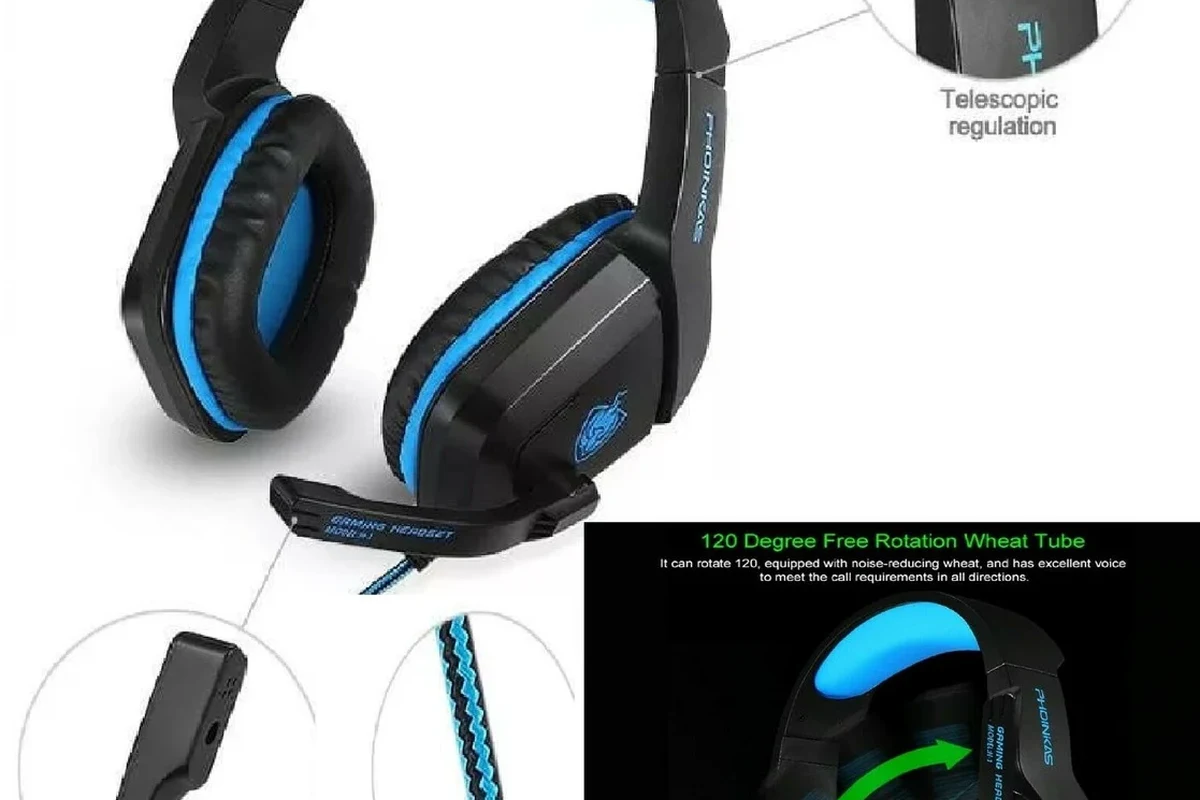
Xbox One is still a solid gaming console, but its audio support is more restrictive than many PC setups. That means a USB headset that works perfectly on a laptop may not automatically work on the console.
The key thing to understand is that Xbox One is built primarily around controller audio, HDMI audio, and Xbox-certified headsets. If your USB headphones rely on standard PC-style USB audio, the console may ignore them completely.
Can You Plug USB Headphones Directly into Xbox One?
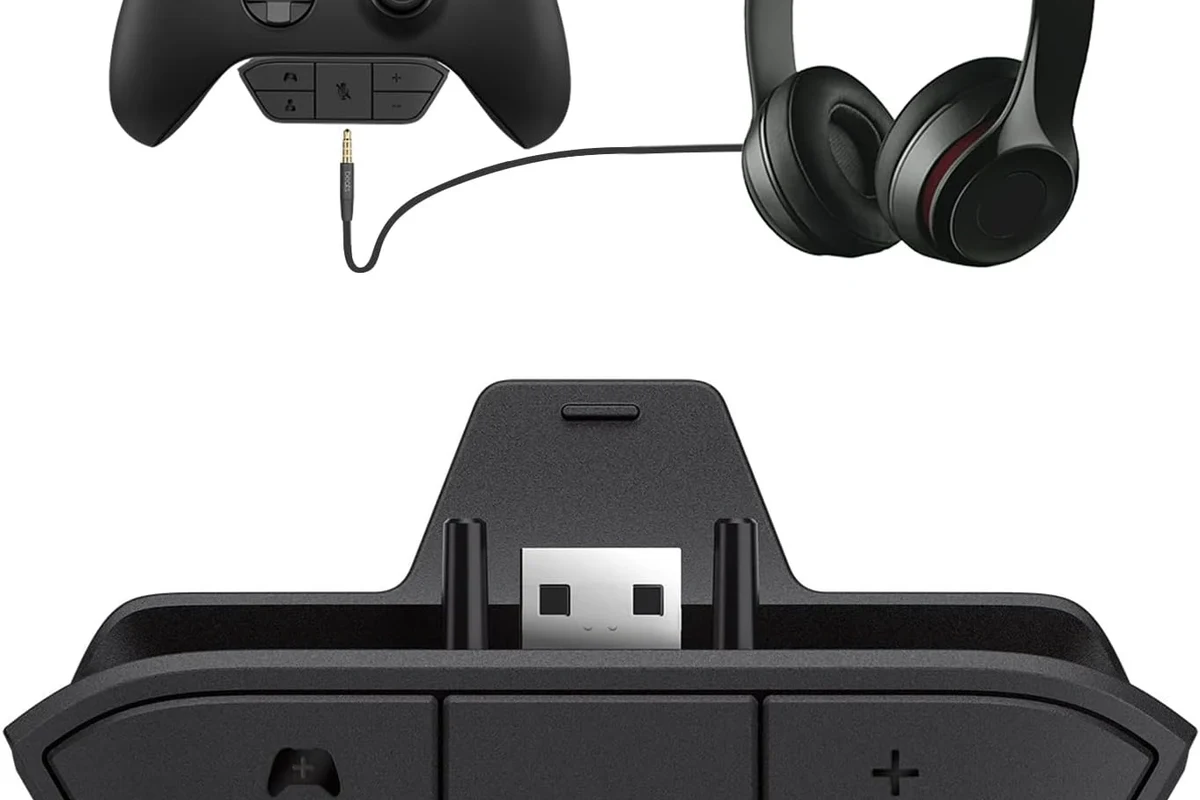
In most cases, no. Plugging USB headphones into the Xbox One’s USB port usually does not enable audio the way it would on a PC.
Some accessories may power on, but that does not mean the console will send sound to them or recognize the microphone correctly.
Why most USB headphones are not natively supported
Most USB headphones depend on drivers or audio profiles that Xbox One does not load in the same way a Windows PC does. Without that support, the headset may be detected as a USB device but still produce no sound.
This is one of the most common frustrations for buyers who assume “USB is USB.” Unfortunately, console compatibility is more specific than that.
What “USB audio” means on Xbox One versus PC
On a PC, USB audio often means the computer handles the headset as a full sound device. On Xbox One, USB ports are mainly used for storage, updates, and certain accessories, not general USB headphone output.
That difference is why a headset can work on Windows but fail on the console. If you want to learn more about how device support differs across platforms, our guide on USB-C headphone compatibility shows how connector type alone does not guarantee audio support.
Best Ways to Get USB Headphones Working on Xbox One
There are a few practical ways to get sound into your headphones, but the best method depends on your exact headset and setup. The most reliable solutions usually involve converting the audio path into something Xbox One can actually use.
Using the controller’s 3.5mm jack with a USB-to-analog workaround
If your USB headphones include a detachable cable or a USB sound dongle, you may be able to bypass the USB side and use the controller’s 3.5mm jack instead. In that case, the headset behaves more like a standard wired gaming headset.
This is not a universal fix, but it can work if your headphones support analog input. If you are shopping for accessories, a simple analog headset is often less frustrating than a USB-only model.
Some USB headsets include a removable USB sound card or a 3.5mm cable. That extra flexibility can make a big difference on Xbox One.
Connecting through a TV, monitor, or AV receiver with USB passthrough
Another option is to route console audio through your TV, gaming monitor, or AV receiver, then send sound to headphones from that device. This can work if the display or receiver has a headphone output or audio-out port.
USB passthrough is less common for headphones than HDMI audio extraction, so check your display’s audio options carefully. In many living-room setups, this method is more realistic than trying to make the Xbox read the USB headset directly.
Using a USB sound card or audio adapter for compatible setups
Some players use a USB sound card or audio adapter that converts USB input into an analog output the console can work with indirectly. This can help in certain setups, but results vary a lot by brand and model.
Make sure the adapter is compatible with Xbox One use and not just PC use. If the product description only mentions Windows or Mac, treat that as a warning sign.
Do not assume any USB audio adapter will work on Xbox One. Compatibility depends on the headset, the adapter, and whether your audio route is analog or HDMI-based.
Step-by-Step Setup Methods for Different Xbox One Models
The Xbox One family includes several models, and the setup process can vary slightly depending on which one you own. The biggest difference is usually not the console itself, but the audio gear connected around it.
Xbox One, Xbox One S, and Xbox One X setup differences
The original Xbox One, Xbox One S, and Xbox One X all share similar limitations around USB headphone support. In practical terms, none of them are known for simple direct USB headset audio like a PC.
That means the same workaround logic applies across the family: use the controller, route audio through the TV or receiver, or choose a headset that is explicitly Xbox-compatible.
How to connect wired USB headphones through external audio gear
First, identify whether your headphones can accept analog audio through a 3.5mm cable or a detachable cable setup. If they can, connect them to the controller or to an external audio device that outputs analog sound.
Next, set your Xbox audio output through HDMI or TV audio, then confirm that the TV, monitor, or receiver is passing sound to the headphone output. If the volume is low or uneven, adjust both the console and the external device.
Confirm whether the headphones are USB-only or whether they also support 3.5mm analog input.
Use the controller jack, TV headphone output, or receiver output instead of expecting USB audio from the console.
Confirm game audio first, then check microphone input in party chat or a compatible game chat menu.
How to use wireless USB dongle headphones and why most fail on Xbox One
Many wireless gaming headphones use a USB dongle for PC or PlayStation use, but those dongles are often not supported by Xbox One. The headset may power on, yet the console will not pair with it correctly.
If you want wireless on Xbox One, look for a headset that explicitly says Xbox wireless compatibility or includes an Xbox-ready connection method. For broader wireless behavior across devices, our guide on how to connect Bluetooth headphones explains why pairing rules matter so much.
Many “wireless” gaming headsets are not Bluetooth-only. They may use a proprietary USB dongle that works on one platform but not another.
Common Problems, Mistakes, and Fixes
Most Xbox One USB headset problems come from compatibility assumptions, not broken hardware. Before you return anything, double-check the connection type and where the audio is actually supposed to come from.
No sound, mic not working, or headset detected but silent
If the headset seems powered but silent, the console probably does not support it as a USB audio device. If the mic does not work, the issue may be that the microphone path is tied to the headset’s USB driver, which Xbox One cannot use.
Try a different audio route first, such as the controller jack or TV audio output. If that still fails, the headset may simply not be a good match for the console.
Using the wrong USB port or expecting plug-and-play support
One common mistake is plugging the headset into any available USB port and expecting instant audio. On Xbox One, the port location usually does not change the basic USB audio limitation.
Another mistake is assuming “it charges, so it should work.” Charging and audio support are two different things.
Game audio only, chat audio only, or bad latency issues
Some setups allow game sound but not chat, or the reverse. That usually means the headset is only partially compatible or the audio is being split across different devices.
Latency can also be a problem with certain wireless adapters and external converters. If you notice delay, that matters more in shooters and competitive games than in casual single-player play.
Listening at high volumes for long periods can cause hearing damage. Keep volume at 60% or below for extended sessions.
Expert Advice: When USB Headphones Are the Wrong Choice for Xbox One
Sometimes the best answer is not another adapter. If your headset depends entirely on USB audio and the product page does not mention Xbox support, it may be the wrong tool for the job.
Warning signs that you should buy an Xbox-compatible headset instead
If you need easy party chat, dependable mic support, and low setup hassle, an Xbox-compatible headset is usually the safer buy. That is especially true if you play often and do not want to troubleshoot every time you switch games.
It is also a better choice if your current headset needs special software, firmware, or driver support just to function normally.
Latency, microphone support, and console compatibility limitations
Console gaming is less forgiving than PC audio when it comes to lag, mic routing, and device recognition. Even a decent USB headset can become annoying if the connection path is unstable or unsupported.
If you have hearing sensitivity, tinnitus, or discomfort with prolonged gaming audio, consider speaking with an audiologist or hearing professional for personalized advice.
If you regularly rely on voice chat, stream gameplay, or need consistent low-latency audio, consult a headset specialist or audio professional before buying another adapter. The right recommendation depends on your headset type, your room setup, and how you actually play.
USB Headphones vs Xbox-Compatible Headsets: Price and Value Comparison
Budget is important, but value matters more than sticker price alone. A cheap adapter can look appealing, yet it may cost you time, stability, or microphone reliability.
Budget adapters versus buying a dedicated Xbox headset
Budget adapters can make sense if you already own good headphones and only need a temporary workaround. They are also useful if you want to test compatibility before spending more.
A dedicated Xbox headset usually costs more, but it often saves frustration and delivers a cleaner all-in-one solution.
| Model | Best For | Price Range |
|---|---|---|
| USB headphones with adapter | Reusing existing headphones | Varies |
| Xbox-compatible gaming headset | Simple plug-and-play use | Varies by brand |
| Controller-wired headset | Low-hassle chat and game audio | Usually lower to mid-range |
Which option makes more sense for casual, competitive, and streaming players
Casual players usually want the simplest setup, so an Xbox-compatible headset is often the best value. Competitive players should prioritize low latency, stable mic performance, and comfortable long-session wear.
Streamers and frequent party-chat users should be especially careful about microphone routing and chat monitoring. If your audio setup is important to your content, reliability should matter more than saving a few dollars.
Final Recap: The Easiest Way to Use USB Headphones with Xbox One
The easiest way to use USB headphones with Xbox One is usually not direct USB connection. Instead, use an analog workaround, route audio through your TV or receiver, or choose a headset made for Xbox compatibility.
If you already own USB headphones, check whether they also support 3.5mm audio before buying anything else. That simple detail often decides whether the setup is easy or frustrating.
- Xbox One usually does not support USB headphones as direct plug-and-play audio devices.
- Analog workarounds and external audio gear are more reliable than standard USB dongles.
- Xbox-compatible headsets are the easiest choice for chat, gaming, and low-latency use.
- Always verify headset compatibility before buying, especially for wireless models.
Frequently Asked Questions
Usually no. Wireless USB dongles often face the same Xbox One compatibility limits as wired USB headphones, so a wired analog option is often more reliable.
Open-back headphones can feel more spacious, while closed-back headphones usually block more outside noise. For Xbox One gaming, closed-back models are often easier to use in shared spaces.
Yes, but compatibility matters first. Once the headset works on Xbox One, driver tuning, bass, and clarity affect how footsteps, voices, and effects sound.
That depends on your needs and the features you want. If you only need simple chat and game audio, a basic Xbox-compatible headset may offer better value than a USB-only model with adapters.
Look for manageable weight, soft ear cushions, and a headband that does not clamp too hard. Build quality, cable strength, and pad material can matter more than flashy features.
Yes, EQ can help balance bass, mids, and treble if your headset or audio chain supports it. Small adjustments are usually better than extreme boosts, especially for long listening sessions.