How to Connect Wireless Headphones to Xbox Easily

The easiest way to connect wireless headphones to Xbox is to use an Xbox-compatible wireless headset or a supported USB transmitter. Standard Bluetooth headphones usually need a TV, monitor, or external audio workaround instead of a direct console connection.
If you want to know how to connect wireless headphones to Xbox, the key thing to understand is that Xbox does not work like a phone or laptop. Some wireless headsets connect directly, while many Bluetooth headphones need a different path such as a TV, transmitter, or controller-based workaround.
In this guide from the Top Headphone Reviews Editorial Team, we’ll break down what works in 2025, what does not, and which setup is easiest depending on your Xbox model and headphone type. For a broader look at wireless audio behavior, you may also find our guide on wired vs wireless headphones helpful when deciding whether convenience or compatibility matters more for your setup.
- Xbox compatibility: Not all wireless headphones work directly with Xbox.
- Best method: Xbox Wireless headsets are usually the simplest choice.
- Bluetooth limit: Most Bluetooth-only headphones need a workaround.
- Common issues: Lag, chat problems, and no sound often come from unsupported connections.
How to Connect Wireless Headphones to Xbox: What Works in 2025
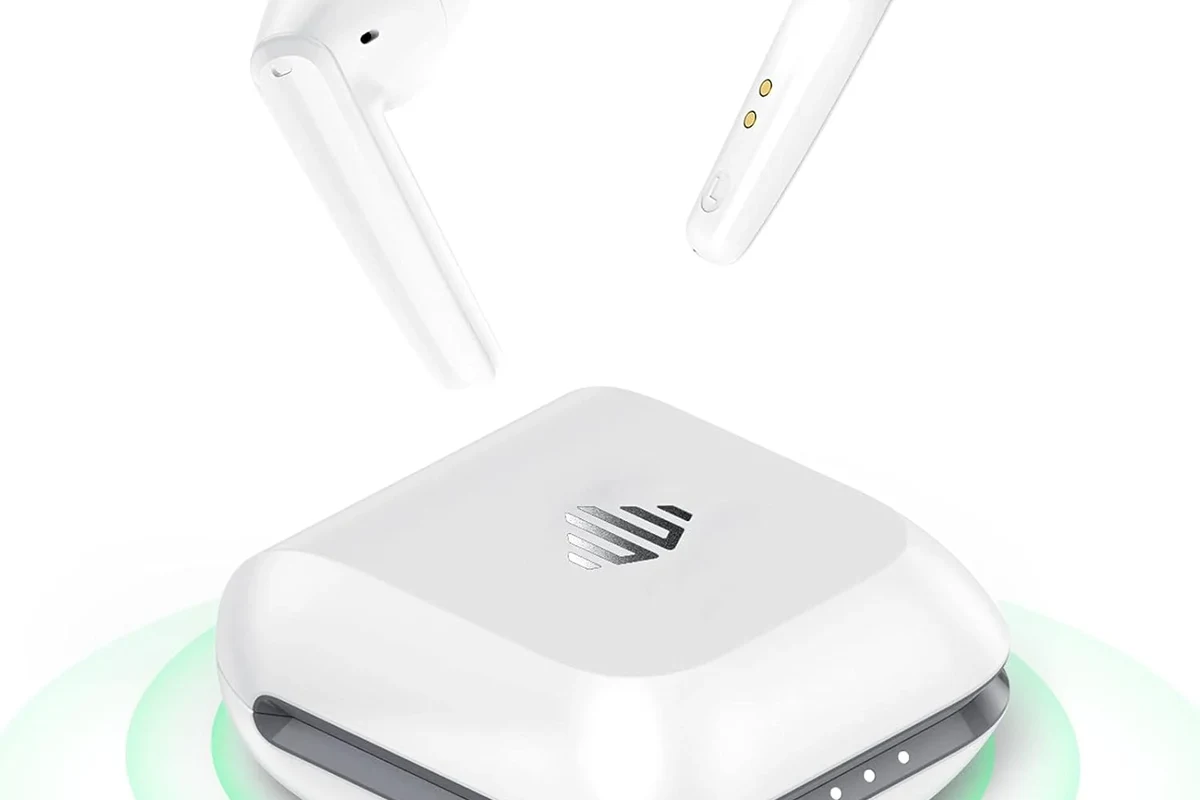
The short version is this: Xbox supports its own wireless ecosystem, but it does not support standard Bluetooth audio the way many people expect. That means some wireless headphones will pair easily, while others will never show up as an audio device at all.
If you already own a headset, the first step is to check whether it is Xbox Wireless compatible, uses a USB dongle, or only supports Bluetooth. That one detail usually decides whether the connection is simple or frustrating. If you are still learning the basics of wireless audio, our Bluetooth headphones explained article can help make the terms easier to follow.
Xbox consoles are designed to prioritize low-latency gaming audio, which is one reason they rely more on proprietary wireless support than on standard Bluetooth.
Know Your Xbox Model Before You Start
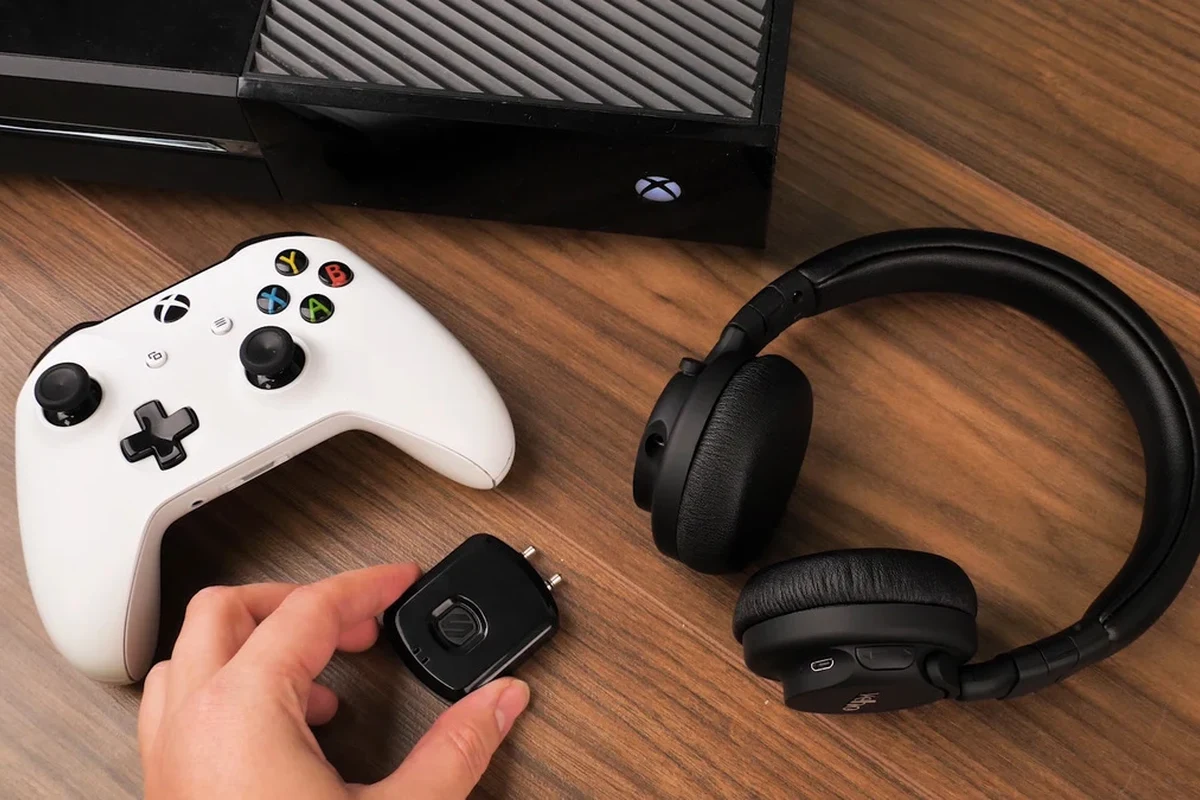
Before you try any pairing method, it helps to know which Xbox you own and how its audio features work. The connection path can change depending on whether you are using a Series X, Series S, or an older Xbox One model.
Xbox Series X|S vs. Xbox One: Why the Connection Method Matters
Xbox Series X|S consoles generally offer the most straightforward experience with Xbox-compatible wireless headsets. Xbox One models can also work with some wireless solutions, but the exact method depends on the headset and controller support.
Some headsets connect directly to the console, while others depend on a controller connection, a USB transmitter, or audio routed through a TV or monitor. If you are unsure how your headphone type fits into the bigger picture, it may help to review our general guide on types of headphones explained before buying accessories.
Bluetooth Limitations on Xbox Consoles
This is the part that confuses many users: most Xbox consoles do not support regular Bluetooth headphones for direct audio output. So even if your headphones work perfectly on a phone, tablet, or laptop, they may not connect to Xbox audio at all.
That does not mean wireless audio is impossible. It just means you need to use a compatible headset or an alternate audio route. Many connection problems start when people assume “wireless” automatically means “Bluetooth,” which is not true for Xbox.
Do not buy a headset just because it says wireless. If it is Bluetooth-only, it may not work directly with Xbox for game audio or chat.
Best Ways to Connect Wireless Headphones to Xbox
There are three main ways to get wireless audio on Xbox: use an Xbox Wireless headset, use a USB dongle or base station, or route sound through a TV, monitor, or external audio device. The best option depends on your budget, your headset, and whether you need microphone support.
Using Xbox Wireless Headphones and Xbox-Compatible Headsets
This is usually the cleanest solution. Xbox Wireless headsets are built to pair directly with the console, and many gaming headsets made for Xbox use this same low-latency approach.
For most players, this is the most reliable choice because it is designed for both game audio and party chat. It also avoids the lag and compatibility issues that can happen with generic Bluetooth headphones.
Connecting Through the Controller With a 3.5mm Adapter or Wireless Dongle
Some wireless headsets use a USB dongle that plugs into the Xbox or into a supported device, then handles the wireless link from there. Others may use an adapter or controller-based audio path, especially if the headset supports a wired backup mode.
This method can work well, but it depends heavily on the headset model. Not every dongle is Xbox-compatible, and some accessories are made for PC or PlayStation instead.
Using a TV, Monitor, or External Audio Device as the Audio Path
If your TV or monitor supports Bluetooth audio, or if you have an external transmitter connected to the display, you may be able to send Xbox sound to your wireless headphones indirectly. This is often the fallback option for people who already own Bluetooth headphones and do not want to buy a new gaming headset.
The trade-off is that latency can be higher, and microphone support may be limited or missing. For story games or casual play, this can still be a workable setup, but competitive players usually prefer a direct Xbox-compatible connection.
TV Bluetooth audio can be convenient, but it is not always ideal for fast-paced games because video and sound may not stay perfectly in sync.
Step-by-Step Setup for the Most Common Methods
Once you know which method fits your gear, the setup process is usually straightforward. The main goal is to match the headset type to the right connection path and then check the Xbox audio settings.
Pairing an Xbox Wireless Headset Directly to the Console
Make sure both devices are charged and powered on before pairing.
Use the headset’s pairing button or wireless switch as instructed by the manufacturer.
On the console, use the pairing button so the Xbox can search for the headset.
Check game audio, party chat, and microphone input before you start playing.
If the headset is supported, pairing should complete without needing extra software. If you run into trouble, reset the headset and try again before assuming the headset is defective.
Connecting a Wireless Headset via TV Bluetooth or Audio Transmitter
Make sure Bluetooth or transmitter mode is enabled and ready to pair.
Follow the headset instructions so it can be discovered by the TV or audio device.
Use the display’s audio menu or transmitter controls to complete the connection.
Launch a game and check whether the audio feels in sync with the picture.
This method is easy, but it is not always the best for shooters or rhythm games. If your headphones are mainly for media and not just Xbox, our noise cancelling headphones guide may also help you think through whether isolation or latency matters more.
Setting Up Headphones With a USB Dongle or Base Station
Use the USB port recommended by the headset maker or Xbox-compatible accessory guide.
Wait for the headset and dongle to detect each other automatically.
Choose the headset as the output device if the console prompts you to do so.
Fine-tune the mix so voice chat is clear without drowning out gameplay.
- Is the dongle Xbox-compatible?
- Does the headset support chat audio?
- Is the microphone enabled in console settings?
- Are firmware updates available?
Common Problems When Connecting Wireless Headphones to Xbox
Most Xbox headphone issues are not caused by the console itself. They usually come from compatibility mismatches, weak wireless links, or settings that were not completed during setup.
No Sound, Delay, or Audio Cutting Out
If you get no sound, first confirm that the headset is actually supported by Xbox. If the sound cuts out or arrives late, the problem may be interference, distance, or a Bluetooth-style connection that is not ideal for gaming.
Try moving closer to the console, removing other wireless devices nearby, and restarting both the headset and Xbox. If the issue happens only with TV Bluetooth, that is a strong sign the connection method itself is the limitation.
Mic Not Working or Party Chat Issues
Some wireless headphones can play game audio but do not support microphone input well on Xbox. That is especially common with Bluetooth-only models and some universal wireless adapters.
Check whether the headset has a dedicated chat mode, a boom mic, or a console-specific compatibility label. If you play online often, chat support matters just as much as sound quality.
If you hear persistent distortion, one-sided audio, or microphone failure across multiple devices, contact the headset maker or an audio technician. For hearing concerns, tinnitus, or discomfort at normal volumes, consult an audiologist.
Why Some Bluetooth Headphones Won’t Connect at All
This is normal on Xbox. The console is not built to accept standard Bluetooth headphones as a direct audio device, so your headphones may never appear in the pairing list.
That is why so many users think their headset is broken when it is really just unsupported. In those cases, the fix is usually to use an Xbox Wireless headset, a compatible dongle, or a TV-based audio route instead.
Listening at high volumes for long periods can cause hearing damage. Keep volume at 60% or below for extended sessions.
Expert Advice: Mistakes to Avoid Before You Buy or Pair
The easiest way to avoid frustration is to check compatibility before spending money. Wireless audio for Xbox can be excellent, but only if the headset and connection method match the console.
Do Not Assume “Wireless” Means Xbox-Compatible
Many headphones are wireless only in the sense that they work over Bluetooth. That is useful for phones and laptops, but it does not guarantee Xbox support.
Always look for Xbox Wireless support, a clear Xbox compatibility label, or a connection method that explicitly mentions Xbox. If you already own a headset, read the manual before buying extra adapters.
Latency, Chat Mix, and Battery Life Trade-Offs
Wireless convenience can come with trade-offs. Lower-cost setups may have more delay, weaker microphone support, or shorter battery life than purpose-built gaming headsets.
For solo gaming, that may be fine. For multiplayer, voice chat, and fast reaction games, a headset with better latency and chat handling is usually worth the extra cost.
Warning on Cheap Adapters and Unsupported Workarounds
It can be tempting to use a very cheap Bluetooth dongle or random adapter, but those solutions often create more problems than they solve. They may add lag, break chat, or fail after a firmware update.
If you want a dependable setup, choose an accessory that clearly states Xbox support. Unsupported workarounds may work for a while, but they are rarely the best long-term option.
Price and Value: What You May Need to Spend for the Best Setup
Costs vary a lot depending on whether you already own headphones or need to buy a new gaming headset. The most affordable path is often to use what you have, but the most reliable path is usually to buy for Xbox compatibility first.
Budget Options vs. Premium Xbox Wireless Headsets
Budget setups may include a basic transmitter, a TV Bluetooth route, or a headset you already own. Premium options usually mean a headset designed specifically for Xbox Wireless and gaming chat.
The budget route can save money up front, but it may involve more setup steps and more compromise. Premium models often cost more, but they usually reduce hassle and improve consistency.
When a Simple Adapter Is Enough and When It Is Not
A simple adapter can be enough if you only want basic wireless listening and do not care much about mic quality or ultra-low latency. It is less ideal if you play competitive games or use party chat often.
If your goal is the best overall Xbox experience, a headset made for the console is usually the smarter value. If you just want casual couch listening, an external transmitter or TV route may be perfectly fine.
- Xbox Wireless headsets are the most reliable direct option.
- Bluetooth-only headphones usually need a workaround.
- TV audio and USB dongles can work, but latency may vary.
- Check mic support, chat mix, and compatibility before buying.
Final Recap: The Easiest Way to Get Wireless Audio on Xbox
The easiest way to connect wireless headphones to Xbox is to use a headset that is explicitly Xbox-compatible. That gives you the best chance of getting game audio, chat, and low latency without extra steps.
If you already own Bluetooth headphones, you can still get sound through a TV, monitor, or transmitter in some setups, but results will vary. For most readers, the safest path is to match the headset to the console first, then choose the simplest connection method available.
In other words, do not focus on “wireless” alone—focus on Xbox support, microphone needs, and how you actually play. That approach saves time, money, and a lot of pairing headaches.
Frequently Asked Questions
Wireless headphones are more convenient, but wired headphones often offer simpler compatibility and no wireless delay. For Xbox, the best choice depends on whether you want convenience, chat support, or the most reliable connection.
Check Xbox compatibility, microphone support, wireless type, battery life, and whether the headset uses Xbox Wireless, Bluetooth, or a USB dongle. Comfort, weight, and ear cushion material also matter for long sessions.
Noise-cancelling headphones can help block background noise, which is useful for immersion. Just make sure the headset is compatible with Xbox and does not add too much latency for gaming.
Closed-back headphones usually work better for Xbox gaming because they block more outside noise and help keep game audio contained. Open-back models can sound wider, but they leak sound and are less practical for shared spaces.
Stronger bass can make explosions and effects feel bigger, while clearer mids help with dialogue and footsteps. Frequency response numbers are only a rough guide, so listening preference and tuning matter just as much.
The best budget approach is often to use a headset you already own with a compatible transmitter or TV audio path, if supported. If you play often, spending more on an Xbox-compatible headset may save frustration later.