How to Add Headphones to PS4 Easily and Quickly

The easiest way to add headphones to PS4 is to plug a wired headset into the DualShock 4 controller and set the audio output in PS4 settings. USB headsets and Bluetooth adapters can also work, but compatibility and latency may vary.
If you want to know how to add headphones to PS4, the basic idea is simple: choose a connection method, plug or pair the headset, then set the PS4 audio output correctly. The best option depends on whether you want the lowest lag, the easiest setup, or the most reliable mic support.
- Fastest setup: Wired headphones through the controller are usually the simplest option.
- Wireless caution: Bluetooth often needs an adapter and may add delay.
- Settings matter: Check audio output and chat options after pairing.
- Buy smart: Prioritize comfort, mic support, and PS4 compatibility.
How to Add Headphones to PS4: What the Process Actually Means
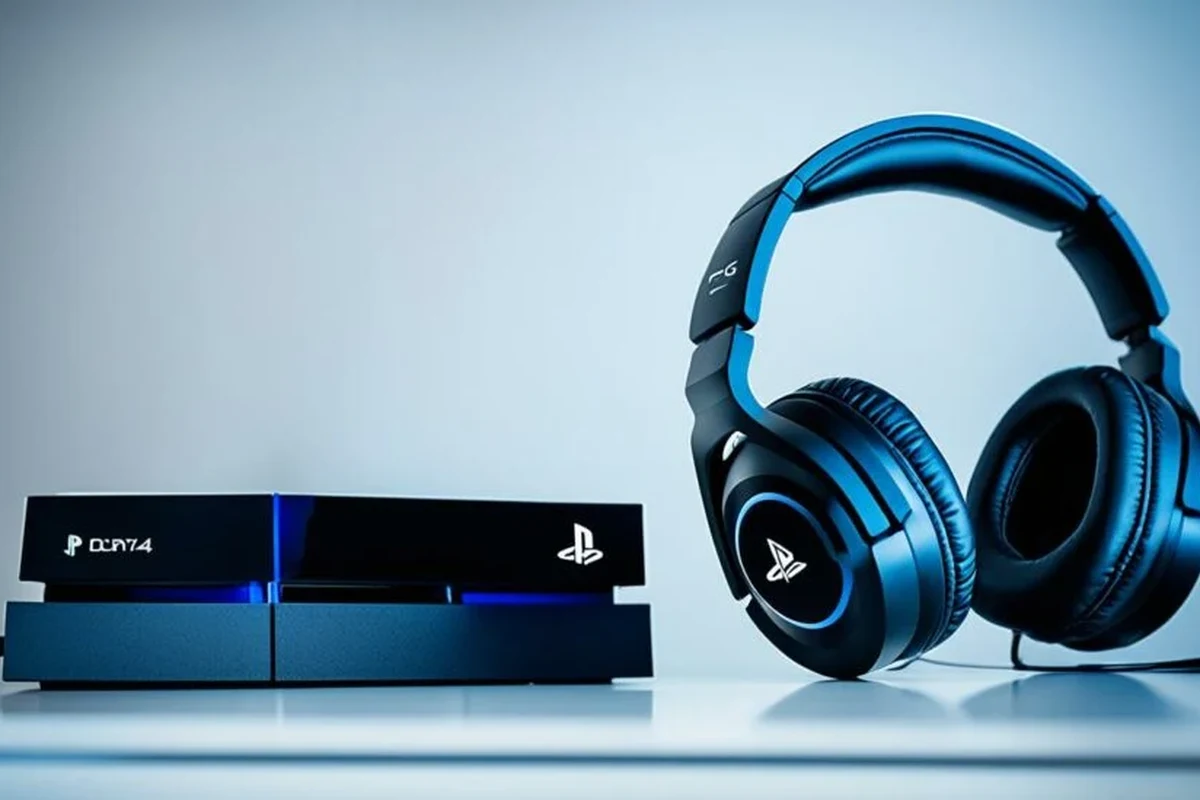
Adding headphones to a PS4 does not always mean a full “pair and play” setup. In many cases, it means routing game audio, chat audio, or both through a wired headset, USB headset, or supported wireless adapter.
The PS4 is flexible, but not every headphone type works the same way. Some Bluetooth headphones connect only through adapters, while others work best through the DualShock 4 controller’s 3.5 mm jack or a USB dongle.
Different headphone types can change your experience a lot, especially when you care about mic quality, comfort, and sound delay. For gaming, the connection method matters almost as much as the headphones themselves.
Best Ways to Connect Headphones to PS4 in 2026
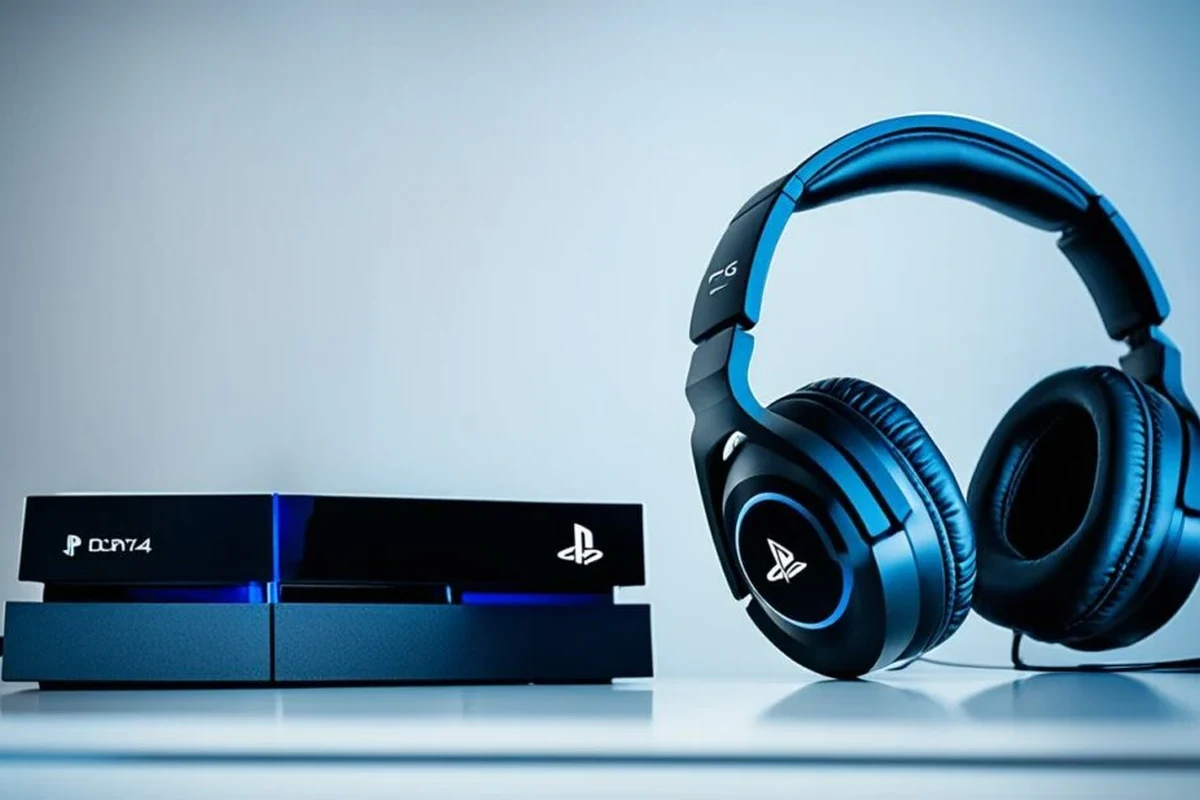
In 2026, the most practical PS4 headphone options are still wired controller audio, USB headsets, and Bluetooth adapters. Each method has strengths, and the “best” one depends on how you play.
If you want the most dependable setup, wired is usually the safest choice. If you want more freedom, USB and wireless options can work well, but compatibility varies by brand and model.
Using the DualShock 4 Controller Jack for Wired Headphones
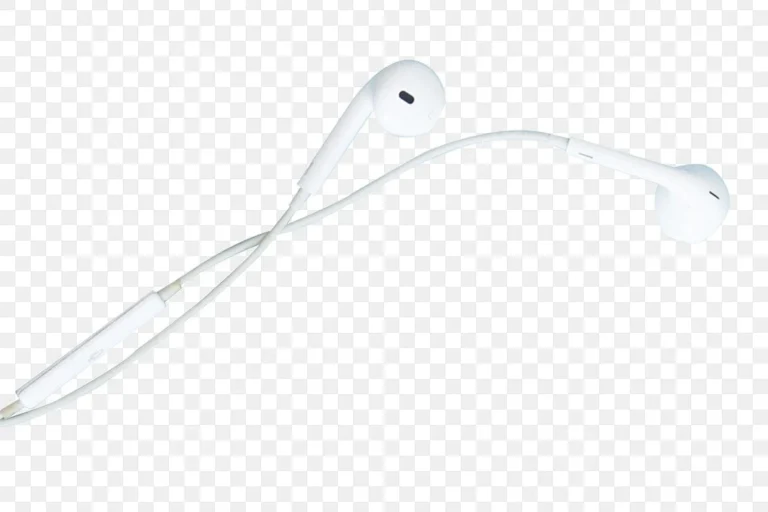
This is the easiest way to add headphones to PS4. If your headset has a 3.5 mm plug, you can connect it directly to the controller and usually get game audio right away.
This method is popular because it is simple, low-latency, and usually reliable for chat and game sound. It is also a good choice for players who do not want to deal with pairing issues or charging a wireless headset.
Connecting via USB Headset or USB Sound Card
USB headsets can be a strong option if you want a more desktop-like audio setup. Some plug in directly, while others use a USB sound card or dongle that handles audio and microphone input.
This path is useful when the headset’s built-in controls or mic are designed around USB use. Still, not every USB audio device is fully supported on PS4, so it helps to check compatibility before buying.
Using Bluetooth Adapters for Wireless Listening
Most standard Bluetooth headphones do not connect to PS4 as smoothly as they do to phones or laptops. That is why many players use a Bluetooth adapter instead of trying to pair directly.
Adapters can make wireless listening possible, but performance may vary. Some work well for casual gaming, while others introduce delay or weak microphone support, which can be frustrating in fast-paced games.
Step-by-Step Setup for Each Connection Method
Once you know which connection method you want, setup is usually straightforward. The main goal is to make sure the PS4 sends audio to the correct device and, if needed, uses the headset mic for chat.
If you are using a headset for gaming and chat, always test both game sound and microphone input before starting a long session.
Wired Headphones Setup Through the Controller
Start by plugging your headphones into the 3.5 mm jack on the DualShock 4 controller. Most of the time, the PS4 will detect the headset automatically.
Insert the headphone connector firmly into the controller jack until it seats properly.
Go to the PS4 settings menu and check the audio output device.
Set the output to the controller headset so the console sends audio there.
Adjust the headset and PS4 volume levels until game audio and voice chat sound balanced.
USB and Wireless Adapter Setup
For USB headsets, connect the device to the PS4 USB port and wait for the system to detect it. Some headsets may need you to select them manually in audio settings.
For wireless adapters, plug the adapter into the PS4, then follow the headset or dongle pairing steps. If the headset is designed for console use, the pairing process is usually simpler than with generic Bluetooth gear.
Some USB headsets only support audio and not microphone input, while others support both. Compatibility can vary by model, so check the product details before assuming full chat support.
PS4 Audio Settings to Change After Pairing
After connecting, open the PS4 sound settings and confirm the output device is set correctly. If you want all sound through the headset, make sure the output route matches your chosen device.
You may also need to adjust chat settings, microphone input level, and output to headphones. This matters if you want to hear both teammates and the game at the same time.
how to connect Bluetooth headphones can help if you are using a wireless adapter setup and want a broader pairing overview. If you run into lag or stutter, Bluetooth headphone lag fix tips may also be useful.
How to Choose the Right Headphones for PS4 Gaming
The best PS4 headphones are not always the most expensive ones. For gaming, you want a mix of comfort, clear audio, reliable mic support, and a connection type that fits how you play.
It also helps to think about your room setup. A noisy living room, a quiet bedroom, or a shared space can each point you toward a different style of headphone.
Mic Support, Chat Audio, and Game Audio Balance
If you play online games, mic quality and chat balance matter a lot. A headset that sounds good for music may still be awkward for team chat if the microphone is weak or the sidetone is poor.
Look for easy controls for game/chat balance if you use voice chat often. This can make it much easier to hear teammates without losing important game sounds like footsteps or alerts.
Comfort, Cable Length, and Latency Considerations
Comfort becomes more important the longer you play. Lightweight headphones, soft ear cushions, and a secure but not tight fit can make long sessions much easier.
For wired models, cable length matters if you sit far from the console. For wireless models, latency matters more, because even a small delay can feel distracting in competitive games.
Closed-back headphones usually isolate outside noise better than open-back models, which can be helpful in shared gaming spaces.
Budget vs Premium Headphone Options
Budget headphones can still work well for PS4 if they have a solid connector and a clear mic. Premium models may offer better comfort, stronger materials, and more refined sound, but not every player needs those extras.
If you want a simple setup, a lower-cost wired headset may be enough. If you care about all-day comfort, better noise control, or cleaner wireless performance, a higher-end model may be worth considering.
Common Mistakes When Adding Headphones to PS4
Most PS4 headphone problems come from small setup mistakes, not from the console itself. A headset may seem broken when the real issue is a wrong setting, an incompatible adapter, or a loose connection.
Why Some Bluetooth Headphones Do Not Work Properly
Standard Bluetooth headphones often cause trouble because PS4 support can be limited. Some devices connect for audio only, while others may not connect at all without an adapter.
Even when they do work, latency can be noticeable. That delay may be fine for movies, but it can be annoying in games where sound timing matters.
Forgetting to Set Audio Output and Chat Settings
Another common mistake is assuming the PS4 will automatically route everything correctly. Sometimes the headset is connected, but the console is still sending audio to the TV speakers.
If you cannot hear chat or game sound properly, revisit the audio output and microphone settings. A quick settings check often solves the problem faster than replacing the headset.
Do not assume every headset will support both game audio and voice chat on PS4. Compatibility may vary by model, adapter, and firmware.
Using Incompatible USB Devices or Wrong Cables
USB audio devices can be convenient, but not every dongle or sound card is PS4-friendly. Some are made for PCs or phones and may not behave the same way on a console.
Wrong cables can also cause confusion, especially if you are using splitters or adapters. If the headset is not working, confirm the device is actually designed for PS4 use before troubleshooting too deeply.
Expert Advice: What to Avoid Before Buying or Connecting
A little planning can save you from weak sound, poor mic pickup, or unnecessary lag. Before you buy anything, think about how you play, where you play, and whether you need wireless freedom or the most stable connection.
If you have persistent ear pain, ringing, or hearing changes after gaming, consult an audiologist or hearing professional. Safe listening habits matter just as much as headset quality.
Warning About High-Latency Wireless Audio
High-latency wireless audio can make game sound feel slightly behind the action. That is especially noticeable in shooters, rhythm games, and competitive online play.
If low delay matters to you, wired or low-latency console-focused wireless options are usually safer choices than generic Bluetooth headphones.
Warning About Cheap Adapters and Weak Mic Performance
Very cheap adapters may connect, but they can still deliver unstable audio or poor microphone clarity. That can lead to dropped sound, background noise, or teammates hearing you poorly.
If voice chat is important, choose an adapter or headset with good PS4 compatibility feedback from the seller or brand. A slightly better accessory often saves time and frustration later.
Listening at high volumes for long periods can cause hearing damage. Keep volume at 60% or below for extended sessions.
Quick Recap: The Fastest and Most Reliable Way to Add Headphones to PS4
The fastest method is usually a wired headset through the DualShock 4 controller jack. It is simple, low-latency, and easy to set up for most players.
If you want wireless convenience, use a PS4-compatible USB headset or a reliable adapter and then confirm the audio output settings. That extra step helps you avoid the most common sound and chat problems.
For many players, the best PS4 setup is the one that balances comfort, mic support, and stable audio rather than chasing the most advanced feature list. If you choose the right connection method first, adding headphones to PS4 becomes quick and stress-free.
Frequently Asked Questions
Wired headphones are usually more reliable and have less audio delay. Wireless can be more convenient, but compatibility and latency may vary by model.
Most standard Bluetooth headphones do not work smoothly on PS4 without an adapter. Some may connect, but audio or microphone support can be limited.
Closed-back headphones are often better for shared rooms because they block more outside noise. Open-back headphones can feel more spacious, but they leak sound and isolate less.
Focus on comfort, mic support, connection type, and low-latency audio. Sound balance, bass, and clarity also matter, but the best choice depends on your games and personal preference.
Look for lightweight headphones, soft ear cushions, and a secure fit that does not feel tight. Build quality and cable length also matter if you play for hours at a time.
Yes, EQ can help you fine-tune bass, clarity, and soundstage depending on the headset. Small adjustments are usually better than extreme boosts, especially if you want clear game audio and chat.