How to Connect Wired Headphones to PS5 Easily

Connect wired headphones to PS5 by plugging them into the DualSense controller’s 3.5mm jack, or use a USB DAC or TV output if you need a different setup. Then confirm PS5 audio settings, adjust volume, and test game sound plus microphone input.
If you want to know how to connect wired headphones to PS5, the good news is that it is usually very simple. In most cases, you can plug them into the DualSense controller, but there are a few other useful options depending on your setup and whether you also need microphone support.
Wired audio is still a smart choice for many PS5 players because it avoids battery concerns, keeps latency low, and often sounds clean and consistent. If you are also comparing wired and wireless setups, our guide on wired and wireless headphones explains the trade-offs in a simple way.
- Easy method: The DualSense 3.5mm jack is the simplest option.
- Better control: USB DACs can help with volume and mic handling.
- Common fix: Check PS5 output settings if audio is missing.
- Mic support: Not every headphone cable supports chat audio.
- Safety: Keep long-session volume at comfortable levels.
How to Connect Wired Headphones to PS5: What You Need to Know First
Before you plug anything in, it helps to know that the PS5 does not treat every wired headphone the same way. Some headphones are made for straightforward listening, while others include a microphone on the cable, and that can affect how chat audio works.
The easiest path is usually a standard 3.5mm headphone plug connected to the DualSense controller. If your headphones use USB, USB-C, or a separate audio box, you may need to change PS5 settings so the console sends sound to the right place.
Compatibility can vary by headphone model, cable type, and adapter quality. If your headset has a detachable cable or inline mic, check whether the cable supports both audio and microphone signals before you buy extra accessories.
It also helps to remember that the PS5 can output game audio, chat audio, or both, depending on your device and settings. That is why some people think their headphones are not working when the real issue is just the wrong output selection.
Best Ways to Use Wired Headphones on PS5 in 2025
There are three common ways to use wired headphones on PS5, and the best one depends on your headphones and how you play. For most people, the controller jack is the simplest solution, while USB adapters and TV outputs are better for more specific setups.
Connecting via the DualSense controller 3.5mm jack
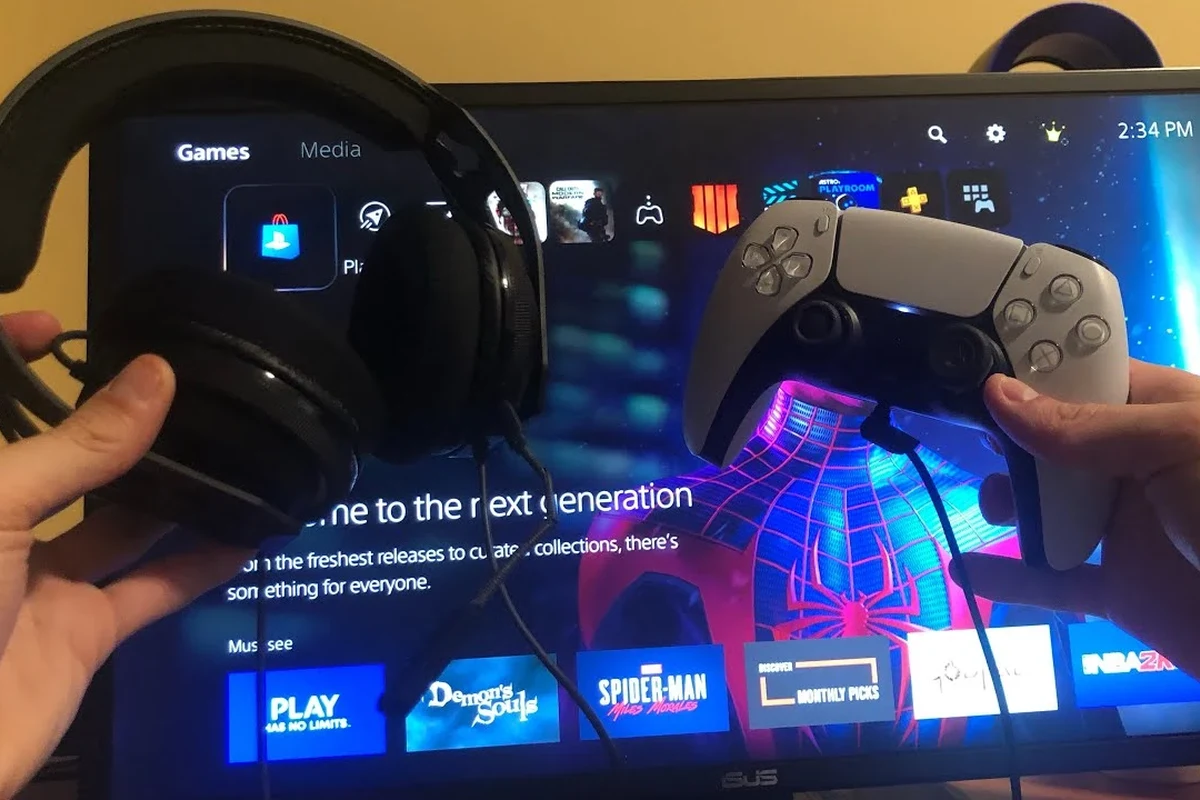
This is the most direct and beginner-friendly method. Just plug your 3.5mm wired headphones into the headphone port on the bottom of the DualSense controller, and the PS5 usually detects them automatically.
This method works well for casual gaming, solo play, and voice chat through a headset cable that includes a microphone. It is also the cleanest option if you want fewer cables and no extra accessories between you and the console.
Using the PS5 USB port with a wired DAC or USB headset adapter
If your headphones need more power, or if you want a different sound path, a USB DAC or USB headset adapter can be useful. These devices connect to the PS5 through a USB port and then let you plug your wired headphones into the adapter instead of the controller.
This can help when a headset sounds too quiet from the controller jack or when you want a more stable audio interface. It may also be helpful for users who prefer a dedicated volume control or better separation between game audio and microphone input.
If you are curious about how wired audio behaves across different devices, our guide on wired headphones on MacBook covers some of the same connection basics in a different context.
Not every USB adapter works perfectly with PS5. Low-cost or generic adapters may cause weak volume, static, or missing microphone support, so it is worth checking compatibility before buying.
Plugging into a TV, monitor, or audio extractor for headphone output
Some players prefer to connect headphones to a TV, monitor, or HDMI audio extractor instead of the controller. This can make sense if your display has a headphone output or if you already route console audio through a home entertainment setup.
This method is less direct, but it can be useful for couch gaming or for setups where the controller is too far away. The downside is that audio quality and latency may vary depending on the display or extractor, so it is not always the best choice for competitive play.
Some TVs process audio before sending it to the headphone jack, which can slightly change sound timing or clarity. That is why controller-based audio is often preferred for gaming.
Step-by-Step Guide: How to Connect Wired Headphones to PS5 Easily
Once your headphones are plugged in, the next step is making sure the PS5 is sending audio to the correct output. A few quick settings changes can fix most problems and help you get better sound balance right away.
Set the PS5 audio output correctly
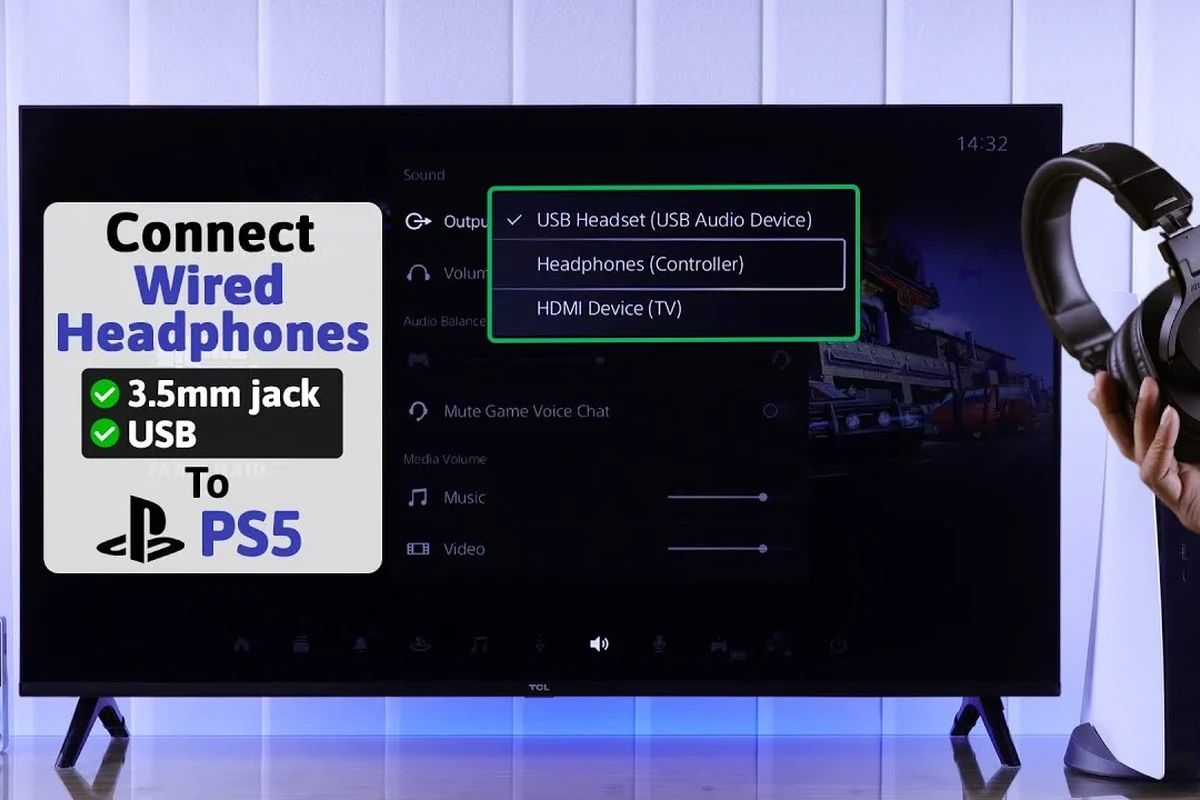
After plugging in your headphones, open the PS5 sound settings and check the output device. In many cases, the console will switch automatically, but it is still smart to confirm that audio is going to the controller, USB DAC, or TV output you actually want.
If the sound is still coming through the TV speakers, manually select the headphone or USB output in the sound menu. This is one of the most common steps people miss when learning how to connect wired headphones to PS5.
Use the controller jack, USB adapter, or display output depending on your setup.
Go to the PS5 audio menu and confirm the correct output device is selected.
Make sure voice chat is routed properly if your headphones include a microphone.
Adjust controller and headset volume for balanced sound
Volume balance matters more than many players expect. If your headphones are too quiet, raise the controller or adapter volume first, then fine-tune the PS5 output level so dialogue, effects, and music feel balanced.
For headphones with an inline volume wheel or remote, test both the cable control and the console settings. Sometimes the issue is simply that one volume control is turned down more than the other.
Start at a low volume and increase it slowly. That makes it easier to find a comfortable level without sudden loud sounds during game menus, cutscenes, or explosions.
Test game audio, chat audio, and microphone input
After setup, open a game or party chat and check three things: game sound, voice chat, and microphone input. If one of them is missing, the headphones may be working, but the mic path or chat output may need a separate setting.
For headphones with an inline mic, make sure the plug is fully inserted. A partially seated connector is a common reason for muffled audio or a microphone that does not register at all.
- Game audio is coming through the headphones
- Chat audio is enabled if you need it
- Microphone input is detected correctly
- Volume is comfortable for long sessions
Wired Headphones vs. Wired Gaming Headsets on PS5: Which Is Better?
Both options can work well on PS5, but they serve slightly different needs. Wired headphones are often better if you care most about sound quality and simplicity, while wired gaming headsets are usually better if you want an easy all-in-one solution with a microphone.
Sound quality, mic support, and comfort differences
Regular wired headphones can sound excellent for gaming, especially if they have a balanced tuning and fit your ears well. However, they may not include a microphone, which means you might need a separate mic or a cable with inline controls if you chat often.
Wired gaming headsets are designed with PS5-style use in mind, so they usually include a mic, longer cable, and controls that are convenient for console play. The trade-off is that sound quality, comfort, and build materials can vary a lot by model.
- Simple plug-and-play setup
- Low latency for gaming
- Often better value for the price
- Mic support may be limited
- Some setups need adapters
- Comfort varies by design
Budget-friendly options vs. premium audio setups
Budget wired headphones can be a smart way to get good PS5 audio without paying for extra gaming features you may not need. If you already own a solid pair, try them first before buying a new headset.
Premium setups may use a USB DAC, higher-quality headphones, or a more advanced gaming headset. These can improve clarity, volume, or comfort, but the best choice depends on your ears, your room, and whether you play casually or competitively.
Common Mistakes When Connecting Wired Headphones to PS5
Most PS5 headphone problems come from a few avoidable mistakes. If your audio is not working the way you expect, it is often a settings issue, an adapter issue, or a microphone compatibility issue rather than a broken console.
Using incompatible adapters or low-quality splitters
One of the biggest mistakes is assuming every adapter will work the same way. Cheap splitters and generic audio dongles can cause channel imbalance, weak mic pickup, or distorted sound.
If you need an adapter, choose one that clearly supports your headphone type and the features you need. This matters even more if your headset uses a combined audio and microphone plug.
Expecting microphone support from every headphone cable
Not every wired headphone cable includes mic support, even if the plug fits perfectly. Some headphones are audio-only, while others need a TRRS-style connector or a separate mic input to support chat.
If you want voice chat on PS5, check the cable type before assuming the mic will work. This is especially important for older headphones or headphones designed mainly for music listening.
Overlooking PS5 audio settings and output device selection
Many “not working” complaints are really just output selection issues. If the PS5 is still sending sound to the TV or another device, your headphones may seem silent even though they are connected correctly.
Always confirm the output device, microphone input, and chat settings after plugging in wired headphones. A quick settings check can save a lot of frustration.
Listening at high volumes for long periods can cause hearing damage. Keep volume at 60% or below for extended sessions.
Expert Advice: Getting the Best Sound and Chat Performance on PS5
If you want the most reliable PS5 headphone experience, focus on clean signal paths, proper settings, and comfortable volume levels. Small setup choices can make a bigger difference than many people expect.
When to use a USB sound card or external DAC
A USB sound card or external DAC can be worth it if your controller jack sounds too quiet, if you hear hiss, or if you want a more controlled audio setup. It can also help when your headphones need more power than the controller can comfortably provide.
That said, a DAC is not automatically better for everyone. For simple gaming, the controller jack may still be the easiest and most dependable option.
If you notice persistent static, uneven channel balance, or unusually low microphone levels, it may be worth consulting a qualified audio specialist or audiologist, especially if you also experience hearing discomfort.
How 3D Audio settings can improve wired headphone performance
The PS5’s 3D Audio options can make wired headphones feel more spacious and directional in supported games. This can be especially helpful in shooters, racing games, and story games where positional cues matter.
Because headphone tuning varies, try the 3D Audio setting with your own headphones before deciding whether to keep it on. Some players prefer the added positioning, while others like a more traditional stereo presentation.
If you are still deciding between different headphone styles, our guide on types of headphones explained can help you understand why over-ear, on-ear, and in-ear models feel so different in games.
Warning signs of latency, static, or weak volume
Wired headphones should usually feel immediate, so noticeable delay can be a sign that the audio is passing through a TV, monitor, or adapter with extra processing. Static may point to a loose plug, a poor adapter, or a damaged cable.
Weak volume can happen when the headset needs more power than the controller provides. In that case, a USB DAC or a better-matched headset may improve the result.
For readers comparing cable-based and wireless setups, our article on Bluetooth vs wired headphones sound quality is a helpful next read.
Final Recap: The Easiest and Most Reliable Way to Use Wired Headphones on PS5
The easiest way to connect wired headphones to PS5 is usually through the DualSense controller’s 3.5mm jack. It is simple, low-latency, and works well for most players without extra accessories.
If you need more volume, better mic handling, or a different audio path, a USB DAC or TV-based output can also work. Just remember to check PS5 audio settings, confirm microphone support, and keep listening levels safe during long gaming sessions.
Frequently Asked Questions
Wired headphones can sound more consistent because they avoid Bluetooth compression and latency. Wireless models can still sound very good, but the best choice depends on your priorities and budget.
Yes, noise-cancelling headphones can help block room noise and improve focus. Just remember that ANC performance varies by model, and some players prefer passive isolation from closed-back headphones instead.
Open-back headphones can feel wider and more natural, but they leak sound and block less outside noise. Closed-back headphones are usually better for shared spaces, louder rooms, and more immersive gaming.
Look at comfort, impedance, sensitivity, and whether the tuning supports clear dialogue and directional cues. EQ can help, but the headphone’s fit and sound signature matter just as much.
Start with the gear you already own, then upgrade only if you need better mic support or louder output. Budget choices can work well if they are compatible and comfortable for long sessions.
Check ear cushion material, headband padding, clamp force, and overall weight. For long sessions, a comfortable fit matters as much as sound quality, and build quality may vary by brand and model.