How to Connect PS5 Headphones Easily and Fast

The fastest way to connect PS5 headphones is with the 3.5mm jack on the DualSense controller. USB headsets and wireless dongles also work well, while Bluetooth usually needs an adapter or TV workaround.
If you want to know how to connect PS5 headphones quickly, the easiest method is usually the 3.5mm jack on the DualSense controller. USB headsets and wireless dongles are also simple, while Bluetooth headphones need a workaround because PS5 handles them differently.
- Fastest method: Use the controller’s 3.5mm headphone jack.
- Best wireless option: Choose a USB headset or dedicated dongle.
- Bluetooth limit: Direct pairing is restricted on PS5.
- Settings matter: Check output, mic, mute, and volume controls.
How to Connect PS5 Headphones: What Players Need to Know in 2025
Connecting headphones to a PS5 is usually straightforward once you match the headset type to the right input. The best option depends on whether you care most about speed, mic quality, latency, or convenience.
For most players, wired and USB headsets are the most reliable choices. If you already use Bluetooth headphones for other devices, it helps to know that the PS5 does not treat them like a standard phone or laptop connection.
Headphone compatibility can vary by brand, model, firmware, and even the way you route audio through a TV or adapter. Always check the headset manual and PS5 audio settings if sound does not appear right away.
Choose the Right PS5 Headphones for Your Setup
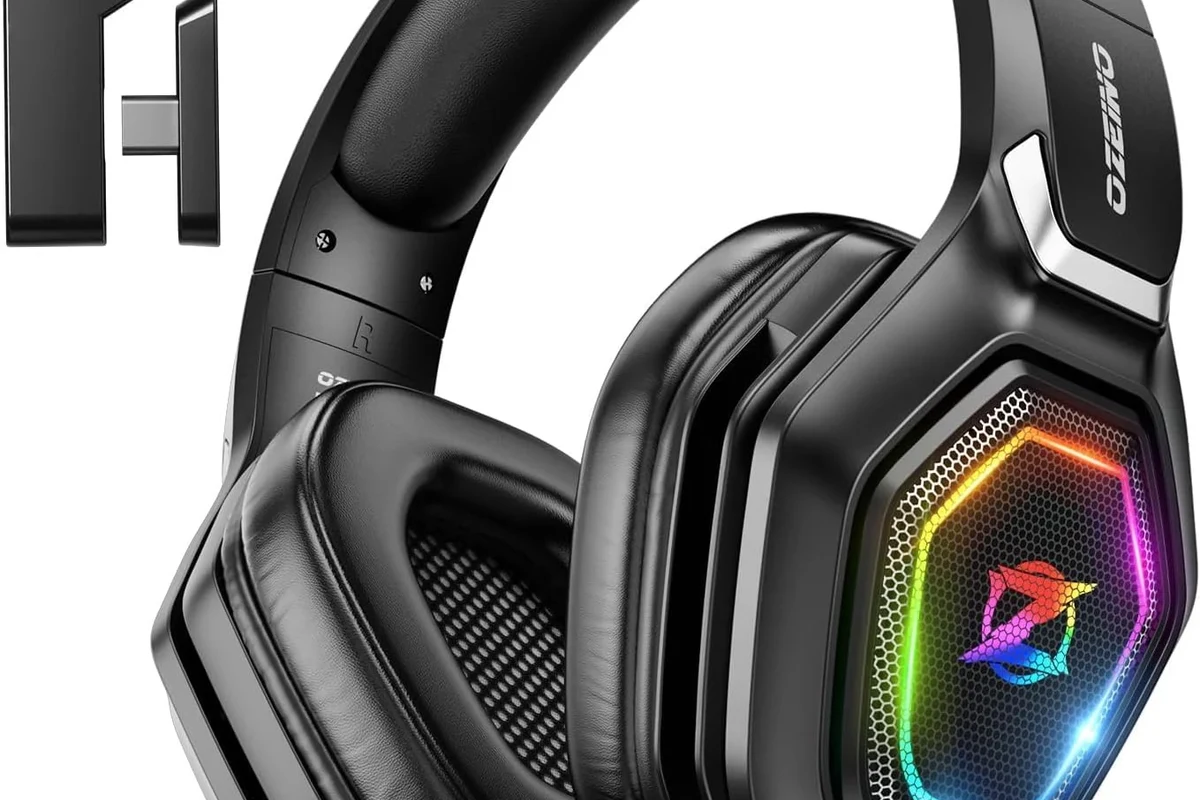
Before you plug anything in, it helps to choose the connection type that fits your gaming setup. A headset that works perfectly for couch gaming may not be the best fit for competitive play or shared living-room use.
Wired 3.5mm headphones vs. USB gaming headsets
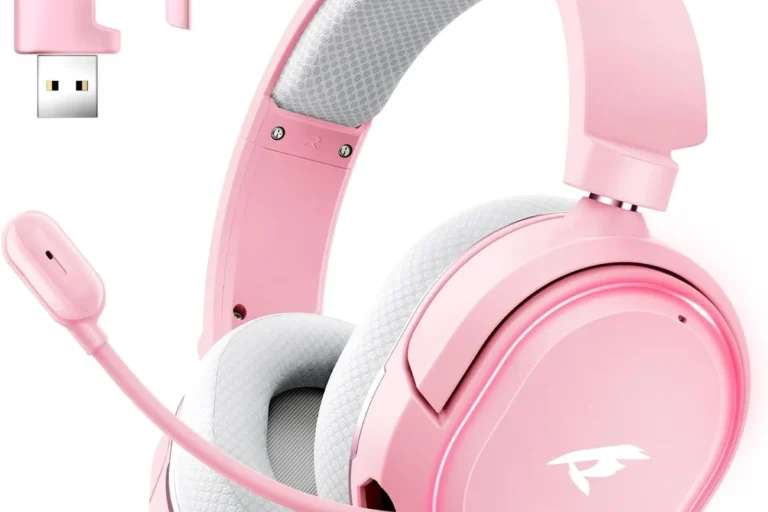
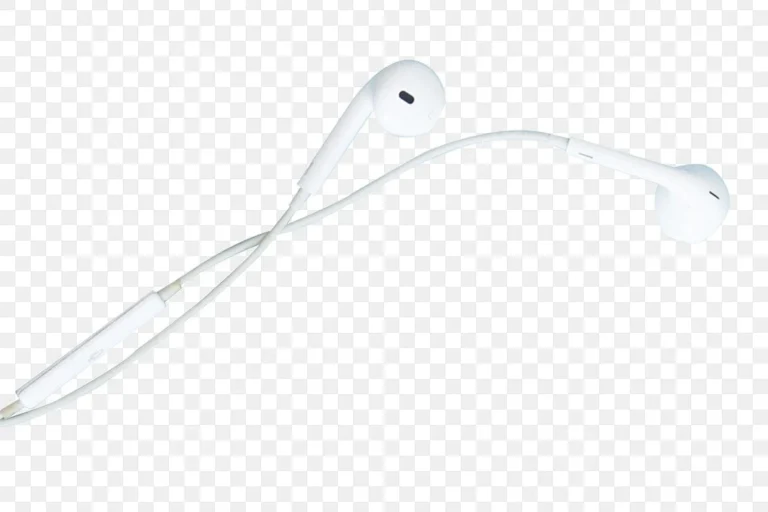
Wired 3.5mm headphones are the easiest to connect because they plug directly into the DualSense controller. USB gaming headsets connect to the console itself and often offer more features, such as built-in volume controls or virtual surround options.
Wired headphones are usually best for simple plug-and-play use. USB headsets can be more convenient if you want a dedicated gaming headset with a boom mic and easy controls.
Bluetooth headphones and why PS5 handles them differently
PS5 does not support direct Bluetooth audio the same way a phone does. That means many Bluetooth headphones will not pair normally with the console, even if they work fine with other devices.
This is one reason gamers often choose a wired or USB option instead. If you want the flexibility of wireless audio, a dedicated wireless transmitter is usually a better fit than standard Bluetooth pairing.
Budget, mid-range, and premium options: what matters most
Budget headphones can be a smart choice if you mainly want clear game audio and simple chat. Mid-range models often improve comfort, mic quality, and build durability, while premium options may add better tuning, stronger noise isolation, or wireless convenience.
For PS5, the most important factors are comfort, connection stability, mic clarity, and low latency. Sound quality matters too, but the best headset is the one you can wear for long sessions without frustration.
How to Connect PS5 Headphones Using the Controller Jack
This is the fastest method for most wired headphones. If your headset has a 3.5mm plug, you can usually get sound in seconds without extra accessories.
Step-by-step setup for wired headphones
First, plug the headphone cable into the 3.5mm port on the bottom of the DualSense controller. Then turn on the PS5 and wait a moment for the system to detect the headset.
Next, go to Settings > Sound > Audio Output and confirm that the output device is set to the controller headset. If your headphones have a microphone, test the mic input as well so you know both audio and chat are working.
Insert the 3.5mm cable firmly into the controller jack.
Open the sound settings and make sure the controller headset is selected.
Use a party chat or microphone test to confirm voice input is active.
Best use cases for quick plug-and-play gaming
Controller-jack headphones are ideal when you want the simplest possible setup. They are great for late-night gaming, casual play, and anyone who does not want to manage dongles, charging, or pairing menus.
They are also a practical choice for players who move between the PS5 and other devices. Many wired headsets can work with consoles, controllers, and some mobile devices without much effort.
Common sound and mic settings to check right away
After connecting, check the headset volume, microphone level, and mute status. It is easy to assume the headset is broken when the real issue is just a low volume setting or a muted controller mic.
If the sound seems imbalanced, adjust the game/chat mix and make sure audio is routed to the headphones instead of the TV. A quick settings check often solves most first-time connection problems.
If your wired headset sounds too quiet, raise the controller volume first before changing game audio settings. That small adjustment often makes a bigger difference than people expect.
How to Connect PS5 Headphones with USB or Wireless Dongles
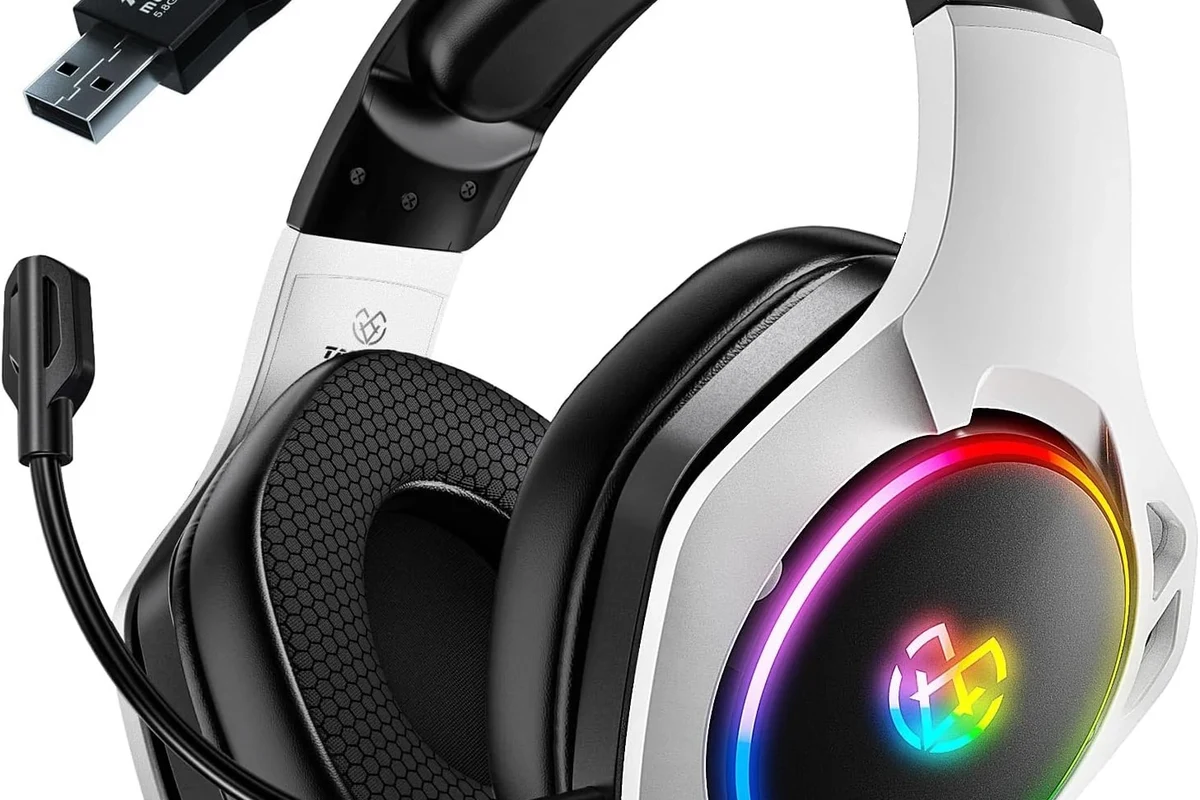
USB headsets are a strong option if you want easy setup with a more gaming-focused feature set. Wireless dongles can also deliver a cleaner experience than standard Bluetooth, especially for fast-paced games.
Connecting USB gaming headsets to the PS5 console
To connect a USB headset, plug the headset cable or USB receiver into one of the PS5’s USB ports. In many cases, the console will detect the device automatically and switch audio output for you.
If that does not happen, open the sound settings and manually select the USB headset as the output and input device. Some models may also need a companion mode or a firmware update before all features work correctly.
Using a wireless USB transmitter for low-latency audio
A wireless USB transmitter is often the best choice for players who want cable-free convenience without the lag that can come with basic Bluetooth. These systems usually use a dedicated connection between the headset and the dongle.
That dedicated link can help keep audio and voice chat more responsive during gameplay. This is especially useful in shooters, racing games, and any title where timing matters.
When USB headsets are worth the extra cost
USB headsets are worth considering if you want easier setup, stronger mic performance, or more stable wireless audio. They can also be a better fit if you play often and want a headset that feels more like a dedicated gaming accessory.
If you only play occasionally, a good wired headset may offer better value. For many buyers, the extra cost is only worth it if the headset adds comfort, convenience, and noticeably better controls.
How to Use Bluetooth Headphones with PS5 the Right Way
Bluetooth is popular for everyday listening, but PS5 users need to be a little more careful. Direct pairing is limited, so the best solution depends on how you want to use the headset.
Why direct Bluetooth pairing is limited on PS5
The PS5 does not support many standard Bluetooth audio devices in the same simple way that phones, tablets, or laptops do. That means your headphones may not appear in the pairing list, or they may connect with reduced functionality.
Even when Bluetooth audio works through a workaround, mic support and latency can be inconsistent. That is why many gamers prefer wired or USB options for the most dependable experience.
Practical workaround options with adapters and TV audio
If you want to use Bluetooth headphones, one option is a compatible USB Bluetooth adapter or transmitter. Another is routing audio through your TV or monitor, then pairing the headphones to that display if it supports Bluetooth output.
These workarounds can be useful, but they are not always perfect. You may need to experiment with audio delay, volume levels, and microphone limitations before the setup feels right.
Latency, audio quality, and mic trade-offs to expect
Bluetooth can introduce delay, which is noticeable in fast games or when sound effects need to match the action on screen. Audio quality may also vary depending on the codec, adapter, and headset design.
Mic support is often the biggest compromise. If voice chat matters a lot, a wired or USB gaming headset is usually the safer choice.
Bluetooth compatibility is one of the most common PS5 headset problems. Before buying an adapter, confirm that it supports both your headphones and the kind of voice chat you want to use.
PS5 Audio Settings That Improve Headphone Performance
Once your headset is connected, the right settings can make a big difference. A few quick adjustments can improve clarity, balance, and comfort during long sessions.
Output device, volume, and microphone adjustments
Check that the PS5 is sending audio to the correct output device. Then set the headphone volume to a comfortable level and raise or lower the microphone input until your voice is clear in chat.
If friends say you sound too quiet or too loud, the mic level is usually the first thing to adjust. Small changes are often enough to fix the issue without changing the headset itself.
3D Audio, EQ, and game/chat balance settings
PS5 3D Audio can improve spatial awareness for many players, but it is still a personal preference. Some people like the extra directionality, while others prefer a more natural stereo sound.
If your headset or game offers EQ controls, use them carefully. A slight bass reduction can improve clarity, while a small treble boost may make footsteps and dialogue easier to hear.
Many gaming headsets sound better after a small EQ adjustment rather than a big one. Subtle tuning often preserves detail while improving clarity for games and chat.
How to test whether your headphones are working properly
Play a game with clear menu sounds, dialogue, and background effects to confirm that both channels are working. Then join a party chat or use a microphone test to check voice input.
If one side is silent, the cable may not be fully seated, or the output may be routed to the TV instead of the headset. A simple test session is the fastest way to catch setup issues early.
Common Mistakes When Connecting PS5 Headphones
Most headphone problems on PS5 come from a few avoidable mistakes. Once you know what to look for, setup becomes much easier.
Forgetting the controller mute and volume controls
The DualSense controller has its own mute and volume controls, and they can cause confusion if you forget about them. A headset can be connected correctly and still seem “broken” if the controller is muted or the volume is too low.
Always check the mute button and quick sound settings before assuming the headset has failed. This is one of the simplest fixes for no-audio complaints.
Buying incompatible Bluetooth gear
Many buyers assume any Bluetooth headphones will work on PS5, but that is not always true. Some devices need a dongle, some need a TV workaround, and some may not be practical for gaming at all.
If you want a wireless setup, look for products designed for console gaming or confirm adapter compatibility before you buy. That saves money and avoids frustration later.
Ignoring firmware updates and headset resets
Headsets and wireless dongles sometimes need firmware updates to work properly with consoles. If you are getting repeated dropouts, missing mic input, or strange audio behavior, a reset may help too.
It is also worth checking the PS5 system software for updates. Even small firmware changes can improve device recognition and audio stability.
Listening at high volumes for long periods can cause hearing damage. Keep volume at 60% or below for extended sessions.
Expert Tips, Cost Comparison, and Final Setup Recap
The best PS5 headphone setup is not always the most expensive one. It is the one that matches your gaming habits, comfort needs, and audio expectations.
When to choose wired, USB, or wireless for the best value
Choose wired if you want the fastest setup and the fewest compatibility problems. Choose USB if you want easier console integration and a more feature-rich gaming headset.
Choose wireless only if the convenience is worth the extra cost and possible setup limitations. For many players, a good wired headset still offers the best balance of value and reliability.
Warning signs from the Top Headphone Reviews editorial team
Be cautious if a headset promises universal Bluetooth support without explaining PS5 limitations. Also be careful with very cheap wireless adapters, since they may add lag, unstable pairing, or weak mic performance.
Comfort is another warning sign. If a headset feels too heavy or clamps too tightly, it may be fine for short sessions but tiring during longer play.
Quick recap of the fastest way to connect PS5 headphones
If you want the quickest answer to how to connect PS5 headphones, use the 3.5mm controller jack for wired headphones. If you want wireless convenience, a USB gaming headset or compatible wireless dongle is usually the better route than standard Bluetooth.
For more general headset setup guidance, you may also find our guide to selecting headphones in Windows 11 useful when you switch between devices. And if you are comparing broader headset types, our headphone types guide can help you choose the right style before you buy.
- Wired 3.5mm headphones are the fastest PS5 option.
- USB headsets and wireless dongles offer better gaming convenience.
- Direct Bluetooth pairing is limited and may need workarounds.
- Always check output, mic, mute, and volume settings after connecting.
Frequently Asked Questions
Wired headphones are usually the easiest and most reliable option for PS5. Wireless USB headsets can be more convenient, but performance may vary by model and setup.
Many Bluetooth headphones do not connect directly to PS5 the way they do with a phone or laptop. Some users rely on adapters or TV audio workarounds instead.
Over-ear headphones are often the most comfortable for long sessions because they usually spread pressure more evenly. Fit, weight, and ear cushion material matter more than style alone.
Check the output device, adjust headphone volume, and experiment with PS5 3D Audio or in-game EQ settings. Small tuning changes often improve clarity more than major boosts.
Focus on comfort, stable connection, and clear mic performance before extras. Budget models can work well if they match your gaming needs and do not feel too tight or flimsy.
Test game audio, chat audio, and microphone input after connecting. If one side is silent or the mic does not work, recheck the mute button, cable, and PS5 sound settings.