How to Pair Wireless Headphones with TV Easily

Pair wireless headphones with a TV by using Bluetooth if your TV supports it, or a wireless transmitter if it does not. For gaming and sports, choose a low-latency setup to reduce audio delay.
If you want to know how to pair wireless headphones with TV, the easiest method depends on your TV’s built-in audio options. Some smart TVs support direct Bluetooth pairing, while older models usually need a wireless transmitter or a connection through a soundbar, receiver, or streaming device.
- Fastest method: Use the TV’s built-in Bluetooth if available.
- Best fallback: Add a transmitter for older or non-Bluetooth TVs.
- Watch for lag: Low latency matters most for gaming and live sports.
- Check settings: Make sure the TV is sending audio to the right output.
How to Pair Wireless Headphones with TV: What Readers Want to Solve in 2025
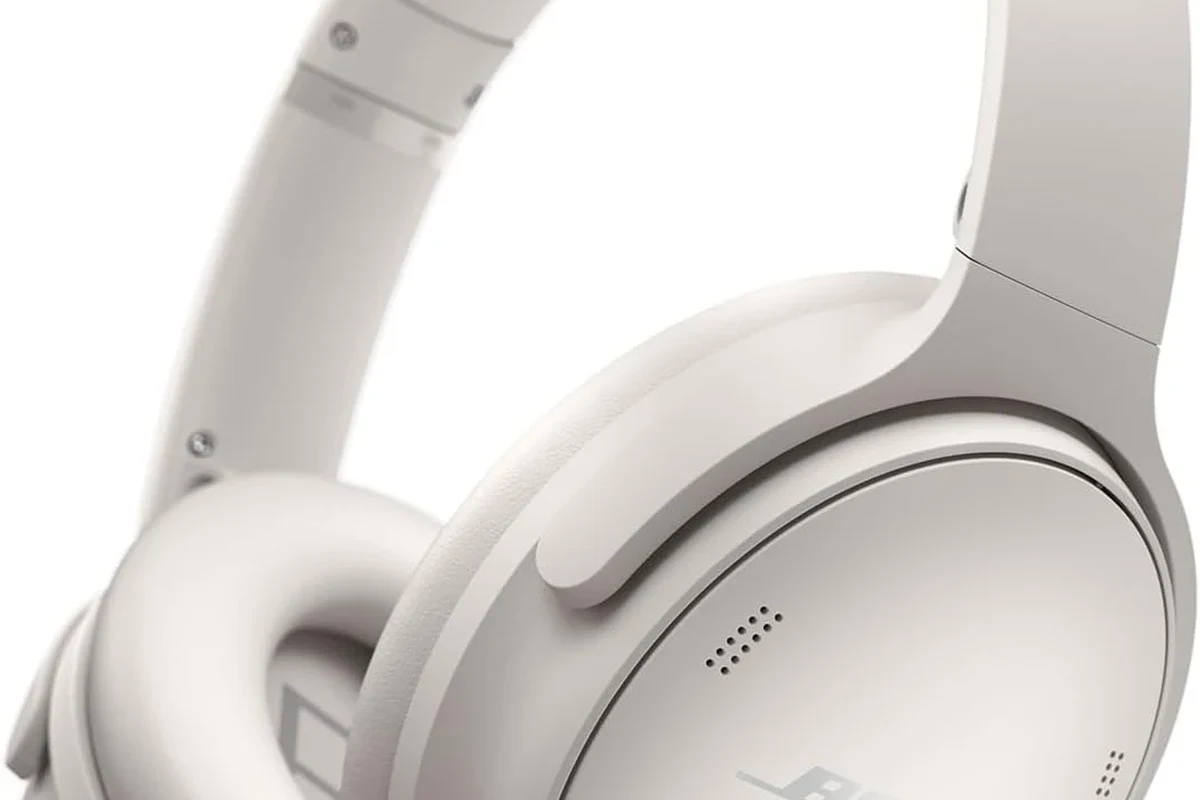
Most readers are trying to solve the same problem: watching TV without disturbing others, while still getting clear sound and low delay. That matters for late-night movies, gaming, sports, and even casual listening when TV speakers are too harsh or too quiet.
The right setup depends on your TV, your headphones, and how picky you are about lip-sync. Bluetooth is convenient, but it is not always the best choice for gaming or fast-action scenes, especially if your TV and headphones are not designed to work together smoothly.
If you are still deciding between headphone styles, it helps to understand the basics of wired vs wireless headphones and how Bluetooth audio behaves in real-world use. For readers who want a deeper primer on wireless audio, our guide to Bluetooth headphones explained simply is a useful starting point.
Check Your TV’s Audio Options Before Pairing
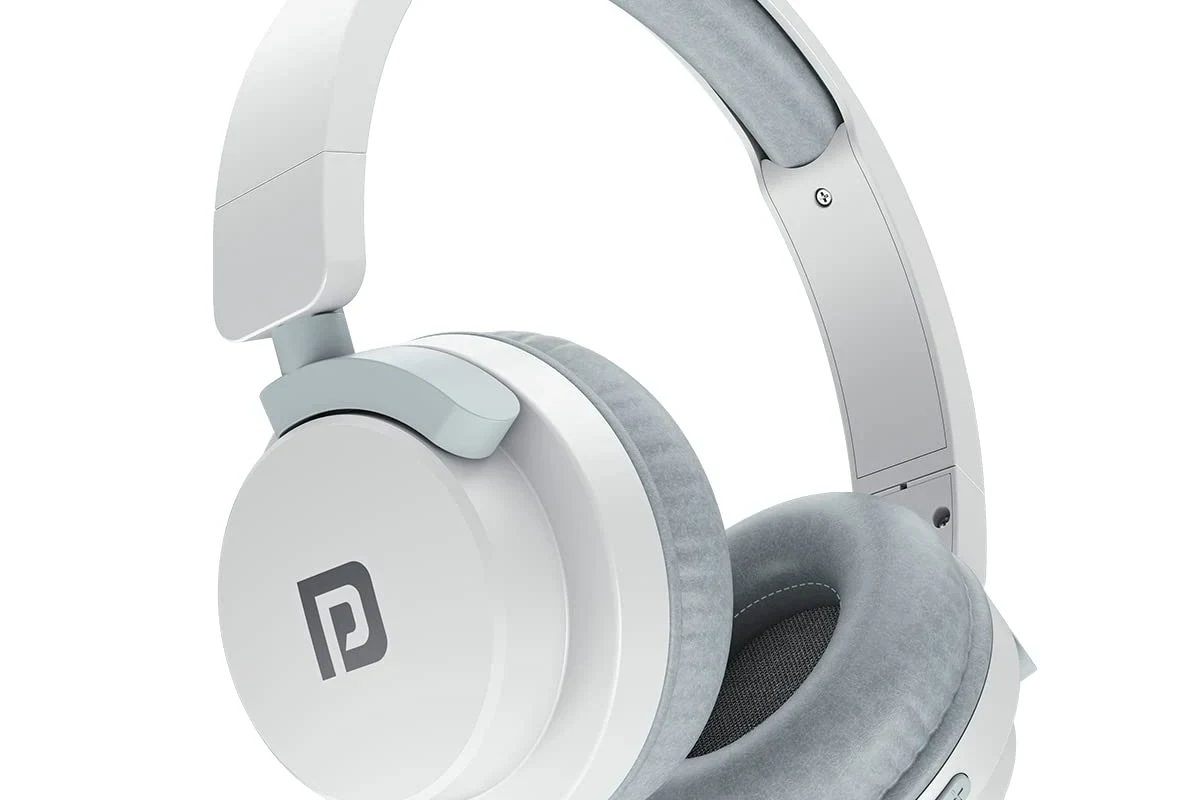
Before pairing anything, check what your TV can actually output. Some TVs have built-in Bluetooth for headphones, some only support Bluetooth remotes or keyboards, and some offer no wireless audio at all.
This first step saves time and helps you avoid buying the wrong adapter or headset. It also tells you whether you can pair directly or need a transmitter, base station, or external device.
Bluetooth vs. RF vs. Wi-Fi: Which Connection Your TV Supports
Bluetooth is the most common option for everyday TV listening because it is simple and widely supported on newer smart TVs. RF headphones use a dedicated base station, which can be helpful for older TVs and often gives a more stable connection across a room.
Wi-Fi-based audio is less common for headphones, but some ecosystems use it through streaming devices or multi-room audio systems. In practice, most TV viewers will choose between Bluetooth and RF, with Bluetooth being easier and RF often being more reliable for long-range TV use.
TV menus vary by brand and software version, so audio settings may appear under Sound, Audio Output, Accessibility, or External Devices.
How to Find Audio Output Settings on Samsung, LG, Sony, and Roku TVs
On Samsung TVs, headphone and Bluetooth settings are often found in the Sound menu or under Sound Output. LG TVs usually place Bluetooth audio options in Sound, then Sound Out or Bluetooth device selection.
Sony TVs commonly group audio settings under Settings, Sound, and Speakers or Bluetooth settings. Roku TVs may place audio routing in Settings, Audio, and then Wireless speakers or Bluetooth if the model supports it.
If you do not see a headphone option, that does not always mean your TV cannot work with wireless headphones. It may simply mean the TV needs a separate transmitter or a connected streaming device to handle the audio link.
Best Ways to Connect Wireless Headphones to a TV
There are several ways to connect wireless headphones to a TV, and the best one depends on your gear. The simplest route is direct Bluetooth pairing, but that is not always available or ideal.
For many households, a wireless transmitter is the most practical upgrade because it adds headphone support to older TVs. If you already use a soundbar or streaming box, that device may also provide a cleaner path to wireless listening.
Direct Bluetooth Pairing for Smart TVs
If your TV supports Bluetooth audio, this is usually the easiest method. Put the headphones into pairing mode, open the TV’s Bluetooth menu, and select the headphones when they appear.
This setup is convenient for movies, talk shows, and casual viewing. Still, performance may vary by brand, model, and headphone codec support, so some users may notice a small delay or occasional dropouts.
Using a Wireless Headphone Transmitter with Non-Bluetooth TVs
A wireless transmitter plugs into your TV’s audio output, such as optical, AUX, or RCA, and sends sound to your headphones. This is often the best answer for older TVs that do not support Bluetooth audio.
Many transmitters are designed for TV use and can reduce lag better than a basic Bluetooth-only setup. If you want to understand latency more deeply, our guide on Bluetooth headphone lag fix explains why delay happens and what usually helps.
Not every transmitter works with every TV output. Check whether your TV has optical, 3.5 mm, RCA, or HDMI ARC support before buying.
Connecting Through a Soundbar, AV Receiver, or Streaming Device
Some soundbars and AV receivers can pass audio to headphones or support Bluetooth output themselves. This can be useful if your TV already routes everything through a home theater setup.
Streaming devices such as Apple TV, Fire TV, and Roku may also offer headphone listening features through their remotes, apps, or Bluetooth menus. In those cases, the streaming device may be the easiest place to pair instead of the TV itself.
Step-by-Step Pairing Guide for the Most Common TV Setups
Once you know which connection type you have, pairing is usually straightforward. The key is to match the headphone pairing mode with the TV or adapter menu and wait for the devices to discover each other.
Keep the headphones near the TV during setup, and make sure no other Bluetooth devices are blocking the connection. If the pairing fails, restart both devices and try again.
Pairing Bluetooth Headphones to a Smart TV
Go to the TV’s audio or Bluetooth settings and choose the option for adding a new device.
Hold the pairing button until the indicator light flashes, then wait for the TV to detect them.
Confirm the connection, then play a show or app to check volume, balance, and lip-sync.
Setting Up RF Headphones with a Base Station
RF headphones usually come with a dock or transmitter base. Connect the base to your TV’s audio output, power it on, and place the headphones on charge if needed.
Then switch on the headphones and let them link to the base station automatically. RF setups are often popular for living rooms because they can be simple, stable, and easier for non-technical users than manual Bluetooth pairing.
Some TV headphone issues are not caused by the headphones at all, but by the TV sending audio through the wrong output mode, such as speakers instead of headphones or external audio.
Pairing with Apple TV, Fire TV, and Roku Devices
Apple TV, Fire TV, and Roku can be easier to use than the TV itself when they support Bluetooth or private listening features. In many homes, pairing through the streaming box gives a smoother experience than navigating a TV’s older Bluetooth menu.
For Fire TV or Roku, check the device settings for Bluetooth accessories or headphone listening options. If you use a streaming device often, this can be a smart workaround for TVs with weak or missing wireless audio support.
- Does the TV support Bluetooth audio or only Bluetooth accessories?
- Which output ports are available: optical, AUX, RCA, or HDMI ARC?
- Do your headphones support low-latency playback if you watch sports or game?
Common Problems When Pairing Wireless Headphones with TV
Even when the pairing is technically successful, the sound may still not behave the way you want. The most common complaints are no audio, lag, or one side of the headphone sounding weaker than the other.
These issues usually come from settings, compatibility, or the wireless link itself. A few simple adjustments often solve them without needing new gear.
No Sound, Delayed Audio, or One-Ear Playback
No sound usually means the TV is still sending audio to its speakers or the wrong output. Check the TV’s sound output menu and make sure the headphones, transmitter, or external device is selected as the active output.
Delayed audio is common with standard Bluetooth and can be more noticeable in action scenes or gaming. One-ear playback may point to a bad Bluetooth connection, a mono/stereo mismatch, or a headphone issue that needs a reset.
Bluetooth Not Showing Up on the TV
If the TV does not show Bluetooth at all, it may not support headphone audio over Bluetooth. Some sets support only remote controls, keyboards, or other accessories, which can be confusing if the menu wording is unclear.
In that case, a transmitter is often the fastest solution. If you want more pairing basics, our guide on how to connect Bluetooth headphones can help you troubleshoot the general Bluetooth process before you try again on the TV.
Audio Sync Issues for Gaming and Sports
Sync issues are especially noticeable when a ball is kicked, a gun fires, or lips move slightly ahead of the sound. For gaming and sports, low-latency gear matters more than it does for talk shows or podcasts.
If you are shopping with timing in mind, look for headphones or transmitters marketed for low-latency use, but remember that results can still vary by TV model and signal path. For readers who want better comfort and isolation during long sessions, our overview of how noise cancelling headphones work may also be useful.
Listening at high volumes for long periods can cause hearing damage. Keep volume at 60% or below for extended sessions.
Expert Advice: Avoid These Mistakes Before You Buy or Connect
The biggest pairing mistakes happen before setup even starts. Many buyers assume every wireless headphone works the same way, but TV audio is more complicated than phone audio.
Choosing the wrong connection type can lead to lag, dropouts, or a setup that simply does not work with your TV. A little planning can save money and frustration.
Why Some TVs Limit Bluetooth to One Audio Device
Many TVs only allow one Bluetooth audio device at a time, so you may not be able to use two headphones or a speaker and headphones together. That limitation is common and not always obvious in the menu.
If your household needs shared listening, look for a TV or transmitter that supports dual audio or multiple headphone connections. Otherwise, you may need to choose between private listening and room audio.
If you have hearing loss, tinnitus, or persistent ear discomfort, consult an audiologist before relying on headphone listening for long TV sessions. They can help you choose a safer volume range and a more comfortable fit.
Latency Warnings for Gamers and Movie Viewers
Latency is the delay between the video and the sound, and it matters more than many buyers expect. A small delay may be fine for news or dialogue, but it can become distracting in gaming, live sports, or fast-paced action scenes.
For those use cases, prioritize low-latency Bluetooth, RF headphones, or a transmitter designed for TV audio. If you are a gamer, the right choice may be more important than brand name alone.
Compatibility Traps with Older TVs and Budget Headphones
Older TVs often need optical, RCA, or AUX solutions because they lack modern Bluetooth audio. Budget headphones may also have weaker range, less stable connections, or more noticeable delay depending on the model.
That does not mean affordable gear is bad, but it does mean you should check the connection type, battery life, and comfort before buying. A cheap transmitter can sometimes be a better investment than replacing a perfectly good TV.
How Much It Costs to Add Wireless Headphones to a TV Setup
The cost of wireless TV listening varies widely depending on whether you already own compatible headphones. If your TV supports Bluetooth audio, you may only need what you already have.
If not, the price can include a transmitter, a new headset, or both. The good news is that there are options for almost every budget.
Budget Bluetooth Headphones vs. Premium Low-Latency Models
Budget Bluetooth headphones can be a solid starting point for casual viewing, especially if you mainly watch talk shows or streaming dramas. Premium low-latency models may cost more, but they can be worth it for gaming, movies, and users who are sensitive to lag.
Comfort also matters during long sessions. Over-ear headphones usually feel better for TV marathons, while some in-ear models are more portable but may be less comfortable over time depending on fit and ear tips.
When a Transmitter Is Cheaper Than Replacing Your TV
If your TV lacks Bluetooth audio, a transmitter is often the most cost-effective fix. It can add wireless headphone support without forcing you to buy a new television.
This is especially practical for bedrooms, older living room TVs, and secondary setups. In many cases, a modest adapter plus a decent pair of headphones is the better value than upgrading the whole TV just for wireless listening.
Final Recap: The Easiest Way to Pair Wireless Headphones with TV
The easiest way to pair wireless headphones with TV is to use direct Bluetooth if your TV supports it cleanly. If it does not, a wireless transmitter is usually the next best solution and often the most reliable for older sets.
For the best results, match the connection type to your viewing habits, check for latency before buying, and make sure the TV’s audio output is set correctly. If you want a simple, comfortable setup that works well for movies and late-night viewing, the right pairing method matters more than the most expensive headphones.
- Use Bluetooth first if your TV supports headphone audio.
- Choose an RF or transmitter setup if your TV is older or lacks Bluetooth.
- Check latency carefully for gaming, sports, and action movies.
- Confirm the TV’s audio output settings before troubleshooting the headphones.
Frequently Asked Questions
Wireless headphones are more convenient for TV because they let you move around without a cable. Wired headphones can still be better for zero-latency audio if your TV setup supports them.
Noise cancelling headphones can make dialogue easier to hear by reducing room noise. They are especially useful in shared spaces, but comfort and sound quality still depend on the model.
Closed-back headphones are usually better for TV because they block more outside noise and keep sound from leaking. Open-back models can sound more spacious, but they are less private and less practical in shared rooms.
Check connection type, battery life, latency, comfort, and whether the headphones support your TV’s Bluetooth or transmitter setup. If you game or watch sports, low-latency performance matters a lot.
Look for a lightweight fit, soft ear cushions, and a headband that does not clamp too hard. Over-ear designs are often more comfortable for long sessions, but fit varies by head shape and ear size.
If your TV already has Bluetooth, a budget wireless headset may be enough for casual viewing. If not, a basic transmitter can be a cheaper upgrade than replacing the TV.