How to Connect Wireless Headphones with TV Easily

The easiest way to connect wireless headphones with TV is to use built-in Bluetooth if your TV supports it. If not, a Bluetooth transmitter connected to the TV’s audio output is the most reliable workaround.
If you want to know how to connect wireless headphones with TV, the good news is that there are several easy ways to do it. The best method depends on whether your TV has built-in Bluetooth, which outputs it supports, and whether you need low-latency audio for movies or gaming.
- Check first: TV Bluetooth and audio outputs determine the best method.
- Best workaround: A Bluetooth transmitter works for many non-Bluetooth TVs.
- Gaming note: Low-latency gear matters most for lip-sync and action games.
- Common issue: Some TVs mute speakers when headphones connect.
How to Connect Wireless Headphones with TV: What Viewers Want in 2025
In 2025, most TV viewers want simple setup, stable wireless range, and audio that stays in sync with the picture. That matters even more for gaming, where delay can make dialogue feel off and action scenes less enjoyable.
Many people also want a setup that works without replacing their TV. That is why Bluetooth transmitters, TV companion apps, and brand ecosystem features remain popular options for wireless listening.
Check Your TV’s Wireless Audio Options Before You Start
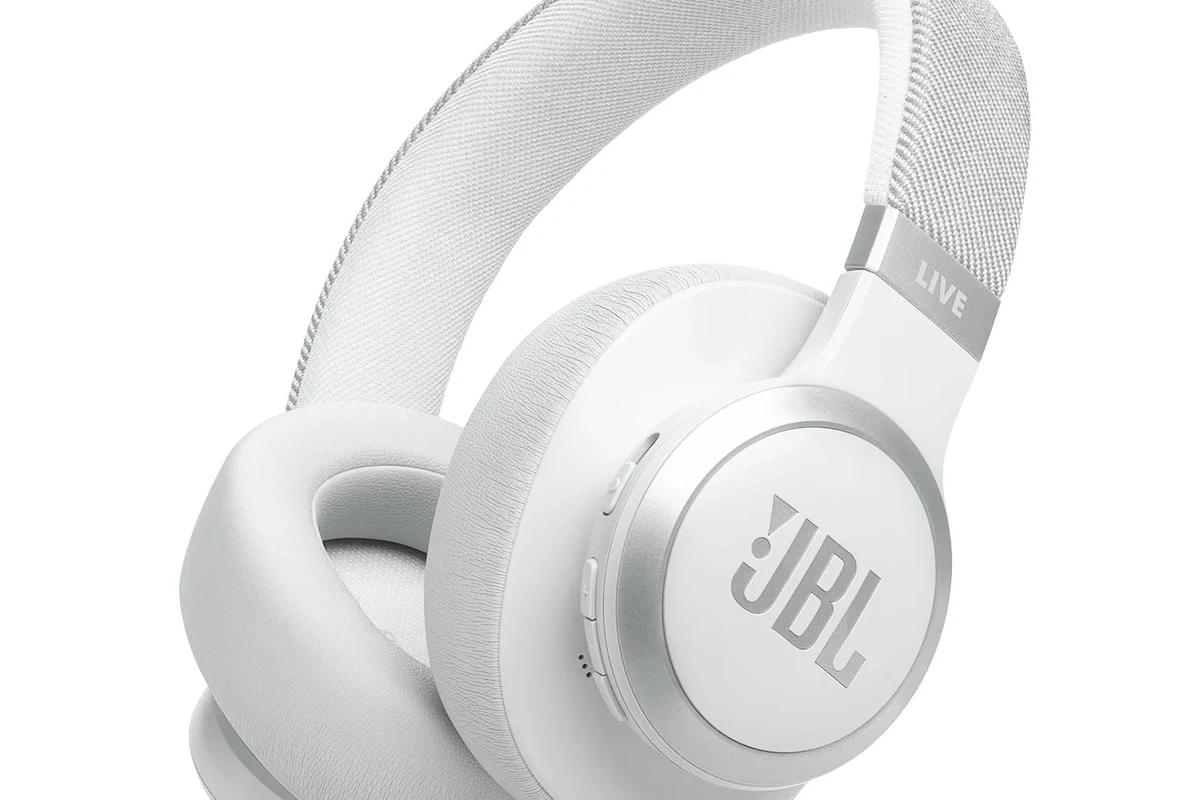
Before pairing anything, check your TV settings and output ports. Some TVs support Bluetooth audio directly, while others need an external adapter or transmitter to send sound to your headphones.
It also helps to look at the back or side of the TV for ports such as optical, AUX, USB, or RCA. The available outputs often decide which wireless solution will work best.
Bluetooth TV Support vs. Bluetooth Transmitter Workarounds
If your TV has built-in Bluetooth, setup is usually straightforward. You open the sound or Bluetooth menu, put the headphones in pairing mode, and connect them like you would with a phone or laptop.
If your TV does not support Bluetooth audio, a transmitter can fill the gap. The transmitter plugs into the TV’s audio output and sends the sound wirelessly to your headphones.
If you already use Bluetooth headphones with other devices, check whether they remember multiple pairings. That can make TV setup faster.
Optical, AUX, USB, and RCA Output Compatibility
Optical audio ports are common on many TVs and are often a strong choice for transmitters because they carry clean digital sound. AUX and RCA outputs are also useful, especially on older TVs.
USB ports are less consistent for headphone audio. On some TVs, USB is only for power or media playback, so always confirm in the TV manual before buying an adapter.
Compatibility can vary by TV brand and model, so the best connection method is not always the newest one. The right choice is the one your TV actually supports.
Step-by-Step Ways to Connect Wireless Headphones to a TV
There are three common ways to connect wireless headphones to a TV: built-in Bluetooth, a Bluetooth transmitter, or a brand-specific app or ecosystem feature. Each one has different strengths depending on your setup.
Using Built-In Bluetooth on Smart TVs
Start in the TV’s settings menu and look for Sound, Audio Output, Bluetooth, or Device Connection. Put your headphones into pairing mode, then select them from the TV’s available devices list.
Once connected, test volume and delay with a show or movie. If the sound feels late, look for a lip-sync or audio delay setting in the TV menu.
Find the Bluetooth or audio output menu on your smart TV.
Follow the headset instructions so the TV can detect them.
Choose the headphones, then check volume, range, and sync.
Pairing via a Bluetooth Transmitter for Non-Bluetooth TVs
A Bluetooth transmitter is one of the easiest fixes for older TVs. Plug it into the TV’s optical, AUX, or RCA output, power it on, and pair your headphones to the transmitter instead of the TV.
This method is especially useful if your TV has no wireless audio menu at all. It can also be a smart upgrade if you want to use better headphones without replacing the television.
Connecting Through TV Companion Apps or Brand Ecosystems
Some TV brands offer companion apps, soundbar features, or device ecosystems that make headphone pairing easier. In certain setups, the TV and headphones work better when both are from the same brand family.
This can be convenient, but it is not always necessary. If the app route feels complicated, a standard Bluetooth transmitter may be the more reliable choice.
Best Use Cases for Different TV and Headphone Setups
The best wireless headphone setup depends on how you watch TV. Movies, late-night viewing, and gaming all place slightly different demands on sound, latency, and comfort.
Watching Late-Night Movies Without Disturbing Others
For bedrooms, apartments, or shared homes, wireless headphones are a practical way to keep the volume personal. Closed-back over-ear headphones are often a good fit because they block more outside noise and feel immersive.
If you prefer earbuds, choose a pair that stays comfortable over long sessions. For many viewers, comfort matters more than extra bass or flashy features.
Gaming with Low-Latency Wireless Headphones
Gaming on TV is where latency matters most. If the audio delay is too high, footsteps, dialogue, and action can feel disconnected from the screen.
For this reason, many gamers look for low-latency wireless headphones or transmitters with gaming-friendly codecs and modes. If you want a broader overview of wireless performance, our guide to wired vs wireless headphones can help you compare the tradeoffs.
Sharing Audio Between TV Speakers and Headphones
Some viewers want the TV speakers on while someone else listens through headphones. This is useful for family viewing, older adults who need clearer dialogue, or situations where one person wants private audio.
Not every TV supports this natively. If your TV disables speakers when headphones connect, you may need a transmitter, audio splitter, or a TV setting that allows dual output.
Some TVs automatically mute the internal speakers when headphones are connected. Check the audio menu before buying extra gear, because the fix may already be built into your TV.
Common Problems When Connecting Wireless Headphones to TV
Even a good setup can run into a few common issues. The most frequent problems are audio delay, pairing trouble, weak signal, and TV speaker behavior.
Audio Delay, Lip-Sync Issues, and How to Reduce Them
Bluetooth audio can sometimes lag behind the picture. If that happens, look for a lip-sync adjustment, audio delay setting, or game mode on the TV.
Low-latency transmitters and headphones may reduce the problem, but results vary by brand and model. If sync is still off, try a different output connection or transmitter type.
Listening at high volumes for long periods can cause hearing damage. Keep volume at 60% or below for extended sessions.
Pairing Failures, Weak Signal, and Interference
If the headphones will not pair, reset them and remove old Bluetooth connections from the TV. Sometimes the TV is trying to connect to another device first.
Weak signal can happen if you move too far from the TV or if wireless interference is nearby. Routers, soundbars, and other Bluetooth devices can all affect stability.
If you notice persistent distortion, one-sided audio, or hearing discomfort, consult an audiologist or a qualified audio specialist. For ongoing ear pain or tinnitus, professional guidance is the safest next step.
Why Some TVs Disable Speakers When Headphones Connect
Many TVs are designed to send audio to only one output at a time. That means once headphones connect, the internal speakers may turn off automatically.
This is not always a defect. It is often just the TV’s default audio routing, and it may be changed in the sound settings on some models.
Expert Advice: What to Watch for Before Buying a Transmitter or Headphones
Buying the right gear matters as much as the connection method. A cheap adapter may work at first, but poor range, delay, or noise can make the experience frustrating.
Bluetooth Codec Support, Range, and Battery Life
Codec support can affect how smooth and clear the audio feels, especially for movies and games. Range also matters if you like to sit far from the TV or move around the room.
Battery life is another practical factor. For long movie nights, choose headphones that can last through your usual viewing session without a mid-show recharge.
Some wireless headphones are tuned more for music than TV dialogue, so speech clarity can vary even when the connection works perfectly.
Price Comparison: Budget vs. Mid-Range vs. Premium Solutions
Budget transmitters are often fine for casual TV watching, but they may have shorter range or more noticeable delay. Mid-range options usually offer a better balance of stability and convenience.
Premium solutions can be worth it if you game often, watch in a large room, or want more consistent performance. Still, the best value depends on your TV, headphones, and how picky you are about sync.
Warning Signs of Cheap Adapters That Cause Poor TV Audio
Be careful with adapters that do not clearly list supported outputs, pairing behavior, or latency features. Vague product descriptions are often a sign that the device may be unreliable.
Also watch for weak build quality, poor customer support, and inconsistent reviews mentioning static or disconnects. These are common red flags when shopping for TV audio gear.
- Check your TV outputs before buying anything.
- Use Bluetooth directly if your TV supports it.
- Use a transmitter if your TV lacks Bluetooth audio.
- For gaming, prioritize low-latency performance and comfort.
Final Recap: The Easiest Way to Connect Wireless Headphones with TV
The easiest way to connect wireless headphones with TV is usually built-in Bluetooth, if your TV supports it well. If not, a Bluetooth transmitter is the most practical workaround for most homes.
For the best result, match the connection method to your TV’s outputs, your listening habits, and your need for low delay. If you want a simple, reliable setup, start with compatibility first and features second.
Frequently Asked Questions
Wireless headphones are more convenient for moving around and late-night viewing. Wired headphones can still be better if you want the most reliable audio with no delay.
Yes, noise cancelling headphones can help reduce background noise and make dialogue easier to hear. Results vary by model, and some viewers still prefer closed-back headphones for a more natural TV experience.
Over-ear headphones are usually best for long TV sessions because they are often more comfortable and immersive. In-ear models can be lighter, but fit and comfort depend on the ear tips and your personal preference.
Look at Bluetooth support, codec compatibility, battery life, and whether the headphones are designed for low latency. Sound quality also depends on driver tuning, bass balance, and how clear dialogue sounds to you.
Choose low-latency wireless headphones or a transmitter that supports fast audio transmission. Comfort, stable range, and clear mids for dialogue are also important for long gaming sessions.
Check weight, ear cushion material, headband padding, and battery life for longer sessions. Build quality and hinge design matter too, especially if you plan to use the headphones every day.