How to Connect Headphones PS4 Easily and Quickly

The easiest way to connect headphones to PS4 is usually through the DualShock 4 controller’s 3.5mm jack, then setting audio output to “All Audio.” USB headsets are also simple, while standard Bluetooth headphones often need a compatible transmitter to work properly.
If you’re trying to figure out how to connect headphones PS4 users commonly use, the easiest method depends on your headset type. In most cases, you can use the DualShock 4 controller’s 3.5mm jack, a USB headset, or a Bluetooth transmitter for wireless audio.
- Wired is simplest: The controller jack is usually the fastest setup.
- Check audio mode: Set PS4 output to “All Audio” for full game sound.
- USB can be easy: Many USB headsets work with minimal setup.
- Bluetooth is limited: Most standard Bluetooth headphones need a transmitter.
How to connect headphones to PS4: what you need and which method fits your setup
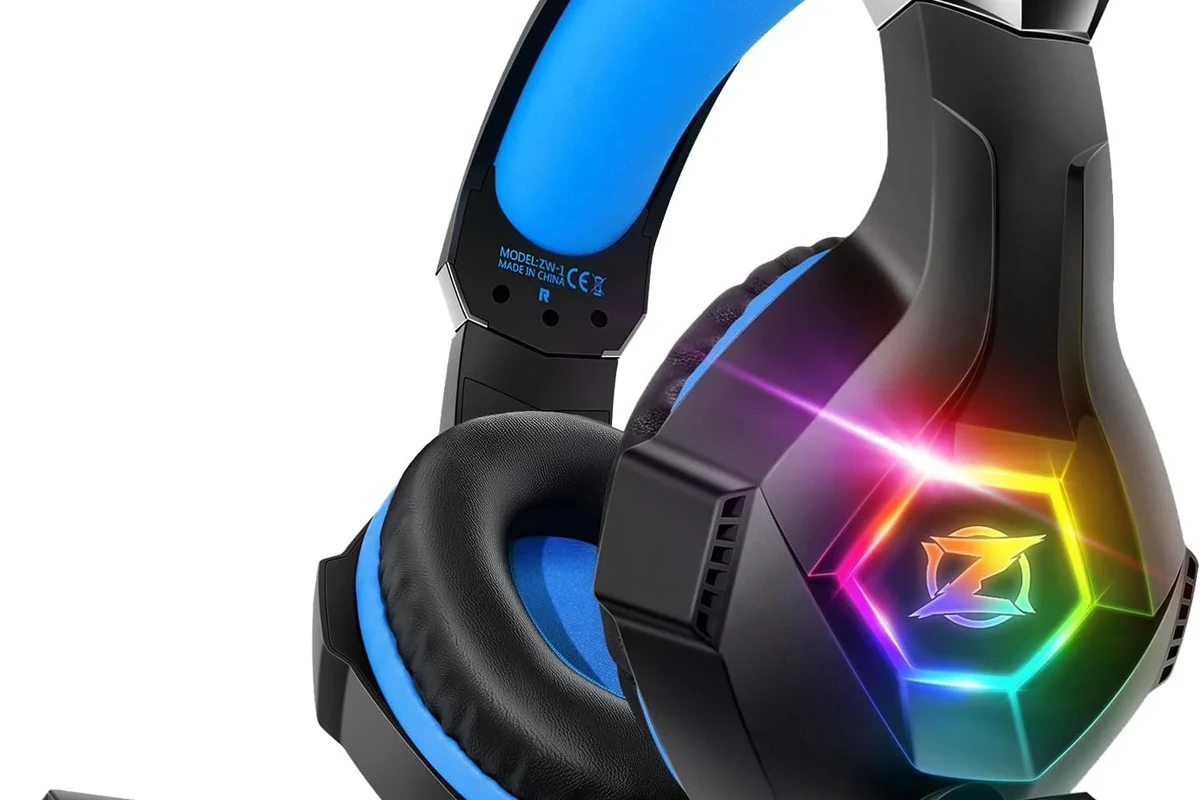
Before you plug anything in, it helps to know which connection type matches your headset. The PS4 is fairly flexible for wired audio, but wireless support is more limited than many people expect.
If you already own a headset, the connection path is usually determined by the cable or dongle it came with. If you’re shopping for a new one, it’s worth checking compatibility first so you don’t end up needing extra adapters later.
Wired 3.5mm, USB, Bluetooth adapter, or controller jack: quick comparison
A wired 3.5mm headset is usually the simplest option because it plugs straight into the PS4 controller. USB headsets can also be very convenient, especially if they include a USB dongle for wireless audio.
Standard Bluetooth headphones are where things get tricky. The PS4 does not fully support most regular Bluetooth headsets for both game audio and mic use, so many users need a compatible transmitter instead.
Compatibility can vary by headset model, firmware version, and whether your device uses a direct cable, USB dongle, or Bluetooth pairing method.
Choosing the right option based on your headset type and budget
If you want the lowest-friction setup, a wired headset with a 3.5mm plug is usually the best value. It avoids pairing issues, extra latency, and battery concerns.
USB headsets are a good middle ground if you want a cleaner setup and your headset is designed for console use. Bluetooth adapters can work, but they often add cost and may not support the microphone the way you expect.
For readers comparing different headphone styles, it can help to understand the basics of types of headphones explained before buying. That makes it easier to choose between over-ear gaming headsets, earbuds, and wireless options.
Step-by-step: how to connect headphones PS4 through the DualShock 4 controller
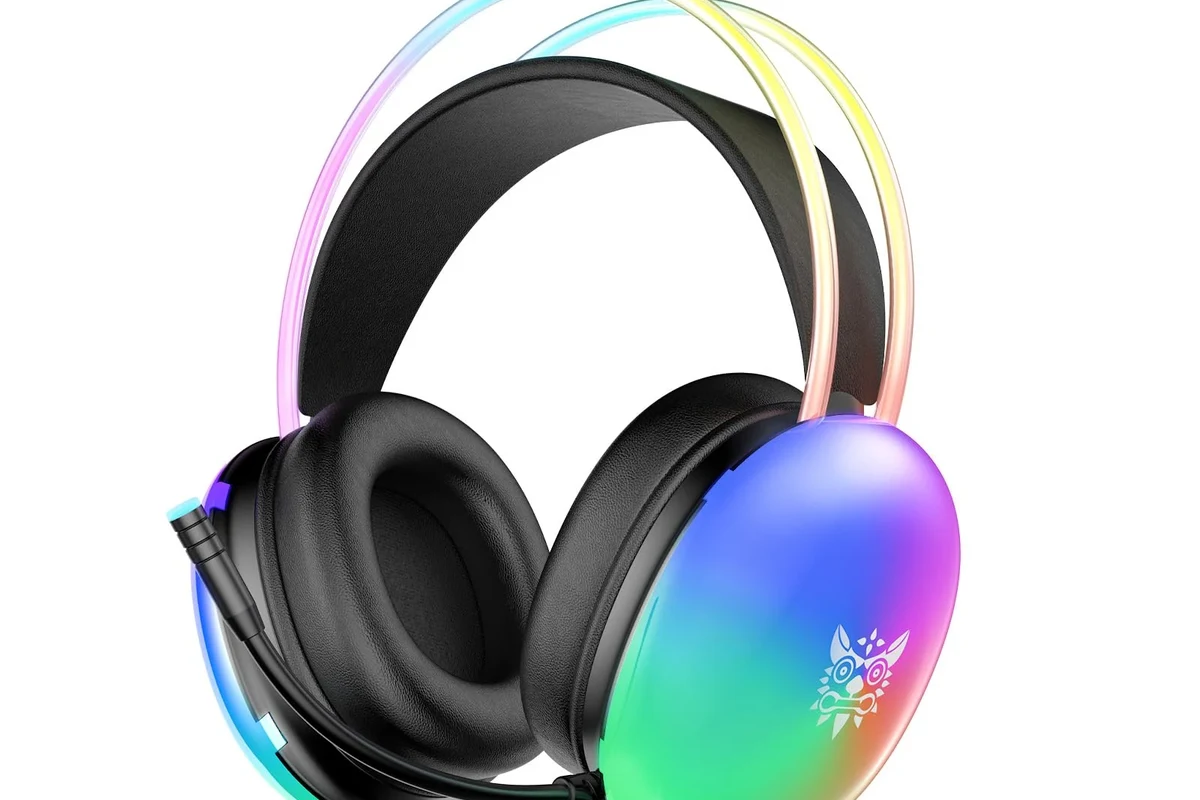
This is the fastest and most common setup for wired headphones. If your headset has a 3.5mm plug, the controller jack is usually the first place to try.
Plugging into the 3.5mm audio jack correctly
Insert the headphone plug firmly into the bottom of the DualShock 4 controller. You should feel it click or seat fully, depending on the cable design.
If your headset has a combined audio and microphone plug, it should work as a chat headset on most compatible models. If the plug feels loose or one side of the audio is missing, remove it and reconnect it slowly to make sure it is fully seated.
Insert the 3.5mm connector into the controller jack until it sits securely.
Make sure the cable is not damaged, bent sharply, or partially unplugged.
Setting output to “All Audio” in PS4 sound settings
After plugging in the headset, go to PS4 settings and open the sound and devices menu. From there, choose the output device and make sure audio is routed to the controller headset.
For full game sound in your headphones, set the output to “All Audio” rather than chat-only audio. This is the setting many beginners miss when they can hear voice chat but not the game itself.
Adjusting microphone and volume for chat and game audio
Once sound is coming through, adjust the volume so game audio stays clear without overpowering voice chat. If your headset includes a mic, check that the input level is detected properly in the PS4 device settings.
A good starting point is to keep the master volume moderate, then fine-tune chat balance in-game if the title offers that option. If you use a headset with stronger bass, lowering the volume slightly can keep dialogue clearer during long sessions.
Listening at high volumes for long periods can cause hearing damage. Keep volume at 60% or below for extended sessions.
How to connect USB headphones to PS4 for plug-and-play audio
USB headsets are often the easiest way to get a cleaner console setup. Many gaming headsets use a USB cable or USB wireless dongle, which can simplify both audio and microphone use.
When USB headsets work instantly and when they need manual setup
Some USB headsets work as soon as they are plugged in, while others need you to select them manually in system settings. If the headset includes a USB receiver, the PS4 may recognize it as a separate audio device.
If nothing happens right away, don’t assume the headset is broken. In many cases, the PS4 simply needs the input and output devices selected in the settings menu before audio starts routing correctly.
Switching input and output devices in PS4 device settings
Open the PS4 sound and devices settings and look for both input and output device options. Choose the USB headset for both if you want to use its microphone and hear all audio through the same device.
If the headset has a companion dongle, wait a few seconds after plugging it in before changing settings. Some models need a short moment to sync before they appear as available devices.
If you ever need to use a headset on another platform too, our guide on do wired headphones work on MacBook can help you understand how simple analog connections compare across devices.
Best use cases for gaming headsets with USB dongles
USB dongle headsets are a strong choice for players who want wireless convenience without depending on standard Bluetooth pairing. They are especially useful when you want low-latency audio for action games or online matches.
They can also be more comfortable than controller-jack setups because you are not tied to the controller with a cable. That said, compatibility still depends on the headset and the dongle, so it is smart to verify PS4 support before buying.
How to connect Bluetooth headphones to PS4 in 2025: what still works and what doesn’t
Many users assume any Bluetooth headphone will pair directly with a PS4, but that is not usually the case. In practice, the PS4’s Bluetooth support is limited, especially for full audio and microphone use.
Why most standard Bluetooth headphones are not fully supported
Most regular Bluetooth headphones either fail to pair properly or only work in a limited way. Even when pairing succeeds, you may run into missing mic support, unstable audio, or unexpected lag.
This is one reason many readers who want wireless gaming audio choose a transmitter or a headset designed specifically for console use. If you want a broader overview of wireless pairing basics, see how to connect Bluetooth headphones for general device setup principles.
Using a compatible Bluetooth transmitter for wireless audio
A Bluetooth transmitter can plug into the PS4 through USB or the controller’s audio output, depending on the model. It then sends audio to your headphones wirelessly, which can be a practical workaround for unsupported headsets.
Before buying one, check whether it supports game audio, voice chat, or both. Some transmitters handle only stereo sound, while others have microphone limitations that may affect multiplayer use.
Latency, mic limitations, and sound quality trade-offs
Wireless audio is convenient, but it can introduce small delays that matter in fast-paced games. That delay may be minor for casual play, but competitive players often notice it more easily.
Mic quality can also vary, especially if the transmitter or headset uses a simplified wireless mode. Sound quality may still be good for gaming, but it may not match the consistency of a direct wired connection.
Some wireless gaming headsets avoid standard Bluetooth entirely and use their own USB wireless system to reduce lag.
Common connection problems and how to fix them fast
Most PS4 headphone problems come down to settings, loose connections, or compatibility issues. The good news is that many of them can be fixed in a minute or two.
No sound, only chat audio, or audio cutting out
If you hear chat but not game sound, check whether the output is set to “All Audio.” If audio cuts out, reseat the plug, reconnect the USB dongle, or try a different USB port.
For Bluetooth transmitter setups, interference can also cause dropouts. Keep the transmitter close to the console and away from other wireless devices when possible.
Headphones detected but mic not working
If the PS4 sees the headset but the microphone does not work, confirm that the headset actually supports mic input on that connection type. Some headphones only carry audio, not voice.
You should also check the PS4 input device setting and test the mic level. If the headset is wired through a controller, try unplugging and reconnecting it because a partial connection can break mic detection.
PS4 not recognizing the headset after firmware or controller updates
After a firmware update or controller reset, the system may need the headset connected again from scratch. Reboot the console, reconnect the headset, and reselect the audio device in settings.
If that does not work, test the headset on another device to rule out a cable or headset fault. This is especially helpful when a headset worked before but suddenly stopped after an update.
If a headset only works intermittently, the issue may be a damaged cable, weak dongle connection, or unsupported Bluetooth profile rather than the PS4 itself.
Expert advice: sound settings, comfort, and performance tips for better PS4 gameplay
Once your headphones are connected, the next step is making them comfortable and easy to use for longer sessions. Good audio setup is not just about sound; it is also about fit, balance, and reliability.
Balancing game audio and voice chat for competitive play
Competitive players usually want clear footsteps, dialogue, and teammate voices without one overpowering the others. If your game has its own audio mix settings, spend a minute adjusting them before you jump into a match.
Headsets with stronger bass can make explosions more exciting, but too much bass can bury important details. If you prefer clearer mids and highs, a small EQ adjustment on the headset or console side may help.
Reducing lag and interference with wireless setups
If you use wireless audio, place the transmitter where it has a clean line to the headset and avoid crowding it with other USB devices. Wireless performance can vary depending on room layout, console placement, and nearby signals.
For players who are sensitive to delay, wired headphones still remain the most dependable choice. If wireless convenience matters more, choose a setup that is known for stable console support rather than relying on generic pairing alone.
Readers comparing wireless behavior may also find Bluetooth headphone lag fix useful when they want to reduce delay in everyday use.
How headset design affects long-session comfort and immersion
Over-ear gaming headsets usually offer better immersion and isolation, while lighter on-ear or in-ear options may feel less bulky. The best choice depends on how long you play and how much pressure you tolerate around your ears.
Ear cushion materials, clamping force, and total weight all affect comfort over time. If you play for hours at a stretch, a breathable fit can matter as much as sound quality.
If you experience ringing, pain, or muffled hearing after gaming sessions, consider lowering volume and speaking with an audiologist or hearing professional.
Your budget should guide your setup as much as your sound preferences do. In many cases, a small adapter or a simple wired headset is enough, but some players benefit from upgrading to a more complete gaming solution.
When a low-cost adapter is enough
A low-cost adapter can make sense if you already own a good pair of headphones and only need basic PS4 audio. This is often the most economical way to get started, especially for casual gaming.
Adapters are best when your current headset sounds good and you do not need advanced wireless features. If the microphone is not essential, a simpler audio-only solution may be all you need.
When it’s worth upgrading to a dedicated PS4-compatible headset
It can be worth upgrading if you want easier setup, better chat support, or more consistent wireless performance. Dedicated gaming headsets are often designed to reduce compatibility headaches and simplify the whole process.
They are also a smart choice if you play online often and want a microphone that is ready to go without extra troubleshooting. For many buyers, convenience is just as valuable as sound quality.
Best value considerations for 2025 buyers
In 2025, the best value usually comes from choosing the simplest setup that meets your needs. If you want reliability, wired 3.5mm remains hard to beat; if you want freedom, a PS4-compatible USB wireless headset may be the better long-term choice.
Before buying, check whether the headset supports your exact use case, including game audio, voice chat, and comfort for long sessions. A model that sounds great on paper may still be frustrating if it does not fit your play style.
Final recap: the quickest way to connect headphones to PS4 without frustration
The fastest answer for most players is simple: plug wired headphones into the DualShock 4 controller and set audio to “All Audio.” If you want wireless convenience, a PS4-compatible USB headset or transmitter is usually safer than standard Bluetooth pairing.
Best method by headset type
For 3.5mm wired headsets, use the controller jack. For USB headsets, plug in the dongle or cable and select the headset in settings. For Bluetooth headphones, expect to use a compatible transmitter if you want reliable PS4 audio.
Key settings to remember before you start gaming
Always check output device, input device, and whether the PS4 is sending “All Audio” to your headset. If something sounds off, re-seat the cable, reconnect the dongle, or restart the console before assuming the headset is faulty.
With the right setup, connecting headphones to PS4 is quick, practical, and easy to repeat whenever you switch devices.
Frequently Asked Questions
Wired headphones usually offer the most reliable connection and the least lag on PS4. Wireless can still sound good, but performance may vary by headset and adapter.
Check the connection type, microphone support, comfort, and whether the headset is PS4-compatible. It also helps to look at weight, ear cushion material, and battery life if it is wireless.
Noise cancelling can help block room noise and improve focus during gameplay. Just remember that ANC may affect battery life on wireless models and comfort can vary by user.
Closed-back headphones usually isolate outside noise better and are common for gaming. Open-back models can feel more spacious, but they leak sound and are less ideal in noisy rooms.
Driver type, frequency response, tuning, and comfort matter more than one spec alone. For gaming, clear mids and controlled bass often help dialogue and footsteps stand out.
Choose a headset with a comfortable fit, light weight, and soft ear cushions. Take breaks, keep volume moderate, and adjust the headband so the clamping force does not feel too tight.