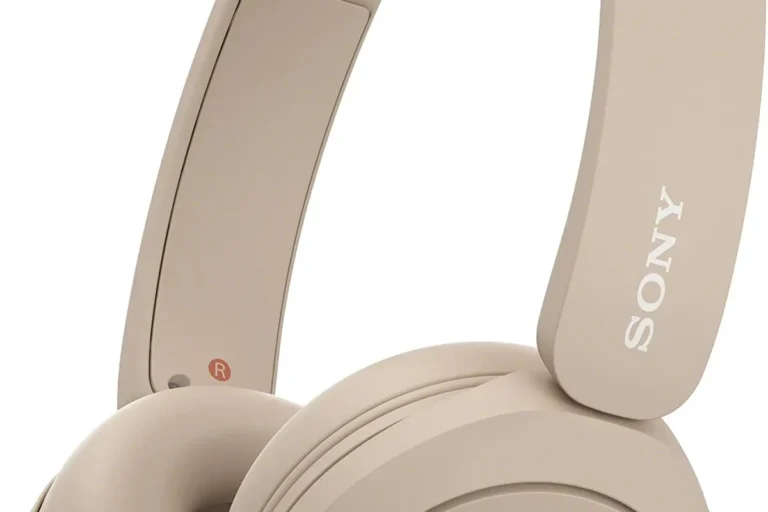
How To Use Wired Headphones: Easy Setup Guide

Wired headphones connect to a device through a cable instead of Bluetooth. To use them in the United States, plug the correct connector into your phone, computer, game console, or audio player, select the headphones as the output device if needed, and start playback. If your device has no matching port, use a compatible adapter with the right audio support.
Wired headphones can provide stable sound with no pairing, charging, or wireless delay. They are useful for music, calls, gaming, online meetings, travel, and accessibility needs. The main challenge is choosing the correct connection and setting a safe listening level.

What You Need Before Using Wired Headphones
You need three things: compatible headphones, a suitable audio port or adapter, and a device that supports audio output.
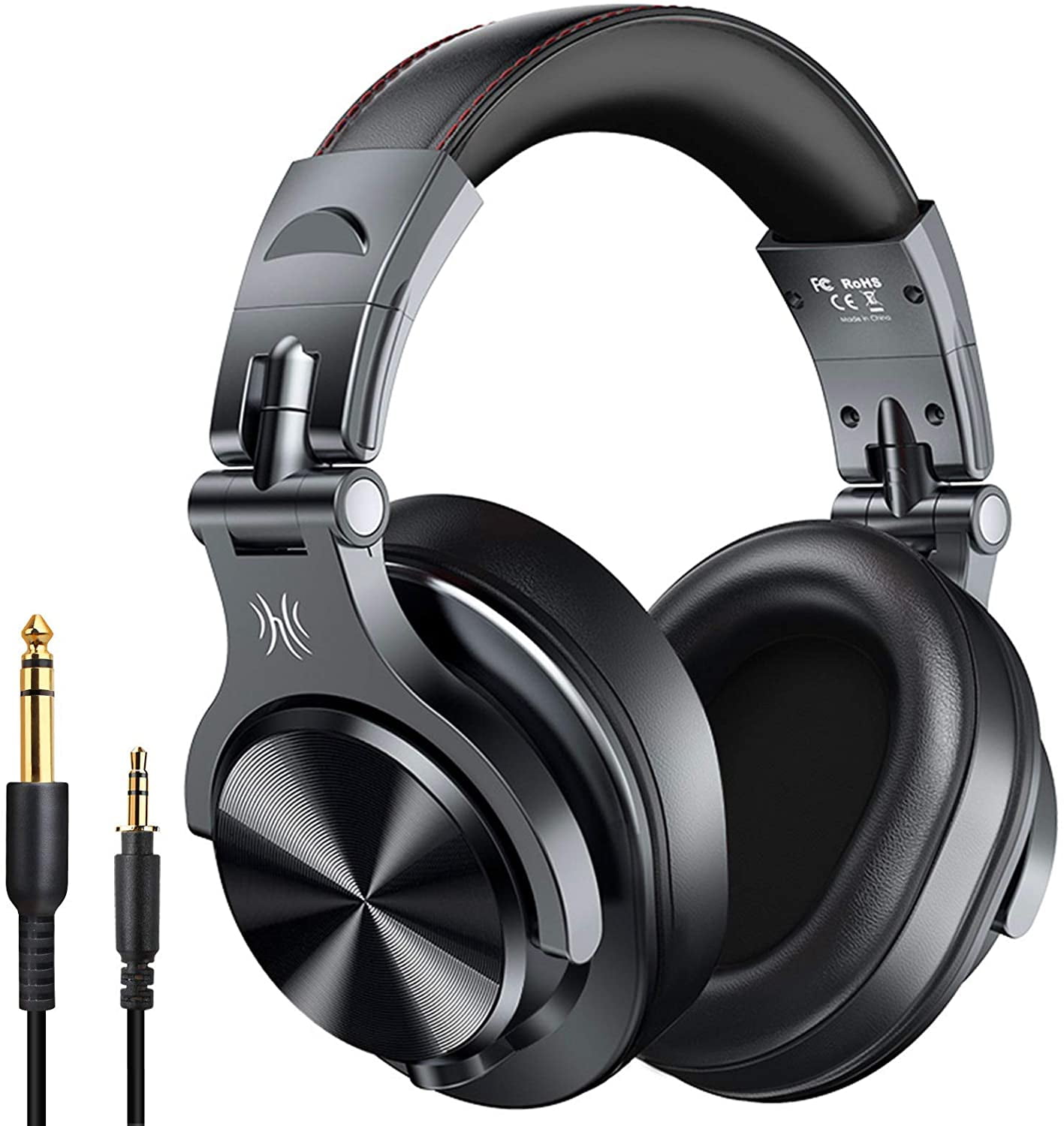
Most wired headphones use one of these connection types:
| Connector | Common uses | Important detail |
|---|---|---|
| 3.5 mm plug | Laptops, desktop computers, game controllers, older phones, car stereos | Carries analog audio |
| USB-C | Newer phones, tablets, computers, and some gaming devices | May carry digital audio and need built-in digital-to-analog conversion |
| Lightning | Some older Apple devices | Requires Lightning audio support |
| 6.35 mm plug | Home audio receivers, amplifiers, and musical equipment | Often needs a 3.5 mm adapter for regular headphones |
| USB-A | Some computer headsets and USB audio devices | Usually includes its own audio hardware |
A 3.5 mm plug may have two or three black bands. A plug with three sections usually carries stereo sound. A plug with four sections, called TRRS, can also carry microphone input. Most modern headset plugs use the CTIA wiring standard, but some older or specialized equipment may use a different layout.
A headphone cable may also include an inline microphone, volume buttons, or a play/pause button. These controls work only when the connected device supports them.
Check the device port
Look at the device before plugging in the headphones. A round port marked with a headphone symbol usually accepts a 3.5 mm plug. A USB-C or Lightning port may support charging, data, audio, or only some of those functions.
A USB-C port does not always guarantee wired headphone support. The device, operating system, and adapter must all support audio output. Check the device maker’s support page when the connection is unclear.
Choose the right adapter
Use an adapter that matches both ends of the connection. For example:
- A phone with USB-C and 3.5 mm headphones needs a USB-C-to-3.5 mm audio adapter.
- An older iPhone with a Lightning port and 3.5 mm headphones needs a Lightning-to-3.5 mm audio adapter.
- A computer with a separate headphone port and microphone port may need a headset splitter for a single TRRS plug.
- A home receiver with a 6.35 mm jack may need a 3.5 mm-to-6.35 mm adapter.
A simple physical plug adapter may not convert audio. Some USB-C adapters are passive, while others contain a DAC, or digital-to-analog converter. Digital devices need the correct type of adapter to turn digital audio data into a signal that analog headphones can play.

How to Use Wired Headphones Step by Step
Follow these steps in order. This method works for most phones, tablets, computers, game consoles, and audio players.
1. Lower the device volume
Turn the volume down before connecting the headphones. This protects your ears from a sudden loud sound and helps prevent unpleasant pops when the connection starts.
A low starting level is especially helpful with headphones that seal tightly around the ears or with devices that remember a high volume from a previous session.
2. Find the correct audio connection
Locate the device’s headphone jack, USB-C port, Lightning port, or USB port. Do not force the plug into a port. The connector should fit smoothly.
Remove dust or lint only with care. Do not push sharp objects deep into a port, because they can damage the contacts.
3. Connect the headphones
Insert the plug fully. A partial connection can cause:
- Sound in only one ear
- Crackling
- A weak bass response
- A microphone that does not work
- A device that fails to detect the headphones
For a 3.5 mm plug, push it in until it is firmly seated. For USB-C or Lightning headphones, hold the connector by its housing rather than pulling on the cable.
4. Select the wired headphones as the audio output
Many devices switch automatically. If sound still comes from the built-in speakers, select the headphones manually.
On an iPhone or iPad:
- Connect the headphones or adapter.
- Start audio playback.
- Open Control Center.
- Tap the playback destination or AirPlay icon.
- Choose the connected headphones if they appear.
On an Android phone or tablet:
- Connect the headphones.
- Start music or video.
- Open the volume panel or media output menu.
- Select the wired device if the device lists it.
Android menus vary by manufacturer and software version. Some wired headphones do not appear by name because the phone treats them as a standard output.
On Windows:
- Connect the headphones.
- Select the speaker icon on the taskbar.
- Open the output device list.
- Choose the headphone or USB audio device.
- Open Settings > System > Sound if more options are needed.
On a Mac:
- Connect the headphones.
- Open Control Center.
- Select Sound.
- Choose the connected headphones.
- You can also check System Settings > Sound > Output.
On a game console:
- Connect the headphones to the controller or console.
- Open the sound or audio settings.
- Set the output to the headset or controller.
- Adjust game and chat volume separately if the console provides both controls.
5. Play a short test
Play a familiar song, video, or test sound. Check both sides of the headphones. Speak into the microphone if you plan to make calls or use voice chat.
Listen for a clean signal. Hissing may come from the device or adapter. Crackling that changes when you move the cable often points to cable damage or a worn connector.
6. Set a comfortable volume
Raise the volume slowly. You should be able to hear the content clearly without pain, pressure, or the need to shout if someone speaks to you nearby.
The World Health Organization recommends safer listening practices, including keeping personal audio volume below the maximum and taking breaks. Its safe-listening guidance gives 80 dB for up to 40 hours per week for adults as a reference level, but your device may not show an accurate sound level at the ear. Treat the number as guidance, not as a guarantee.
7. Use the controls correctly
If the headphones have an inline remote:
- Press the center button once to play or pause on supported devices.
- Use the volume buttons to adjust the device volume when supported.
- Hold or double-press buttons only if your device documents those actions.
- Use the microphone opening near your mouth during calls.
Button functions can differ across operating systems. A headset may play audio correctly while its microphone or remote buttons do not work.
8. Disconnect safely
Pause playback before unplugging. Remove the plug by holding the connector, not the cable. Coil the cable loosely and store the headphones where the plug will not bend sharply.
Do not wrap the cable tightly around the device. Repeated tight bends near the plug are a common cause of intermittent sound.

How to Use Wired Headphones on Different Devices
The basic process is the same, but the connection and settings vary by device.
Phones and tablets
Newer smartphones often remove the 3.5 mm headphone jack. If the phone has USB-C or Lightning, use headphones made for that port or a compatible audio adapter.
When using USB-C headphones, the phone may display a USB accessory message. If it asks for permission, allow audio access only when the accessory is known and trusted.
If you need to charge the phone while using wired headphones, you may need a certified splitter or dock that supports both charging and audio. Some low-cost splitters support charging but not audio, or audio but not reliable microphone use.
Windows laptops and desktop computers
A computer may have:
- One combined headset jack
- Separate headphone and microphone jacks
- A USB port
- A monitor or dock that provides audio output
A single-plug headset may work in a combined jack but need a splitter on a desktop with separate ports. Plug the headphone connector into the port marked with headphones or speakers. Plug a separate microphone connector into the microphone port.
If the computer detects the headphones but no sound plays, open the sound settings and confirm that the output device is correct. Also check the volume inside the individual app, since a browser, video call program, or game can have its own volume control.
Mac computers
Many Mac models use a 3.5 mm headphone jack, while others may rely on USB-C or USB audio devices. After connection, select the headphones under the Mac’s sound output settings.
Some Apple computers support headsets with a microphone through the 3.5 mm jack. USB-C headphones may be listed as an external audio device and may have separate input and output settings.
Game consoles
A 3.5 mm headset often connects to a controller. A USB headset may connect directly to the console. The console may let you control:
- Game audio
- Voice chat
- Microphone monitoring
- Chat balance
- Microphone mute
If other players cannot hear you, check the mute switch, input device, privacy settings, and chat balance. A headset can play game sound even when its microphone is not compatible.
Car stereos and home audio systems
For a car stereo, connect the 3.5 mm plug to the auxiliary input and select AUX as the source. Some vehicles require a USB connection instead.
For a home receiver, use the headphone jack rather than a speaker output. Never connect ordinary headphones directly to speaker terminals unless the equipment specifically supports that connection. Speaker outputs can damage headphones and create a safety risk.

How to Use Wired Headphones for Calls and a Microphone
Wired headphones with a microphone can work for phone calls, video meetings, gaming, and voice recording. The device must support the headset’s microphone connection.
Start by checking whether the plug has four contact sections. A TRRS plug commonly supports stereo sound and a microphone through one connector. A three-section TRS plug usually supports sound only.
For a call or meeting:
- Connect the headphones before joining.
- Open the app’s audio settings.
- Select the wired headphones as the speaker.
- Select the headset microphone as the input.
- Make a short test recording or use the app’s microphone test.
- Keep the microphone opening clear of clothing and fingers.
If the sound works but the microphone does not, the problem may be the port, adapter, wiring standard, app permission, or device setting. A computer with separate audio and microphone ports may need a headset splitter.
Some USB-C and Lightning headphones contain a digital microphone. Others use an analog microphone connection through an adapter. The adapter must support microphone input if you need two-way audio.
For calls, a wired connection can reduce Bluetooth pairing problems and battery concerns. It does not automatically improve microphone quality. Room noise, microphone placement, and the device’s audio processing still affect the result.

How to Use Wired Headphones for Gaming
Wired headphones are useful for gaming because they do not need charging and usually have very little transmission delay. The exact result depends on the console, controller, computer, game, and headset.
For the best setup:
- Connect the headset to the controller, computer, or console.
- Select the headset as the audio output.
- Select its microphone as the input if needed.
- Set game and chat balance.
- Test voice chat before starting a match.
- Keep the cable away from chair wheels and moving parts.
A headset connected to a controller may use the controller’s battery. On some systems, the controller must remain powered for the headphones to work.
Do not assume that a 3.5 mm headset supports every gaming feature. Surround sound, microphone monitoring, custom equalizer controls, and chat mixing may require software or a USB audio device.
For PC gaming, check both the operating system and game settings. The game may use a different output or input device than Windows. If teammates hear an echo, disable microphone monitoring or reduce speaker volume.

How to Use Wired Headphones Without Damaging Your Hearing
Use the lowest volume that lets you hear the content clearly. Loud sound can harm hearing over time, and headphones that block outside noise may encourage higher volume.
Follow these safer listening habits:
- Lower the volume before putting on the headphones.
- Take regular quiet breaks.
- Avoid using maximum volume.
- Use noise isolation carefully in busy places.
- Do not sleep with wired headphones if the cable could wrap around your neck or become caught.
- Stop if you notice pain, ringing, muffled hearing, or unusual sound sensitivity.
The Centers for Disease Control and Prevention explains that repeated or very loud noise exposure can lead to noise-induced hearing loss. Ringing or muffled hearing after listening is a warning sign to reduce exposure. If symptoms continue, worsen, or affect daily life, contact a qualified health professional or hearing specialist.
A volume limit can help, but it is not a complete safety system. The actual sound level depends on the device, headphones, fit, recording, and listening time.

How to Keep Wired Headphones Working
Good cable care prevents many common failures.
Store headphones in a loose loop rather than a tight knot. Keep the plug dry and clean. Avoid pulling the headphones out by the wire. When traveling, use a small case or pouch to reduce bending and crushing.
Clean ear tips and cushions according to the manufacturer’s instructions. For removable silicone tips, remove them before cleaning. Do not soak the cable or connector. Moisture inside a plug or port can cause temporary faults or corrosion.
Inspect the cable near both ends. This area bends often and may develop a split or exposed wire. Do not use headphones with damaged insulation near your skin, especially if the cable becomes hot or produces a sharp electrical sensation.
A cable that works only when held at a certain angle usually has an internal break. Replacing the cable may be possible on detachable models. On fixed-cable headphones, replacement is often more practical than repair.

Wired Headphones Troubleshooting
Check simple and safe causes first. Most problems come from an incomplete connection, the wrong output setting, a muted app, or an incompatible adapter.
| Problem | Likely causes | What to do |
|---|---|---|
| No sound | Wrong output, low volume, loose plug, unsupported adapter | Reconnect, raise volume slightly, and select the correct output |
| Sound comes from speakers | Device did not switch outputs | Choose the headphones in sound settings |
| Sound in one ear | Plug not fully inserted, dirt, damaged cable | Reseat the plug and test on another device |
| Crackling | Damaged cable, dirty port, loose connection | Move the cable gently; if sound changes, inspect the cable |
| Microphone does not work | Wrong input, incompatible plug, missing splitter | Select the headset mic and check the connector type |
| USB-C headphones fail | Port or adapter lacks audio support | Try a known-compatible audio device or adapter |
| Buttons do not work | Device does not support the remote | Test audio separately; check the headset documentation |
| Headphones are too quiet | Device limit, low source volume, poor fit, high-impedance headphones | Check volume limits and test another source |
| Echo during calls | Microphone monitoring or app feedback | Disable monitoring and lower speaker output |
| Headphones disconnect physically | Worn port or loose connector | Test another port; seek repair if the device jack is damaged |
When one side stops working
First, pause audio and remove the plug. Reinsert it fully. Then test the headphones with another device.
If the same side fails on more than one device, the headphones or cable are likely at fault. If the headphones work elsewhere, inspect the original device’s port and output settings.
Do not repeatedly twist the plug to force a connection. That can damage both the connector and the device port.
When an adapter does not work
Confirm that the adapter supports audio, not only charging or data. For USB-C, check whether it contains a DAC when the headphones use an analog 3.5 mm plug.
Test the adapter with another pair of headphones. Then test the headphones without the adapter on a compatible device. This separates a headphone problem from an adapter problem.
If the phone shows a moisture warning, do not insert a cable until the port is dry and the device maker’s guidance allows it.
When the volume is too low
Check the device volume, app volume, and any volume limit. Make sure the plug is fully inserted and that the headphones seal correctly.
Some professional or high-impedance headphones may need a headphone amplifier to reach a useful level. Do not assume an amplifier is needed until you test the headphones with another source and confirm that the output remains low.

Common Mistakes to Avoid
Avoid these errors when using wired headphones:
- Forcing the wrong plug into a port. Connectors should fit without force.
- Assuming every USB-C port supports headphones. Port shape alone does not confirm audio support.
- Using a charging-only adapter. It may not carry an audio signal.
- Ignoring the microphone wiring. A headset may need a CTIA-compatible connection or splitter.
- Starting at maximum volume. Begin low and increase gradually.
- Pulling on the cable. This can break the wires near the plug.
- Testing only one device. A second device helps identify whether the headphones or source is faulty.
- Using speaker outputs with ordinary headphones. Use the proper headphone jack.
- Blocking warning sounds in risky places. Keep enough awareness near traffic, machinery, and other hazards.
- Continuing after hearing symptoms. Ringing, pain, or muffled hearing calls for a break and, when persistent, professional advice.

Wired Headphones vs. Wireless Headphones
Wired headphones are often the simpler choice when you want instant playback without pairing or charging. Wireless headphones may be more convenient when you need freedom to move or a phone has no audio jack.
| Factor | Wired headphones | Wireless headphones |
|---|---|---|
| Power | Usually draw power from the device; some USB models have electronics | Need a charged battery |
| Setup | Plug in and select output | Pair and select the device |
| Delay | Usually very low | Depends on the wireless connection and device |
| Compatibility | Depends on port, adapter, and wiring | Depends on Bluetooth or another wireless standard |
| Repairs | Cable or plug may fail | Battery aging can limit useful life |
| Movement | Cable can catch or pull | No cable between the headphones and device |
| Calls | Microphone works if the device supports it | Microphone and profile support vary |
Neither type is always better. Choose wired headphones when low delay, no battery charging, and a direct connection matter most. Choose wireless headphones when cable-free movement is more important and the device supports the needed connection.
Frequently Asked Questions
Do wired headphones need Bluetooth?
No. Standard wired headphones send audio through a physical cable. Bluetooth should be turned off only if you want to prevent the device from routing sound to a nearby wireless device.
Can I use wired headphones with a phone that has no headphone jack?
Yes, if the phone supports wired audio through USB-C or Lightning. You may need a compatible adapter. Confirm that the adapter supports audio and, if needed, microphone input.
Why do my wired headphones work but the microphone does not?
The port, adapter, headset wiring, or app may not support microphone input. Select the headset microphone in the app, check permissions, and test a CTIA-compatible headset or adapter.
Can wired headphones work during charging?
Often, but not always. A splitter or dock must support both charging and audio. Compatibility varies by phone, connector, operating system, and accessory.
How loud should wired headphones be?
Use the lowest volume that lets you hear clearly. Take breaks and avoid maximum volume. If you notice ringing, muffled hearing, pain, or sound sensitivity, stop listening and seek medical advice if symptoms persist.
Why is there no sound even though the headphones are connected?
The device may still use its speakers, the app may be muted, the plug may not be fully inserted, or the adapter may not support audio. Select the wired output, check the app volume, reseat the plug, and test another device.
Final Checklist for Using Wired Headphones
Before listening, confirm these points:
- The plug or adapter matches the device.
- The connector is fully inserted.
- The device uses the headphones as the audio output.
- The microphone is selected when needed.
- The volume starts low.
- Both sides produce sound.
- The cable is not pinched, damaged, or stretched.
- You can remove the headphones quickly when needed.
Wired headphones are simple to use once the connector, adapter, output setting, and volume are correct. Start with a low volume, test the connection, and troubleshoot one part at a time when something fails.