How to Restart Apple Headphones in Easy Simple Steps

Restart Apple headphones by charging them first, then using the correct method for your model: AirPods and AirPods Pro with the case, or AirPods Max with the button combo. If the issue keeps coming back after a restart, you may need a reset, software update, or support help.
If your AirPods, AirPods Pro, or AirPods Max start acting up, a restart is often the fastest fix. In most cases, the process is simple, safe, and worth trying before you move on to a full reset or service visit.
- Start simple: Check battery and Bluetooth before restarting.
- Use the right method: AirPods and AirPods Pro differ from AirPods Max.
- Restart first: It solves many temporary glitches without erasing settings.
- Reset only if needed: Use a reset for stubborn pairing or connection problems.
- Watch for hardware issues: Repeated charging or sound failures may need support.
How to Restart Apple Headphones: What This Fix Actually Solves

When people search for how to restart Apple headphones, they usually want to fix a temporary glitch rather than erase everything and start over. A restart can help with small connection drops, audio cutouts, charging oddities, or a headphone that suddenly stops responding.
Think of a restart as a quick refresh. It can clear minor software hiccups without removing your paired devices the way a factory reset does.
This matters because Apple headphones are tightly tied to Bluetooth, battery status, and firmware behavior. If one of those parts gets stuck, a restart may bring everything back to normal without any deeper troubleshooting.
Note
Restarting is not the same as reconnecting Bluetooth or resetting the headphones. Those are different fixes, and using the wrong one can waste time.
Quick Restart Steps for AirPods, AirPods Pro, and AirPods Max

The restart method depends on which Apple headphones you own. AirPods and AirPods Pro use the charging case as part of the process, while AirPods Max use the physical controls on the headset itself.
Before you begin, make sure the headphones have enough battery to respond. If they are completely drained, charge them first and try again.
Restarting AirPods and AirPods Pro the Right Way
For AirPods and AirPods Pro, the easiest restart is usually a brief power refresh through the charging case. Place both earbuds in the case, close the lid, and wait about 30 seconds.
Then open the lid and reconnect them to your device if needed. If they still seem frozen or unresponsive, place them back in the case again and confirm the case itself has charge.
In many everyday situations, this simple pause is enough to clear a temporary pairing issue or audio glitch. If the earbuds still misbehave afterward, you may need to move on to a reset.
Restarting AirPods Max Without Confusing It With a Reset
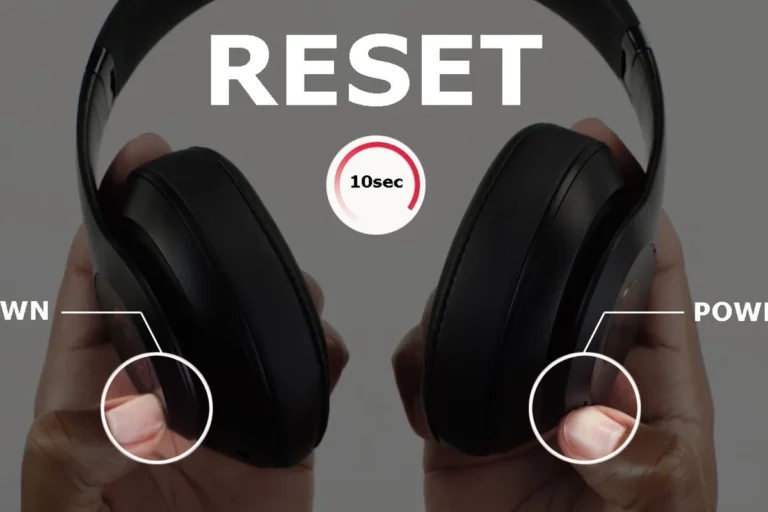
AirPods Max do not use a charging case, so the restart process is different. Press and hold the noise control button and the Digital Crown together until the status light flashes amber, then release.
This is closer to a forced restart than a full factory reset. It is useful when the headphones stop responding, audio gets stuck, or Bluetooth seems unstable.
Do not confuse this with a full reset, which removes pairing information and takes the headphones back to a more default state. If you only need a quick fix, the button hold is usually the better first step.
Audio Tip
If you use AirPods Max for long listening sessions, give them a short rest after a restart. That helps you tell whether the issue was temporary or tied to battery drain.
When a Restart Works Better Than a Full Reset
A restart is the right choice when the problem looks temporary. It is faster, safer, and less disruptive than wiping the headphones and pairing them from scratch.
This is especially useful if your headphones were working fine earlier in the day and suddenly began glitching. That pattern often points to a minor software or connection issue rather than a permanent fault.
Common Apple Headphone Glitches Fixed by Restarting
A restart can help with a few common issues. These include one earbud not playing audio, sound cutting in and out, the headphones failing to connect properly, or the battery readout acting strangely.
It can also help if your headphones seem stuck after switching between an iPhone, iPad, or Mac. That kind of handoff issue is common in busy Bluetooth environments.
If you are also learning about device compatibility and accessory behavior, our guides on phone headphones 2026 and Apple headphones can help explain how Apple audio gear behaves across different devices.
Situations That Need a Reset Instead of a Restart
If your headphones keep forgetting devices, fail to pair at all, or behave the same way after multiple restarts, a reset may be necessary. A reset is more aggressive and can clear deeper pairing or configuration issues.
That said, a reset is not always the first move. It is better to try a restart, then basic troubleshooting, before erasing the saved connection history.
Step-by-Step Troubleshooting Before You Restart
Before you restart Apple headphones, it helps to rule out simple causes. Many issues that look like headphone problems are actually battery, Bluetooth, or device-side problems.
Taking one minute to check the basics can save you from repeating the same fix several times.
Check Battery, Charging Case, and Bluetooth Connection
Start with the battery. If the earbuds or headphones are low on power, they may behave unpredictably, disconnect often, or fail to wake up properly.
For AirPods and AirPods Pro, also check the charging case. A dead case can make the earbuds seem broken when they are really just not getting enough power.
Next, open Bluetooth settings on your phone, tablet, or computer and confirm the headphones are actually connected to the correct device. If they are paired to something else nearby, the audio may be going to the wrong place.
- Headphone battery level
- Charging case battery level
- Correct Bluetooth device connection
- Nearby devices that may be stealing the connection
Test the Headphones on Another Device
If the problem continues, test the headphones on a second device. Try another iPhone, iPad, Mac, or even a compatible non-Apple device if available.
This helps you figure out whether the issue is with the headphones or the original device. If the headphones work elsewhere, the problem may be the phone, Bluetooth settings, or an operating system issue.
If you are troubleshooting broader wireless behavior, our guides on connect Bluetooth headphones and reset Bluetooth headphones can give you a useful baseline for comparison.
Common Mistakes People Make When Restarting Apple Headphones
Restarting sounds simple, but a few small mistakes can make it seem like the fix failed. Most of these errors come from mixing up the restart process with other Bluetooth actions.
If you avoid the common traps, you will have a much better chance of solving the issue quickly.
Mixing Up Restart, Reconnect, and Factory Reset
One common mistake is assuming that reconnecting Bluetooth is the same as restarting the headphones. It is not.
Reconnect simply means pairing the device again or selecting it from Bluetooth settings. A restart is a short power refresh, while a factory reset clears the headphones more completely.
If you jump straight to a reset when a restart would have been enough, you may create extra setup work for yourself. That is especially frustrating if you use the headphones with multiple devices.
Skipping the Charging Case or Holding Buttons Too Briefly
Another mistake is forgetting that the charging case matters for AirPods and AirPods Pro. If the case has no charge, the earbuds may not restart cleanly or may not power back on properly.
With AirPods Max, the button hold also needs to be long enough to trigger the status light change. If you release too quickly, nothing happens and the headphones appear unresponsive.
If your headphones are physically damaged, wet, or overheating, do not keep trying the restart process. Power them off if possible and let them dry or cool before using them again.
Expert Advice: When to Worry About Hardware or Firmware Issues
Sometimes a restart is only a temporary fix because the real problem is deeper. That can include worn batteries, damaged charging contacts, or firmware that is not updating correctly.
If the same issue keeps returning, it is worth paying attention to the pattern instead of repeating the same restart over and over.
Warning Signs That Restarting Will Not Fix the Problem
If one earbud never charges, the case no longer holds power, or the headphones disconnect every few minutes even after a restart, you may be looking at a hardware issue. Physical wear often shows up this way.
Other warning signs include distorted sound at normal volume, a cracked or loose hinge, or controls that stop responding entirely. Those problems are less likely to be solved by software steps alone.
If your Apple headphones show repeated charging failure, severe sound imbalance, or battery drain that feels abnormal, contact Apple Support or a qualified repair professional. If you notice hearing discomfort, ringing, or pain during use, consider speaking with an audiologist.
When to Update iOS, AirPods Firmware, or Contact Support
Sometimes the issue is not the headphones alone. Updating iOS, iPadOS, or macOS can improve Bluetooth stability and fix pairing bugs that make the headphones seem broken.
AirPods firmware updates happen in the background when the headphones are connected and charging near a compatible Apple device, so keeping your software current is important. If the problem persists after updates and restarts, support is the next sensible step.
Cost, Repair, and Replacement Considerations in 2026
In 2026, the practical choice is often about value as much as convenience. A restart costs nothing, while repair or replacement depends on the exact model, damage, warranty status, and local service options.
Because pricing can vary by region and model, it is smart to compare the likely repair cost against the age of the headphones and how often you use them.
Restart vs. Repair vs. Replacement: What Is Worth It?
If the issue is minor, a restart is always worth trying first. It is free, quick, and often enough for temporary glitches.
If the problem keeps returning and the headphones are still relatively new, repair may make more sense than replacement. For older headphones with battery wear or multiple faults, replacement can be the more practical long-term choice.
If you are comparing Apple audio gear with other models, it also helps to think about use case. Some people prioritize wireless convenience, while others care more about sound quality, comfort, or features like noise cancelling and transparency mode. Our broader headphone guides, including noise cancelling headphones and transparency headphones, can help you judge whether repairing or replacing is the better fit for your listening needs.
Final Recap: The Fastest Way to Get Apple Headphones Working Again
For most users, the fastest fix is simple: charge the headphones, confirm the Bluetooth connection, and restart them using the correct method for your model. AirPods and AirPods Pro usually need a brief case-based refresh, while AirPods Max use the button combination on the headset.
If the problem returns after a restart, move to deeper troubleshooting, then consider a reset, software update, or support visit. That approach saves time and helps you avoid unnecessary setup work.
Key audio insight: start with the lightest fix firstA restart is often enough for temporary Bluetooth or power glitches
Frequently Asked Questions
Wireless headphones usually need Bluetooth, battery, and pairing checks first. Wired headphones are more likely to have cable, jack, or adapter issues instead.
Closed-back wireless headphones or earbuds with active noise cancelling are usually best for commuting. Fit, seal, and battery life matter as much as the feature list.
Driver type and tuning shape bass, clarity, and detail, while frequency response gives a rough idea of range. Real-world sound still depends on fit, source device, and EQ settings.
Check latency, microphone quality, battery life, comfort, and device compatibility for gaming or travel. If you commute often, portability and noise cancelling may matter more than raw sound specs.
Look for low weight, soft ear cushions, and a fit that does not clamp too hard. Comfort is personal, so materials and head shape can matter more than brand alone.
Yes, EQ can help fine-tune bass, mids, and treble to match your preference. Small changes are usually better than extreme boosts, especially if you want cleaner sound over long sessions.