How To Increase Bass On Android Headphones: Bass Boost Guide

To increase bass on Android headphones in the United States, start with the headphone fit, then adjust your phone’s equalizer or the headphone maker’s app. Raise the low-frequency bands gently, lower the preamp if the sound distorts, and test with familiar music. A secure seal often adds more bass than a large EQ boost.
Android menus vary by phone brand, Android version, headphone model, and music app. A Samsung Galaxy phone may include an equalizer in Sound quality and effects, while a Google Pixel may rely on the headphone app or a separate equalizer app.

Check the Fit Before Changing Android settings
A poor seal is one of the most common reasons headphones sound thin. This is especially true for in-ear headphones and earbuds. When outside air leaks around the ear tip, low bass escapes first.
Try these steps:
- Reseat the earbuds. Twist them slightly until they feel secure.
- Test another ear tip size. A larger tip may seal better, but it should not cause pain.
- Clean the speaker grilles. Wax, dust, or skin oil can block sound.
- Check left and right placement. Some earbuds fit better when angled toward the ear canal.
- Try a different headphone size. Over-ear headphones should surround the ear without leaving large gaps.
Play a song with a steady bass line while testing. A good seal should make the bass sound fuller without requiring a higher volume.
Do not push earbuds deep into your ear. Stop if you feel pain, pressure, ringing, or muffled hearing after use.

Use the Built-In Equalizer on Your Android Phone
The equalizer, or EQ, changes the level of different sound ranges. Bass controls usually affect frequencies below about 250 Hz. The exact bands depend on the phone and software.
Samsung Galaxy phones
On many Samsung Galaxy models, open:
Settings → Sounds and vibration → Sound quality and effects → Equalizer
You may see presets such as:
- Normal
- Pop
- Classic
- Jazz
- Rock
- Custom
Choose Custom if available. Raise the lowest one or two bands by a small amount. Start with about 2 to 3 dB. Then listen before making another change.
Samsung menus can differ by model, One UI version, region, and connected device. If the equalizer is unavailable, search the Settings app for equalizer or sound quality.
Google Pixel phones
Many Google Pixel phones do not offer a full system-wide EQ in the main Android settings. Pixel users may need to adjust sound through:
- The headphone manufacturer’s app
- The music app’s built-in EQ
- A trusted third-party equalizer app
Use the search box in Settings and type equalizer. If no result appears, the phone may not include a system EQ.
Other Android phones
On phones from OnePlus, Motorola, Sony, Xiaomi, ASUS, and other brands, check:
Settings → Sound and vibration
Look for names such as:
- Equalizer
- Audio effects
- Sound effects
- Dolby Atmos
- Dirac audio
- Headphone audio
- Adapt sound
These features may work only with certain wired or Bluetooth headphones. The manufacturer’s support page is the best source for model-specific instructions.

Adjust Bass With a Headphone or Music App
A headphone app can provide more control than Android’s basic sound settings. Depending on the brand, the app may offer an EQ, custom sound profile, bass slider, firmware updates, and listening modes.
Common examples include apps from Sony, Bose, JBL, Sennheiser, Soundcore, Jabra, and Beats. The names and features can change, so use the official app listed by the manufacturer.
For music apps, look in the playback or settings menu for Equalizer. Services and players may include their own EQ, including options for:
- Bass boost
- Treble
- Preamp
- Presets
- Graphic EQ
- Parametric EQ
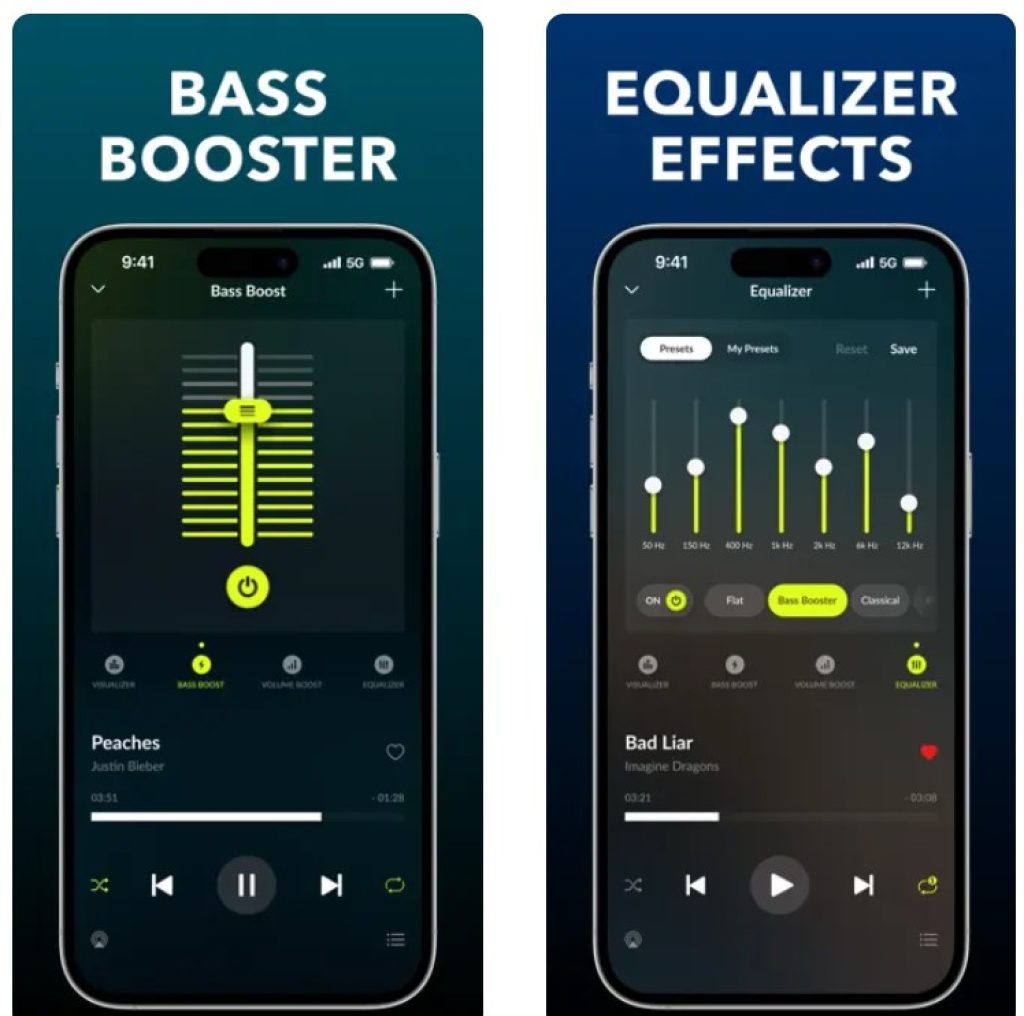
Avoid stacking several bass boosts at once. For example, a bass boost in the phone, headphone app, and music app can create muddy sound and distortion.
A practical starting EQ
Use this as a starting point, not a fixed rule:
| EQ area | Suggested change | What you may hear |
|---|---|---|
| 60–80 Hz | +2 to +3 dB | More deep bass and sub-bass |
| 100–150 Hz | +1 to +2 dB | More warmth and punch |
| 200–300 Hz | 0 to -1 dB | Less boom or muddiness |
| 1 kHz and above | 0 dB | Keeps vocals and detail stable |
The best settings depend on the headphones, music, fit, and personal taste. A bass-heavy hip-hop track may need less boost than a thin recording of acoustic music.
Lower the Preamp to Prevent Distortion
A bass boost can make the audio signal too strong. When that happens, the music may clip. Clipping sounds harsh, fuzzy, or cracked, especially during kick drums and deep bass notes.
If your EQ app has a preamp control, lower it when you raise bass. For example:
- Bass boost: +3 dB
- Preamp: −3 dB
You may need a larger reduction if several frequency bands are boosted. Some apps handle this automatically, but not all do.
Signs of too much EQ include:
- Crackling on bass hits
- Harsh vocals
- A “blown” or fuzzy sound
- Bass that masks speech
- The need to lower volume because the sound becomes uncomfortable
If distortion remains, reduce the bass boost or return to a flat EQ. More bass is not always better bass.
Try a Trusted Equalizer App
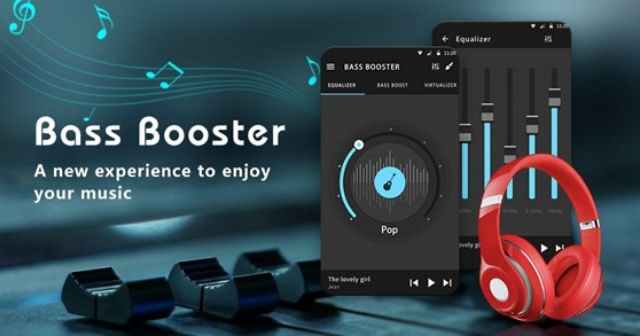
If your Android phone lacks a useful EQ, an equalizer app may help. Apps such as Wavelet and Poweramp Equalizer are commonly used for more detailed control, but compatibility varies by phone, Android version, music app, and audio path.
Before installing an app:
- Download it from Google Play.
- Check the developer name and recent update history.
- Review the permissions.
- Confirm whether it works with your music app and Bluetooth headphones.
- Test it with a small EQ change first.
Some Android apps cannot process every audio source. A setting may work in one music player but not in another. It may also stop working when audio is routed through a different Bluetooth service, USB DAC, casting device, or phone call.
An equalizer cannot repair a damaged driver or create unlimited deep bass. It only changes the signal sent to the headphones.

Check Bluetooth, ANC, and Audio Settings
Bluetooth itself does not guarantee strong or weak bass. Bass can change because of the headphone’s tuning, fit, app settings, active noise cancellation, and audio processing.
Check these settings:
- Noise control: Compare noise cancellation, transparency, and normal modes.
- Mono audio: Make sure it is off unless you need it for accessibility.
- Left-right balance: Keep the balance centered.
- Spatial audio: Compare it with ordinary stereo.
- Volume normalization: Test it on and off in the music app.
- Battery level: Some headphones change behavior when the battery is very low.
- Firmware: Install updates from the official headphone app.
- Bluetooth connection: Disconnect and pair the headphones again if sound changes suddenly.
On Android, accessibility settings are often under:
Settings → Accessibility → Hearing or Audio adjustment
The exact names vary. A balance setting that is far to one side can make the overall sound seem weaker.

Troubleshoot Weak Bass in the Right Order
Use this sequence when bass still sounds weak:
- Test another song. Some recordings have little low-frequency content.
- Test another music app. This helps identify an app-specific EQ or volume setting.
- Check the ear seal. Try another tip or adjust the headphone position.
- Turn off all sound effects. Then compare the plain signal with the EQ enabled.
- Reset the EQ. A badly adjusted preset may cut bass instead of adding it.
- Test another pair of headphones. This shows whether the issue is the phone or the headphones.
- Reconnect Bluetooth. Forget the device, restart the phone, and pair again.
- Update the phone and headphone firmware.
- Check for physical damage. A damaged driver, loose cable, or blocked grille may need repair or replacement.
If only one ear has weak bass, inspect the ear tip, grille, cable, and balance setting. If both ears sound weak on every device, the headphone’s design or condition is more likely than the Android settings.

Understand the Limits of Bass Boost
EQ can change the balance of sound, but it cannot change every physical limit of a headphone. Small earbuds may have limited deep-bass output. Open-back headphones also let outside sound in, which can reduce the impact of bass in a noisy place.
A bass boost may also reduce clarity. Low frequencies can cover vocals, guitars, piano, and other sounds. This effect is called masking.
For a cleaner result:
- Use a small boost instead of the highest bass preset.
- Cut muddy low-mid frequencies rather than boosting every bass band.
- Keep the preamp below 0 dB when needed.
- Compare changes at the same listening volume.
- Use familiar tracks with vocals, drums, and sustained bass.
Do not use extreme volume to make bass feel stronger. In the United States, the National Institute for Occupational Safety and Health identifies 85 dBA over an eight-hour workday as a recommended exposure limit, with shorter safe exposure times as sound levels rise. Phone volume indicators do not provide a precise measurement for every headphone, so treat them as rough guidance rather than a personal noise meter.
If you notice ringing, pain, or temporary muffled hearing, stop listening and give your ears a break. Persistent symptoms should be discussed with a qualified health professional.

Best Bass Settings for Different Listening Goals
There is no single best bass setting for every headphone. Use the goal below to choose a sensible starting point.
| Listening goal | Starting approach | Main trade-off |
|---|---|---|
| More deep bass | Raise 60–100 Hz by 2–3 dB | May cause clipping |
| More punch | Raise 100–160 Hz slightly | Can sound boomy |
| Clearer bass | Reduce 200–300 Hz by 1–2 dB | May sound less warm |
| Better vocals with bass | Boost low bass, leave mids flat | Needs careful preamp control |
| Bass in a noisy place | Improve the seal or use ANC | Sound mode may change the EQ |
| Maximum detail | Use a flat EQ or small boost | Less dramatic bass |
Change one setting at a time. Listen for at least a minute before deciding. Your ears can quickly adapt to a new sound, which may make a large boost seem normal at first.

Frequently Asked Questions
Why is my Android headphone bass so weak?
The most likely causes are a poor ear seal, blocked grille, flat EQ, an unsuitable sound mode, or the natural tuning of the headphones. Test the fit and another device before adding a large bass boost.
Does Android have a bass boost setting?
Some Android phones include a built-in equalizer or audio effect, but not all do. Samsung Galaxy devices often place these controls under Sound quality and effects. Google Pixel and other phones may require the headphone app, music app, or a third-party EQ.
Can I increase bass without increasing volume?
Yes. Use an EQ to raise low frequencies while keeping the overall volume moderate. Lower the preamp if the sound clips. EQ cannot increase the physical output beyond what the headphones can produce cleanly.
Why does bass disappear when I use transparency mode?
Transparency mode changes how outside sound enters and how the headphones process audio. It can alter the perceived balance. Compare normal, transparency, and noise-canceling modes at the same volume.
Is a bass booster app safe?
Use apps from Google Play, check permissions, and avoid extreme boosts. A bass booster does not remove the risk of loud sound. Stop using it if you hear distortion, ringing, pain, or muffled hearing.
Conclusion
The best way to increase bass on Android headphones is to improve the fit first, then apply a modest EQ adjustment. Start around 60–150 Hz, lower the preamp when necessary, and avoid combining several bass boosts. If the result is muddy or distorted, reduce the boost and check the headphone seal, app settings, and sound modes.
Start with a +2 dB bass increase, test a familiar song, and keep the setting only if it sounds fuller without hurting clarity or comfort.