How to Connect Wireless Headphones to LG TV Without Bluetooth

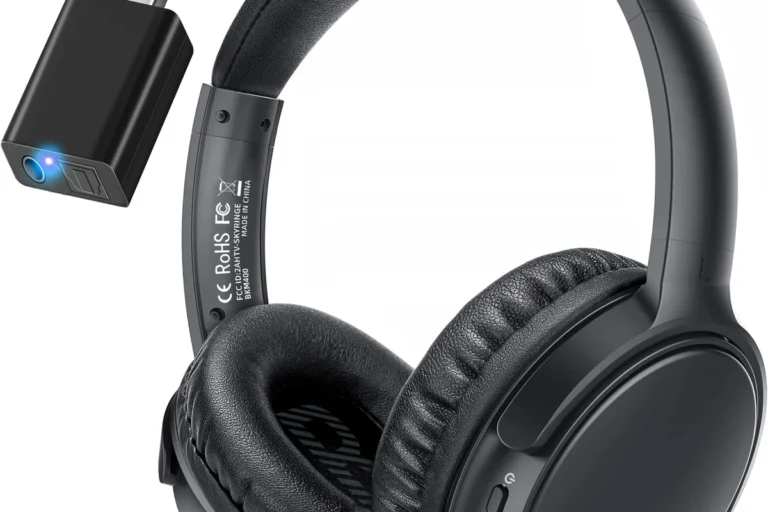
The easiest way is to use a wireless headphone transmitter connected to your LG TV’s optical, 3.5mm, or RCA audio output. Match the cable and audio format to your TV model, then pair the headphones to the transmitter.
If your LG TV does not support direct Bluetooth pairing, you can still use wireless headphones with a simple external audio solution. In most cases, the easiest fix is a wireless transmitter that connects through optical, 3.5mm, RCA, or another compatible audio output on the TV.
- Best option: Optical transmitters are usually the cleanest digital choice.
- Older TVs: 3.5mm and RCA outputs can still work well.
- Gaming tip: Low-latency support matters most for lip-sync.
- Setup tip: Check LG audio settings before pairing anything.
How to Connect Wireless Headphones to LG TV Without Bluetooth: What This Guide Covers
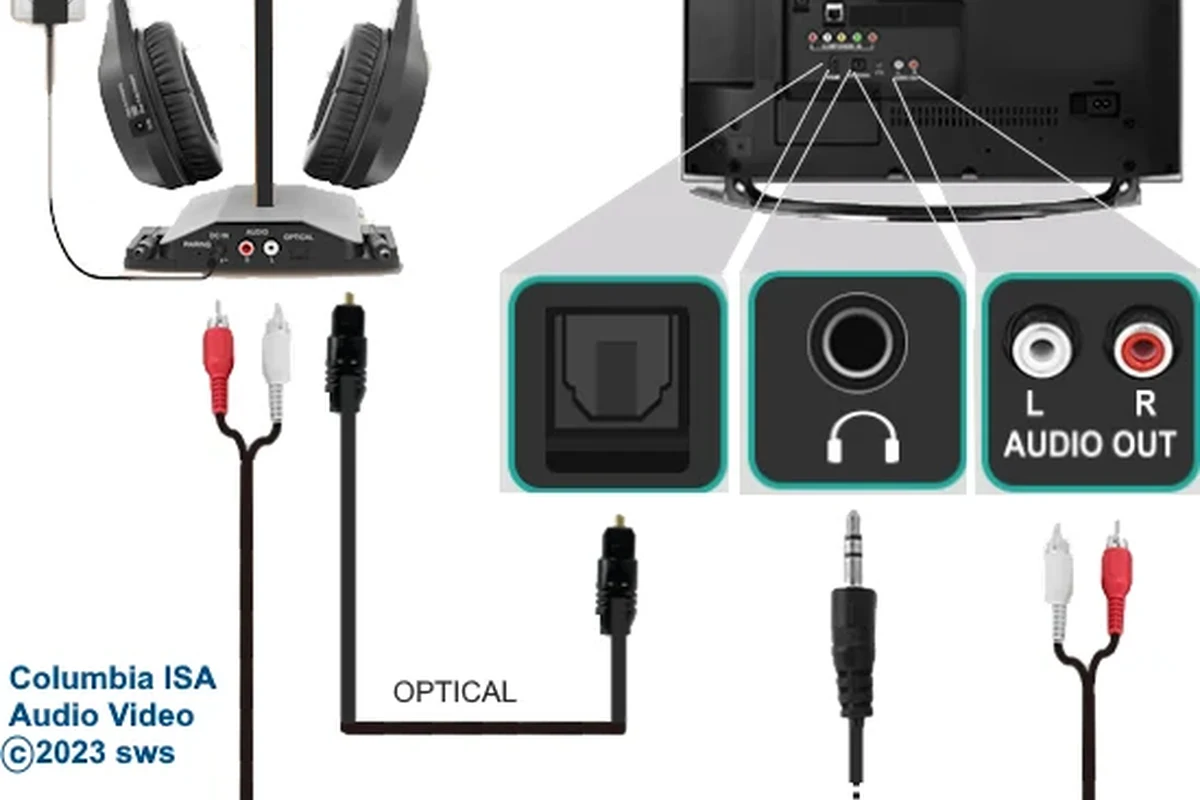
This guide walks you through the best ways to use wireless headphones with an LG TV even when Bluetooth is missing or limited. It also explains what to buy, what settings to change, and how to avoid lag, dropouts, and confusing compatibility problems.
We are focusing on practical setups for everyday TV watching, gaming, and late-night viewing. If you also want a broader look at wireless audio basics, our guide on wired and wireless headphones can help frame the trade-offs before you buy.
Why LG TVs Need Bluetooth Alternatives for Wireless Headphones in 2025
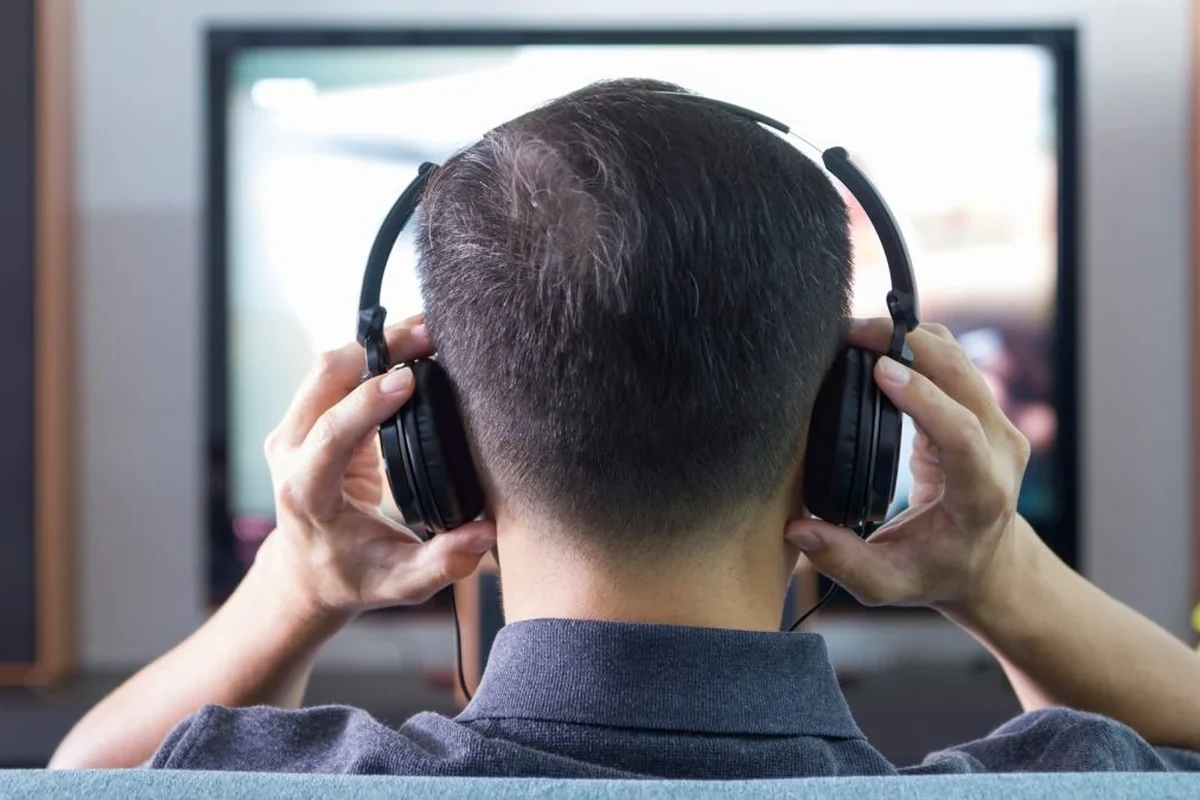
Many LG TVs either do not include Bluetooth audio for headphones, or they limit which devices can pair cleanly. Even when Bluetooth exists, some models prioritize remotes, soundbars, or other accessories instead of a straightforward headphone connection.
That is why a wired-to-wireless workaround is often the most reliable path. A small transmitter can turn your TV’s audio output into a signal your headphones can use, which is often simpler than trying to force an unsupported pairing.
Common LG TV audio limitations that block direct Bluetooth pairing
Some LG TVs only support Bluetooth for specific device categories, while others require you to route audio through a separate menu or accessory. In older models, the TV may not have Bluetooth at all, which makes a transmitter or adapter the practical choice.
You may also run into format limitations. For example, some TVs output only certain audio modes through optical or HDMI-connected devices, and that can affect headphone compatibility or sound quality.
Who this guide is for: gaming, late-night TV, and hearing-friendly listening
This guide is useful if you want to watch movies without disturbing others, enjoy gaming with private audio, or keep volume lower for more comfortable listening. It is also helpful for anyone who prefers over-ear comfort, noise isolation, or a dedicated headset instead of TV speakers.
Protect Your Hearing
Listening at high volumes for long periods can cause hearing damage. Keep volume at 60% or below for extended sessions.
Best Ways to Connect Wireless Headphones to an LG TV Without Bluetooth
The best method depends on the outputs available on your LG TV and the headphones you already own. In general, optical is the cleanest digital option, while 3.5mm and RCA are often the easiest for older TVs.
Key audio insight hereChoose the TV output first, then match the transmitter and headphones to that output for fewer setup issues.
Using a wireless headphone transmitter with optical audio
An optical transmitter is usually the best choice when your LG TV has a digital optical output. It sends a clean audio signal to a wireless base station, which then sends sound to your headphones.
This setup is popular because it is stable and often less noisy than analog connections. It can also be a better fit for movie watching and gaming when you want cleaner sound and fewer hums or static issues.
Optical outputs may require you to change the LG TV audio format to PCM or another compatible mode, depending on the transmitter and headphones.
Using the 3.5mm headphone jack or RCA audio output
If your LG TV has a headphone jack, this is one of the simplest ways to connect a transmitter. RCA outputs on older TVs can also work well with the right adapter cable.
These analog options are often easier to understand, especially for beginners. The trade-off is that analog audio can be more prone to background noise, and quality may vary more by TV model and cable quality.
Using USB audio adapters and compatible external devices
Some users try USB audio adapters, but compatibility can be inconsistent on TVs. In many cases, the USB port on an LG TV is meant for media playback, service use, or power, not direct headphone audio.
If you are using a streaming device, console, or external box, that device may offer a better audio route than the TV itself. This can be useful when the TV’s own outputs are limited or inconvenient.
Connecting through a soundbar, AV receiver, or streaming box workaround
If your TV is already connected to a soundbar or AV receiver, you may be able to route audio from that device instead. Some receivers and soundbars offer headphone-friendly outputs or can pass audio through to a transmitter.
A streaming box or game console may also give you more control over audio settings. This is worth considering if your main priority is gaming latency or if your LG TV menu makes audio routing confusing.
For readers comparing sound quality across connection types, our breakdown of Bluetooth vs wired headphones sound quality explains why the source connection can change clarity, delay, and overall listening comfort.
Step-by-Step Setup for Each Connection Method
Before you start, check which outputs your LG TV actually has. That one step saves a lot of frustration because the best method is the one that matches the ports on your exact TV model.
- TV output ports available on the back or side of the LG TV
- Whether your headphones need a transmitter, base station, or separate dongle
- Whether the TV menu allows you to change audio output format
Optical transmitter setup for the cleanest digital audio
Plug one end into the LG TV optical output and the other into the transmitter’s optical input.
Open the TV sound menu and choose the output mode recommended by the transmitter, often PCM.
Use USB power or the included adapter so the transmitter stays on whenever the TV is on.
Analog transmitter setup for older LG TVs
Use a 3.5mm cable for a headphone jack or RCA cables if your TV only has red and white audio outputs.
Plug the cable into the transmitter’s analog input and make sure the connection is snug.
Some setups need the TV volume set to a usable level so the transmitter receives a strong signal.
How to pair the headphones with the transmitter
Most wireless headphone transmitters use a simple pairing button or automatic connection process. Turn on the transmitter first, then power on the headphones and wait for the connection light or voice prompt.
Audio Tip
If the sound seems delayed, check whether your transmitter supports low-latency audio. That matters a lot for gaming and fast dialogue scenes.
If you are troubleshooting headphone behavior in general, our article on how to connect Bluetooth headphones can help you understand pairing logic, even when you are using a non-Bluetooth TV workaround.
What to Buy: Costs, Compatibility, and Feature Comparison
Wireless headphone setups for LG TVs can range from very basic to more advanced, depending on whether you need optical support, low latency, or better range. Prices and features vary a lot by brand and model, so it is better to shop by compatibility than by marketing claims alone.
Budget vs premium wireless transmitters
Budget transmitters usually cover the basics: one input type, simple pairing, and standard audio support. Premium models may offer better build quality, longer range, lower latency, or support for multiple headphones at once.
The right choice depends on how often you will use it. If you only watch TV occasionally, a basic model may be enough, but daily users may appreciate a sturdier unit with fewer dropouts.
Latency, range, battery life, and audio quality comparison
Latency is one of the biggest differences between transmitters. If the audio lags behind the picture, dialogue can feel off, especially in games and action scenes.
Range also matters if you move around the room while listening. Battery life, headphone comfort, and sound quality all vary by model, so it helps to compare the full setup instead of focusing on one spec.
Some wireless setups sound better in real living rooms than on paper because room layout, walls, and nearby electronics can affect signal stability.
Best use cases for gaming, movies, and everyday TV watching
For gaming, low-latency support should be your top priority. For movies, clean audio and steady connection quality matter more than flashy features.
For everyday TV watching, comfort and simplicity usually win. A lightweight transmitter and a comfortable pair of over-ear headphones can be easier to live with than a more complex home theater setup.
Common Mistakes When Connecting Wireless Headphones to LG TV Without Bluetooth
A lot of connection problems are caused by small setup mistakes rather than bad hardware. The good news is that most of them are easy to avoid once you know what to look for.
Choosing the wrong audio output format or cable
One common issue is using the wrong cable for the port you actually have. Another is forgetting that some transmitters need PCM or a specific stereo output instead of a surround format.
Important
If the transmitter and TV do not agree on the audio format, you may get silence, distortion, or unstable sound.
Ignoring delay and lip-sync issues
Even when the headphones connect successfully, delay can still ruin the experience. This is especially noticeable when mouths on screen do not match the dialogue.
If that happens, look for a low-latency transmitter or a TV setting that helps with lip-sync adjustment. For gaming, this matters even more than raw sound quality.
Forgetting TV audio settings that must be changed first
Many LG TVs need manual audio adjustments before external headphone transmitters work properly. That may include switching the sound output, disabling internal speakers, or changing digital audio format settings.
If the headphones are not playing sound, do not assume the transmitter is broken right away. The TV menu is often the real issue.
Expert Advice: How to Get Better Sound, Lower Lag, and Fewer Dropouts
The most reliable setups are usually the simplest ones: the correct output, the correct transmitter, and the fewest unnecessary adapters. When you keep the signal path clean, you reduce the chances of noise and connection problems.
Warning signs that a transmitter is not suitable for LG TVs
If a transmitter does not clearly list TV compatibility, optical support, or low-latency behavior, it may not be the right fit. Vague product pages can be a red flag, especially when they do not explain supported audio formats.
If the transmitter only mentions phones or computers, double-check before buying. TV audio is different, and not every wireless audio accessory handles it well.
If you have hearing loss, tinnitus, or ongoing ear discomfort, an audiologist can help you choose a safer listening setup and volume level for long TV sessions.
How to reduce interference in a real living-room setup
Keep the transmitter away from thick cabinet walls, other wireless devices, and crowded power strips when possible. A clear line of placement can improve stability more than people expect.
Also try not to overload the setup with unnecessary adapters. Fewer conversion steps usually mean fewer chances for noise, signal loss, or random disconnects.
If you are comparing headphone styles for comfort and long sessions, our overview of types of headphones explained can help you decide whether over-ear, on-ear, or in-ear models make the most sense for your TV room.
Final Recap: The Easiest Way to Use Wireless Headphones with an LG TV Without Bluetooth
The easiest way to connect wireless headphones to an LG TV without Bluetooth is usually a transmitter that matches your TV’s available audio output. Optical is often the cleanest choice, while 3.5mm and RCA are useful for older TVs and simpler setups.
If you want the least frustration, check the TV ports first, match the correct cable to the transmitter, and confirm the audio format in the TV settings before pairing. That small checklist solves most connection problems and gives you a much smoother listening experience.
Frequently Asked Questions
A wireless transmitter connected to the TV’s optical, 3.5mm, or RCA output is usually the easiest option. The best choice depends on which ports your LG TV has and what your headphones support.
Wired connections can be more consistent, but wireless headphones are more convenient for TV viewing. Sound quality depends on the transmitter, headphones, and TV output settings.
Yes, many noise-cancelling headphones work well with a TV transmitter setup. Just make sure the headphones can pair with the transmitter and that latency is low enough for your needs.
Over-ear headphones are often more comfortable for long TV sessions and usually provide better passive isolation. In-ear headphones can be lighter and more portable, but comfort varies by ear shape and fit.
Check the connection type, latency support, battery life, comfort, and whether the headphones are compatible with your transmitter. If possible, also look at range and whether the setup supports your TV’s audio output format.
Use a low-latency transmitter, keep the signal path simple, and choose the correct TV audio format. If lag or sound issues continue, try a different output mode or consult the transmitter manual.