How To Charge Headphones With A USB Port: Easy Guide

Most wireless headphones charge through a USB cable. Connect the correct cable to the headphone’s charging port, then plug the other end into a powered USB port or USB wall charger in the United States. Keep charging until the status light changes or the device’s manual says the battery is full.
Use the cable that came with the headphones when possible. Many models use USB-C, while older headphones and some charging cases use Micro-USB. The USB plug must fit the port, and the cable must support power.

What You Need Before Charging
You need three things:
- The headphones or charging case
- A compatible USB charging cable
- A powered USB source
A USB wall charger is often the easiest choice at home. You can also use a laptop, desktop computer, game console, power bank, or USB port in a vehicle. The USB source must be turned on and able to provide power.
Identify the charging port
Check the side, bottom, or control panel of the headphones. Common charging ports include:
- USB-C: A small, oval port. The plug can usually go in either way.
- Micro-USB: A small, uneven port. The plug fits in only one direction.
- USB-A: A large, flat rectangular port. This is more common on a cable or charger than on the headphones themselves.
Some headphones have a USB port for charging and wired audio. Others have a USB port for charging only. A USB port does not always support audio, data, or fast charging.
Do not force the connector. If it does not slide in with light pressure, check the plug direction and remove dust from the port.
How to Charge USB Headphones Step by Step
Follow these steps to charge most wireless headphones with a USB port.
1. Turn off the headphones if needed
Many headphones charge while powered on, but turning them off can reduce power use. Some models enter charging mode as soon as you connect the cable.
2. Connect the USB cable to the headphones
Insert the small end of the cable into the headphone charging port. For true wireless earbuds, connect the cable to the charging case, not to each earbud. The earbuds charge through metal contacts inside the case.
Make sure the connector is fully inserted. A loose connection may cause the status light to flash without charging the battery.
3. Connect the other end to a power source
Plug the larger end of the cable into one of these sources:
- A USB wall charger
- A computer USB port
- A power bank
- A USB port in a car
- A compatible game console or other powered device
For home use, a standard USB wall charger is usually more practical than a computer. A computer may stop supplying power when it sleeps or shuts down.
4. Check the charging light or screen
Headphones use different signals. A light may glow red, amber, orange, or white during charging. It may turn green or blue when charging is complete. Some models show the battery level in a phone app or voice prompt.
The exact light pattern depends on the brand and model. If the light does not match the expected pattern, check the manual rather than guessing.
5. Let the battery charge
Leave the headphones connected for the time listed by the manufacturer. Charging time varies based on battery size, battery level, cable, charger, temperature, and headphone design.
Do not judge charge level only by how warm the charger feels or by the time that has passed. Use the light, screen, app, or manual as the main guide.
6. Disconnect the cable
When charging is complete, unplug the cable from the power source and then from the headphones. If the device is hot, smells unusual, looks swollen, or shows damage, stop using it and move it away from flammable items.

How to Charge Different Types of USB Headphones
The basic process is similar, but the port location and charging method can differ.
Over-ear and on-ear headphones
Over-ear and on-ear headphones usually have one USB-C or Micro-USB port on an ear cup. Find the port near the buttons or under a small cover.
Keep the ear cups dry while charging. Do not use a damaged cable, and do not charge the headphones under a pillow or inside a closed bag.
True wireless earbuds
Wireless earbuds charge inside a case. Connect the USB cable to the case, then place both earbuds in their matching slots.
Check that:
- Each earbud sits fully in its slot.
- The metal contacts are clean.
- The case has enough battery to charge the earbuds.
- The case light shows that it is receiving power.
If the earbuds do not charge inside the case, wipe the contacts with a dry, soft cloth. Do not use water or metal tools inside the case.
USB gaming headsets
A wireless gaming headset may use USB-C for its battery and a separate USB receiver for its wireless connection. The receiver does not always charge the headset.
Connect the charging cable to the headset itself. A USB cable connected to a console may charge the battery, but the console must be on or set to provide power while in rest mode.
Wired USB headphones
Some wired headphones draw power from the USB port while they are connected. These headphones may not contain a rechargeable battery at all.
In that case, there is no separate charging process. Plug them into a compatible USB port. If they stop working, the issue may involve the USB port, driver, cable, or audio settings rather than a low battery.
Which USB Charger Should You Use?
Use a reliable USB charger that matches the headphone maker’s instructions. A standard USB wall charger is normally suitable for ordinary USB charging, but the headphone’s manual takes priority.
USB-C does not always mean fast charging
USB-C describes the shape of the connector. It does not tell you the charging speed or the features supported by the port.
Two USB-C devices may differ in these ways:
- One may support only basic charging.
- One may support USB Power Delivery, also called USB PD.
- One may support USB audio or data.
- One may use USB-C only as a replacement for an older connector.
A high-wattage USB-C charger does not automatically force that full power into the headphones. Compatible devices normally request the power they are designed to use. Still, use a quality charger and follow the headphone manufacturer’s instructions.
Can you charge headphones from a phone charger?
Usually, yes, if the cable and connector match. A phone charger can provide power to many headphones, earbuds, and charging cases.
The charger must be in good condition. Avoid unbranded or damaged chargers, loose outlets, and cables with exposed wires. If the manual requires a specific charger, follow that requirement.
Can you charge headphones from a laptop?
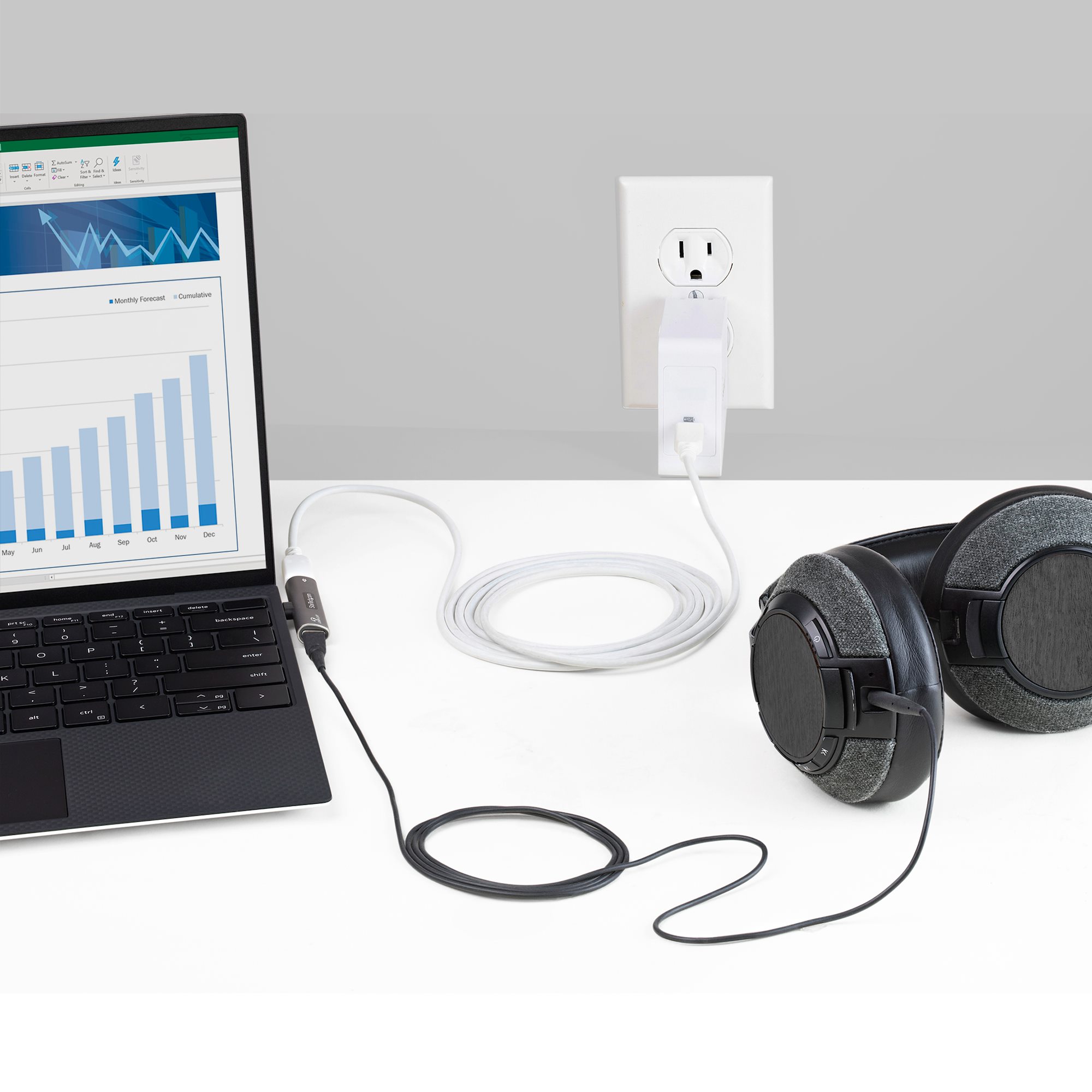
Yes. Connect the headphones to a powered USB port on the laptop. The laptop may need to stay awake, and charging may be slower than with a wall charger.
A laptop’s battery can also lose power while it charges another device. This matters when you are traveling or working away from an outlet.
How to Know if Headphones Are Charging
The most reliable sign is a charging indicator that matches the model’s manual.
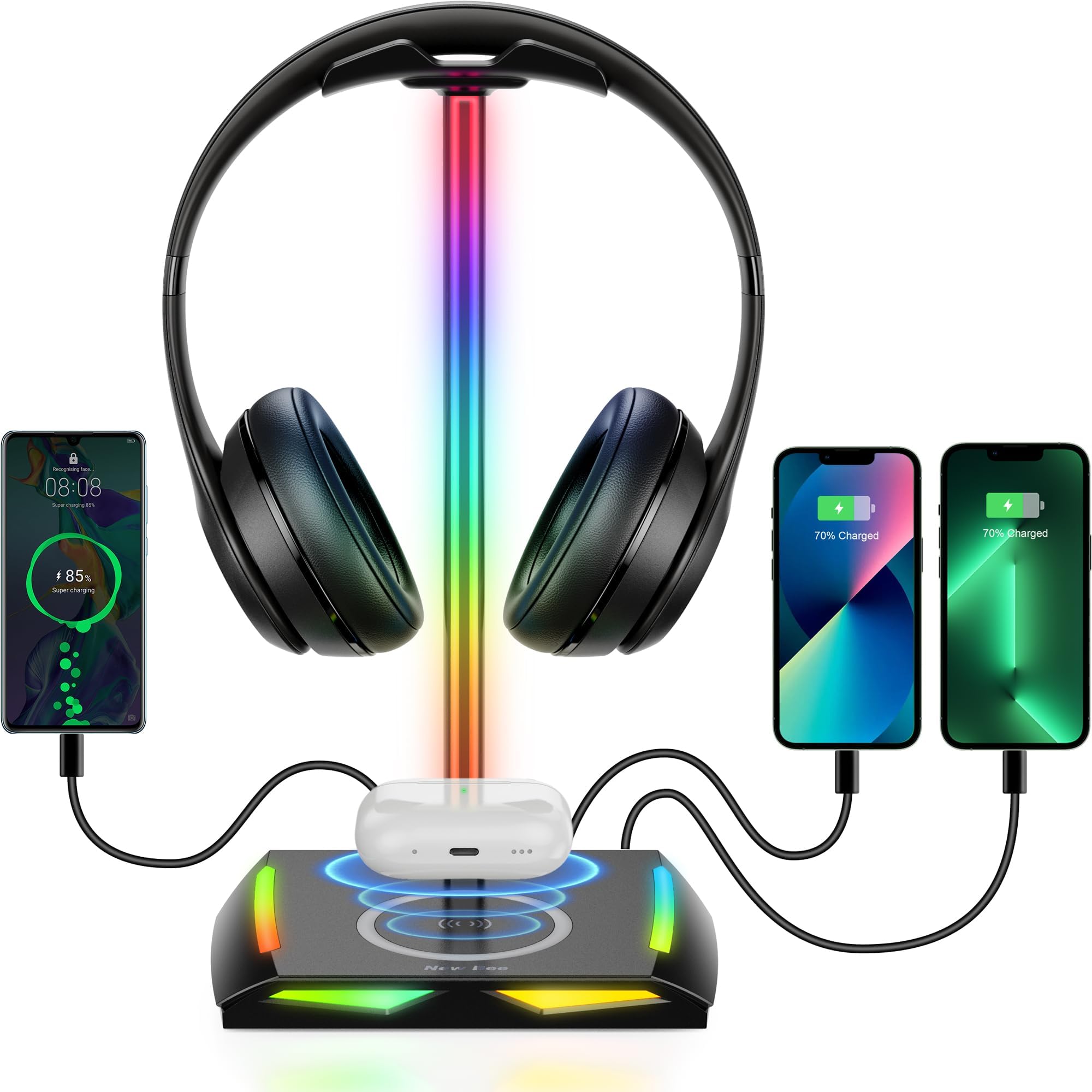
Common signs include:
- A steady red, orange, or amber light
- A pulsing light
- A battery symbol on the headphones or case
- A charging message in a phone app
- A voice prompt
- A battery percentage that increases
A light that turns off does not always mean charging has stopped. Some headphones turn off the light after a short time to save power. Check the battery level after a while to confirm progress.
If the battery level stays the same, treat the headphones as not charging. Start with the cable and power source, then inspect the port and contacts.
What to Do if USB Headphones Will Not Charge
Troubleshoot in this order. Begin with simple checks before trying anything that could damage the device.
1. Try another cable
A cable may look normal but have a broken wire or poor connection. Test a different compatible cable.
Use the right cable type. A USB-C-to-USB-C cable and a USB-A-to-USB-C cable may behave differently with some older chargers, computers, or devices.
2. Try another power source
Connect the headphones to a different wall charger or powered USB port. Do not assume that every USB port supplies power. Some ports may be disabled, damaged, or limited to data.
3. Check the connector
Look for lint, dirt, bent contacts, or a loose fit. Clean only with a dry, nonmetal tool designed for delicate electronics, or follow the manufacturer’s cleaning instructions.
Never push debris deeper into the port. Never use liquid inside the charging port.
4. Check the earbuds and case
For true wireless earbuds, confirm that each earbud sits correctly in the case. Clean, dry charging contacts can improve the connection.
The case itself must have power. If the case battery is empty, the earbuds cannot charge until the case receives power.
5. Restart or reset the headphones
Some headphones need a restart after a charging fault. Other models have a factory reset process. A reset can erase Bluetooth pairings, so use it only after checking the manual.
6. Check temperature and damage
Lithium-ion batteries may stop charging when the device is too hot or too cold. Move the headphones to a dry room-temperature area and try again later.
Stop charging if the headphones are swollen, cracked, leaking, unusually hot, smoking, or producing a strong chemical smell. Do not open the battery or attempt a repair at home.
7. Contact the manufacturer
If a known-good cable and power source do not work, the battery, port, charging circuit, or case may have a fault. Contact the manufacturer or a qualified repair service. A battery that no longer holds a charge may need professional replacement.

Common Mistakes to Avoid
Avoid these mistakes when charging headphones with a USB port:
- Using the wrong connector: A plug that looks close may damage the port.
- Forcing the cable: The connector should fit without strong pressure.
- Charging through a damaged cable: Replace cables with exposed wires, bent ends, or loose plugs.
- Covering the headphones: Heat can build up under bedding, clothing, or inside a closed case.
- Charging near water: Keep the cable, charger, and headphones dry unless the manufacturer gives a specific water-resistance instruction.
- Relying on a data-only port: Some USB ports do not provide usable charging power.
- Cleaning with liquid or metal: Both can cause corrosion or a short circuit.
- Ignoring unusual heat or smell: Disconnect the charger and stop using the device.
- Assuming every USB-C port works the same way: USB-C is a connector type, not a guarantee of identical power or data features.
Water resistance also does not mean the headphones are safe to charge when wet. Dry the device and charging port fully before connecting a cable.
How Long Does It Take to Charge USB Headphones?
Charging time depends on the model. Many headphones charge in a few hours, while a quick-charge feature may provide listening time after a short charge. These values are model-specific and should come from the product manual or the manufacturer’s support page.
The following factors can change charging time:
| Factor | Effect on charging |
|---|---|
| Battery size | A larger battery may take longer |
| Starting battery level | A nearly empty battery needs more time |
| Charger and cable | A weak, damaged, or incompatible setup may charge slowly |
| Temperature | Extreme heat or cold may reduce or stop charging |
| Headphones in use | Playback can reduce or cancel the net battery gain |
| Battery age | An older battery may charge poorly or lose power quickly |
A simple example: if headphones use 2 watts while playing and receive 3 watts from the charger, only about 1 watt is available for charging before other losses. This is a basic illustration, not a measurement for a specific model.
For the most accurate result, turn off the headphones while charging and use the time listed in the manual.
Can You Use Headphones While They Charge?
Some USB headphones work while connected to a charger. Others disable Bluetooth playback or wired audio during charging.
The answer depends on the design. A model with a separate charging circuit may continue playing, while another model may stop for safety or power-management reasons.
Do not use headphones while charging if they become hot, if the cable is damaged, or if the manufacturer says not to. For long listening sessions, a full charge before use is safer and more convenient than stretching a damaged battery or cable.
Can You Charge Headphones With a USB Port in a Car?
Yes, you can often charge headphones from a vehicle’s USB port or a USB car charger. The vehicle must be on, or the port must remain active when the vehicle is off.
Check the connection before leaving the car. Some vehicle USB ports turn off with the ignition, while others may continue to supply power and drain the vehicle battery.
Do not leave lithium-ion headphones in a hot parked car. High heat can harm the battery and may create a safety risk.
Can You Charge Headphones Without the Original Cable?
Often, yes. You can use another cable if it has the correct connector, supports power, and fits properly.
The original cable is still the safest first choice because it is known to match the device. Avoid cables that feel loose, require force, or have damaged insulation.
If the headphones use a proprietary connector or charging dock, a standard USB cable may not work. Check the manual before buying a replacement.
Frequently Asked Questions
Can I charge headphones with any USB cable?
No. The cable must have the correct connector and support power. A damaged cable or a cable that does not fit correctly may fail to charge the headphones.
Is it safe to charge headphones overnight?
Follow the manufacturer’s guidance. Modern headphones usually manage charging electronically, but you should still use a sound charger, keep the device uncovered, and stop using it if it becomes hot, swollen, or damaged.
Why do my headphones show a red light but not charge?
The red light may indicate charging, low battery, or an error. Try another cable and power source, check the port, and compare the light pattern with the manual.
Can a USB-C laptop charger damage my headphones?
A compliant USB-C charger generally supplies power according to the device’s needs. Use a quality charger and check the headphone instructions, especially if the device is old or has a nonstandard charging system.
Why do my earbuds charge but the case does not?
The case may have a cable, port, battery, or charging-circuit problem. Test another cable and power source, clean the port carefully, and check whether the case indicator responds.
Key Takeaways
- Use the correct USB-C or Micro-USB cable.
- Connect the cable to the headphones or the earbud case.
- Use a reliable powered USB source.
- Check the light, app, or manual for charging status.
- Do not force the plug or charge a wet or damaged device.
- Try another cable and power source if charging fails.
- Stop using headphones that swell, smoke, smell unusual, or become very hot.
Conclusion
To charge headphones with a USB port, connect a compatible cable to the headphones or charging case and plug it into a powered USB source. Confirm charging with the status light, battery display, or manufacturer’s instructions.
If charging does not begin, test the cable, power source, port, and earbud contacts in that order. Keep the device dry and ventilated, and stop using it if the battery or charging hardware appears damaged.