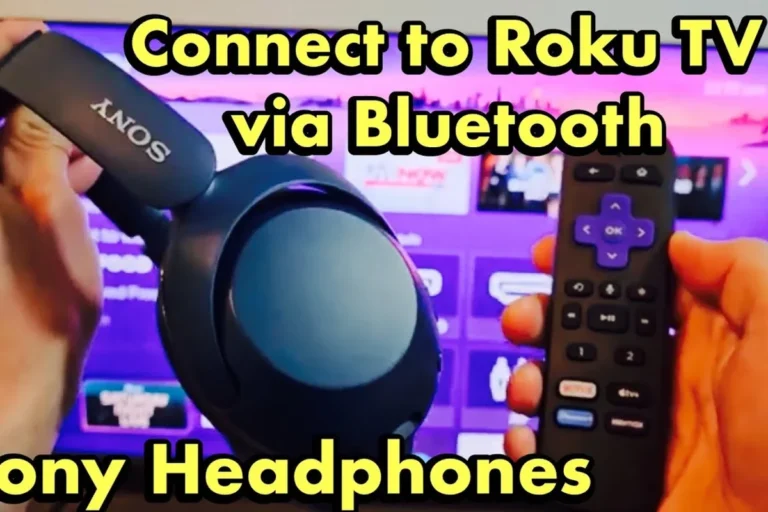
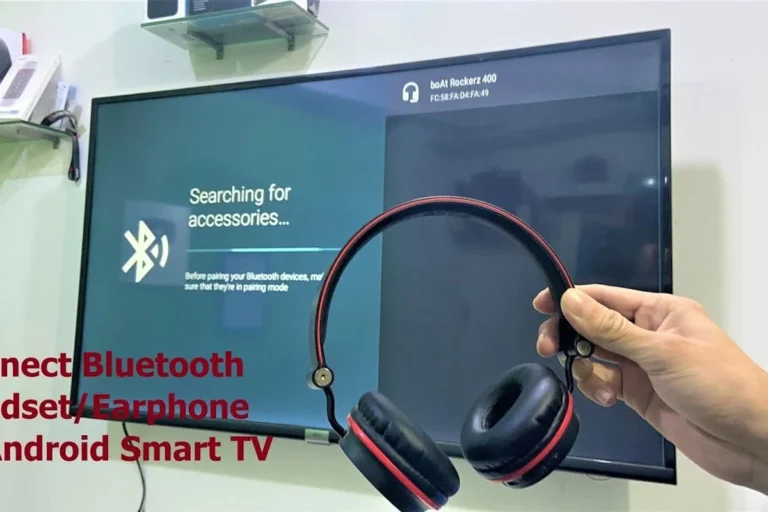
How Do Wifi Headphones Work: How They Connect

Introduction
Wi-Fi headphones connect to an audio source through a wireless network instead of relying only on Bluetooth. Your phone, TV, computer, or streaming service sends digital audio through Wi-Fi. The headphones then receive, decode, and play that audio through their speakers.
In the United States, most wireless headphones sold at major retailers still use Bluetooth. True Wi-Fi headphones are less common. They are mainly used for home audio, gaming, TV listening, lossless music, and multi-room systems. Some models use a small USB transmitter that creates a private 2.4 GHz connection rather than connecting to your home Wi-Fi router.
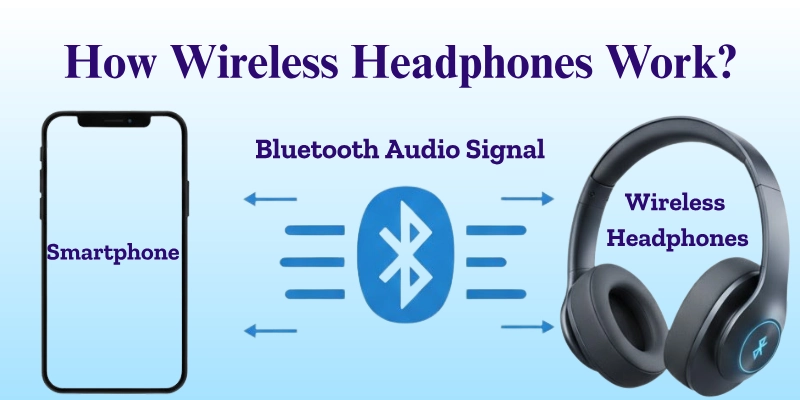
The key difference is simple: Bluetooth links the headphones directly to a nearby device, while Wi-Fi headphones often join a network or use a dedicated wireless link.

What Are Wi-Fi Headphones?
Wi-Fi headphones are headphones that receive audio over a Wi-Fi network or a Wi-Fi-based wireless connection. They contain a wireless chip, a small computer, a digital audio decoder, an amplifier, and speaker drivers.
A typical Wi-Fi audio path looks like this:
- An audio source selects music, a movie, or a game.
- The source changes the sound into digital data.
- The data travels over Wi-Fi.
- The headphones collect the data in small packets.
- The headphones place the packets in the right order.
- A decoder changes the data into an audio signal.
- An amplifier powers the left and right speakers.
Wi-Fi is based on the IEEE 802.11 family of wireless standards. The Wi-Fi Alliance explains that Wi-Fi devices use radio links to exchange data over a local network.
The term “Wi-Fi headphones” can describe several types of products:
- Network headphones: Connect to your home Wi-Fi network.
- Wi-Fi streaming headphones: Play music from online services or a local network.
- Gaming headphones with wireless transmitters: Use a dedicated 2.4 GHz link.
- TV headphones with base stations: Receive audio from a supplied transmitter.
- Hybrid headphones: Use Wi-Fi for some features and Bluetooth for others.
These types work in similar ways, but they are not interchangeable. A headset that uses a USB 2.4 GHz dongle may not connect to your home router. Likewise, network headphones may not work directly with a game console unless the console or an app supports them.

How Wi-Fi Headphones Send and Play Sound
Wi-Fi headphones work through several steps. Understanding each step makes it easier to choose, set up, and troubleshoot them.
1. The source creates digital audio
Music, speech, and movie sound begin as digital audio. A phone, smart TV, computer, or streaming box reads that audio from an app or file.
The audio may use a codec. A codec compresses and prepares sound for wireless transmission. Common examples include AAC, SBC, aptX, and Opus. Some Wi-Fi systems use higher-quality formats or send uncompressed audio across a private link.
The exact codec depends on the device, app, operating system, and headphone design. A high-resolution music file does not always remain high resolution after wireless transmission.
2. The transmitter sends data packets
The source divides the audio stream into small packets. Each packet includes part of the sound and information that helps the receiver rebuild the stream.
The packets travel by radio. Most home Wi-Fi devices use the 2.4 GHz or 5 GHz bands. Newer systems may also support 6 GHz Wi-Fi through Wi-Fi 6E or newer hardware.
The 2.4 GHz band often reaches farther and passes through walls better. The 5 GHz and 6 GHz bands can offer more room for data but usually have a shorter useful range indoors.
3. The headphones manage the stream
The headphones collect packets in a small buffer. A buffer is temporary memory that holds a short section of audio before playback.
This helps prevent brief gaps caused by interference or a delayed packet. A larger buffer can make playback more stable, but it may add delay. That delay can cause a person’s lips to move before you hear the matching speech.
Some systems use packet correction or retransmission. If a packet is lost, the system may request it again. This can improve sound continuity, but it can also increase latency.
4. The headphones decode the audio
A processor inside the headphones decodes the incoming data. It may also handle:
- Active noise cancellation
- Equalization
- Volume control
- Spatial audio
- Voice prompts
- Microphone processing
- Automatic room correction
The decoded signal then goes to a digital-to-analog converter, or DAC. The DAC changes digital numbers into an electrical audio signal.
5. The amplifier drives the speakers
The amplifier increases the signal strength. The headphone drivers then turn that signal into movement.
That movement creates pressure changes in the air. Your ears detect those changes as sound.
Wi-Fi does not directly make the sound better. Sound quality depends on the whole chain, including the source file, codec, DAC, amplifier, drivers, tuning, and fit.

Wi-Fi Headphones vs. Bluetooth Headphones
Wi-Fi and Bluetooth solve different problems. Neither is best for every listener.
| Feature | Wi-Fi headphones | Bluetooth headphones |
|---|---|---|
| Main connection | Home network or dedicated Wi-Fi link | Direct device-to-headphone link |
| Typical range | Often larger on the same network | Usually shorter |
| Internet needed | Sometimes; not always | No |
| Battery use | Often higher | Often lower |
| Setup | May require an app, network, or transmitter | Usually simple pairing |
| Multiple-room use | Often possible | Usually limited |
| Gaming delay | Can be low with a dedicated link | Varies by codec and device |
| Phone support | Depends on model and app | Very broad |
| Interference | Depends on local network traffic | Depends on Bluetooth congestion |
| Common availability | Less common | Very common |
Bluetooth headphones often make more sense for a phone, tablet, or laptop. They are easy to pair and do not need access to your home network.
Wi-Fi headphones can make more sense when you want a longer indoor range, direct music streaming, multi-room audio, or a dedicated gaming connection. They may also support more data than a basic Bluetooth link.
Still, Wi-Fi does not guarantee lower delay. A poorly designed network product can have more delay than a good Bluetooth headset. The radio method is only one part of the design.

Do Wi-Fi Headphones Need the Internet?
Wi-Fi headphones do not always need the internet. They need a wireless connection, but that connection may be local.
For example, headphones can receive audio from a computer on the same home network without the audio leaving your home. A dedicated transmitter can also send sound without any router or internet service.
The internet is needed when the headphones stream audio from an online service. It may also be needed during setup, firmware updates, account login, or voice assistant use.
Consider these examples:
- Local music file: Internet may not be needed.
- Music from a streaming service: Internet is needed somewhere in the system.
- Audio from a home media server: A local network may be enough.
- TV audio from a base station: Internet may not be needed.
- Firmware update: Internet access is usually needed.
- Bluetooth fallback: Neither Wi-Fi nor internet is needed after pairing.
A router creates the local network. It does not automatically provide audio. The source and headphones still need a supported app, protocol, or transmitter.
How Wi-Fi Headphones Connect to a Phone, TV, or Computer
The setup depends on the connection type. Read the product manual first, because a network headset and a USB wireless headset use different steps.
Network-based Wi-Fi headphones
- Charge the headphones.
- Install the manufacturer’s app if required.
- Put the headphones in setup mode.
- Connect your phone to your home Wi-Fi.
- Add the headphones in the app.
- Choose the correct Wi-Fi network.
- Enter the network password.
- Install updates if the app offers them.
- Select the headphones as the audio output.
Many setup tools use a temporary connection between the phone and headphones. The app then transfers the home network details to the headphones.
If your router combines its 2.4 GHz and 5 GHz bands under one name, setup may still work. Some older devices require a 2.4 GHz network. If setup fails, check the manual before changing router settings.
Headphones with a USB transmitter
- Connect the transmitter to the computer, console, or TV.
- Charge and turn on the headphones.
- Select the transmitter as the audio output.
- Pair the headphones with the transmitter if pairing is not automatic.
- Confirm that game, chat, and system audio use the right device.
A USB transmitter may use a private 2.4 GHz wireless link. This is often called “wireless” rather than true network Wi-Fi. It may offer low delay but work only with the included transmitter.
TV setup
A TV may support one or more of these options:
- A network audio app
- A USB audio transmitter
- An optical audio connection to a base station
- HDMI audio equipment
- Bluetooth audio
Check whether the TV can send sound to an external device. Some TVs can receive Wi-Fi content but cannot send all system audio over Wi-Fi.
A sign of success: you should hear the selected audio in both earcups, and the source should show the headphones or transmitter as active.

Why Wi-Fi Headphones Can Sound Better—or Worse
Wi-Fi headphones can carry more data than some Bluetooth connections, but that does not prove better sound.
The main factors are:
- Source quality: A low-quality stream cannot become high quality at the headphones.
- Codec: Different codecs use different levels of compression.
- Wireless profile: Some systems send lossless or uncompressed audio; others do not.
- Digital processing: Noise cancellation and equalization change the signal.
- Speaker drivers: Driver quality and tuning strongly affect the sound.
- Fit and seal: A poor seal can reduce bass and outside-noise control.
- Interference: Lost packets can cause skips or interruptions.
A Wi-Fi system may support lossless audio from a compatible source. “Lossless” means the data can reproduce the original encoded audio without lossy compression. It does not mean every recording sounds better, and it does not remove the limits of the headphones.
Do not choose Wi-Fi only because it has a larger theoretical bandwidth. Look for documented support for the audio formats and services you use.

Wi-Fi Headphone Range, Delay, and Battery Life
Wi-Fi performance changes with walls, distance, radio traffic, router placement, and the headphone design.
Range
A home Wi-Fi headset may work anywhere the network reaches. A dedicated transmitter may have a different range. Metal objects, concrete walls, appliances, and crowded apartment buildings can reduce coverage.
The advertised range is a test condition, not a guarantee for every U.S. home.
Audio delay
Delay matters most for movies, live TV, music production, and games.
A Wi-Fi system may add delay during:
- Audio encoding
- Packet buffering
- Network travel
- Error correction
- Audio decoding
- Video synchronization
A dedicated gaming transmitter may reduce delay because it controls both ends of the link. Network streaming systems may add more buffering to avoid dropouts.
Look for a stated latency mode or TV lip-sync setting. If the delay remains, reduce the distance to the router or transmitter, close heavy network traffic, and update the devices.
Battery life
Wi-Fi can use more power than Bluetooth because the headphones may maintain a network connection and process more data. Active noise cancellation and high volume also reduce battery life.
Battery claims usually depend on test settings. A model rated for a certain number of hours may last less with noise cancellation, calls, high volume, or Wi-Fi streaming enabled.
Common Wi-Fi Headphone Problems and Fixes
Use the safest and simplest checks first.
The headphones will not connect
Possible causes include a wrong network password, unsupported Wi-Fi band, setup mode not being active, or an app that lacks permission.
Try this order:
- Charge and restart the headphones.
- Confirm that your phone is on the same home network.
- Re-enter the Wi-Fi password.
- Move the headphones near the router.
- Check whether the product supports 2.4 GHz, 5 GHz, or 6 GHz.
- Update the app and headphone firmware.
- Remove the device from the app and set it up again.
- Perform a factory reset only after saving needed settings.
Audio cuts out
Dropouts may come from weak signal strength, network congestion, or interference.
Move the router or headphones, reduce distance, and test without a large download or video stream. If the product uses a USB transmitter, place the transmitter away from metal and other USB devices. A short USB extension cable may help position it in open space.
The sound is delayed
Check for a low-latency mode, game mode, or lip-sync control. Update the source and headphones. If the system uses a network app, avoid adding extra streaming devices that create another buffering step.
Some delay is normal. A system designed for multi-room playback may favor stable timing over instant response.
Only one side plays
Check the balance control, earcup charge, and connection status. Place both sides in the charging case or dock if the product uses one. Restart and re-pair the headphones.
If one side still fails after a reset, the problem may be hardware-related. Follow the manufacturer’s warranty or repair process.
The headphones work with music but not TV sound
The TV may not support Wi-Fi audio output. It may support network streaming in one direction but not wireless headphone output.
Use a compatible transmitter, optical adapter, USB audio device, or Bluetooth connection if the TV supports it. Do not assume that a smart TV can send all of its audio to any Wi-Fi headphone.
Are Wi-Fi Headphones Secure?
A home Wi-Fi connection should use modern wireless security. The Federal Communications Commission advises consumers to protect wireless networks with strong security settings and passwords.
Use these basic steps:
- Keep the router firmware updated.
- Use WPA2 or WPA3 when available.
- Avoid open public networks for private setup.
- Use a separate guest network for visitors and untrusted devices.
- Install headphone firmware updates from the official app.
- Review microphone and location permissions.
- Change default router and device passwords.
- Avoid unofficial firmware files.
Public Wi-Fi can create setup and privacy problems. It may block device discovery, isolate connected devices, or expose connection data to network operators. A private home network is usually simpler and safer for Wi-Fi audio.
Wireless security does not prevent every privacy risk. A headphone app may collect account, device, network, voice, or usage data. Read the product’s privacy policy before enabling cloud features or voice assistants.

Are Wi-Fi Headphones Right for You?
Choose based on the device and task, not the word “Wi-Fi.”
| Your main use | Usually the most practical choice |
|---|---|
| Phone calls and music on a phone | Bluetooth headphones |
| Gaming on a PC or console | Low-latency headset with a compatible transmitter |
| TV listening across a home | Wi-Fi or dedicated TV headphones |
| Multi-room music | Network audio headphones or speakers |
| Travel | Bluetooth headphones |
| Lossless home streaming | A documented Wi-Fi or wired system |
| Music production | Wired headphones or a verified low-latency system |
| Shared household listening | Headphones that support the TV or audio source directly |
Wi-Fi headphones may be a good fit if you want home-wide coverage, network streaming, or a dedicated link for gaming. They may be a poor fit if you need simple travel use, broad phone compatibility, or long battery life.
For many people, the best solution is a hybrid model. Bluetooth handles phones and travel, while Wi-Fi or a transmitter handles home listening. Check whether both modes can work independently and whether features change between them.

Frequently Asked Questions
Do Wi-Fi headphones use a router?
Network Wi-Fi headphones usually use a router or access point. Headphones with a dedicated USB transmitter may not use your router at all. Their transmitter creates a separate wireless connection.
Can Wi-Fi headphones work without Bluetooth?
Yes, if the product supports Wi-Fi or a dedicated wireless transmitter on its own. Some models use Bluetooth for setup, calls, or fallback features. Check the exact product specifications.
Do Wi-Fi headphones work with an iPhone?
They can, but support depends on the model and app. An iPhone may control network headphones through a manufacturer app, while Bluetooth headphones usually pair through iOS settings. Wi-Fi does not mean that every iPhone app can send audio to the headphones.
Can Wi-Fi headphones connect to a smart TV?
Only if the TV and headphones support a compatible method. A smart TV may support streaming apps but lack Wi-Fi audio output. A dedicated USB, optical, or Bluetooth transmitter may be required.
Is Wi-Fi better than Bluetooth for headphones?
Neither is always better. Wi-Fi can offer longer home coverage and support network or dedicated audio links. Bluetooth is usually easier, more portable, and more widely supported. The better choice depends on your source, range, delay needs, and battery priorities.

Key Takeaways
- Wi-Fi headphones receive digital audio through a home network or a dedicated wireless transmitter.
- Most everyday wireless headphones in the United States still use Bluetooth.
- Wi-Fi does not automatically mean better sound.
- Network headphones may need an app, router, and compatible audio source.
- A USB 2.4 GHz headset may be wireless but may not connect to your home Wi-Fi.
- Check range, latency, codecs, battery life, TV support, and security before buying.
- For travel and phones, Bluetooth is often simpler. For home coverage, gaming, or network streaming, Wi-Fi may offer useful advantages.
Conclusion
Wi-Fi headphones work by moving digital audio through a wireless network or a dedicated Wi-Fi-based link. The headphones receive data packets, buffer them, decode the audio, and use an amplifier and speaker drivers to create sound.
The right choice depends on how you listen. If you want easy phone pairing, Bluetooth is usually the practical option. If you need home-wide range, network streaming, or a low-delay gaming transmitter, Wi-Fi headphones may be worth considering.
Before setup or purchase, confirm the exact connection method. Then check compatibility with your phone, TV, computer, router, streaming service, and gaming system.