How to Connect Bluetooth Headphones to Onn Roku TV Easily

You can connect Bluetooth headphones to an Onn Roku TV by using Roku private listening, direct Bluetooth pairing if your model supports it, or a Bluetooth transmitter. The easiest method depends on your exact TV model and whether you want the simplest setup or the lowest audio delay.
If you want to know how to connect Bluetooth headphones to an Onn Roku TV, the answer depends on your exact TV model and Roku software features. Some Onn Roku TVs support private listening through the Roku mobile app, while others may need a Bluetooth transmitter for direct wireless audio.
- Check the model: Onn Roku TV Bluetooth support can vary by version.
- Use the Roku app first: Private listening is often the simplest option.
- Try a transmitter: It helps when the TV lacks native Bluetooth audio.
- Watch for lag: Gaming and movies may need lower-latency gear.
Can You Connect Bluetooth Headphones to an Onn Roku TV in 2025?
Yes, in many cases you can listen wirelessly on an Onn Roku TV, but the method is not always the same as pairing headphones to a phone. Roku TV support can vary by model, so the easiest path is to check whether your TV supports Bluetooth audio, the Roku mobile app, or an external transmitter.
What Roku TV Bluetooth Support Actually Includes on Onn Models
Onn Roku TVs do not all handle Bluetooth the same way. Some models may allow Bluetooth accessories or private listening features, while others rely on the Roku app instead of native headphone pairing.
That means “Bluetooth headphones support” can mean a few different things: direct pairing in the TV settings, listening through the Roku app on your phone, or using a separate Bluetooth transmitter plugged into the TV.
Why Searchers Want a Simple Wireless Listening Setup
Most people want a quiet way to watch TV at night without waking others. Others want clearer dialogue, less room noise, or a better setup for gaming and streaming in shared spaces.
A wireless headphone connection also helps reduce cable clutter. For many viewers, that convenience matters as much as sound quality.
What You Need Before Pairing Bluetooth Headphones
Before you try connecting anything, it helps to know what kind of wireless audio your Onn Roku TV supports. A few minutes of checking can save a lot of pairing frustration later.
Compatible Onn Roku TV Models and Roku OS Requirements
Start by checking your TV model number and Roku OS version in the settings menu. Some features are available only on certain Roku TV hardware or newer software versions, so compatibility may vary by model and update level.
If your TV has a “Private Listening” option in the Roku mobile app, that is often the easiest route. If you do not see Bluetooth audio options in the TV menus, you may need a workaround instead of native pairing.
Bluetooth Headphones, Earbuds, or Transmitters: What Works Best
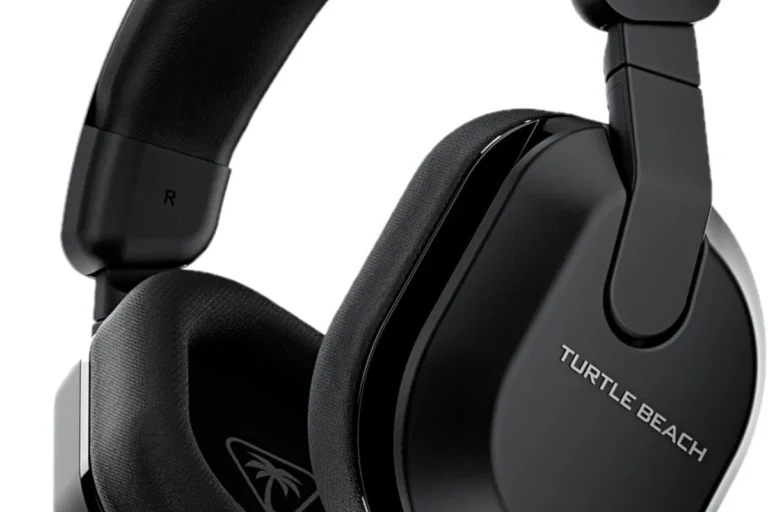
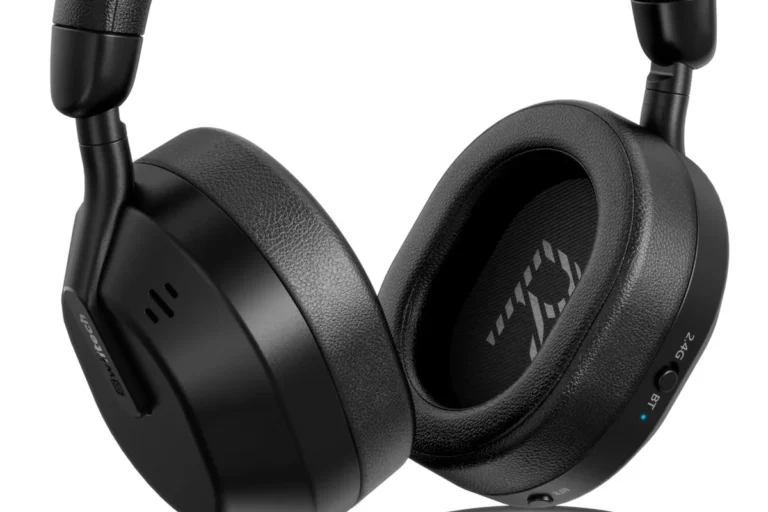
Bluetooth over-ear headphones are usually the most comfortable for long viewing sessions. Earbuds can be convenient and compact, but they may feel less comfortable for extended movie nights depending on fit.
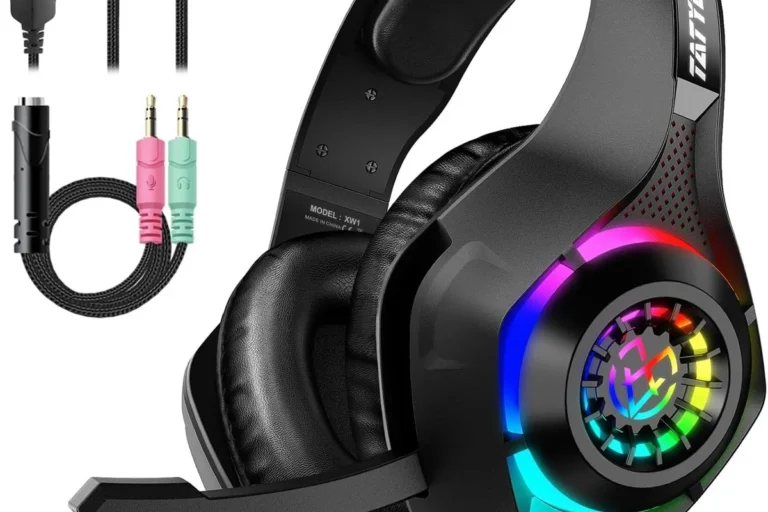
If your TV does not support direct Bluetooth pairing, a Bluetooth transmitter is often the best backup. It plugs into the TV’s audio output and sends sound to your headphones wirelessly.
Quick Checklist for Batteries, Range, and Device Reset
Make sure your headphones are charged and in pairing mode before you begin. Also keep them close to the TV during setup, since pairing is easier within a short range.
- TV model and Roku OS version
- Headphone battery level
- Bluetooth pairing mode
- Distance between devices
- Any old paired devices that may interfere
If your headphones have been used with many devices, a reset can help clear pairing memory. You can also reset Bluetooth headphones before trying again if the connection keeps failing.
Listening at high volumes for long periods can cause hearing damage. Keep volume at 60% or below for extended sessions.
How to Connect Bluetooth Headphones to Onn Roku TV Step by Step
There are three common ways to get wireless audio from an Onn Roku TV. The best one depends on whether your TV supports Roku private listening, direct Bluetooth pairing, or only external audio accessories.
Using Roku Mobile App Private Listening
For many Roku TV owners, the Roku mobile app is the simplest option. It lets you route TV audio to your phone and listen through headphones connected to the phone.
Download the Roku mobile app on your iPhone or Android phone and make sure it is signed into the same Roku account or connected to the same network as your TV.
Pair your Bluetooth headphones to the phone first. Once the phone audio works, the app can send TV sound through that connection.
In the Roku app, look for the private listening or headphones option. Start playback on the TV, then switch the audio route to your phone.
This method is useful because it avoids some TV compatibility issues. It can also be a good option if you already use your phone with headphones often.
If dialogue sounds too soft, try the TV’s speech or volume leveling settings before raising headphone volume too much.
Pairing Through Roku TV Settings When Bluetooth Audio Is Supported
If your Onn Roku TV has native Bluetooth audio support, pairing is usually done from the settings menu. The exact menu labels can differ slightly by model and Roku version, but the process is generally similar.
Go to the Roku TV home screen, then open Settings and look for a Bluetooth, Remote, or Audio section if available.
Hold the pairing button or follow your headphone model’s pairing instructions until the indicator light flashes.
Choose your headphones from the list if they appear. Wait for the connection confirmation before leaving the menu.
If you do not see any Bluetooth audio option, that usually means your model may not support direct pairing. In that case, the Roku app or a transmitter is the better route.
Roku menu names can vary by device, so not seeing the exact same option on every Onn TV does not necessarily mean something is broken.
Connecting via a Bluetooth Transmitter if Your TV Does Not Support Direct Pairing
A Bluetooth transmitter is the most reliable workaround when the TV itself cannot send audio to headphones. It connects to the TV’s audio output and then pairs with your headphones just like a source device.
This is especially helpful for older Onn Roku TVs or models with limited wireless audio features. If you are comparing a transmitter setup to other headphone methods, it can help to read about Bluetooth headphones explained simply so you know what to expect from the connection.
Plug the transmitter into the TV’s audio port, power it on, and pair your headphones to the transmitter instead of the TV. If you notice lag, a better-quality transmitter may help more than changing the headphones alone.
Best Use Cases and Real-World Examples
Once the connection is working, the real value comes from how you use it. Wireless headphones can improve comfort, privacy, and clarity in everyday viewing.
Late-Night TV Watching Without Disturbing Others
This is the most common reason people ask how to connect bluetooth headphones to onn roku tv. It lets you keep the volume comfortable for yourself while avoiding noise in bedrooms, apartments, or shared living rooms.
Over-ear headphones are often the best choice here because they tend to feel more comfortable during long sessions. If you prefer quieter surroundings as well as softer outside noise, noise cancelling headphones can be a strong match for nighttime viewing.
Gaming, Streaming, and Dialogue Clarity for Shared Spaces
Bluetooth headphones can also help when you want clearer speech in movies, shows, or casual gaming. They are useful if the room has background noise, or if other people are talking nearby.
For gaming, latency matters more than it does for regular TV. If you notice sound arriving late, a transmitter with lower-latency support or a wired alternative may be a better fit.
Using One Headphone Pair Across TV, Phone, and Console
Many people want one headset for everything instead of buying separate audio gear. That can work well if your headphones pair easily and switch between devices without too much hassle.
Just remember that not every Bluetooth headset behaves the same way across TV, phone, and console use. Some models handle switching smoothly, while others need manual reconnection each time.
Bluetooth headphone lag is often more noticeable in lip-sync-heavy content like movies and games than in podcasts or talk shows.
Common Problems When Connecting Bluetooth Headphones to Onn Roku TV
Even when everything is compatible, pairing can still be finicky. Most issues come down to pairing mode, interference, or the type of wireless setup you are using.
Headphones Not Showing Up in Pairing Mode
If your headphones do not appear, turn them off and back on, then re-enter pairing mode. It also helps to disconnect them from nearby devices like phones or laptops so they do not reconnect elsewhere first.
Move closer to the TV or transmitter during setup. Short range is better for pairing than trying to connect from across the room.
Audio Delay, Lip-Sync Issues, and How to Reduce Them
Bluetooth audio delay is one of the most common complaints in TV setups. It may be more obvious during dialogue scenes, sports, or fast-paced gaming.
To reduce it, look for low-latency transmitters, update your Roku software, and check whether your headphones have a gaming or low-lag mode. If the delay still bothers you, wired audio may be the cleaner solution.
Not every Bluetooth codec or transmitter is designed for TV lip-sync performance. Cheap accessories can work, but they may introduce more delay than you expect.
Connection Drops, Low Volume, and Range Interference
If the connection cuts out, check for obstacles between the TV and headphones. Walls, furniture, and other wireless devices can weaken the signal.
Low volume can also be caused by the TV output settings, the transmitter, or the headphone volume itself. Test each point separately so you can find where the bottleneck is.
If you have persistent hearing discomfort, tinnitus, or notice you keep raising volume to hear dialogue, consider asking an audiologist about safe listening habits and hearing-friendly volume levels.
Expert Advice: Mistakes to Avoid Before You Buy or Pair
A little planning can save money and make the setup much easier. The biggest mistakes usually happen when buyers assume every Onn Roku TV works the same way.
Why Some Onn Roku TVs Need Workarounds Instead of Native Bluetooth
Some Onn Roku TVs are built around Roku’s ecosystem rather than full Bluetooth headphone support. That is why one model may pair directly while another needs the app or a transmitter.
Before buying new headphones for TV use, check whether your specific model supports private listening or direct audio pairing. That simple step can prevent a lot of returns.
Warning Signs of Cheap Transmitters and Weak Bluetooth Codecs
Very cheap transmitters may connect, but they can also bring more delay, weaker range, or unstable audio. If a product gives almost no detail about compatibility, that is usually a sign to be cautious.
Codec support can matter too, but real-world performance still depends on the whole chain: TV output, transmitter quality, headphone support, and room interference.
When Wired Alternatives May Be Better Than Bluetooth
Bluetooth is convenient, but it is not always the best choice. If you want the lowest possible delay for gaming or the most predictable audio, wired headphones or a wired transmitter setup may work better.
For readers comparing wireless and wired sound quality, our guide on Bluetooth vs wired headphones sound quality can help explain the trade-offs in a simple way.
Cost Comparison: Built-In Bluetooth vs Bluetooth Transmitter Setup
The cheapest option is usually the one your TV already supports. If your Onn Roku TV offers private listening or native pairing, you may not need to buy anything extra.
Budget-Friendly Options for Casual Viewers
For casual TV watching, a basic Bluetooth headset or earbuds plus the Roku mobile app may be enough. This setup is often the easiest starting point because it keeps costs down and avoids extra hardware.
Mid-Range and Premium Headphone Pairings for Better Range and Latency
Mid-range headphones often improve comfort, microphone quality, and connection stability, but performance still varies by brand and model. Premium models may offer better fit, stronger battery life, or more consistent sound, though they are not automatically better for TV use.
If you care about comfort during long sessions, look for lighter designs, softer ear cushions, and easy-to-use controls. For deeper background on fit and style, types of headphones explained is a helpful starting point.
What Setup Delivers the Best Value for Onn Roku TV Owners
For most people, the best value is the setup that matches the TV’s built-in support first, then adds a transmitter only if needed. That usually gives the cleanest balance of cost, convenience, and sound quality.
If your TV already supports private listening, use that before buying extra gear. If not, a decent transmitter is often a smarter purchase than replacing perfectly good headphones.
Final Recap: The Easiest Way to Get Private Wireless Audio on Onn Roku TV
The easiest path is to use Roku private listening through the mobile app when your Onn Roku TV supports it. If direct Bluetooth pairing is available in your TV settings, that is also a simple option.
Best Method by TV Model and Listening Need
For casual viewing, the Roku app is usually the quickest solution. For more stable TV-only listening, direct pairing or a Bluetooth transmitter may be better depending on your model.
For gaming or lip-sync-sensitive content, a low-latency setup matters more than convenience alone. In that case, test carefully before settling on a final setup.
Key Takeaways for a Smooth 2025 Setup
Check your exact Onn Roku TV model first, then choose the simplest compatible method. Keep expectations realistic, because Bluetooth support can vary and some TVs need workarounds instead of direct pairing.
Once the right method is in place, wireless headphone listening becomes easy to live with. It is one of the most useful upgrades for quiet, private, and more comfortable TV watching.
Frequently Asked Questions
Some Onn Roku TVs support direct Bluetooth audio, but not all models do. If your TV does not show Bluetooth pairing options, the Roku app or a transmitter may be needed.
The Roku mobile app private listening feature is often the easiest method. It sends TV audio to your phone, where your Bluetooth headphones can play it.
Bluetooth can add latency, which causes lip-sync issues in movies and games. A low-latency transmitter or wired connection may reduce the delay.
Over-ear headphones are usually best for long TV sessions because they tend to be more comfortable. In-ear earbuds are more compact, but comfort depends on fit and personal preference.
Look at battery life, comfort, Bluetooth version, latency support, and whether the headphones have a stable connection. Sound quality can also depend on tuning, bass response, and clarity for dialogue.
For gaming, prioritize low latency and stable connection. For long sessions, focus on comfort, lightweight build, soft ear cushions, and battery life that fits your viewing habits.