How to Use Xbox One Headphones Easily and Effectively

Use Xbox One headphones by matching the headset type to the console connection, then plug in or pair the headset and adjust audio settings. For the best results, check chat volume, mic input, and compatibility before you start gaming.
If you want to know how to use Xbox One headphones without trial and error, the short version is this: match the right headset type to your setup, connect it correctly, then fine-tune chat and game audio in the Xbox settings. The exact steps depend on whether you’re using a wired 3.5mm headset, a controller adapter, a wireless Xbox headset, or audio coming through your TV or monitor.
This guide from the Top Headphone Reviews Editorial Team walks you through the practical basics in a simple way. If you’re also comparing headset types, our types of headphones explained guide can help you understand why some models work better for gaming, comfort, and long sessions than others.
- Match the connection: Use 3.5mm, adapter, or supported wireless options.
- Set audio properly: Balance game sound and chat volume in Xbox settings.
- Check the mic: Test mute, privacy, and input levels if chat is quiet.
- Avoid Bluetooth assumptions: Not all Bluetooth headphones work directly on Xbox One.
How to Use Xbox One Headphones: What This Guide Covers in 2026

Xbox One headphone setup is usually simple once you know which connection method your headset uses. The main challenge is that not every headphone works the same way on Xbox One, especially if you’re coming from a phone, PC, or Bluetooth-only setup.
In this article, we cover compatibility, connection steps, audio settings, and common problems. We also explain where wired models are still the easiest choice, when wireless makes more sense, and how to avoid the most common setup mistakes.
Headphone compatibility can vary by brand, controller version, console model, and software updates. If your headset has special software or a proprietary dongle, always check the manufacturer’s Xbox support notes first.
Xbox One Headphone Compatibility: Wired, Wireless, and Controller-Based Options

The easiest way to use Xbox One headphones is to match the headset to the console’s supported audio paths. That usually means either a wired headset plugged into the controller, an official Xbox wireless headset, or audio routed through your TV or monitor.
Some headsets that work well on PlayStation, Switch, or phones may not behave the same way on Xbox One. A little compatibility checking up front can save you from weak chat audio, no mic input, or awkward adapter issues later.
3.5mm Headphones vs. Xbox Stereo Headset Adapter
If your controller has a 3.5mm headphone jack, a wired headset is usually the simplest option. You plug the headset directly into the controller, then adjust volume and chat settings from the Xbox system menu.
If your controller does not have a built-in jack, you may need an Xbox Stereo Headset Adapter or a compatible controller accessory. This adapter lets you manage volume and chat controls more easily, but it adds another piece to the setup, so make sure it is firmly connected.
If a wired headset sounds unbalanced, unplug it and reconnect it slowly. A loose 3.5mm connection is one of the most common reasons for audio playing in only one ear.
Bluetooth Headphones on Xbox One: What Works and What Does Not
Bluetooth is the most misunderstood part of Xbox One headphone use. In many cases, standard Bluetooth headphones do not connect directly to the Xbox One for game audio the way they do with a phone or laptop.
That means you should not assume every wireless headset will work just because it says “Bluetooth.” Some models need a USB dongle, a base station, or a dedicated Xbox wireless connection instead. If you want a deeper look at the technology behind it, our Bluetooth headphones explained simply article is a helpful companion read.
Do not buy a headset based only on the word “wireless.” For Xbox One, wireless support depends on the headset’s connection method, not just the absence of cables.
Xbox Wireless Headsets and Officially Supported Models
Xbox wireless headsets are usually the cleanest wireless option because they are designed for Xbox compatibility. They often connect more reliably than generic Bluetooth models and may give you better voice chat integration.
Officially supported models can vary over time, so it is smart to check the headset’s packaging or product page for Xbox compatibility before buying. If you already own a wireless headset, look for a dedicated Xbox wireless mode, USB dongle support, or clear confirmation that it works with Xbox One.
How to Connect Xbox One Headphones Step by Step
Once you know the right headset type, the setup process is straightforward. The key is to connect the audio source first, then confirm that the console is sending sound to the headset instead of the TV speakers.
For many players, the easiest route is a wired headset into the controller. For others, especially those who want less cable clutter, a supported wireless headset or TV-based audio route may be the better fit.
Connecting Headphones Directly to the Xbox One Controller
Insert the 3.5mm plug fully into the controller jack. If you are using an adapter, attach the adapter first, then connect the headset.
Power on the controller and make sure the headset is not muted. If the headset has its own inline controls, check those too.
Start a game or party chat and confirm you can hear both sound sources clearly. Adjust the volume if the mix feels too loud or too quiet.
If you use wired gaming gear often, it can help to know how headphone cables, plugs, and adapters behave across devices. Our do wired headphones work on MacBook guide covers a similar plug-and-play idea in a different setup.
Pairing a Wireless Xbox Headset to the Console
Wireless pairing depends on the headset design. Some Xbox-compatible headsets use a pairing button, while others rely on a USB transmitter or a base station that handles the connection automatically.
Follow the headset’s pairing instructions closely, then confirm that the headset appears as the active audio device. If pairing fails, power-cycle the headset and console, then try again in a quiet environment with other wireless devices moved away if possible.
Wireless headset problems are often caused by pairing confusion, not broken hardware. Reconnecting from scratch can fix many “no sound” issues faster than changing settings one by one.
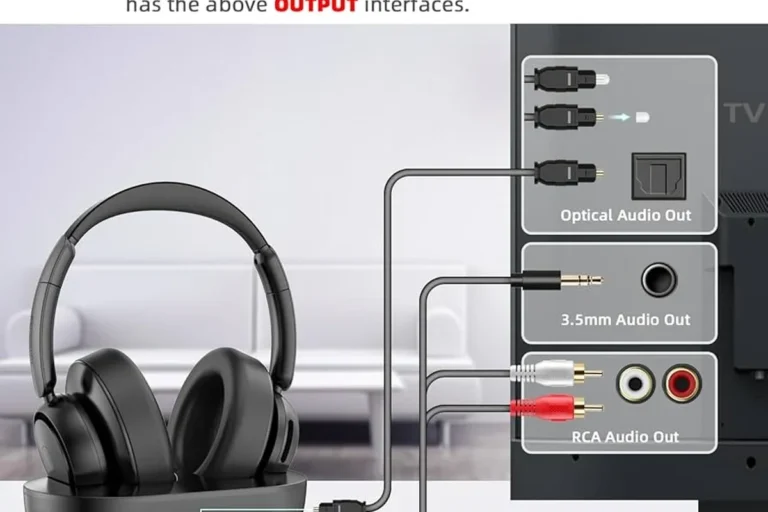
Using TV, Monitor, or Audio Extractor Connections
Some players prefer to route audio through a TV or monitor instead of the controller. This can work well for solo play, streaming apps, or setups where the headset connects to the display rather than the console.
If your display has a headphone output, you can use that for listening. If not, an audio extractor or compatible soundbar setup may help, but these options vary a lot and can introduce extra latency or volume quirks.
How to Set Up Audio and Mic Settings for the Best Gaming Experience
Good headphones are only part of the experience. On Xbox One, the system settings matter just as much because they control how loud the game sounds are, how your voice chat is balanced, and whether the microphone is working properly.
Taking a minute to adjust these settings can make a budget headset feel much better. It can also help a premium headset sound cleaner and more natural during long sessions.
Adjusting Game, Chat, and Headset Volume
Start by opening the Xbox audio or headset settings and checking the volume sliders. If chat is too quiet, raise chat volume first before turning up everything else.
For most players, a balanced setup means game audio stays immersive while chat remains easy to understand. If the headset has its own volume wheel, keep it at a moderate level and use the console settings for fine-tuning.
Balancing Voice Chat Clarity and In-Game Sound
In fast games like shooters, voice chat clarity matters because team callouts can get buried under effects and music. In story-driven games, you may want richer game sound and slightly lower chat volume.
Try a few minutes of gameplay with different settings until voices sound natural and the game still feels full. If your headset supports EQ, a small midrange boost can sometimes improve speech clarity, though results vary by model.
Testing the Microphone and Fixing Low Input Issues
If friends say you sound distant or quiet, test the microphone in a party chat or system voice test if available. Make sure the mic is not muted on the headset, inline control, or console menu.
Low mic input can also happen if the plug is not fully seated, the adapter is loose, or privacy settings are restricting voice features. If the headset works on one device but not Xbox One, the issue is often settings-related rather than a damaged microphone.
Listening at high volumes for long periods can cause hearing damage. Keep volume at 60% or below for extended sessions.
Practical Use Cases: Party Chat, Solo Gaming, and Streaming Audio
Different gamers use Xbox One headphones in different ways. A headset that is great for party chat may not be the best choice for quiet single-player sessions or for streaming with a capture setup.
Thinking about your main use case helps you choose the right balance of mic quality, comfort, and sound signature. That is often more useful than chasing the longest spec sheet.
Using Xbox One Headphones for Multiplayer Communication
For multiplayer, the most important features are clear voice pickup, stable connection, and comfortable long-term wear. If your headset clamps too tightly or gets hot quickly, it can become annoying during long party sessions.
Closed-back designs can help keep game sound from leaking into the mic, while a decent boom mic or clear inline mic helps teammates hear you better. For players who spend a lot of time in voice chat, comfort usually matters as much as sound quality.
Optimizing Headphones for Story Games, Shooters, and TV Apps
Story games often benefit from fuller sound and better separation, while shooters may need sharper directional cues and clearer footsteps. TV apps and streaming services may sound best with a more relaxed tuning and less aggressive bass.
If you switch between game genres often, consider a headset with easy EQ access or a balanced default sound profile. That way, you can keep dialogue clear without making action scenes feel thin.
How Streamers and Casual Players Should Configure Headset Audio
Streamers usually need a cleaner mic signal and more predictable monitoring. Casual players may care more about comfort, simple controls, and quick plug-and-play use.
If you stream, test your voice level before going live and make sure the headset does not pick up too much echo from the room. If you are a casual player, keep the setup simple so you are less likely to change settings every time you play.
Common Mistakes When Using Xbox One Headphones and How to Avoid Them
Most Xbox One headphone problems are caused by setup mistakes, not bad luck. The good news is that many of them are easy to fix once you know what to look for.
Before replacing a headset, check the basics: connection type, controller compatibility, mute status, and audio routing. Those four areas solve a surprising number of issues.
Wrong Adapter, Wrong Port, or Incorrect Controller Setup
Using the wrong adapter is a common mistake, especially with older controllers or headsets meant for other platforms. Some accessories look similar but do not behave the same way on Xbox One.
Also make sure the headset is plugged into the correct port and that the controller firmware is up to date if needed. A headset that seems broken may simply be connected the wrong way.
Audio Too Quiet, Echoing, or Only Playing in One Ear
Quiet sound can come from low console volume, a weak adapter connection, or a headset that is not fully seated in the jack. Echo often happens when both TV speakers and headset audio are active at the same time.
If audio only plays in one ear, test the headset on another device and check the plug for dirt or partial insertion. A simple reconnect often fixes the issue, especially with wired models.
Mic Not Working Because of Mute, Privacy, or System Settings
If your microphone is not working, start with the mute switch and then check Xbox privacy or communication settings. Some accounts or family settings can limit chat features without making the cause obvious.
If the mic still fails, try another controller or another headset if possible. That helps you tell whether the problem is the headset, the controller, or the account settings.
Expert Advice: Best Practices, Budget Tips, and When to Upgrade Your Headset
The best Xbox One headphone setup is usually the one that matches your habits, not the one with the most features. A simple wired headset can be a better value than a complicated wireless model if you mostly play at home and want low hassle.
On the other hand, if you hate cables or want easier couch gaming, a supported wireless headset may be worth the extra cost. The right choice depends on comfort, sound quality, microphone quality, and how often you play.
If you notice persistent ringing, muffled hearing, or discomfort after gaming, consider reducing listening time and speaking with an audiologist. If a headset consistently sounds distorted at normal volume, a professional audio specialist or the manufacturer’s support team may also help.
Choosing Between Budget, Mid-Range, and Premium Xbox Headphones
Budget headphones can be perfectly fine if you mainly need clear chat and basic game audio. Mid-range models often improve comfort, mic quality, and overall tuning without becoming overly complicated.
Premium headsets may offer better materials, wireless convenience, and more refined sound, but they are not always necessary for every player. Choose the tier that matches your playtime and comfort needs, not just the highest price range.
When a New Headset Is Better Than Fixing an Old One
If your current headset has a damaged cable, weak battery, broken ear cushions, or a mic that cuts out repeatedly, replacement may be the smarter move. Frequent repair attempts can cost more time than the headset is worth.
This is especially true if the headset is already uncomfortable or no longer supported on Xbox One. In that case, upgrading can improve both reliability and day-to-day gaming comfort.
Warning Signs of Poor Sound Quality or Incompatible Accessories
Watch for constant crackling, one-sided audio, unstable Bluetooth behavior, or a mic that only works when you hold the cable in a certain position. Those are strong signs that the headset or accessory is not the right match.
If a product is not clearly listed as Xbox One compatible, be cautious. Compatibility claims can be vague, and “works with consoles” does not always mean it works well with Xbox chat and game audio.
Final Recap: The Easiest Way to Use Xbox One Headphones Correctly
The easiest way to use Xbox One headphones is to choose a headset that matches your connection type, connect it properly, and then balance game and chat audio in the system settings. For most players, a wired 3.5mm headset or an officially supported Xbox wireless headset offers the least frustration.
Once the headset is connected, spend a minute testing volume, mic input, and chat clarity. That small setup step makes a big difference in comfort, communication, and overall sound quality during every gaming session.
Frequently Asked Questions
Wired headsets are usually the simplest and most reliable option on Xbox One. Wireless can be great too, but only if the headset is officially compatible or uses a supported Xbox connection method.
Standard Bluetooth headphones usually do not connect directly to Xbox One for full game audio and chat. Some wireless models need a USB dongle, base station, or Xbox-specific wireless support instead.
Closed-back headphones are usually better for Xbox One gaming because they help isolate sound and reduce leakage into the mic. Open-back models can sound wider, but they are less ideal if you want privacy or clearer party chat.
Look for clear mids for voice chat, enough bass for immersion, and comfortable tuning for long sessions. Driver type, fit, and EQ options can matter more than one specific spec on the box.
Focus on compatibility, comfort, and a working microphone before chasing premium features. A simple wired headset with decent build quality is often the best budget choice for most players.
Check ear cushion material, headband padding, weight, and clamp force for long-session comfort. For durability, look for sturdy cables, solid hinges, and removable or replaceable parts when possible.