Can I Use Bluetooth Headphones on Xbox One Easily

No, standard Bluetooth headphones usually do not connect directly to Xbox One for normal game audio. The easiest solutions are a wired headset through the controller or an Xbox Wireless headset.
If you’re wondering, “can i use bluetooth headphones on xbox one,” the short answer is usually no, not directly. Xbox One does not support standard Bluetooth audio for most headphones, so you’ll need a workaround such as a wired connection, an Xbox Wireless headset, or a transmitter setup.
- Direct Bluetooth: Usually not supported on Xbox One.
- Best simple fix: Use the controller’s headphone jack.
- Best wireless fix: Choose an Xbox Wireless headset.
- Workaround option: A TV or monitor transmitter may work.
Can I Use Bluetooth Headphones on Xbox One? What the Console Actually Supports

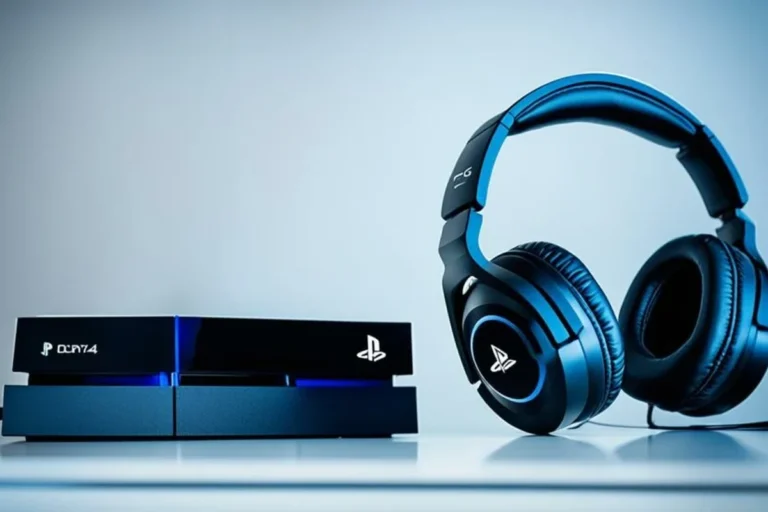
Xbox One is not built like a phone or laptop when it comes to wireless audio. Most Bluetooth headphones cannot pair with the console for game sound the way they do with a smartphone, because Xbox One does not offer native Bluetooth headphone support for general audio output.
That does not mean you are stuck without options. The console can still send audio through the controller’s 3.5mm jack, through certain TV or monitor outputs, or through headsets made for the Xbox Wireless ecosystem. If you want a broader overview of how wireless audio works, our guide to Bluetooth headphones explained simply can help make the difference clearer.
Bluetooth support on Xbox One is limited by design, not by a broken headset. In most cases, the issue is console compatibility rather than headphone quality.
Why Xbox One Does Not Work Like PlayStation, PC, or Phones with Bluetooth Audio
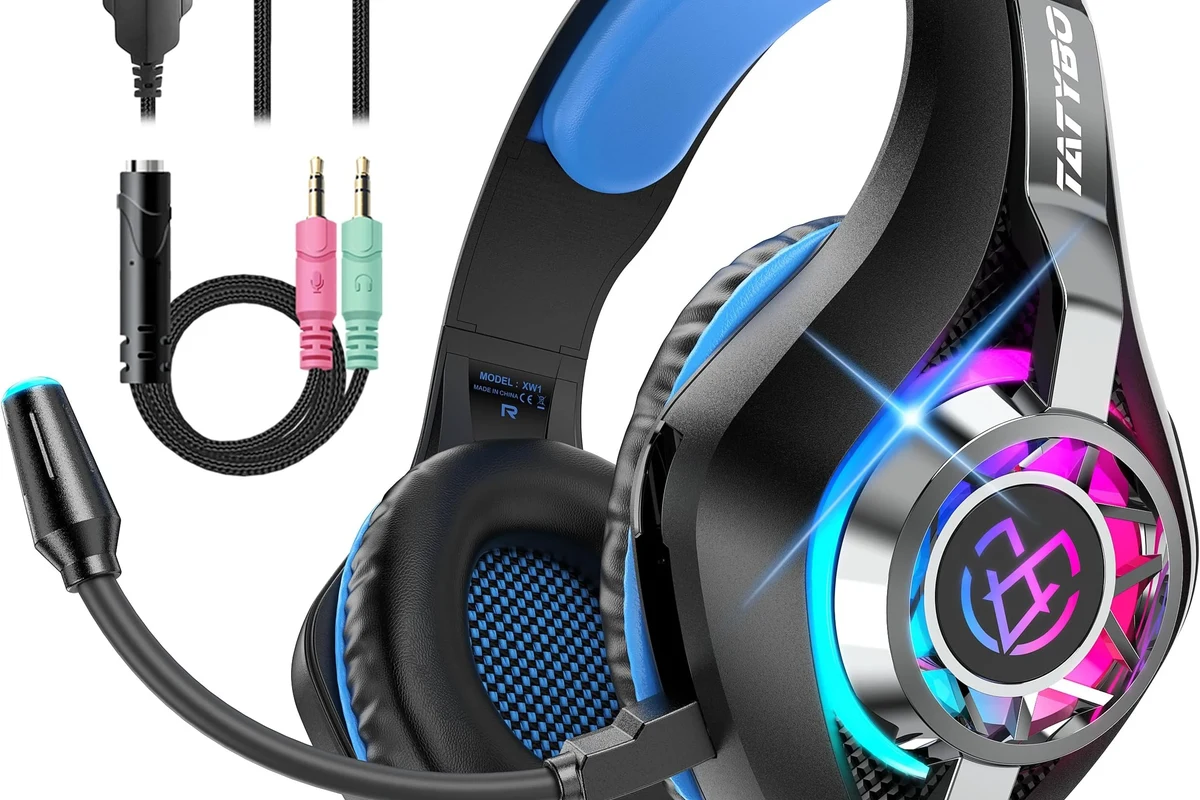
Many gamers assume every modern console should work like a phone. In reality, Xbox One uses its own wireless audio approach, and that is why standard Bluetooth headphones usually fail to connect for normal gameplay audio.
There are a few reasons for this. First, Bluetooth can introduce delay, which is a problem in games where sound cues matter. Second, Xbox party chat, game chat, and microphone support are not always handled well through generic Bluetooth connections. Third, Microsoft has historically pushed its own wireless accessory system instead of open Bluetooth headphone pairing.
This is also why a headset that works perfectly on a phone may still be a poor match for Xbox One. If you want to compare wireless and cable-based listening more broadly, our breakdown of Bluetooth vs wired headphones sound quality is a useful reference.
Some Bluetooth adapters may connect to Xbox One audio sources, but they can still add lag or limit microphone use. Always check the adapter’s compatibility and return policy before buying.
Best Ways to Connect Headphones to Xbox One in 2026
In 2026, the best Xbox One headphone setup depends on what matters most to you: simplicity, wireless freedom, chat support, or sound quality. The most reliable options are still wired through the controller, Xbox Wireless headsets, or a Bluetooth transmitter connected to your TV or monitor.
Using a Wired Connection Through the Xbox Controller
This is the easiest and most dependable method. Plugging headphones into the controller’s 3.5mm jack gives you immediate game audio, and it usually avoids the lag problems that come with Bluetooth.
For many players, this is the best “just works” solution. It is especially practical if you already own a good wired headset or if you want to keep costs low. Comfort, cable length, and mic quality will vary by headset model, so it helps to choose a pair that fits your gaming setup.
If you want the least delay, wired through the controller is usually the safest choice for Xbox One gaming.
Using Xbox Wireless Headsets Instead of Bluetooth
If you want a truly wireless experience, Xbox Wireless headsets are usually a better fit than Bluetooth headphones. They are designed to work with the console’s own wireless system, which can mean more stable audio and better chat integration.
This option often costs more than a basic wired headset, but it is the cleanest solution for players who hate cables. Features, battery life, and comfort can vary a lot by brand and model, so it is worth comparing fit and microphone quality before you buy.
Using a Bluetooth Transmitter for TV or Monitor Audio
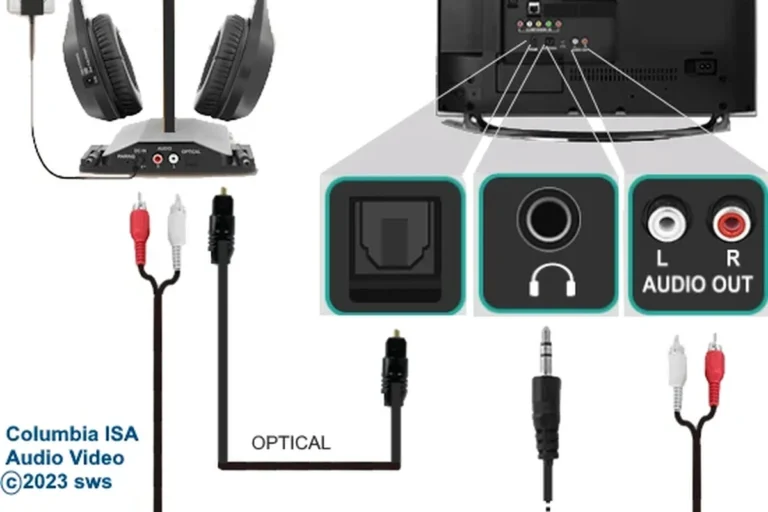
A Bluetooth transmitter can be useful if your TV or monitor supports a good audio output and you want to listen wirelessly. In that setup, the transmitter handles the Bluetooth pairing, not the Xbox One itself.
This workaround can be convenient for solo play, but it is not perfect for every gamer. Latency can still be an issue, especially if the transmitter is low quality or if your TV adds processing delay. For a deeper look at delay problems and fixes, see our guide on Bluetooth headphone lag fix.
Even when Bluetooth audio sounds fine for music, gaming can expose tiny delays much more easily because you notice sound timing against action on screen.
Step-by-Step: How to Set Up Each Workaround Without Audio Lag
The key to a good Xbox One headphone setup is reducing delay before it becomes annoying. That means choosing the right connection method, checking the audio path, and avoiding extra processing whenever possible.
Controller Jack Setup for Simple Plug-and-Play Use
Start by plugging your wired headphones into the 3.5mm port on the Xbox controller. Then open the Xbox audio settings and make sure headset volume, chat mixer, and party chat options are set the way you want.
If your headset includes a mic, test it in a party chat or microphone test screen. Keep the cable secure so it does not pull loose during play, and avoid extremely long or low-quality cables that may feel awkward or reduce convenience.
Insert the headphone jack fully into the Xbox controller’s audio port.
Adjust game and chat balance so voice and effects sound clear.
Join a party or use a mic test to confirm that chat works properly.
TV Optical, USB, or Transmitter Setup for Wireless Listening
If you want wireless listening without relying on Xbox native Bluetooth, route audio through your TV or monitor instead. Some setups use optical audio, some use USB audio from the display, and others use a dedicated transmitter paired with your headphones.
Before buying anything, check what outputs your TV or monitor actually has. Then set the transmitter to low-latency mode if available, and keep game mode enabled on the TV to reduce extra processing. If you are comparing wireless options for different devices, our article on how to connect Bluetooth headphones may also help with general pairing logic.
- Does your TV or monitor have a usable audio output?
- Does the transmitter support low-latency audio?
- Does your headset support the mic features you need?
Common Mistakes Gamers Make When Trying Bluetooth on Xbox One
A lot of frustration comes from expecting Bluetooth to behave the same way it does on a phone. Xbox One is a different system, and the wrong assumptions can lead to wasted money or disappointing sound.
Expecting Native Pairing to Work
The most common mistake is trying to pair regular Bluetooth headphones directly to the console and waiting for it to appear like a phone. In most cases, that will not work for standard audio output.
Some users then assume the headset is defective, when the real issue is console support. Before you buy an adapter or a new headset, always confirm whether the product is made for Xbox Wireless, controller use, or TV-based Bluetooth output.
Ignoring Latency, Mic Support, and Party Chat Limits
Even if a Bluetooth workaround connects, you still need to think about delay and chat compatibility. A setup that sounds fine for watching menus may feel off in shooters, racing games, or rhythm games where timing matters.
Mic support can also be inconsistent. Some Bluetooth headphones are great for music but weak for voice chat, and some adapters may only pass audio without giving you the full communication features you expect. If you are comparing wireless listening quality in general, our guide to noise cancelling headphones can help you think through comfort and isolation too.
- Wireless convenience if the setup is done right
- Can work well for casual single-player use
- Possible audio delay
- Mic and chat support may be limited
Cost Comparison: Bluetooth Adapters vs Xbox Wireless Headsets vs Wired Headphones
Cost matters because the cheapest option is not always the best value. A wired headset is usually the most affordable, a Bluetooth adapter can be a middle-ground solution, and Xbox Wireless headsets often cost more but may offer the smoothest console experience.
Prices vary a lot by brand, build quality, battery life, and microphone performance, so any budget estimate should be treated as flexible. If you already own decent headphones, adding a controller cable or transmitter may be cheaper than replacing the whole setup.
Expert Advice: When Bluetooth Is Worth It and When It Is the Wrong Choice
Bluetooth is worth considering if you mainly play casually, do not mind a little setup work, and want fewer cables around the room. It can also make sense if you already have a TV-based audio path and only need a simple listening solution.
Bluetooth is usually the wrong choice if you play competitive games, rely on clear party chat, or are sensitive to audio delay. In those cases, wired headphones or Xbox Wireless headsets are usually safer bets.
If you have hearing concerns, tinnitus, or you regularly listen at high volume, consider speaking with an audiologist. For long gaming sessions, safe volume habits matter more than the connection type.
Listening at high volumes for long periods can cause hearing damage. Keep volume at 60% or below for extended sessions.
Final Verdict: The Easiest Way to Use Headphones on Xbox One in 2026
If your main question is whether you can use Bluetooth headphones on Xbox One, the practical answer is that standard Bluetooth pairing is not the easy path. Xbox One works best with wired controller audio, Xbox Wireless headsets, or a transmitter-based workaround.
For most players, the controller jack is the simplest and most reliable option. If you want true wireless gaming, choose an Xbox Wireless headset instead of assuming any Bluetooth pair will behave the same way.
- Xbox One does not support standard Bluetooth headphone pairing for normal audio.
- Wired controller audio is the easiest and most reliable fix.
- Xbox Wireless headsets are better than generic Bluetooth for wireless gaming.
- TV or transmitter setups can work, but latency and chat support may vary.
Frequently Asked Questions
Usually no. Xbox One does not support standard Bluetooth headphone pairing for normal game audio, so you need a wired connection, Xbox Wireless headset, or a transmitter workaround.
Yes, wired audio is usually better for Xbox One because it avoids most latency issues. It is also the simplest choice for chat and plug-and-play use.
An Xbox Wireless headset is usually the best wireless choice for Xbox One. It is designed for the console and often handles game audio and chat more smoothly than generic Bluetooth headphones.
Yes, if they connect through a supported method such as the controller jack, TV output, or a compatible transmitter. Noise cancelling can help with background noise, but it does not fix compatibility or latency problems.
Closed-back headphones are usually better for gaming because they block more outside noise and keep sound from leaking. Open-back models can sound more spacious, but they are less private and less isolating.
Check connection type, microphone support, comfort, weight, battery life if wireless, and whether the headset is made for Xbox compatibility. Sound quality details like tuning, bass, and clarity can vary by model and personal preference.