How to Plug in Headphones to Xbox One Easily and Fast

Plug compatible headphones into the Xbox One controller’s 3.5mm jack, or use the Xbox Stereo Headset Adapter on older controllers. Standard Bluetooth headphones usually do not work, so Xbox-compatible wired or wireless headsets are the safest choice.
If you want to know how to plug in headphones to Xbox One, the fastest method is usually through the controller’s 3.5mm headset jack. If your controller is older or your headset uses a different connection type, there are a few simple workarounds that still keep game audio and chat working well.
- Fastest method: Use the controller’s 3.5mm headset jack.
- Older controllers: The Xbox Stereo Headset Adapter can solve compatibility issues.
- Wireless caution: Standard Bluetooth usually is not supported on Xbox One.
- Best practice: Check volume, mute, and chat mixer settings after connecting.
How to Plug in Headphones to Xbox One: What This Guide Covers in 2026
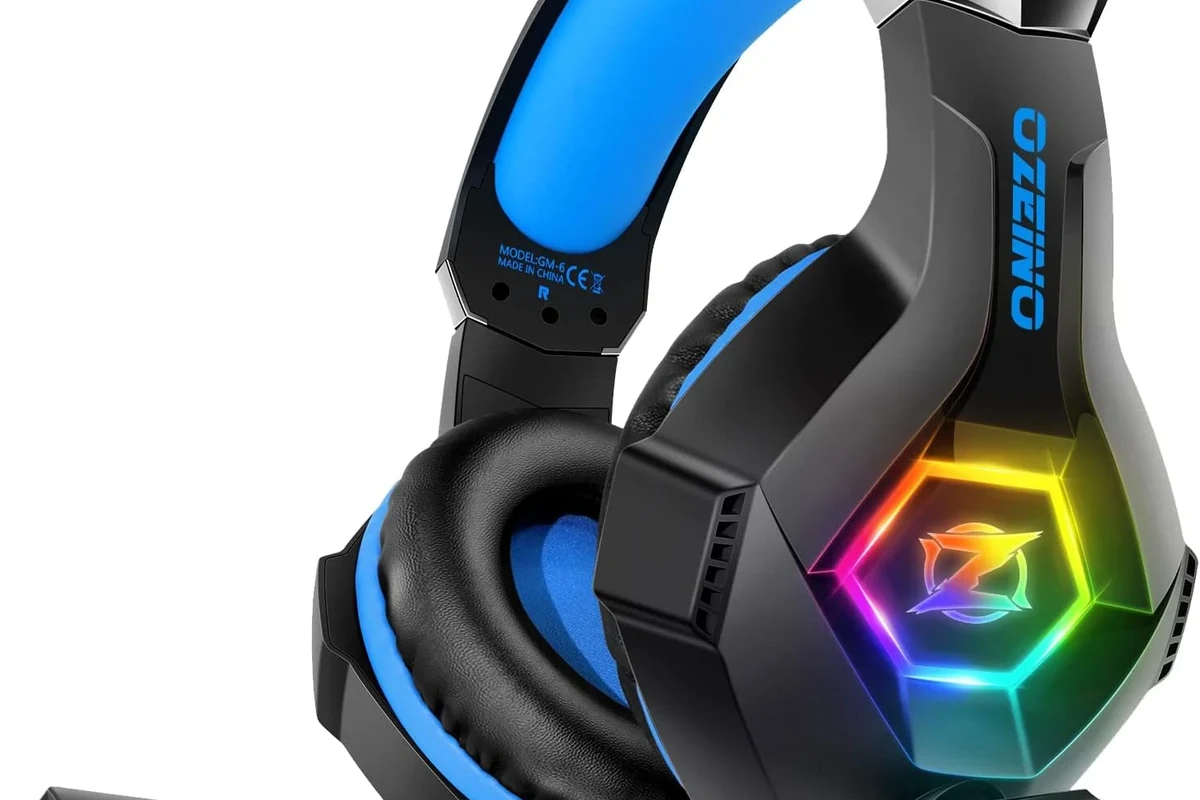
Xbox One still supports several headset setups, but not every headphone type works the same way. The main difference is whether you’re using a wired headset, a USB headset, or a wireless model built for Xbox.
This guide walks through the easiest connection methods, common mistakes, and the settings you should check after plugging in your headphones. If you also want a broader look at headset types, our guide to types of headphones explained can help you compare wired, wireless, over-ear, and in-ear options before buying.
Xbox One Headphone Connection Options: Controller Jack, Adapter, USB, and Wireless
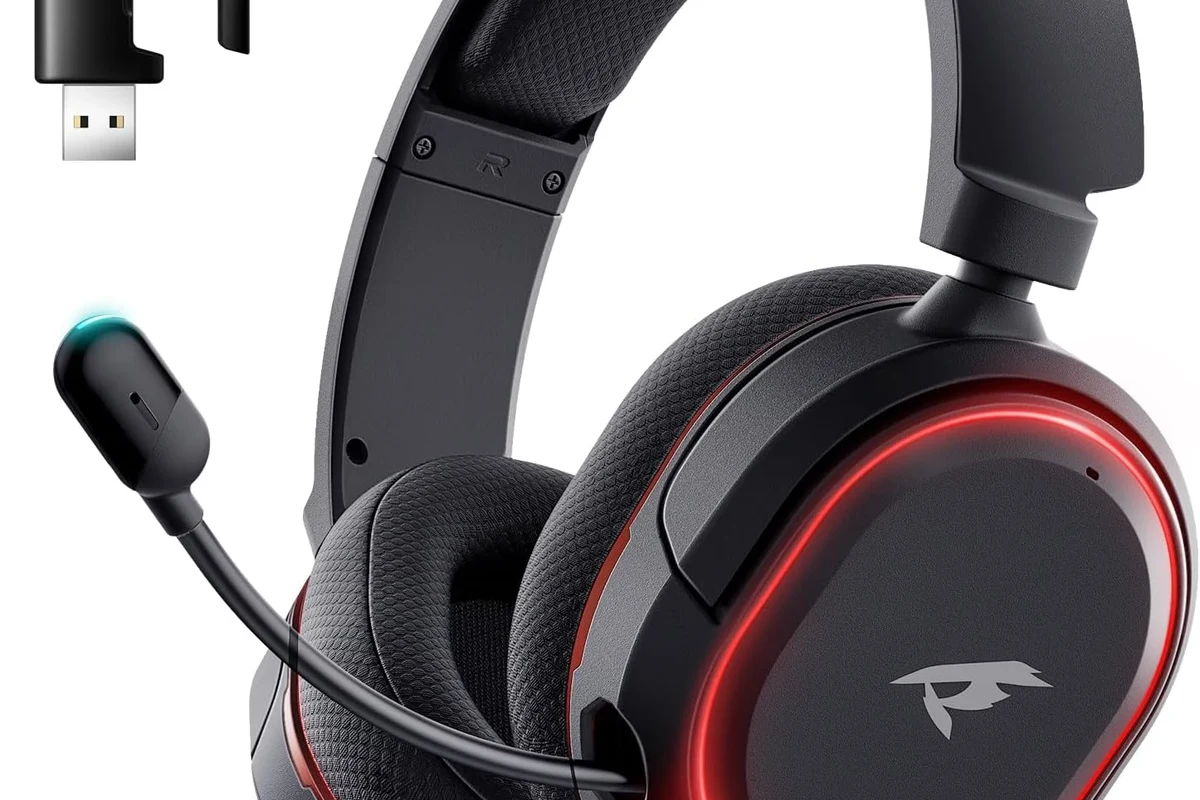
For most players, the controller is the simplest place to connect headphones. Xbox One does not rely on the console’s front ports the way some other devices do, so the controller is usually the key connection point for both game audio and chat.
What works best depends on the headset design. Some headphones plug straight in, some need an adapter, and some wireless models work only if they are Xbox-compatible rather than standard Bluetooth.
3.5mm Headphones vs Xbox Stereo Headset Adapter
If your headphones have a 3.5mm plug, you can usually connect them directly to a newer Xbox One controller. That is the easiest and most common setup for most wired gaming headsets and many earbuds.
Older controllers may need the Xbox Stereo Headset Adapter. This adapter gives you a place to connect a headset and also makes it easier to adjust volume and chat balance without going deep into menus.
Wired USB Headsets and Why Some Don’t Work on Xbox One
USB headsets can be confusing because USB does not always mean “plug and play” on Xbox One. Some USB headsets are made specifically for Xbox and work well, while others are designed for PC only and may not be recognized properly.
If a USB headset is not Xbox-certified or clearly listed as compatible, it may deliver no audio, no mic support, or limited features. When in doubt, check the product page carefully before buying.
Wireless Headphones, Bluetooth Limits, and Xbox-Compatible Alternatives
Standard Bluetooth headphones are one of the most common compatibility problems on Xbox One. Xbox One does not support regular Bluetooth audio for most headphones, so pairing them the same way you would with a phone usually will not work.
For wireless use, look for an Xbox wireless headset or a headset that includes an Xbox-compatible wireless USB transmitter. If you want to better understand Bluetooth limitations in general, our Bluetooth headphones explained simply guide breaks down why some wireless models connect easily while others do not.
Step-by-Step: How to Plug in Headphones to Xbox One Through the Controller
The controller method is the cleanest solution for most people. It works with many wired headsets, gives you direct chat support, and usually takes less than a minute once you know where to plug in.
Using a 3.5mm Headphone Plug
First, find the 3.5mm audio jack on the bottom edge of your controller. Insert the headphone plug firmly until it clicks or sits snugly in place.
Once connected, the console should route sound to the headset automatically. If you hear nothing, make sure the headset is not muted and the plug is fully seated.
If your headset has an inline volume wheel or mute switch, set it to a middle position first. That makes it easier to confirm whether the Xbox One settings or the headset itself is causing the issue.
Using the Xbox Stereo Headset Adapter on Older Controllers
If your controller does not have a built-in 3.5mm jack, attach the Xbox Stereo Headset Adapter to the controller expansion port. Then plug your headset into the adapter.
After that, use the adapter’s buttons or controls to raise headset volume and adjust chat balance. This is especially helpful if you play multiplayer games often and want quick control without opening menus.
Checking the Audio and Chat Balance After Connection
After plugging in, test both game sound and voice chat. Sometimes the headset works for one but not the other if a setting is muted or the chat mixer is set too far in one direction.
If the game is too loud compared with party chat, lower game volume or raise chat volume through the Xbox audio settings. Small adjustments usually solve the problem fast.
How to Set Up Headphones on Xbox One for Game Audio and Party Chat
Connecting the headset is only part of the setup. To get the best experience, you should also check headset volume, mic monitoring, and the system’s chat mixer settings.
Adjusting Headset Volume, Mic Monitoring, and Chat Mixer Settings
Open the Xbox guide and look for audio or headset options. From there, you can usually adjust headset volume, mic monitoring, and the balance between game audio and party chat.
Mic monitoring is useful if you want to hear your own voice in the headset and avoid shouting. The best setting depends on the headset model and how sensitive the microphone is.
Audio menu names can vary slightly by Xbox One model, controller firmware, and system update. If you do not see the exact option you expect, check the current Xbox audio settings menu rather than relying on older screenshots.
Turning On Headset Audio in Xbox Settings
In some cases, the headset may be connected correctly but audio is still routed incorrectly. Make sure headset audio is enabled and that the controller is assigned to the correct user profile if needed.
If you are using a party chat app or game-specific voice chat, also confirm that the app itself is set to use the headset microphone. A quick settings check often fixes the issue without any hardware trouble.
Testing Sound in a Game or Party Before You Start Playing
Before a long session, test the headset in a game menu or a party chat. This helps you catch low volume, static, or a muted microphone before the match starts.
If the sound is distorted, try unplugging and reconnecting the headset once. If that fails, restart the controller or console and test again.
Common Mistakes When Connecting Headphones to Xbox One
Most Xbox One headset problems are caused by a few simple mistakes. The good news is that these are easy to spot once you know what to look for.
Plugging into the Console Instead of the Controller
Many players assume the console itself has the main headphone connection, but Xbox One usually routes headset audio through the controller. If you plug into the wrong port, you may not get any sound at all.
Always check whether your headset is meant for the controller, a USB port, or a wireless receiver. That one detail can save a lot of troubleshooting time.
Using Non-Compatible Bluetooth Headphones
Standard Bluetooth headphones are a frequent disappointment on Xbox One. Even if they pair with your phone or laptop, they may not connect to the console in the same way.
If wireless is important to you, choose a headset built for Xbox or one that includes a compatible adapter. For readers comparing wireless and wired options, our how to connect Bluetooth headphones guide is useful for understanding why Xbox behaves differently from phones and tablets.
Forgetting to Update Controller Firmware or Check Mute Settings
Sometimes the headset is fine, but the controller firmware is outdated or the mute switch is on. That can make it seem like the headphones are broken when they are not.
Before replacing anything, check for controller updates and confirm that both the headset and controller are unmuted. This is one of the easiest fixes on Xbox One.
Listening at high volumes for long periods can cause hearing damage. Keep volume at 60% or below for extended sessions.
Best Headphone Setup Choices for Xbox One: Budget, Mid-Range, and Premium
The best setup depends on how often you play, whether you use chat, and how much comfort matters during long sessions. A simple wired headset is often enough for casual players, while serious multiplayer users may want better mic clarity and stronger build quality.
Low-Cost Wired Options for Casual Players
For budget-conscious players, a basic 3.5mm wired headset is usually the easiest choice. It is simple, reliable, and avoids the Bluetooth compatibility issues that can frustrate new users.
These models are often best for short gaming sessions, single-player titles, or players who mainly need clear voice chat without extra features.
Better Value Picks for Clear Chat and Strong Game Audio
A mid-range headset can offer better comfort, cleaner microphone pickup, and more balanced sound for both game effects and dialogue. That can make a noticeable difference in shooters, sports games, and party chat.
If you want more general buying guidance for value-focused audio gear, our best headphones under 100 article can help you think through the trade-offs between price, comfort, and sound quality.
When a Premium Gaming Headset Is Worth the Higher Price
A premium headset may be worth it if you play often, use chat every day, or want better comfort for long sessions. Higher-end models may also offer stronger noise isolation, better microphones, and more durable materials, though results vary by brand and design.
If you are sensitive to clamping force, ear cushion material, or weight, the extra cost can be worthwhile. Comfort matters just as much as sound when you are wearing headphones for hours.
Expert Advice: What Top Headphone Reviews Recommends Before You Buy or Connect
Before you buy a headset for Xbox One, focus on compatibility first and sound quality second. A great-sounding headset is not very useful if it cannot connect properly or does not support chat.
Compatibility Checks for Xbox One, Xbox One S, and Xbox One X
Make sure the headset works with your exact Xbox One model and controller version. Some headsets behave differently depending on whether the controller has a 3.5mm jack or requires an adapter.
Xbox One S and Xbox One X still rely on the same basic headset rules, but firmware and accessory support can vary. Always check the manufacturer’s compatibility notes before purchasing.
Sound Quality, Comfort, and Mic Performance to Prioritize
For gaming, clear mids and dialogue matter more than exaggerated bass alone. A headset that balances footsteps, voice chat, and background effects is usually more useful than one that only sounds loud.
Comfort also matters for long sessions. Look for lightweight construction, soft ear cushions, and a mic that picks up your voice without too much background noise.
Warning Signs That a Headset May Not Work as Expected
Be cautious if a headset listing is vague about Xbox support, only mentions PC compatibility, or relies on generic Bluetooth pairing. Those are common signs that setup may be frustrating or incomplete.
Also watch for products that promise every feature on every platform. Cross-platform support often comes with trade-offs, so it is better to confirm the exact Xbox One use case first.
If you notice ringing in your ears, pain, or persistent muffled hearing after gaming, lower your volume and consider speaking with an audiologist. Safe listening habits matter just as much as choosing the right headset.
Final Recap: The Fastest Way to Plug in Headphones to Xbox One
The fastest way to plug in headphones to Xbox One is to connect a compatible 3.5mm headset directly to the controller. If your controller is older, use the Xbox Stereo Headset Adapter, then check volume, chat balance, and mute settings before you start playing.
For wireless users, remember that standard Bluetooth usually is not the answer on Xbox One. Choosing an Xbox-compatible headset from the start will save time and make game audio and party chat much easier to manage.
Frequently Asked Questions
Wired headphones are usually simpler and more reliable on Xbox One. Wireless headsets can be convenient, but only Xbox-compatible models or supported adapters typically work well.
Check the controller connection, mute switch, headset volume, and chat mixer settings first. Also confirm the headset is compatible with Xbox One and that the controller firmware is updated.
Noise cancelling can help reduce background distractions, which is useful in busy rooms. Just make sure the headset still sounds clear for dialogue and game cues, since performance varies by model.
Over-ear headsets are usually the most comfortable for long gaming sessions and often give better isolation. In-ear options can be compact and easy to use, but comfort and sound stage depend on the fit and model.
Look at comfort, mic quality, and how well the headset handles voices, footsteps, and background effects. Driver type, tuning, and EQ support can affect bass, clarity, and soundstage, but real-world results vary by brand.
Pick a wired Xbox-compatible headset for the simplest gaming setup, or a wireless model if you want more freedom and it supports Xbox. For travel or general use, comfort, durability, and easy controls may matter more than extra gaming features.