How to Connect Bluetooth Headphones to Xbox Series S Easily

Xbox Series S does not support standard Bluetooth headphones directly. You can still use them through remote play, a TV or monitor, or a Bluetooth transmitter, but Xbox-compatible headsets are usually the most reliable option.
If you’re trying to figure out how Bluetooth headphones work with Xbox Series S, the short answer is that the console does not support standard Bluetooth audio directly. You can still use Bluetooth headphones with a few practical workarounds, but the best method depends on whether you care most about sound quality, microphone support, or low latency.
- No direct pairing: Xbox Series S does not connect to normal Bluetooth headphones natively.
- Best workarounds: Remote play, TV audio output, and Bluetooth transmitters are the main options.
- Watch for lag: Bluetooth can add delay, especially in fast-paced games.
- Mic support varies: Voice chat may not work well through every adapter or TV setup.
Can You Connect Bluetooth Headphones to Xbox Series S in 2025?
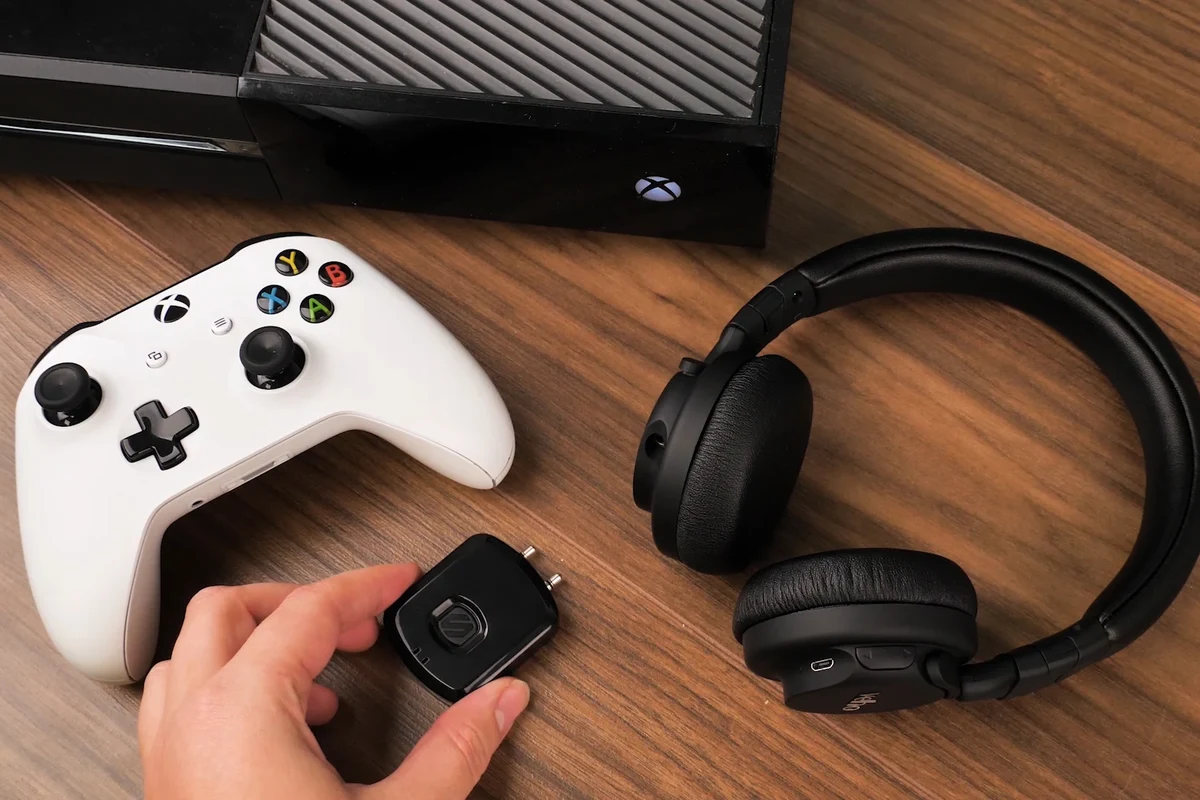
Not directly. Xbox Series S still does not offer native pairing for standard Bluetooth headphones in the same way a phone, tablet, or laptop does.
That means you cannot usually go into the Xbox settings, select your headset, and connect it over regular Bluetooth. Instead, you’ll need a workaround such as remote play, a Bluetooth transmitter, or an Xbox-compatible wireless headset.
Compatibility can vary by headset, transmitter, TV, and controller setup. Always check your exact model before buying an adapter or assuming a headset will work the way it does on mobile devices.
Why Xbox Series S Does Not Support Standard Bluetooth Audio
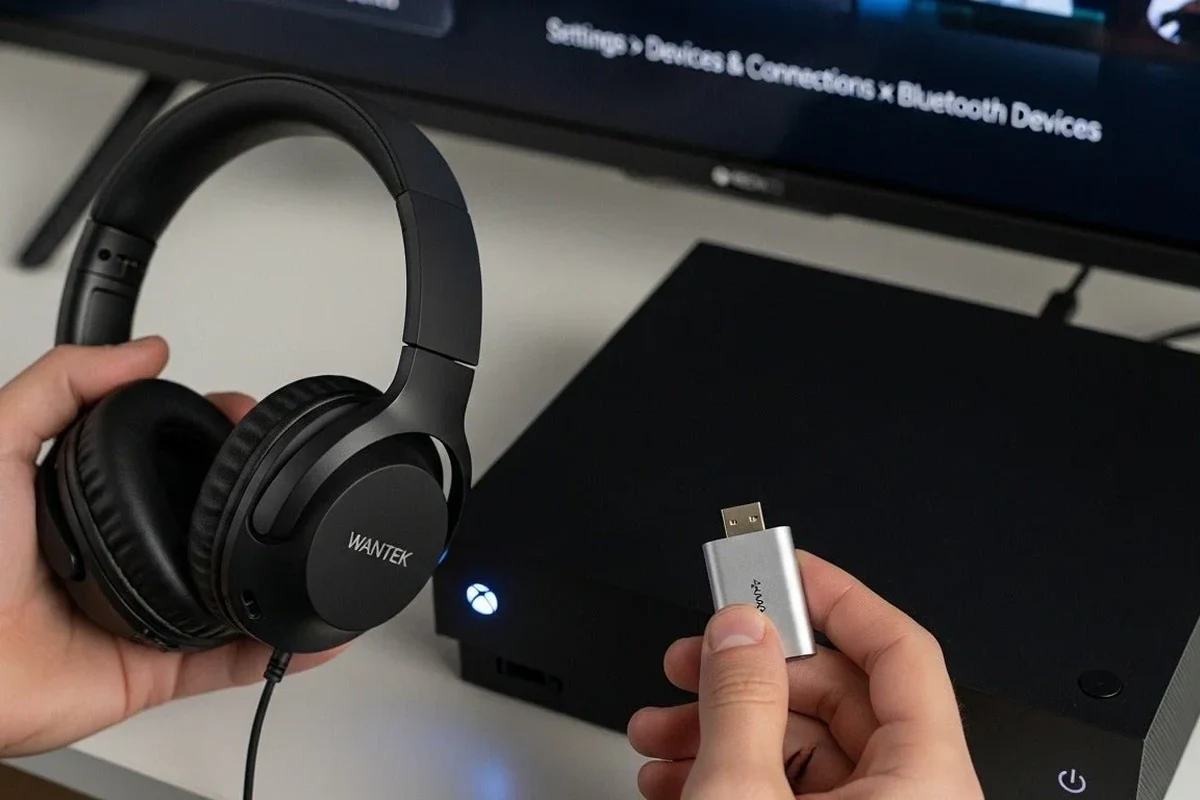
Microsoft designed Xbox audio around its own wireless system rather than standard Bluetooth. That decision helps keep gameplay audio more stable and reduces the delay that many Bluetooth connections can introduce.
How Xbox Wireless Differs from Bluetooth
Xbox Wireless is a separate connection method built for the Xbox ecosystem. It is meant to support game audio and voice chat with better responsiveness than typical Bluetooth audio.
Bluetooth is great for phones, music, and casual listening, but it is not always ideal for fast-paced gaming. Even a small delay can make footsteps, gunfire, and voice chat feel out of sync.
What This Means for Headphone Compatibility
If your headphones are Bluetooth-only, they will not connect straight to the Xbox Series S as a normal audio device. Some headsets may still work through other devices, but that is not the same as native Xbox Bluetooth support.
This is why many gamers choose either an Xbox wireless headset, a wired 3.5mm headset, or a transmitter-based setup instead of relying on Bluetooth alone.
Best Ways to Use Bluetooth Headphones with Xbox Series S
There are a few workable paths, and the best one depends on how you play. If you mainly want private audio, a TV or transmitter setup may be enough, while chat-heavy players usually need something more reliable.
Using the Xbox App for Remote Play Audio
One of the easiest ways to hear Xbox audio through Bluetooth headphones is to use remote play on a phone, tablet, or PC. You stream the console to another device, then connect your headphones to that device instead of the Xbox itself.
This can be convenient for single-player games or casual sessions. The trade-off is that audio and video may not feel as immediate as a direct console connection, especially if your network is busy.
If you use remote play, keep your headphones paired to the phone or tablet before launching the Xbox app. That usually makes the audio path simpler and reduces connection confusion.
Connecting Through a TV, Monitor, or Streaming Device
Some TVs and monitors can send audio to Bluetooth headphones. In that setup, the Xbox sends sound to the display first, and the display passes audio to the headphones.
This is often simple, but it may add lag depending on the TV’s Bluetooth implementation. It can work well for relaxed gaming, but it is usually not the best choice for competitive play or voice chat.
If your TV does not support Bluetooth audio, you may be able to use a streaming device or external audio output instead. For readers who are also comparing everyday device compatibility, our guide on connect Bluetooth headphones covers the basic pairing process on common devices.
Using a Bluetooth Transmitter with the Controller or Console
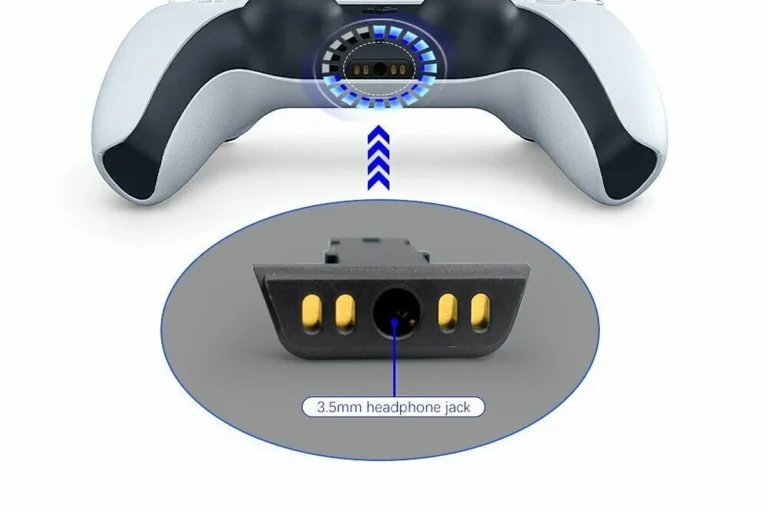
A Bluetooth transmitter is another option, especially if your setup has a 3.5mm audio jack, USB port, or optical-style audio output through another device. The transmitter sends the audio signal to your Bluetooth headphones.
This can be a practical workaround, but results vary a lot by transmitter quality, codec support, and how much delay you notice. For gaming, low-latency models are usually better than generic budget adapters.
Step-by-Step: How to Connect Bluetooth Headphones to Xbox Series S the Right Way
Since the console does not pair with standard Bluetooth directly, the “right way” means choosing the method that fits your setup. Below are the most realistic options.
Method 1: Via TV Audio Output and Bluetooth Transmitter
Look for a 3.5mm headphone jack, optical output, USB audio, or another output your transmitter supports. Not every display has the same audio options.
Plug the Bluetooth transmitter into the audio output or USB port. Make sure it is powered on and set to pairing mode if required.
Put your Bluetooth headphones into pairing mode and connect them to the transmitter. Wait for the connection light or voice prompt to confirm pairing.
Launch a game and check whether the sound feels in sync. If the audio is delayed, try a low-latency transmitter or a different output source.
- Does the transmitter match your TV or monitor port?
- Does it support low-latency audio?
- Is the headphone volume comfortable for long sessions?
Method 2: Via Xbox Remote Play on Mobile Devices
Use a phone, tablet, or compatible PC with the Xbox app or remote play feature enabled. Sign in with the same account linked to your console.
Pair the headphones to the phone or tablet first. The game audio will route through that device instead of the Xbox Series S.
Launch the Xbox stream and test the sound. If the connection is stable, this can be a simple way to use Bluetooth headphones without extra hardware.
Many Bluetooth headphones sound fine for movies or music but feel less responsive in games because even small audio delays are easier to notice when you’re reacting in real time.
Method 3: Via Compatible Wireless Headsets Instead of Bluetooth
If your main goal is gaming performance, a headset designed for Xbox is often the simplest solution. These models may use Xbox Wireless, a USB dongle, or a 3.5mm cable rather than standard Bluetooth.
That usually gives you a more reliable connection for game audio and chat. It also avoids the extra steps and possible lag that can come with Bluetooth workarounds.
Common Mistakes That Cause No Sound, Lag, or Pairing Problems
Most connection problems happen because the setup method does not match the headset’s actual capabilities. A quick compatibility check can save a lot of time.
Assuming Any Bluetooth Headset Will Work Directly
This is the biggest mistake. Many people buy a Bluetooth headset expecting it to pair with Xbox Series S like a phone, only to find that the console does not support that connection.
Before buying, check whether the headset is actually Xbox Wireless compatible, wired, or meant to be used through another device.
Ignoring Audio Delay and Mic Limitations
Even when Bluetooth audio works through a transmitter or TV, latency can still be noticeable. That matters more in shooters, rhythm games, and fast multiplayer titles.
Also keep in mind that microphone support may be limited or missing in some workarounds. If voice chat is important, verify that both audio and mic input are supported before you commit.
Using the Wrong Adapter or Port
Some adapters only work with specific outputs, and some TVs or controllers do not send audio in the way you expect. A transmitter that works on one setup may fail on another.
Check whether your display, controller, or console port actually sends audio to the adapter. If not, you may need a different connection path.
A cheap adapter can create hiss, dropouts, or lag that ruins the experience. It is often better to buy a well-reviewed transmitter than to keep replacing low-cost accessories.
Expert Advice: When Bluetooth Is Not the Best Choice for Xbox Gaming
Bluetooth is useful, but it is not always the best fit for console gaming. The more you care about speed, chat clarity, and consistent sound, the more you may want a different connection type.
Latency, Voice Chat, and Game Audio Trade-Offs
Bluetooth can introduce delay, and that delay may be more obvious in games than in music. You may also run into voice chat issues if the headset or adapter does not handle microphone input well.
For story games, streaming apps, or casual play, that may be acceptable. For ranked matches or competitive play, it is usually less ideal.
When to Choose Xbox Wireless, USB, or 3.5mm Headphones Instead
Choose Xbox Wireless if you want a clean console-friendly setup with fewer compatibility headaches. Choose USB or 3.5mm if you want a simple wired or dongle-based connection that is often easier to troubleshoot.
If you already own a Bluetooth headset, a workaround can still be worth trying. But if you are buying specifically for Xbox, a headset built for the platform is usually the safer choice.
If you experience ringing, pain, or persistent hearing fatigue during long gaming sessions, consider reducing volume and speaking with an audiologist or hearing professional.
Price Comparison: Bluetooth Workarounds vs Xbox-Compatible Headphones
Costs can vary a lot depending on whether you already own headphones and how much performance you want. In many cases, the cheapest option is not the most satisfying one over time.
Budget Bluetooth Transmitters and Adapters
Budget transmitters are the lowest-cost way to try Bluetooth audio on Xbox Series S through a TV or other output. They can be fine for casual use, but quality and latency vary widely by brand and model.
If you already have a good pair of Bluetooth headphones, this can be a reasonable starting point. Just remember that a low price may mean fewer features and less stable performance.
Mid-Range and Premium Headset Options for Better Performance
Mid-range and premium Xbox-compatible headsets often cost more, but they usually offer a smoother experience. You may get better comfort, stronger wireless stability, clearer chat, and fewer setup issues.
For longer gaming sessions, comfort matters as much as sound. Look at ear cushion materials, headband padding, weight, and battery life if the headset is wireless.
Final Recap: The Easiest and Most Reliable Way to Get Headphones Working on Xbox Series S
The simplest answer to how to connect Bluetooth headphones to Xbox Series S is that you cannot pair them directly in the standard Bluetooth way. Instead, you need a workaround such as remote play, a TV or monitor Bluetooth output, or a Bluetooth transmitter.
If you want the most reliable gaming experience, an Xbox-compatible wireless headset or a wired 3.5mm headset is usually the better choice. Bluetooth can still work, but it is best treated as a convenience option rather than the ideal Xbox audio solution.
- Xbox Series S does not support standard Bluetooth headphone pairing.
- Workarounds include remote play, TV audio output, or a transmitter.
- Bluetooth may add lag and can limit microphone support.
- Xbox Wireless or wired headsets are usually more reliable for gaming.
Frequently Asked Questions
No, Xbox Series S does not support standard Bluetooth headphone pairing directly. You need a workaround such as remote play, a Bluetooth transmitter, or an Xbox-compatible headset.
Wired headphones are often simpler and more reliable because they avoid Bluetooth lag. Wireless can still be great if the headset uses Xbox Wireless or a USB dongle.
Closed-back over-ear headphones are often preferred for gaming because they can improve immersion and reduce outside noise. Sound quality still depends on the driver tuning, comfort, and your personal preference.
Use a low-latency Bluetooth transmitter, keep the connection close, and avoid routing audio through multiple devices if possible. Even then, some delay may remain.
Check compatibility, connection type, microphone support, comfort, weight, and battery life if the headset is wireless. If you want better game audio, also look at tuning and whether the headset suits long sessions.
They can be useful if you play in a noisy room, but active noise cancelling is not essential for every gamer. Comfort, latency, and chat support are usually more important for Xbox use.