How to Connect Bluetooth Headphones to Xbox Easily

Standard Bluetooth headphones usually do not connect directly to Xbox consoles. The easiest working options are Xbox Wireless headsets, TV Bluetooth audio output, or a compatible Bluetooth transmitter.
If you are trying to figure out how to connect Bluetooth headphones to Xbox, the short answer is that standard Bluetooth usually does not connect directly to the console. In 2025, the easiest path is to use Xbox Wireless headphones, a TV with Bluetooth audio output, or a Bluetooth transmitter that supports your setup.
- Direct Bluetooth: Xbox does not support standard Bluetooth audio natively.
- Easiest setup: Xbox Wireless headsets are the simplest option.
- Workarounds: TV Bluetooth output and adapters can work, but may add lag.
- Chat support: Mic compatibility is often better with Xbox Wireless or wired headsets.
How to Connect Bluetooth Headphones to Xbox: What Actually Works in 2025
Xbox consoles are a little different from most gaming devices because they are built around Microsoft’s own wireless system instead of regular Bluetooth audio. That means many Bluetooth headphones will pair with a TV, phone, or laptop more easily than with an Xbox console itself.
For most players, the real question is not whether Bluetooth headphones can work with Xbox at all, but which connection method gives the best mix of sound quality, low delay, and voice chat support. If you want a broader primer on wireless audio basics, our guide on Bluetooth headphones explained simply can help you understand the limits before you buy.
Why Xbox Does Not Support Standard Bluetooth Audio
Xbox consoles do not include standard Bluetooth audio streaming for headphones in the same way many phones and laptops do. This is mostly a design choice aimed at keeping latency lower and making the wireless experience more stable for gaming.
That matters because game audio needs to stay closely synced with what you see on screen. Even a small delay can make footsteps, gunfire, dialogue, and rhythm timing feel off.
Xbox Wireless vs. Bluetooth: The Key Difference
Bluetooth is a general-purpose wireless audio format used by many headphones and earbuds. Xbox Wireless is Microsoft’s own connection system, designed specifically for Xbox accessories and gaming audio.
The practical difference is that Xbox Wireless headsets usually connect more smoothly to the console and often handle chat more reliably. Bluetooth headphones may still work through a TV, monitor, or adapter, but that is an indirect route rather than a native Xbox connection.
Which Xbox Models Have Built-In Wireless Audio Options
Xbox Series X, Xbox Series S, and Xbox One models all support Xbox Wireless accessories and wired headset options through the controller. They do not offer a simple “pair Bluetooth headphones” menu for standard headphones.
So if your goal is direct console audio, your best built-in option is an Xbox Wireless headset or a wired headset connected to the controller. For many readers, that ends up being simpler than trying to force a Bluetooth-only headset into a console that was not made for it.
Best Ways to Use Wireless Headphones with Xbox Consoles
There are three practical ways to use wireless headphones with Xbox: buy an Xbox Wireless headset, route audio through a Bluetooth-capable TV or monitor, or add a Bluetooth transmitter. Each method has trade-offs, especially for latency and microphone support.
Compatibility can vary by headphone model, TV brand, adapter type, and Xbox console generation. Always check the exact device manuals before assuming a wireless setup will support both game audio and voice chat.
Using Xbox Wireless Headsets for the Easiest Setup
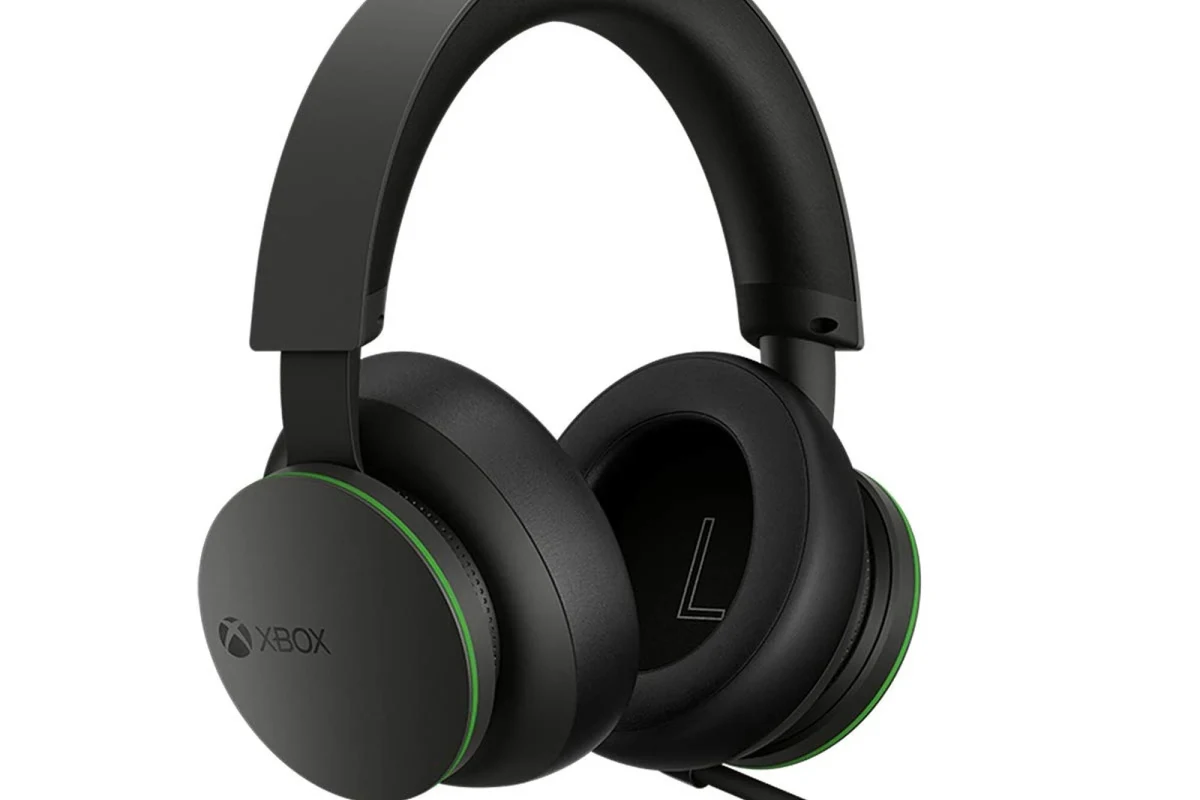
If you want the simplest setup, an Xbox Wireless headset is usually the cleanest solution. These headsets are designed to connect directly to the console without extra adapters or TV workarounds.
This option is especially useful if you want reliable game audio and chat in one package. It is also the least frustrating path for beginners who do not want to troubleshoot pairing, lag, or audio routing.
If you mainly game on Xbox and want the fewest connection issues, prioritize a headset that explicitly lists Xbox Wireless support rather than just “Bluetooth.”
Connecting Through a TV or Monitor with Bluetooth Audio Output
Some TVs and a few monitors can send audio to Bluetooth headphones. In that case, the Xbox sends sound to the display through HDMI, and the display sends it onward to your headphones.
This can work well for casual gaming, streaming, or single-player sessions. The downside is that TV Bluetooth audio may add noticeable delay, and microphone support is often limited or unavailable.
Using a Bluetooth Transmitter for Xbox Controllers or Consoles
A Bluetooth transmitter is another workaround, but it usually connects to an audio output source rather than directly to the Xbox console. Depending on your setup, that source may be your TV, monitor, or controller-compatible audio path.
Transmitters can be useful if your display does not support Bluetooth built in. Still, the quality of the experience depends heavily on the transmitter’s latency performance and whether it supports low-delay audio well enough for gaming.
Many gaming headsets advertise “wireless” support, but that does not always mean standard Bluetooth. Some use a dedicated USB dongle or Xbox Wireless instead.
Step-by-Step Setup Methods for Different Xbox and Headphone Types
The best setup method depends on what you already own. If you have Xbox Wireless gear, the process is straightforward; if you only have Bluetooth headphones, you will usually need a TV or adapter in the middle.
How to Pair Xbox Wireless Headphones Directly
First, turn on your Xbox Wireless headset and put it into pairing mode according to the manufacturer’s instructions. Then press the pairing button on your Xbox console until the console and headset connect.
Once paired, test game audio and chat audio in the headset settings. If the connection drops or sounds unstable, reset the headset and pair again before assuming the headset is faulty.
Charge the headset first, then switch it on and activate pairing mode.
Use the Xbox pairing button to search for nearby supported accessories.
Check that game sound and chat both route correctly before you start playing.
How to Connect Bluetooth Headphones via TV Settings
If your TV supports Bluetooth audio, open the TV’s sound or Bluetooth menu and put your headphones into pairing mode. After pairing, set the TV audio output to Bluetooth or wireless audio.
Then launch your Xbox and confirm that the TV is receiving console audio through HDMI. This is often the easiest way to use regular Bluetooth headphones with Xbox, especially if you already own a smart TV with a built-in audio menu.
- Does the TV support Bluetooth audio output, not just Bluetooth remotes?
- Can the TV keep audio delay low enough for gaming?
- Does your headset support the TV’s Bluetooth codec or pairing method?
How to Use a Bluetooth Adapter with Xbox Series X, Series S, and Xbox One
For adapter-based setups, connect the Bluetooth transmitter to a compatible audio output source, such as your TV, monitor, or another supported output path. Put the headphones into pairing mode, then pair them with the adapter instead of the Xbox itself.
After pairing, test volume, range, and delay in a game with fast audio cues. If you hear a lag between the action on screen and the sound in your headphones, the adapter may not be a good fit for gaming.
Not every Bluetooth adapter supports microphone input, low-latency audio, or stable pairing with gaming headsets. A cheap adapter may connect successfully but still deliver poor game performance.
Common Connection Problems and Mistakes to Avoid
Most Xbox Bluetooth issues come from using the wrong connection path, not from the headphones being broken. The console may be fine, but the TV, adapter, or headset may be the weak link.
Why Your Headphones Pair but No Sound Plays
This usually happens when the headphones are paired to the wrong device or when the Xbox audio is not routed to the TV or adapter correctly. It can also happen if the headset is connected in Bluetooth mode, but the source device is not actually sending audio to it.
Check the console’s audio settings, the TV output mode, and the headset’s input mode. If you are unsure whether the issue is with the headset itself, our article on how to connect Bluetooth headphones covers the basic pairing process on other devices too.
Audio Lag, Lip Sync Issues, and Mic Limitations
Bluetooth audio can introduce delay, which is more noticeable in fast-paced games and cutscenes with dialogue. That delay may not bother everyone, but it can be distracting if you play competitive shooters or rhythm games.
Microphone support is another common limitation. Some TV Bluetooth setups allow audio playback only, while voice chat may still need a separate mic or a different headset type.
Controller, TV, and Adapter Compatibility Errors
It is easy to assume any adapter or controller audio port will solve the problem, but that is not always true. Some controllers support wired headsets well, while many Bluetooth adapters are meant for TV audio rather than direct controller use.
If you are troubleshooting, test one change at a time. Swap the headset, then the adapter, then the audio source, so you can identify which device is causing the issue.
Listening at high volumes for long periods can cause hearing damage. Keep volume at 60% or below for extended sessions.
Expert Advice: When Bluetooth Is Not the Best Choice for Xbox Gaming
Bluetooth is convenient, but convenience is not always the same as good gaming performance. If you care about low delay, clear voice chat, and consistent sound, another option may serve you better.
Latency, Voice Chat, and Game Audio Trade-Offs
Latency is the biggest downside of Bluetooth for Xbox gaming. Even when the delay is mild, it can affect reaction time and reduce the sense of tight audio sync.
Voice chat can also be less reliable depending on the route you use. If you need a headset for party chat or multiplayer coordination, a native Xbox Wireless or wired solution is often more dependable.
When to Choose Wired, Xbox Wireless, or Low-Latency Wireless Instead
Choose wired if you want the simplest zero-battery option with very low delay. Choose Xbox Wireless if you want a cleaner cordless setup that is made for the console.
Choose low-latency wireless or a dedicated gaming headset if you want fewer delays than standard Bluetooth can usually provide. If you are comparing audio behavior across different platforms, our guide on Bluetooth vs wired headphones sound quality is a useful follow-up read.
If you experience ringing, discomfort, or fatigue during long gaming sessions, reduce volume and consider speaking with an audiologist. Persistent hearing symptoms should always be checked by a professional.
Cost Comparison: Bluetooth Adapters vs. Xbox Wireless Headsets vs. TV Audio Solutions
Cost matters because the cheapest option is not always the best value. A low-cost adapter may seem attractive, but if it creates lag or drops audio, you may end up replacing it anyway.
Budget-Friendly Options for Casual Players
If you only play occasionally, a TV with Bluetooth output or an inexpensive adapter may be enough. This is usually best for single-player games, streaming, or relaxed couch gaming where a little delay is acceptable.
Budget setups can be practical, but they are also the most likely to have trade-offs in microphone support, range, or stability. If you want to compare the broader headphone categories before buying, our guide to types of headphones explained can help narrow the field.
Mid-Range and Premium Picks for Better Audio Quality
Mid-range and premium Xbox Wireless headsets usually offer the most balanced experience for players who care about both sound and convenience. They are often easier to live with than adapters because they reduce setup guesswork.
Premium options may also improve comfort, battery life, and chat clarity, though results vary by brand and model. If you plan to game for long sessions, comfort and clamp force matter as much as the wireless technology itself.
Final Recap: The Easiest Way to Connect Bluetooth Headphones to Xbox
If you want the simplest answer, standard Bluetooth headphones usually do not connect directly to Xbox consoles in the same way they do on phones or PCs. The easiest working methods are Xbox Wireless headsets, Bluetooth through a compatible TV or monitor, or a Bluetooth transmitter used in the right audio path.
For most gamers, Xbox Wireless is the best balance of ease, sound quality, and chat support. Bluetooth can still be useful, but it is usually a workaround rather than the ideal Xbox solution.
Frequently Asked Questions
Usually, no. Xbox consoles do not support standard Bluetooth audio directly, so most Bluetooth headphones need a TV, monitor, or adapter workaround.
Xbox Wireless is usually better for Xbox gaming because it is designed for lower delay and easier chat support. Bluetooth is more convenient for general use, but it is not the best native gaming option.
Yes, they can work well for game audio, especially if you connect them through a TV or compatible wireless setup. Performance depends on the model, and microphone support may vary.
Closed-back headphones are usually better for Xbox because they block more outside noise and keep game audio focused. Open-back models can sound more spacious, but they leak sound and offer less isolation.
Look at comfort, wireless type, latency, mic quality, and how the headset handles bass and clarity. Driver size and frequency response can matter, but real-world tuning and fit are often more important.
Choose a lightweight headset with soft ear cushions and a secure but gentle fit. If you feel pressure, heat, or fatigue, take breaks and adjust the headband or volume level.