How to Use Headphones on a TV Easily and Wirelessly

The easiest way to use headphones on a TV is to match your TV’s audio output with the right connection type, such as Bluetooth, a headphone jack, or a wireless transmitter. If you want the least hassle, check your TV’s ports and latency support before buying anything.
If you want to know how to use headphones on a TV, the easiest method depends on your TV’s audio outputs and whether it supports Bluetooth. In most cases, you can go wired through the headphone jack or use a wireless transmitter for a cleaner setup.
- Best simple option: Use the TV headphone jack if it has one.
- Best wireless option: Use built-in Bluetooth or a dedicated transmitter.
- Best for gaming: Choose low-latency headphones or a low-lag transmitter.
- Best for comfort: Over-ear designs usually work well for long viewing sessions.
How to Use Headphones on a TV: What You Need to Know Before You Start
Before buying anything, it helps to understand how TV audio is routed and what kind of headphones your TV can actually support. Some TVs make headphone use simple, while others need an adapter or transmitter to work properly.
Why people connect headphones to TVs in 2025: late-night viewing, hearing support, gaming, and privacy
Many people use TV headphones for late-night movies, shared living spaces, and better dialogue clarity. They’re also useful for hearing support, casual gaming, and keeping audio private without disturbing others.
For some viewers, headphones make TV sound easier to follow at lower volumes. If hearing comfort is a concern, it’s smart to keep volume controlled and follow safe listening habits or ask an audiologist for guidance.
What “wireless” really means for TV headphone setups: Bluetooth, RF, and TV-compatible transmitters
Wireless TV audio is not always the same thing as Bluetooth. Some setups use Bluetooth directly, while others rely on RF headphones or a dedicated transmitter that plugs into the TV.
Bluetooth is convenient, but it can introduce delay on some TVs. RF systems are often more stable for long-range listening, and a transmitter can help older TVs work with modern wireless headphones.
Some TVs automatically mute their speakers when headphones are connected, but others let you keep both on at the same time. That behavior depends on the TV brand and output port.
Best Ways to Use Headphones on a TV: Wired vs Wireless Options
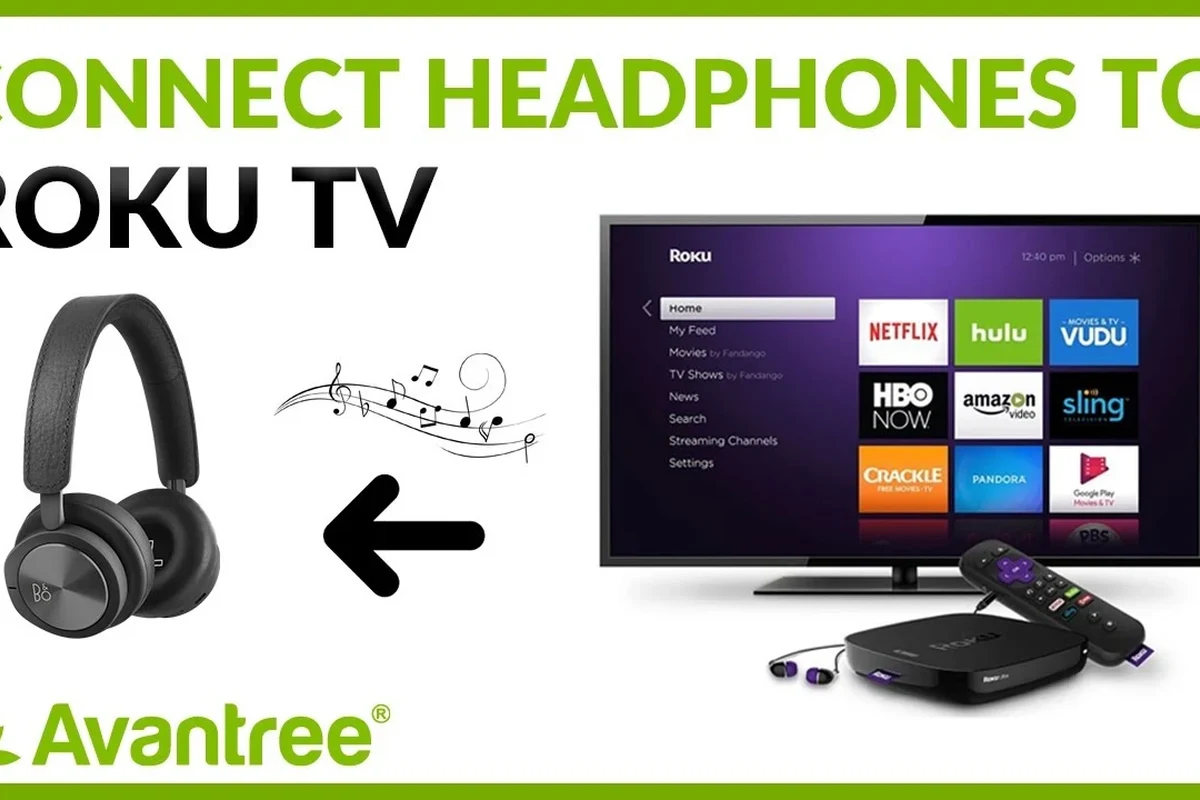
There is no single best method for every TV. The right choice depends on whether you want simplicity, freedom of movement, or the lowest possible audio delay for movies and gaming.
Using the TV’s headphone jack or audio-out port for a simple wired setup
If your TV has a 3.5mm headphone jack, this is usually the most straightforward option. You plug in your headphones directly, adjust the TV volume, and start watching.
Some TVs use RCA audio-out or optical output instead of a headphone jack. In that case, you may need a converter or DAC if you want to use standard wired headphones.
Wired connections are often the easiest way to avoid lip-sync problems. If you mainly watch movies or sports and sit close to the TV, wired can be the most reliable choice.
Connecting Bluetooth headphones directly to a smart TV
If your smart TV supports Bluetooth audio output, pairing headphones is usually simple. Open the TV’s sound or Bluetooth menu, put the headphones in pairing mode, and select them from the device list.
This works well for casual listening, but not every TV handles Bluetooth the same way. Some models support only certain codecs or may add noticeable delay, especially with fast-moving scenes or games.
Using a wireless TV headphone transmitter for TVs without Bluetooth
A dedicated transmitter is often the best solution for TVs that do not have built-in Bluetooth. You connect the transmitter to the TV’s audio-out port, then pair your wireless headphones with the transmitter instead of the TV.
This can be a strong option for older sets and for people who want a more stable connection. It also gives you more control over range, latency, and compatibility than many built-in Bluetooth systems.
Not every wireless transmitter works with every TV output. Check whether your TV uses optical, RCA, 3.5mm, or HDMI ARC before buying an adapter or transmitter.
When soundbars, AV receivers, or streaming devices change the setup
If your TV is connected to a soundbar or AV receiver, the headphone setup may need to go through that device instead of the TV. Some receivers offer headphone outputs or Bluetooth passthrough, while others do not.
Streaming devices can also affect audio behavior. In some setups, the TV handles sound output; in others, the streaming box or receiver may change how easy it is to route audio to headphones.
Step-by-Step Setup for Different TV Types
The exact setup process depends on the TV model, but the basic idea stays the same: find the audio output, match the right connection type, and then test the sound before settling in for a long watch session.
How to connect headphones to a smart TV with built-in Bluetooth
Go to the sound or Bluetooth menu and look for audio output or device pairing options.
Follow the headphone instructions so the TV can detect them.
Choose the headphones from the list, then test the volume and any sync settings.
How to use headphones on a TV with no Bluetooth support
Start by checking whether the TV has a headphone jack, optical output, RCA output, or USB audio support. Once you know the output type, choose a compatible transmitter or converter.
After connecting the transmitter, pair your wireless headphones to it and confirm that the TV audio is routed correctly. If the sound is too low or delayed, try a different output setting or a better-matched adapter.
Some TVs disable internal speakers when you use certain outputs, while others let you keep both on. This is normal and depends on the TV’s audio design.
How to hook up headphones to an older TV with RCA, optical, or 3.5mm outputs
Older TVs often need a little more setup, but they can still work well with headphones. RCA outputs usually need an adapter, optical outputs often need a DAC, and 3.5mm ports are the simplest of the three.
If you are using a converter, make sure it supports the right signal format. A mismatch can lead to no sound, weak volume, or strange audio behavior.
How to set up headphones for gaming consoles connected to a TV
Gaming adds one extra challenge: latency matters more. If you are using a console through a TV, low-lag headphones or a low-latency transmitter are usually better than basic Bluetooth alone.
For competitive games, the best setup is often the one that keeps controller response and on-screen action tightly aligned. If you want more detail on Bluetooth delay, see our guide to Bluetooth headphone lag.
Choosing the Right Headphones for TV Watching
Not all headphones feel equally good for long TV sessions. Comfort, battery life, and audio delay can matter just as much as sound quality when you are watching for an hour or more.
Best headphone styles for TV: over-ear, on-ear, in-ear, and neckband options
Over-ear headphones are often the most comfortable for long viewing because they spread pressure more evenly. On-ear models are lighter, while in-ear options can be more compact and easier to store.
Neckband styles can work well for casual TV use, especially if you want something simple and easy to recharge. For a broader look at fit and design, our types of headphones explained guide can help.
Why low latency matters for lip-sync and gaming
Latency is the delay between the picture and the sound. If it is too high, voices may look out of sync with the actors’ mouths, and games can feel less responsive.
This is one of the biggest reasons some viewers prefer wired headphones or dedicated wireless TV systems over standard Bluetooth. Lower delay usually means a better viewing experience.
Comfort features to look for in long viewing sessions
Look for soft ear cushions, a headband that does not clamp too hard, and a weight that feels manageable over time. Breathable materials can also help reduce heat during long movies or sports events.
A headset that sounds great but feels heavy can become annoying during long sessions.
Battery life, range, and microphone needs for different use cases
If you watch TV for long stretches, battery life becomes important. Range matters too, especially if you move around the room while listening.
A microphone is usually not necessary for TV watching, but it can matter if you also use the headphones for calls, voice chat, or console gaming. Exact battery and range performance can vary by brand, model, and volume level.
TV Audio Settings and Fixes That Improve Headphone Sound
Even a good pair of headphones can sound disappointing if the TV settings are not configured correctly. A few small adjustments can improve clarity, volume, and sync.
How to adjust TV audio output, volume, and sound mode for headphones
Check the TV’s audio output menu and make sure it is sending sound to the correct device. Then adjust the headphone volume separately if your TV supports independent output levels.
Some sound modes are better for dialogue, while others are tuned for movies or sports. If voices sound buried, try a dialogue-focused or clear-voice preset.
Dealing with delay, echo, or out-of-sync audio
If the sound lags behind the picture, look for an audio delay or lip-sync setting in the TV menu. Some TVs also let you choose between different Bluetooth or output modes to reduce delay.
Echo can happen when TV speakers and headphones are both active but not perfectly aligned. In that case, try muting the TV speakers or changing the output mode.
How to avoid low volume, distorted sound, or one-sided audio
Low volume often comes from a weak output signal or an incompatible adapter. Distortion can happen if the TV volume is too high, the headphones are too sensitive, or the converter is not matched correctly.
If you hear sound in only one ear, check the cable, plug, and adapter first. A loose connection is a common cause and is usually easier to fix than a hardware problem.
Using volume leveling and dialogue enhancement for movies and sports
Volume leveling can help reduce sudden jumps between quiet scenes and loud action scenes. Dialogue enhancement can make speech easier to understand without constantly reaching for the remote.
These settings are especially helpful for sports, dramas, and older movies with uneven audio mixes. They can make TV listening more comfortable and less tiring.
Listening at high volumes for long periods can cause hearing damage. Keep volume at 60% or below for extended sessions.
Common Mistakes People Make When Using Headphones on a TV
Most headphone setup problems come from compatibility assumptions. A little planning can save you from buying the wrong gear or fighting with audio issues later.
Assuming every Bluetooth TV supports headphones the same way
Some TVs support Bluetooth audio output very well, while others have limited pairing options or unreliable sync. Even two TVs from the same brand may behave differently.
Always check the TV manual or settings menu before assuming Bluetooth will work as expected. That small step can prevent a lot of frustration.
Ignoring audio codec and latency limitations
Bluetooth codec support can affect sound quality and delay, but not every TV supports the same codecs. If latency matters, codec support alone is not enough to guarantee a good experience.
If you notice persistent delay, uneven volume, or hearing discomfort, consider speaking with an audiologist or a qualified audio specialist. The right setup should sound clear without forcing you to raise the volume too much.
Using the wrong cable, adapter, or output port
A common mistake is plugging into an output that does not actually support the kind of headphones you want to use. For example, optical audio does not connect directly to standard headphones without conversion.
Before buying accessories, confirm the TV’s output type and match it to the right adapter or transmitter. This is especially important for older TVs and mixed home theater setups.
Overlooking TV speaker behavior when headphones are connected
Some people are surprised when the TV speakers turn off as soon as headphones are connected. Others expect the speakers to mute, but the TV keeps playing sound through both outputs.
That behavior is not a defect in many cases. It is simply how the TV manufacturer designed the audio output system.
Cost, Performance, and Best Value Choices in 2025
There are good headphone solutions at several price levels, but the best value depends on your TV and how sensitive you are to delay, comfort, and convenience. Budget choices can work well if your setup is simple.
Budget wired solutions vs mid-range Bluetooth setups vs premium wireless systems
Budget wired setups are usually the least complicated and often the least expensive. Mid-range Bluetooth setups add convenience, while premium wireless systems may offer better range, lower lag, or more comfortable long-term use.
What to expect at different price points for latency, range, and comfort
At lower price points, you may get acceptable sound but less consistent latency or build quality. Mid-range products often strike a better balance between comfort and reliability.
Higher-priced systems may improve range, battery life, or overall polish, but the best choice still depends on your TV and your listening habits. More expensive does not always mean more compatible.
When a dedicated TV headphone transmitter is worth the extra cost
A dedicated transmitter is often worth it if your TV lacks Bluetooth, your current Bluetooth setup lags too much, or you want a more dependable wireless connection. It can also simplify older home theater systems.
If you only need occasional listening and already have a headphone jack, a wired setup may be the better value. If you want convenience and flexibility, a transmitter can be a smart upgrade.
Final Recap: The Easiest Way to Use Headphones on a TV Without the Hassle
The easiest way to use headphones on a TV is usually the one that matches your TV’s built-in audio support. If your set has a headphone jack or reliable Bluetooth, setup is simple; if not, a transmitter or adapter can solve most problems.
Quick summary of the best setup based on TV type, budget, and viewing needs
For the simplest setup, use a wired connection if your TV has the right output. For wireless convenience, use Bluetooth on a compatible smart TV or a dedicated transmitter for older models.
If you care about gaming or lip-sync, prioritize low-latency options over the cheapest wireless choice. Comfort and battery life matter most for long movie nights and binge-watching sessions.
Expert advice warning: avoid latency and compatibility issues before buying
Before you buy anything, check the TV’s output ports, Bluetooth support, and speaker behavior. That one step can save you from compatibility issues, poor sound, and unnecessary returns.
For readers who want a dependable setup, the best path is usually simple: match the headphone type to the TV output, keep latency in mind, and choose comfort that fits your viewing habits.
Frequently Asked Questions
Wireless headphones are more convenient, but wired headphones usually have less delay and fewer compatibility issues. If you watch a lot of sports or play games, wired or low-latency wireless can be the safer choice.
Over-ear headphones are often best for long viewing because they usually feel more comfortable for extended wear. Lightweight on-ear, in-ear, or neckband styles can also work depending on your fit preference.
Look in the TV sound or Bluetooth menu for audio output or device pairing options. If you do not see Bluetooth audio support, your TV may need a transmitter or wired adapter instead.
Yes, headphone type, TV output, and latency can all affect how clear and natural the audio sounds. For gaming and dialogue-heavy content, low delay and clear mids are usually more important than heavy bass.
Check connection type, latency, battery life, comfort, range, and whether the headphones match your TV’s output options. If you want a better overall fit, also consider driver tuning, weight, and ear cushion material.
Choose a light fit, soft ear cushions, and a headband that does not clamp too tightly. Taking breaks and keeping the volume at a safe level can also make long sessions more comfortable.