How to Pair Bluetooth Headphones to PS5 Easily and Fast

The PS5 does not support standard Bluetooth headphone pairing directly, so you usually need a USB Bluetooth adapter, TV Bluetooth, or a wireless gaming headset with a dongle. For the fastest and most reliable setup, a low-latency USB transmitter or dedicated wireless headset is usually the best choice.
Trying to figure out how Bluetooth headphones work with a PS5 can be frustrating, because the console does not support standard Bluetooth audio in the same simple way a phone or laptop does. The good news is that you still have a few reliable ways to listen wirelessly, and some are much better for gaming than others.
In this guide from the Top Headphone Reviews Editorial Team, we’ll explain what actually works in 2025, what causes lag or connection problems, and the fastest way to get sound from your PS5 into Bluetooth headphones without making the setup overly complicated.
- Direct pairing: Most Bluetooth headphones will not connect natively to PS5.
- Best workaround: Use a USB Bluetooth transmitter for simple wireless audio.
- Lowest hassle: Wireless gaming headsets with dongles are often the easiest option.
- Watch for lag: TV Bluetooth and cheap adapters can add delay or crackling.
How to Pair Bluetooth Headphones to PS5: What Works in 2025 and What Doesn’t
The short version is this: the PS5 does not offer full native Bluetooth headphone pairing for most standard audio devices. That means many regular Bluetooth headphones, earbuds, and headsets will not show up as a simple “pair and connect” option in the console’s audio menu.
What does work is usually a workaround. You can use a USB Bluetooth transmitter, route audio through a compatible TV, or choose a gaming headset that includes its own wireless USB dongle. Each method has different trade-offs for sound quality, latency, and microphone support.
Why the PS5 Does Not Support Standard Bluetooth Audio Directly
Sony’s design choice is mostly about performance and stability. Bluetooth audio can introduce delay, and that delay is more noticeable in gaming than it is for music or videos. On a console, even a small lag can make dialogue, gunfire, or controller feedback feel off.
Another reason is device compatibility. Bluetooth headphones use different profiles and codecs, and not all of them behave the same way with game audio. Sony avoids a simple open pairing system that could create support issues for users with different headphones and earbuds.
How Sony’s Bluetooth limitations affect headphones, earbuds, and headsets
This limitation affects all common wireless listening gear. Over-ear Bluetooth headphones may fail to connect directly, true wireless earbuds often need a workaround, and many Bluetooth headsets lose microphone functionality even if audio does get through.
If you were expecting the PS5 to work like a phone, the experience is different. The console is built more like a gaming system than a general-purpose Bluetooth hub, so audio routing is stricter.
Compatibility can vary by headphone model, TV brand, transmitter quality, and PS5 system updates. If one method fails, another may still work.
What “pairing” means on PS5 versus connecting through a workaround
On most devices, pairing means the headphone and source device talk directly over Bluetooth. On PS5, “pairing” often really means connecting through another device that translates the signal, such as a USB adapter or TV audio output.
That distinction matters because the easiest-looking option is not always the best for gaming. A direct Bluetooth connection is convenient, but a low-latency workaround is usually the better choice for playability.
Best Ways to Connect Bluetooth Headphones to PS5 Without Lag
If your goal is smooth game audio, low delay should be your top priority. The best setup depends on whether you care most about convenience, microphone support, or the most stable sound.
Using a USB Bluetooth adapter for the most reliable setup
A USB Bluetooth transmitter is often the most practical solution for PS5 users who already own Bluetooth headphones. You plug the adapter into the console, put the headphones into pairing mode, and let the adapter handle the wireless connection.
This method usually gives you more control than TV Bluetooth and can work well for casual gaming. Still, the final result depends on the adapter’s quality and codec support, so not every dongle performs the same way.
If you want fewer sync issues, look for a transmitter that supports low-latency audio and is designed for gaming use.
Connecting via TV Bluetooth audio when your TV supports low-latency output
If your TV has Bluetooth audio built in, you may be able to send PS5 sound to your headphones through the television instead of the console. This is simple because the PS5 connects to the TV with HDMI, and the TV handles the wireless audio step.
The downside is that TV Bluetooth can vary a lot. Some televisions add noticeable delay, while others perform much better, especially if they support low-latency modes or better audio processing.
Using a gaming headset with a USB wireless dongle as the easiest alternative
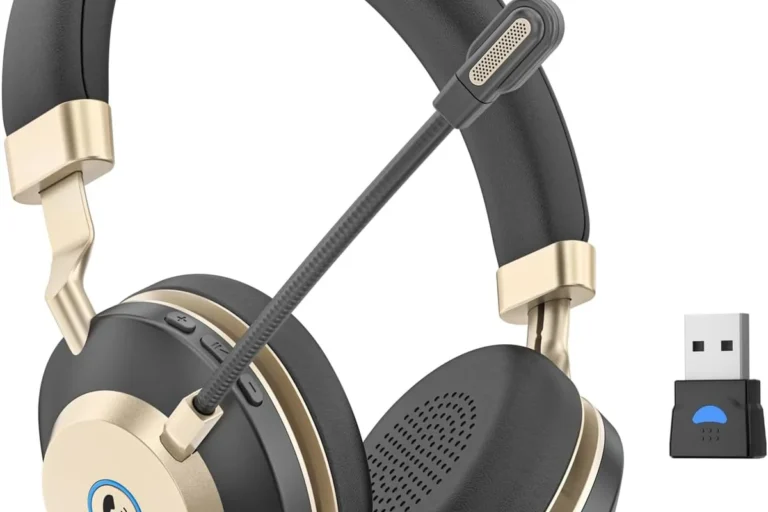
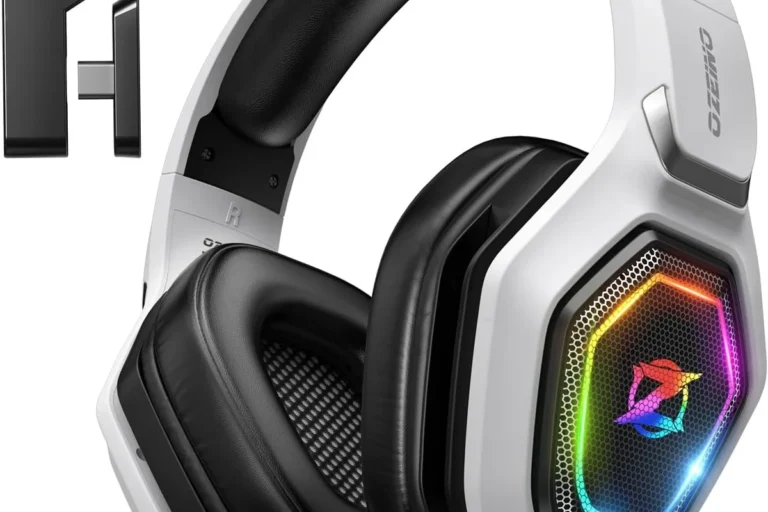
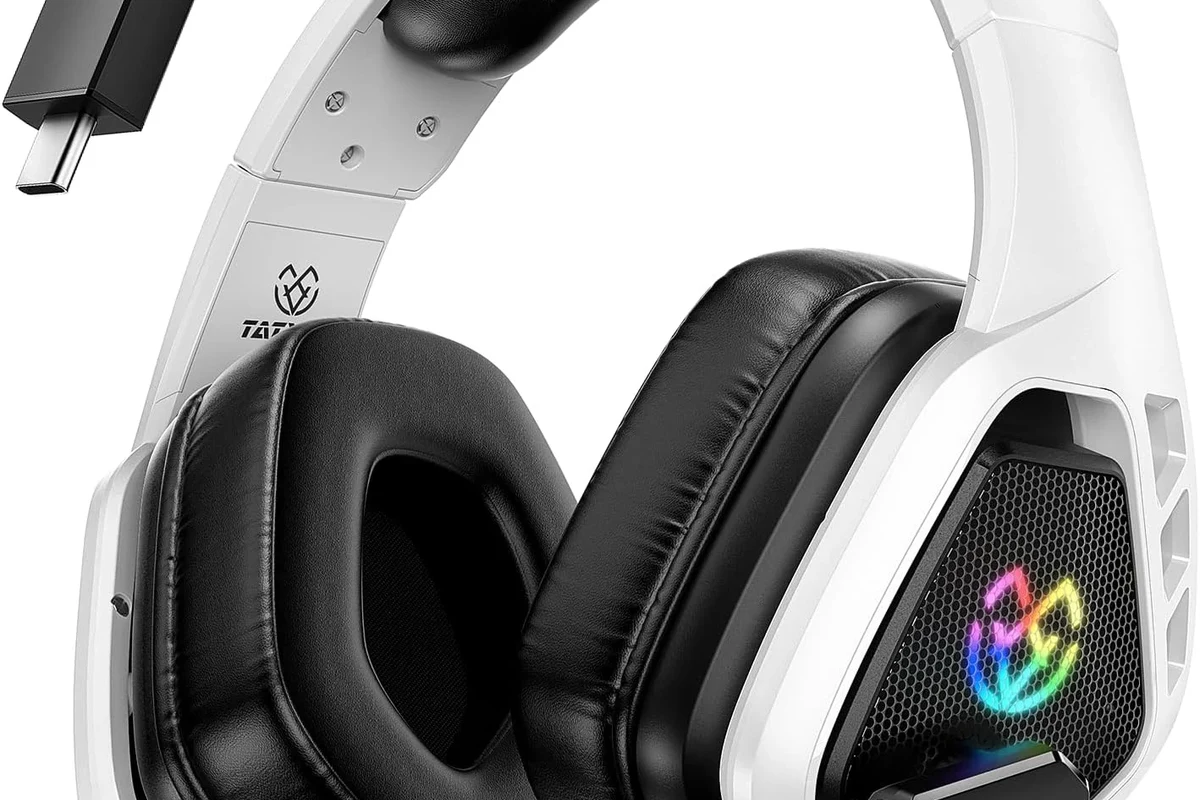
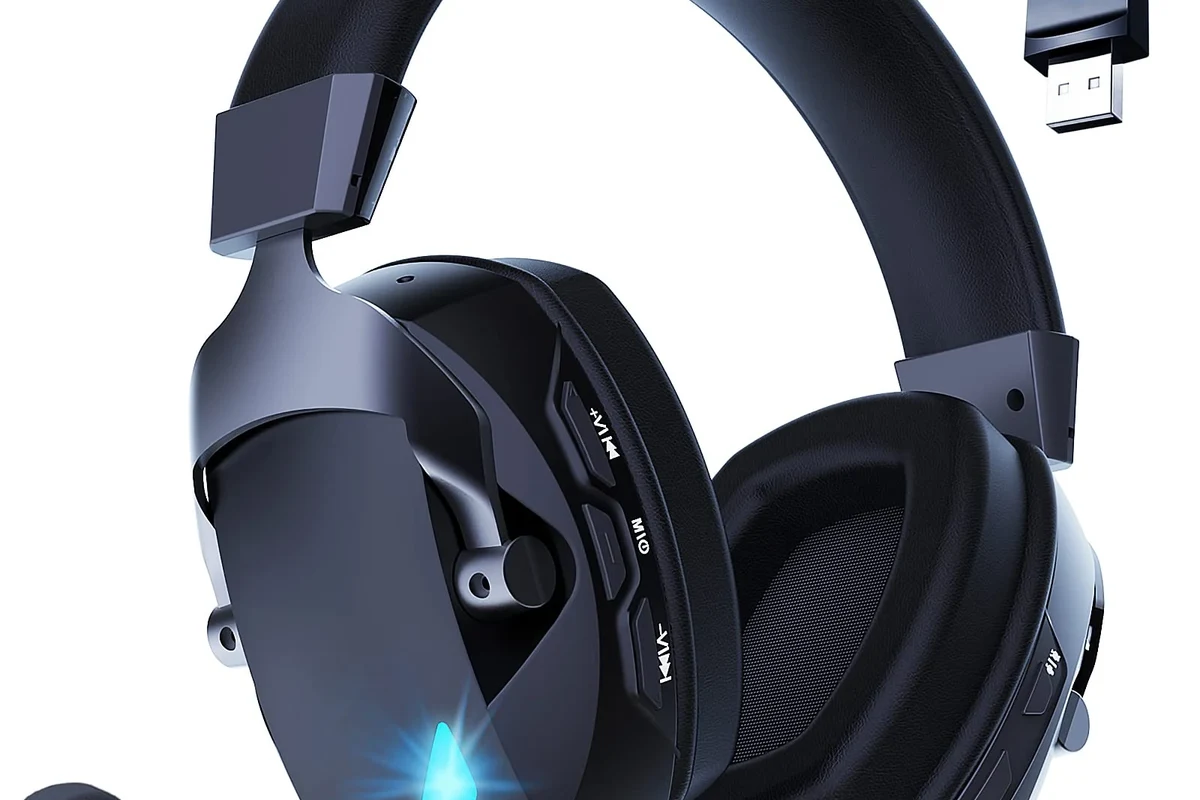
For many PS5 players, this is the cleanest solution. A wireless gaming headset with its own USB dongle is usually easier to set up than standard Bluetooth headphones and often offers better gaming performance.
You do give up some flexibility, because you are buying a headset built for gaming rather than reusing your current Bluetooth headphones. But if you want fewer headaches, this is often the most straightforward route.
Cheap wireless adapters can cause crackling, dropouts, or audio delay. If gaming sound matters to you, it is usually worth choosing a reputable adapter or headset over the lowest-cost option.
Step-by-Step Guide: How to Pair Bluetooth Headphones to PS5 Easily and Fast
Before you start, decide whether you are using a USB Bluetooth transmitter, TV Bluetooth, or a wireless gaming headset with a dongle. The setup steps are slightly different, but the basic goal is always the same: get the PS5 audio routed to the device that can transmit it to your headphones.
Prepare your headphones and PS5 settings before pairing
Charge your headphones first, then put them into pairing mode according to the manufacturer’s instructions. On the PS5, go to the sound settings so you can quickly switch output devices once the connection is ready.
It also helps to keep your headphones close to the adapter, TV, or console during setup. Distance and interference can make pairing fail or cause the connection to drop during the first attempt.
- Headphones are charged
- Pairing mode is active
- PS5 audio output menu is open
- No other Bluetooth device is interfering
How to connect with a USB Bluetooth transmitter
Insert the USB Bluetooth adapter into the PS5. If the adapter has a USB-C or USB-A option, use the port that matches your console and adapter design.
Turn on your headphones and hold the pairing button until the indicator light shows pairing is active. The exact light pattern varies by brand.
Let the transmitter and headphones find each other. Once connected, the adapter should route PS5 audio wirelessly to your headphones.
If the adapter includes a switch for headset or headphone mode, choose the option that matches your use case. Some adapters also support microphone input, but that feature is not universal.
How to connect through a compatible TV or monitor
First, confirm that your TV supports Bluetooth audio output. Then open the TV’s sound or Bluetooth settings and pair the headphones there, not on the PS5 itself.
After that, make sure the PS5 is sending audio through HDMI to the TV. If the TV handles output correctly, game sound should come through your headphones automatically.
Some TVs handle Bluetooth audio better than others, so two models from the same price range can still deliver very different gaming latency.
How to switch audio output and test sound on PS5
Once your connection is active, open the PS5 sound settings and confirm that the output device is set correctly. If you are using a transmitter or TV route, the console may still need a quick output check before sound is fully redirected.
Test with a game, a menu sound, or a streaming app to confirm that both channels are playing normally. If the sound is too quiet, delayed, or only coming through one side, stop and recheck the connection before continuing.
Listening at high volumes for long periods can cause hearing damage. Keep volume at 60% or below for extended sessions.
Common Problems When Pairing Bluetooth Headphones to PS5
Most PS5 Bluetooth issues come down to compatibility, latency, or setup order. The fix is usually simple once you know which part of the chain is causing the problem.
Audio delay, crackling, or one-sided sound
Delay usually means the adapter, TV, or codec is not ideal for gaming. Crackling can point to interference, weak signal strength, or a low-quality transmitter.
If one side is silent, the headphone connection may not be fully established, or the adapter may not support the headset properly. Re-pairing often helps, but if the issue keeps returning, the adapter may be the weak link.
Headphones not detected by the console
If the PS5 does not detect your headphones, that is usually normal for standard Bluetooth audio. The console is often not meant to see them as a direct device in the first place.
In that case, check whether you are using a USB transmitter or TV Bluetooth route instead. If you are, unplug the adapter, restart the PS5, and try pairing again from scratch.
Microphone not working in chat or party audio
Mic support is one of the biggest limitations of Bluetooth workarounds. Some adapters only send audio out and do not support voice chat input at all.
If party chat matters to you, a dedicated wireless gaming headset may be the better solution. It is often more reliable for both listening and talking than a general Bluetooth headphone setup.
Expert Advice: What Top Headphone Reviews Recommends for Better PS5 Audio
For most readers, the best choice is the one that balances convenience and gaming performance. If you mainly play single-player games, you may be fine with a simple adapter. If you play competitive titles, low latency and stable audio become much more important.
Why low-latency codecs matter for gaming performance
Low-latency codecs can reduce the gap between the on-screen action and the sound in your ears. That is especially useful for shooters, rhythm games, and any title where timing matters.
Not every headphone or adapter supports the same codec options, and performance can vary by device. That is why a “Bluetooth” label alone is not enough to judge gaming quality.
If you notice persistent delay, distorted audio, or discomfort from long listening sessions, consider speaking with an audiologist or a qualified audio specialist. For ongoing ear pain or tinnitus, professional guidance is the safest choice.
When a dedicated wireless gaming headset is a smarter choice
If you want the fewest setup issues, a wireless gaming headset with a USB dongle is often smarter than forcing standard Bluetooth headphones to work. These headsets are usually designed with console audio, chat support, and lower delay in mind.
That does not automatically make them sound better for every listener, but they are often easier to live with on PS5. For many players, ease of use matters as much as raw sound quality.
Warning signs that a cheap adapter may cause connection issues
Be cautious if an adapter makes big promises without explaining latency, codec support, or microphone compatibility. Those missing details often signal weak performance or inconsistent results.
Also watch for frequent disconnects, poor build quality, or unclear setup instructions. A slightly better adapter usually saves time and frustration later.
Cost Comparison: Bluetooth Adapter vs Wireless Gaming Headset vs TV Audio
There is no single best budget choice for everyone. The right option depends on whether you already own Bluetooth headphones, need mic support, or want the simplest setup possible.
Budget-friendly options for casual players
If you already own good Bluetooth headphones, a USB adapter is usually the cheapest way to try PS5 wireless audio. TV Bluetooth can also be free if your television already supports it and the delay is acceptable.
These options are best for casual play, streaming, or slower-paced games. They are less ideal if you are sensitive to lag or need dependable chat audio.
Mid-range and premium solutions for competitive gaming
For more serious gaming, a wireless headset with a dedicated dongle is often the better investment. It may cost more than a simple adapter, but it usually gives you a cleaner experience and fewer connection surprises.
Mid-range and premium choices can vary widely by brand, battery life, comfort, and sound tuning. If you play for long sessions, comfort and stability may matter more than saving a small amount of money.
Final Recap: The Fastest and Most Reliable Way to Use Bluetooth Headphones on PS5
If you want the fastest solution, use a USB Bluetooth transmitter or a wireless gaming headset with a dongle. If your TV has strong Bluetooth audio support, that can also work, but it is less consistent for low-latency gaming.
For most PS5 players, the best answer is not true direct Bluetooth pairing. It is the most reliable workaround that matches your headphones, your microphone needs, and how sensitive you are to audio delay.
- PS5 does not support standard Bluetooth audio directly for most headphones.
- USB transmitters and wireless dongles are usually the best workarounds.
- TV Bluetooth can work, but latency depends heavily on the TV model.
- Mic support is often limited with standard Bluetooth setups.
Frequently Asked Questions
Yes, wireless gaming headsets with a USB dongle are often easier to use on PS5 than standard Bluetooth headphones. They usually offer better stability and lower delay for games.
Check latency support, comfort, and whether the headset or adapter supports the audio features you need. Sound quality can vary by model, and EQ settings may help balance bass and clarity.
They can be useful if you want less background noise during play. However, comfort, latency, and mic support matter more than noise cancellation alone for gaming.
Closed-back headphones usually block more outside noise and work well for gaming in shared spaces. Open-back models can sound wider and more natural, but they leak sound and let in more room noise.
For gaming, prioritize low latency and chat support. For commuting, look at noise isolation and portability, while studio use benefits from balanced tuning and accurate detail.
Look at weight, ear cushion material, headband padding, and build quality. For long sessions, a lighter fit and softer pads usually feel better, but personal comfort can vary.