How to Connect TV to Headphones Easily and Quickly

The fastest way to connect TV to headphones is usually Bluetooth if your TV supports it, or a direct wired audio output for the most reliable sound. If neither is available, a TV audio transmitter or adapter can solve the problem with minimal setup.
If you want to know how to connect TV to headphones quickly, the best method depends on your TV’s outputs and whether you prefer wireless or wired listening. In most homes, Bluetooth is the easiest option, but a wired connection or external transmitter can be more reliable for gaming, late-night viewing, and older TVs.
- Check ports first: TV outputs decide the easiest setup.
- Wired is most stable: Best for gaming and lip-sync accuracy.
- Bluetooth is simplest: Great for casual, cable-free viewing.
- Transmitters help older TVs: Useful when no headphone jack exists.
How to Connect TV to Headphones: What Viewers Need to Know in 2025
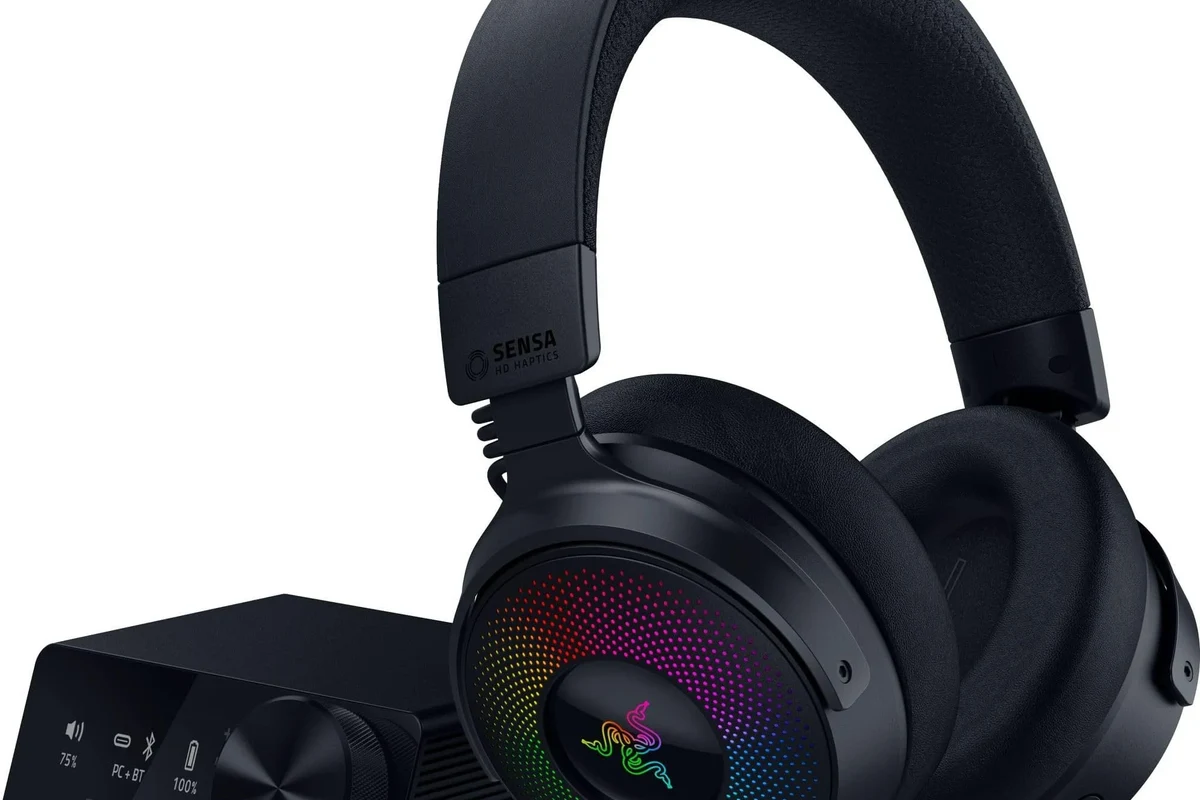
TV headphone setup is simpler than it used to be, but not every TV handles audio the same way. Some smart TVs include built-in Bluetooth, while others need a transmitter, adapter, or a direct cable connection through the headphone jack, RCA, or optical port.
The right choice usually comes down to three things: your TV’s audio outputs, your headphone type, and how much delay you can tolerate. If you’re pairing wireless models, it also helps to understand how Bluetooth headphones connect in general, since TV menus and pairing steps are often similar.
TV audio support varies by brand and model, so always check the settings menu and ports on the back or side of the TV before buying extra gear.
Choose the Right Connection Method for Your TV and Headphones
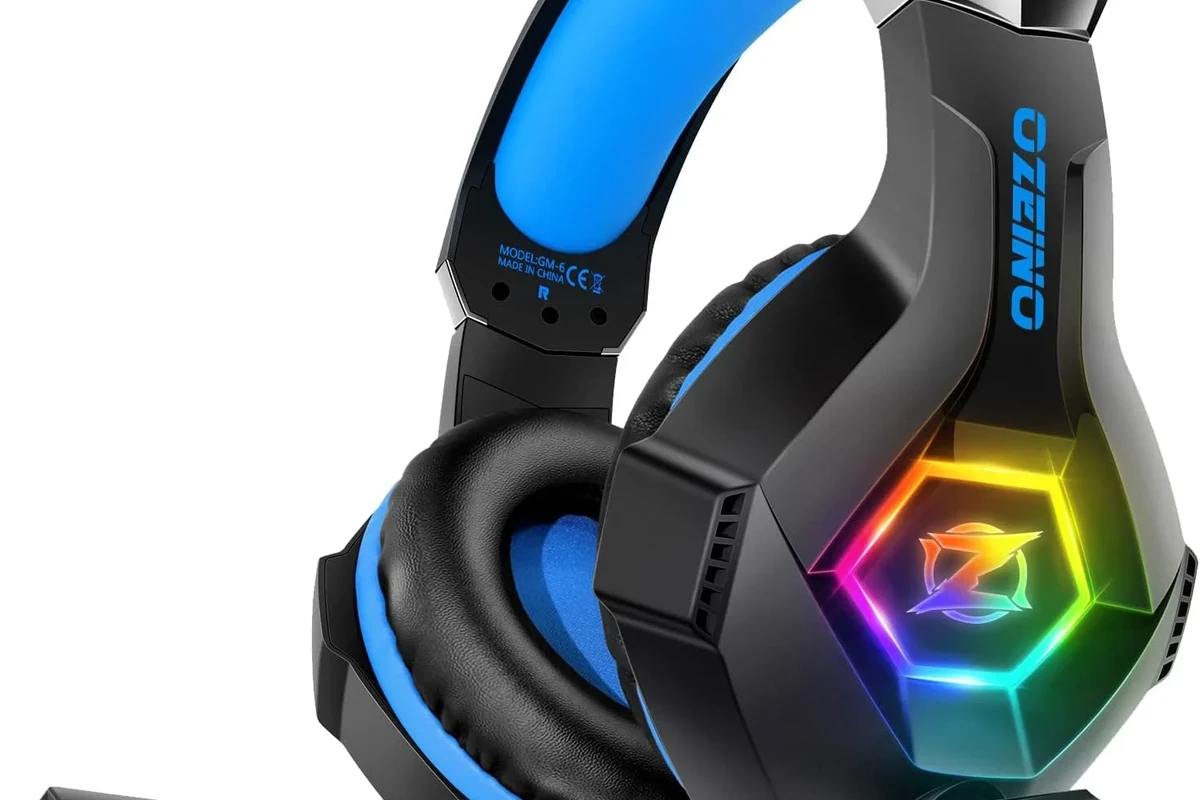
Before you start pairing anything, identify what your TV actually supports. That simple check can save you from buying the wrong adapter or ending up with sound delay, low volume, or a connection that drops out.
Bluetooth Pairing for Wireless Listening
Bluetooth is the cleanest setup for many modern smart TVs because it removes cables and keeps your space tidy. It works well for casual viewing, especially if your headphones already support stable wireless pairing and decent range.
The downside is that some TVs add noticeable audio lag, which can be distracting during gaming or fast dialogue scenes. If your TV supports Bluetooth audio natively, it is usually the fastest place to start.
Wired Options: 3.5mm, RCA, and Optical Adapters
Wired connections are often the most dependable choice when you want consistent sound with minimal delay. A 3.5mm headphone jack is the easiest, but many newer TVs no longer include one, so RCA or optical adapters may be needed.
RCA-to-3.5mm adapters can work with older TVs, while optical audio adapters are common when the TV has digital output but no direct headphone port. Wired setups usually avoid pairing problems, though cable length and adapter quality still matter.
Using a Transmitter, Soundbar, or TV Audio Out Port
If your TV lacks a headphone jack or Bluetooth, a dedicated transmitter can bridge the gap. These small devices plug into the TV’s audio output and send sound to your headphones wirelessly, which is especially useful for older TVs and shared living rooms.
Some soundbars and AV receivers also include audio-out options that can feed headphones, though not all do. If you already use a soundbar, check whether it has a passthrough or output mode that supports personal listening without muting the main speakers.
Step-by-Step: How to Connect TV to Headphones Without Frustration
The easiest setup is the one that matches your exact TV and headphone combination. If you move in a simple order—check ports, choose the output, pair or plug in, then test the volume—you can usually avoid most setup headaches.
Connecting Bluetooth Headphones to Smart TVs
Go to Settings, then Sound or Audio Output, and look for Bluetooth or Wireless Speaker options.
Follow the headset’s pairing steps so the TV can detect it. If you need a refresher, our guide on selecting headphones in Windows 11 can help you understand the general pairing flow.
Choose the headphones from the TV list, then play a show or game to confirm the sound is balanced and stable.
If the TV sees the headphones but no sound plays, restart both devices and try again. Sometimes the issue is simply that another audio output is still active in the TV menu.
Connecting Wired Headphones to Older and Modern TVs
For a direct wired setup, plug your headphones into the TV’s headphone or audio-out port if one exists. If the TV only has RCA or optical output, use the correct adapter and make sure it is designed for audio, not just a generic cable.
Once connected, lower the TV volume first, then raise it slowly to a comfortable level. Some TVs control headphone volume separately, while others mirror the main speaker volume, so testing is important.
Connecting Multiple Headphones for Shared Viewing
Multiple listeners can share one TV through a dual transmitter, a headphone splitter, or a wireless hub designed for more than one pair. This is useful for couples, families, or roommates who want the same movie without disturbing the room.
Some wireless transmitters support two headphones at once, but audio delay and volume balance can vary from one model to another.
For the cleanest result, choose matching headphones when possible. Mixed models can sound different in volume, bass, and latency, which may be noticeable during dialogue-heavy content.
Best Use Cases for TV Headphones: Movies, Gaming, and Late-Night Viewing
TV headphones are not just for convenience. They can improve focus, reduce household noise, and make it easier to enjoy content when the room is shared or the volume needs to stay low.
Watching Without Disturbing Others
Headphones are ideal for apartments, sleeping kids, or anyone who watches TV late at night. They let you keep dialogue clear without turning up the speakers and waking the rest of the house.
Closed-back over-ear headphones are often a strong choice here because they block more outside noise and help keep sound private. If you want a deeper understanding of isolation, our guide to noise cancelling headphones explains the difference between passive isolation and active cancellation.
Low-Latency Listening for Gaming and Sports
For gaming, sports, and fast-paced action, low latency matters more than almost anything else. Even a small delay between the picture and the sound can make footsteps, commentary, or gunfire feel off.
Wired headphones are usually safest for latency, while Bluetooth can be fine if your TV and headphones support a low-delay mode. If you notice lag, a dedicated transmitter with better synchronization may help more than a basic Bluetooth pairing.
Accessibility and Hearing Support Benefits
TV headphones can also help viewers who need clearer dialogue or more controlled listening levels. That can be especially helpful for people with mild hearing loss, sensory sensitivity, or a preference for more direct speech clarity.
If TV dialogue still sounds unclear even with headphones, or if you regularly struggle to hear speech at safe volumes, consider speaking with an audiologist for personalized hearing guidance.
Common Problems When Connecting TV Headphones and How to Fix Them
Most headphone connection problems come from the TV output setting, a weak adapter, or a mismatch between wireless and wired gear. The good news is that many of them are easy to fix once you know what to check first.
No Sound, Delay, or Pairing Failures
If there is no sound, confirm that the TV is sending audio to the correct output and that the headphones are charged or properly plugged in. For Bluetooth, remove old pairings, restart both devices, and try pairing again close to the TV.
Cheap adapters can cause static, dropouts, or weak volume. If sound quality matters, choose an adapter made for TV audio rather than the lowest-cost option available.
Audio Out of Sync With the Picture
Audio delay is one of the most common complaints with wireless TV listening. If your TV has an audio sync or lip-sync setting, adjust it first before buying new gear.
If the delay remains noticeable, wired headphones or a lower-latency transmitter are usually the better fix. This matters most for gaming and live sports, where timing is part of the experience.
Volume Control Issues and TV Audio Settings
Some TVs treat headphone volume separately from speaker volume, while others do not. If the sound is too quiet or too loud, check both the TV menu and the headphone controls before assuming something is broken.
Also look for sound modes, balance settings, or audio enhancements that may change speech clarity. Turning off unnecessary processing can make dialogue cleaner and more natural.
Expert Advice: Mistakes to Avoid Before You Buy or Set Up
Many headphone connection problems happen before the first movie even starts. A little planning helps you avoid compatibility issues, poor sound, and unnecessary extra purchases.
Why Not All TVs Support Bluetooth Audio Properly
Some TVs advertise Bluetooth, but only for remotes, keyboards, or accessories—not audio. Others support audio but still limit what headphones can connect or how stable the link feels in everyday use.
That is why it helps to read the TV’s audio output settings carefully instead of assuming Bluetooth will work like it does on a phone. If your TV is older, a transmitter may be the more reliable route.
When Cheap Adapters Cause Noise or Lag
Budget adapters can be tempting, but they sometimes introduce hiss, hum, or connection instability. In TV headphone setups, a small savings can become a daily annoyance if the audio cuts out during movies or games.
Look for an adapter or transmitter that matches your output type and supports the listening style you want. For example, casual movie watching and competitive gaming often need different levels of latency control.
Checking Codec Support, Range, and Battery Life
Wireless audio quality depends on more than just “Bluetooth on” or “Bluetooth off.” Codec support, range, and battery life can all affect how smooth the listening experience feels, and those details vary by brand and model.
If you want a broader look at headphone types before buying, our guide to types of headphones explained can help you compare over-ear, on-ear, in-ear, and wireless options for TV use.
Cost Comparison: Budget vs Premium Ways to Connect TV to Headphones
There is no single best budget or premium path for every setup. The right choice depends on how often you watch, whether you game, and how much you care about convenience versus absolute reliability.
Free Built-In TV Features vs Low-Cost Adapters
If your TV already has Bluetooth or a headphone jack, that is usually the cheapest path because you may not need anything extra. For many users, that built-in option is enough for movies and casual viewing.
Low-cost adapters can be a practical middle ground, but quality varies a lot. If you notice noise, lag, or unstable pairing, the adapter may be the weak link rather than the headphones themselves.
When It Makes Sense to Upgrade to a Dedicated Transmitter
A dedicated transmitter makes sense when you want a more dependable wireless setup, especially for older TVs or shared living spaces. It is also a smart upgrade if you want to use two headphones at once or reduce Bluetooth lag.
- Better compatibility
- Often more stable than built-in Bluetooth
- Useful for multiple listeners
- Extra cost
- Another device to power and manage
- Quality still varies by model
If you mostly watch casually, built-in TV features may be enough. If you care about gaming latency, stronger range, or fewer connection problems, a dedicated transmitter is usually worth considering.
Final Recap: The Fastest Way to Connect TV to Headphones in 2025
The fastest answer to how to connect TV to headphones is simple: use the TV’s built-in Bluetooth if it works well, or plug into the headphone/audio-out port for the most reliable sound. If neither option is available, a good transmitter or adapter can bridge the gap without much hassle.
For the best experience, match the connection method to your use case. Wired is usually best for low delay, Bluetooth is best for convenience, and a dedicated transmitter is often best for older TVs or shared viewing.
- Check your TV’s audio outputs first.
- Use Bluetooth for easy wireless listening when available.
- Choose wired or low-latency gear for gaming and sync-sensitive content.
- Upgrade to a transmitter if your TV lacks good built-in support.
Listening at high volumes for long periods can cause hearing damage. Keep volume at 60% or below for extended sessions.
Frequently Asked Questions
Wired headphones are usually better for zero-lag viewing and gaming. Wireless headphones are more convenient for casual movies and late-night watching.
Closed-back headphones usually work better for TV because they block outside noise and keep sound from leaking out. Open-back models can sound more spacious, but they are less private and less ideal for shared rooms.
For TV use, focus on comfort, connection type, latency, and clarity more than flashy specs. If you like more bass or clearer speech, EQ settings can help fine-tune the sound.
Start with your TV’s built-in audio outputs before buying extra gear. A low-cost adapter or transmitter can be enough, but make sure it matches your TV port and has decent audio stability.
Look for a comfortable fit, soft ear cushions, and a weight that feels good during long sessions. Build quality matters too, especially if the headphones will be used daily or shared by multiple people.
Yes, EQ can improve dialogue clarity, reduce harsh highs, or add more bass for movies and games. Small adjustments usually work better than extreme boosts, especially for long listening sessions.