How to Connect Headphones to LG TV in Easy Steps

The easiest way to connect headphones to an LG TV is usually Bluetooth if your model supports it, or the 3.5mm headphone jack if it has one. If neither is available, a Bluetooth transmitter is the most practical workaround.
If you want to know how to connect headphones to LG TV, the easiest method depends on your TV model and the type of headphones you own. In 2025, most LG TVs can use Bluetooth, while some older models still rely on a wired jack or an external transmitter.
- Check first: Confirm whether your LG TV supports Bluetooth or a headphone jack.
- Lowest lag: Wired headphones are usually the most reliable for TV audio.
- Best workaround: A Bluetooth transmitter can add wireless support to older TVs.
- Fix common issues: Verify sound output settings if the TV speakers still play.
How to Connect Headphones to LG TV: What Works in 2025 and Why It Matters
Connecting headphones to an LG TV is useful for late-night viewing, shared living spaces, and clearer dialogue without turning up the speakers. It also helps gamers and sports fans hear details more cleanly when the room is noisy.
The right setup can improve convenience and comfort, but not every LG TV supports the same audio output options. That is why it is worth checking your model before buying new headphones or an adapter.
Check Your LG TV’s Audio Outputs Before You Buy or Pair Anything
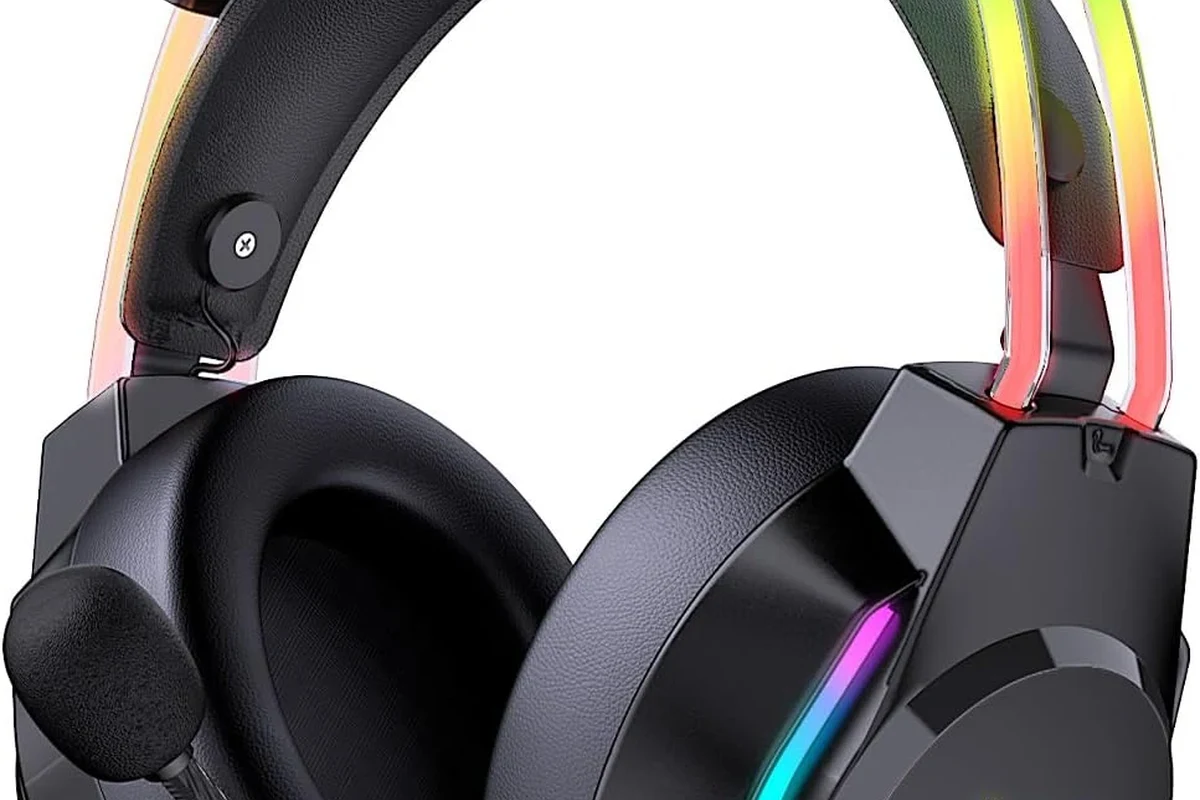
Before you connect anything, confirm what your TV can actually output. LG uses different audio features across webOS models, older LED sets, and some budget versions, so the best method is not always the same.
Bluetooth on LG webOS TVs
Many LG webOS TVs include Bluetooth audio support, which lets you pair wireless headphones directly in the settings menu. This is usually the cleanest option if your headphones already support Bluetooth and you want to avoid extra cables.
Still, Bluetooth behavior can vary by model. Some TVs support headphones well, while others may be more limited with codec support, latency, or the number of devices they can connect at once.
3.5mm headphone jack, optical out, and USB audio differences
A 3.5mm headphone jack is the simplest wired option because it sends audio straight to your headphones. If your LG TV has one, this is usually the fastest plug-and-play route.
Optical out is different. It sends digital audio to a soundbar, DAC, or Bluetooth transmitter, not directly to normal headphones without extra gear. USB audio is also model-specific, so it is not a guaranteed headphone solution.
If your TV does not have a headphone jack, you may still be able to use headphones through a Bluetooth transmitter or a soundbar with a headphone output.
How to identify your TV model’s supported connection methods
Check the back or side panel for ports, then open the TV manual or settings menu for audio output options. The exact model number is usually the fastest way to confirm whether your LG TV supports Bluetooth audio, wired output, or both.
If you are unsure, look for “Sound Out,” “Bluetooth,” “External Speaker,” or “Audio Out” in the TV settings. That will tell you a lot before you spend money on accessories.
Best Ways to Connect Headphones to an LG TV
There are a few reliable ways to connect headphones to an LG TV, and the best one depends on your setup, budget, and how sensitive you are to delay. For readers comparing headphone types, our Bluetooth headphones explained simply guide can help if you are still deciding between wireless and wired listening.
Pairing Bluetooth headphones directly to LG TV
This is the most convenient option if your TV supports Bluetooth audio. You get a cable-free setup, and it works especially well for casual TV watching, news, and streaming.
The main downside is that Bluetooth can sometimes create a small audio delay. That delay may be noticeable in fast dialogue, gaming, or action scenes, depending on the TV and headphone model.
Using wired headphones with the TV headphone jack
If your LG TV has a headphone jack, wired headphones are often the simplest and most stable choice. There is no pairing process, and latency is usually not a concern.
This can be a smart option for users who want dependable sound without worrying about battery life. It is also a good fallback if Bluetooth pairing fails.
Connecting through Bluetooth transmitter or adapter
A Bluetooth transmitter is useful when your LG TV does not support Bluetooth audio or when you want a more flexible wireless setup. It plugs into the TV’s audio output, then sends sound to your headphones wirelessly.
This can be a practical upgrade for older TVs, but quality varies by transmitter. For best results, look for a model designed for TV audio and low latency.
If lip-sync matters to you, choose a transmitter and headphones that support low-latency Bluetooth features when possible.
Using a soundbar, AVR, or streaming device as a workaround
Sometimes the easiest path is not direct headphone pairing at all. If your TV is connected to a soundbar or AVR, you may be able to route audio through that device and use its headphone output or Bluetooth feature.
Some streaming devices also offer their own audio settings that can help with headphone use. This is not always the most elegant fix, but it can solve compatibility issues on older or limited LG TVs.
Step-by-Step Setup for Each Connection Method
Once you know which method fits your TV, the setup is usually straightforward. The key is matching the TV’s output to the right headphone input or wireless pairing mode.
Bluetooth pairing steps for LG TV settings
Go to your LG TV settings and find the Sound or Audio section. Look for Bluetooth audio or Sound Out options.
Turn on your Bluetooth headphones and activate pairing mode according to the manufacturer’s instructions. The headset should appear as discoverable.
Choose your headphones from the TV’s Bluetooth device list. Wait for the connection to complete, then test audio with a show or app.
If the pairing does not show up right away, move the headphones closer to the TV and try again. For more Bluetooth troubleshooting, see our how to reset Bluetooth headphones guide.
Wired setup for instant plug-and-play listening
Check the side or back of the TV for a 3.5mm port labeled headphone or audio out.
Insert the headphone plug firmly into the jack. The TV should usually switch audio output automatically.
Use the TV remote or headphone controls to set a comfortable level. Start with low volume before increasing it slowly.
External adapter setup for TVs without built-in Bluetooth audio
Plug the Bluetooth transmitter into the TV’s optical, USB, or audio output, depending on the model and adapter type.
Put the transmitter and headphones into pairing mode until they connect. Some transmitters need a short first-time setup.
Make sure the TV is sending sound to the correct output and that the transmitter is not muted or disconnected.
Not every transmitter works well with every TV output. Check compatibility before buying, especially if your TV only offers optical out or HDMI ARC through another device.
Common Problems and Mistakes That Cause No Sound or Lag
Most connection issues come from simple mismatches between the TV output, the headphone input, or the adapter settings. A few quick checks usually solve the problem without replacing anything.
Audio delay and lip-sync issues with Bluetooth headphones
Bluetooth delay is one of the most common complaints with TV headphones. If voices do not match the picture, the issue may be the TV, the headphones, or the transmitter.
When this happens, try a low-latency transmitter, a different headphone model, or the TV’s audio sync settings if available. For more on this topic, our Bluetooth headphone lag fix guide can help.
TV audio output still routed to speakers
Sometimes the TV keeps playing through speakers even after headphones are connected. This often means the sound output setting was not switched manually, or the TV is set to external speakers instead of headphones.
Go back into the audio menu and confirm the correct output source. On some LG TVs, you may need to disable TV speakers or select Bluetooth audio explicitly.
Incompatible codecs, weak signals, and pairing failures
Bluetooth headphones and transmitters do not always speak the same “audio language.” If the codec support does not match well, you may get connection issues, unstable sound, or extra delay.
Weak range can also cause dropouts. Keep the headphones close to the TV during pairing, and avoid placing the transmitter behind thick furniture or inside a closed cabinet.
Some LG TV audio menus change depending on whether a soundbar, Bluetooth device, or optical connection is already active.
Expert Tips for Better Sound, Comfort, and Low-Latency Viewing
Good headphone sound is not just about connection type. Comfort, latency, and volume control matter just as much when you are watching long movies or gaming on a TV.
When to choose aptX Low Latency, LE Audio, or dedicated TV headphones
If your TV setup supports it, low-latency wireless features can make a big difference for lip-sync. That said, support varies by brand and model, so do not assume every Bluetooth headphone will behave the same.
Dedicated TV headphones can also be a smart choice for users who want simpler pairing, longer range, or easier charging. They are often designed with TV listening in mind rather than portable use.
Why over-ear vs. in-ear matters for long viewing sessions
Over-ear headphones often feel more comfortable for long movies because they spread pressure over a larger area. They can also give you stronger passive isolation, which helps in shared rooms.
In-ear earbuds are lighter and more compact, but some people find them less comfortable over several hours. The best choice depends on your ear shape, fit preference, and how long you watch at a time.
Volume control, hearing safety, and late-night TV use
Late-night listening is one of the most common reasons people connect headphones to an LG TV. Keep the volume at a level where dialogue is clear but not harsh, especially during long sessions.
Listening at high volumes for long periods can cause hearing damage. Keep volume at 60% or below for extended sessions.
If you already experience ringing, pain, or muffled hearing after TV listening, consult an audiologist or hearing professional before increasing volume or changing gear.
Cost Comparison: Free Built-In Options vs Affordable Add-Ons
The cheapest solution is usually the one your TV already supports. If your LG TV has Bluetooth or a headphone jack, you may not need to buy anything at all.
Budget wired headphones versus mid-range Bluetooth models
Budget wired headphones are often the lowest-cost route because they work directly with a jack and do not need charging. They are a solid choice for simple TV use and reliable sound.
Mid-range Bluetooth headphones cost more, but they can be more convenient for daily use. If you also want them for mobile listening, gaming, or commuting, the extra value may justify the upgrade.
Bluetooth transmitters and TV headphone adapters: what they cost in 2025
Accessory prices vary a lot by brand, features, and connection type. A basic transmitter is usually the cheaper add-on, while higher-quality low-latency models or adapter bundles can cost more.
When upgrading your headphones is smarter than buying accessories
If you already need new headphones, it may be smarter to buy a model that fits your TV setup from the start. That is especially true if you want better comfort, noise isolation, or lower latency.
On the other hand, if your current headphones are already good, a small adapter may be the better deal. The right choice depends on whether you are fixing a TV problem or improving your overall listening setup.
Final Recap: The Fastest and Best Way to Connect Headphones to an LG TV
If your LG TV supports Bluetooth audio, pairing wireless headphones directly is often the easiest modern solution. If your TV has a 3.5mm headphone jack, wired headphones are still the most dependable plug-and-play option.
For older TVs or models without headphone-friendly outputs, a Bluetooth transmitter or adapter can bridge the gap. The best method is the one that matches your TV ports, your latency tolerance, and the way you actually watch.
- Bluetooth is the easiest option if your LG TV supports it.
- Wired headphones are the simplest low-lag choice when a jack is available.
- Transmitters help older TVs work with wireless headphones.
- Check audio settings if sound still comes from the TV speakers.
Frequently Asked Questions
Wired headphones usually give the most stable sound with the least delay. Wireless headphones are more convenient, but Bluetooth lag can matter for gaming or fast dialogue.
Yes, noise cancelling headphones can work very well for TV watching, especially in shared or noisy rooms. Just make sure the fit is comfortable and the connection method is compatible with your TV.
Over-ear headphones are often best for long viewing sessions because they feel more comfortable and usually isolate sound better. In-ear models are lighter, but some people find them less comfortable over time.
For TV use, comfort, latency, and connection type matter more than chasing one spec alone. If you care about bass, clarity, and soundstage, look at driver type, tuning, and whether the headphones support low-latency Bluetooth.
Start with the TV’s built-in output before buying extra gear. If you need an accessory, a basic transmitter or a simple wired pair is often the most budget-friendly fix.
Check the headband fit, ear cushion material, weight, and battery life if the headphones are wireless. For long sessions, comfort matters as much as sound quality, especially if you watch TV every day.