Can Bluetooth Headphones Connect to TV Easily and Wirelessly

Yes, Bluetooth headphones can connect to many TVs, especially newer smart models with built-in Bluetooth audio. If your TV does not support it well, a Bluetooth transmitter is usually the easiest workaround.
Yes, can bluetooth headphones connect to tv is usually a simple question with a practical answer: in many cases, they can. The catch is that the TV, the headphones, and sometimes the audio path all need to support Bluetooth in a way that works well together.
For some viewers, pairing is quick and painless. For others, the bigger issue is not connection, but lag, low volume, or a TV menu that hides the Bluetooth option. This guide breaks down the easiest ways to connect wireless headphones to a TV and how to avoid the most common problems.
- Direct pairing: Works best on smart TVs with native Bluetooth audio.
- Older TVs: Often need a Bluetooth transmitter for wireless listening.
- Lag matters: Gaming and sports are most sensitive to audio delay.
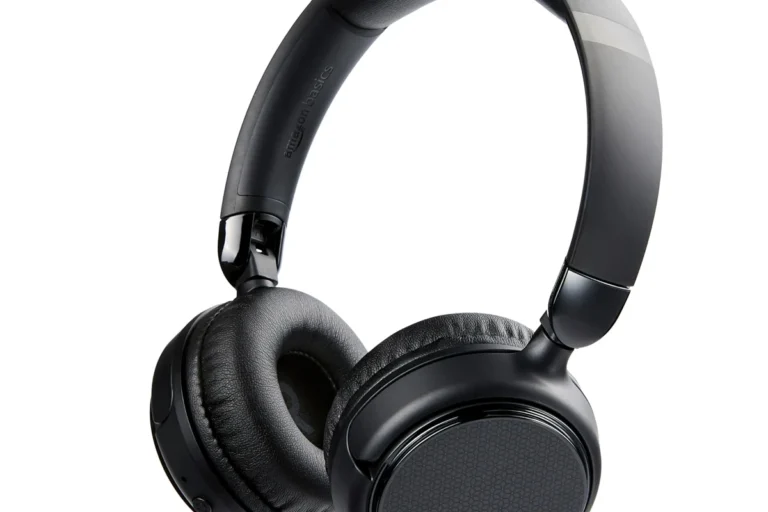
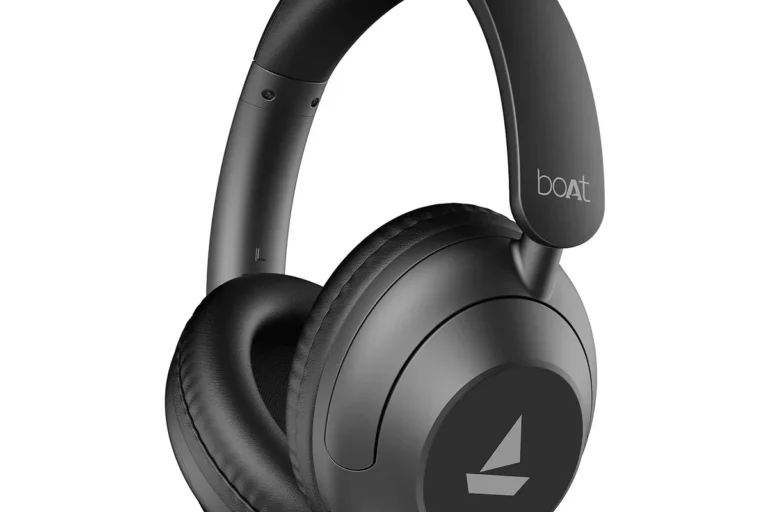
- Comfort counts: Over-ear headphones are often best for long TV sessions.
Can Bluetooth Headphones Connect to TV in 2025? What Most Viewers Need to Know
In 2025, many smart TVs include built-in Bluetooth, so connecting headphones wirelessly is often possible without extra gear. That said, not every TV supports audio output over Bluetooth, and some only support remotes, keyboards, or accessories.
If your TV is newer, check the sound or Bluetooth menu first. If it is an older model, you may need a transmitter or another audio source to make wireless listening work reliably.
How Bluetooth TV Audio Works and Why Compatibility Still Matters
Bluetooth sends audio from the TV to your headphones without a cable, which is convenient for late-night viewing and shared living spaces. But the connection depends on both devices agreeing on a Bluetooth profile and audio format.
That is why two devices may both say “Bluetooth” and still not work well together. TV brands, software versions, and headphone features can affect whether the connection is stable, delayed, or unavailable.
Built-in Bluetooth on Smart TVs vs. Older TV Models
Most smart TVs are the easiest place to start because many include Bluetooth audio output in the settings. You usually go into the sound menu, turn on pairing mode, and connect the headphones directly.
Older TVs often do not include Bluetooth at all. In that case, a Bluetooth transmitter connected to the TV’s audio output is usually the simplest workaround.
Some TVs support Bluetooth only for certain accessories, not for headphones. Always check the audio output section of the settings, not just the general Bluetooth menu.
Bluetooth Versions, Audio Latency, and Codec Support
Bluetooth version matters less than many shoppers think, but it still plays a role in reliability and range. The bigger issue for TV use is latency, which is the delay between the picture and the sound.
Codec support can also matter. If your TV and headphones support a low-latency codec, lip-sync may be better, but results vary by brand and device combination. For gaming and fast-action video, that difference can be noticeable.
Not all Bluetooth headphones are ideal for TV watching. Some models add enough delay that dialogue looks out of sync, especially in gaming or sports.
Best Ways to Connect Bluetooth Headphones to a TV Wirelessly
There are three common ways to listen wirelessly: direct pairing, using a Bluetooth transmitter, or routing audio through another device such as a soundbar, streaming box, or console. The best choice depends on your TV and how much lag you can tolerate.
If you are also learning the basics of wireless audio, our guide on how to connect Bluetooth headphones can help you understand the pairing process before you start.
Pairing Directly with a Bluetooth-Enabled TV
This is the easiest method when your TV supports headphone audio over Bluetooth. Put the headphones into pairing mode, open the TV’s Bluetooth or sound settings, and select the headphones from the device list.
If the connection succeeds, test dialogue, volume, and sync right away. Some TVs remember the pairing, while others may need reconnecting after a power cycle or firmware update.
Look for sound output, Bluetooth audio, or wireless speaker settings.
Follow the headset instructions until the indicator light or voice prompt confirms pairing mode.
Play a show or movie and check for delay, volume balance, and clear speech.
Using a Bluetooth Transmitter for TVs Without Native Support
A Bluetooth transmitter is a small adapter that plugs into your TV’s audio output and sends sound to your headphones. This is often the best fix for older TVs or sets with weak built-in Bluetooth support.
Transmitter setup usually depends on the TV’s available ports, such as optical, 3.5mm, or RCA. Before buying, confirm that the transmitter matches your TV’s output and supports the headphone features you need.
If your TV has an optical output, that is often a clean and dependable connection point for a Bluetooth transmitter.
Connecting Through a Soundbar, Streaming Device, or Console
Some viewers route TV audio through a soundbar or streaming device first, then send it to headphones if the hardware supports it. This can work well, but it adds another layer of settings and compatibility checks.
Gaming consoles may also offer their own audio settings. If you play on PS5, Xbox, or Nintendo Switch, you may need to choose whether the headset connects to the console, the TV, or a transmitter for the best sync.
Step-by-Step Setup Examples for Common TV Brands and Use Cases
Different brands place Bluetooth settings in different menus, so the process can feel inconsistent. The good news is that the general idea is the same: find audio output, enable pairing, and confirm that the TV is sending sound to headphones.
For readers comparing wireless audio behavior across devices, our article on Bluetooth headphones explained simply is a helpful starting point.
Watching Late-Night Movies Without Disturbing Others
This is one of the best use cases for Bluetooth headphones. If you mostly watch movies or shows after hours, comfort and stable connection matter more than extreme audio features.
Over-ear headphones with soft cushions are often the most comfortable for long sessions. If you wear headphones for hours, lighter models and gentler clamping force can make a big difference.
What is the easiest setup for quiet TV viewing?
A Bluetooth-enabled smart TV paired directly to comfortable over-ear headphones is usually the easiest option. If the TV does not support headphone audio well, a transmitter is the next simplest choice.
Gaming on PS5, Xbox, or Nintendo Switch with TV Audio
Gaming is where Bluetooth delay becomes most noticeable. Fast action, footsteps, and rhythm timing can feel slightly off if the audio sync is not good enough.
If you game often, prioritize low-latency support and check whether your TV or transmitter can reduce delay. For some players, a dedicated wireless gaming headset or RF system may be a better fit than standard Bluetooth.
Streaming Netflix, Sports, and Live TV with Headphones
Streaming apps are usually easier than gaming because a small audio delay is less distracting in movies and series. Sports and live broadcasts are more sensitive, especially when you watch commentary and on-screen action together.
If the TV has a lip-sync adjustment setting, use it carefully. A small adjustment can improve the experience, but it will not fix every Bluetooth delay issue.
Some TVs let you send audio to both the TV speakers and Bluetooth headphones at the same time, but this feature is not universal.
Common Problems When Bluetooth Headphones Won’t Connect to TV
When pairing fails, the problem is often a setting, a compatibility limit, or a device that is already connected elsewhere. It is less common for the headphones to be “broken” than people assume.
A quick reset can sometimes help. If your headphones are acting up across multiple devices, this guide on how to reset Bluetooth headphones may save time before you replace anything.
Audio Delay, Dropouts, and Low Volume Issues
Audio delay is the most common complaint, especially with cheaper transmitters or older Bluetooth implementations. Dropouts can happen when the signal is blocked by distance, walls, or interference from other wireless devices.
Low volume may come from the TV output setting, the headphone volume, or the transmitter’s gain level. Check all three before assuming the headphones are underpowered.
Listening at high volumes for long periods can cause hearing damage. Keep volume at 60% or below for extended sessions.
TV Settings That Block Headphone Pairing
Some TVs require you to switch the audio output manually from speakers to Bluetooth headphones. Others hide the pairing option inside accessibility, general settings, or advanced sound menus.
Firmware updates can also change how pairing works. If your TV used to connect and suddenly stopped, a software update or a settings reset may be part of the issue.
When the Problem Is the Headphones, Not the TV
Headphones with weak Bluetooth range, unstable pairing memory, or poor battery health can cause connection trouble that looks like a TV problem. This is especially true if the headphones disconnect from phones or tablets too.
For persistent issues, try the headphones with another device first. If they are unreliable everywhere, the headset may need resetting, charging, or replacement.
If you have ongoing hearing discomfort, tinnitus, or trouble understanding dialogue even at moderate volume, consider speaking with an audiologist. For hardware problems that persist after basic troubleshooting, a professional audio specialist or the TV manufacturer’s support team can help.
Expert Advice: How to Avoid Lag and Choose the Right Bluetooth Gear
The best TV headphone setup is not always the newest or most expensive one. It is the one that matches your TV, your room, and the type of content you watch most often.
Before buying, think about whether you care more about simplicity, lip-sync accuracy, or comfort during long sessions. Those priorities often matter more than marketing claims.
Low-Latency Codecs and Why They Matter for TV and Gaming
Low-latency codecs can reduce the delay between picture and sound, which helps with movies, sports, and especially gaming. The exact benefit depends on whether both the TV/transmitter and the headphones support the same codec.
Do not assume every “Bluetooth” label includes good sync. If the product page does not clearly mention latency support, it is safer to expect average TV performance rather than perfect timing.
When to Choose a Wireless RF Headphone System Instead
RF headphone systems use a dedicated wireless base rather than standard Bluetooth. They are often chosen for TV use because they can offer simpler setup and less noticeable delay.
If your main goal is long-form TV watching and you do not need headphones for phones or laptops, RF can be a strong alternative. Bluetooth is more flexible overall, but RF may be the better TV-first solution for some households.
Cost Comparison: Built-In Bluetooth vs. Transmitter vs. Dedicated TV Headphones
Cost depends on what your TV already supports and how much quality you want. A direct Bluetooth connection is usually the cheapest if your TV already has it, while a transmitter adds extra cost but expands compatibility.
Dedicated TV headphones or RF systems can cost more, but they may give you better comfort and fewer sync issues. If you are comparing audio options more broadly, our guide on Bluetooth vs wired headphones sound quality is useful for understanding trade-offs beyond TV use.
Budget-Friendly Options for Casual Viewers
Casual viewers usually want the simplest path with the least setup. Built-in Bluetooth on a smart TV, or a basic transmitter if the TV lacks support, is often enough for occasional movie nights.
Budget setups may be perfectly fine for dialogue-heavy shows. Just be realistic about latency and build quality if you expect a more polished experience.
Mid-Range and Premium Picks for Better Sound and Sync
Mid-range and premium options often improve comfort, battery life, and connection stability. They may also offer better codec support or a transmitter with stronger TV compatibility.
For frequent viewers and gamers, it can be worth paying more for fewer dropouts and better lip-sync. The best value is usually the setup that works consistently, not the one with the longest feature list.
Final Recap: The Easiest Way to Connect Bluetooth Headphones to Your TV
The easiest answer is yes, Bluetooth headphones can connect to a TV, but the smoothest setup depends on your TV’s built-in support. If your TV has native Bluetooth audio, direct pairing is the fastest route.
If it does not, a Bluetooth transmitter is usually the most practical fix. For gaming or anyone sensitive to lag, it is worth comparing Bluetooth with RF or other low-latency wireless options before buying.
Frequently Asked Questions
Bluetooth is more convenient, but wired headphones usually avoid lag and pairing issues. If sync matters most, wired can still be the simpler choice.
Yes, noise-cancelling headphones can help reduce room noise and keep dialogue clear. Comfort and fit still matter, especially for long viewing sessions.
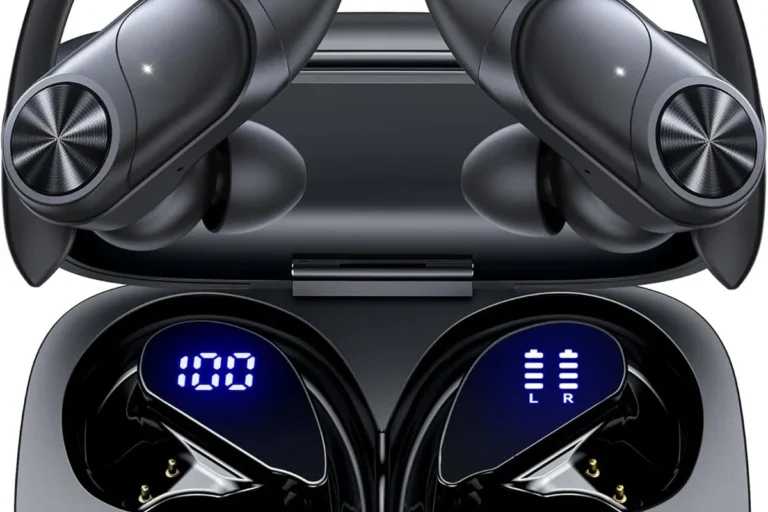
Over-ear models are often most comfortable for long TV sessions, while in-ear earbuds are more compact and easier to store. On-ear models can be lighter, but comfort varies by head shape and clamping force.
Look at Bluetooth support, codec compatibility, latency, battery life, and comfort first. Driver type, tuning, and EQ options also affect bass, clarity, and dialogue performance.
Start with your TV’s built-in Bluetooth if it works well. If not, a basic transmitter is often the most affordable way to add wireless headphone support.
Check weight, ear cushion material, headband padding, and battery life. A comfortable fit matters more than flashy features for long movie nights or binge sessions.