How to Connect Beats Headphones to PS5 Easily and Fast

The easiest way to connect Beats headphones to PS5 is usually with a Bluetooth transmitter, TV Bluetooth, or a wired audio route. Direct pairing often fails, so the best setup depends on whether you want convenience, low latency, or microphone support.
If you want to use Beats headphones on PS5, the short answer is that direct Bluetooth pairing usually does not work the way most people expect. The easiest fix is to use a Bluetooth transmitter, a TV or monitor with Bluetooth audio, or a wired audio route through the controller or another audio source.
- Best workaround: Use a low-latency Bluetooth transmitter for the most reliable wireless setup.
- Fastest casual option: TV or monitor Bluetooth can work, but delay may be noticeable.
- Best for competitive play: Wired audio usually gives the lowest latency.
- Mic check: Confirm microphone support before buying an adapter for party chat.
How to Connect Beats Headphones to PS5: What Works in 2026 and What Doesn’t
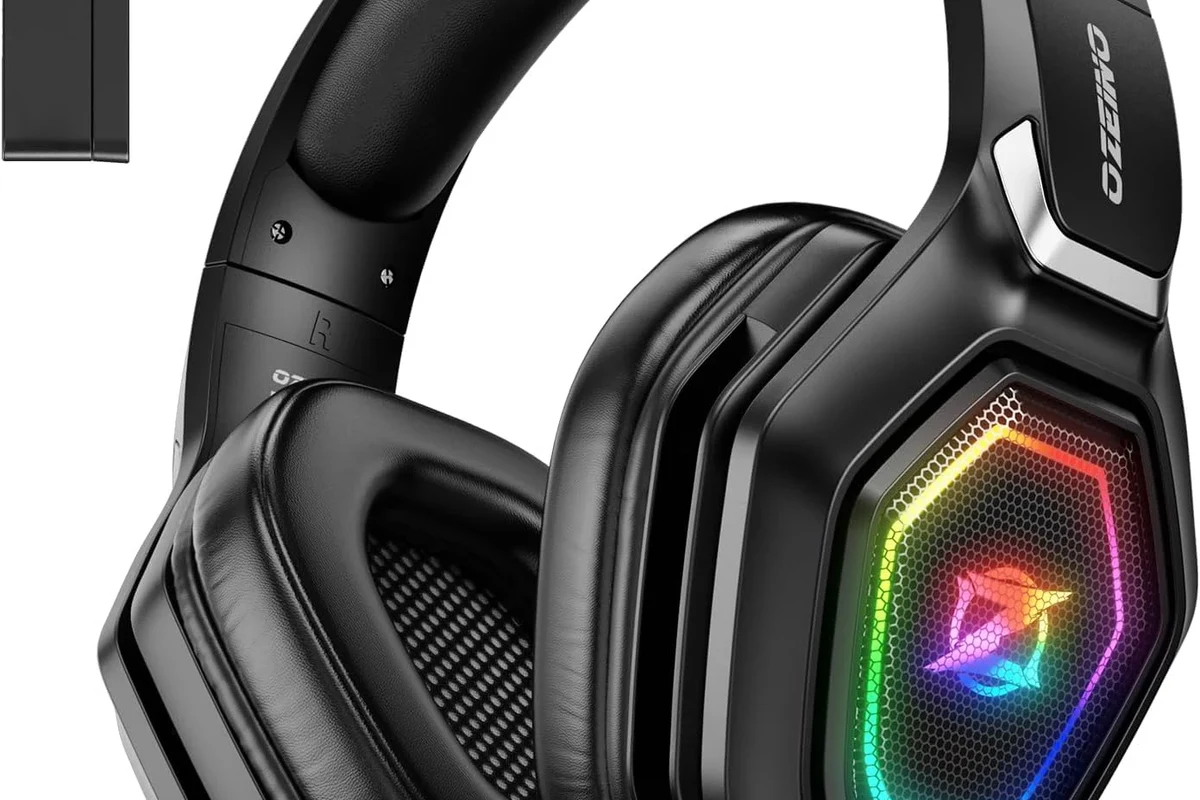
In 2026, the PS5 still does not support most standard Bluetooth headphones as a simple plug-and-play option. That includes many Beats models, even though they connect easily to phones, tablets, and laptops.
For Top Headphone Reviews readers, the key thing to understand is that PS5 audio is a little stricter than everyday Bluetooth listening. Sony limits direct Bluetooth audio support to avoid latency, interference, and voice-chat problems during gaming.
So if you are searching for how to connect Bluetooth headphones in a gaming setup, the answer is usually “with an adapter or another audio path,” not by pairing Beats directly in the PS5 menu.
PS5 Audio Compatibility Explained: Why Beats Headphones Need a Workaround
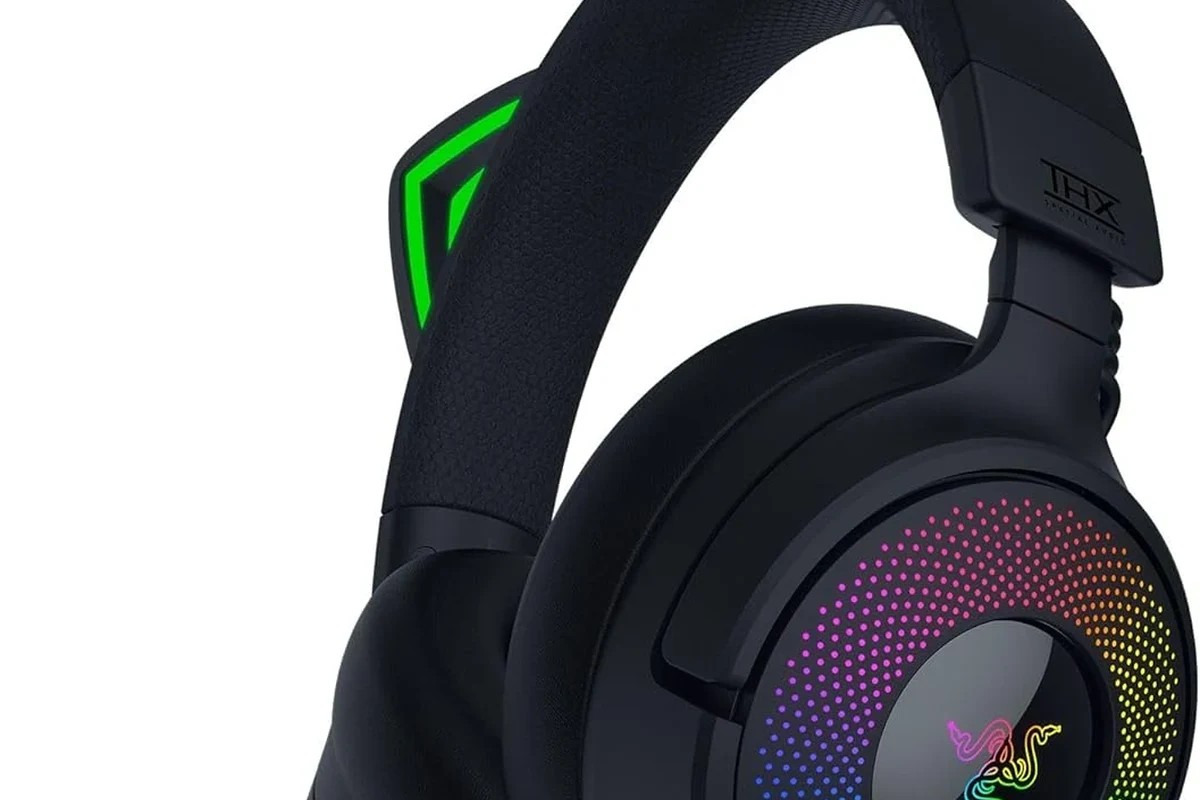
Beats headphones are designed for easy wireless use with phones and other Bluetooth devices. The PS5, however, is built more like a console than a general-purpose Bluetooth audio hub, so it handles wireless audio differently.
That means your Beats headphones may work perfectly in one setup and fail in another, depending on whether the audio is coming from the console, the TV, the monitor, or a separate transmitter.
Bluetooth limits on PS5 and why direct pairing usually fails
The PS5 does not offer broad native Bluetooth headphone support for most consumer headphones. Even when a device seems discoverable, it may not complete pairing or may connect with unstable audio.
When it does work through unsupported methods, you may notice lag, weak volume, or broken chat audio. For gaming, those trade-offs can be more distracting than helpful.
Bluetooth support can vary by adapter, TV, monitor, and Beats model. If your setup behaves differently from another user’s, that is normal.
Which Beats models are most likely to work with PS5 setups
Most modern Beats models can work with a PS5 setup if you use the right connection method. Beats Studio Pro, Beats Solo 4, Beats Solo Pro, Beats Fit Pro, and Powerbeats models are all commonly used with adapters or TV audio routes.
The best choice depends less on the Beats name and more on whether you want wireless convenience, low latency, microphone support, or the simplest possible setup.
Many gaming audio problems are caused by latency, not by poor sound quality. A headphone can sound great on music and still feel “off” in games if the delay is too high.
Fastest Ways to Use Beats Headphones with PS5
There are three practical ways to get Beats working with PS5 audio. The best one for you depends on whether you care most about speed, sound quality, or convenience.
Using a Bluetooth audio transmitter for wireless connection
A Bluetooth transmitter is the most common workaround. It plugs into the PS5, controller, TV, or monitor and sends audio to your Beats headphones wirelessly.
This is usually the fastest path if you want to keep using your Beats without cables. For better results, look for a low-latency transmitter rather than the cheapest option available.
If you hear delay during gameplay, try a transmitter with low-latency support and keep the TV audio processing features turned off.
Connecting Beats through the TV, monitor, or soundbar Bluetooth
If your TV, gaming monitor, or soundbar has Bluetooth audio output, you may be able to connect Beats there instead of directly to the PS5. In that case, the console sends sound to the display, and the display sends it to your headphones.
This can be a simple setup, especially for casual gaming and single-player sessions. The downside is that some TVs add extra delay, which can affect timing in action games.
Using a USB-C or USB-A transmitter for lower-latency gaming audio
A USB transmitter is often a better choice than a basic Bluetooth dongle because it is made for audio use and usually offers more stable performance. It can also be easier to keep connected to the PS5 or the front USB port.
For players who care about responsiveness, this is often the best balance between wireless freedom and gaming-friendly latency. It is also a cleaner choice than routing audio through a TV that may add processing delay.
Step-by-Step: How to Connect Beats Headphones to PS5 Easily
If you want the most reliable method, use a Bluetooth adapter or transmitter first. The exact steps may vary by adapter brand, but the general process is similar.
Pair Beats with a Bluetooth adapter on the PS5
Insert the Bluetooth transmitter into the PS5, controller, TV, or monitor depending on the model you bought.
Follow the adapter instructions so it starts searching for headphones.
Turn on pairing mode on your Beats headphones and wait for the connection to complete.
Connect Beats through the DualSense controller or USB audio route
Some users try routing audio through the DualSense controller with a cable or using a USB audio device. This can work for certain setups, but it is not always the cleanest wireless solution.
If you use a wired route, keep in mind that the Beats model and cable type matter. Not every Beats headphone is equally simple to use in wired mode, so check your exact model before assuming it will work the same way as a standard wired headset.
Verify audio output and microphone settings on PS5
After connecting, go to the PS5 sound settings and confirm that audio output is going to the correct device. If you are using a transmitter, make sure the console is sending sound to the TV, USB device, or controller route you selected.
For party chat, also check microphone input. Many Bluetooth audio setups carry sound only, while mic support may be limited or unavailable depending on the adapter.
Some Bluetooth adapters support headphone audio but not microphone input. If voice chat matters to you, confirm mic support before buying.
Best Setup Choices for Different Beats Models
Not all Beats headphones are equally convenient for PS5 gaming. Some are better for all-day comfort, while others are better for quick casual play or media use.
Beats Studio Pro for gaming and media
Beats Studio Pro is a strong pick if you want a more full-size over-ear style and plan to use the headphones for both gaming and entertainment. The larger design can feel more immersive for long sessions, depending on your head shape and comfort preference.
If you want one pair for PS5, movies, and music, this is one of the more flexible Beats options. Just remember that the connection method still matters more than the headphone name.
Beats Solo 4 and Solo Pro for casual PS5 play
Solo-style Beats headphones can be a good fit for casual gaming because they are compact and easy to carry. They are often appealing if you want a lighter on-ear design and do not mind a less enclosed feel.
For shorter play sessions, they can be perfectly usable with a transmitter or TV Bluetooth. For long competitive sessions, some players may prefer over-ear models for comfort.
Beats Fit Pro and Powerbeats for comfort during long sessions
Beats Fit Pro and Powerbeats are often chosen for secure fit and portability. They can be comfortable for long sessions if you prefer earbuds or a more workout-style design rather than over-ear headphones.
That said, earbuds may not give the same soundstage or physical comfort as larger headphones for every player. If you want deeper immersion, over-ear Beats models are usually the better gaming choice.
Common Problems When Connecting Beats to PS5 and How to Fix Them
Most PS5 and Beats issues come down to latency, pairing stability, or missing microphone support. The good news is that many of these problems have simple fixes.
Audio delay, lip-sync issues, and game sound lag
If the audio feels late, the first thing to try is a better transmitter or a lower-latency connection path. TV Bluetooth is convenient, but it can introduce more delay than a direct USB transmitter.
You can also reduce extra processing on the TV or monitor if it has gaming or sound modes that add delay. Small settings changes can make a noticeable difference.
One-ear audio, pairing drops, and connection instability
If sound only comes through one side or the connection keeps dropping, reset the Beats and restart the transmitter pairing process. Interference from nearby wireless devices can also cause problems.
Try moving the transmitter closer to where you play and avoid hiding it behind metal objects or thick furniture. If the issue continues, the adapter itself may be the weak link.
If your Beats headphones repeatedly disconnect, or if one side cuts out even after resetting, contact the headphone manufacturer or a professional audio specialist before replacing the headset.
Mic not working in party chat or voice chat
Microphone support is one of the most common surprises for PS5 users. A Bluetooth audio adapter may send game sound to your Beats but still fail to route your mic back to the console.
If party chat matters, look for an adapter that explicitly supports microphone input, or consider using a separate mic solution. In some cases, wired audio is simply easier for chat-heavy gaming.
Expert Advice: Best Practices, Warnings, and Mistakes to Avoid
A little planning goes a long way when setting up Beats with PS5. Choosing the wrong adapter can make even good headphones feel frustrating.
Why cheap Bluetooth adapters can cause poor latency and weak sound
Very cheap adapters often cut corners on connection stability, codec support, or audio quality. That can lead to lag, hiss, weak volume, or random disconnects.
If you game often, paying a bit more for a reputable transmitter is usually worth it. The difference is often more noticeable in gameplay than in music listening.
When wired mode is better than wireless for PS5 gaming
Wired audio is usually better when you want the lowest possible delay. It is also simpler if you do not want to deal with pairing, charging, or adapter compatibility.
For competitive games, wired mode can be the most practical option even if wireless is more comfortable day to day. If your Beats model supports a wired connection cleanly, it may be the smarter gaming setup.
Settings tweaks for clearer voice chat and better in-game audio
Check PS5 audio output settings, chat balance, and microphone input before assuming the headphones are the problem. Sometimes the headset is fine, but the console is sending audio to the wrong device.
If your TV has sound enhancement modes, try turning them off for gaming. You may get cleaner timing and more accurate directional audio.
Listening at high volumes for long periods can cause hearing damage. Keep volume at 60% or below for extended sessions.
Cost Comparison: Budget vs Premium Ways to Connect Beats to PS5
The cheapest way to connect Beats to PS5 is not always the best value. A low-cost adapter may work, but a better transmitter can save you from lag and dropouts later.
Low-cost Bluetooth dongles vs premium low-latency transmitters
Budget dongles are fine for occasional use, casual play, or testing whether wireless PS5 audio is worth it for you. They are usually the easiest low-risk entry point.
Premium low-latency transmitters tend to be better for players who care about smoother timing and more stable sound. They may cost more, but they often deliver a more dependable experience.
Which option gives the best value for casual and competitive gamers
Casual players usually get the best value from a simple Bluetooth transmitter or TV Bluetooth route. Competitive players usually benefit more from a lower-latency USB transmitter or a wired setup.
If you want the most balanced choice, look for a mid-range adapter with good reviews, clear PS5 compatibility, and microphone support if you need chat.
Final Recap: The Easiest Way to Get Beats Working on PS5
The easiest way to connect Beats headphones to PS5 is usually through a Bluetooth transmitter, a Bluetooth-capable TV or monitor, or a wired audio route if your model supports it well. Direct pairing to the PS5 is usually not the simple solution most people hope for.
If you want the least hassle, choose a transmitter that supports low latency and, if needed, microphone input. That gives you the best chance of getting clean game audio, stable connection quality, and a setup that actually feels good to use.
- PS5 usually needs a workaround for Beats Bluetooth audio.
- Low-latency transmitters are the most reliable wireless choice.
- Wired audio is often best for competitive gaming and chat.
- TV Bluetooth is easy, but it may add noticeable delay.
Frequently Asked Questions
Usually no. Most Beats headphones need a Bluetooth transmitter, TV Bluetooth, or another audio workaround to work well with PS5.
Wired is usually better for the lowest latency and most stable gaming audio. Wireless is more convenient, but it can add delay depending on the adapter or TV.
Beats can work well for both, but gaming performance depends on latency and connection quality. Music use is usually more forgiving than fast-paced gaming.
Check latency, comfort, microphone support, battery life, and whether the headphones can also work wired. Compatibility can vary by model and adapter.
Often yes, but comfort depends on head shape, clamp force, and ear cushion material. Some earbuds are great for portability, while over-ear models usually feel more immersive.
Use a low-latency connection, reduce TV audio processing, and adjust EQ only if needed. For the best clarity, keep volume moderate and test different output settings.