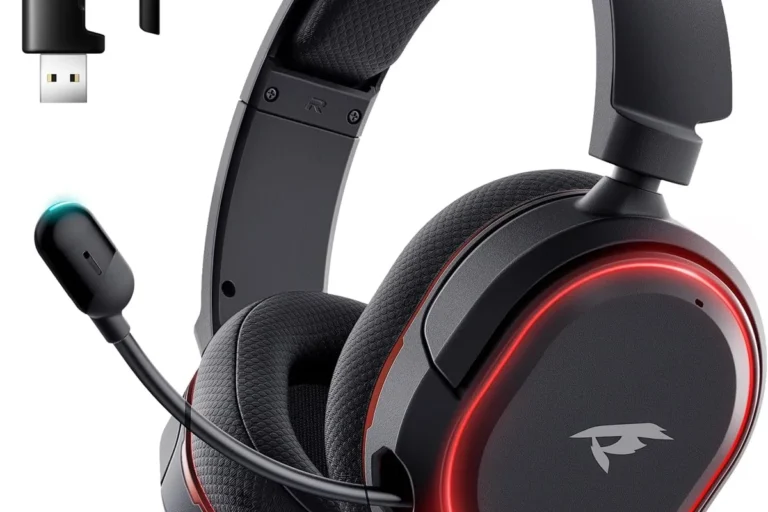
Why Do My Corsair Headphones Keep Beeping and How to Fix It

Corsair headphones usually beep because of low battery, pairing issues, connection drops, or iCUE alerts. Start by charging the headset, power cycling it, and checking firmware and receiver placement.
If your Corsair headphones keep beeping, the sound is usually a warning rather than a random glitch. In most cases, it points to low battery, pairing problems, a dropped wireless connection, or a setting in iCUE that is triggering alerts.
- Most common cause: Low battery or a weak wireless connection.
- Software check: iCUE alerts and outdated firmware can trigger beeps.
- Fast fix: Reconnect the receiver, re-pair Bluetooth, and test another device.
- Hardware clue: Repeated beeps during charging may point to battery or port failure.
Why Your Corsair Headphones Keep Beeping: What the Beep Pattern Usually Means
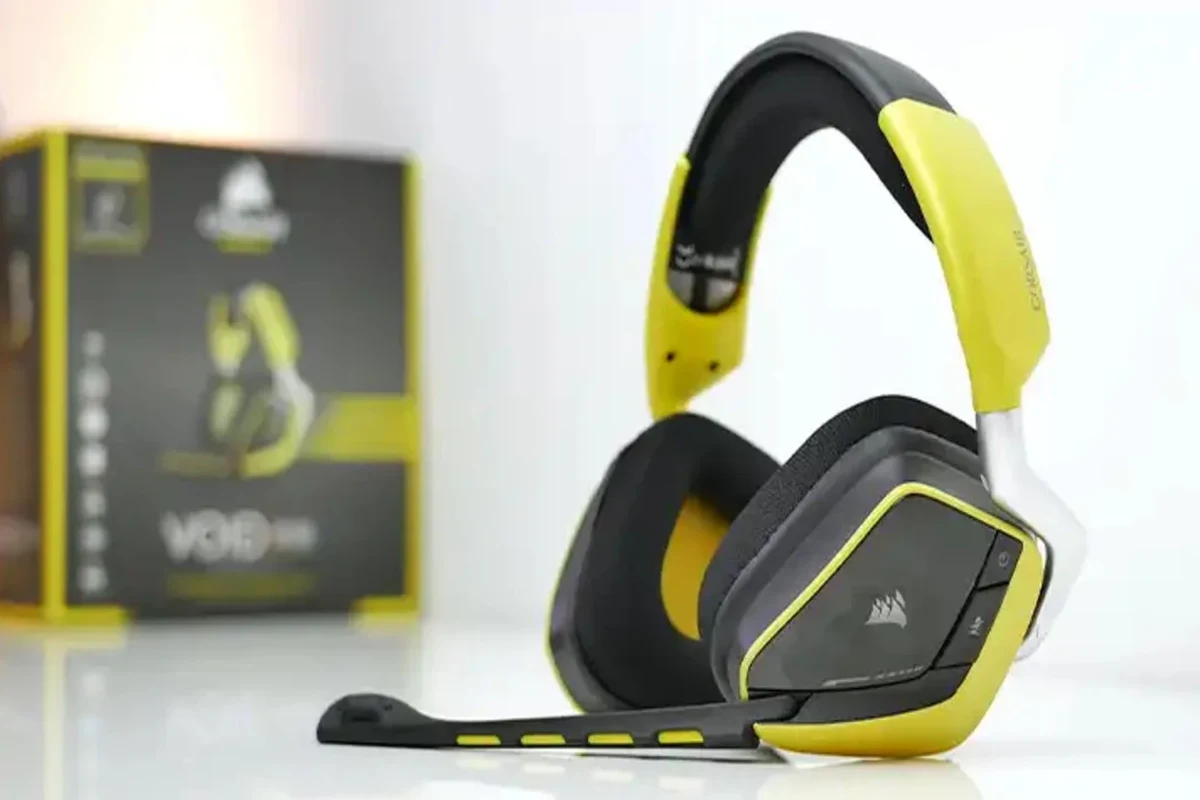
Corsair headsets often use beeps to communicate status changes, so the pattern matters. A single beep, repeated beeps, or a beep every few seconds can each mean something different depending on the model and whether you are using USB, 2.4GHz wireless, or Bluetooth.
Low battery alerts, pairing mode, and connection drop warnings
The most common reason for Corsair headset beeping is a low battery alert. If the headset is running low, it may beep repeatedly to tell you to charge it before the battery dies completely.
Beeping can also happen when the headset enters pairing mode or loses its connection to the USB receiver or Bluetooth device. If the beeps start after you move away from the PC, turn on another wireless device, or restart your computer, the headset may be warning you that the link is unstable.
Mic mute, sidetone, and software notification beeps in Corsair headsets
Some Corsair models also beep when you mute or unmute the microphone, switch profiles, or trigger a software notification. That can make the headset sound like it is malfunctioning when it is actually reacting to a setting or button press.
Sidetone and mic monitoring can sometimes create sounds that users mistake for beeping, especially if the headset is close to a speaker or if system audio is routed oddly. If the noise changes when you toggle sidetone or mic monitoring in iCUE, the issue may be software-related rather than hardware-related.
Quick Checks to Stop the Beeping in Under 5 Minutes
Before changing settings or assuming the headset is broken, run a few fast checks. These steps solve many Corsair headset beeping issues, especially when the problem started suddenly.
Power cycle the headset and reconnect the USB receiver or Bluetooth
Turn the headset off, wait a few seconds, and power it back on. If you are using the USB wireless receiver, unplug it and reconnect it directly to the computer rather than a hub.
If you are on Bluetooth, remove the headset from your device list and pair it again. A fresh connection often clears a temporary glitch that keeps the headset in an alert state.
Check charging status, battery health, and cable/port issues
Plug the headset into a known-good charging cable and let it charge for a while. If the beeping stops while charging, the battery may simply be low.
If the headset still beeps even when connected, inspect the cable, charging port, and USB port for looseness or debris. A poor connection can make the headset think it is repeatedly disconnecting and reconnecting.
Test on another device to isolate headset vs. PC problems
Try the headset on another computer, console, or phone if it supports that connection type. If the beeping follows the headset, the issue is likely in the headset, battery, or firmware.
If the beeping only happens on one device, the problem may be in the PC’s USB port, Bluetooth stack, or audio software. This is one of the easiest ways to separate headset trouble from system trouble.
Corsair iCUE Settings That Commonly Trigger Unwanted Beeping
iCUE is useful for customization, but it can also be the source of repeated alerts. If the headset works normally until Corsair software opens, closes, or switches profiles, the beeping may be coming from a setting rather than the headset itself.
Audio alerts, voice prompts, and device notifications inside iCUE
Some Corsair headsets can use voice prompts or audio alerts for battery, mute, connection, and profile changes. If those notifications are enabled, the headset may beep or speak more often than you expect.
Open iCUE and look for device notification settings, audio alerts, and any prompt options tied to battery or connection status. Disabling those alerts can immediately stop the beeping if the headset is otherwise healthy.
Firmware mismatch or outdated headset profiles causing repeated alerts
Outdated firmware can cause repeated warning tones, especially after a Windows update or a change in iCUE. A mismatch between the headset firmware and the software profile can make the device behave unpredictably.
Check whether iCUE shows an update for the headset or receiver, and install it if available. If the beeping started after a software change, reinstalling or refreshing the device profile may help.
How profile switching, sidetone, and mic monitoring can sound like beeping
Profile switching can create short tones that feel like random beeps, especially if the headset is set to change modes automatically. This can happen when moving between desktop, game, and chat profiles.
Sidetone and mic monitoring can also make you hear faint repeating sounds from your own microphone loopback. If the “beeping” changes when you adjust these features, test with them turned off before assuming there is a hardware fault.
If you are troubleshooting wireless beeps, keep the headset within a few feet of the receiver during testing. Short-range testing makes it easier to tell whether the problem is signal strength or a true headset fault.
Wireless Interference and USB Receiver Problems Behind Random Beeps
Wireless Corsair headsets are convenient, but they are also more sensitive to interference than wired models. Random beeping can happen when the connection becomes unstable, even if the headset battery is fine.
2.4GHz congestion from routers, controllers, and other peripherals
Many wireless headsets use the 2.4GHz band, which is crowded in homes and gaming setups. Wi-Fi routers, wireless controllers, keyboards, mice, and even nearby Bluetooth devices can add congestion.
If the headset beeps more in certain rooms or near a router, interference may be the cause. Moving the receiver or reducing nearby wireless traffic can make a noticeable difference.
USB 3.0 interference, bad hubs, and receiver placement mistakes
USB 3.0 ports and hubs can sometimes create interference that affects nearby 2.4GHz receivers. A receiver plugged into the back of a PC, behind metal panels, or next to several cables may pick up more noise than one on a short extension cable.
For troubleshooting, plug the receiver into a front port or use a USB extension to place it closer to the headset. Avoid cheap hubs if the beeping only happens when the receiver is connected through one.
Range limits and signal drops in real-world gaming setups
Even a good wireless headset has range limits, and walls, desks, and other electronics can reduce signal quality. If the beeping starts when you leave your chair or turn away from the PC, the headset may be warning you about a weak link.
Gaming setups often look simple on paper but are messy in practice, with cases, monitors, consoles, and routers all competing for space. That is why receiver placement matters more than many users realize.
If you want a broader refresher on wireless behavior, our guide to Bluetooth headphones explained simply can help you understand why wireless dropouts happen.
Hardware Issues to Rule Out Before Replacing the Headset
If the beeping continues after charging, resetting, and checking software, the headset itself may have a physical issue. That does not always mean it is beyond repair, but it does mean you should look beyond basic settings.
Battery wear, loose charging contacts, and failing power circuits
Over time, rechargeable batteries lose capacity and may cause repeated low-power alerts even after a full charge. If the headset only lasts a short time or beeps soon after unplugging, battery wear is a likely suspect.
Loose charging contacts or a failing power circuit can also create intermittent beeps. In that case, the headset may think it is charging and disconnecting over and over again.
Damaged buttons, mute switches, or wheel controls causing repeated alerts
A stuck mute button, damaged volume wheel, or faulty control switch can trigger repeated status sounds. If the beeping happens when you touch a certain part of the headset, the control hardware may be sending false inputs.
This is more common on heavily used gaming headsets that have seen a lot of daily wear. Physical controls can wear out even when the speakers still sound fine.
When the beeping points to a speaker or internal board fault
If the sound itself is distorted, intermittent, or coming from only one earcup, the issue may be deeper than a simple alert tone. Internal board faults can create strange repeated noises that are easy to confuse with normal beeps.
At that point, it is worth comparing the headset’s behavior with a different cable, receiver, or device before deciding on repair or replacement.
If the beep is accompanied by crackling, sudden shutdowns, or battery swelling, stop using the headset until it is checked or replaced.
Common Mistakes Users Make When Trying to Fix Corsair Headset Beeping
It is easy to chase the wrong problem when a headset starts beeping. Many users change Windows audio settings first, even though the real issue is in the headset, receiver, or firmware.
Ignoring firmware updates and only changing Windows sound settings
Windows sound settings can help if the device is selected incorrectly, but they will not fix a headset firmware bug. If iCUE shows an update, skipping it may leave the beeping problem untouched.
Always check the headset, receiver, and software version before making deeper changes. That saves time and prevents unnecessary troubleshooting.
Using the wrong cable, adapter, or charging source
Some charging cables only supply power inconsistently, and some adapters do not deliver a stable connection. If the headset beeps while charging, the cable or port may be the real issue.
Use the original cable if possible, or test with a different known-good cable and USB source. A weak charging setup can make a healthy headset look defective.
Resetting the headset without backing up custom iCUE profiles
Factory resets can help, but they may erase custom profiles, button mappings, and lighting settings. If you rely on a specific setup for gaming or work, save or note your settings first.
Resetting is useful, but it should be done carefully. Otherwise, you may solve the beep and create a bigger configuration problem afterward.
Wireless headset issues often look like software problems, but receiver placement and interference are just as common as app settings.
When to Repair, Replace, or Compare Costs for a Better Fix
At some point, the best fix may not be another reset. If your Corsair headset is older or the beeping keeps returning, compare the cost of repair, support, and replacement before spending too much time on it.
Estimated repair vs. replacement value for older Corsair models
For older headsets, repair may not be worth it if the battery, controls, or internal board are failing. The value of the headset, its age, and the availability of parts all affect whether repair makes sense.
If the headset is already out of warranty and showing multiple symptoms, replacement can be the simpler and safer choice. That is especially true if the beeping is tied to battery wear or intermittent power loss.
Comparing support options, warranty coverage, and out-of-pocket costs
Before replacing anything, check Corsair support and your warranty status. If the headset is still covered, a support claim may be more cost-effective than buying a new one.
Out-of-pocket repair costs can vary widely depending on the model and problem. In many cases, a warranty replacement is the cleanest route if the issue is clearly hardware-related.
When upgrading to a newer Corsair headset is the smarter choice
If you want better battery life, more stable wireless performance, or fewer software headaches, upgrading can be the practical solution. Newer models may also offer better comfort for long gaming sessions, though fit and sound are always personal.
If you are comparing options, it can help to review broader headphone basics like wired vs wireless headphones and types of headphones explained before choosing your next headset.
Final Recap: The Fastest Way to Identify and Eliminate Corsair Headphone Beeping
The fastest way to solve Corsair headphone beeping is to start with the simplest causes first: charge the headset, power cycle it, reconnect the receiver or Bluetooth, and test it on another device. If the beep continues, check iCUE alerts, firmware updates, and wireless interference before assuming the headset is broken.
Summary of the most likely causes and the best order to troubleshoot them
In most cases, the problem is low battery, a weak wireless connection, or a software alert inside iCUE. After that, the next most likely causes are USB receiver placement, interference, and worn controls.
If you want a deeper look at device setup, our guide on how to reset Bluetooth headphones can also help when the headset needs a clean re-pair.
Expert advice warning: don’t keep using a headset that beeps due to battery or hardware failure
If the beeping is caused by battery failure, overheating, or a damaged internal board, do not keep using the headset as if nothing is wrong. Repeated power issues can get worse over time and may make the headset unreliable during gaming or calls.
Protect Your Hearing: Listening at high volumes for long periods can cause hearing damage. Keep volume at 60% or below for extended sessions, and if you notice pain, ringing, or pressure, consider speaking with an audiologist.
Frequently Asked Questions
Wireless is more convenient, but wired avoids battery alerts and wireless interference. The better choice depends on your setup, latency needs, and comfort preference.
Noise cancelling can improve focus by reducing outside noise, but it may also change how the headset sounds and use more battery. Performance varies by model and by how you use it.
Open-back headphones usually feel more spacious, while closed-back models block more outside sound. For gaming or shared spaces, closed-back is often the more practical choice.
Start with fit, EQ, and source quality before blaming the drivers. A bad seal, wrong sound profile, or low-quality audio source can make even good headphones sound muffled.
Match the headphone type to the use case: wireless and ANC for commuting, low-latency comfort for gaming, and neutral sound for studio work. Features matter, but fit and connection stability matter too.
Look at weight, ear cushion material, clamp force, battery life, and build quality. For long sessions, comfort and stable fit often matter more than extra features.