How to Work Beats Headphones Easily and Quickly

To work Beats headphones quickly, charge them, turn them on, pair them over Bluetooth, and select them as the active audio output. If they still do not work, reset the headphones and remove old Bluetooth pairings before trying again.
If you are trying to figure out how to work Beats headphones, the short version is this: charge them, power them on, pair them over Bluetooth, and confirm the correct audio output device is selected. Most “not working” problems come from pairing issues, low battery, or the wrong device settings rather than a broken headset.
- Charge first: Low battery is a common cause of setup problems.
- Pair correctly: Use Bluetooth settings or Apple’s pop-up when available.
- Fix settings: Confirm the headphones are the selected sound output.
- Reset if needed: A fresh pairing often solves connection issues.
How to Work Beats Headphones: What “Working” Actually Means in 2026
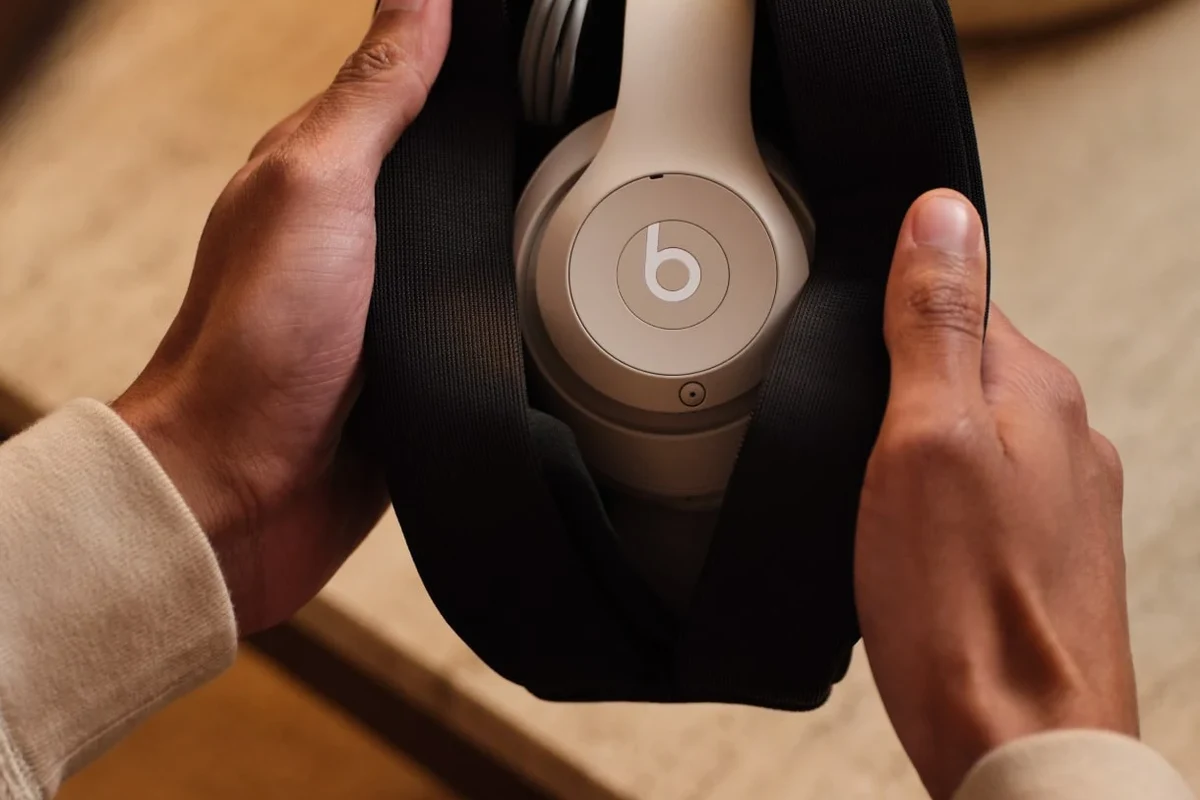
In 2026, “working” usually means your Beats headphones can power on, connect reliably, play audio clearly, and respond to controls without delay. That sounds simple, but wireless headphones depend on both the headphone hardware and the phone, laptop, or tablet you connect them to.
For many readers, the issue is not sound quality itself. It is getting the headphones to pair the first time, reconnect later, or switch between devices without confusion. If you want a broader look at Bluetooth headphones explained, that can help make the setup process easier to understand.
Pairing, powering on, and getting audio to play correctly
Beats headphones typically need a charge, a power-on step, and a Bluetooth pairing step before they can play audio. Once connected, you still need to make sure your phone or computer is sending sound to the headphones instead of built-in speakers or another saved device.
On some models, the power button and pairing behavior are easy to confuse, especially if the battery is very low. If audio still does not play, check volume, mute settings, and whether the app or streaming service is outputting to the correct device.
Why Beats headphones sometimes seem “not working” on first use
New Beats headphones may seem broken when they are simply waiting to be paired, charged, or selected as the audio output. In other cases, a previous connection on another device can interfere with the first setup.
Software updates also matter. A phone with outdated Bluetooth settings, an older operating system, or restricted permissions may not detect the headphones smoothly. That is why first-use problems often disappear after a full charge, a reset, or a quick settings check.
Step-by-Step Setup for iPhone, Android, Windows, and Mac
The setup process is similar across devices, but Apple products often offer the fastest pairing experience. Android and Windows usually take a few extra taps, and the exact menu names may vary by device model and software version.
Beats features can behave differently depending on the model, firmware version, and the phone or computer you use. If a step does not match your screen exactly, look for the closest Bluetooth or sound setting.
Fast pairing on Apple devices using the H1/H2 chip experience
On compatible Apple devices, Beats headphones often pair with a nearby pop-up prompt after you power them on. If the prompt appears, follow it and wait for the connection to finish before you start music or video playback.
If the pop-up does not appear, open Bluetooth settings manually and confirm the headphones are listed. You may also need to keep the headphones close to the device and make sure no other phone or tablet is already connected.
Press and hold the power button until the indicator light shows the headphones are active.
Keep the headphones close so the device can detect them quickly.
Tap connect when the pop-up appears, then test audio in a music app or video.
Manual Bluetooth setup on Android and Windows
Android and Windows usually require manual pairing through Bluetooth settings. Put the headphones in pairing mode, open the Bluetooth menu, and select the Beats device from the list.
If you use Windows, you may also need to choose the headphones as the default sound output after pairing. For a more detailed walkthrough, see our guide on how to connect Bluetooth headphones and our guide on how to select headphones in Windows 11.
- Bluetooth is turned on
- The headphones are in pairing mode
- The device is not already connected elsewhere
- The headphones are selected as the audio output
Switching between devices without losing connection
Many Beats headphones can remember multiple devices, but they do not always switch instantly. If audio keeps going to the wrong device, disconnect the headphones from the old device first, then reconnect on the new one.
This is especially common if you use a phone, laptop, and tablet in the same day. Keeping only the devices you use most often in the Bluetooth list can reduce confusion and make switching easier.
How to Fix Common Beats Headphone Problems Quickly
Most Beats issues can be solved with a few basic checks before you assume the headphones are damaged. Start with battery level, Bluetooth status, and audio output selection, then move to reset steps if needed.
If the headphones were exposed to water, dropped hard, or smell burnt while charging, stop using them and inspect them carefully before trying more fixes.
No sound, one side silent, or audio cutting out
If there is no sound, first raise the volume on both the headphones and the source device. Then confirm the headphones are connected and selected as the active output.
If one side is silent or audio cuts out, try another song, another app, or another device. If the problem follows the headphones everywhere, the issue may be physical damage, a cable problem on wired models, or a battery/firmware issue on wireless models.
For deeper troubleshooting, our guide on why headphones sound muffled may help if the audio is weak, dull, or unclear.
Charging issues, dead battery, and power button confusion
Beats headphones can seem dead when the battery is simply empty or the charging cable is not seated properly. Try a different USB cable, a different power source, and a few minutes of charging before testing again.
Some users also mistake a low battery for a broken power button. If the indicator light does not respond, leave the headphones plugged in for a while and then try powering them on again.
If your headphones keep dying faster than expected, lower the volume a little and charge them before they reach zero. Repeated deep drains can make battery life feel worse over time.
Resetting Beats headphones the right way
A reset is often the fastest fix for pairing failures and strange connection behavior. The exact button combination can vary by model, so check your model’s instructions if the common reset sequence does not work.
In general, remove the headphones from your device’s Bluetooth list, power them off, perform the reset, and then pair them again from scratch. If you want a broader reset walkthrough, see our article on how to reset Bluetooth headphones.
Many Bluetooth problems are caused by stale saved connections, not the headphones themselves. Clearing the old pairing often fixes the issue faster than repeated reconnect attempts.
Best Ways to Use Beats Headphones for Daily Listening, Calls, and Workouts
Beats headphones are popular because they are easy to use for everyday listening, video calls, and exercise. The best setup depends on whether you care most about convenience, sound isolation, portability, or workout stability.
Controlling music, calls, and Siri/voice assistants
Most Beats models let you play or pause audio, answer calls, and adjust listening behavior from the earcup or inline controls. The exact controls vary, so it is worth learning the button layout once instead of guessing during a call.
Voice assistants can be helpful for hands-free use, but they work best when your device permissions, microphone access, and Bluetooth connection are all active. If calls sound bad, check whether the microphone is blocked by dirt, clothing, or a poor connection.
Using Beats for commuting, office work, and gym sessions
For commuting, the main goal is usually comfort and isolation from outside noise. For office work, stable Bluetooth, clear voice pickup, and easy switching between devices matter more.
For workouts, a secure fit and sweat resistance are often more important than maximum bass. If you are comparing different styles, our types of headphones explained guide can help you decide between over-ear, on-ear, and in-ear options.
Fit, battery life, and connection stability matter just as much as sound.
When to use noise cancellation or transparency mode
Noise cancellation is useful when you want to reduce steady background sounds like engines, fans, or air conditioning. Transparency mode is better when you still need to hear announcements, traffic, or people around you.
If you want a deeper explanation of the technology, read our guide on how noise cancelling headphones work and our article on transparency mode headphones.
Listening at high volumes for long periods can cause hearing damage. Keep volume at 60% or below for extended sessions.
Common Mistakes That Make Beats Headphones Seem Broken
A lot of “broken” Beats headphones are actually dealing with simple setup mistakes. The good news is that these errors are usually easy to fix once you know what to look for.
Forgetting Bluetooth permissions or device updates
On phones and computers, Bluetooth permissions and operating system updates can affect pairing. If the headphones are visible but refuse to connect, check whether the device has restricted Bluetooth access for the app or system service.
Updating the phone, tablet, or laptop can also help if the connection keeps dropping. In some cases, the headphones are fine, but the source device needs a software refresh.
Using the wrong cable, charger, or audio source
Charging problems often come from a bad cable, weak power adapter, or loose port rather than the headphones themselves. If you are using a wired Beats model or an adapter, make sure the cable matches the correct input and output standard.
Using the wrong audio source can also cause confusion. For example, a video may be playing through the computer speakers even though the headphones are paired and connected.
Ignoring battery health and firmware updates
Battery health affects how long your Beats headphones last between charges and how reliably they power on. If the headphones only work for a short time or behave unpredictably, battery wear may be part of the problem.
Firmware updates can also improve stability on supported models. While updates do not fix every issue, they are worth checking before you assume the headphones need replacement.
- Charge the headphones fully before troubleshooting.
- Check Bluetooth, permissions, and audio output settings.
- Reset and re-pair if the connection is unstable.
- Test the headphones on another device to isolate the problem.
Expert Advice: When to Troubleshoot and When to Replace
Basic troubleshooting solves many Beats issues, but not all of them. If the headphones show signs of physical damage or battery failure, replacement may be the more practical option.
Warning signs of hardware damage or worn-out batteries
Repeated shutdowns, charging ports that only work at certain angles, uneven sound, or a battery that drains unusually fast can point to hardware wear. Cracks, loose hinges, or damaged ear cushions can also affect comfort and fit.
If the headphones were exposed to moisture, extreme heat, or heavy impact, do not keep forcing them to work. That can make the problem worse and may create a safety issue.
What a repair or replacement may cost in 2026
Repair and replacement costs can vary widely by model, region, warranty coverage, and whether the issue is battery-related, cosmetic, or structural. In many cases, the total cost depends on whether the headphones are still under warranty and whether parts are available.
How Beats compares with similar wireless headphones for reliability
Beats is often chosen for easy pairing, familiar controls, and broad appeal, especially for Apple users. Other wireless headphones may offer different strengths, such as longer battery life, stronger ANC, or a more neutral sound profile.
If reliability is your top concern, compare connection stability, comfort, battery performance, and support options instead of focusing on bass alone. For readers weighing connection behavior across platforms, our wired vs wireless headphones guide may help frame the trade-offs.
If you hear distortion at normal volume, notice swelling near the battery area, or get repeated charging failures, stop using the headphones and contact support or a qualified repair professional. If hearing discomfort, ringing, or pain occurs, consult an audiologist.
Final Recap: The Quickest Way to Get Beats Headphones Working Properly
The fastest path is usually simple: charge the headphones, pair them again, select the correct audio output, and test them on a second device. If that fails, reset the headphones and remove old Bluetooth pairings before trying again.
Simple checklist for setup, fixes, and daily use
Start with battery, then Bluetooth, then sound settings. Keep the firmware and device software updated, and learn the controls for calls, playback, and assistant features so the headphones feel easier to use every day.
Best next steps if the headphones still will not connect
If the headphones still will not connect, test them with a different phone or computer to see whether the problem is with the headphones or the source device. If they fail on every device, the issue is more likely hardware-related.
At that point, check warranty coverage, support options, or repair availability before buying a replacement. For many readers, that final step is the quickest way to decide whether to troubleshoot further or move on to a new pair.
Frequently Asked Questions
Beats makes both wireless and wired options, depending on the model. Wireless versions are more common for everyday listening, while wired models can be useful when you want a direct connection with no charging.
Some Beats models include active noise cancellation, while others do not. Performance can vary by model, fit, and how well the earcups seal around your ears.
Over-ear models usually feel more immersive and can block more outside noise. On-ear and in-ear styles may be lighter, more portable, and easier to carry for workouts or travel.
Try a small EQ adjustment before changing anything else. A little extra bass or a slight treble reduction can help, but too much boosting may make the sound muddy or harsh.
For commuting, check battery life, comfort, and noise cancellation. For gaming, look at connection stability, latency, microphone quality, and whether the headphones work well with your device.
Comfort depends on ear cushion material, clamping force, and weight. Build quality matters too, because loose hinges or worn cushions can make headphones less comfortable over time.