How To Enhance Headphone Sound Quality: Better Audio Tips

Introduction
If you use headphones with an iPhone, Android phone, Windows PC, Mac, game console, or TV in the United States, you can often improve the sound without buying new gear. The best results usually come from three things: a better fit, a clean source, and careful EQ settings.
Start with the simple checks first. Clean the ear pads, use the right ear tips, turn off unwanted sound effects, and check whether your music app is limiting quality. Then adjust EQ in small steps. Extra hardware, such as a USB DAC or headphone amplifier, can help in some cases, but it is not a cure for every sound problem.
This guide explains how to improve headphone sound quality for music, movies, podcasts, calls, and games. It also covers wireless codecs, lossless audio, bass, volume, hearing safety, and common setup mistakes.
Start With the Headphone Fit
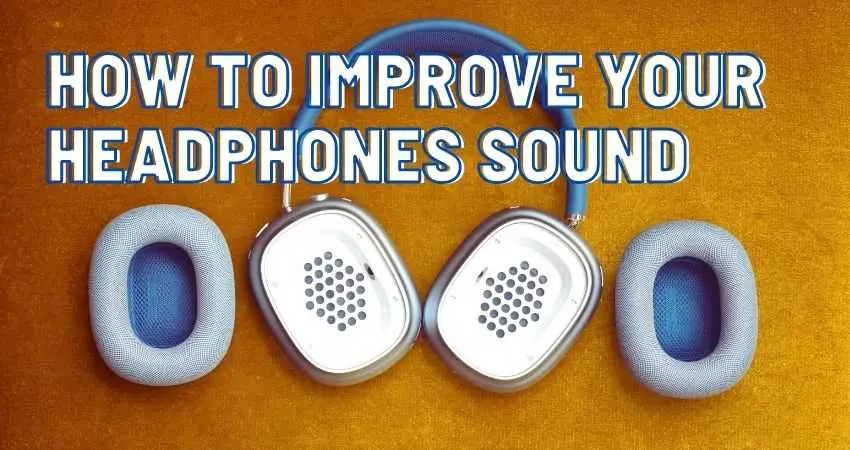
The fit has the largest effect on sound for many listeners. A poor seal can remove bass, reduce detail, and make the sound feel thin.
This matters most with in-ear headphones and closed-back over-ear models. In-ear headphones need ear tips that seal the ear canal. Closed-back headphones need ear pads that sit evenly around the ears. If air leaks out, low bass drops fast.
How to improve the fit
-
Try all included ear tips.
Test small, medium, and large tips. The best size may differ between your left and right ear. -
Insert earbuds at the correct angle.
Many in-ear models sit best when you twist them slightly into place. -
Check the seal with familiar music.
Use a song with steady bass. If the bass changes when you press the earbuds inward, the seal is not stable. -
Replace worn ear tips or pads.
Foam can lose shape. Silicone can become soft or dirty. Headphone pads can flatten with use. -
Wear over-ear headphones evenly.
Glasses, hair, hats, and jewelry can create small gaps around the ear pads.
A good fit should make the sound fuller without making it painful. It should also reduce outside noise without requiring unsafe volume.
Signs of a poor seal
- Weak or missing bass
- Uneven sound between the ears
- Sound that changes when you move
- More outside noise than expected
- A need to raise the volume
- Earbuds that slowly work loose
Clean ear tips with a dry or slightly damp cloth. Do not push liquid into the speaker opening. Follow the care instructions from the headphone maker.
Use a Clean and Capable Audio Source
The audio source includes the file, app, device, connection, and output stage. Each part can affect the result.
A clean source should not clip, add harsh processing, or force low-quality compression. Most modern phones and computers can provide good sound when their settings are correct. Older laptops, cheap adapters, and damaged ports may create hiss or distortion.
Check the music file or stream
Use the highest quality setting that fits your data plan and storage needs. Many services offer standard, high-quality, lossless, or high-resolution options. Higher quality does not always sound better, especially when the original recording is poor.
A lossless file keeps the original digital data after decoding. A lossy file removes some data to reduce its size. At common high bit rates, many listeners cannot reliably hear a difference in controlled tests. The recording, mastering, fit, and volume often matter more.
Lossless audio can still be useful when:
- You want an archive-quality music library.
- You edit or convert files.
- You want to avoid repeated lossy conversions.
- Your service includes lossless audio at no extra cost.
Do not assume that “high resolution” guarantees better sound. The master, playback chain, and headphone response still control what you hear.
Turn off unwanted processing
Check your phone, computer, and music app for:
- Bass boost
- Loudness enhancement
- Virtual surround
- Reverb
- Automatic volume leveling
- Crossfade
- Dolby or spatial audio modes
- Device-specific sound effects
These tools are not always bad. Spatial audio can improve some movies and games. A bass boost can help a thin-sounding headphone. The key is to compare the setting with the setting off.
Make one change at a time. If you change five settings at once, you will not know which one helped.
Prevent clipping
Clipping occurs when an audio signal exceeds the system’s limit. The result can sound harsh, flat, or distorted.
Clipping is more likely when you combine:
- Strong bass boost
- High preamp gain
- Maximum device volume
- Several sound effects
- Loud source files
If you use EQ, lower the preamp or main gain when you add large boosts. Many EQ apps show a red warning when the signal is too strong. Leave enough headroom to prevent peaks from reaching the limit.
Adjust EQ With Small, Targeted Changes
Equalization, or EQ, changes the level of selected frequency ranges. It can correct a headphone’s tonal balance and match the sound to your taste.
Bass usually covers about 20 to 250 Hz. The midrange carries much of the voice and many instruments. Treble covers higher frequencies and affects brightness, air, and the sense of detail. These ranges overlap, so a change in one area can affect how another area seems.
A safe EQ method
-
Listen without EQ first.
Use a familiar song, film scene, or podcast. -
Choose one problem.
For example, the sound may be too boomy, dull, sharp, or quiet in the vocal range. -
Change one band at a time.
Start with a small move, such as 1 to 2 dB. -
Compare at the same loudness.
Louder often sounds better even when it is not more accurate. -
Use a few recordings.
Do not tune the whole system to one badly mixed track. -
Save a profile.
You may want different settings for music, movies, games, and spoken audio.
Common EQ changes
| Problem | First change to try | Possible result |
|---|---|---|
| Too much bass | Cut the low bass by 1–3 dB | Less boom and rumble |
| Thin sound | Add a small low-bass lift | More weight |
| Muddy vocals | Cut some low-mid energy | Clearer voices |
| Sharp “s” sounds | Reduce upper treble slightly | Less harshness |
| Dull sound | Add a small treble lift | More brightness |
| Weak vocals | Raise the vocal midrange slightly | More forward speech |
These are starting points, not universal rules. Headphone models differ. Your hearing also differs between ears and changes with age, noise exposure, and fatigue.
Use parametric EQ when available
A graphic EQ changes fixed bands. A parametric EQ lets you control:
- Frequency: the center of the change
- Gain: how much you boost or cut
- Q: how wide or narrow the change is
A narrow adjustment can target a specific peak. A wide adjustment can change the overall balance. If you do not have measurement data for your exact headphone model, keep changes broad and modest.
A useful rule is to prefer cuts over large boosts. A cut lowers the chance of clipping and may sound more natural. Large boosts can waste headroom and increase distortion.
Do not chase a “perfect” EQ
Headphone measurements can help explain tonal differences, but they do not produce one EQ that suits every person. Ear shape affects how sound reaches the eardrum. Different measurement systems also use different reference targets.
Use EQ to solve a clear problem. If the setting makes the headphone less comfortable or causes fatigue, remove it.
Choose the Right Connection
Wired and wireless connections can both sound good. The better choice depends on the device, headphone design, and feature set.
Wired headphones
A wired connection can provide:
- No battery requirement
- Low delay
- Simple compatibility
- No wireless codec conversion
- Easy use with some studio and gaming equipment
The main limit is the device’s headphone output. Some headphones need more voltage or current than a phone or laptop can provide. This is more common with high-impedance or low-sensitivity models.
Wireless headphones
Wireless headphones include their own digital processing, amplifier, and battery. Their sound can depend on:
- Bluetooth codec
- Firmware
- App EQ
- Active noise cancellation
- Transparency mode
- Connection strength
- Digital signal processing
Bluetooth codecs include SBC, AAC, aptX variants, LDAC, and others. Support must exist on both the source and the headphones. A phone may support one codec while the headphones use another.
A higher-bitrate codec may reduce compression in some conditions, but it does not guarantee better sound. The headphone’s tuning, fit, and DSP can matter more.
USB DACs and headphone amplifiers
A USB DAC converts digital audio into an analog signal. A headphone amplifier provides the power needed to drive the headphones.
An external DAC or amplifier may help when you hear:
- Audible hiss
- Electrical noise
- Channel imbalance at low volume
- Distortion at normal listening levels
- Not enough volume
- A device that lacks a suitable headphone output
It may not improve sound when the built-in output is already quiet, clean, and powerful enough. Buy one to solve a known problem, not because the word “DAC” promises better sound.
Match the Headphone to the Job
No headphone is best for every use. Closed-back headphones can block outside noise. Open-back models can create a wider, more natural presentation but leak sound and provide little isolation.
Use this guide:
- Music at home: Open-back or well-tuned closed-back headphones
- Travel: Closed-back headphones or in-ear models with good isolation
- Office calls: Headphones with a clear microphone and comfortable fit
- Gaming: Low-latency headphones with accurate imaging
- Podcasts: A clear midrange and comfortable long-session fit
- Exercise: Secure in-ear headphones with sweat-resistant design
- Recording: Closed-back headphones to reduce microphone bleed
Noise cancellation can improve perceived detail in airplanes, buses, and busy offices because it reduces background sound. It does not automatically improve the headphone’s raw frequency response. Some models sound different when active noise cancellation is on, so compare both modes.

Improve Sound for Music, Movies, and Games
Different content needs different changes. A setting that helps music may hurt dialogue or game effects.
For music
Start with a neutral setting. Remove extra effects before adding EQ. Use several familiar tracks with vocals, bass, acoustic instruments, and dense mixes.
If music sounds dull, try a small treble change. If it sounds thin, check the fit before boosting bass. A poor seal can make you add too much low end.
For movies and television
Speech clarity often improves when you reduce excess bass and low-mid energy. Some TVs and streaming devices also offer a dialogue or night mode.
Night modes reduce the gap between quiet and loud sounds. This can make speech easier to hear without raising the whole volume. The exact effect depends on the TV, streaming app, and headphone connection.
Spatial or surround modes can help with some films, but they may make music or dialogue sound less natural. Compare the mode with stereo.
For gaming
Gaming sound depends on the game mix, console settings, and chat system. Start with stereo unless the game and headset are designed for a specific surround feature.
Virtual surround can help with directional cues in some games. It can also add echoes or reduce clarity. Test it in the game you play most, not only in a demonstration clip.
Keep chat balance separate from game volume when possible. If you must raise all sound to hear teammates, check the chat mix first.
Control Volume and Protect Your Hearing
Better sound should not require unsafe volume. Loud sound can damage hearing over time, and headphones can make it easy to listen for hours without noticing the level.
The National Institute for Occupational Safety and Health uses 85 dBA over an 8-hour workday as a recommended exposure limit for workplace noise. Headphone output varies by device, fit, recording, and measurement method, so a phone volume percentage does not equal a fixed sound level.
Use these habits:
- Keep the volume as low as practical.
- Take quiet breaks during long sessions.
- Use noise isolation or noise cancellation in loud places.
- Do not raise the volume to defeat background noise.
- Stop if you hear ringing, muffled hearing, pain, or unusual sensitivity.
- Seek medical care for sudden hearing loss, severe pain, or persistent symptoms.
A simple check is the conversation test. If you cannot hear a nearby person clearly, the environment or listening level may be too loud. This is not a medical measurement, but it is a useful warning sign.
Troubleshoot Headphone Sound Problems
Use the safest and simplest checks first. Many sound problems come from fit, settings, dirt, or a loose connection.
| Symptom | Likely causes | What to check |
|---|---|---|
| Weak bass | Poor seal, worn pads, wrong ear tips | Refit or replace the tips and pads |
| Harsh sound | Excess treble, clipping, loud volume | Turn off boosts and lower gain |
| One side is quiet | Dirt, balance setting, damaged cable | Clean carefully and check left-right balance |
| Hiss | Sensitive headphones, noisy output | Try another source or a DAC |
| Low volume | Weak output, volume limit, bad connection | Check limits and device output |
| Sound cuts out | Wireless interference, low battery, loose plug | Reconnect, charge, and test another source |
| Voice sounds distant | Surround effect, phase issue, bad mix | Use stereo and disable effects |
| Sound changes with head movement | Poor fit, seal leak | Adjust position or use different tips |
A useful isolation test
Test the headphones with:
- A different song or file
- A different app
- A different device
- A different cable or adapter
- A different pair of headphones
If the problem follows the headphones, inspect the headphones, cable, ear tips, and pads. If it stays with one device or app, check its settings or output.
Do not keep increasing volume to solve distortion. Loudness can hide the cause while increasing hearing risk.
Common Mistakes That Reduce Sound Quality
Boosting every EQ band
Boosting all bands does not improve detail. It raises the entire signal and can cause clipping. Use cuts or lower the preamp when you add boosts.
Using a poor seal and adding more bass
EQ cannot fully repair an unstable fit. Fix the physical seal first.
Comparing settings at different volumes
The louder option often seems clearer and more exciting. Match volume before deciding which setting sounds better.
Assuming expensive means accurate
Price can reflect materials, features, comfort, and brand position. It does not guarantee a better tonal balance or fit.
Using the wrong spatial mode
Virtual surround and spatial audio can help certain games and movies. They can also create a hollow or distant sound. Use them only when they improve the content you actually use.
Ignoring comfort
Pain changes how you listen. A comfortable headphone that sounds good for two hours may be a better choice than a technically impressive model that hurts after 20 minutes.
Cleaning with too much liquid
Moisture can damage drivers, microphones, charging contacts, and electronic parts. Use the maker’s cleaning method and keep liquid away from openings.
A Simple Headphone Sound Quality Setup
Use this order for the fastest improvement:
- Clean the headphones.
- Improve the fit and seal.
- Check the left-right balance.
- Disable unwanted effects.
- Set the app to a suitable quality level.
- Prevent clipping and excessive gain.
- Use small EQ changes.
- Test another source and connection.
- Consider a DAC or amplifier only if a real problem remains.
- Lower the volume if listening feels tiring.
Signs of success include clearer voices, steady bass, less harshness, stable sound when you move, and comfortable listening at a lower volume.
If the sound still seems poor, the headphone may simply have a tonal balance or fit that does not suit you. At that point, trying a different model may help more than adding software or hardware.
FAQs About Improving Headphone Sound Quality
Does lossless audio always sound better?
No. Lossless audio preserves the source data, but it does not fix a poor recording, bad fit, or headphone tuning. High-quality lossy audio may sound the same to many listeners in controlled comparisons.
Will a headphone amplifier make headphones sound better?
Only when the current output has a real limit, such as low volume, distortion, or audible noise. If the source already drives the headphones cleanly, an amplifier may produce little or no audible change.
Is bass boost bad for headphones?
A small bass boost is usually fine if it does not cause distortion or clipping. Large boosts can reduce headroom and make the sound muddy. If you boost bass, lower the preamp or main gain when needed.
Why do my headphones sound better when I press them against my ears?
Pressing the headphones may create a better seal. That points to a fit problem, worn ear pads, or unsuitable ear tips. Try a different tip size or replace flattened pads.
How can I make headphones louder without damaging my hearing?
First, improve the seal and reduce background noise. Then check the source and connection for low output. Avoid raising the volume to overcome noise, and take breaks during long listening sessions.
Are wired headphones better than wireless headphones?
Neither type is always better. Wired headphones avoid wireless codecs and battery limits. Wireless headphones offer convenience and may include useful EQ and noise cancellation. Fit, tuning, source quality, and comfort often matter more than the connection type.
Conclusion
The most effective way to enhance headphone sound quality is to improve the fit, use a clean source, and make small EQ changes. Check for clipping, test wired and wireless settings, and choose features that match your use.
Do not buy extra equipment until you identify a real problem. A USB DAC or amplifier can help with noise, distortion, or low power, but it cannot fix a poor seal or an unsuitable headphone design. Start with the headphones you have, make one change at a time, and protect your hearing while you listen.