How To Boost Headphone Sound: Better Audio Fast

The best way to boost headphone sound in the United States is to improve the fit, remove volume limits, use careful EQ, and check whether the source can drive the headphones well. Start with simple settings before buying a DAC, amplifier, or new pair of headphones.
More volume does not always mean better sound. A good setup should make music clearer, fuller, and more balanced without causing ear pain, ringing, or hearing fatigue. U.S. hearing-safety guidance also supports keeping listening levels as low as needed and taking regular breaks.
Quick Takeaways
- Check the headphone fit and ear seal first.
- Turn off volume limits only when you understand the hearing risk.
- Use EQ to fix weak bass, harsh highs, or muddy mids.
- Avoid boosting every frequency at once.
- Keep digital volume below clipping levels.
- Use a headphone amplifier only when the source lacks enough power.
- A DAC can reduce noise, but it does not automatically make headphones louder.
- Replace damaged pads, cables, or worn parts before changing the whole system.
- If sound stays weak on one side, check the headphones and source for damage.
1. Check the Headphone Fit and Seal
A proper seal is often the fastest way to improve headphone sound. This is most important with in-ear headphones and closed-back over-ear models.
When air leaks around an ear tip or ear pad, bass drops first. Outside noise also enters the ear, so you may raise the volume to compensate. A better seal can make the same headphones sound louder and fuller without adding more power.
For in-ear headphones
Try these steps:
- Clean the ear tips.
- Test a different tip size.
- Insert both tips to the same depth.
- Try foam tips if silicone tips do not seal well.
- Play a track with steady bass and compare each fit.
The right fit should feel secure but not painful. If the tips cause pressure or soreness, use a smaller size or a different shape.
For over-ear headphones
Check that the pads sit around your ears. Thick hair, glasses, worn pads, or a loose headband can reduce the seal. Replacement pads may restore bass, but pad shape can also change the sound.
Open-back headphones do not seal out noise. They often sound spacious, but they are not ideal in loud places. A closed-back design may sound stronger in a noisy room because less outside sound masks the music.

2. Check Volume Limits and Device Settings
Your phone, computer, or music app may limit volume. This can happen because of hearing-safety settings, parental controls, regional rules, or a Bluetooth connection that uses a lower output level.
First, check the device settings:
- Raise the media volume, not only the call volume.
- Check the app’s own volume control.
- Turn off a volume normalization feature if it makes tracks too quiet.
- Check headphone safety or loud-sound reduction settings.
- Test another app or audio file.
- Confirm that the device is connected to the intended headphones.
On an iPhone, look for Headphone Safety settings. On Android phones, menu names vary by brand and software version. Windows and macOS also have separate output and app controls.
Do not bypass a volume limit simply to listen louder. The National Institute for Occupational Safety and Health uses 85 dBA over an 8-hour workday as a recommended exposure limit for workplace noise. Headphone output depends on the device, headphone sensitivity, and measurement method, so a phone volume percentage is not a reliable sound-level reading.
A practical rule is to lower the volume if you hear ringing, muffled sound, pain, or a need to shout after listening. These signs mean the level may be too high or the session may be too long.
3. Use EQ to Improve Clarity and Bass
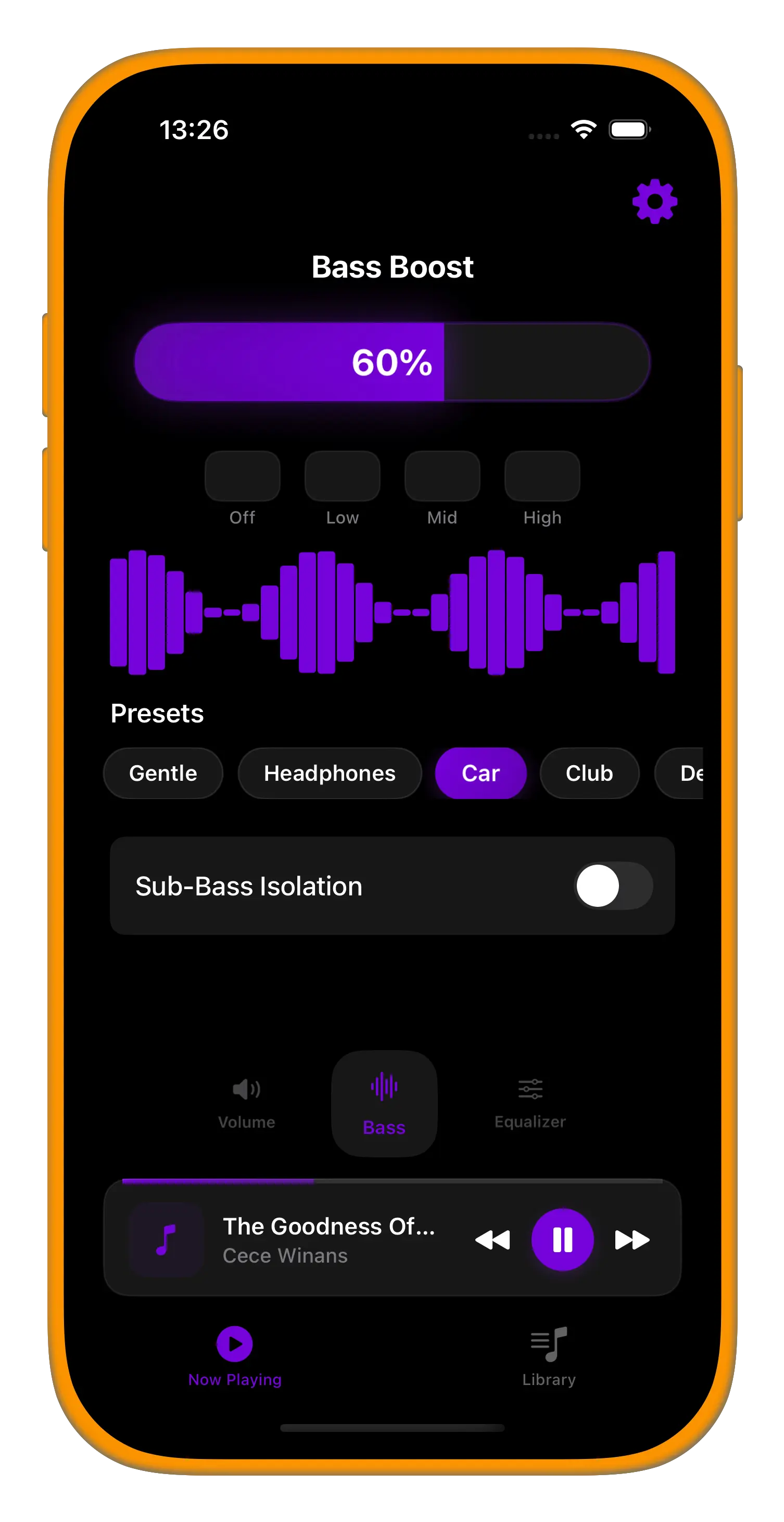
Equalization, or EQ, changes the level of selected sound ranges. It can make headphones sound clearer without raising the total volume.
Most EQ controls use these broad ranges:
| Range | Main effect | What too much can do |
|---|---|---|
| Sub-bass, about 20–60 Hz | Deep impact and rumble | Causes distortion or uses extra power |
| Bass, about 60–250 Hz | Warmth and punch | Makes music boomy |
| Mids, about 250 Hz–2 kHz | Voices and many instruments | Can sound thick or nasal |
| Upper mids, about 2–6 kHz | Speech detail and attack | Can sound sharp or tiring |
| Treble, above about 6 kHz | Air, sparkle, and detail | Can sound harsh or hissy |
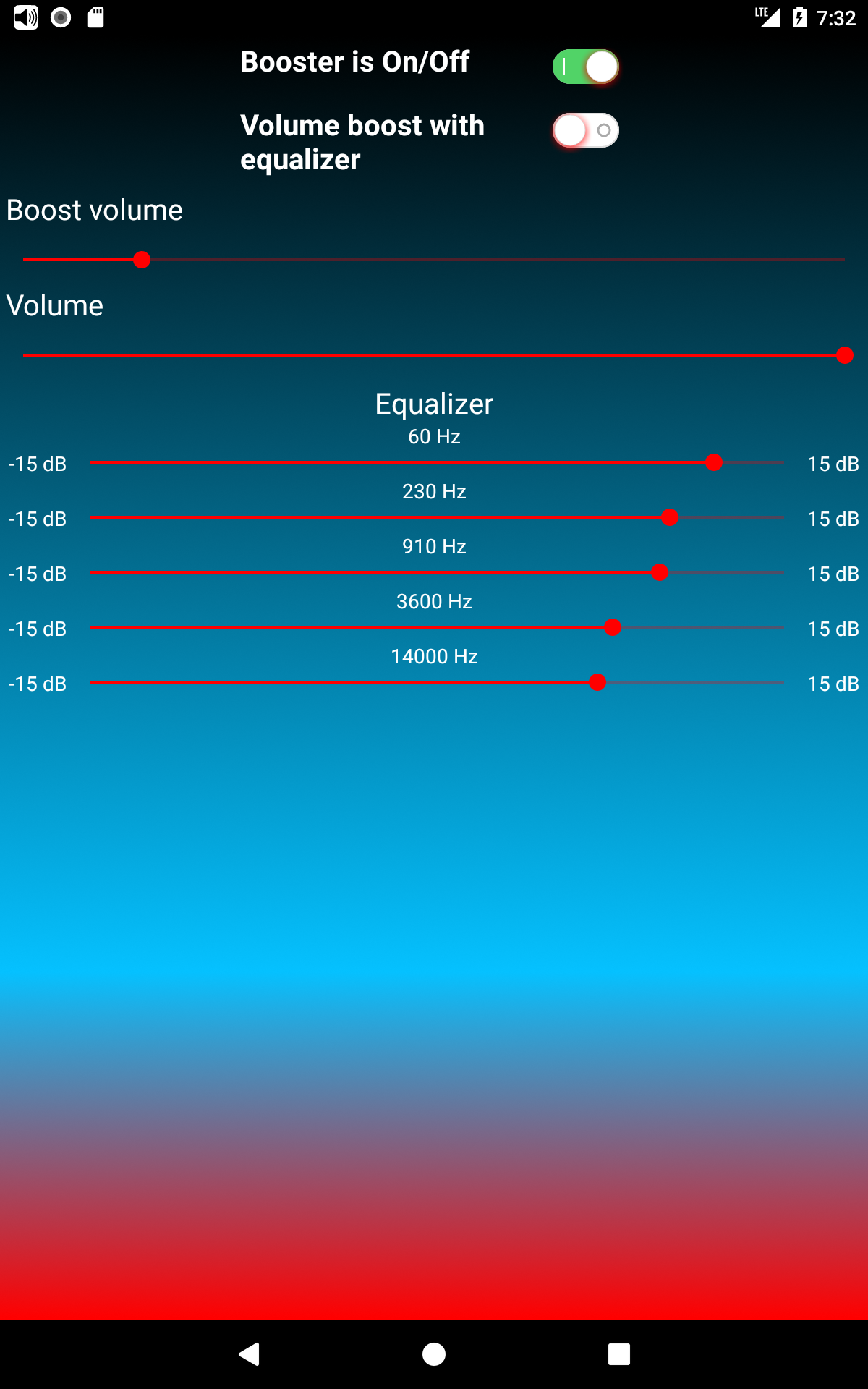
Use small changes first. A boost of 2 or 3 dB is often easier to judge than a large boost. If you raise one band by 6 dB, the signal may clip or distort. Lowering other bands can be safer than adding large boosts.
A simple EQ method
- Start with the EQ flat.
- Choose a familiar song with clear vocals and bass.
- Change one band at a time.
- Use small steps.
- Lower the preamp if the app provides one.
- Compare with EQ bypassed.
- Keep the setting only if it improves several tracks.
If bass sounds weak, try a small low-frequency boost after checking the ear seal. If voices sound buried, reduce low mids slightly or raise the vocal range by a small amount. If treble sounds sharp, reduce the upper mids or treble instead of lowering the whole volume.
Use a negative preamp when needed
A preamp controls the overall level before EQ changes. If your EQ includes several boosts, lower the preamp by about the size of the largest boost. This leaves room for the added signal and reduces digital clipping.
For example, if you add 4 dB to the bass, set the preamp near −4 dB. The exact result depends on the app and audio source, so listen for crackling or harsh peaks.

4. Turn Off Sound Processing That Makes Audio Quiet
Music apps may use normalization to make tracks play at similar loudness. This can reduce the level of some tracks. It does not always reduce sound quality, but it can make a playlist seem quieter.
Other settings may also affect sound:
- Loudness normalization
- Night mode
- Late-night compression
- Speech enhancement
- Mono audio
- Balance controls
- Custom hearing profiles
- Automatic headphone protection
- Spatial audio or surround modes
Spatial audio can make sound feel wider, but it may also change the center image or reduce perceived loudness. Test it with the same song both on and off.
Check the left-right balance control if one side sounds louder. A shifted balance can make the whole system seem weak. Also turn off mono mode unless you need it for accessibility or a specific recording.
Some apps include bass boost or loudness modes. These may help at low volume, but heavy processing can reduce clarity. Compare the setting with an unprocessed version before keeping it on.
5. Improve Bluetooth and Wireless Sound
Bluetooth headphones may sound quiet because of the phone, the headphones, or their software. The first fix is usually simple: disconnect and pair them again.
Try this sequence:
- Charge the headphones.
- Increase the headphone’s own volume if it has separate controls.
- Forget the Bluetooth device.
- Restart the phone or computer.
- Pair the headphones again.
- Test a different app.
- Test the headphones with another device.
Some Android phones link phone volume and Bluetooth volume. Others treat them as separate controls. A Bluetooth volume setting may also change after a software update.
The Bluetooth codec affects how audio data is sent. Common codecs include SBC, AAC, aptX, and LDAC. A higher-quality codec may affect detail or compression, but it does not always make headphones louder. The phone and headphones must support the same codec, and the connection must remain stable.
If wireless audio cuts out or sounds rough, move away from heavy wireless congestion and keep the source close. Do not assume that buying a different codec will solve a basic volume or fit problem.
6. Check Whether Your Source Has Enough Power
Some headphones need more voltage or current than a phone or laptop can provide. This is more common with high-impedance headphones and models with low sensitivity.
Two specifications matter:
- Impedance, measured in ohms, describes how much the headphone resists electrical current.
- Sensitivity describes how loud the headphone can become from a given amount of power or voltage.
A high impedance number alone does not prove that you need an amplifier. A low-sensitivity headphone can also be difficult to drive. The best clue is real behavior: the headphones remain too quiet at a safe source setting, sound weak on peaks, or lose control and clarity when the source reaches its limit.
When a headphone amplifier may help
A dedicated amplifier may help when:
- Your source reaches maximum volume too early.
- The headphones are designed for higher-power equipment.
- Music sounds compressed or weak even after fit and settings checks.
- You hear distortion that disappears with a stronger source.
- The manufacturer lists a power need that your source cannot meet.
An amplifier cannot repair poor recordings, a bad seal, damaged drivers, or an extreme EQ setting. It also cannot create detail that is absent from the audio file.
When a DAC may help
A digital-to-analog converter, or DAC, turns digital audio into an analog signal for the headphones. A DAC can help if the built-in audio output has audible hiss, hum, interference, or a faulty jack.
A DAC does not automatically improve every system. If your current output is clean and loud enough, a new DAC may make little audible difference. Many USB DACs also include a headphone amplifier, so check the product’s output power, connector, operating-system support, and volume controls before buying.

7. Reduce Distortion and Digital Clipping
Sound can become louder but worse when the signal clips. Clipping happens when the audio level exceeds what the device or software can reproduce.
Common causes include:
- Boosting several EQ bands
- Using a bass boost with the preamp at maximum
- Stacking volume controls
- Increasing a media player above 100 percent
- Playing a damaged or poorly mastered file
- Overloading a small amplifier
Signs of clipping include crackling, harsh vocals, flattened bass, and distortion on loud parts. Lower the EQ preamp or remove the largest boosts. Then raise the main volume only as much as needed.
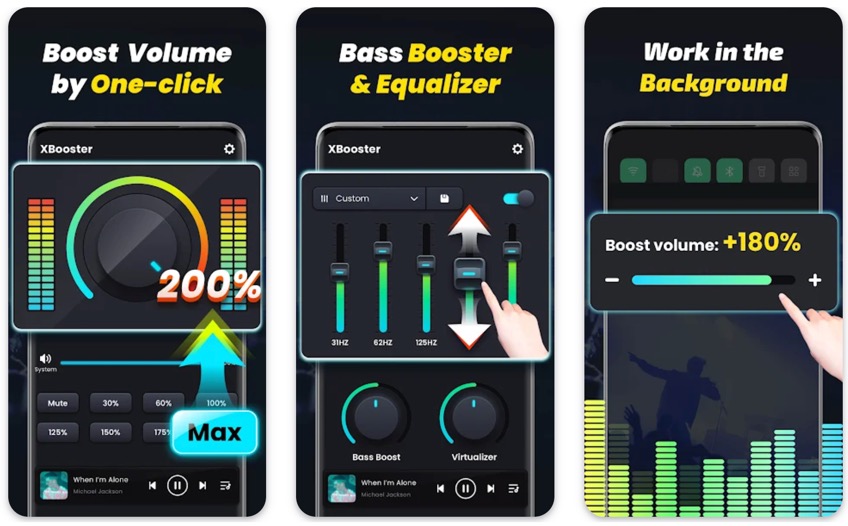
Do not use software volume boosters as the first fix. They may increase level, but they can also increase distortion and reduce headroom. If a computer app offers a boost above 100 percent, treat it as a last resort for quiet files, not as a permanent solution.
8. Use Better Audio Files and Recordings
A headphone system cannot fully correct a poor recording. Some tracks are mastered quietly, while others use heavy compression or have limited dynamic range.
Try a known-good file or a different version of the same track. Compare:
- A local file with a streaming version
- A high-quality stream with a low-quality setting
- Several recordings from different albums
- Spoken voice with music
- A familiar acoustic track
If only one album sounds quiet, the headphone system may be working normally. If every source sounds quiet, focus on fit, settings, power, or hardware.
Lossless audio can preserve the source signal, but it does not guarantee a louder or better mix. Higher bitrate also does not fix a weak master. The recording, playback chain, and headphone response all matter.
9. Clean and Inspect the Headphones
Blocked openings can reduce volume and treble. Earwax, dust, sweat, and skin oil can collect on in-ear mesh screens and ear pads.
Clean headphones carefully:
- Remove detachable ear tips before cleaning.
- Use a dry, soft brush for loose debris.
- Wipe surfaces with a slightly damp cloth when the manufacturer allows it.
- Keep liquid away from drivers, ports, and controls.
- Do not push debris deeper into an earbud mesh.
- Replace damaged or flattened ear pads.
Check the cable for bends, cuts, or loose connectors. Wiggle the plug gently while playing audio. If sound cuts in and out, the cable or jack may be failing.
A one-sided volume problem can come from a blocked ear tip, a damaged cable, a balance setting, or a hearing issue. Test the headphones on another device before deciding which part needs repair.
A Simple Troubleshooting Order
Use this order because it starts with free and low-risk checks:
- Check fit and seal.
- Clean the headphones.
- Check the device, app, and balance settings.
- Disable or adjust normalization and sound modes.
- Test another song and another app.
- Test another source device.
- Use mild EQ changes.
- Check the cable and connection.
- Consider an amplifier or DAC if the source lacks power or has noise.
- Replace the headphones only after ruling out setup problems.
Symptom and likely cause table
| Symptom | Likely causes | First check |
|---|---|---|
| Weak bass | Poor seal, worn pads, bass roll-off | Fit and ear tips |
| Low volume on all tracks | Device limit, weak source, low sensitivity | Settings and another source |
| Harsh sound after EQ | Clipping or too much treble | Lower preamp and treble |
| One side is quiet | Blockage, balance setting, cable fault | Clean, check balance, test cable |
| Wireless sound is quiet | Separate volume controls, pairing issue | Raise both volume controls and re-pair |
| Hiss at low volume | Sensitive headphones, noisy output | Try another source or DAC |
| Sound is muddy | Too much bass or low mids | Reduce bass and low mids |
| Music sounds thin | Poor seal, aggressive processing | Refit and disable sound modes |

Common Mistakes to Avoid
Raising every EQ band
Boosting every band mainly raises the total level. It does not improve balance. It also uses headroom and can cause clipping.
Buying an amplifier before checking the fit
A poor seal can make expensive headphones sound weak. Fix the physical fit first.
Assuming high impedance always means better sound
Impedance describes electrical load, not sound quality. Headphone tuning, sensitivity, fit, and recording quality also matter.
Listening through pain or ringing
Pain, ringing, muffled hearing, or unusual sensitivity are warning signs. Stop listening and give your ears time to recover. If symptoms persist, seek advice from a qualified health professional.
Using a hearing-damage claim as a volume guide
Phone volume percentages are not standardized sound measurements. Safe exposure depends on level, time, fit, and the headphone design. The U.S. Centers for Disease Control and Prevention and NIOSH provide hearing-protection information, but a simple percentage cannot show your actual ear exposure.
Using unsafe cleaning tools
Do not use sharp objects, pressurized air near a driver, or liquid inside an earbud. These methods can damage the headphone or force debris farther inside.

How to Choose the Right Upgrade
Choose the upgrade that matches the actual problem:
| Problem | Most useful fix | Usually not the first fix |
|---|---|---|
| Weak bass from earbuds | Better ear tips | A powerful amplifier |
| Quiet headphones from a laptop | Check power and output limits | New music files |
| Hiss or electrical noise | Cleaner DAC or source | More EQ |
| Harsh sound | Reduce treble and check clipping | Higher volume |
| Flat or dull sound | Mild EQ or different headphone tuning | Codec upgrade alone |
| Damaged cable or pads | Replace the part | More software processing |
| Poor sound in a noisy room | Better isolation or noise cancellation | Turning volume far higher |
A new headphone may be the best answer when the tuning does not suit you, the fit cannot be fixed, or the hardware is damaged. A new DAC or amplifier is more useful when the source has a clear power or noise problem.
Key Takeaways
The safest way to boost headphone sound is to improve the signal path from the ear outward. Start with fit, cleaning, device settings, and small EQ changes. Then check the source and headphone specifications.
Use more hardware only when you can identify a real limit. A DAC may reduce noise. An amplifier may add power. Neither one replaces a good seal, a clean recording, or safe listening habits.
Frequently Asked Questions
How can I make my headphones louder without an amplifier?
Check the fit, clean the headphones, raise all relevant volume controls, and review volume-limit settings. You can also use mild EQ, but avoid large boosts because they may cause clipping. If the source is already at its safe maximum and the headphones remain quiet, an amplifier may help.
Does EQ make headphones louder?
EQ can increase the level of selected frequencies, but it does not create extra clean power. Large boosts may cause distortion. Lower the preamp when using strong EQ boosts.
Why do my headphones sound quiet on my phone but loud on my computer?
The phone may have a volume limit, a weaker headphone output, separate Bluetooth volume controls, or a different audio setting. Test the same headphones and track on both devices, then compare the settings and source power.
Can a DAC improve headphone volume?
A DAC alone may not make headphones louder. Many external DACs also include a headphone amplifier, which can provide more output. Choose one only if your current source has audible noise, distortion, or insufficient power.
Why is one headphone quieter than the other?
Possible causes include a blocked ear tip, a shifted balance setting, a damaged cable, a faulty connector, or a problem with the headphone driver. Clean the headphones, check balance, and test them with another device. If the issue follows your ear rather than the headphone, stop listening and seek medical advice.
Is it safe to use a volume booster app?
A volume booster can increase distortion and raise hearing risk. It is better to fix the fit, source settings, EQ headroom, or hardware limit first. Keep the volume as low as practical and take breaks.
Final Recommendation
To boost headphone sound, begin with the ear seal and basic settings. Next, use small EQ changes and remove unwanted processing. If the headphones still sound weak, test another source and check impedance, sensitivity, and output power. Buy an amplifier or DAC only when the evidence points to a power, noise, or connection problem.
Protect your hearing throughout the process. Better sound should be clearer and more balanced—not simply louder.
Sources and Further Reading
- NIOSH: Occupational Noise Exposure
- CDC: Preventing Noise-Induced Hearing Loss
- OSHA: Occupational Noise Exposure
- World Health Organization: Make Listening Safe
- Apple: Headphone Safety Features