How To Check Frequency Response Of Headphones: Easy Test

To check the frequency response of headphones in the United States, you can read a published response graph, run a tone-sweep test, or measure the headphones with a calibrated test fixture. The best method depends on your goal.
A graph can show the tonal balance of a model. A tone sweep can help you hear peaks, dips, distortion, or channel problems. A measurement system can create a useful frequency-response chart, but it requires the right microphone, coupler, software, and setup.
Frequency response does not tell you whether a pair of headphones sounds “good” to everyone. It shows how loudly the headphones reproduce different frequencies under a specific test method.

Key takeaways:
- Use a published graph for a quick overview.
- Use a tone generator to find obvious gaps or harsh peaks.
- Use a calibrated coupler for a real measurement.
- Keep the same volume, fit, seal, and test method when comparing headphones.
- Never use loud test tones for long periods.
What headphone frequency response means
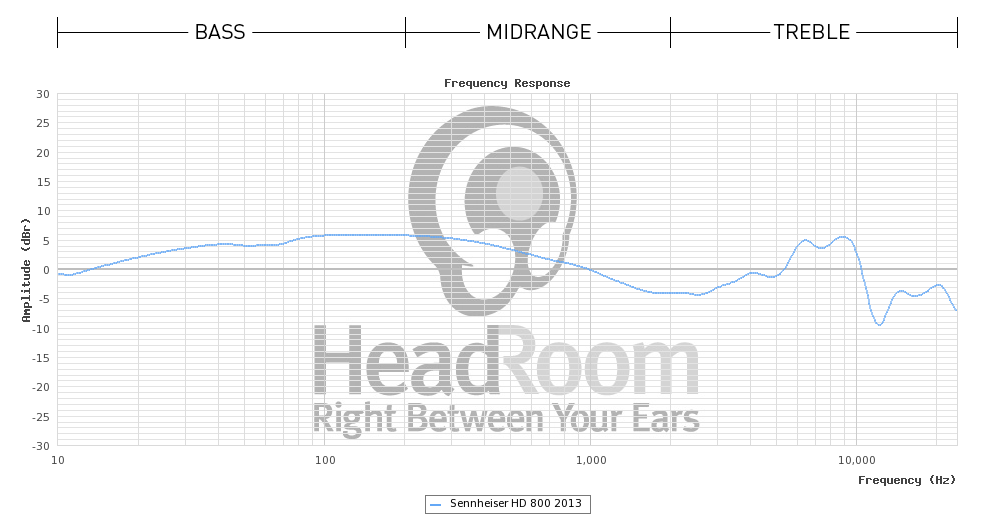
Headphone frequency response is the change in output level across the audible frequency range. It is usually shown from about 20 Hz to 20,000 Hz, or 20 kHz.
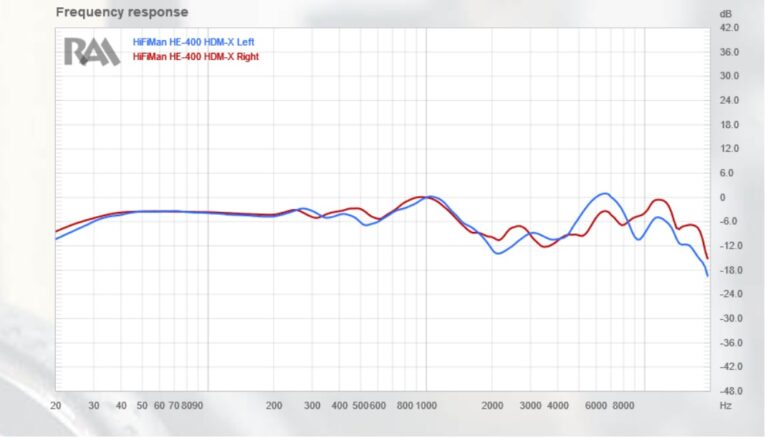
The result is displayed as a graph:
- The horizontal axis shows frequency in hertz, or Hz.
- The vertical axis shows level in decibels, or dB.
- A rising line means more output at that frequency.
- A falling line means less output.
- A peak may sound stronger, sharper, or more forward.
- A dip may sound softer, quieter, or less clear.
The 20 Hz to 20 kHz range is a common reference. It does not mean that every person can hear the full range. Hearing ability changes with age, listening history, and exposure to loud sound.
A frequency-response graph is not the same as a frequency range specification. A product page may say “5 Hz–40 kHz,” but that number may not show how loud the headphones are at each point. It may also omit the tolerance used for the measurement.
For example, headphones that reproduce 100 Hz and 10 kHz are not necessarily balanced. They could produce 100 Hz much louder than 10 kHz. A response graph shows this difference more clearly than a simple range claim.
Frequency bands and what they may affect
| Approximate range | Common description | Possible listening effect |
|---|---|---|
| 20–60 Hz | Sub-bass | Deep rumble and low impact |
| 60–250 Hz | Bass | Weight, punch, and warmth |
| 250 Hz–2 kHz | Midrange | Vocals, guitars, piano, and many instruments |
| 2–6 kHz | Upper midrange | Speech detail, attack, and presence |
| 6–12 kHz | Treble | Brightness, edge, and clarity |
| 12–20 kHz | Upper treble | Air and fine detail |
These labels are useful guides, not strict rules. A single graph peak may not translate to one simple sound. The shape of the entire response matters.
The three ways to check headphone frequency response
The right approach depends on whether you want a quick check, a listening test, or a technical measurement.
1. Read a published measurement
This is the fastest option. Look for a response graph from a measurement site that explains its equipment, calibration, target curve, and test conditions.
A reliable graph should identify:
- The exact headphone model and revision
- Whether the test used one or both channels
- The measurement fixture or coupler
- The target curve, if one is shown
- Smoothing or averaging settings
- The measurement level
- The test date or revision
Do not compare two graphs as if they were photographs taken with the same camera. Different sites may use different fixtures, ear simulators, compensation curves, smoothing, and fit procedures.
A graph from one site is most useful for comparing several headphones tested by that same site. It is less useful for comparing unrelated graphs from different sources.
2. Use a tone generator or frequency sweep
A tone generator plays one frequency at a time. A sweep moves through frequencies in sequence.
You can use:
- A web-based tone generator
- A smartphone audio app
- A computer audio program
- REW, also called Room EQ Wizard
- A music player with test-tone files
This method is useful for finding large response changes. It may reveal a strong bass roll-off, a harsh treble band, or a dead channel.
It does not create a reliable frequency-response graph by itself. Your ears are not a calibrated measurement microphone. Room sound, hearing differences, fit, and loudness all affect what you hear.
3. Measure the headphones with a coupler
A measurement system uses a microphone placed in a fixture that represents the ear. The headphone plays a test signal, and software records the microphone output.
Common parts include:
- A measurement microphone
- An ear simulator or coupler
- A headphone fixture
- An audio interface
- Test software
- Calibration files
- A stable computer connection
A professional ear simulator is designed to model parts of the human ear. A low-cost fixture may use small microphones and ear-shaped mounts. It can still help with repeatable comparisons, but it may not match a standardized laboratory system.
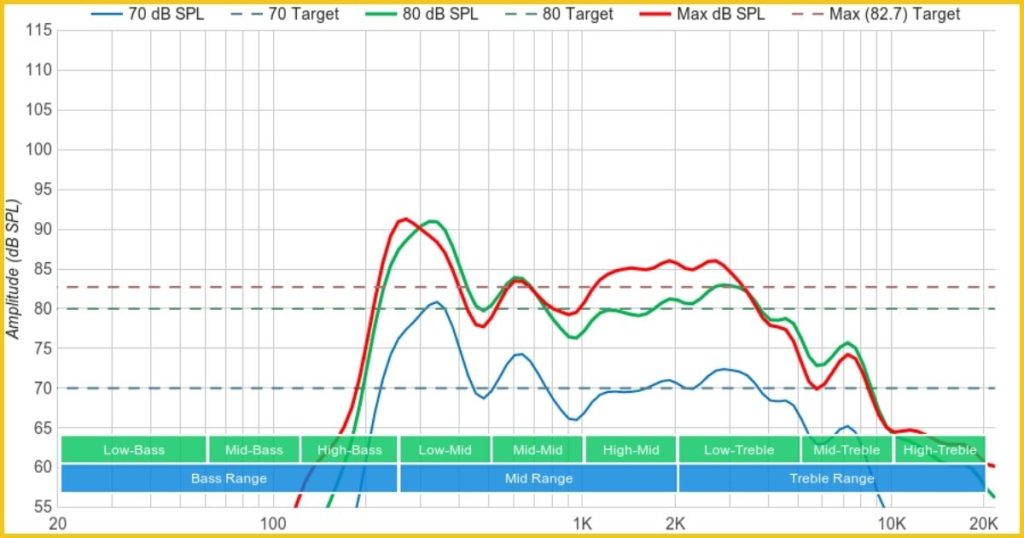
How to check frequency response with a tone sweep
A tone sweep is the simplest hands-on check. It can help you identify obvious problems without buying measurement hardware.
What you need
Prepare the following:
- The headphones under test
- A phone, tablet, or computer
- A tone generator or sweep file
- A quiet place
- A comfortable listening level
- A way to repeat the test in both channels
Use wired headphones when possible. Bluetooth processing, active noise cancellation, equalization, and device settings can change the result.
Before you begin, turn off:
- Equalizer presets
- Bass boost
- Spatial audio
- Virtual surround
- Loudness normalization
- Hearing-protection or sound-enhancement modes
- App-based headphone corrections
If the headphones have an app, set its sound profile to flat or neutral.
Step-by-step method
-
Check the left and right sides.
Make sure the earcups or earbuds are on the correct ears. -
Fit the headphones carefully.
For over-ear headphones, center each ear inside the pad. For earbuds, use a stable tip that seals the ear canal without pain. -
Start at a low volume.
Test tones can feel louder than music because they contain energy at one frequency. -
Play a slow sweep.
A sweep from 20 Hz to 20 kHz works well. A logarithmic sweep is often easier to hear because each octave receives similar attention. -
Listen for sudden changes.
Note points where the sound becomes much louder, softer, rough, buzzy, or uneven. -
Repeat the sweep.
The second pass helps separate a real pattern from an attention mistake. -
Test each channel.
A channel that drops out or sounds very different may indicate a cable, plug, driver, or connection problem. -
Repeat after reseating the headphones.
A small seal change can strongly affect bass, especially with in-ear headphones.
What success looks like
A successful listening check gives you repeatable observations. For example:
- Bass disappears when you move an earbud.
- One side has less treble than the other.
- A narrow band sounds much louder than nearby frequencies.
- A buzzing sound appears on one side at a certain tone.
- The sweep sounds smooth after you reseat the headphones.
Do not treat a single perceived peak as proof of a fault. Repeat the test at a lower level and with a different source. Hearing sensitivity varies between people.

How to measure frequency response with a computer
For a real chart, use measurement software and a microphone system. Room EQ Wizard is one commonly used program for audio measurements. Other software can also work if it supports the required input, calibration, and sweep functions.
Basic measurement chain
The signal path usually looks like this:
Computer → measurement software → audio output → headphones → coupler microphone → audio input → measurement software
The software sends a known sweep to the headphones. The microphone records the result. The program then plots output level against frequency.
Setup steps
-
Install the measurement software.
Confirm that the program recognizes your audio output and microphone input. -
Load the microphone calibration file.
A calibration file corrects known microphone errors. Use the file made for the exact microphone when available. -
Connect the coupler.
Place the microphone or ear simulator in a stable fixture. -
Mount the headphones.
Center the earcup over the simulated ear. For earbuds, insert them to a repeatable depth and use the same tip each time. -
Set a safe test level.
A measurement does not need to be painfully loud. Start low and increase only as needed for a clean signal. -
Run a sweep.
Use the same sweep range and settings for each pair under comparison. -
Save the raw result.
Keep the original measurement before applying smoothing or compensation. -
Repeat the measurement.
Remove and replace the headphones several times. This shows how much the result changes because of fit. -
Measure both channels.
Record the left and right response separately. -
Apply smoothing with care.
Smoothing can make a graph easier to read, but too much smoothing can hide narrow peaks and dips.
Why repeatability matters
Headphone measurements can change when the position changes by only a small amount. This is especially true for:
- In-ear monitors
- On-ear headphones
- Headphones with flexible pads
- Models with active noise cancellation
- Headphones with a loose or uneven seal
A single measurement may represent one fit, not the full behavior of the product. Repeatable placement is often more useful than a highly detailed but unstable graph.
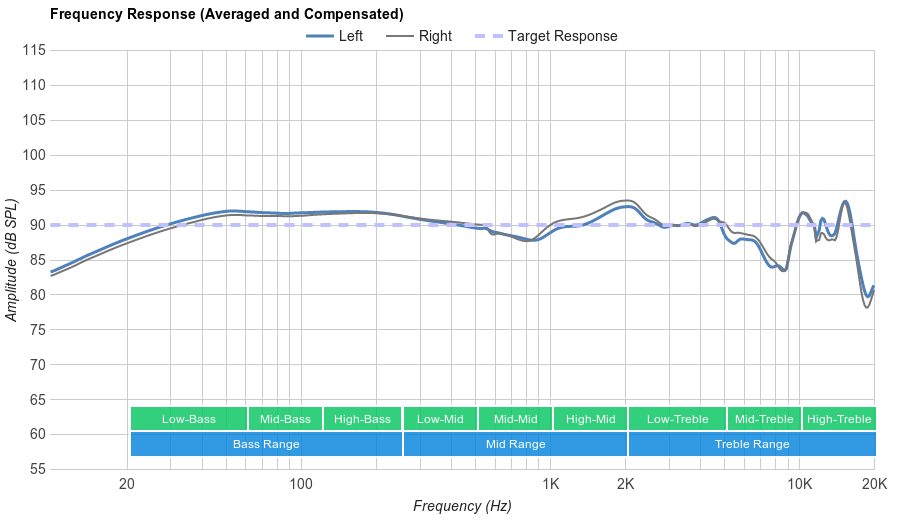
How to check headphone frequency response without expensive equipment
A low-cost fixture can help you compare headphones, but it has limits.
Some hobbyists use a small measurement microphone attached to an ear-shaped fixture. Others use products such as miniDSP EARS, which is designed for comparative headphone measurements rather than full laboratory compliance.
This approach can answer questions such as:
- Does one headphone have more bass than another?
- Did an equalizer change the response?
- Is the left channel different from the right?
- Does a new ear pad change the sound?
- Does one earbud seal better than another?
It usually cannot prove that the result matches a standardized human-ear measurement. The fixture may not reproduce the shape, impedance, or acoustic behavior of a real ear.
A practical low-cost comparison method
- Use the same fixture for every headphone.
- Place the fixture in the same position each time.
- Use the same playback level.
- Measure the left and right channels.
- Repeat each mount at least twice.
- Save the raw data.
- Compare trends instead of treating every small graph feature as fact.
If the same broad bass rise appears in several repeated measurements, it is more likely to be meaningful. If a narrow peak moves each time you remount the headphone, it may be a fit or fixture effect.
Do not use a phone microphone as an ear simulator
A phone microphone can record sound in a room, but it is not normally placed at the eardrum position. It also may apply automatic gain control, noise reduction, or other processing.
That makes it unsuitable for accurate headphone frequency-response measurement. It can still record audible distortion or compare two external speakers, but it should not be treated as a calibrated headphone coupler.

How to read a headphone frequency-response graph
Start by checking the graph’s scale and reference. A graph with a narrow vertical range may make small changes look dramatic. A graph with a wide vertical range may hide useful differences.
Look for these features:
Bass roll-off
A downward slope at the low end means the headphones produce less deep bass. With a poor earbud seal, the drop may be caused by fit rather than the driver.
Bass elevation
A rise below about 250 Hz can create a warmer or fuller sound. Too much elevation may make music sound thick or muddy, but the result depends on the midrange and treble balance.
Midrange variation
Changes through the midrange affect voices and many instruments. A dip may make vocals sound distant. A rise may make them more forward.
Treble peaks and dips
Treble changes can affect brightness, detail, sharpness, and perceived air. Human ears are sensitive to fit and ear shape in this region, so small graph features should not be treated as universal defects.
Channel matching
The left and right curves should be reasonably close. A large difference across a wide range can indicate a product problem. A narrow difference may result from fit or measurement position.
Target curves
Many measurement sites compare headphones with a target curve. A target is a reference, not a claim that every listener will prefer that response.
Targets differ because they may account for:
- Ear and head acoustics
- Listening preferences
- Test fixture behavior
- Music playback goals
- Research methods
- The type of headphone
Do not assume that a headphone closer to one target will sound better to every listener.
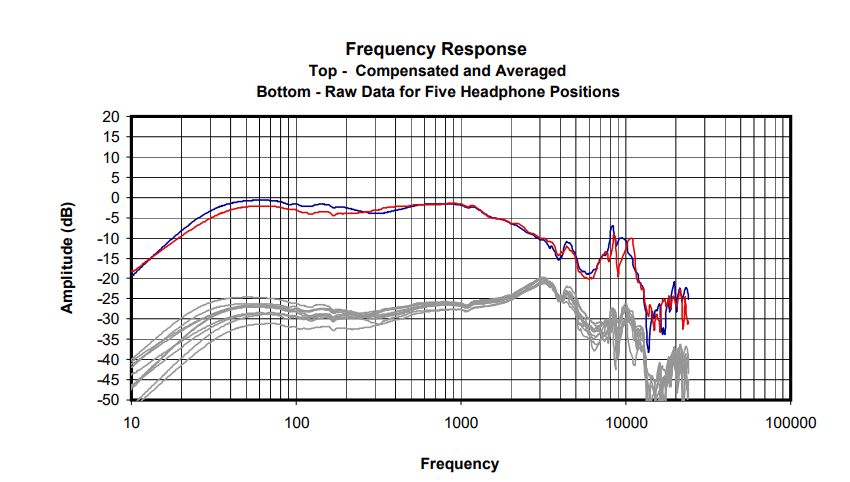
Frequency response versus frequency range
These terms are often confused.
Frequency range describes the lowest and highest frequencies a product claims to reproduce. It does not describe the level across that range.
Frequency response shows how the output changes from one frequency to another. It gives much more useful information about tonal balance.
For example, consider a hypothetical headphone with a stated range of 10 Hz–30 kHz:
- It may reproduce 10 Hz very quietly.
- It may have a large bass peak.
- It may have a treble dip at 8 kHz.
- It may show a strong channel mismatch.
The range number alone would not reveal these traits.
A broad frequency range can be useful for describing design limits, but it is not a substitute for a response graph measured under known conditions.
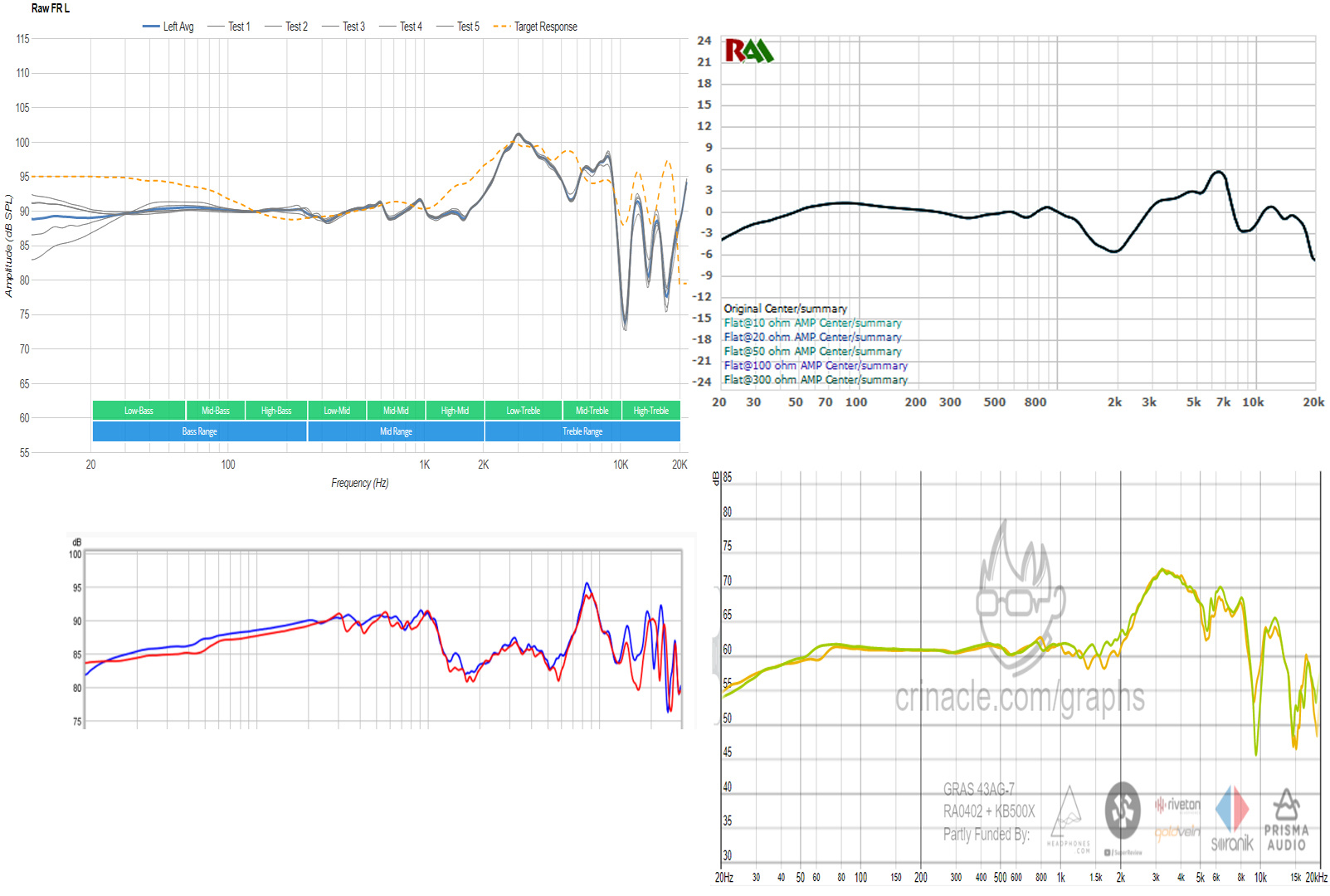
Common mistakes when checking headphone frequency response
Comparing different measurement systems
A graph from one fixture may not align with a graph from another. Compare models measured by the same source whenever possible.
Ignoring the earbud seal
A poor seal can remove bass. Test several ear tips and check fit before concluding that an in-ear headphone has weak low-end output.
Using too much volume
Loud test tones can cause temporary ringing or hearing injury. Keep the level comfortable. Stop if you feel pain, pressure, or ringing.
Trusting a single sweep
A sweep can reveal a problem, but it cannot explain every cause. Repeat the test and check the cable, source, fit, and channel balance.
Treating the graph as a complete review
Frequency response does not measure every important quality. It does not fully describe:
- Harmonic distortion
- Transient behavior
- Noise cancellation
- Comfort
- Build quality
- Wireless stability
- Microphone performance
- Long-term reliability
It is one important measurement, not the whole product.
Measuring with active features in an unknown state
Noise cancellation, transparency mode, adaptive EQ, and hearing profiles can change the response. Record the mode used, and keep it the same for every comparison.
What to do when the result looks wrong
Use this order of checks:
-
Check the cable and plug.
A partly inserted plug can create a weak or missing channel. -
Check the source settings.
Turn off balance controls, EQ, spatial audio, and volume normalization. -
Check the fit.
Reseat the earcups or change the ear tips. -
Test another source.
This helps separate a headphone problem from a phone, computer, adapter, or app problem. -
Test each channel.
If one side remains much quieter, the hardware may need repair or replacement. -
Repeat the measurement.
Reposition the headphones and run the same sweep again. -
Check the measurement calibration.
Confirm the input channel, microphone file, coupler connection, and software settings.
A result that changes greatly after every repositioning is not stable enough for a firm conclusion. A result that repeats across several mounts is more useful.

Frequently asked questions
Can I check headphone frequency response with my ears?
You can perform a basic listening check with a tone sweep. Your ears can identify large peaks, dips, channel differences, and distortion. They cannot provide a calibrated frequency-response graph.
What is the best frequency-response test for headphones?
The best method is a calibrated measurement with a suitable ear simulator or coupler. For a quick personal check, use a low-volume sweep and repeat the test with a secure, consistent fit.
Does a flat frequency response mean headphones sound best?
No. “Flat” depends on where the measurement was taken and whether a target curve was used. Listener preference, music, fit, hearing, and headphone design also affect the result.
Why do two frequency-response graphs for the same headphones look different?
The graphs may use different fixtures, target curves, smoothing, positions, sample units, or measurement levels. Compare graphs from the same source before drawing conclusions.
Can frequency response show whether headphones are defective?
It can reveal a large channel mismatch, missing frequency range, or unusual peak. Confirm the result with another source and a second fit before requesting service.
Is it safe to use a 20 Hz to 20 kHz tone sweep?
It can be safe at a low, comfortable level and for a short time. Do not raise the volume to hear very high or very low tones. Stop if you notice pain, ringing, or muffled hearing.
Conclusion
The simplest way to check headphone frequency response is to read a test graph or play a low-volume tone sweep. The most accurate method uses a calibrated microphone, coupler, software, and repeatable placement.
For useful results, control the variables that matter most: fit, seal, volume, source settings, measurement fixture, and channel. Use frequency response to understand tonal balance, but do not use it alone to judge comfort, quality, or personal preference.
For a next step, test one pair with a slow sweep, note any clear peaks or dropouts, then repeat the check after reseating the headphones and disabling all EQ features.