How To Use A Headphone Amp: Easy Setup Guide

A headphone amp makes the signal from your phone, computer, music player, or DAC strong enough to drive headphones well. To use one, connect the source to the amp’s input, connect your headphones to the amp’s output, start with the volume low, select the right gain, and raise the volume slowly.
Introduction
A headphone amplifier, often called a headphone amp, is a small audio device that powers headphones. It can help headphones play louder, reduce strain on a weak output, and provide better control with some high-impedance or low-sensitivity models.
Many U.S. listeners do not need a separate amp for basic earbuds or easy-to-drive headphones. A phone, laptop, tablet, or USB audio adapter may already provide enough power. An external amp becomes more useful when the sound is too quiet, the source struggles with demanding headphones, or you want a cleaner and more flexible desktop setup.
The key is correct signal flow:
Audio source → headphone amp input → headphone amp output → headphones
Do not connect headphones to a speaker amplifier unless the device has a dedicated headphone output. Speaker amps can deliver far more power than headphones can safely handle.
What Is a Headphone Amp?
A headphone amp is an amplifier designed to drive the small speakers inside headphones. It takes a low-power audio signal and supplies the voltage and current needed by the headphones.
A headphone amp may be:
- Built into a phone, laptop, tablet, or portable music player
- Built into a USB DAC
- Included in a desktop DAC/amp
- Sold as a separate desktop component
- Built into a portable headphone amp
- Included in an audio interface
A DAC converts digital audio into an analog signal. An amp increases the strength of that analog signal. Many products combine both functions, but they are not the same thing.
For example:
- A USB DAC may convert audio but have limited headphone power.
- A headphone amp may accept an analog signal from a DAC.
- A DAC/amp includes both the converter and the amplifier.
- An audio interface may include a DAC, headphone amp, microphone input, and monitor outputs.
The amp does not automatically improve every headphone. If your headphones already play loudly and cleanly from your current device, a new amp may offer little audible benefit.
Key terms to understand
Impedance is the electrical load of the headphones, measured in ohms (Ω). High-impedance headphones often need more voltage. Low-impedance headphones may need less voltage but can still need enough current.
Sensitivity describes how loud headphones can become from a given amount of power or voltage. Higher-sensitivity headphones usually need less power to reach a normal listening level.
Gain controls how strongly the amp boosts the incoming signal. Low gain is often best for sensitive headphones. High gain can help harder-to-drive headphones, but it also makes the volume control more powerful.
Output impedance is the resistance presented by the amplifier’s headphone output. A high output impedance can change the frequency response of some headphones, especially models with uneven impedance across frequencies.
How to Connect a Headphone Amp
The correct connection depends on whether your source outputs digital or analog audio. Follow these steps before playing music.
1. identify your source
Common sources include:
- Windows PC
- Mac
- iPhone or iPad
- Android phone or tablet
- CD player
- Television
- Game console
- Turntable
- Audio interface
- Network music player
Check which outputs the source provides. You may see USB, optical, coaxial, 3.5 mm, RCA, or a headphone jack.
2. Choose the signal path
Use one of these common setups:
Computer or phone with USB DAC/amp
Computer or phone → USB cable → DAC/amp → headphones
Computer with a separate DAC and amp
Computer → USB DAC → RCA or balanced cable → headphone amp → headphones
Source with an analog output
CD player or audio interface → RCA or 3.5 mm cable → headphone amp → headphones
Television with optical output
TV optical output → DAC with optical input → headphone amp → headphones
If the headphone amp has a built-in DAC, connect the digital source directly to the DAC/amp. If it accepts only analog input, you need a separate DAC or an analog output from the source.
3. Turn the volume down
Set the amp’s volume to its lowest position before connecting headphones. This helps prevent a loud burst caused by startup noise, a wrong input, or a high gain setting.
4. Connect the source to the amp input
Plug the cable into the amp’s input, not its output. Labeling can vary, so look for terms such as:
- Input
- Line in
- USB
- Optical in
- RCA in
- 3.5 mm in
Do not use a line output as a headphone output. A line output sends a fixed or semi-fixed signal and is not designed to power headphones.
5. Connect the headphones to the amp output
Plug the headphones into the port marked:
- Headphone
- Phones
- Headphone out
- 6.35 mm
- 3.5 mm
- 4.4 mm balanced
Use the correct plug or adapter. A 6.35 mm plug is the larger connector often found on desktop amps. A 3.5 mm plug is common on portable devices. A 4.4 mm connector is often used for balanced headphone output.
6. Select the input
If the amp has more than one input, select the one you used. Some DAC/amps switch inputs automatically. Others use a button, knob, remote, or software control.
7. Start playback and raise the volume slowly
Play a familiar track. Raise the volume in small steps until it reaches a comfortable level. Stop if you hear crackling, harsh distortion, sudden noise, or an unusually loud signal.
8. Set the gain
Start with low gain. If the volume knob reaches a very high position and the headphones still are not loud enough, switch to medium or high gain.
A high volume knob position is not automatically a problem. Different amps use different volume controls. Judge the setting by the actual listening level and sound quality.
How to Set Gain and Volume Correctly
Use the lowest gain that gives you enough volume. This approach gives the volume control more usable range and reduces the chance of accidental loud playback.
Low gain is usually right when:
- You use earbuds or in-ear monitors
- Your headphones are highly sensitive
- The sound becomes loud with only a small turn of the knob
- You hear hiss in quiet passages
- You want finer volume control
Higher gain may help when:
- Your headphones remain too quiet on low gain
- You use high-impedance headphones
- You need much more volume than your source can provide
- The amp manufacturer recommends high gain for the model
Gain does not create detail that is missing from the recording. It only increases the signal level. If the source clips before the amp, adding gain can make distortion worse.
A simple power example
Suppose a headphone amp supplies 2 volts into a 300-ohm headphone load. Using Ohm’s law:
- Current = voltage ÷ resistance
- Current = 2 V ÷ 300 Ω
- Current ≈ 0.0067 A, or 6.7 mA
Power is:
- Power = voltage² ÷ resistance
- Power = 2² ÷ 300
- Power ≈ 0.013 W, or 13 mW
This is a hypothetical calculation, not a guarantee of listening volume. Real results depend on headphone sensitivity, music peaks, amplifier limits, and the recording level.
For low-impedance headphones, current capability matters more. For high-impedance headphones, voltage output matters more. A good amp should provide both without audible clipping.
How to Use a Headphone Amp With Different Devices
With a Windows PC or Mac
A USB DAC/amp is usually the simplest choice:
- Connect the DAC/amp to the computer with USB.
- Open the computer’s sound settings.
- Select the DAC/amp as the output device.
- Set the computer volume to a moderate or fixed level.
- Control listening volume with the amp.
Some computer programs have their own volume controls. Keep an eye on both the app volume and the amp volume. If one is set very low and the other very high, you may get poor control or excess noise.
With an iPhone or iPad
Many current Apple devices require an adapter or USB connection. Use a compatible USB DAC/amp and check whether the device supplies enough power.
Some portable amps draw more power than a phone can provide. If the device disconnects, drains the battery quickly, or fails to recognize the amp, use a powered adapter or a portable amp with its own battery.
With an Android phone or tablet
Connect a compatible USB DAC/amp through the proper USB port and adapter. Android devices may show a system prompt or automatically switch audio output.
If the amp is not detected:
- Unlock the phone before connecting it
- Try another USB cable
- Check USB OTG support
- Disconnect other USB devices
- Restart the phone
- Confirm that the DAC/amp is compatible with the device
With a television
A TV headphone jack can connect directly to headphones, but an external amp may require an analog or digital output.
If the TV has a 3.5 mm or RCA output, connect it to the amp’s analog input. If it has optical output, use a DAC that supports optical input.
Some TVs send audio through only one selected output. Open the TV’s audio menu and choose the correct output. Digital optical output may also require a format such as PCM rather than a surround format the DAC cannot decode.
With a game console
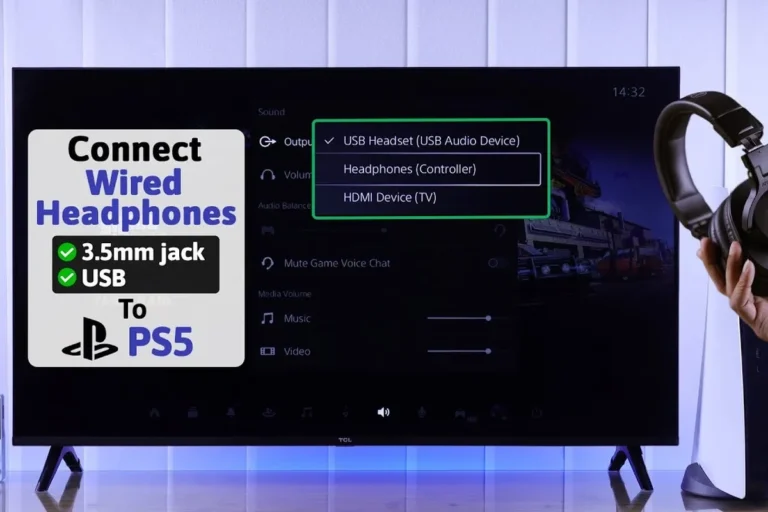
A console may support USB audio, optical audio, HDMI audio extraction, or a controller headphone jack. The best method depends on the console and the amp.
Check:
- Whether the console supports USB DACs
- Whether chat audio passes through the chosen output
- Whether the amp has a microphone input
- Whether the console needs stereo PCM
- Whether volume control remains available
A basic headphone amp cannot replace a gaming interface if you need microphone mixing, chat balance, virtual surround, or sidetone.
With a turntable
A turntable usually needs a phono preamp before a headphone amp. The signal chain is often:
Turntable → phono preamp → headphone amp → headphones
Some turntables have a built-in phono preamp. If yours does, connect its line output to the headphone amp. Do not connect a raw phono signal directly to a normal line input unless the amp specifically includes a phono stage.
Balanced and Single-Ended Headphone Outputs
A single-ended connection uses a shared ground. Common examples include 3.5 mm and 6.35 mm headphone outputs.
A balanced headphone connection uses separate signal paths for the left and right channels. Common headphone connectors include 4.4 mm and, on some equipment, 2.5 mm.
Balanced output can provide more power on some amps, but the connector alone does not guarantee better sound. The amp, cable, and headphones must all support the same balanced wiring.
Do not use a balanced headphone cable with an ordinary single-ended adapter unless the manufacturer specifically says it is safe. Some adapters connect grounds in ways that can damage an amplifier’s output stage.
Balanced output is also not the same as balanced input. A system can have balanced connections between components while still using a single-ended headphone output.
How to Tell Whether You Need a Headphone Amp
You may benefit from a headphone amp if:
- Your headphones are not loud enough
- The sound becomes distorted when you raise the volume
- Your source has audible hiss or interference
- You use high-impedance headphones
- You need a longer cable run from a desktop source
- You want a physical volume knob
- You need separate inputs or outputs
- You want to connect several sources
You may not need one if:
- Your current source reaches a comfortable level
- The sound is clean at that level
- You use efficient earbuds or headphones
- You do not need extra connections
- You are considering an amp only because of a general claim that all headphones need one
A headphone amp cannot fix every sound problem. It will not correct a poor recording, damaged headphone driver, bad cable, incorrect equalizer setting, or a fit problem with in-ear monitors.
Troubleshooting a Headphone Amp
Check the simplest and safest causes first. Keep the volume low during testing.
No sound
Try these steps:
- Confirm that the amp has power.
- Check that the correct input is selected.
- Confirm that the source is playing audio.
- Check the computer or phone output selection.
- Make sure the headphones are fully inserted.
- Try another cable or pair of headphones.
- Test the source with another output.
- Check whether a mute button is active.
If the amp has both line output and headphone output, verify that the headphones are connected to the headphone port.
Sound comes from only one side
A partial connection is a common cause. Remove and reinsert the plug firmly. Then test another cable and another pair of headphones.
If the problem follows the cable, replace the cable. If it stays with one output, inspect the amp’s connector. A damaged plug, broken wire, or faulty jack may require repair.
Hiss or buzzing
Hiss is often more noticeable with sensitive in-ear monitors and high gain. Switch to low gain and reduce the source output if possible.
Buzz can come from:
- A ground loop
- Poor shielding
- A faulty power supply
- A damaged cable
- Nearby electrical equipment
- An incorrect connection
Disconnect other components one at a time. If the noise changes when a laptop charger is connected, the charger or grounding arrangement may be involved. Do not remove the safety ground from AC equipment. Use approved power equipment or ask a qualified technician.
Distortion or crackling
Lower the volume first. Then check whether:
- The source is clipping
- The amp is on the wrong gain setting
- The headphones are connected to a damaged adapter
- The amp is overheating
- The recording itself is distorted
- The amp cannot supply enough power for the headphones
If distortion occurs only at high volume, the headphones or amp may be reaching their limits. Do not keep increasing the volume to overcome it.
The computer does not recognize the amp
Use a data-capable USB cable, not a charge-only cable. Try another USB port and confirm that the amp appears in the operating system’s sound settings.
Some devices need a driver. Use only the driver supplied by the manufacturer or the operating system. Avoid unknown driver-download sites.
Hearing Safety When Using a Headphone Amp
A headphone amp can make headphones dangerously loud. Start at the lowest practical volume and increase it slowly.
The CDC and the National Institute for Occupational Safety and Health warn that loud sound can damage hearing over time. Risk depends on both volume and exposure time. Ringing in the ears, muffled hearing, pain, or a need to raise the volume may indicate that the level is too high.
Use these habits:
- Keep the volume as low as practical.
- Take quiet breaks during long sessions.
- Avoid using high gain with sensitive earbuds unless needed.
- Do not test an amp by turning the volume fully up.
- Check the volume after switching inputs.
- Be careful when using an amp with a new device or app.
- Stop if you experience pain, ringing, or sudden hearing changes.
If you notice sudden hearing loss, severe pain, drainage, or persistent ringing, seek medical care. General audio advice cannot diagnose a hearing condition.
Common Headphone Amp Mistakes
Using a speaker amplifier
A speaker amp is designed for speakers, not headphones. It may damage headphones or create a dangerous output level. Use a dedicated headphone output or a purpose-built headphone amp.
Setting gain too high
High gain does not mean higher sound quality. It can make the volume jump quickly and increase hiss. Use low gain unless you need more level.
Confusing a DAC with an amp
A DAC converts digital audio. It does not always provide enough power for headphones. Check the product’s headphone output specifications.
Using the wrong balanced adapter
Balanced and single-ended wiring are not interchangeable in every system. Follow the amp and cable maker’s instructions.
Connecting through the wrong output
A line output is not normally intended to drive headphones. A preamp output may also change volume or pass a signal to other equipment. Read the labels before connecting.
Expecting every amp to sound different
The main practical benefits may be more volume, lower noise, better control, and more connection options. If your existing output already performs well, audible changes may be small.
Key Takeaways
- Connect the system as source → amp input → amp headphone output → headphones.
- Start with the volume low.
- Begin with low gain and increase it only when needed.
- Check impedance, sensitivity, and output power rather than relying on brand claims.
- Use a DAC when your source provides digital audio and the amp does not include one.
- Do not connect headphones directly to a speaker amplifier.
- Balanced output is optional and does not automatically sound better.
- If your headphones already play cleanly and loudly, you may not need a separate amp.
FAQs
Can I use a headphone amp with a phone?
Yes. Use a compatible USB DAC/amp, analog output, or portable amp. The phone may need an adapter, and some amps may require more power than the phone can supply.
Does a headphone amp improve sound quality?
It can improve sound when the original output is too weak, noisy, or distorted. It may make little difference when the existing source already drives the headphones cleanly.
What gain should I use on a headphone amp?
Start with low gain. Use a higher setting only when the headphones are not loud enough or the amp manufacturer recommends it.
Do high-impedance headphones always need an amp?
No. High-impedance headphones often need more voltage, but the correct answer also depends on sensitivity and the source’s output. Some high-impedance models work well from laptops or dedicated audio devices.
Can a headphone amp damage headphones?
It can if the volume is excessive, the wiring is incorrect, or the device is unsuitable. Start at low volume and use the correct output and cable.
Conclusion
Using a headphone amp is simple once the signal path is clear. Connect the source to the amp’s input, connect the headphones to the amp’s headphone output, choose low gain, and raise the volume slowly.
The best next step is to check your headphones’ impedance and sensitivity, then compare those requirements with the output specifications of your phone, computer, DAC, or current audio device. If your headphones already play cleanly at a comfortable level, keep your setup simple. If they struggle, a suitable headphone amp can provide the power and control they lack.