How To Bluetooth Shokz Headphones: Easy Pairing Guide

Introduction
To connect Shokz headphones to a Bluetooth device in the United States, turn on Bluetooth, place the headphones in pairing mode, select the Shokz name from the device list, and confirm the connection. Most Shokz bone-conduction models use the same basic process, including OpenRun, OpenRun Pro, OpenMove, and OpenComm.
The exact steps can differ for Shokz true wireless models such as OpenFit because those earbuds use a charging case. This guide explains both methods, shows how to reconnect Shokz headphones, and gives practical fixes when pairing fails.

Before You Pair Shokz Headphones
Check these items before you begin:
- Charge the headphones for a few minutes.
- Keep the headphones within about 3 feet of the phone or computer.
- Turn off Bluetooth on nearby devices that have used the headphones before.
- Remove the headphones from their charging cable.
- Make sure the device has Bluetooth turned on.
- Know the model name. It is usually printed on the box, manual, or charging case.
Shokz headphones are Bluetooth audio devices. They do not need the Shokz app for basic pairing. The app may add features on supported models, but your phone or computer can connect to the headphones through its normal Bluetooth menu.
What pairing mode means
Pairing mode makes the headphones visible to a new device. On many Shokz bone-conduction models, the LED flashes red and blue, and the headphones say “pairing.”
A steady light or a normal startup sound usually means the headphones are on but not ready to pair. In that case, turn them off and enter pairing mode again.
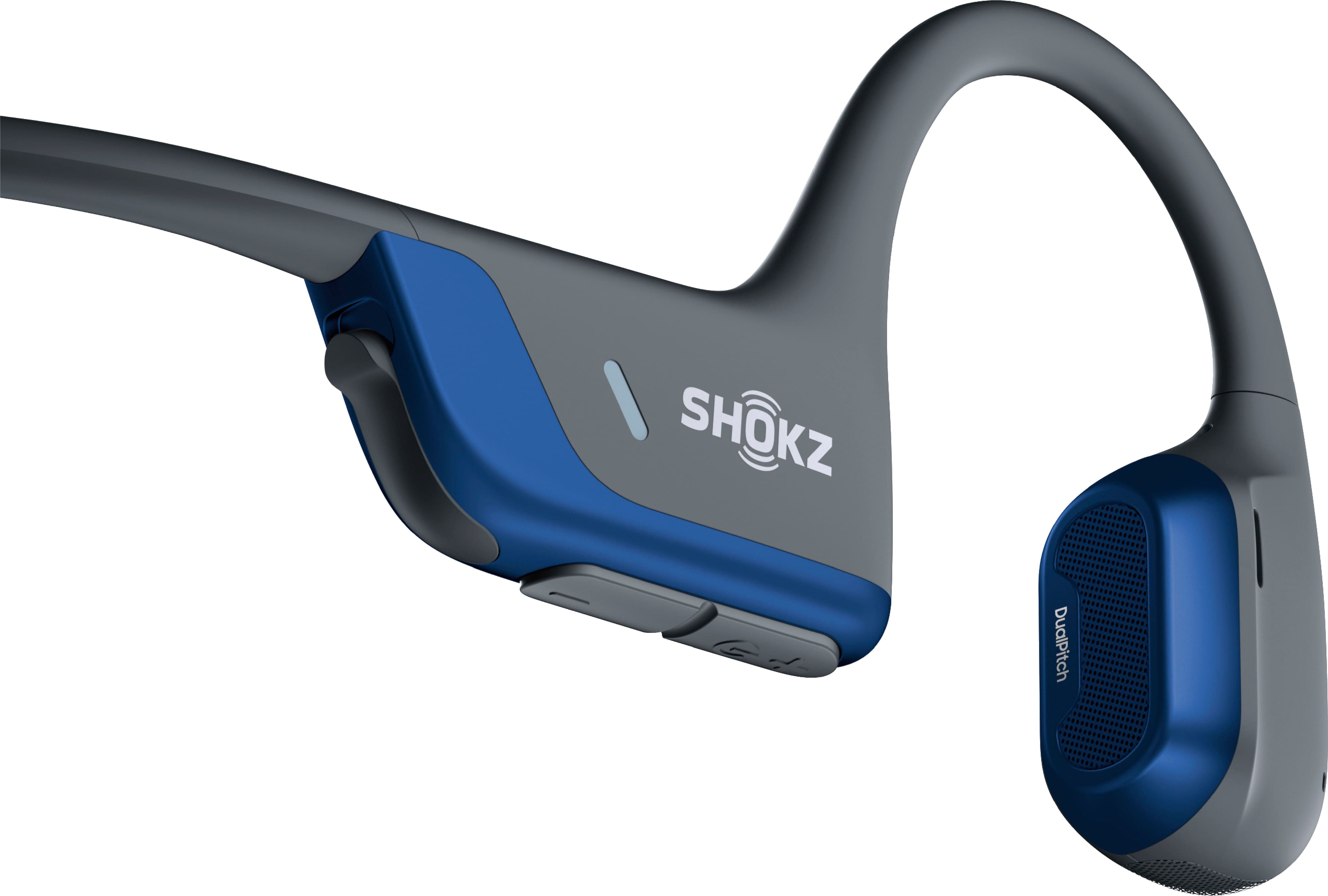
How to Pair Shokz Headphones With an iPhone
Follow these steps for an iPhone running a current version of iOS:
- Open Settings.
- Tap Bluetooth.
- Turn Bluetooth on.
- Turn off the Shokz headphones.
- Press and hold the Volume+ button for about 5 to 7 seconds.
- Release the button when the headphones announce pairing mode or the LED flashes red and blue.
- Look under Other Devices on the iPhone.
- Tap the name of your Shokz headphones, such as Shokz OpenRun or Shokz OpenComm.
- Wait for the status to change to Connected.
The headphones should now play audio from the iPhone. Test the connection by playing a short song or video.
If the Shokz name appears under My Devices but will not connect, tap the information icon next to it and choose Forget This Device. Then repeat the pairing steps.
If your iPhone asks for a Bluetooth permission
Allow Bluetooth access when iOS requests it. Basic audio pairing still takes place in the iPhone’s Bluetooth settings, not only in an app.
How to reconnect after the first setup
After the first successful pairing, turn on the headphones near the iPhone. The iPhone should reconnect automatically if Bluetooth is on and no other device has taken the connection.
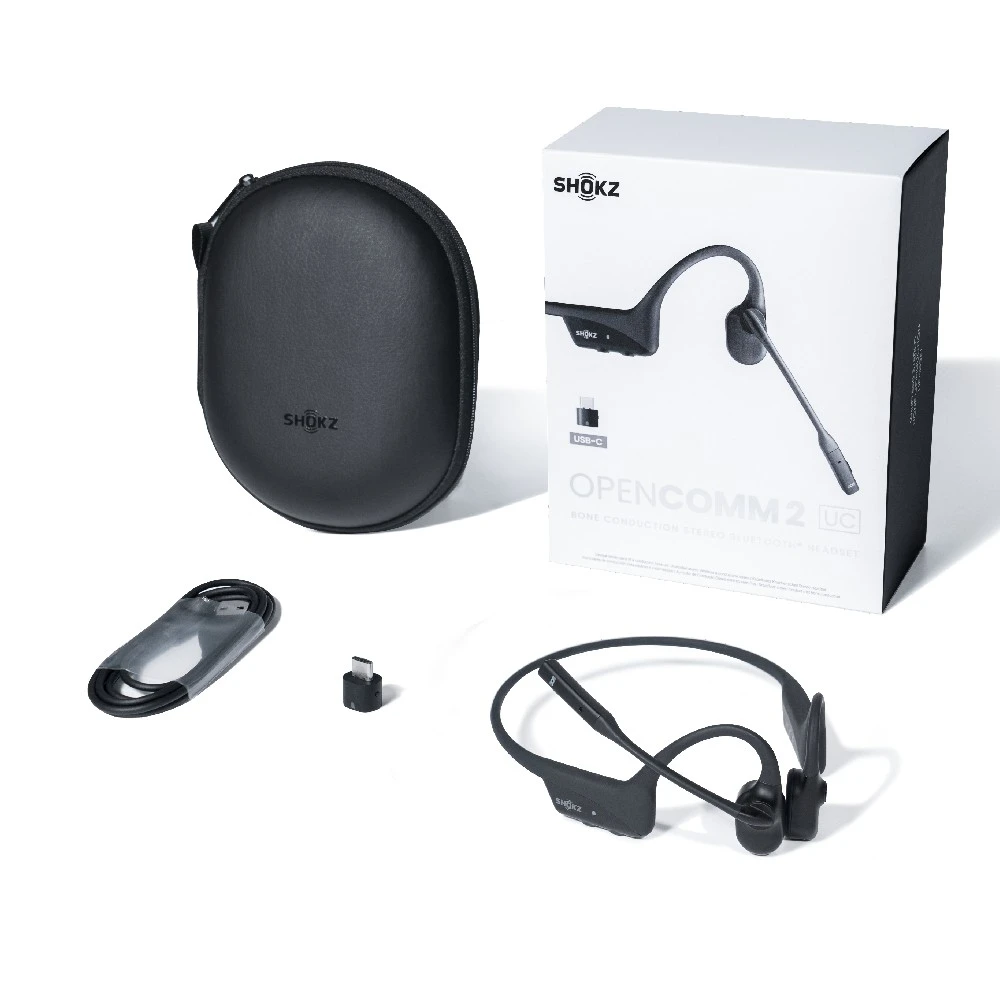
How to Connect Shokz Headphones to Android
The names of Android menus can vary by phone maker, but the process is similar:
- Open Settings.
- Tap Connected devices, Connections, or Bluetooth.
- Turn Bluetooth on.
- Turn off the Shokz headphones.
- Hold Volume+ for about 5 to 7 seconds.
- Wait for the pairing announcement or red-and-blue flashing light.
- Select the Shokz headphones under available devices.
- Tap Pair or Connect if prompted.
Some Android phones show a quick Bluetooth menu when you swipe down from the top of the screen. That shortcut can turn Bluetooth on, but the full Settings menu is often easier when you need to remove an old pairing.
If the headphones connect but have no sound
Open the phone’s media output panel and select the Shokz headphones. Also check the Bluetooth entry for the headphones and confirm that Media audio is enabled.
A phone can connect to headphones for calls but route music to its speaker. Selecting the Shokz device as the media output usually fixes this issue.
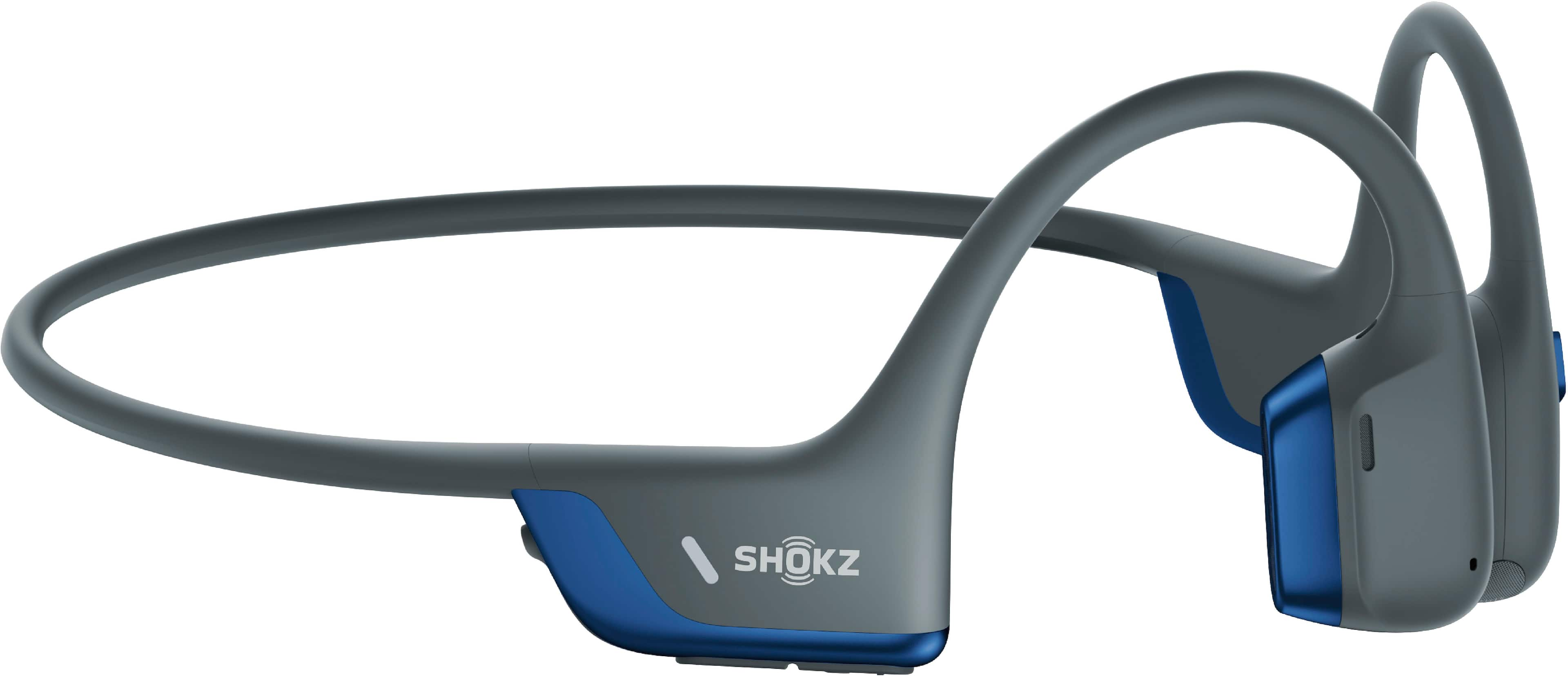
How to Pair Shokz With a Windows PC
You can connect Shokz headphones to a Windows computer with built-in Bluetooth or a compatible USB Bluetooth adapter.
Windows 11
- Open Settings.
- Select Bluetooth & devices.
- Turn Bluetooth on.
- Click Add device.
- Choose Bluetooth.
- Turn off the Shokz headphones.
- Hold Volume+ for about 5 to 7 seconds.
- Select the Shokz model when it appears.
- Click Done.
Windows 10
- Open Settings.
- Select Devices.
- Choose Bluetooth & other devices.
- Turn Bluetooth on.
- Click Add Bluetooth or other device.
- Select Bluetooth.
- Put the headphones in pairing mode.
- Select the Shokz headphones.
After pairing, click the speaker icon in the Windows taskbar and choose the Shokz headphones as the sound output.
Fixing poor Windows call quality
Windows may show separate audio choices for music and calls. A headset mode can reduce sound quality when an app uses the microphone. This is a Bluetooth limitation in some Windows setups, not necessarily a defect in the headphones.
For better music quality, close apps that use the Shokz microphone when possible. For calls, select the Shokz device as both the microphone and speaker in the meeting app.
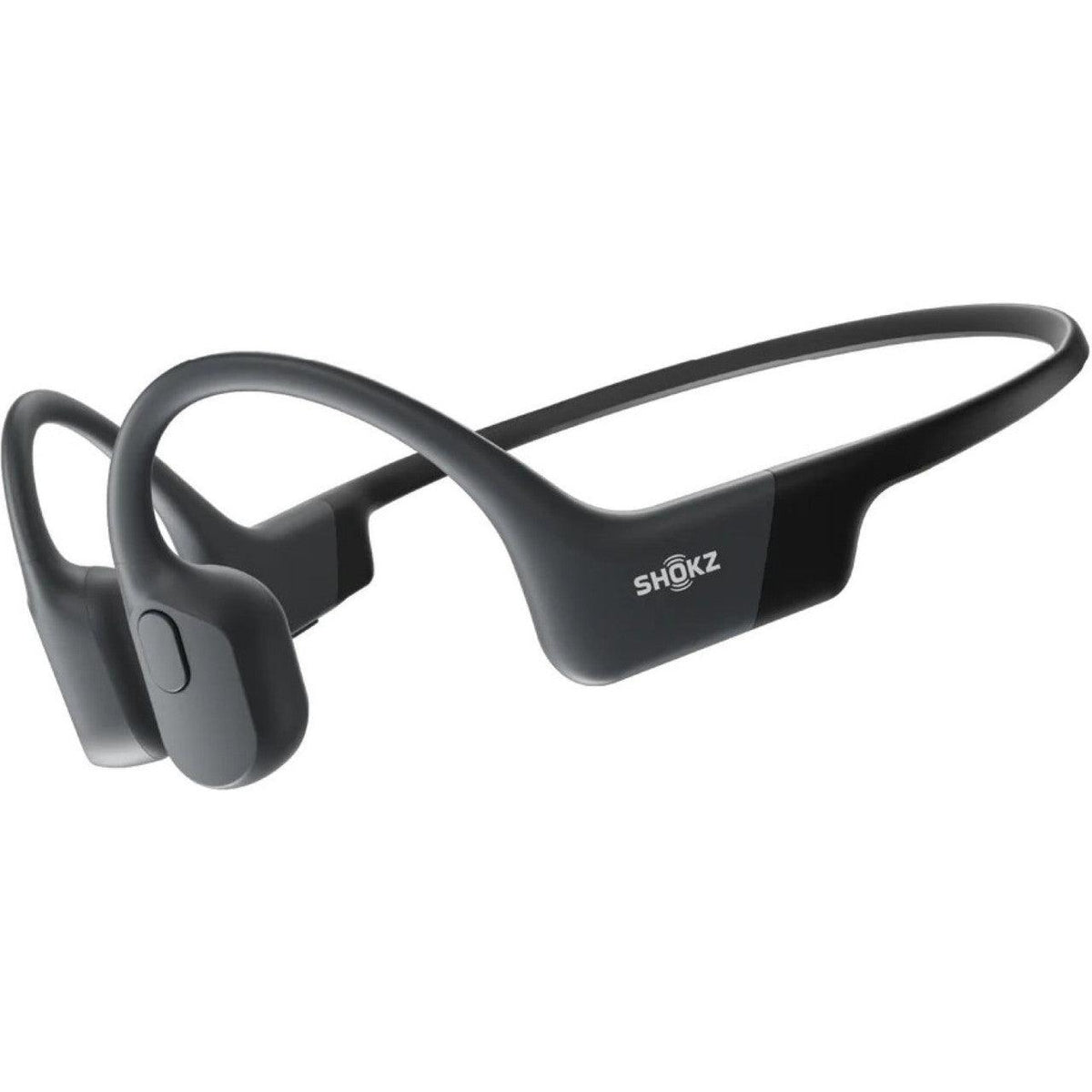
How to Connect Shokz to a Mac
Use these steps on a Mac:
- Open the Apple menu.
- Choose System Settings.
- Select Bluetooth.
- Turn Bluetooth on.
- Put the Shokz headphones into pairing mode.
- Find the Shokz model in the nearby device list.
- Click Connect.
On older macOS versions, Bluetooth is under System Preferences instead of System Settings.
To choose the headphones for sound, open System Settings > Sound > Output and select the Shokz device. You may also choose it from the Sound menu in the Mac menu bar.
If the Mac lists the headphones as connected but sends sound to its speakers, manually select Shokz under the sound output settings.

How to Pair Shokz OpenFit Earbuds
Shokz OpenFit and other true wireless Shokz earbuds pair differently from bone-conduction headphones.
Use this general method:
- Place both earbuds in the charging case.
- Open the case.
- Turn on Bluetooth on your phone or computer.
- Press and hold the pairing button on the case until the status light indicates pairing mode.
- Select the OpenFit model from the Bluetooth list.
The location and timing of the case button can vary by model. If the case does not enter pairing mode, check the model’s quick-start guide or the official Shokz support page before repeating the process.
For OpenFit earbuds, keep both earbuds in the case while starting the first pairing. This helps the case place the earbuds in their normal setup state.

How to Pair Shokz With a Second Device
Some Shokz models support multipoint pairing. Multipoint allows the headphones to stay connected to two devices, such as an iPhone and a laptop. It does not mean the headphones will play two audio sources at the same time.
A common setup is:
- Pair the Shokz headphones with the first device.
- Turn off Bluetooth on the first device temporarily.
- Put the headphones into pairing mode again.
- Pair them with the second device.
- Turn Bluetooth back on for the first device.
- Enable multipoint through the Shokz app or the model’s documented button process, if required.
On supported models, the headphones may switch between a phone call and computer audio. The exact behavior depends on the headphones, operating system, and active apps.
If the headphones connect to the wrong device, turn off Bluetooth on devices you are not using. This is often faster than repeatedly pressing the pairing button.

Shokz Bluetooth Pairing Troubleshooting
Shokz headphones do not appear in the Bluetooth list
Try these checks in order:
- Confirm the headphones are in pairing mode, not just turned on.
- Move them close to the phone or computer.
- Turn Bluetooth off and back on.
- Turn the headphones off, then try pairing mode again.
- Close the Bluetooth settings page and reopen it.
- Turn off Bluetooth on nearby devices that may connect automatically.
- Restart the phone or computer.
- Charge the headphones.
The most common mistake is holding the wrong button for too little time. On many Shokz bone-conduction models, pairing begins when you hold Volume+ while the headphones are off.
Shokz headphones connect to an old phone
Bluetooth headphones usually try to reconnect to a previously saved device. Disable Bluetooth on the old phone or remove the Shokz entry from its Bluetooth settings.
If you no longer have access to the old phone, reset the headphones and pair them again with your current device.
Shokz headphones say “connected” but produce no audio
Check the output device in the phone, computer, or app. Then raise the volume on both the source device and the headphones.
On Windows and Mac, the computer can connect to the headphones while still using its internal speakers. Manually select Shokz as the audio output.
The connection keeps dropping
Bluetooth range is reduced by walls, metal objects, crowded wireless areas, and a low battery. Keep the source device near the headphones and test them in an open room.
If the connection drops even at close range, forget the Bluetooth connection on the source device and pair again. Also check whether the issue occurs with a second phone. That test helps show whether the problem is with the headphones or the original device.
The headphones will not enter pairing mode
Charge the headphones first. Then power them off fully and try again.
For many bone-conduction models, a reset can clear a stuck Bluetooth state. A common Shokz reset method is to hold the Multifunction, Volume+, and Volume− buttons together for several seconds while the headphones are powered on or off, depending on the model instructions. Because button procedures differ, use the manual for your exact model before resetting.
A reset can remove saved connections and restore the need to pair again.
One OpenFit earbud does not connect
Place both earbuds in the case and check that they are charging. Clean the charging contacts with a dry, soft cloth. Then forget the OpenFit Bluetooth entry and follow the model’s reset and re-pair instructions.
Do not use liquid, metal tools, or sharp objects on the charging contacts.

Common Bluetooth Pairing Mistakes
Avoid these problems when setting up Shokz headphones:
- Searching while the headphones are only powered on: Pairing mode is a separate state.
- Pairing with the wrong name: Confirm the model shown in the Bluetooth list.
- Leaving an old device active: Another phone or laptop may connect first.
- Using the wrong sound output: A successful Bluetooth connection does not always change the computer’s speaker setting.
- Pairing while the headphones are charging: Some models may not enter pairing mode normally when connected to power.
- Resetting too early: Forgetting the old Bluetooth entry and pairing again often solves the issue without a reset.
- Ignoring the model manual: OpenFit earbuds use a case, while many bone-conduction models use physical buttons.
Do not wear headphones at a level that hides traffic, alarms, or other hazards. Bluetooth pairing does not make a device safe for every setting. Keep awareness of vehicles, cyclists, and workplace warnings.

How to Check Whether Shokz Pairing Worked
Pairing is complete when the device shows the headphones as Connected and audio plays through them.
Run this short test:
- Play music or a video.
- Adjust volume from the headphones.
- Pause and resume with the multifunction button.
- Make a short test call if you need the microphone.
- Turn the headphones off and back on.
- Confirm that they reconnect automatically.
If music works but calls do not, check the call app’s speaker and microphone settings. If calls work but music does not, check the media output setting.

Frequently Asked Questions
Why will my Shokz headphones not show up on Bluetooth?
They may not be in pairing mode, may already be connected to another device, or may have too little battery power. Turn them off, hold Volume+ until the pairing announcement begins, and search again.
How do I put Shokz OpenRun in pairing mode?
Turn off the OpenRun. Hold the Volume+ button for about 5 to 7 seconds until the headphones announce pairing mode and the indicator flashes red and blue.
Can Shokz headphones connect to an iPhone and a laptop?
Some Shokz models support multipoint connections. Pair each device separately and enable multipoint if the model requires it. Models without multipoint normally connect to one active source at a time.
How do I remove Shokz headphones from my phone?
On iPhone, open Settings > Bluetooth, tap the information icon beside Shokz, and select Forget This Device. On Android, open the Bluetooth settings, tap the gear or settings icon beside Shokz, and choose Forget, Unpair, or Remove.
Do I need the Shokz app to connect the headphones?
No. Basic Bluetooth pairing works through the phone or computer’s Bluetooth settings. The app may be useful for supported features, firmware updates, or multipoint controls.
Conclusion
To Bluetooth Shokz headphones, turn on Bluetooth, place the headphones in pairing mode, select the Shokz model, and confirm the connection. For most bone-conduction models, pairing mode starts by holding Volume+ while the headphones are off. OpenFit earbuds use the charging case instead.
If pairing fails, check pairing mode first, remove old connections, disable nearby Bluetooth devices, restart the source device, and charge the headphones. The next best step is to use the official manual for the exact Shokz model, especially before performing a reset.