How To Increase Bass On iPhone Headphones: Boost Sound

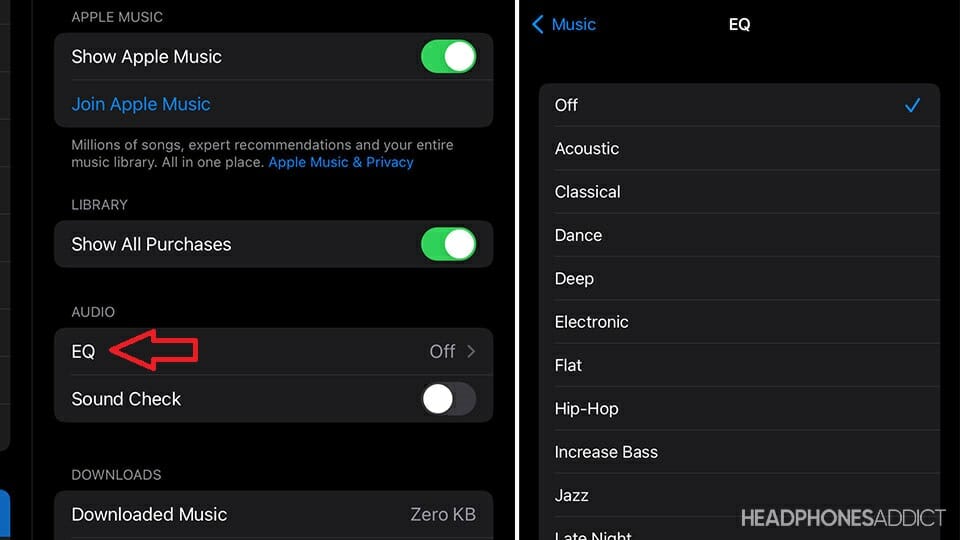
The fastest way to increase bass on iPhone headphones is to turn on the Bass Booster setting in Apple Music. Open Settings > Apps > Music > EQ > Bass Booster. If you use Spotify or another audio app, adjust its built-in equalizer instead, because Apple Music’s EQ does not control every app on your iPhone.
This guide is for iPhone users in the United States. Menu names may vary slightly by iOS version, but the main steps are similar on recent iPhone models.
Use the iPhone’s built-in bass settings
Apple provides several ways to change how music sounds. The best option depends on the app, headphones, and type of bass you want.
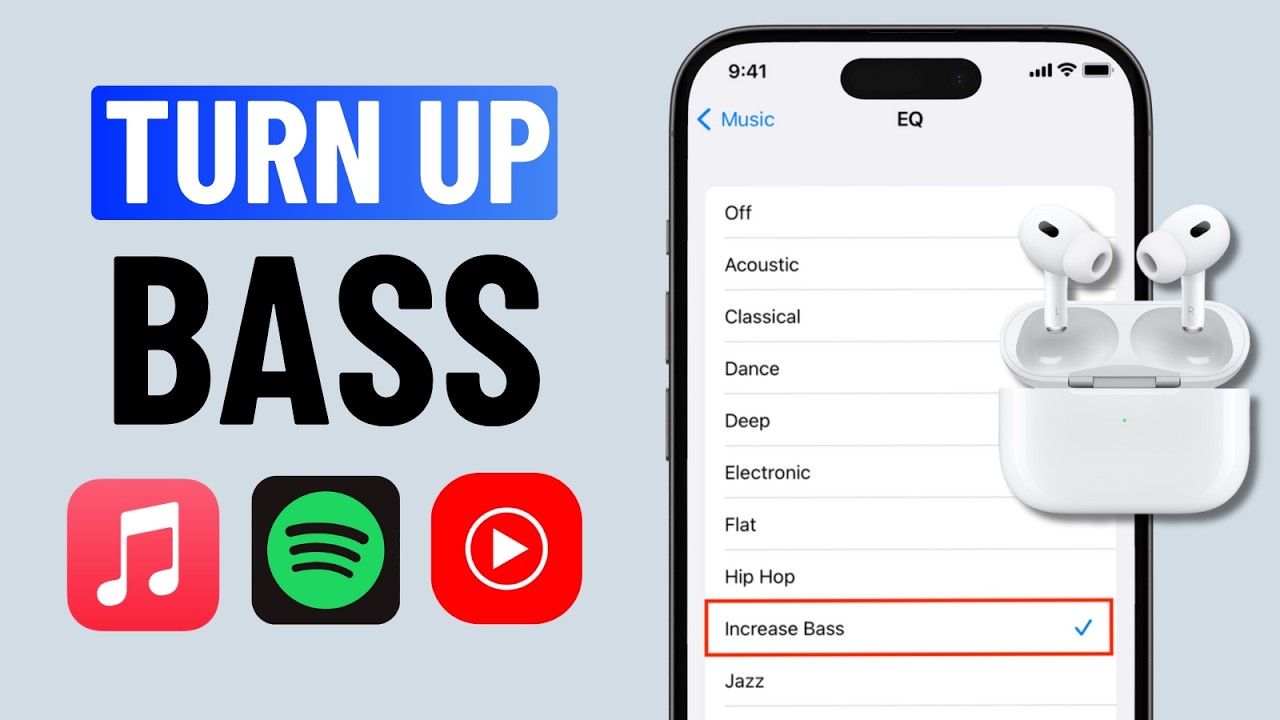
Turn on Bass Booster for Apple Music
Use this method if you listen through the Apple Music app:
- Open Settings.
- Tap Apps.
- Tap Music.
- Select EQ.
- Choose Bass Booster.
- Play a song and check the result.
On some older iOS versions, the path is Settings > Music > EQ.
The Bass Booster preset raises low-frequency sound. This can make kick drums, bass guitars, and electronic bass lines sound fuller. It may also make some songs muddy or distorted, especially at high volume.
Apple Music’s EQ setting applies to music played in Apple Music. It usually does not change sound in Spotify, YouTube, podcasts, games, or video apps.
Use Headphone Accommodations
Headphone Accommodations can adjust supported headphones for a stronger or clearer sound. This feature is most useful when bass seems weak because vocals or high tones overpower the music.
To find it:
- Open Settings.
- Tap Accessibility.
- Choose Audio & Visual.
- Tap Headphone Accommodations.
- Turn the feature on.
- Try Balanced Tone, Vocal Range, or Brightness.
- Use Custom Audio Setup if your iPhone offers it.
Headphone Accommodations is not a dedicated bass knob. Its effect depends on the headphone model and the selected profile. A setting that makes vocals clearer may make bass seem less strong, while a warmer profile may make the sound feel fuller.
Check the Mono Audio setting
Mono Audio is not a bass control. However, it can affect how music sounds if your left and right channels do not match.
Go to Settings > Accessibility > Audio & Visual and make sure Mono Audio is off unless you specifically need it. Also check that the Balance slider is centered.
A shifted balance can make one side sound louder or make the overall mix seem thin.
Increase bass in Spotify and other music apps
If Apple Music settings do not change the sound in another app, use that app’s own equalizer.
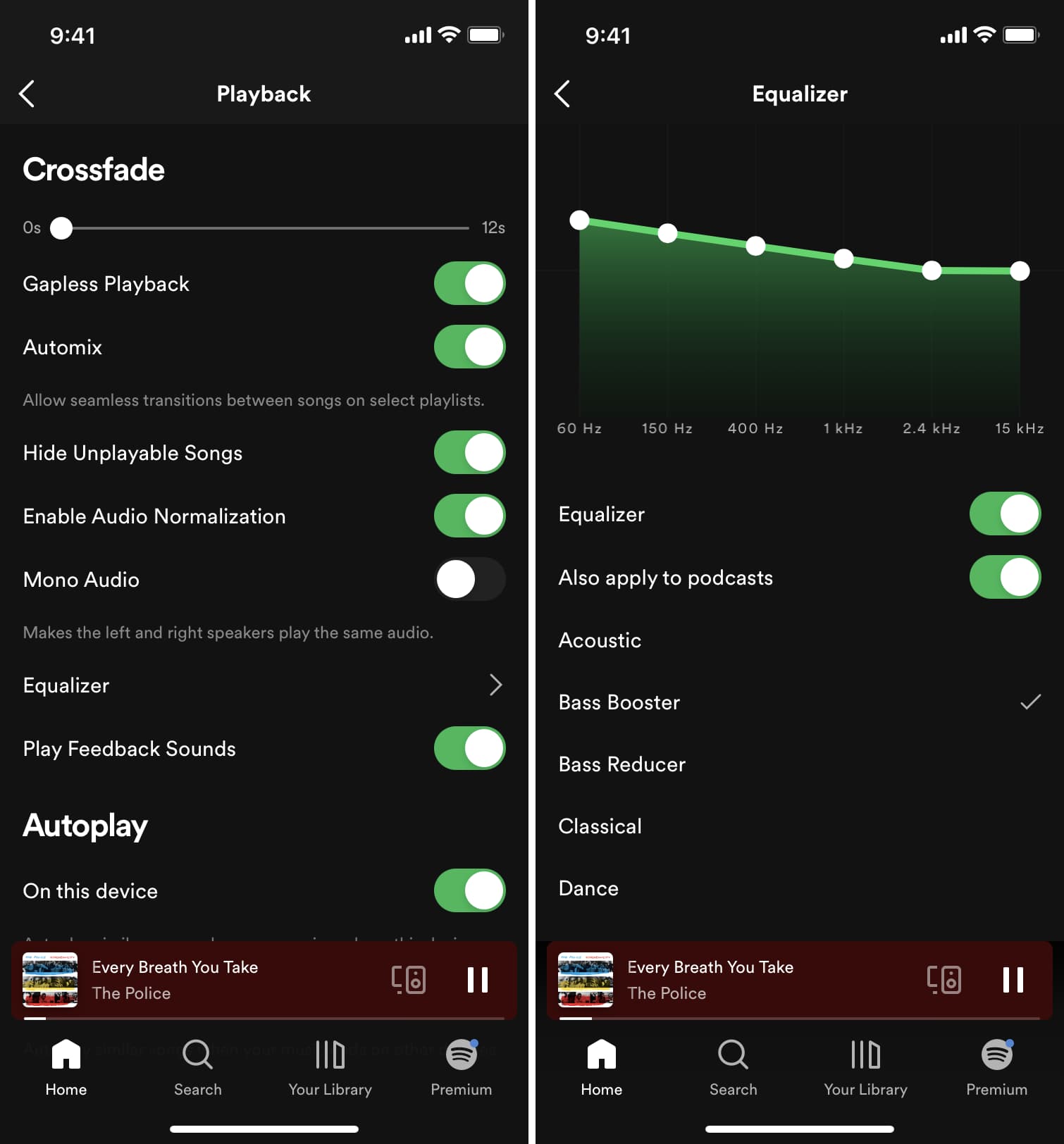
Spotify
In the Spotify app:
- Open Spotify.
- Tap your profile picture or the Settings icon.
- Choose Playback.
- Tap Equalizer.
- Raise the low-frequency bands on the left side.
- Lower the highest bands slightly if the sound becomes harsh.
Spotify menu locations can change with app updates. Equalizer availability may also vary by device, account, or app version.
Raise the lowest bands in small steps. Large increases can cause clipping, which makes bass sound cracked or rough rather than deep.
Other streaming apps
Many music apps have their own sound controls under names such as:
- equalizer
– EQ - Audio quality
- Playback
- Sound effects
- Tone controls
Podcast and video apps may not provide a bass control. If an app has no EQ, your options may be limited to iPhone accessibility settings or the headphone manufacturer’s app.
Use the headphone maker’s app
Some wireless headphones include EQ controls in a companion app. These controls may work across several apps because the adjustment happens in the headphones themselves.
Look for settings such as:
- Bass
- Low frequencies
- Sound profile
- Custom EQ
- Personal sound
- Preset
A headphone app may offer more control than the iPhone. However, some apps work only with specific headphone models. Use the official app for your headphones and install updates from the App Store when needed.

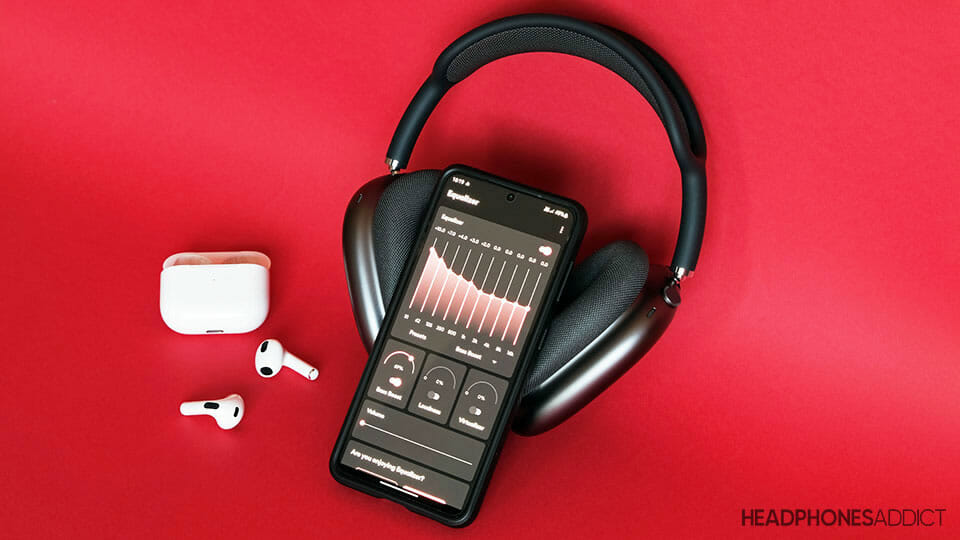
Adjust bass with a custom equalizer
A custom EQ gives you more control than a single “Bass Booster” preset.
Equalizer bands represent parts of the sound range:
| Range | What you may hear | Typical adjustment |
|---|---|---|
| Sub-bass | Deep rumble and very low electronic tones | Raise carefully |
| Bass | Kick drums, bass guitars, and low synths | Raise for more weight |
| Low mids | Warmth and body in voices and instruments | Raise slightly or leave flat |
| High mids | Vocal detail and guitars | Lower slightly if sound is sharp |
| Treble | Cymbals, clarity, and brightness | Lower if the mix feels harsh |
The exact frequency labels differ between apps. As a starting point, raise the two or three lowest bands by a small amount. Avoid moving every slider up. That increases overall loudness and can cause distortion.
A practical bass-heavy EQ starting point
Try this general approach:
- Raise the lowest band a little.
- Raise the next bass band slightly more.
- Keep the middle bands near their original positions.
- Lower the highest bands only if the sound becomes bright or tiring.
- Compare the result with the EQ turned off.
This is a starting point, not a universal setting. Headphones have different sound signatures, and a preset that works for AirPods may sound poor on wired earbuds or over-ear headphones.
Avoid excessive low-end boost
If the bass sounds loose, blurry, or cracked, reduce the boost. Bass uses a large amount of speaker movement, so small changes can have a noticeable effect.
You may also hear distortion when:
- The song is already mastered with heavy bass.
- The headphones are too small to reproduce very low tones cleanly.
- The phone or app is clipping the signal.
- The volume is near maximum.
- Multiple EQ systems are active at once.
Turn off one EQ before testing another. For example, do not use a strong Spotify bass boost and a headphone app bass boost at the same time unless you have tested the combination carefully.
Check the headphones before changing EQ
Weak bass is not always a software problem. Inspect the headphones and connection first.
Clean the speaker openings
Earwax, dust, and skin oil can block the mesh on earbuds. This often reduces clarity and can change the balance between bass and treble.
Clean the outside mesh with a dry, soft brush or a method approved by the headphone maker. Do not push debris deeper into the speaker opening. Do not pour liquid into the earbuds.
Improve the ear seal
A poor seal is one of the most common reasons in-ear headphones sound thin. Low frequencies escape when the ear tip does not fit correctly.
Try:
- A different ear tip size.
- A deeper but comfortable fit.
- Replacing worn or damaged tips.
- Cleaning the ear tips.
- Running the fit test available in the headphone app, if supported.
Open-fit earbuds may never produce the same bass as sealed in-ear headphones. This is a design difference, not necessarily a fault.
Check the connection
For Bluetooth headphones:
- Charge the headphones.
- Turn Bluetooth off and on.
- Disconnect other nearby audio devices.
- Reconnect the headphones.
- Restart the iPhone if the problem continues.
- Forget and pair the headphones again as a last basic step.
For wired headphones, check the plug, cable, Lightning adapter, or USB-C adapter. A damaged adapter can cause low volume, channel problems, or unusual sound.
Test another song and app
Some songs have little bass by design. Play several tracks with a clear low end, then test the same headphones in another app.
If bass is weak in every app, inspect the fit, connection, and headphones. If it is weak only in one app, that app’s EQ or playback setting is the more likely cause.

Choose the right solution for your situation
The best bass adjustment depends on what you use and what you want to change.
| Situation | Best first step | Main limitation |
|---|---|---|
| Apple Music sounds thin | Turn on Bass Booster | Works mainly in Apple Music |
| Spotify sounds thin | Use Spotify’s EQ | App controls may change |
| AirPods sound weak | Check fit, clean them, then try Headphone Accommodations | No simple systemwide bass slider |
| Wireless headphones have an app | Use the app’s custom EQ | May work only with that model |
| Wired earbuds sound weak | Check the adapter and fit | Hardware may limit bass |
| Sound is distorted | Reduce EQ boost and volume | More bass is not always cleaner |
| Bass changes between apps | Match each app’s audio settings | No single universal preset |
Apple does not provide a standard, systemwide bass slider for every sound played on an iPhone. This is why the same headphones may sound different in Apple Music, Spotify, YouTube, and games.
Spatial Audio can also change the perceived bass and space of a track. If music sounds less direct or less powerful with Spatial Audio, compare it with Spatial Audio turned off. The exact control depends on the headphones, audio format, and app.
Protect your hearing while increasing bass
Bass boosting does not make high volume safe. In fact, stronger low frequencies can encourage you to turn the volume up to feel more impact.
Use the iPhone’s headphone safety tools:
- Open Settings.
- Tap Sounds & Haptics.
- Tap Headphone Safety.
- Review Headphone Notifications and Reduce Loud Audio.
The available options can vary by country and iOS version. Headphone exposure depends on volume, listening time, and the headphones. If your ears ring, feel muffled, or hurt after listening, stop and lower the volume before using the headphones again.
A useful test is to play music at a comfortable level and ask whether you can still hear nearby people or normal surroundings. In a noisy place, do not solve weak bass only by raising the volume. Better-fitting or noise-isolating headphones may help without requiring excessive loudness.
Common mistakes when trying to add bass
Raising every EQ slider
Moving every slider up mainly increases volume. It does not create controlled bass and may cause clipping.
Using several bass boosts at once
A preset in Apple Music, a custom setting in Spotify, and a headphone app EQ can stack together. Use one adjustment first, then add another only if necessary.
Assuming Apple Music EQ affects the whole iPhone
Apple Music’s EQ is tied to the Music app. It does not normally act as a universal EQ for every iPhone sound.
Ignoring the ear seal
In-ear headphones need a good seal to produce strong low frequencies. No EQ can fully fix an ear tip that does not fit.
Confusing louder sound with better bass
More volume can make bass seem stronger because human hearing responds differently at different loudness levels. Compare settings at the same volume whenever possible.
FAQs
Can I increase bass on iPhone headphones without an app?
Yes, but the built-in options are limited. Apple Music includes an EQ preset, and iPhone Accessibility settings include Headphone Accommodations for supported headphones. A custom, systemwide bass slider is not generally available in iOS.
Why does Bass Booster not work in Spotify?
Apple Music’s EQ controls Apple Music playback. Spotify needs its own equalizer, found under its playback settings when available.
Do AirPods have a bass control on iPhone?
AirPods do not normally offer a simple bass slider in the standard Bluetooth settings. You can improve bass by checking the ear fit, cleaning the speaker mesh, adjusting Headphone Accommodations, or using compatible audio features in the app.
Why do my headphones sound distorted after bass boosting?
The EQ may be pushing the audio signal beyond what the app or headphones can reproduce cleanly. Lower the bass boost, reduce the volume, and turn off other EQ presets.
Is a bass boost bad for headphones?
A moderate boost is not usually a problem, but extreme EQ and very high volume can cause distortion and may increase listening levels. Use small changes and keep the volume comfortable.
Why is bass weak with wired headphones but stronger with Bluetooth headphones?
The headphones may have different tuning, fit, sensitivity, or power needs. The Lightning or USB-C adapter may also affect compatibility. Test the wired headphones on another device and check the adapter for damage.
Conclusion
To increase bass on iPhone headphones, start with Settings > Apps > Music > EQ > Bass Booster if you use Apple Music. For Spotify and other apps, use the app’s own equalizer or the official headphone app. If the result is still weak, check the ear seal, clean the speaker mesh, inspect the connection, and test another app.
Make small EQ changes and compare them at the same volume. If the sound becomes muddy or distorted, reduce the boost rather than turning the volume higher.
Official documentation
- Apple iPhone User Guide: Adjust audio settings
- Apple iPhone User Guide: Customize headphone audio settings
- Apple iPhone User Guide: Headphone safety
- Apple Support
Menu names and available features may change with iOS, app updates, headphone models, and regional settings.